
Microsoft Surface Pro - Showcasing the Vision
With a tablet form factor that allows the attachment of a keyboard cover, the Intel Core i5-equipped and Windows 8 Pro-running Surface Pro is Microsoft showing the world how a no compromise device should be made. It even comes with a full HD screen and digital pen support. We find out if it lives up to its promise.

Update (June 3, 2013): Updated local retail pricing and launch details here, following today's availability in stores.
Showcasing the Vision
The Microsoft Surface tablet probably needs no lengthy introduction from us. Announced in June last year, Microsoft’s very own tablet lineup consists of two models: Surface with Windows RT and Surface with Windows 8 Pro. (Microsoft has since called them Surface RT and Surface Pro, and this is how we'll refer to them henceforth.) The former runs the Windows RT operating system, the latter Windows 8 Pro. This distinction isn’t a mere software choice, but the result of a hardware choice on Microsoft’s part. You see, Windows RT is designed for devices using ARM processors, and Surface RT happens to be running on one NVIDIA Tegra 3 (T30) SoC that packs a quad-core ARM Cortex-A9 CPU. On the other hand, Surface Pro features a 3rd-generation, dual-core Intel Core i5 ‘Ivy Bridge’ processor (an i5-3317U part that has a maximum TDP of 17W, to be exact) that’s prevalent in many of today’s Ultrabooks, including Apple’s 11-inch MacBook Air.
Due to the difference in OS, it’s no hyperbole to say that a comparison between Surface RT and Surface Pro is in more ways than one a comparison between Windows RT and Windows 8 Pro. As we’ve highlighted in our Surface RT review, the main limitation of Windows RT is that it doesn’t allow you to run traditional, third-party desktop apps. In addition to the built-in apps, and a few select Microsoft desktop apps, the only other apps that it runs are those from the Windows Store. That means no Adobe Photoshop, no Intuit Quicken, no Apple iTunes, and no World of Warcraft. Now, pause for moment, and think how this affects you.
Being an x86-based tablet that runs Windows 8 Pro, the Surface Pro has no such limitation - you’re free to run whatever your heart desires. Of course, there are tradeoffs. In exchange for the faster processing speed and better software compatibility, you get a thicker and heavier tablet. Also, Surface Pro doesn’t come with Microsoft Office Home & Student 2013 RT, a specially compiled Office suite for devices running Windows RT. As such, you'll have to purchase your own Office 2013 suite or subscribe to Office 365 to get hold of the most used applications. However, beyond this point, it’s all advantage Surface Pro. More and faster storage, more memory, a higher-res screen, USB 3.0 and electromagnetic pen support - on paper at least, the pros seem to overwhelm the cons.
So just like the Surface RT that we personally purchased to review prior its local availability, we did the same for Surface Pro which won't be available until much later. Stay tuned for updates in the near future when Microsoft is ready to sell its flagship Surface product here, but in the meantime, we give you a detailed verdict of what to expect from the Surface Pro from our usage. To start off, here’s a table showing how the Surface Pro stacks up against the Surface RT, specs-wise:
Surface Pro | Surface RT | |
OS |
|
|
CPU |
|
|
Graphics |
|
|
RAM |
|
|
Internal Storage |
|
|
Display |
|
|
Pen Input |
|
|
Networking & Wireless |
|
|
Cameras & A/V |
|
|
Ports |
|
|
Sensors |
|
|
Battery |
|
|
Power Supply |
|
|
Dimensions |
|
|
Weight |
|
|


Design
Design-wise, all the good things we’ve said about the Surface RT still stand. The Surface Pro is very well put together, and it no doubt feels good in the hands. For the latter, the biggest contributing factor is the VaporMg magnesium alloy that Microsoft is using for the chassis. As far as we can tell, the majority of the case is indeed made of magnesium (the darker black stripe across the top seems to be plastic). And the vapor deposition process results in a crusty layer (if you look at the Surface under a microscope) being formed on the surface of the Surface (pun fully intended). What all these mean is that the Surface tablets should be able to withstand the usual scuffs and scratches from everyday use. At the very least, it should be more scratch resistant than an anodized surface. Of course, scratch resistant doesn’t equate to scratch proof. In fact, after using the Surface Pro for a couple of weeks, we began to notice light scratches on the back. We encountered the same with the Surface RT too. They aren’t of a big concern (for us, at least) and we probably wouldn’t have noticed them if not for the casing’s dark color.
Protip: You can use a screen protector designed for the Surface RT on the Surface Pro. However, if it has a cut out for the ambient light sensor, it'd now be on the wrong side on the Surface Pro. For the Surface Pro, this sensor is located to the right of the camera and camera privacy light, instead of to the left as in the case of the Surface RT.

The same 10.6-inch screen size, the same front-facing camera placement, the same 18mm black bezel, the same capacitive Windows logo button - can you tell which one is Surface RT and which one is Surface Pro? (Hint: the Surface Pro is 1mm taller.)
Same Old Question Revisited: Touch or Type Cover?
Like its much maligned Windows RT-running sibling, the Surface Pro has an ‘accessory spine’ for use with peripherals. At the moment, there are only two such accessories, the Touch Cover and the Type Cover. Our verdict of the covers remains the same as what we’ve written in our earlier Surface RT review: if you type a lot, the Type Cover provides a much flatter learning curve compared to the Touch Cover thanks to its mechanical keys with real key travel. Also, despite its name, your fingers simply can’t fly off the keys on the Touch Cover like how they would on a touchscreen. That’s because with the exception of the trackpad, the Touch Cover’s keys are pressure-sensing (instead of capacitive-sensing) keys. As such, you do need to ensure enough pressure is given to each key press, thus slowing you down quite a bit from your natural typing experience.

The Touch Cover is available in cyan, white, and black in Singapore at the moment, and retails for S$168. The black color-only Type Cover goes for S$183.
The above being said, there’s a perfectly understandable reason for going with the Touch Cover; and that’s if you wish to minimize the thickness of the tablet/cover combo. You see, the Type Cover is about double the thickness of the Touch Cover (6mm vs. 3.25mm). Yes, 6mm is very thin for a tactile keyboard, but with the Surface Pro, you’re looking at a total thickness of about 2cm, and that’s substantial. Having said that, if you would like our opinion, go with the Type Cover. The main reason for getting this accessory is to type and you might as well purchase the better option while you're at it - the cost difference between them isn't much.
Protip: If you don't like the feel of your fingers touching the Type Cover's keys when you flip it over to the back of the Surface, you can detach the cover and attach it the other way round. This way, when you're holding the tablet, your fingers will be touching the back of the cover.
Protip: Want to turn off or on tap gestures or scrolling for the Touch or Type Covers' trackpad? Or want to disable the trackpad entirely? Fire up the Windows Store and download the official Trackpad Settings app.
The Built-in Kickstand: A Love-hate Relationship
And then of course, there’s the built-in kickstand, which by now has become a trademark of sorts of the Surface tablets (here's a video link if you haven't yet seen the iconic Surface Movement commercial). The kickstand on the Surface Pro is a hair thicker than the one on the Surface RT to accommodate the heavier weight of the former. And while both kickstands flip out and slam shut assuringly, there’s a difference in their acoustics. Yes, just like how some DSLR enthusiasts can differentiate one camera from the other based on their shutter release sounds, we can separate the Surface Pro from the Surface RT just by hearing the kickstand. In short, compared to the Surface RT, the Surface Pro’s kickstand gives a more dampened 'tick' sound when you close it.
Now, while we love the idea of an integrated kickstand, our gripe with it is the same as many others, and that’s it only allows the Surface Pro’s screen to be tilted away from the vertical axis at a 26-degree angle. This tilt is a bit more than the Surface RT’s 22 degrees, but the ergonomic problem remains the same. Because the angle is fixed, to have a comfortable and good look at the screen, it’s very likely that you’ve to either adjust the height of your table (usually impossible), the height of your chair (slightly more possible for office chairs), shift the viewing distance, or any combination of the above. Compare that to a typical notebook, where all you need to do is to, you know, tilt the screen. Furthermore, even though the front-facing camera points upwards so that your face is in the frame during a video chat, at times, the person on the other end may be staring squarely at your chest. By the way, the Surface Pro's twin 720p 'LifeCam' cameras are best suited for video chats; don't expect very good quality photos. We fully expect third-party case solutions for this issue, but then that will render the kickstand useless, which in and of itself is one big reason that makes the Surface tablets attractive in the first place. Fingers crossed that Microsoft can find an elegant way to make the second-generation Surface prop up at multiple angles.
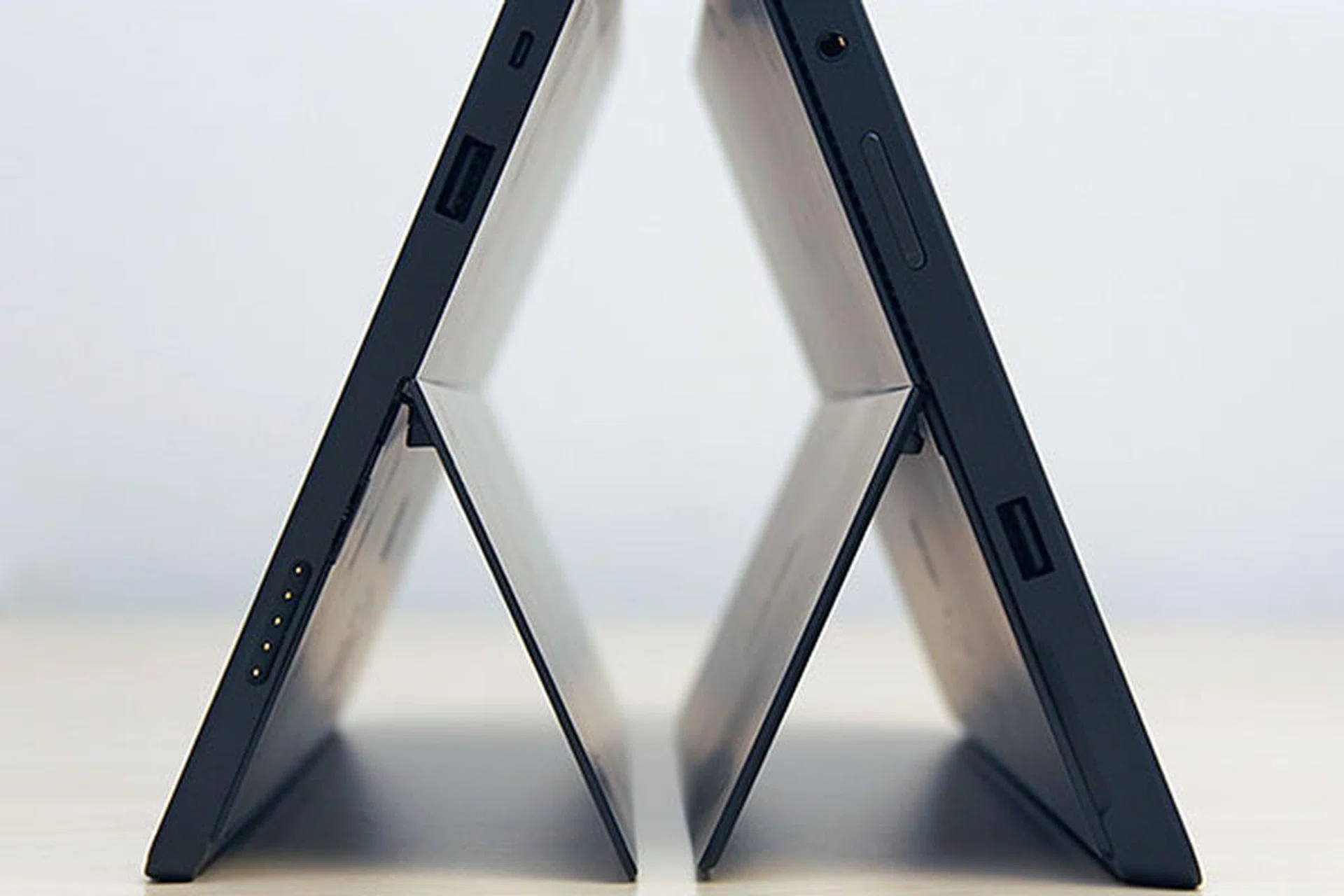
The Surface Pro (on the right) is 44% thicker than the Surface RT. It also tilts slightly more towards the back (26 vs. 22 degrees).
Also, it’s perhaps fair to say the Surface Pro (and the Surface RT) isn’t as easy to balance on the lap as compared to the traditional notebook form factor where most of the components (and hence the weight) are at the base, underneath the keyboard. Don’t get us wrong: it can most certainly be done as it all depends on how you sit. For us however, the fear of inadvertently closing the kickstand and causing the top-heavy screen to topple over is constantly at the back of our mind. If you’re using the Surface Pro with the keyboard cover on your lap, our recommendation is to close the kickstand and lay everything flat. Of course, if you’re on your feet and you need to type, it’s simpler to just hold the tablet with both hands and use the on-screen split keyboard. That said, at over 900 grams, you probably won't be able to hold it comfortably for a long time.
For all these reasons, the slider form-factor UItrabooks are actually very comfortable and versatile to suit various usage positions and scenarios if this is of high priority. These of course have keyboards integrated within the design and thus weigh a more than the Surface Pro without its keyboard accessory. Among the most versatile of these slider form-factor notebooks is the MSI Slidebook S20 that we recently reviewed. The more famous option would be the Sony Vaio Duo 11, but it's screen only slides out for a fixed angle of use.
Versus the Surface RT
As you can see from the images above, even if you were to place the Surface Pro and Surface RT side by side, it’s hard to differentiate the two from the front. But the distinctions are immediately obvious when you look at them from the sides and back. With regards to terminal layout, the Surface Pro has, in our opinion, done a better job than its thinner sibling. For one, the microSDXC card slot is no longer hidden under the kickstand, as in the case for the Surface RT. On the Surface Pro, it’s found on the right side, closer to the top; this naturally makes card insertion and removal much easier.
Secondly, instead of placing the mini-DisplayPort terminal next to the microSDXC slot, the Surface Pro has it all the way at the bottom, below the magnetic power port. This makes cable management in a docked scenario simpler. However, there are some people who are concerned about this placement, and for good reason. Because it’s so near to the power port, it has to fight for space with the cable that’s running down from the power connector. So far, that hasn’t posed any problem for us. If you’re worried about the strain relief on the charger’s power tip, one workaround is to connect it upside down, so that the cable runs out from the top instead. Don’t worry, it still charges and powers the Surface Pro just fine; the only caveat is that you now can’t see the LED power indicator on the connector.
And speaking of power, unlike the Surface RT that comes with a wall wart-type AC adapter, the Surface Pro requires an external power brick. But this brick has a built-in 5W USB port meant for charging your USB devices, which is a nice touch. Interestingly, the Surface RT’s lighter and cheaper 24W power adapter is able to maintain the charge of an in-use Surface Pro, and this is good news for Surface Pro users who are thinking of buying another charger for travel use.
Another thing worth pointing out is that this magnetic power port is also where you store the bundled digital pen when you aren't using it (what were you expecting - a storage hole?). While the magnets are fairly strong, there's always a risk of it dropping off when it brushes against something. Also, this means that you've no choice but to detach it from the port when you want to charge the Surface Pro. And oh, you definitely have to remove the pen when you want to connect to an external display, because it obstructs the mini DisplayPort.
Protip: When using the power adapter, check that the LED indicator comes on. We've had a couple of instances where the power connector snapped onto the power port but the light didn't come on, which means it wasn't charging.
Since a picture speaks a thousand words, here are some images to help illustrate our points above:
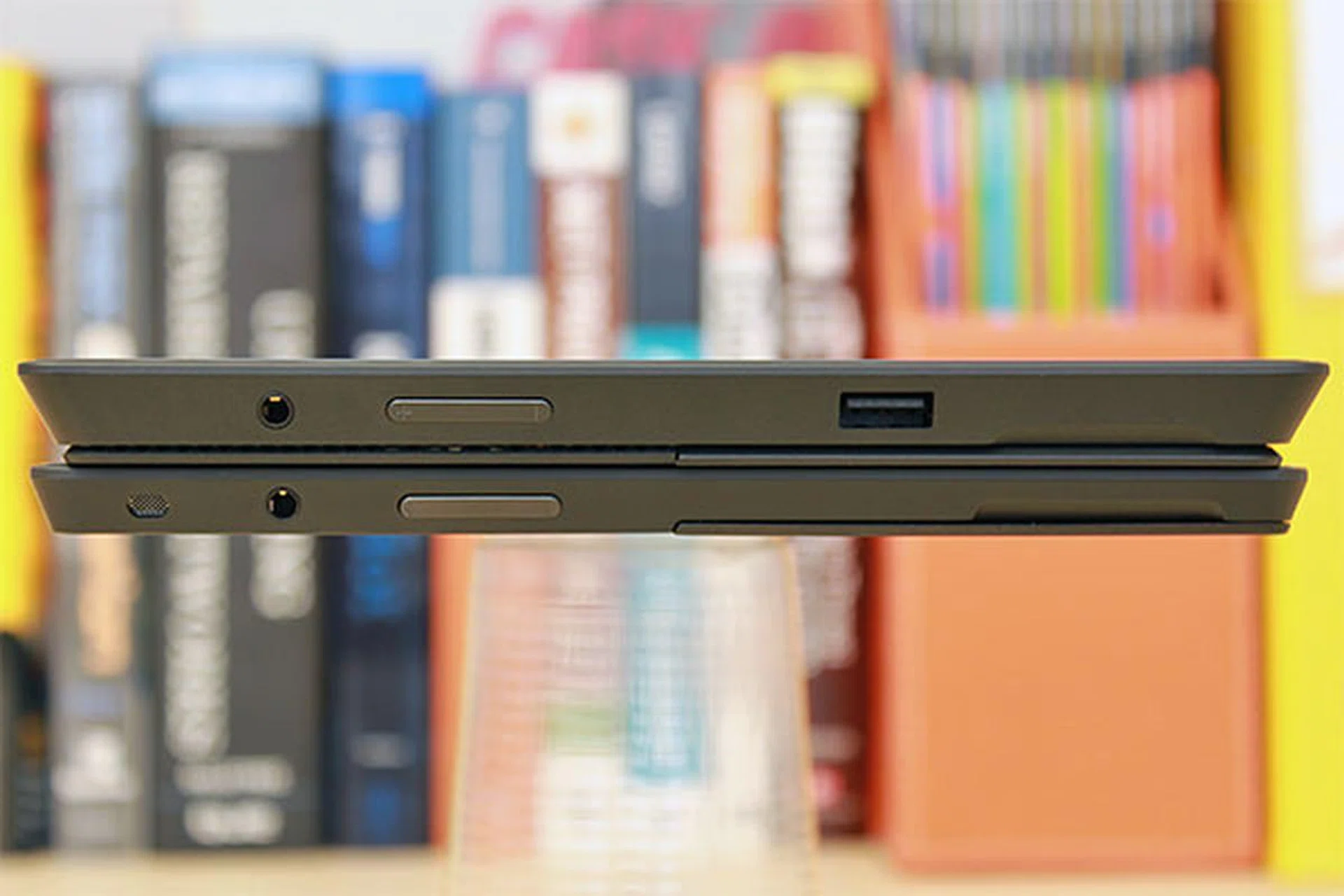
The USB 3.0 port resides on the left side of the Surface Pro (the one on top), whereas the sole USB 2.0 port on the Surface RT is found on the right. In addition to the headphone jack and volume rocker, the Surface RT also has a speaker hole on this side.
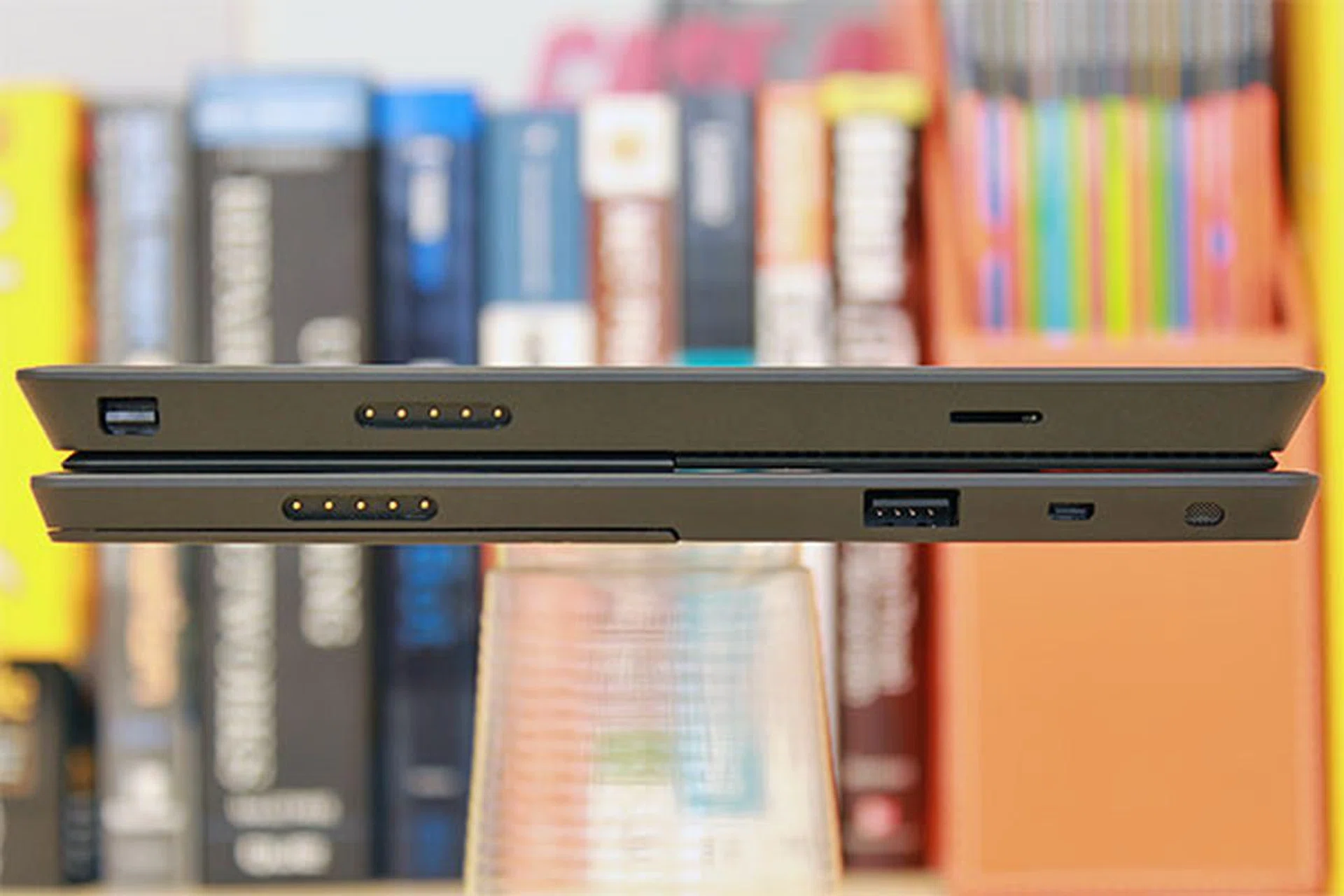
Port layout of the two devices is quite different on the right side. The Surface Pro has (from left) a mini-DisplayPort, power port, and a microSDXC card slot. The Surface RT's micro HDMI terminal is towards the far right in this picture; that means when it's standing, the port is nearer to the top.

You'll have to twist the cable running down from the power connector slightly for it not to obstruct the mini-DisplayPort cable connector on the Surface Pro. Alternatively, you can plug your power connector the other way around so that the cable runs from the top (but you can't see the power indicator anymore).
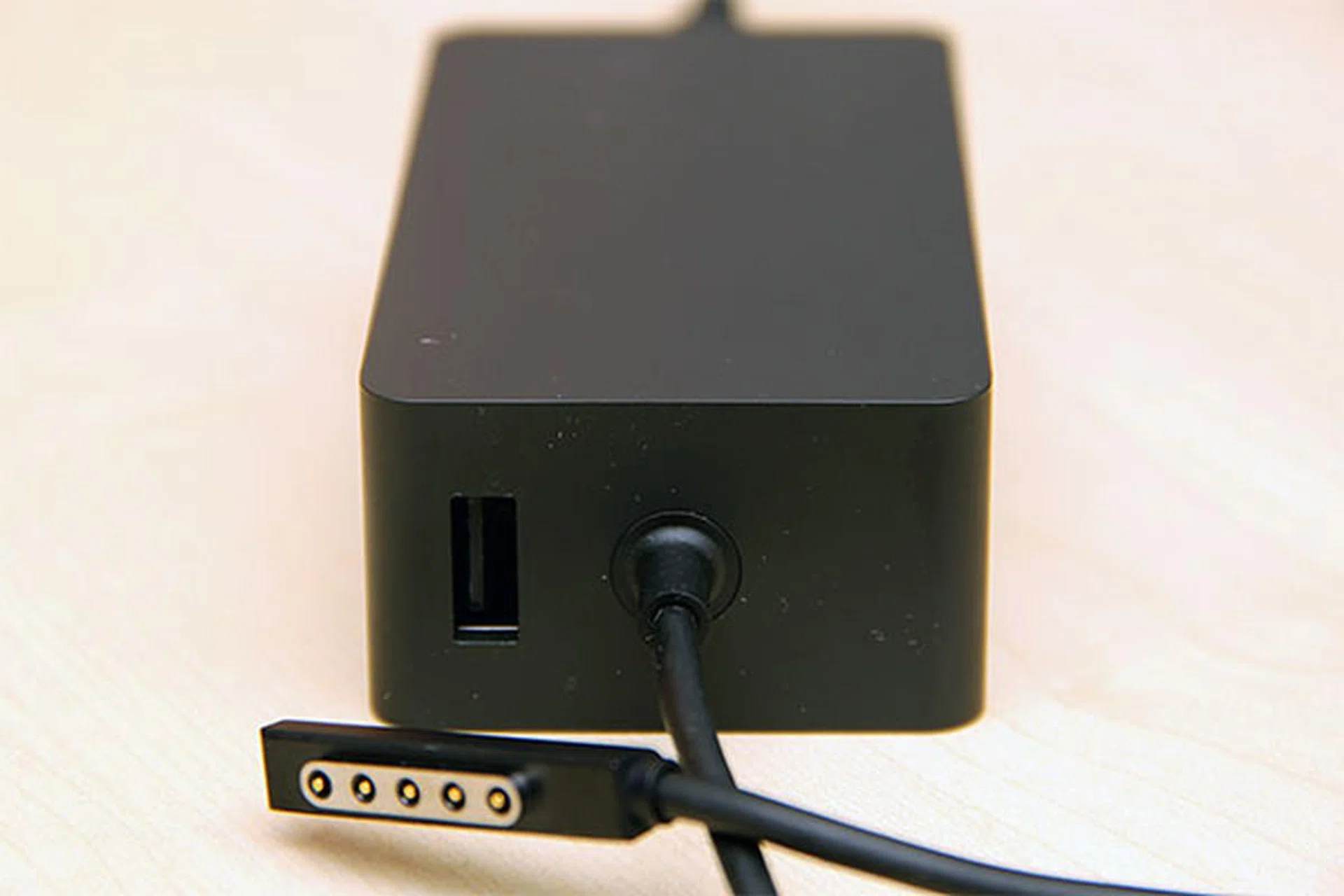
Unlike the Surface RT that comes with a wall wart-type AC adapter, the Surface Pro requires a power brick (12V, 3.6A). On the brick itself there's a 5W USB port (5V, 1A) for charging your USB devices.
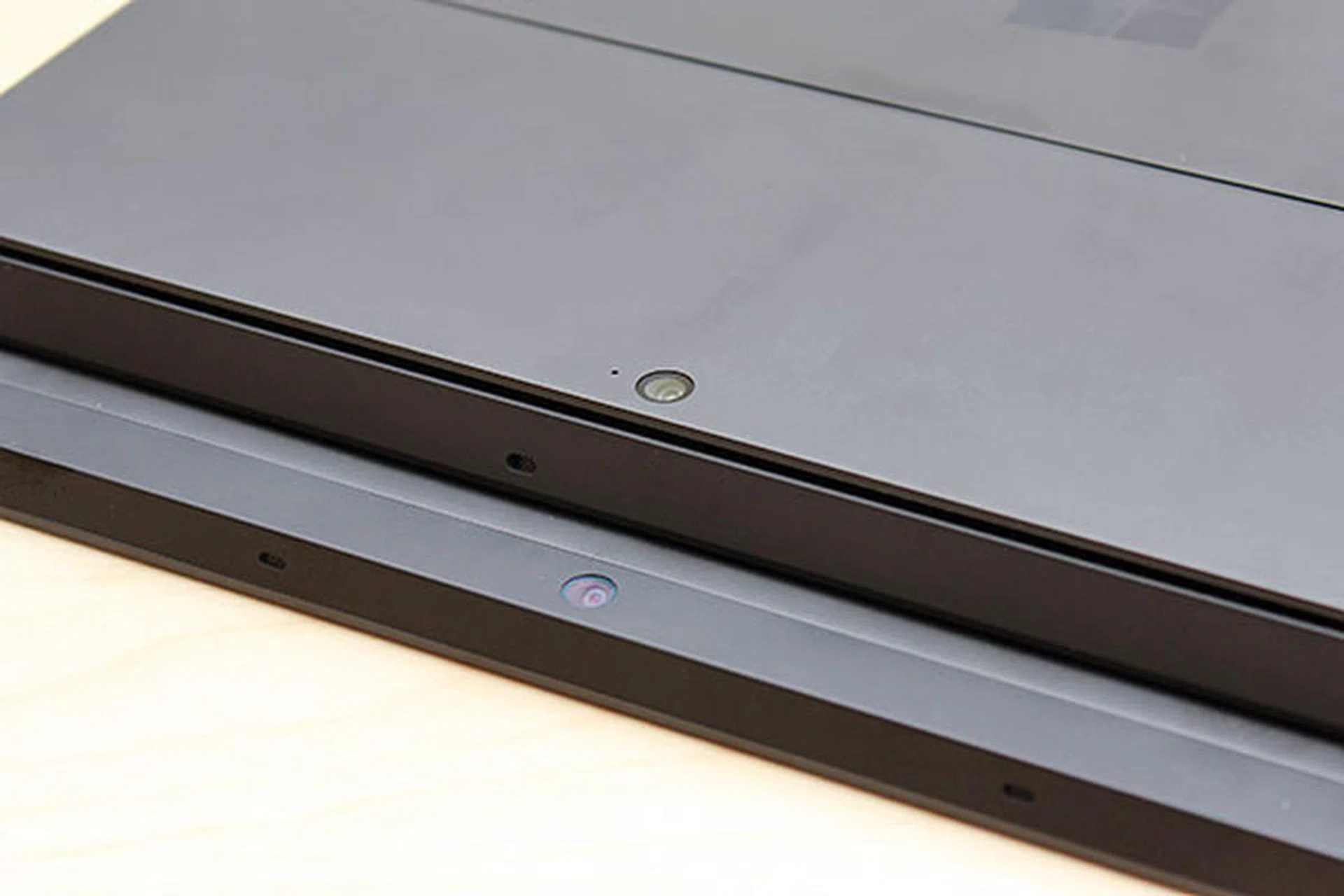
Both the Surface Pro and Surface RT come with 720p front and rear-facing cameras. But did you notice that their rear-facing camera is angled upwards? This is to allow the camera to shoot straight ahead (instead of shooting at the floor) when the kickstand is used. Also, the slit that runs around the Surface Pro serves as an air vent for the two fans within.
ClearType Full HD Display
Another reason to go for the higher-end Surface Pro is that it comes with a full HD 1,920 x 1,080-pixel screen resolution, compared to the 1,366 x 768-pixel screen that’s on the Surface RT (both are of 16:9 aspect ratio). A capacitive touchscreen, it supports 10-point multi-touch (5-point for the Surface RT). This basically means that it’ll recognize each unique input from all ten fingers of your hands. While most people don’t need that for creating a PowerPoint slide or doing a pinch-to-zoom gesture, it can be useful in apps (piano apps, fruit-slicing games, sculpting apps, etc.) that require such multi-finger interaction.
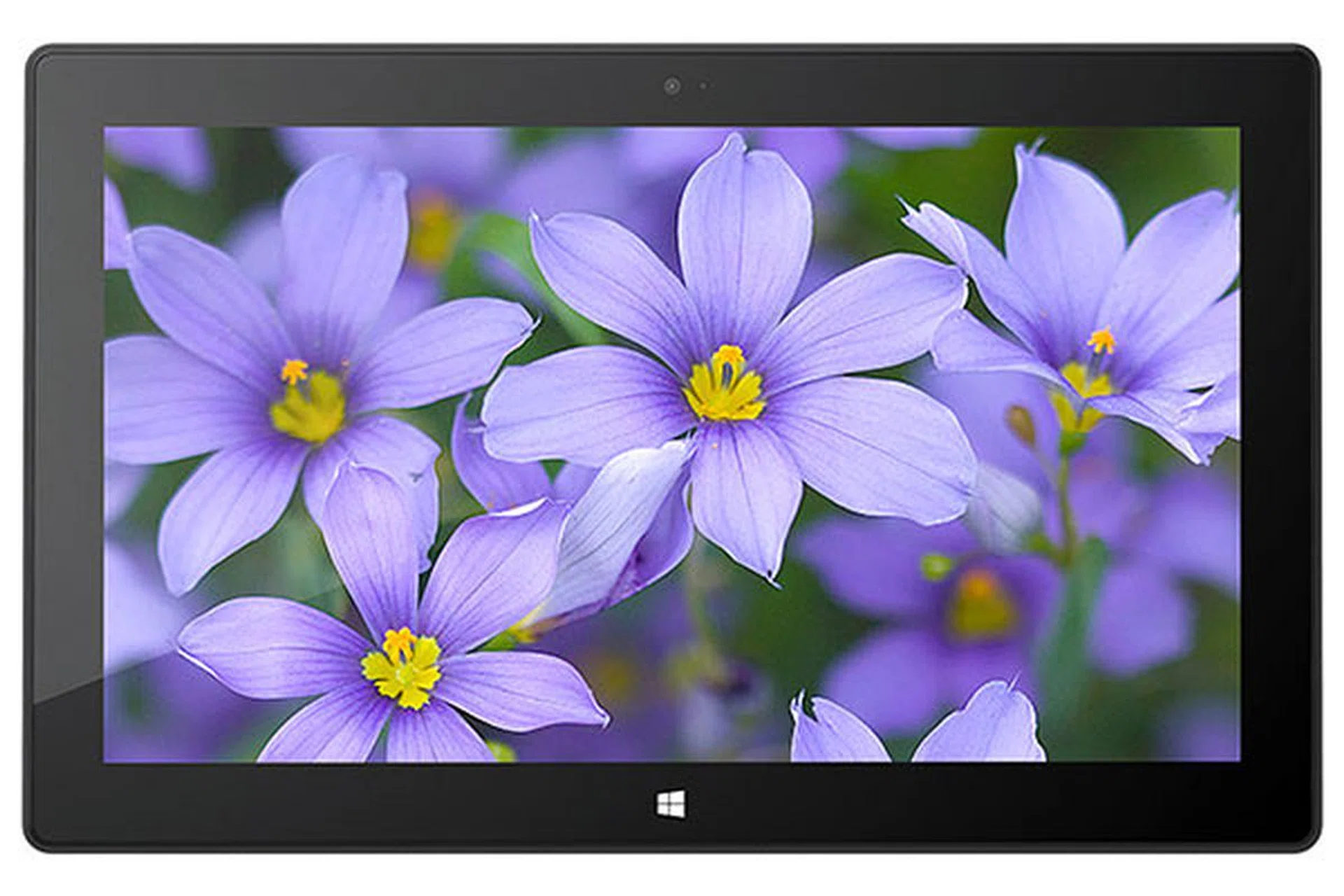
Full HD resolution, 10-point multi-touch, what's there not to like about the Surface Pro's screen?
The Surface (both RT and Pro) has black bezels surrounding the LCD. At close to 2cm, it’s a necessary evil as it provides ample room for Windows 8 touch gestures whose starting point is at the edge of the screen (such as swiping in from the right to reveal the Charms bar). To make the transition from bezel to screen more seamless, a continuous sheet of glass (Gorilla Glass 2) that covers both Surface tablets is used as the topmost layer. In the middle of the bottom bezel is a Windows logo that also incorporates a capacitive touch sensor. This is a notch better than most other Windows 8 tablets or notebooks that come with a physical Windows button. It acts like the Start Charm: pressing it brings you to the Windows 8 Start screen wherever you are; pressing it again brings you back to where you came from.
Pen Input: Great, Depending on Who You Asked
Besides a capacitive touch layer, the Surface Pro also has an active digitizer layer that enables pen input (apparently based on Wacom’s Electro-Magnetic Resonance technology). For those who are confused, both the Surface RT and Surface Pro support a capacitive stylus, but only the latter has the EMR grid to support electromagnetic pen input. Besides higher accuracy (a digital pen has a tip just like a ballpoint, unlike a capacitive stylus where its tip typically mimics the shape of a fingertip), the US$30 Surface Pen that comes free with the Surface Pro supports 1,024 levels of pressure sensitivity, and this is sweet music to the ears of digital artists. Simply put, you can use the digital pen the same way as you would with real pens, where thickness/darkness of a line depends on how hard you press the pen on the screen, for example. The pen also has a ‘eraser’ top that works like a pencil eraser, allowing you to delete pen strokes, and a single button near the bottom of the barrel for simulating a right-click. When you’re using the pen, a very effective palm block technology also kicks in to reject unwanted hand touches on the screen. And if you so desire, you can use Windows 8's Second Screen (also known as Display Switch) function to project the image on a connected monitor. Because you can continue to write on the Surface Pro's screen even when it's turned off, it effectively becomes a pen tablet.
So far, so good.

iFixit's teardown of the Surface Pro revealed a Wacom W9002 chip. (Image source: iFixit.)
But here comes the bad news. Unless an app supports the new Windows Inbox drivers (that is, drivers that come with the OS) and Ink APIs (application programming interfaces), advanced features like pen pressure and eraser don’t work, let alone things like tilt, rotation, touch pan and zoom that many professional digital artists rely on. For pressure sensitivity, Autodesk’s SketchBook Pro 6 works, so does AmbientDesign’s Artrage 4. But it doesn’t work in - drum roll - Adobe’s Photoshop, Pixologic’s ZBrush, or any of Toon Boom Animation’s software.
Of course, the list of what works and what doesn’t is longer than what we’ve mentioned here - so if the digital pen is your number one reason for buying the Surface Pro, our advice is to do a bit of research to find out if your software of choice works first.
Fortunately, there’s light at the end of the tunnel. Microsoft has gone on record (here, and more recently, here) to say that it’s working with Wacom to provide a Wintab driver for the Surface Pro. When that happens, the Surface Pro will regain the pressure feature on apps that rely on the Wintab APIs, and maybe other advanced features like touch pan and zoom. Another scenario that could pan out is that Microsoft successfully persuades app developers to use its new APIs, but we feel that’s quite unlikely.
Update: Wacom has on May 9 released a new Windows 8 driver for systems that use Wacom's Feel IT technology. While it doesn't mention anything about the Surface Pro, we've verified that it does indeed work on the tablet, and it brings pen pressure sensitivity for apps like Photoshop. At the moment, the driver isn't available over Windows Update. You can read more about this news here.
For non-digital artists though, this is of course a non-issue, and the presence of the digital pen should be chalked up as a plus. You can use it to select small screen elements, navigate the UI, and the like. For writing of notes and sketching of ideas in apps like OneNote, the Surface Pen performs brilliantly, and that's great news for students and business users alike.
Protip: Misplaced your Surface Pen? If you've a Samsung Galaxy Note (which also uses a Wacom digitizer), its stylus is a good stop gap.
The Issue with 150% DPI Desktop Scaling
Remember that at the beginning of this section, we said that one huge advantage the Surface Pro has over the Surface RT is its full HD 1,920 x 1,080-pixel screen? Generally, a higher-res screen means more screen real estate, which in turn means you can fit more stuff (data, controls, toolbars, windows - you get the idea) on the screen at any one time. However, to maintain good usability, screen size should also be taken into account. So, it doesn’t make sense to shrink the physical size of UI elements on a small screen to fit more data just because it has a high PPI (pixels per inch) spec, because that will make touch elements hard to hit and text too small to read.
Windows 8’s Modern-style (Metro) environment is clever in the sense that it takes both screen resolution and size into consideration. This is why despite the Surface Pro’s higher screen resolution, the Start screen maintains three rows of tiles, just like the Surface RT. The similarities continue in Modern-style apps. Indeed, when placed side by side, you would have thought that the Surface RT and Surface Pro's screens have the same resolution.
But that’s not to say there’s no point having the full HD screen. Up close, the pixel structure of the Surface RT’s 1,366 x 768-pixel screen is more evident, and text certainly looks sharper on the Surface Pro. Notice we said ‘up close’, and that’s coming from a reviewer with 20/20 vision.
Interestingly, at the desktop environment, the Surface Pro also looks remarkably similar to the Surface RT. And that’s because the former ships with desktop scaling set at 150%. The reason for not doing 100% is because that will make text and other on-screen elements too tiny (to read and to tap) on a 10.6-inch screen.
(For those interested, Apple uses 200% for its products that use a ‘Retina display’, such as the 13.3-inch MacBook Pro with Retina Display. Even though it has an insane native resolution of 2,560 x 1600 pixels, the default screen estate is the same as what you get on a regular MacBook Pro with a 1,280 x 800-pixel screen. Of course, the former still looks sharper, provided matching high-res assets are used.)

At 100%, you get to fit more content on the screen, but that also means text and other UI elements get smaller.
But a 100% scaling is exactly what you want when you hook up the Surface Pro to an external large-screen monitor. However, such desktop scaling can’t be done on the fly; after selecting the scale factor (100%, 125%, or 150%), you need to sign out and sign in again for the change to take effect. But that’s a minor inconvenience that we can live with.
The bigger problem is that not all desktop apps resize well. Some apps (like Photoshop) totally ignore the scale factor, while some apps (like Spotify) obey it, but ends up with blurry text and icons.

Here are the 100% crops of the Spotify desktop app under two different desktop scale settings. While the app scales to 150% accordingly, notice that the larger text looks a bit fuzzy now and the images aren't as sharp as before.
There’s also trouble brewing in multi-monitor land. If you aren’t using the Surface Pro’s screen (the Screen Resolution control panel allows you to project on only one display), switching the desktop scaling to 100% makes sense, as this allows for the maximum amount of content to be shown on the external monitor. Readability isn’t sacrificed because of the larger physical size of this display. Furthermore, the Modern environment now takes into account of the larger display. For example, on our 23-inch 1080p monitor, the Start screen now shows six rows of tiles.
But what if you want to use the external monitor in an extended desktop mode? Sadly, there’s no way as of now for each display to have its own scale factor. That means, if the Surface Pro’s desktop scaling is set at 150%, the external monitor will have to use that too. On our 23-inch monitor, the larger on-screen elements still looked okay, but they became comically oversized as the monitor got larger. To make best use of the larger display’s real estate, we had to switch to 100%; but now, the on-screen elements on the Surface Pro’s desktop became woefully small. There’s a 125% setting which can be used as a middle ground, but what’s really needed is a feature that lets the user set the scaling factor of the built-in and external displays independently.
The good news is, Microsoft’s Panos Panay, who is in charge of the Surface team, has acknowledged this and said that they’re working on a fix during a Reddit chat in February. During the chat, he also shared how he uses the Surface Pro with an external monitor, so check it out for more tips.
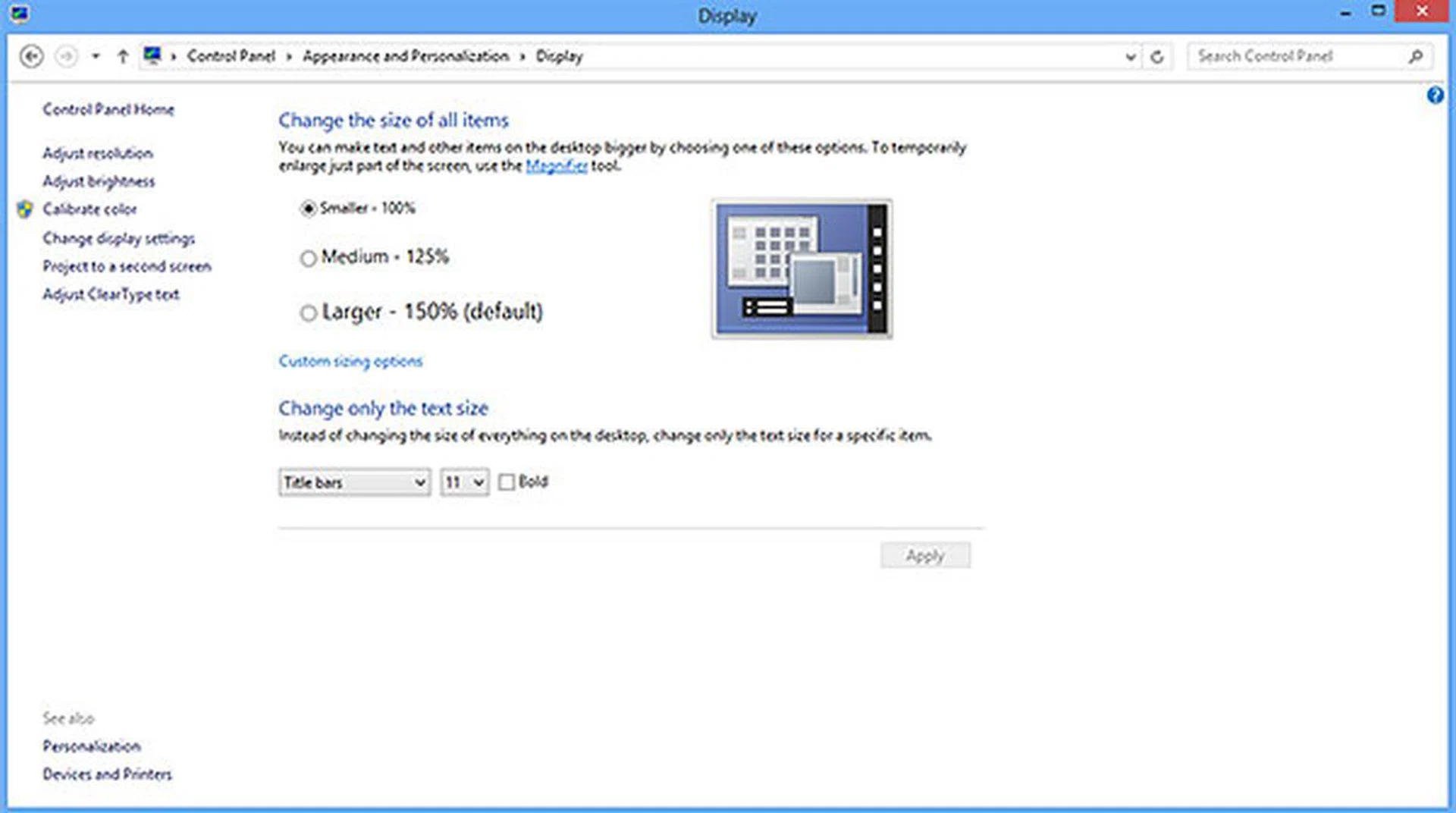
Here's how to get to the desktop scale settings: Right-click on the desktop > Screen resolution > Make text and other items larger or smaller.
Performance & Benchmarking (I)
Here's a quick recap: The Surface Pro uses the mobile Intel HM77 Express chipset, which integrates USB 3.0 on a single chip architecture. Like the Samsung Ativ Smart PC Pro, which is arguably its nearest rival in the Intel Core i5, Windows 8 hybrid device segment, the Surface Pro only has one USB 3.0 port. But Samsung offers a keyboard dock that comes with two USB 2.0 ports. As we know, the Touch and Type Covers have none.
The Surface Pro also features an Intel Core i5-3317U processor that runs at 1.7GHz, but with a maximum turbo frequency of 2.6GHz. This is a common 17W part used in many existing Windows 8 Ultrabooks. The Intel HD Graphics 4000 integrated graphics processor is of course no stranger to us as well.
6Gbps mSATA SSD
Unlike the Surface RT that uses an eMMC storage solution, the Surface Pro supports 6Gbps SSD (read: fast) in an mSATA format. While iFixit’s teardown of the tablet revealed a Micron RealSSD C400, ours came with (presumably) a Samsung PM830 OEM SSD instead; Device Manager identifies it as a Samsung MZMPC128HBFU-000MV. It’s no high-end SSD that’s for sure, but it’s still way faster than the eMMC-based flash memory storage system used by most tablets.
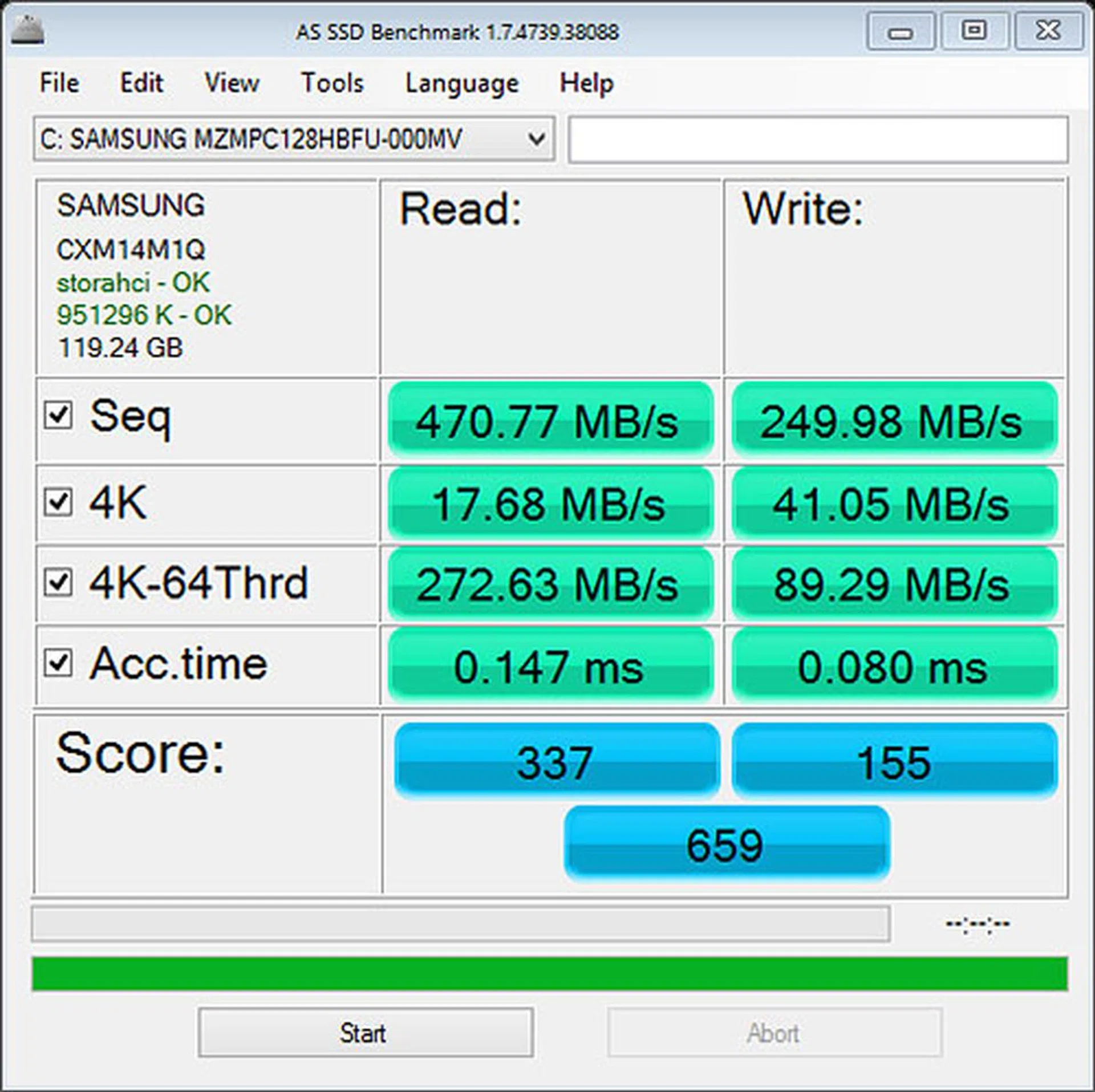
With well over 400MB/s and 200MB/s for sequential reads and writes respectively, we've no complains with the Surface Pro's SSD.
Like our Surface RT recommendation, we think it’s worth to top up the difference to get the higher capacity Surface Pro. That’s because the 64GB edition has approximately 30GB and the 128GB edition 89GB of storage space left for your own content; the rest of the space is taken up by the OS and bundled apps. One saving grace is that the tablets come with a microSDXC card slot for further storage expansion.
Fast Boot Times
The Surface Pro starts up in about eight seconds, and resumes from sleep mode in just under two seconds. The fast startup time is no doubt a result of Windows 8’s Fast Startup feature (the fast CPU and SSD help too) that saves system info to a file during shutdown, and uses that info when resuming the device, instead of doing a full system initiation. When we did a full shutdown (that is, running a ‘shutdown /s /f / t 0’ command), we got a boot time of about 12 seconds.
Another thing worth noting is that unlike the Surface RT, the Surface Pro doesn’t go into Connected Standby mode. In this mode, the device is still connected to the Internet, so even though it’s ‘sleeping’, it’s able to perform tasks like receiving notifications or downloading email. If you aren’t using the Surface Pro for a while, it’ll go to sleep just like any other notebook, and shut down its Wi-Fi connection. In a nutshell, the Ivy Bridge-based Surface Pro offers close to but not exactly the same instant on, always connected behaviors of currently shipping ARM-based tablets, like the Surface RT, iPad, and Android tablets. Connected Standby is supported by Intel’s next-generation Haswell platform (the other being the dual-core Atom Z2760, codenamed CloverTrail); without accident, we should see it on the second-generation Surface Pro.
And oh, unlike the Surface RT, you can’t wake the Surface Pro by opening your Touch or Type Cover; you’ve to press and release the power button.
Wireless
The Surface Pro doesn’t come with a LAN port, but has built-in support for Wi-Fi 802.11a/b/g/n standards, in addition to Bluetooth 4.0, courtesy of a Marvell Avastar 88W8797 2x2 dual-band wireless radio chipset. And since the tablet uses a Marvell wireless adapter (Avastar 350N) and not an Intel wireless adapter, it won’t support Intel’s WiDi wireless display standard for streaming content to an HDTV.
Overall, Wi-Fi performance (both speed and range) is good, but not exceptional. What’s more important to highlight here is that the Surface Pro is also affected by the ‘Limited Connectivity’ Wi-Fi issue that has been plaguing the Surface RT since the latter’s launch, and which usually requires a reboot to resolve. The good news is that Microsoft has been pushing out firmware and driver updates regularly, and we’ve yet to see this problem crop up again on our Surface Pro since the March update.
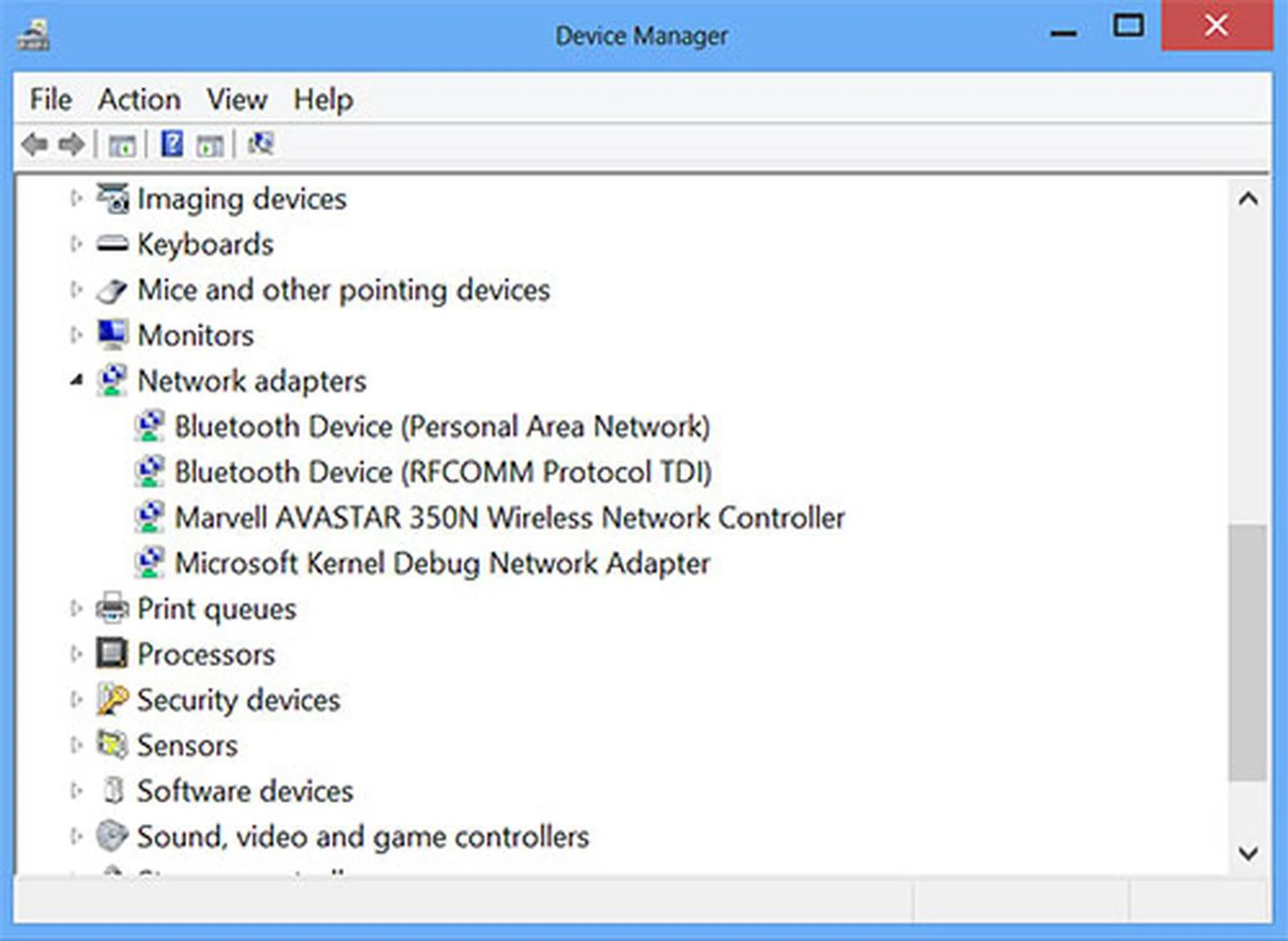
No Intel wireless adapter means no Intel wireless display (WiDi) function.
Performance & Benchmarking (II)
In terms of form factor (tablet with the option of attaching a keyboard) and specs (Intel HM77 chipset, Core i5-3317U 1.7GHz CPU, SSD), the closest competitor to the Surface Pro is the Samsung Ativ Smart PC Pro. But there are also several other Windows 8 Ultrabooks that sport very similar specs; the main differences being their form factor (many of them are convertibles, which means that while the keyboard isn’t detachable, it can be flipped entirely over or tucked underneath the screen) and screen size. Below is a list of the devices we’re pitting the Surface Pro against.
Specs/Device | Microsoft Surface Pro | |||||
CPU | Intel Core i5-3317U (1.7GHz) | Intel Core i5-3317U (1.7GHz) | Intel Core i5-3317U (1.7GHz) | Intel Core i5-3317U (1.7GHz) | Intel Core i5-3337U (1.8GHz) | Intel Core i7-3517U (1.9GHz) |
Chipset | Intel HM77 | Intel HM77 | Intel QS77 | Intel QS77 | Intel HM77 | Intel HM76 |
RAM | 4GB DDR3-1600 | 4GB DDR3-1600 | 4GB DDR3L-1600 | 4GB DDR3-1600 | 4GB DDR3-1600 | 8GB DDR3L-1600 |
Storage | 128GB SSD | 128GB SSD | 128GB SSD | 128GB SSD | 128GB SSD | 256GB SSD |
Graphics | Intel HD Graphics 4000 | Intel HD Graphics 4000 | Intel HD Graphics 4000 | Intel HD Graphics 4000 | Intel HD Graphics 4000 | Intel HD Graphics 4000 |
Display | 10.6", full HD | 11.6", full HD | 12.5", full HD | 13.3", 1,600 x 900 pixels | 11.6", full HD | 11.6", full HD |
Battery | 42Wh | 49Wh | 47Wh | 54.7Wh | 35Wh | 36Wh |
Dimensions | 275 x 173 x 14 / 20mm (w/ Type Cover) | 304 x 189 x 12 / 22mm (w/ dock) | 317 x 214 x 20mm | 333 x 223 x 16mm | 303 x 196 x 20mm | 320 x 199 x 18mm |
Weight | 0.91 / 1.16kg (w/ Type Cover) | 0.89 / 1.6kg (w/ dock) | 1.54kg | 1.46kg | 1.16kg | 1.305kg |
Form Factor | Hybrid | Hybrid | Convertible | Convertible | Convertible | Convertible |
PCMark 7
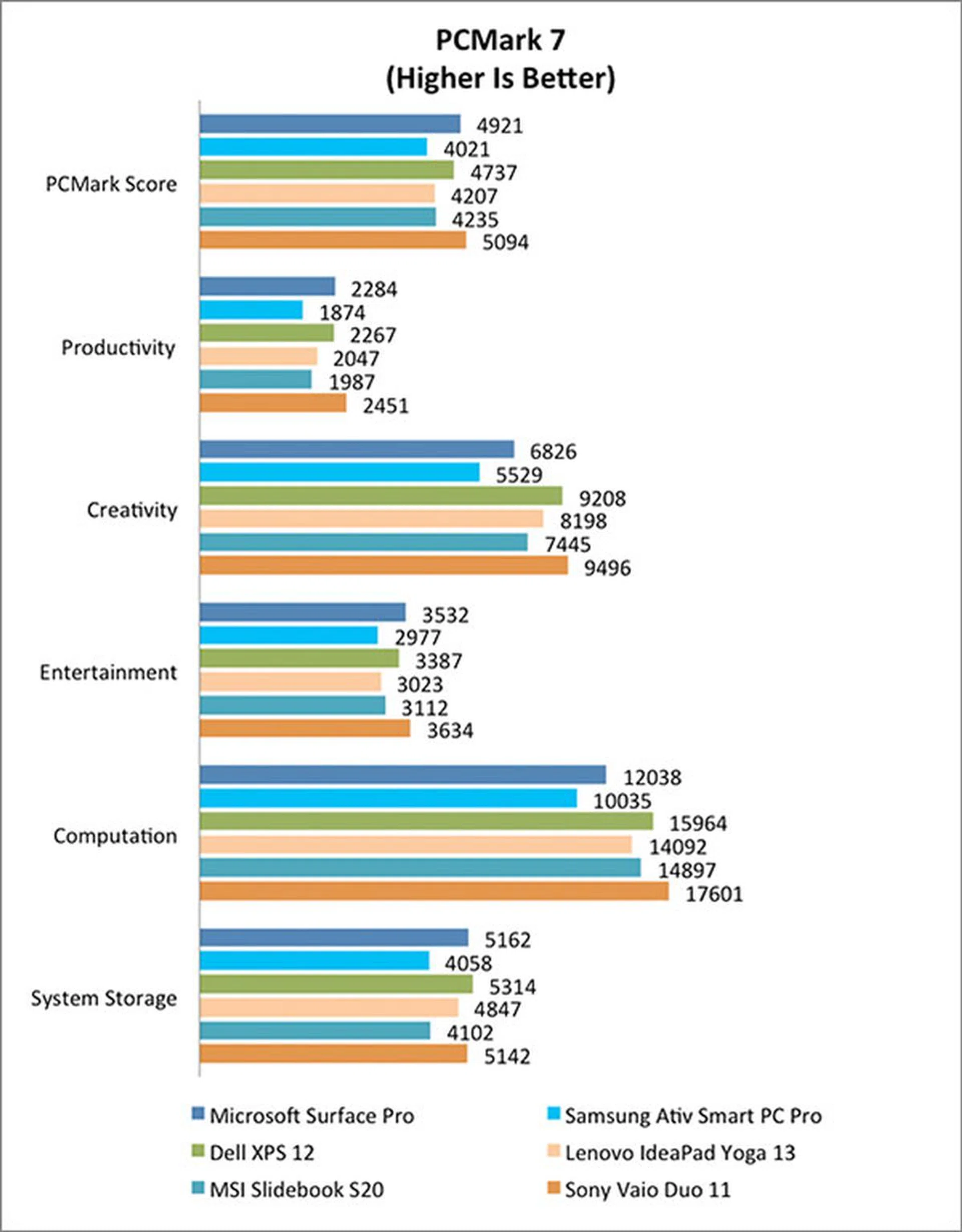
Futuremark's PCMark 7 is a popular benchmarking tool for testing all aspects of a PC, from storage and computation, to image and video manipulation, Internet browsing, and gaming. The Surface Pro managed a chart-topping score of 4,921, some 900 points higher than the Samsung Smart PC Pro. In truth though, we hardly noticed any sluggishness during real world use for the latter. Unsurprisingly, Microsoft's tablet also fared well against the other Core i5-equipped convertible Ultrabooks. It even came close to the Core i7-equipped Sony Vaio Duo 11.
3DMark 11 & Far Cry 2
3DMark 11 is used to measure the graphics performance of PCs, and is popular among those who want to know the performance of their DirectX 11-capable gaming PCs. While the Surface Pro isn't marketed as a gaming notebook, we still gave it the 3DMark 11 treatment to see how it stacks up against other similarly spec'd notebooks.
Expectedly, the Surface Pro turned in a 3DMark 11 result that's in line with other Intel Core i5 notebooks that use the integrated HD 4000 graphics engine. In other words, hardcore gamers need not apply. Sure, you can play Portal 2 on the Surface Pro, but you probably wouldn't want to use the highest settings unless you enjoy a stuttering gameplay. But if you're looking to take a break from a day's work with a quick World of Warcraft session, the Surface Pro hums along just fine on the 'Fair' preset.

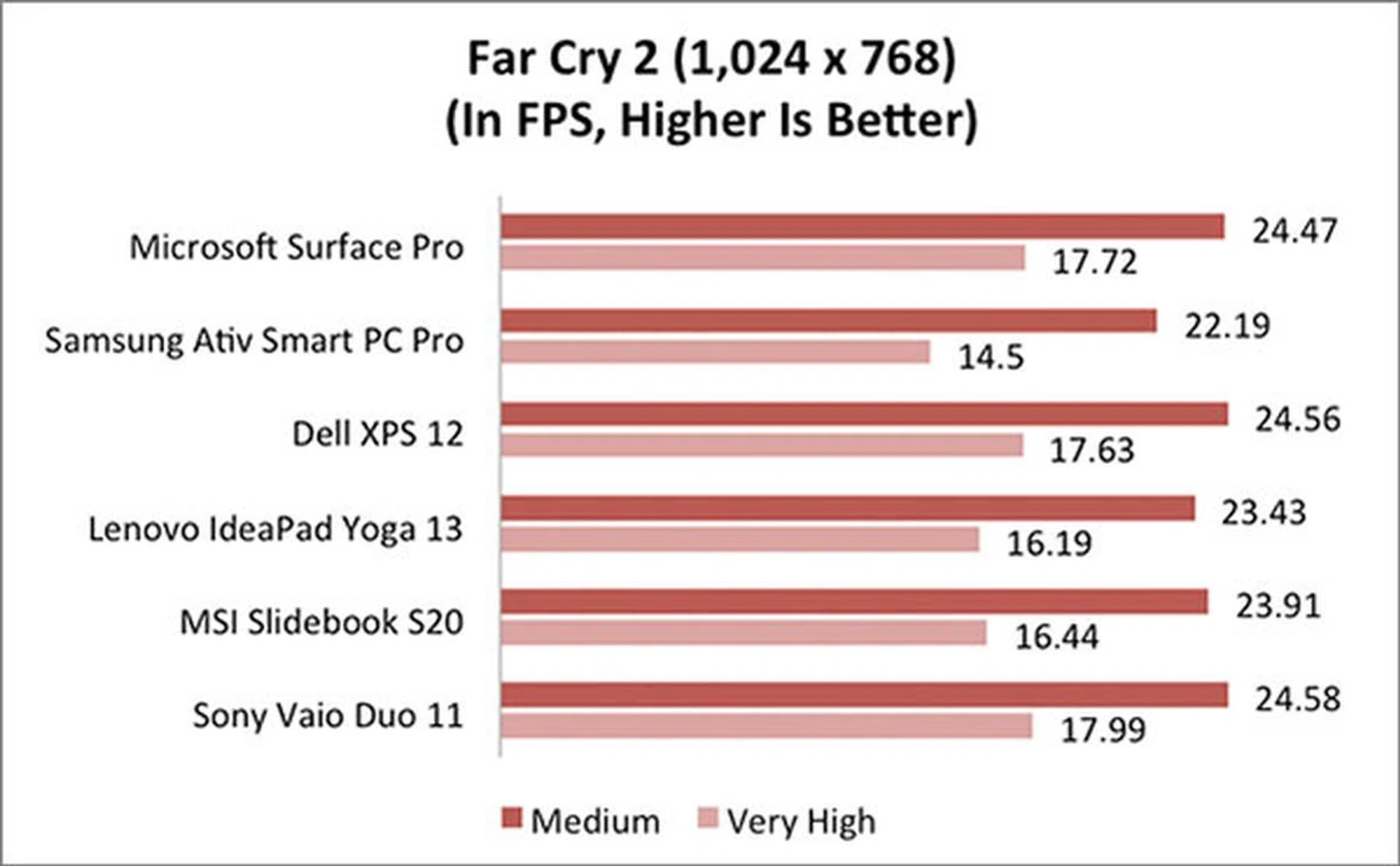
For another point of reference, we used Far Cry 2, a DirectX 10 title, as a framerate benchmark; this time, running at a more sane resolution of 1,024 x 768. Our conclusion that the Surface Pro is a decent casual gaming system (like most Ultrabooks) remains.
By the way, the Surface Pro supports the Xbox 360's wired controller. Unfortunately, there's only one USB port on the tablet. You can use a wireless controller, but that too requires you to connect a receiver to the sole USB port.
SunSpider JavaScript
'No compromise' is the buzz phrase that Microsoft has been using for Windows 8. Designed for both touch and keyboard/mouse use, it enables all sorts of hardware form factors. In Microsoft's own words, the Surface Pro is 'a powerful PC in tablet form'. We already know that it possesses superior horsepower compared to ARM-based tablets, but does that matter to browser performance? For that, we turn to SunSpider, a web-based benchmark that tests the core JavaScript language. For this test, we pitted the Surface Pro against several ARM-based tablets; each device's stock browser was used.
Specs/Device | Microsoft Surface Pro | Apple iPad (4th-gen) | ||||
CPU | Intel Core i5-3317U (Dual-core, 1.7GHz) | NVIDIA Tegra 3 (Quad-core, 1.3GHz) | NVIDIA Tegra 3 (Quad-core, 1.3GHz) | Apple A6X (Dual-core, 1.4GHz) | Samsung Exynos 4 Quad (Quad-core, 1.4GHz) | NVIDIA Tegra 3 (Quad-core, 1.4GHz) |
GPU | Intel HD Graphics 4000 | ULP GeForce | ULP GeForce | PowerVR SGX 554MP4 | Mali 400MP | ULP GeForce |
RAM | 4GB | 2GB | 2GB | 1GB | 2GB | 1GB |
OS | Windows 8 Pro | Windows RT | Windows RT | iOS 6 | Android 4.0.4 | Android 4.0.3 |
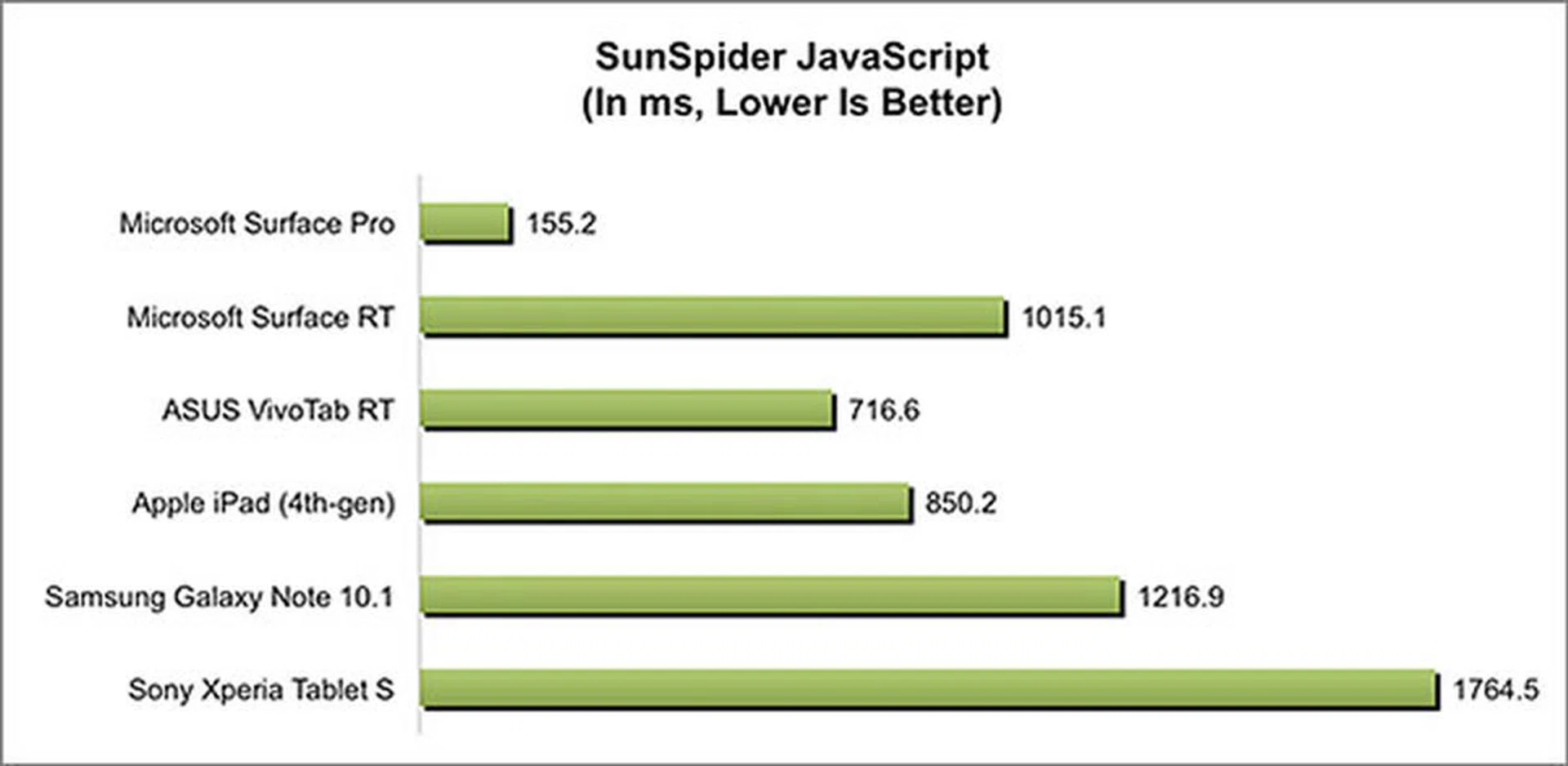
In a nutshell, the Surface Pro is a super-fast tablet. But the result really shouldn't come as too much of a surprise: after all, the Surface Pro is essentially a PC, packing the raw power of an Intel Core i5 CPU. Of course, the practicality of using it like how you'd with an ARM-based tablet is another story, no thanks to its weight and bulk. But remember, while ARM-based chipsets (from the likes of NVIDIA, Qualcomm, Texas Instruments, Apple) are getting more powerful all the time, Intel's processors too are getting increasingly more energy efficient. The possibility of a Surface Pro with the thickness and weight of a Surface RT, with power consumption and battery life comparable to ARM-based tablets is very real in the next couple of years.
Battery Life
The Surface Pro gets its juice from a 42Wh battery. With its hybrid form factor, it's safe to say that it's gunning for the same group of consumers as Ultrabooks. Thus, it's not unreasonable to expect similar battery life performance. Sadly, this is exactly the Surface Pro's Achilles' heel.
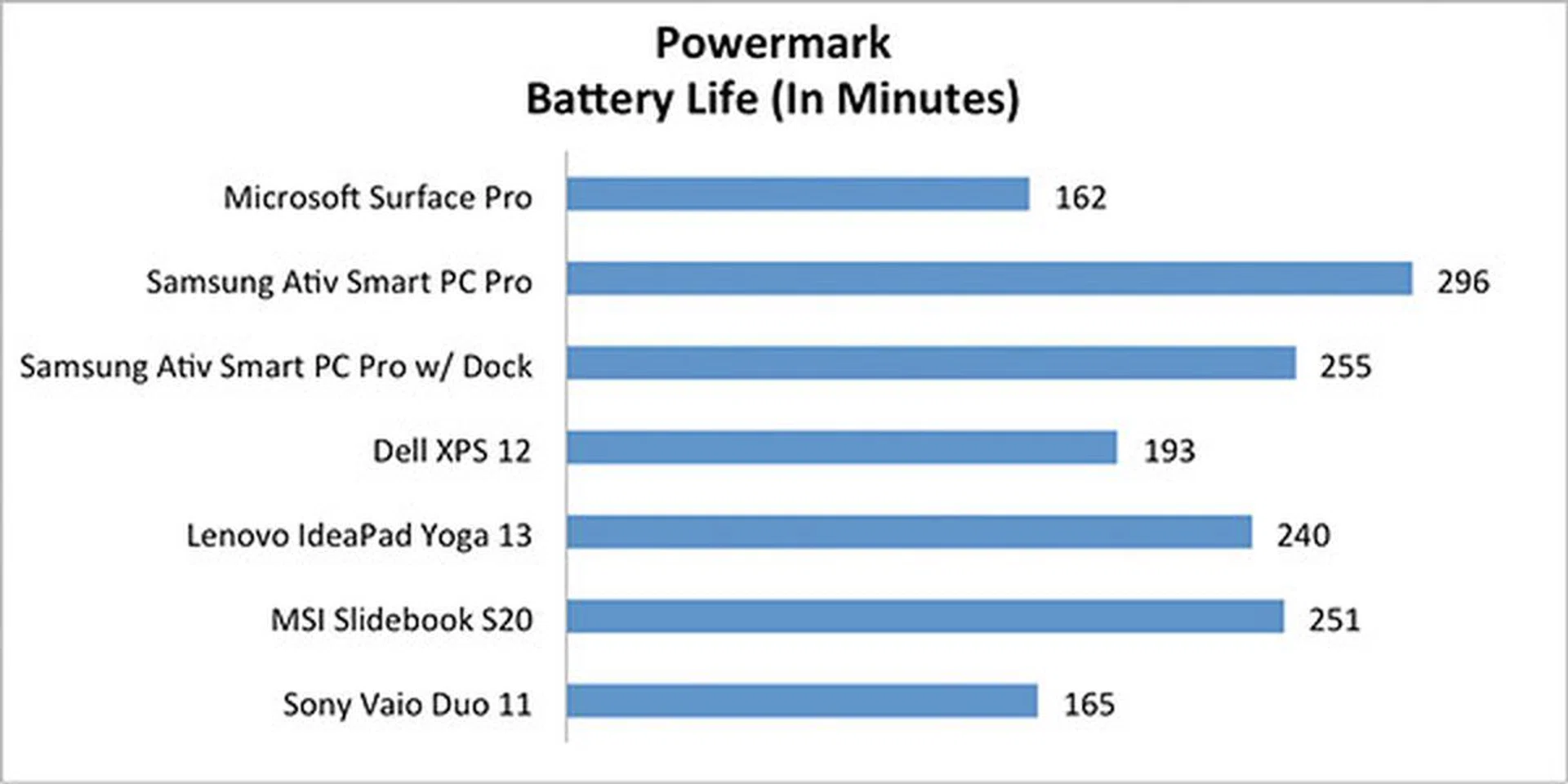
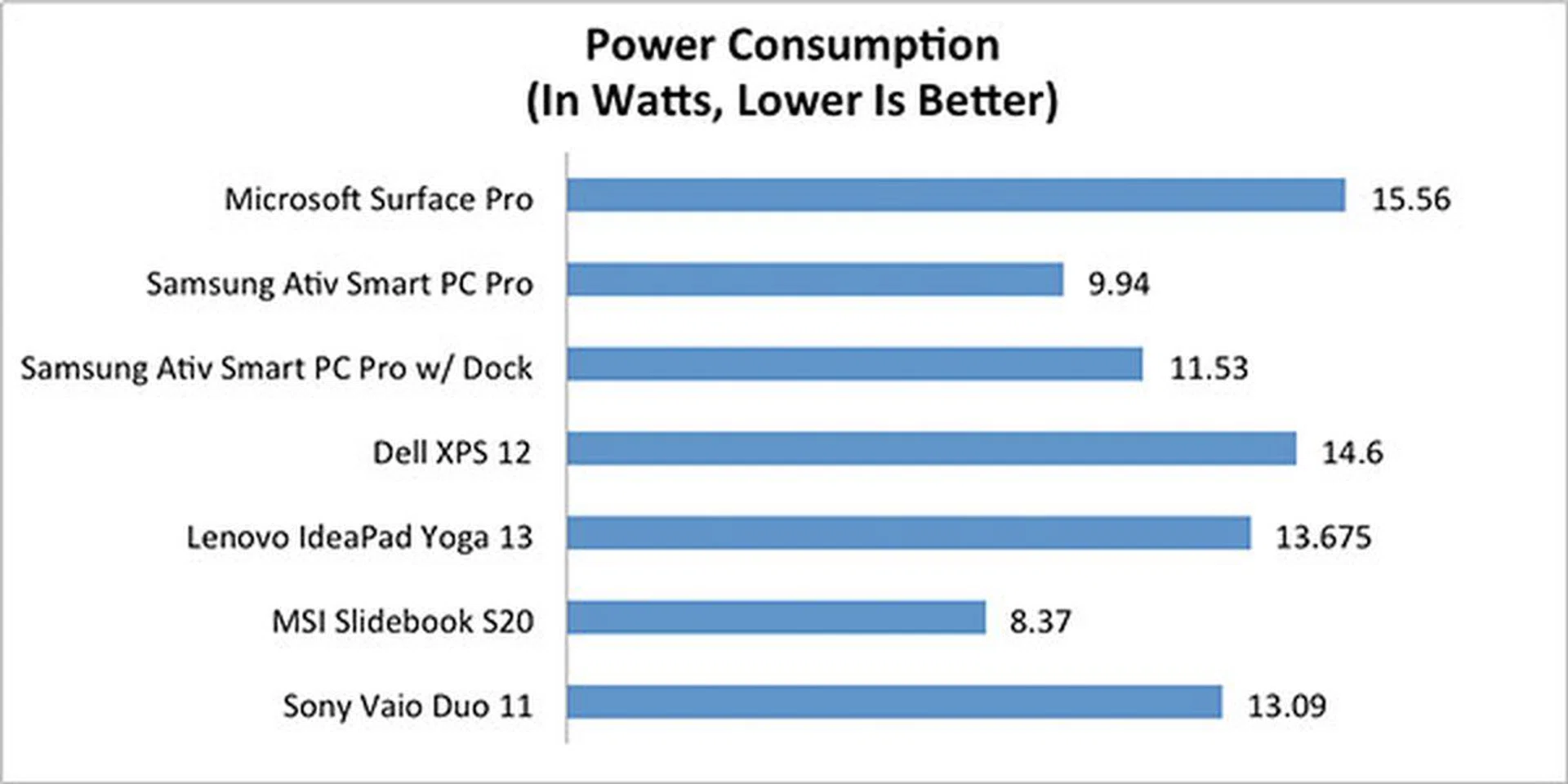
Using Powermark's balanced test suite that does an even split between Internet browsing, word processing, video, and gaming workloads, the Surface Pro's battery lasted only 2 hours and 42 minutes. That's easily two hours shorter than what the dock-less Samsung Smart PC Pro achieved. Even with the dock (that draws power for its two USB ports, keyboard, trackpad, and status LEDs), the Smart PC Pro still lasted longer than the cover-less Surface Pro. (According to our tests, neither the Touch nor Type Cover has any meaningful impact on battery life.) It's truly a catch-22 situation here: should you go for the Surface Pro with its better system performance, or the Smart PC Pro with its very much better battery life? If you're always on the move, with no easy access to a power point, the answer is clear. For another data point, the Surface Pro's battery life is very similar to that of the Sony Vaio Duo 11, but the latter we're comparing against runs a Core i7 CPU and has a slightly bigger screen.
Benchmarks aside, we also tried to use the Surface Pro as a desktop replacement to see how far into the day it can get us. Operating in Microsoft Office most of the time, with the occasional web and YouTube surfing, the most we got out of the Surface Pro was slightly under six hours. Understandably, the more time we spent watching videos and playing games, the faster we had to reach for the power adapter.
Portability Index
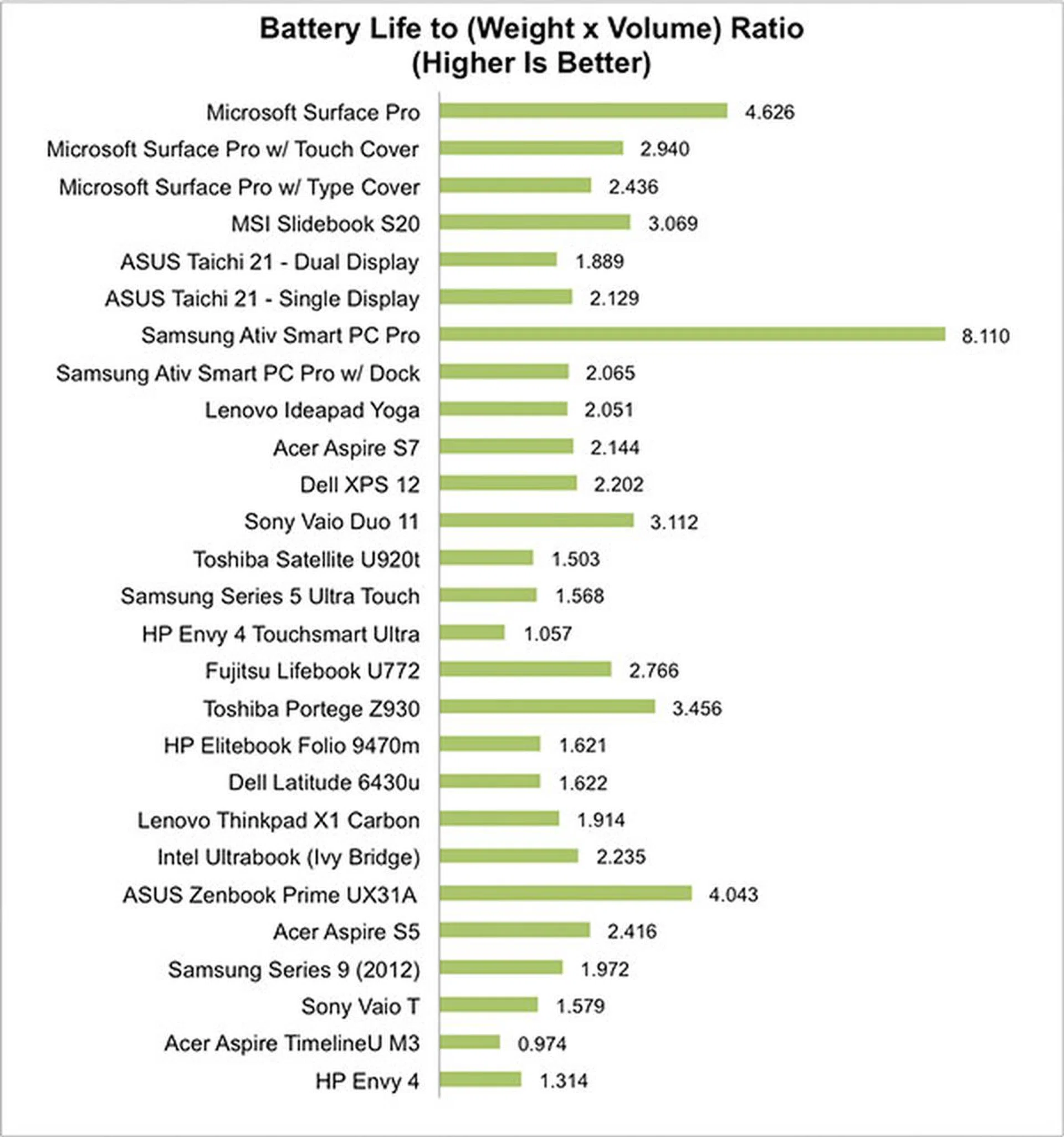
The HWZ Portability Index factors in battery life, weight, and volume so you can decide if it’s worth your while to carry a mobile product around compared to the competition. As you can see from the table below, the Surface Pro scores well for this thanks to its low volume and weight. The Ativ Smart PC Pro is the runaway winner due to its superior battery performance. With the keyboard dock though, the Smart PC Pro actually scores lower than the Surface Pro with either the Touch and Type Cover, and that's because the dock now renders the contraption much thicker and heavier. On hindsight, Microsoft is spot-on with the design direction of its keyboard covers, because the combination of a poor battery life and a bulky keyboard is pure suicide for mobile usage.
On a side note, the sliding form-factor Ultrabooks like the MSI Slidebok S20 and the Sony Vaio Duo 11 both have a portability index that sits in between the Surface Pro and the most typical Ultrabooks. Given their versatility, it's good too see them fare just as they are intended and are great options for those who need one complete device that can handle a variety of situations. They will also likely appeal to those who can't make up their mind as to what form factor is a safe option.
Conclusion: A Very, Very Good First Attempt
The Surface Pro and the Surface RT are hardware manifestations of Microsoft’s (or rather, Windows 8’s) idea of ‘no compromise’ computing. To achieve that, Microsoft essentially mixed two interfaces into one OS: the Modern environment (based on the ‘Microsoft design language’) and the traditional desktop mode. As the former is designed for touch, and you get Modern-style apps through the Windows Store, many have come to think of it as being a ‘tablet mode’ in what’s still a desktop OS. And it’s precisely because of this path that Microsoft has chosen for Windows 8 that we now see boatloads of Windows 8 devices with all sorts of form factors, all trying to be a tablet and a notebook rolled into one. The form factor of the two Surface tablets (that is, starting off in a tablet form with the option of attaching a keyboard) is just one of the many ways of doing it.
Choosing Between the Surface RT and Surface Pro
If you must have a Surface tablet, and are deciding between the Surface RT and the Surface Pro, the conclusion should be easy to reach: it depends on what you need it for. The best way to describe the Surface RT is that it’s a media consumption device that’s capable of getting some serious work done - that is if your work revolves around Microsoft Office. But it stops short of being a full-fledged PC due to its inability to run traditional desktop apps. As such, its usefulness is heavily pegged to what’s available in the Windows Store.
On the other hand, the Surface Pro is best described as an ‘Ultrabook’ that aspires to be a tablet. It’s thicker, heavier, and runs hotter and noisier (when the fans come on) than the passively cooled Surface RT (or any ARM-based tablets, for that matter), but it’s also way more powerful (Intel Core i5 processor, 6Gbps SSD, USB 3.0) and feature packed (1080p screen, digital pen input). More importantly, it runs Windows 8, which means all your favorite desktop apps should work just fine. You see, whichever Surface tablet you chose, there’s going to be some degree of compromise.
Microsoft Surface Pro vs. The Competition
If you’re attracted to the Surface Pro for its hybrid form factor, the closest alternative is the Samsung Ativ Smart PC Pro. It sports very similar hardware specs as the Microsoft tablet, such as the Core i5 CPU, Intel HD 4000 graphics, 128GB SSD, and full HD screen (albeit slightly bigger at 11.6 inches). Unlike the Surface Pro though, it’s bundled with a keyboard dock (actually, the price is already factored in its S$2,199 price tag) that features additional USB 2.0 ports. The dock’s hinge also allows a bit of tilt for the screen; compared this to the integrated kickstand on the Surface Pro which only lets you prop up the device at one angle. Of course, we can also argue that with the optional Touch and Type Covers, the Surface Pro gives its user more options.
It also has to be said that while the Smart PC Pro is a bit lighter than the Surface Pro (890g vs. 910g), it’s quite the opposite when both have their respective keyboard attached. With the keyboard dock, the Samsung tablet becomes an notebook-like device, tipping the scale at 1.6kg, a weight not far off from most typical 11 to 13-inch Ultrabooks. For the Surface Pro, even with the heavier Type Cover, it comes in at a very good 1.2kg. That’s because Microsoft never meant for either cover to act as a base or dock; they’re just screen protection covers with a built-in keyboard and trackpad.
That said, there are a couple more areas that the Smart PC Pro has done better than the Surface Pro, especially for on the road use. One of which is the presence of a SIM card slot for fast cellular data connectivity. This is great for mobile warriors who don’t have easy access to a Wi-Fi connection. And let’s not forget that Smart PC Pro’s battery lasts so much longer than the Surface Pro’s, though that seems to be achieved with a bit of performance sacrifice. For those without easy access to a wall power socket, the Surface Pro’s subpar battery performance is easily the deal-breaker here.
Of course, there are a few things we prefer on the higher-end Surface tablet. For one, the build quality is exemplary. We’ve nothing against Samsung’s use of plastic for the Smart PC Pro’s casing, but it’s no exaggeration to say that if someone were to pick up the Smart PC Pro after the Surface Pro, he would have thought that the former is the cheaper, lower-end product. Also, the Surface Pen is about the size of a regular pen, and this makes it more comfortable to use than the Smart PC Pro’s tinier S Pen (maybe because it’s designed to fit in a silo). For the record, both tablets use Wacom’s digitizer tech, and both their pens support 1,024 levels of pressure sensitivity. Unfortunately, the Surface Pro doesn’t come with Wintab drivers by default (the Smart PC Pro does), so advanced features like pressure isn’t supported in many pro drawing apps that rely on the Wintab API out of the box. At the moment of this writing, the workaround is to download and install a newly released Windows 8 driver from Wacom's website; we hope to see it appear on Windows Update soon. Similarly, for the desktop scaling issue (a common problem for devices with a small size but high resolution screen, including the Smart PC Pro) that we've detailed earlier, a software fix will come - it's only a matter of when.
What if you like the hybrid form factor and Windows 8’s ability to run desktop apps, but wanted something lighter and thinner than the Surface Pro, and with better battery life? Then, your answer could be tablets based on the Intel Atom Z2760 ‘CloverTrail’ SoC, like the Acer Iconia W510, ASUS VivoTab/VivoTab Smart, HP ElitePad 900, Lenovo ThinkPad Tablet 2, and Samsung Ativ Smart PC (the non-Pro version). If it sounds too good to be true, it is. Besides being much slower than the Intel Core i5 CPU, these devices run 32-bit Windows 8, use slower eMMC storage tech, doesn’t support USB 3.0, and usually come with only 2GB RAM and a 1,366 x 768-pixel screen.
At the moment, it’s not possible to build a truly no compromise device, but Microsoft has made the first step with the Surface Pro - and what a good first attempt it is. The next-generation Surface Pro using Intel’s Haswell platform will bring us closer to that vision.
(The Surface Pro is currently available in the U.S. for US$899 (64GB) and US$999 (128GB). It will launch in Singapore before the end of June.)
Update (June 3, 2013): For those unaware, the Surface Pro will go sale today June 3 at 20 major Challenger retail stores around the Singapore island. In addition, it will also be retailing at several Harvey Norman and Newstead stores. The 64GB edition is priced at S$1,198; the 128GB edition at S$1,328. Pricing of the accessories and launch promotion details can be found in the news article linked to above.

Our articles may contain affiliate links. If you buy through these links, we may earn a small commission.