
Shootout: The Best Value SOHO and SMB Printers for 2023
Need an all-around home printer that brings value and some office-grade AIO functionality or a compact office printer to serve a small workgroup? We've rounded up some of the best options to evaluate a winner.
Note: This feature was first published on 29 May 2023.
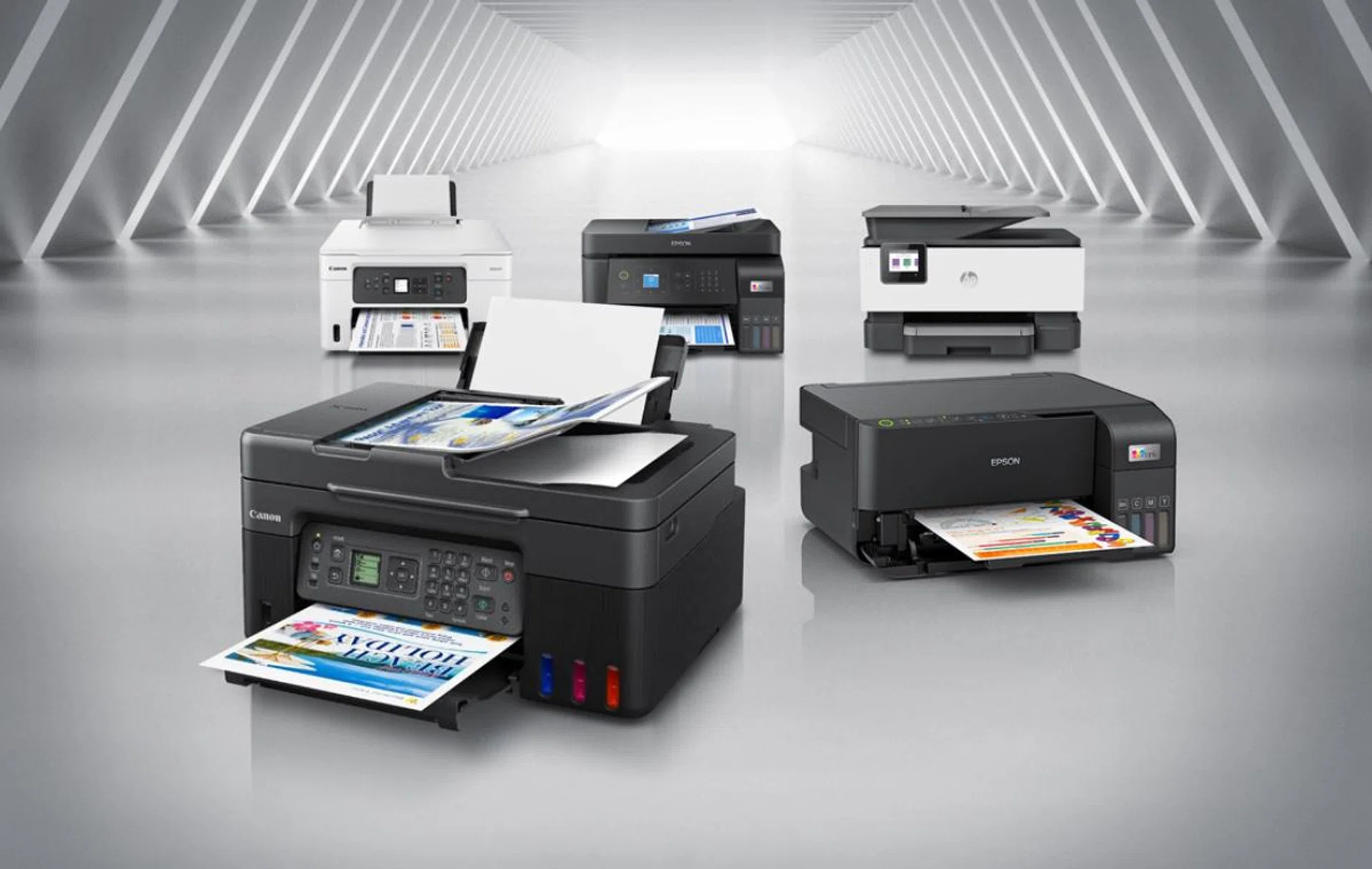
Best SOHO and SMB printers
Despite the current hybrid work momentum, printers haven’t gone away in importance. As global market intelligence firm IDC published, printer shipments grew strongly year-on-year and even quarter-on-quarter.
Many homes and businesses have actually doubled down on buying a printer, with many opting for the user and space-friendliness of an All-In-One (AIO) printer that can perform multiple functions beyond just printing (subject to the features provisioned). And with space being a premium in new homes and offices, AIO printers make up the bulk of the models offered these days.
Even among multi-function devices, they can have differences between them. Some may have fax capabilities, some may come without an ADF, some offer duplex printing capabilities, while others even offer duplex scanning. There are also various other considerations, such as if you want to have customised printing and labelling of discs to extend a personal touch for a function you're preparing, or on the other end of the spectrum, perhaps your office requires a high print run and you would prefer to have the option to add on an additional paper tray (or also known as a cassette) to avoid frequent refills and downtimes.
Able to print, copy, scan and fax, the divide between these and their higher-end brethren usually lies in the fact that the majority are still using inkjet technology. Indeed, two of the printers tested here are inkjet-based.
Assessing two categories
Personal and office needs will vary greatly, but this year, we looked at printers targeting home and SOHO usage needs launched within the past two years and priced at under S$400. We looked at the size and footprint as space could be at a premium in a SOHO setup, along with the features and connectivity options. While ease of use was important, the overall price of the printer, print quality, performance and cost of printing were all weighed in as well. The printers we tested that qualified for this roundup were:
- Epson L3550
- Canon Pixma G4770
- HP OfficeJet Pro 9010e
We also looked out for options for small businesses, SMB setups, and smaller office spaces. For this group of users, we hunted down options under S$700 that had high-volume, high-capacity printing capabilities and were launched within the last two years. These were the qualifying models:-
- Epson L5590
- Canon Maxify GX3070
For both categories, we were open to considering both laser and inkjet variants as long as they fit the scope, but it looks like all the options across both categories were inkjet and ink-tank-based options only. To reiterate, these comparisons were conducted with Tech Awards 2023 in mind and thus, we looked for printer models launched in 2021 and 2022 time frame globally and are available in Singapore.
Here's what we found from testing each of these printers.
(SOHO Printer) Epson L3550: Good prints but let down by lack of features
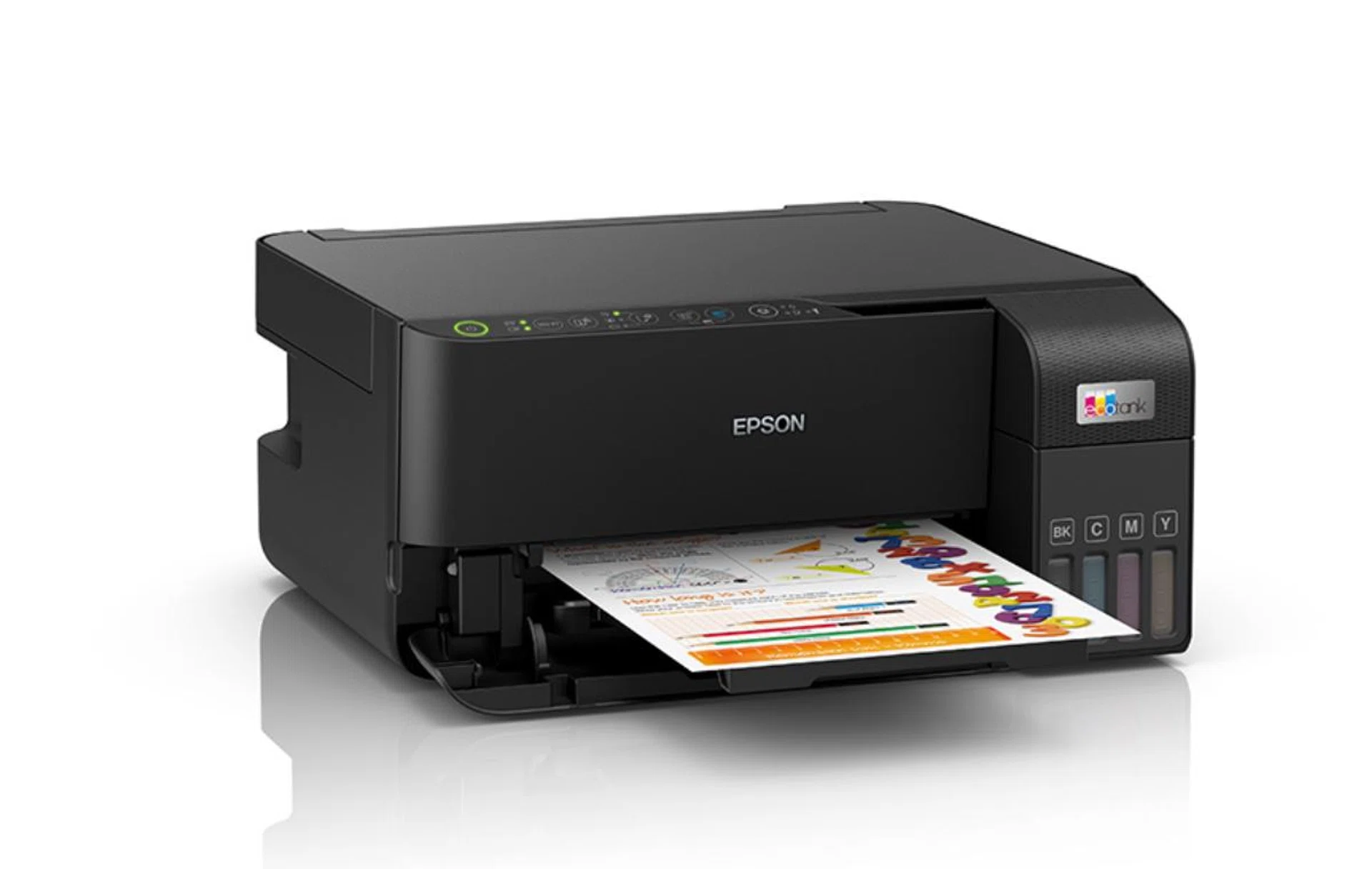
Epson L3550 ink-tank printer
One Epson’s latest EcoTank models, the Epson EcoTank L3550 comes with the now familiar four refillable ink tanks that help to save on printing costs.
The Epson L3550 is made with 30% recycled plastic, and they utilise 84% fewer consumables compared to ink cartridge printers, with the packaging comprising over 80% recycled cardboard.
The L3550 isn’t anything different in terms of design with its form factor constrained by the print and scan functions. But without a paper cassette, it has a smaller footprint when the output tray is closed. This also means you can't print remotely if the paper tray is closed, and for any ready print runs at a moment's notice, the tray must be kept lowered all the time. The only part of the printer that sticks out is where the four ink tanks are located, which makes it easy to access and maintain.
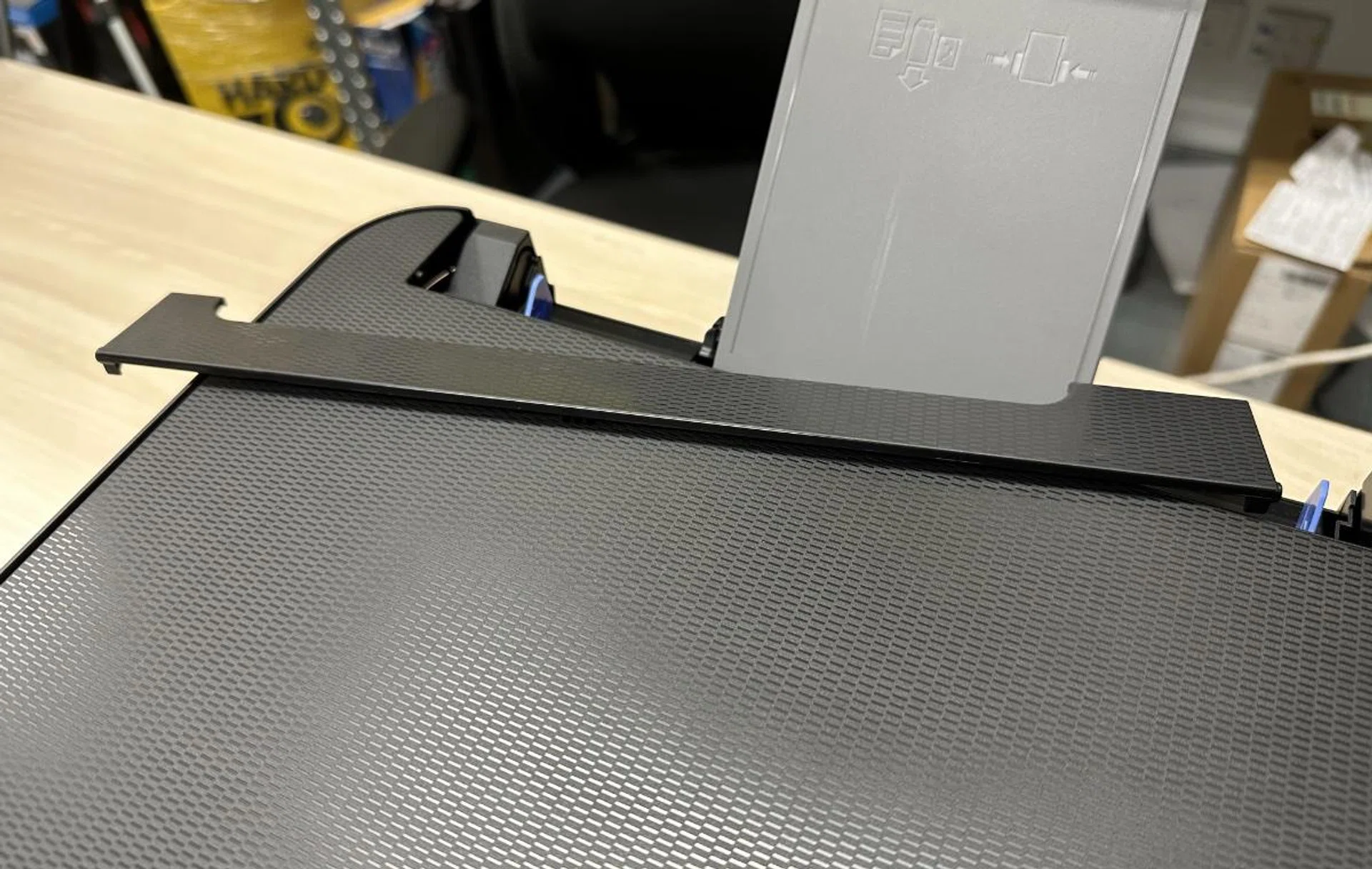
This popped off quite often.
However, the build quality wasn’t great, with the pinter coming across as having a cheap feel. In fact, we found that one of the parts was so loose that trying to move the unit often (for testing, photo taking, and other miscellaneous moves to manage the many printers we had in the lab) resulted in it coming off entirely. While printers aren't designed to be moved around, this encounter didn't leave us with a good impression. That's not the only design concern we had.
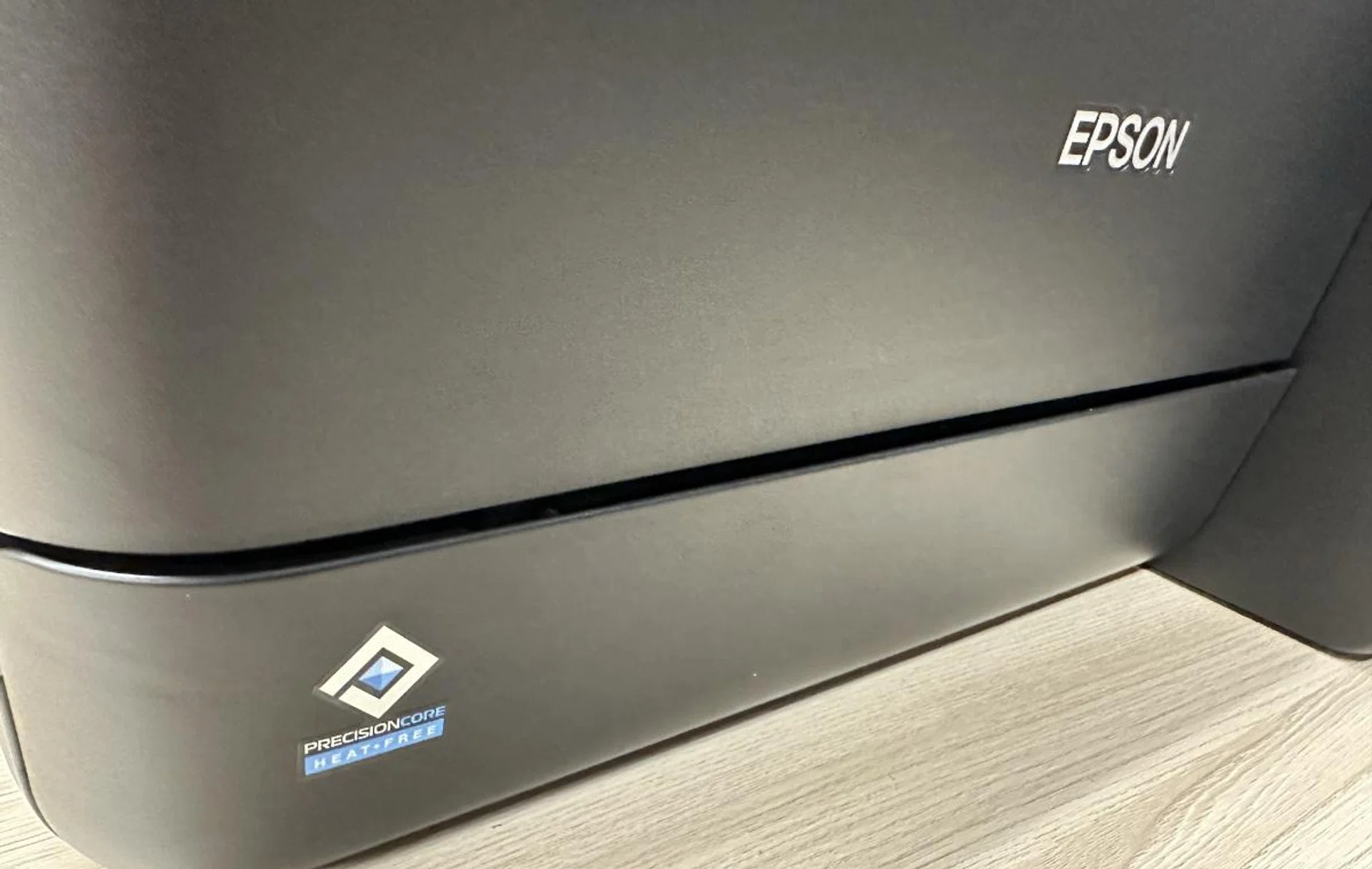
The paper tray also didn't always sit flush.
It does come with a user-replaceable maintenance box that's meant to store expended ink during print head cleaning. This means that a user can replace it with ease, anytime, without the hassle of bringing their printer to a service centre. That is thoughtful and cost-effective for users as the maintenance box requires replacement at the end of its service life (also read as when it's full).
Ultimately, the Epson L3550 is let down by its lack of features.
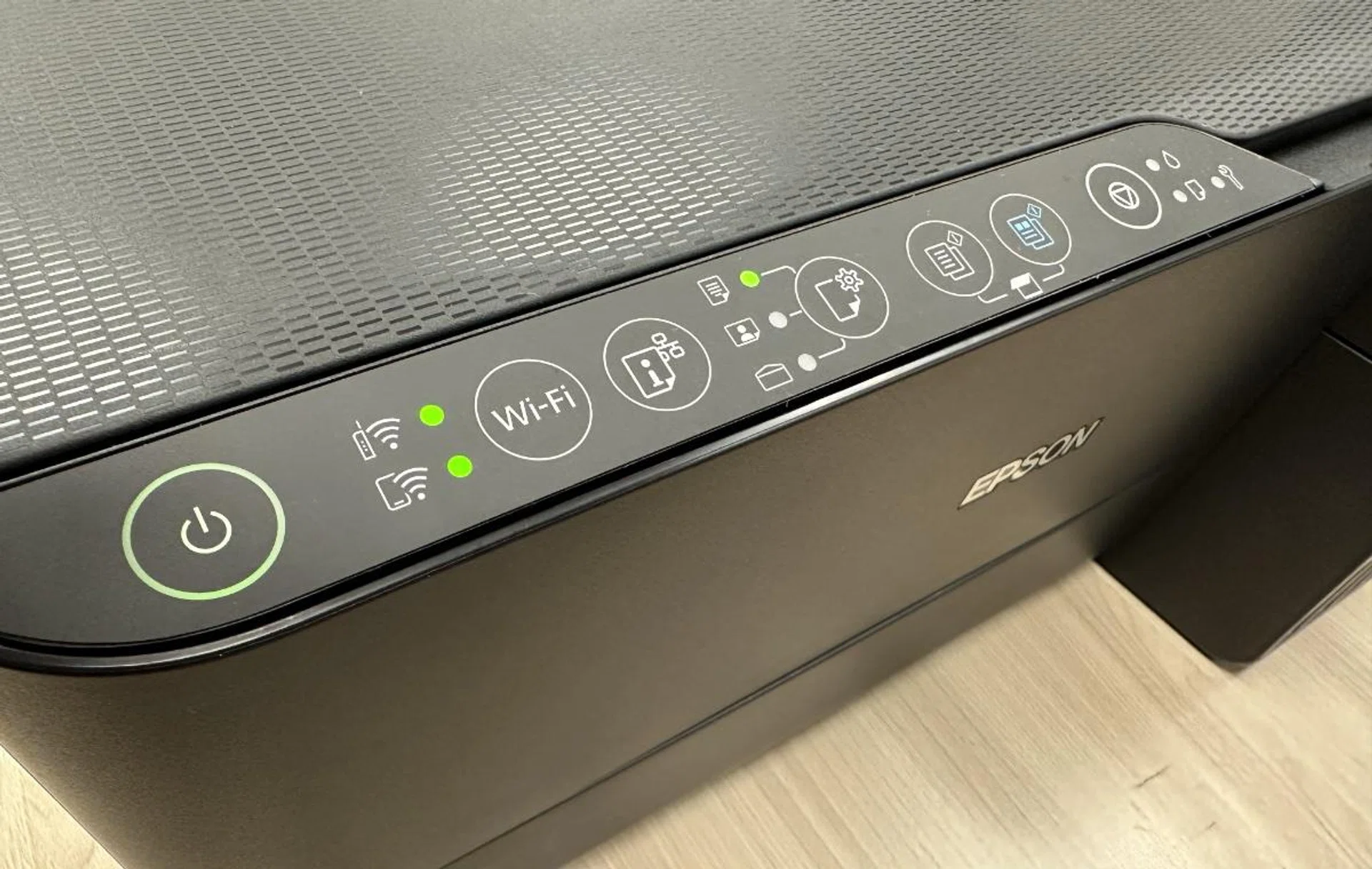
It isn't easy making sense of the status or the command buttons. (Editor's note: I can't understand the twin Wi-Fi status indicators' meaning without flipping the manual.)
It lacks any form of display! All commands must be entered manually using the buttons on the printer, via the app, or using a PC. One problem with using the first option is that there isn’t any text below the buttons meaning that you need to remember what the icons do when pressing them. That's not difficult for those technically inclined, but for someone of my parent’s generation, they can't manage this printer without help.
It also lacks an ADF, which means you cannot copy or scan multiple pages effortlessly. For the sake of cutting costs, the manufacturer ends up hobbling the AIO when it could have been so much more user-friendly. While we understand it is normal not to have this function on affordable printers, at a suggested retail price of S$369, the Epson L3550 isn't considered cheap.
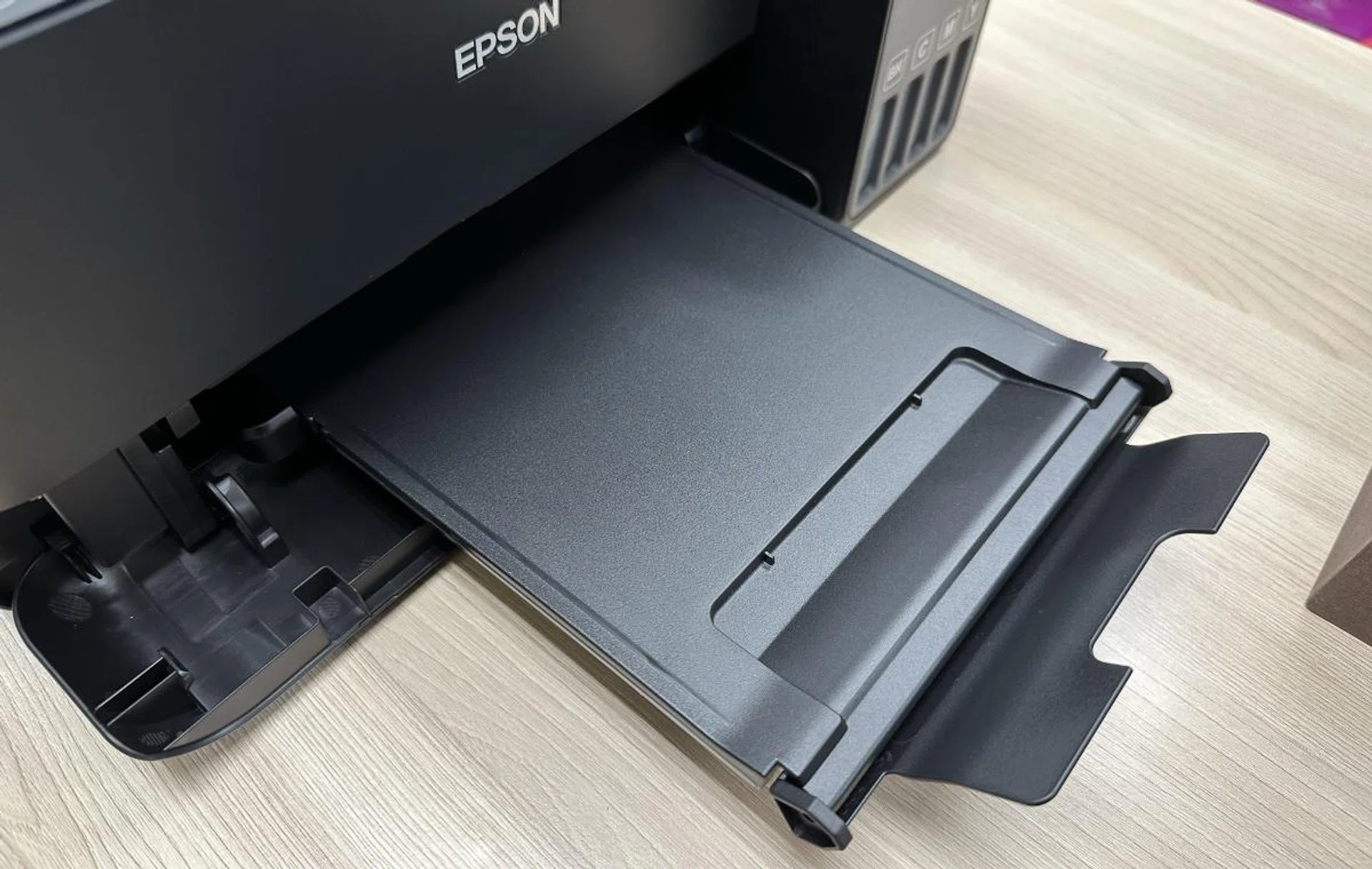
Finally, it lacks a paper cassette meaning that all paper is gravity fed from the back of the printer. This limits the number of pages it can hold as well as the variety of paper types it can handle.
Connectivity options include smart printing features such as AirPrint, Mopria, and Epson Smart Panel. With Epson’s Smart Panel App, users are given direct access to functions such as remote On/Off, printing, scanning, and copying while monitoring the printer’s operation and ink levels.
I found the Epson Smart Panel app rather user-friendly. Especially when compared to the Epson iPrint app, which was rather utilitarian. With its big buttons, it was easy to know what you needed to do and get things done. It also had easy-to-access consumer print options and management.
Next, we examine the Epson L3550's print performance, where we found the quality to be generally good, but it wasn't fast.
Close-up scan of its text print capability.
While the text print results had dark and crisp text, with sharp serifs, there was some bleeding when we closely examined the text. The text was also slightly splotchy. Our test image was clean and crisp with no oversaturation or bleeding of colours; hence it was easy to make out the fine detail in the image.
Speaking about printing, we wanted to point out that while Epson has several other more affordable ink-tank printers, the L3550 comes with a PrecisionCore print head that first appeared in Epson's commercial systems but is now steadily being employed in many of their home and SOHO desktop printers and supports a top resolution of 4,800 x 1,200 dpi. With far more print nozzles packed in the PrecisionCore print head than a standard Piezoelectric print head (such as on the cheaper L3250), this is why the L3550 sounds expensive for its class and feature set, as Epson has chosen to prioritize print quality output. In fact, the L3550 is amongst Epson's most affordable printers with a PrecisionCore print head. As they say, the devil is in the details.
Adding on, the PrecisionCore print head uses Epson's Heat free technology. This does not require heat in the ink ejection process, which saves on energy consumption for operating the printer (which is useful if you print often and have a high output). Instead, pressure is applied to the Piezo element, which flexes backwards and forwards, firing the ink from the printhead.
Close-up scan of its colour image print capability.
As an ink tank-based printer, running costs for the L3550 are low. Replacement ink cartridges are priced at just S$9.90 for both black and colour cartridges. They've a page yield of 4,300 and 7,300, respectively, giving the L3550 a running cost of just S$3.19 per 1,000 pages in our running cost assessment.
Officially listed for S$369, the Epson L3550 is available in the following online stores:- Courts, Gain City, Harvey Norman, Lazada, and Shopee.
(SOHO Printer) Canon Pixma G4770: Let down by some niggling points
Canon’s Pixma G4770 comes with the familiar four refillable ink tanks that work best for homes and small offices. It is well-built and definitely projects itself as a sturdy companion (unlike the contender on the previous page).
To highlight this, the printer comes with an Economy Mode, which can print up to 7,600 monochrome pages and 8,100 colour pages, with borderless photo printing up to A4 paper sizes (not just 4R).
In terms of features, it ticks most of the common expectations easily, which is a notch up against our previous contender.
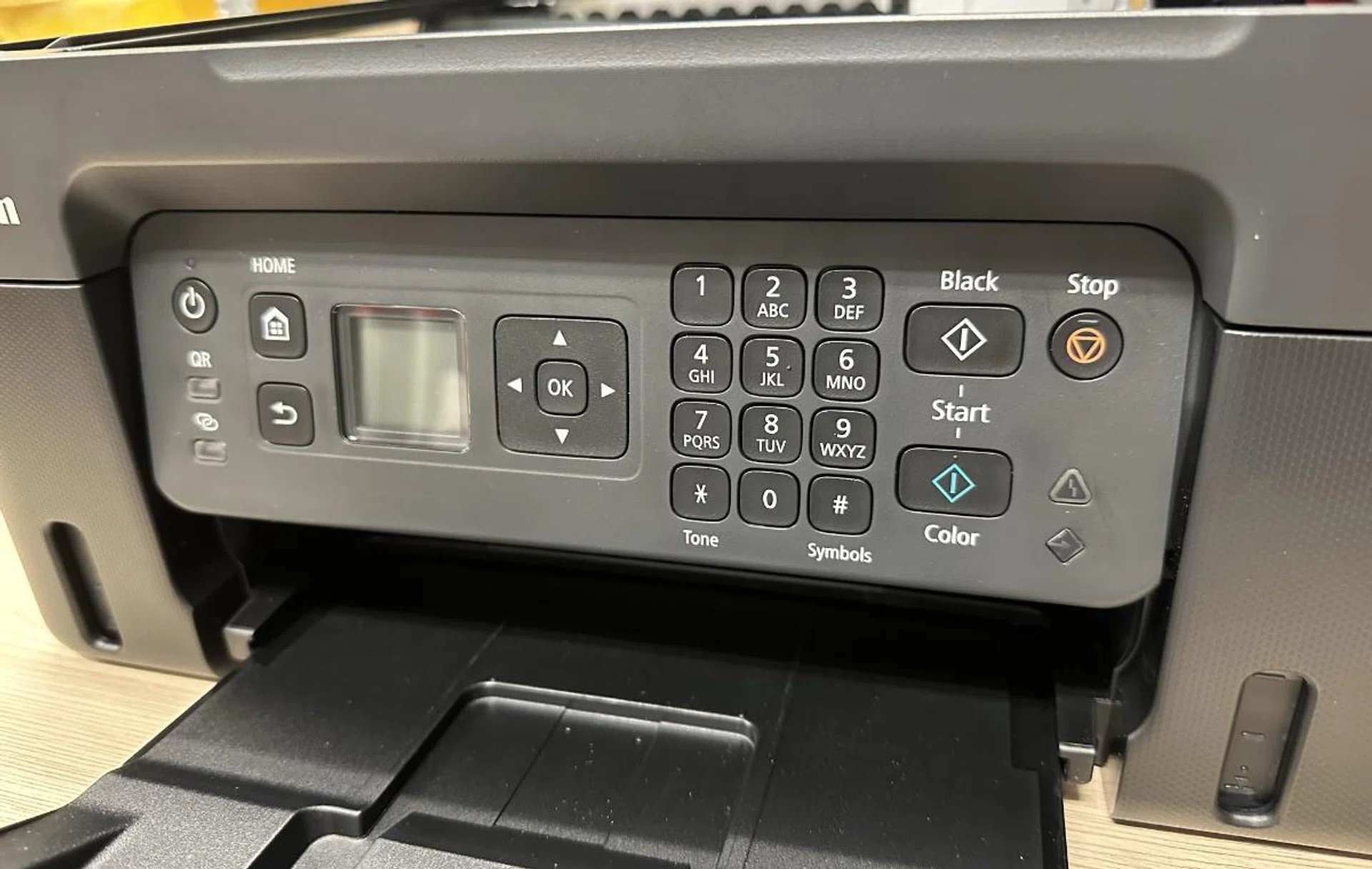
I would have preferred a touchscreen-enabled display, but I can get by with the clear and easy-to-use panel.
It has an LCD, small though it may be at 1.35-inches, it is an improvement over an older and more expensive model. Unfortunately, it isn’t a touchscreen display, so you'll need to use arrow keys for navigation and press the “Ok” button to accept commands. Neither can the panel the LCD is on, be tilted for a better viewing angle. First-world problems, I know. Apart from nitpicking, the operation and usability of the printer is clear and easy, again an improvement over Epson's L3550.
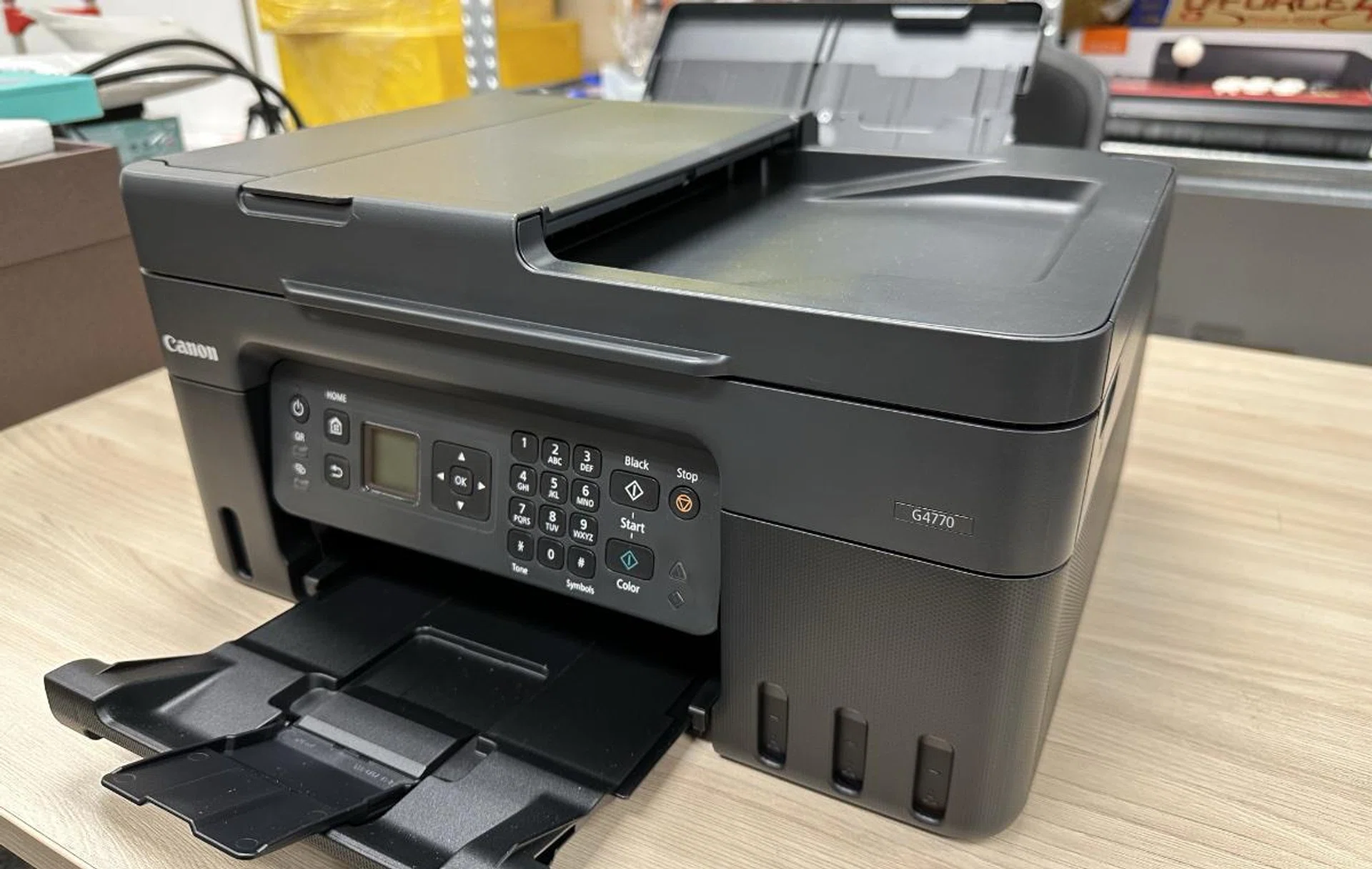
Annoyingly, the panel where the display is can't be articulated. Other than that, the printer works splendidly.
Thankfully, this Canon printer fielded for the SOHO comparison segment has has an automatic document feeder (ADF). This is essential for a printer to be a successful AIO, for without it, scanning/multiple multiple pages becomes a chore. It can handle up to 35 sheets of paper, which is adequate for most users.
The part that lets the Pixma G4770 down is the lack of a paper cassette which relegates paperhandling to its rear paper feeder. As we’ve mentioned before (on the prior page), this restricts the number of pages it can hold, in this case, 100 sheets. This may be sufficient for home use, but for a small business that could require a heavier print load, this might not be adequate.
Close-up scan of its text print capability.
Now in terms of its print quality results, we liked its text print output. I found it to be sharp, crisp, and clean with no smudging. The printed text was also not as splotchy as the Epson L3550, with the serifs clearer and sharper. Plus, text appeared darker than the Epson, which looked more satisfactory. Our only complaint was that our test image was oversaturated and thus splotchy in some places. This made it difficult to make out fine details and brought down the overall print quality score.
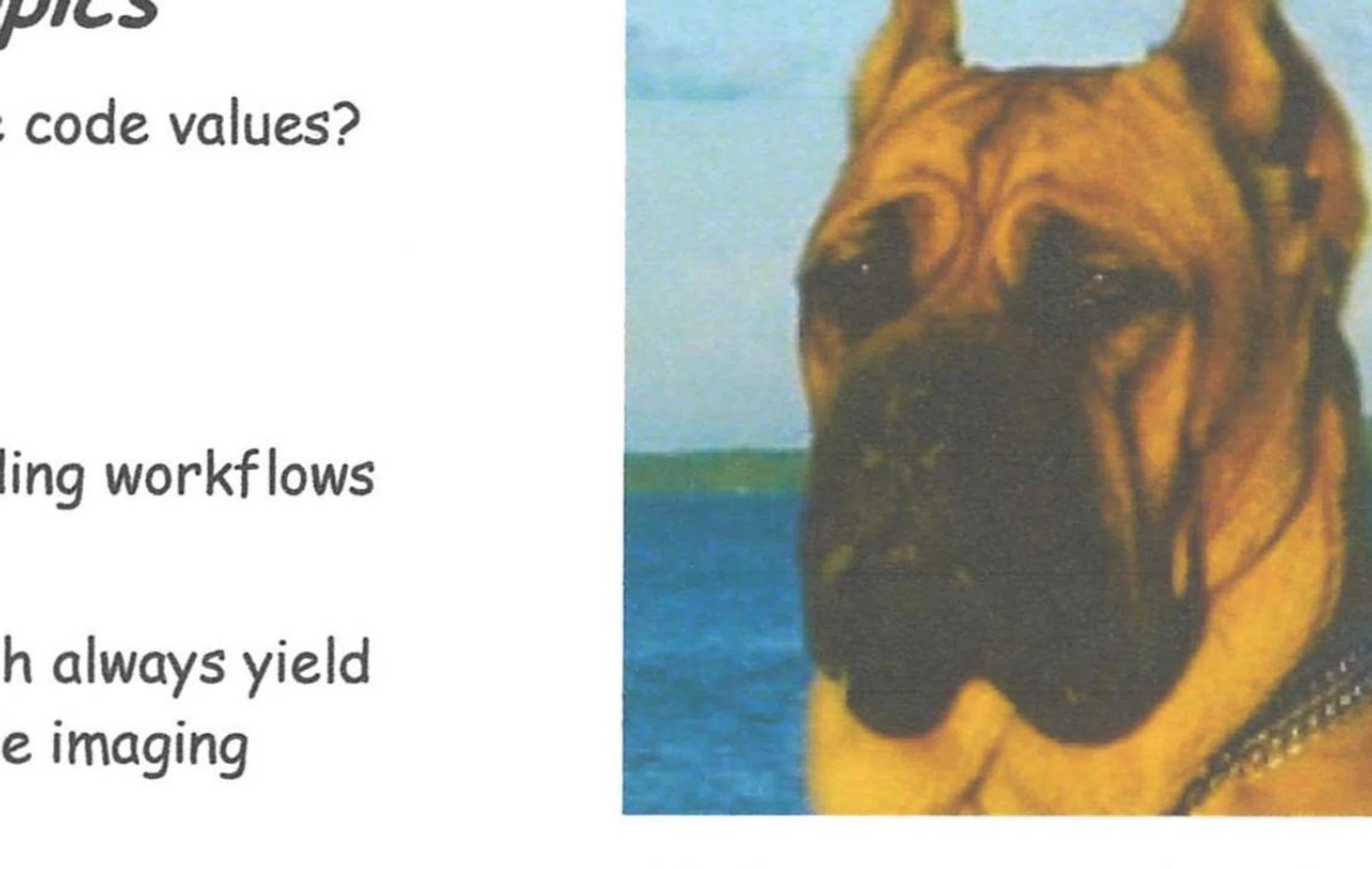
Close-up scan of its colour image print capability.
As an ink tank-based printer, the Pixma G4770 has pretty good running costs (though not as excellent as the Epson L3550). Replacement ink tanks cost S$15.90 for Black and S$14.90 per colour, with a page yield of 6,000 pages and 7,700 pages, respectively. In our running cost test evaluation, this worked out to S$4.23 per 1,000 pages, just a tad higher than the $3.19 offered by Epson.
Officially listed for S$389, the Epson L3550 is available in the following online stores:- Canon, Challenger, Harvey Norman, Lazada, and Shopee.
(SOHO Printer) HP OfficeJet Pro 9010e: Almost perfect
HP's entrant into our Best Value SOHO Printer category of comparison was the OfficeJet Pro 9010e, which had the same DNA as the chunkier 9020 model that we evaluated earlier. Unlike all the other options in this shootout, the OfficeJet Pro 9010e is the only non-ink-tank-based printer and uses traditional inkjet cartridges, which include the print head that's part of each cartridge. This means its running costs are way higher, but it is somewhat offset by the lower price of the printer at only S$269.
The OfficeJet Pro 9010e wasn’t the smallest or lightest printer we tested, but it is well built and didn’t feel flimsy or as though parts would come off if moved.
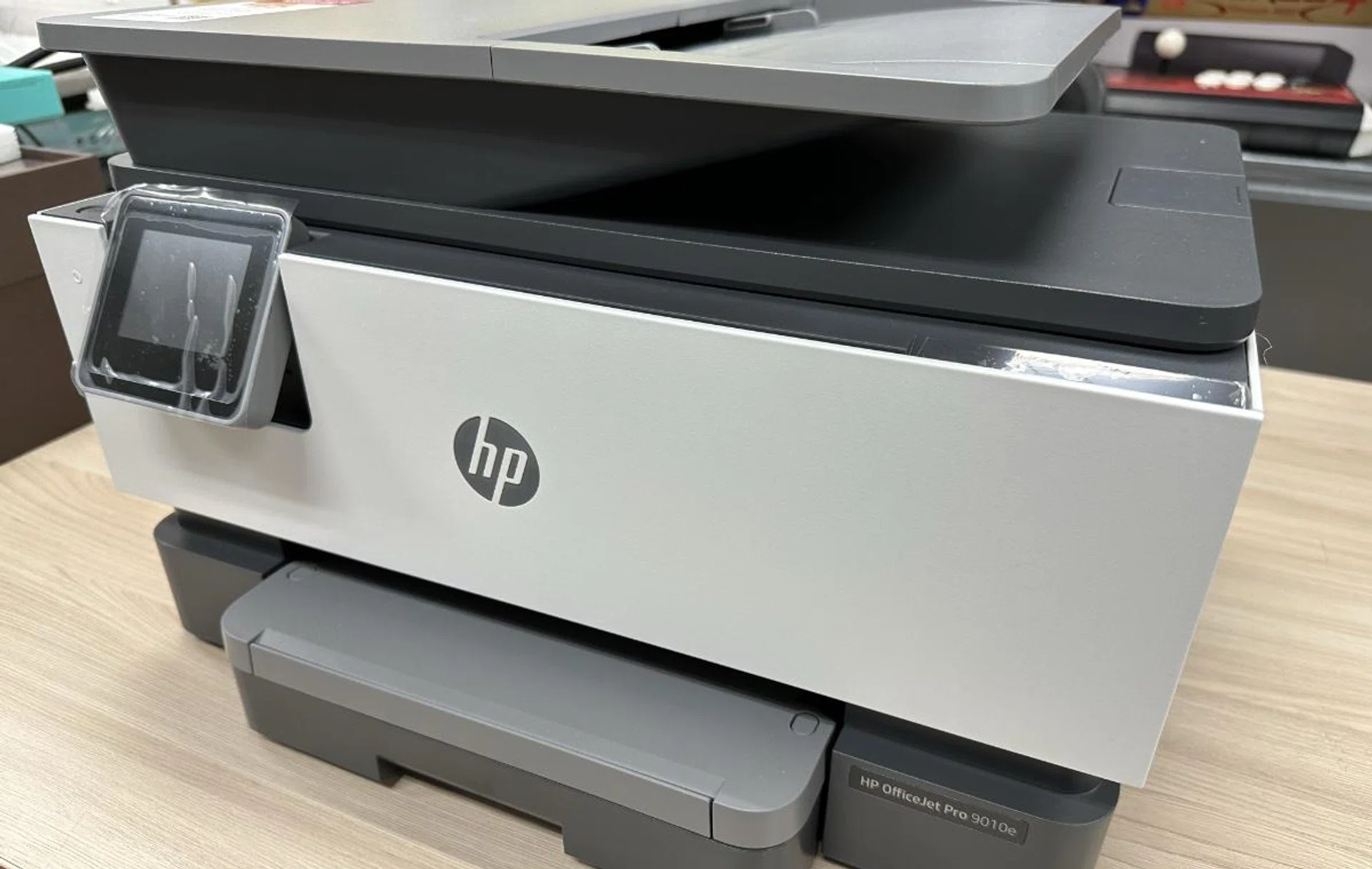
As you can see, the LCD can tilt for better viewing and usability.
In terms of its features, it comes with a nicely sized 2.65-inch touch-screen LCD that can tilt, a fax facility, a 35-page ADF, and it was also the only one in the category to have a paper cassette for 250 sheets of paper. A feature I’m guessing its more squat design allowed for. Plus, it has an app with both business and consumer functions. It has a recommended monthly print volume of up to 1,500 sheets.
As for its user-friendliness, the OfficeJet Pro 9010e comes with self-healing Wi-Fi, which means it detects and resolves connectivity issues to keep you connected. The printer also comes with the ability to perform both full duplex printing and scanning - the only printer in this comparison to feature such. This allows it to print on both sides of the paper automatically without having you flip and re-load the paper that was printed on one side; plus it can scan and copy both sides of any documents placed in its ADF. It's a nice comfort feature to have and eases the paper handling and management process.
Adding on to its user-friendliness, everything you might need to configure, monitor, or perform can be done from the LCD, while mobile connectivity consists of Apple AirPrint, Mopria, and HP Smart App. The app has a good mix of business and consumer functions, allowing you to add a device, control a printer, and print various materials and themes. You can also create editable, searchable documents by scanning from your phone or printer using the app.
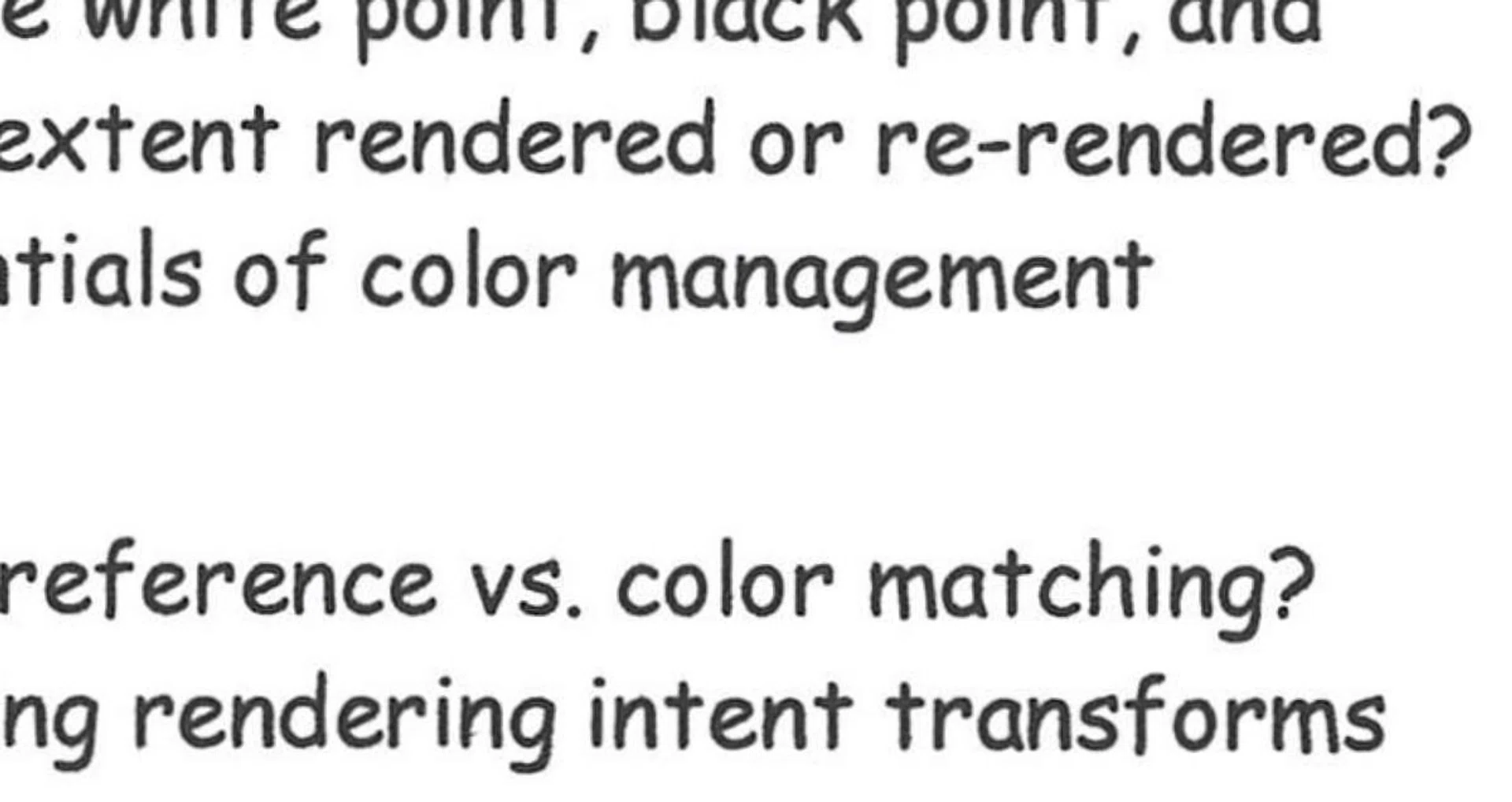
Close-up scan of its text print capability.
When it came to print performance, the HP OfficeJet Pro 9010e didn’t disappoint. It was the fastest printer of the lot, easily printing our twenty-page test document with an average speed of just under 17 seconds, and our forty-page test document in 27 seconds. Best of all, it didn’t sacrifice quality for speed. The text in our test document was clear, crisp, and black. There was no smudging around the serifs. Our test image was clear and not overly saturated but lighter in colour than our original image. In our scan test, it completed our test in an average of 27 seconds, again the fastest in the category.
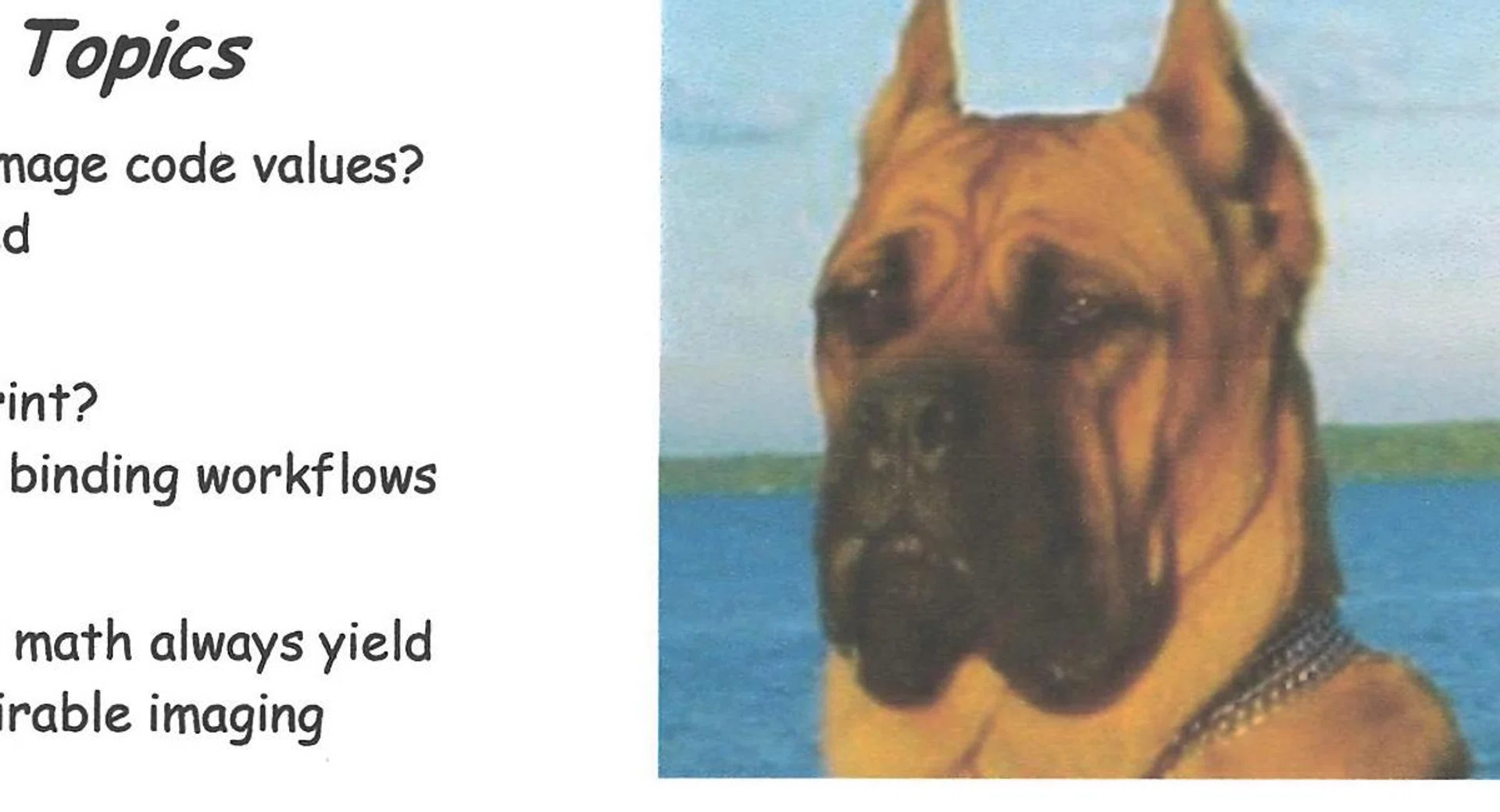
Close-up scan of its colour image print capability.
It takes a hit when it comes to print costs though as it isn’t ink-tank-based. Replacement inks are the most expensive in the category and the number of printed pages is lowest as well. In our running costs test, it worked out at a whopping S$49.21 per 1,000 pages. That's a big magnitude more than some of the ink-tank printers tested in this roundup, where the same 1,000-page print run costs just one-tenth of the OfficeJet Pro 9010e. That said, the printer unit itself is the cheapest of the lot, and if you don't necessarily need to print a lot, but you do want to print it fast and with good quality when you need it, the HP OfficeJet Pro 9010e can easily find a space in your home. Doesn't hurt that it's also the most feature-packed printer.
Officially listed for S$269 these days, you can also easily find it going on offers for as low as $239 (or lower) at the point of writing, making it even more of a value catch. The HP OfficeJet Pro 9010e is available in the following online stores:- HP, Amazon SG, Challenger, Harvey Norman, Lazada, and Shopee.
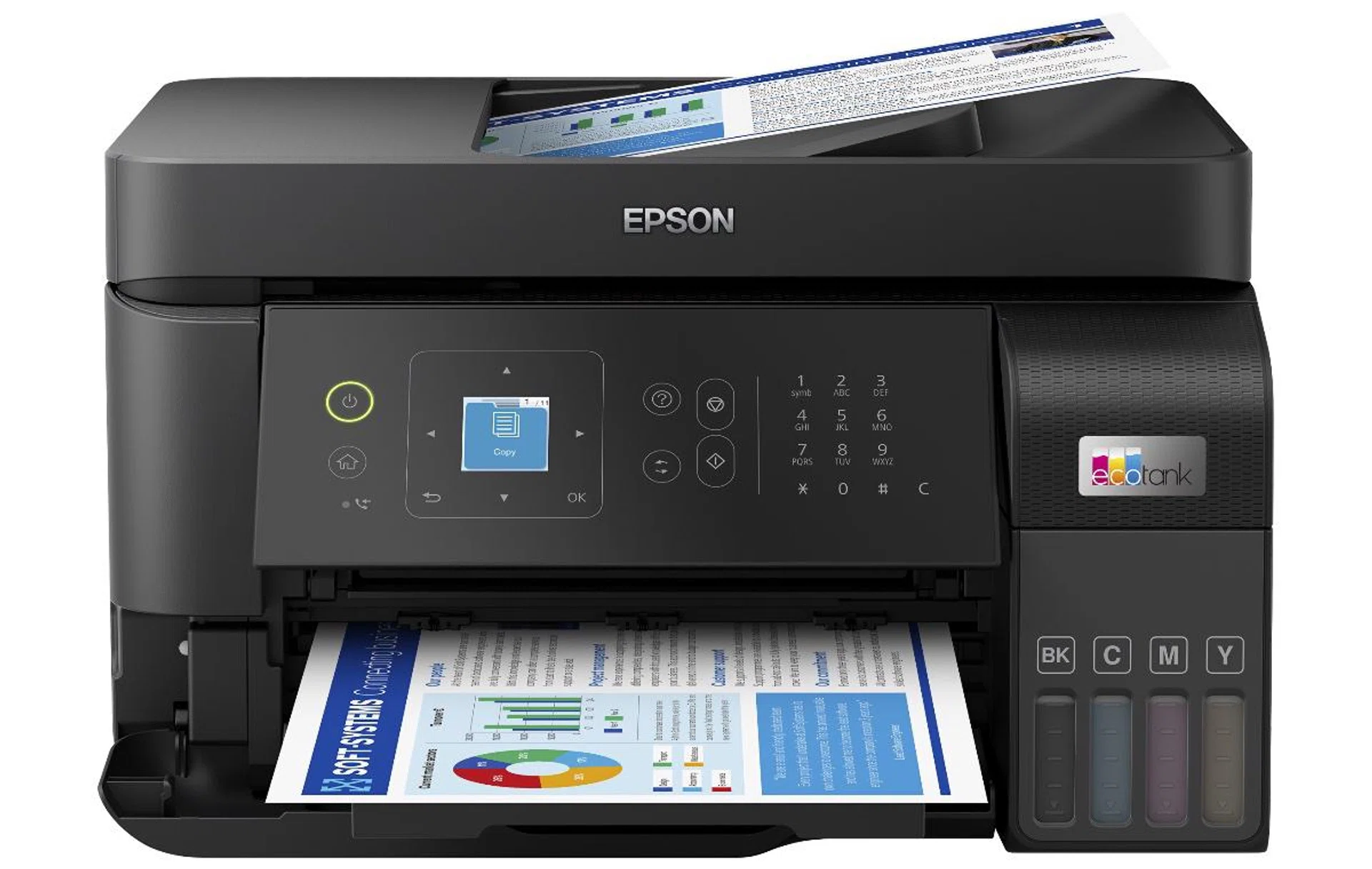
Epson L5590
(SMB Printer) Epson L5590: Hardworking printer gets the job done
The Epson L5590 is a blocky and squat printer that is very much in line with what you expect from a business-oriented AIO.
It certainly feels more solid and better put together than the L3350 that we covered on the first page for the Value SOHO segment. I definitely liked how the Epson L5590 is put together and its build quality. This is despite the L5590 being made with 30% recycled plastic, along with 84% fewer consumables used when compared to other ink cartridge printers.
Like the L3550, the ink tanks were stored in the front portion of the main body that was jutting out much like the bottom of an 'L'. This made the footprint bigger than it needed to be. On the bright side, this design does allow the ink tanks to be easily refilled and you don't have to open up the innards of the printer, as with most others.
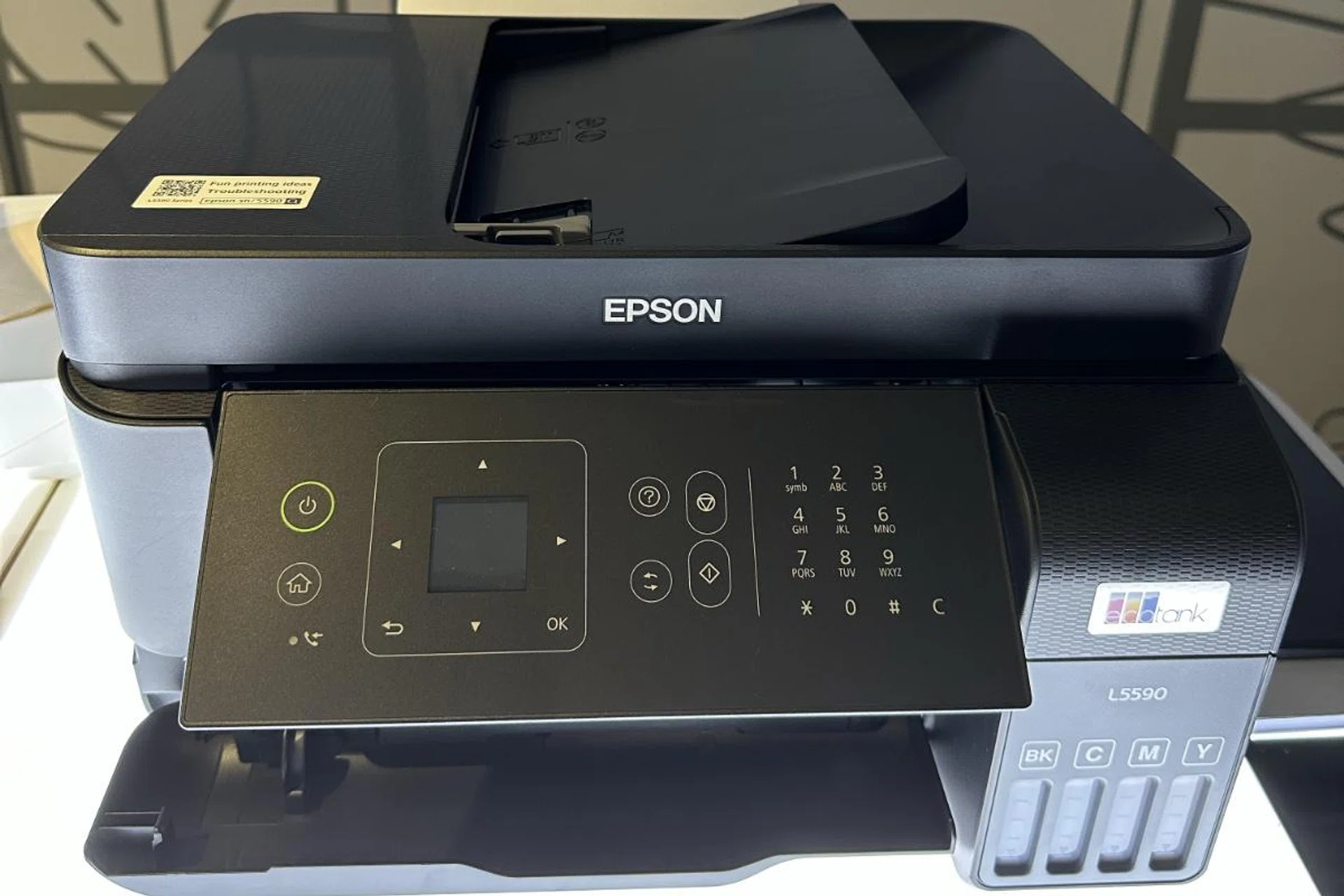
The easily viewable display.
However, the 1.44-inch LCD isn’t a touchscreen, which means you have to use the given input controls and press the OK button to register a command. A minor niggling annoyance, but it's much improved and appreciated over the L3550, which doesn't have any screen. Apart from that, the display has enough real estate to be read easily and can be tilted along with the whole input panel to read the display easily and register the inputs with greater ease.
In addition to better printer usability through an articulating LCD screen, the EpsonL5590 also comes with an ADF that wasn't present in the more affordable L3550. The ADF can handle up to 30 sheets of paper, which isn't plenty, but more than enough to get most jobs done.
One feature we felt lacking on the L5590 is that it doesn’t have a paper cassette and can handle up to 100 sheets of plain paper through its rear paper feeder. This isn't really enough to handle the print volume needed for a typical business printer and that would mean frequent paper refills.
Fortunately, like the L3550, the L5590 uses Epson's PrecisionCore print head to deliver excellent print results while using Heat-Free Technology to keep power consumption low. Instead of heating up the ink to facilitate the ink ejection process to the paper, pressure is applied to the Piezo element, which flexes backwards and forwards, firing the ink from the printhead.
The print results from the L5590 were the best we achieved across all the printers tested in this shootout. It wasn’t the fastest, but the results it delivered were nothing short of exceptional.
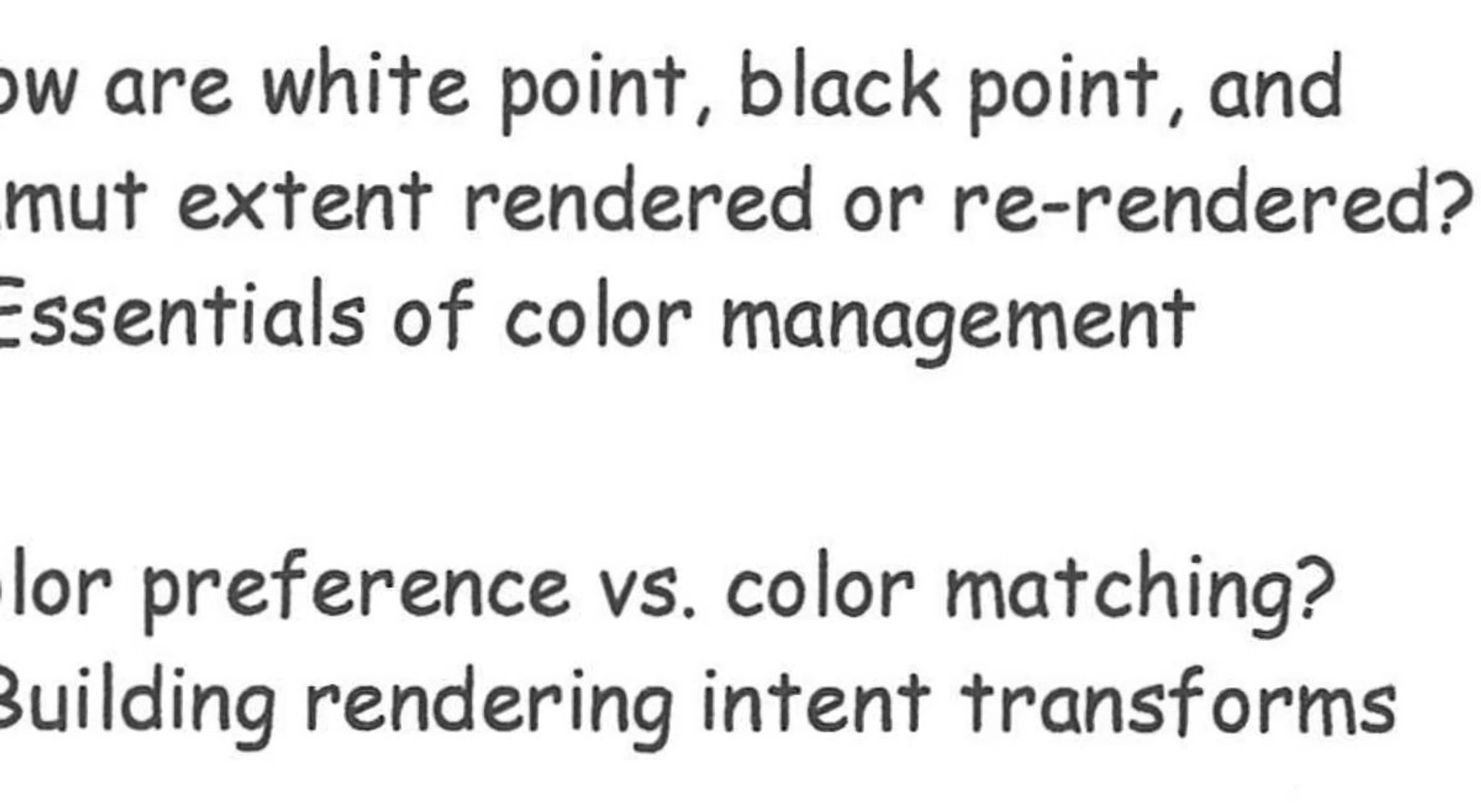
Close-up scan of its text print capability.
The text was black, rich, crisp, clear, and sharp. Serifs were clearly defined and sharp, with no smudging. Our test image was sharp, with rich colours, but not overly saturated or smudged.

Close-up scan of its colour image print capability.
Since it has ADF unit, we ran a five-run scan of our four-page test document, which took 241 seconds, giving it an average time of 48 seconds for a single run. Again, this isn't fast in our book, but it fared decently.
Like the Epson L3550, the L5590 has replacement ink cartridges priced at S$9.90 for both the Black and Coloured cartridges with a page yield of 4,300 and 7,300 pages, respectively. This gives the L5590 a running cost of S$3.19 per 1,000 pages in our running cost test.
Officially listed for just S$469, the Epson L5590 is low-cost SMB office printer if you don't print much and appreciate speed and quality. It's available in the following online stores:- Gain City, Harvey Norman, and Lazada.
(SMB Printer) Canon Maxify GX3070: Business-perfect results
Following our tests, we voted the Canon Maxify GX3070 as having the best mix of features and results to be the winner in our SMB category. It wasn’t perfect, with a few niggling faults, but of the two we tested in this class, it had it where it counts for an SMB office printer.
First was its build quality. The Canon Maxify GX3070 looks like what an SMB printer should look like, all blocky and square. It feels extremely well put together without any flailing parts and is very self-contained.
Second, were its features. It is ink-tank-based and is compatible with the high-yield GI-76 series inks, which can deliver 6,000 greyscale pages and 14,000 pages in colour. With the Economy Mode print setting turned on, you get even more with up to 9,000 and 21,000 pages in greyscale and colour, respectively.
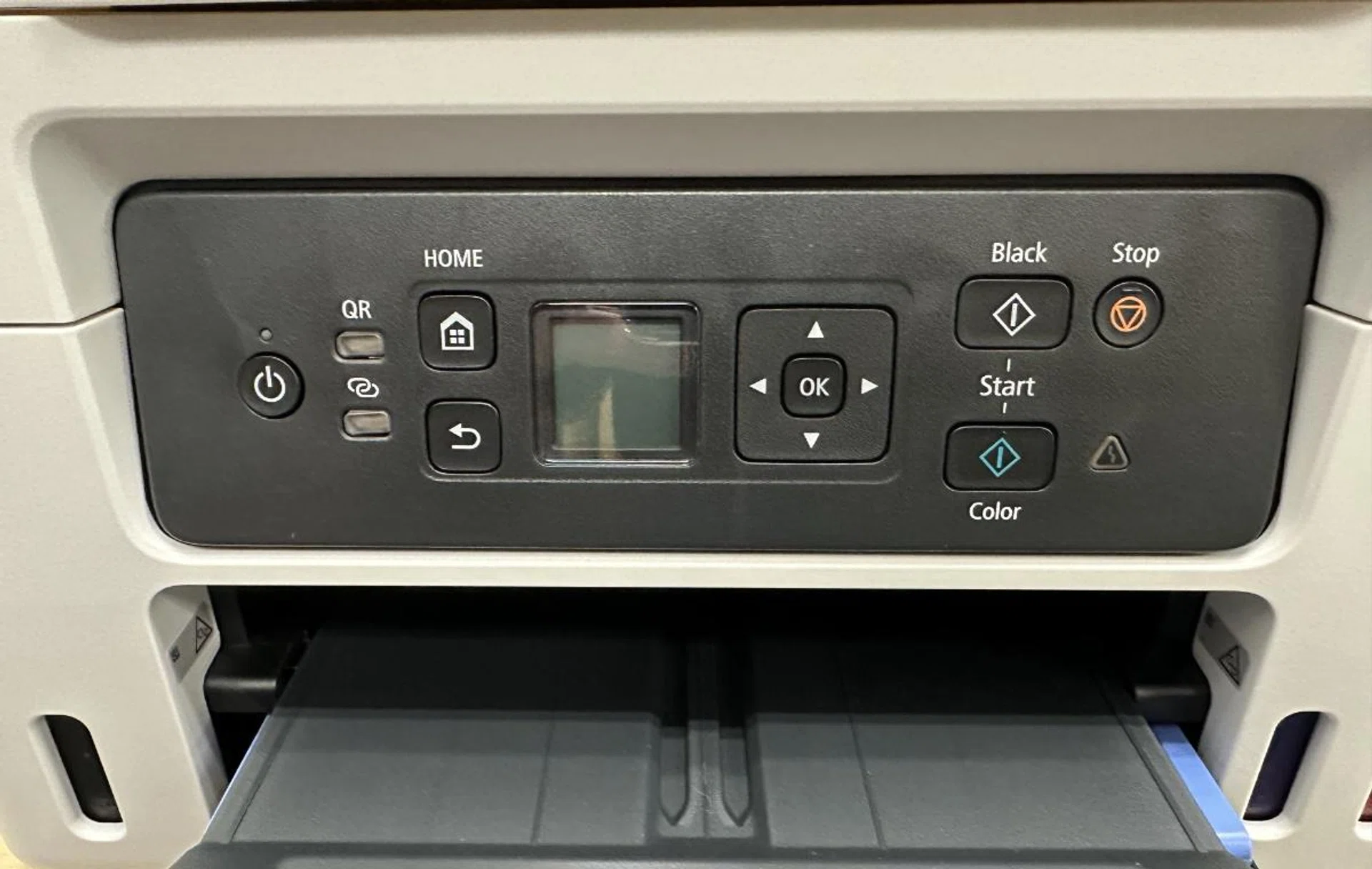
The non-pivoting LCD and panel.
It also has a 1.35-inch LCD (not a touchscreen), a 250-sheet paper cassette, a standard all-purpose rear paper tray feed, as well as a secondary direct rear paper flat tray to feed long continuous paper (like banners) and handle more irregular and thicker paper types. The printer has a recommended monthly print volume of up to 2,500 pages.
For the third, user-friendliness, the GX3070 is capable of auto duplex printing, and it comes with Canon’s Maxify Cloud link that allows you to print images and PDFs from Cloud storage sites like Dropbox, Google Drive, and OneDrive. You also get an app suitable for both business and consumer usage needs/deployment.
But not everything is hunky-dory. Firstly, the LCD doesn’t tilt so it can be hard to see what the menu options are. Second, and this is the big one, is that it lacks an ADF. It's difficult to stomach this point when its costs upwards of S$600. That said, Canon does offer it on its higher-tier Maxify models, just not on the GX3070.
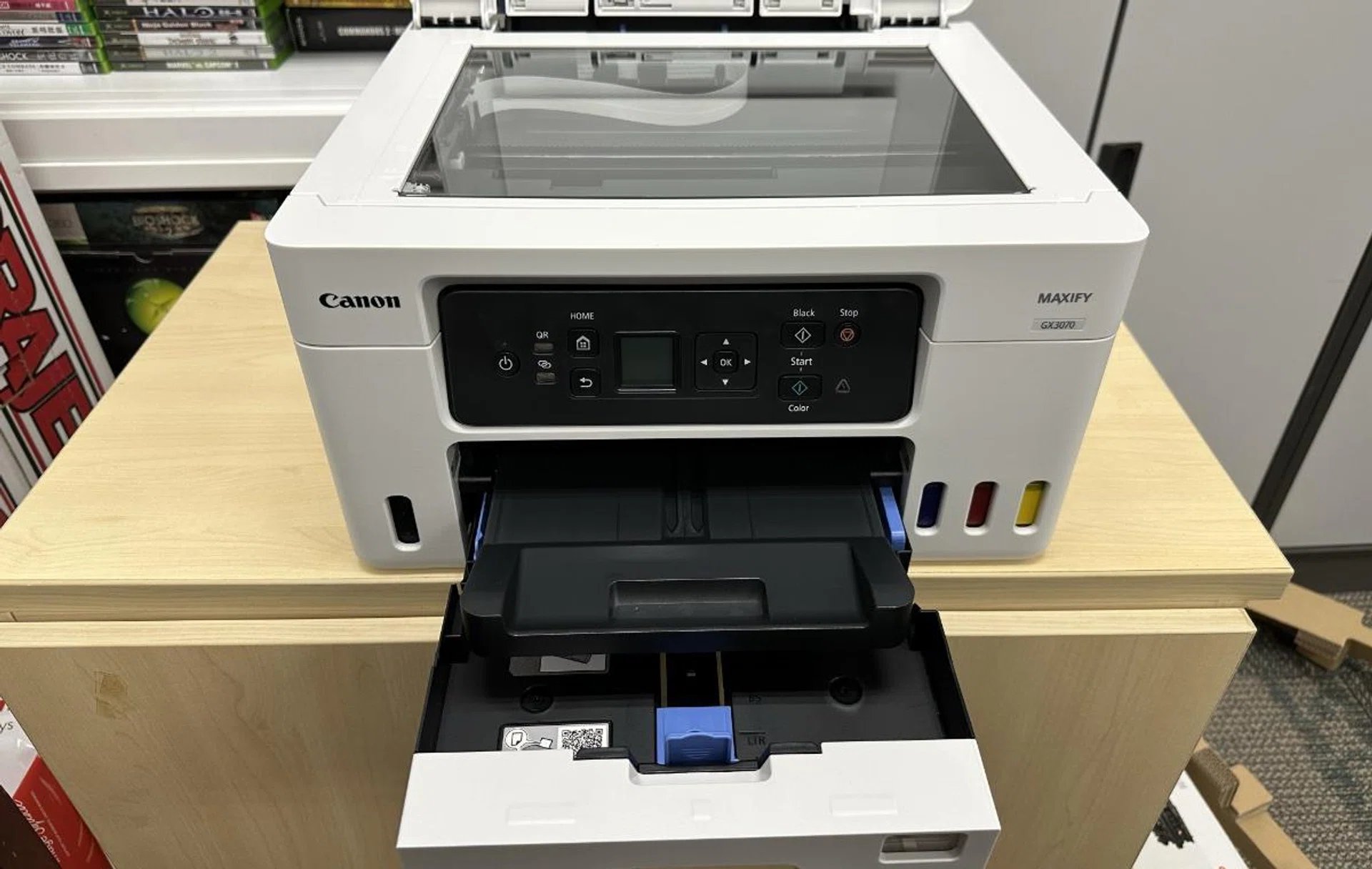
It has a paper cassette but lacks an ADF.
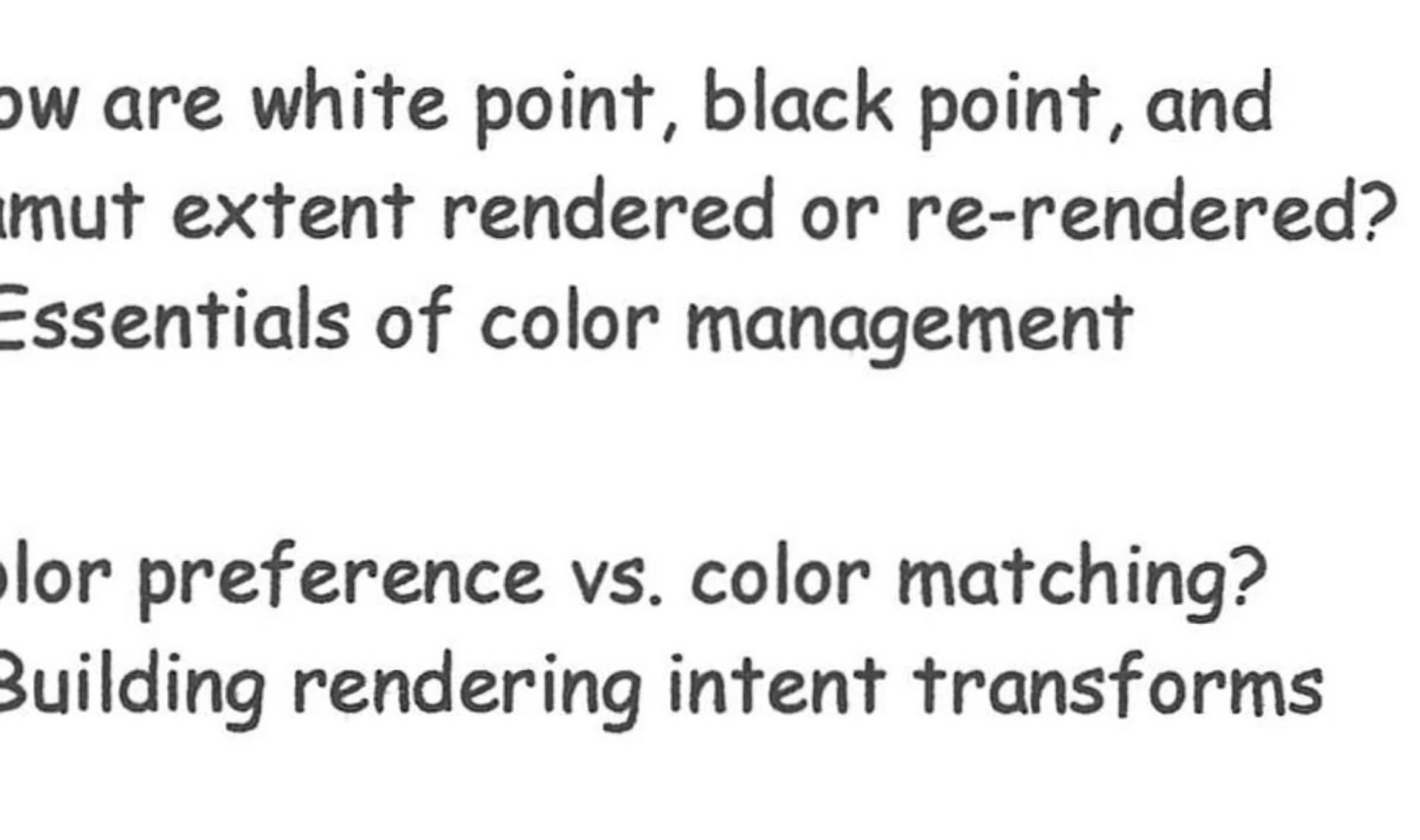
Close-up scan of its text print capability.
Now let's get back to the meat of the printer, its print results. If you're an SMB looking for a printer, then the Canon Maxify GX3070 won’t disappoint. Text prints from our test documents came back richly black and crisp. Serifs and punctuation marks were clear and sharp, with minimal ink running. For our test image, while the printouts were clear, the blacks were slightly oversaturated than our test image.
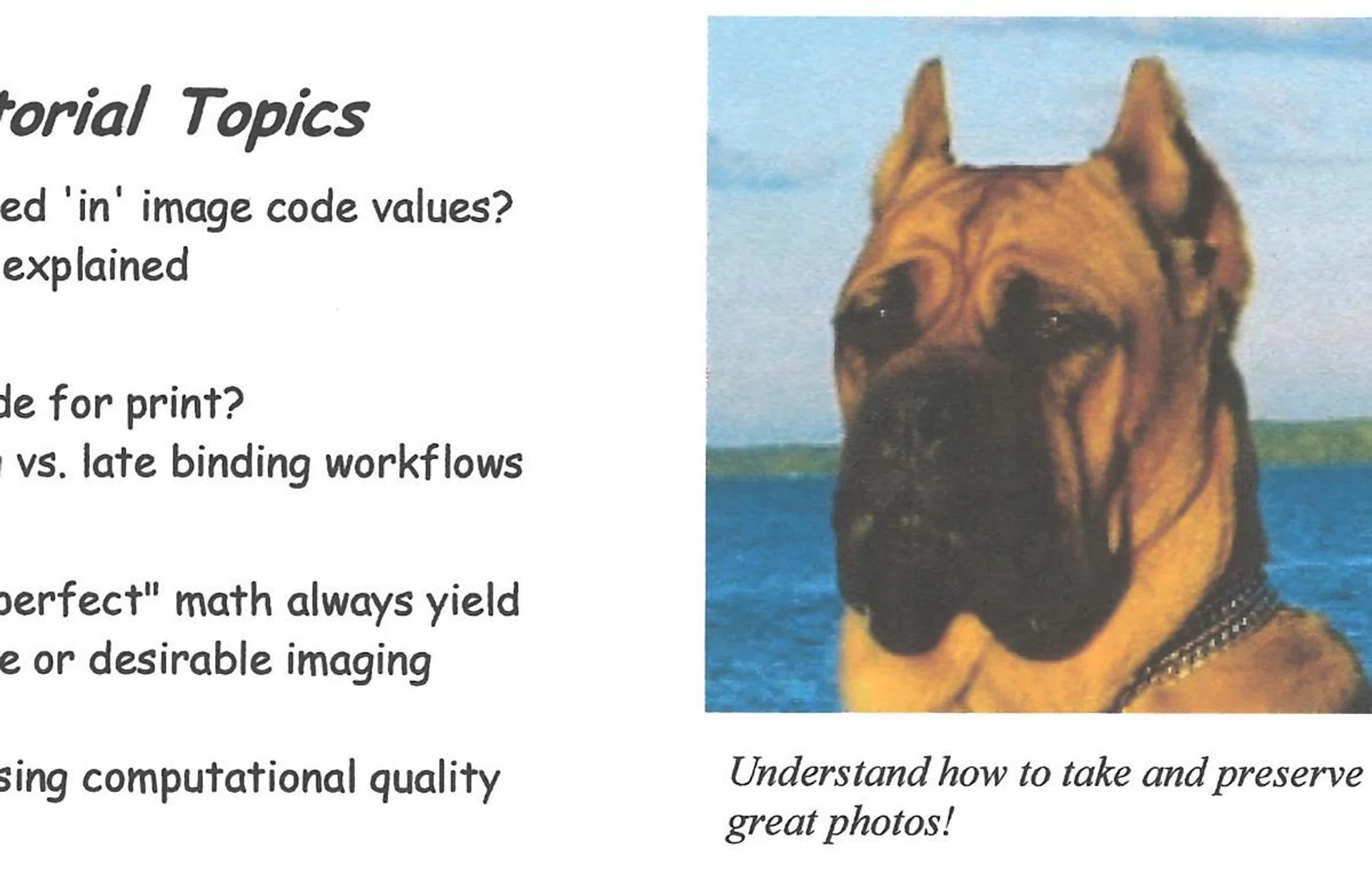
Close-up scan of its colour image print capability.
In terms of print speed, it printed our twenty-page test document with an average speed of just under 22 seconds and our forty-page test document in 47 seconds. It's not the fastest we've seen, but it's still a solid second place among the five printers in this comparison. Unfortunately, as the device lacked an ADF we could not conduct our multi-page scanning test. For a single page scan, we found the GX3070 scanned a single page in 19 seconds.
Despite being an ink tank-based printer, the cost of replacement ink cartridges is somewhat pricey at S$49.70 for black and S$35.60 for colour. However, the page yield makes up for this at 6,000 and 14,000 pages, respectively. This gives the Canon Maxify GX3070 a running cost per 1,000 sheets of S$7.96 in our running cost test. The higher cost of the replacement tanks jack up its print run costs to twice that of the Epson counterparts. While that's still far cheaper than a conventional inkjet printer (such as the HP Officejet Pro 9010e), the relative comparison still holds true.
Officially listed for S$649, the Canon Maxify GX3070 is a little on the steep side, but it's still a solid all-rounder. More so when it's often going on offers as low as S$569 when it's on offer. The printer is available in the following online stores:- Amazon SG, Canon, Challenger, Gain City, Harvey Norman, and Shopee.
How we tested
We tested our printers by looking at print speeds, print quality, scanning speed, features, and connectivity.
To ensure a level playing field, we connected all printers directly and installed the default drivers for printing and scanning. We also connected it via our Wi-Fi network to see how easy network setup and printing are. We used the same paper and print settings for all the printers as well.
Apart from performance, we also looked into the features of the printers like the display (or lack thereof), paper capacity, ink cartridges, and connectivity options. We also factor in other features the printer had such as printing from a thumb drive, security, and the different types of prints it can handle (A4, A3, stickers, photos, discs, etc). Finally, we considered functional features such as duplex printing, scanning, and if it could still be used as a fax machine (though that's strictly a bonus these days).
With most printers supporting app-based functionality, we also installed the respective phone apps for testing their user-friendliness, app features, and if there was a good mix of business and consumer-friendly print options.
We ran our print test document that has a mix of text and images a number of times with a different total number of pages five times and took down its average speed. For printers with an ADF, we scanned a differing number of pages a number of times to get an average time. For devices without an ADF, we scanned just one test page.
Timings are measured from when we press the print or scan button to when the last page hits the tray, or when the image appears on-screen.
And the winners are...
From our testing and consideration, we found the following printers to be the winners in each category:
- Best Value SOHO Printer: HP OfficeJet Pro 9010e
- Best SMB Office Printer: Canon Maxify GX3070
Best Value SOHO Printer: HP OfficeJet Pro 9010e
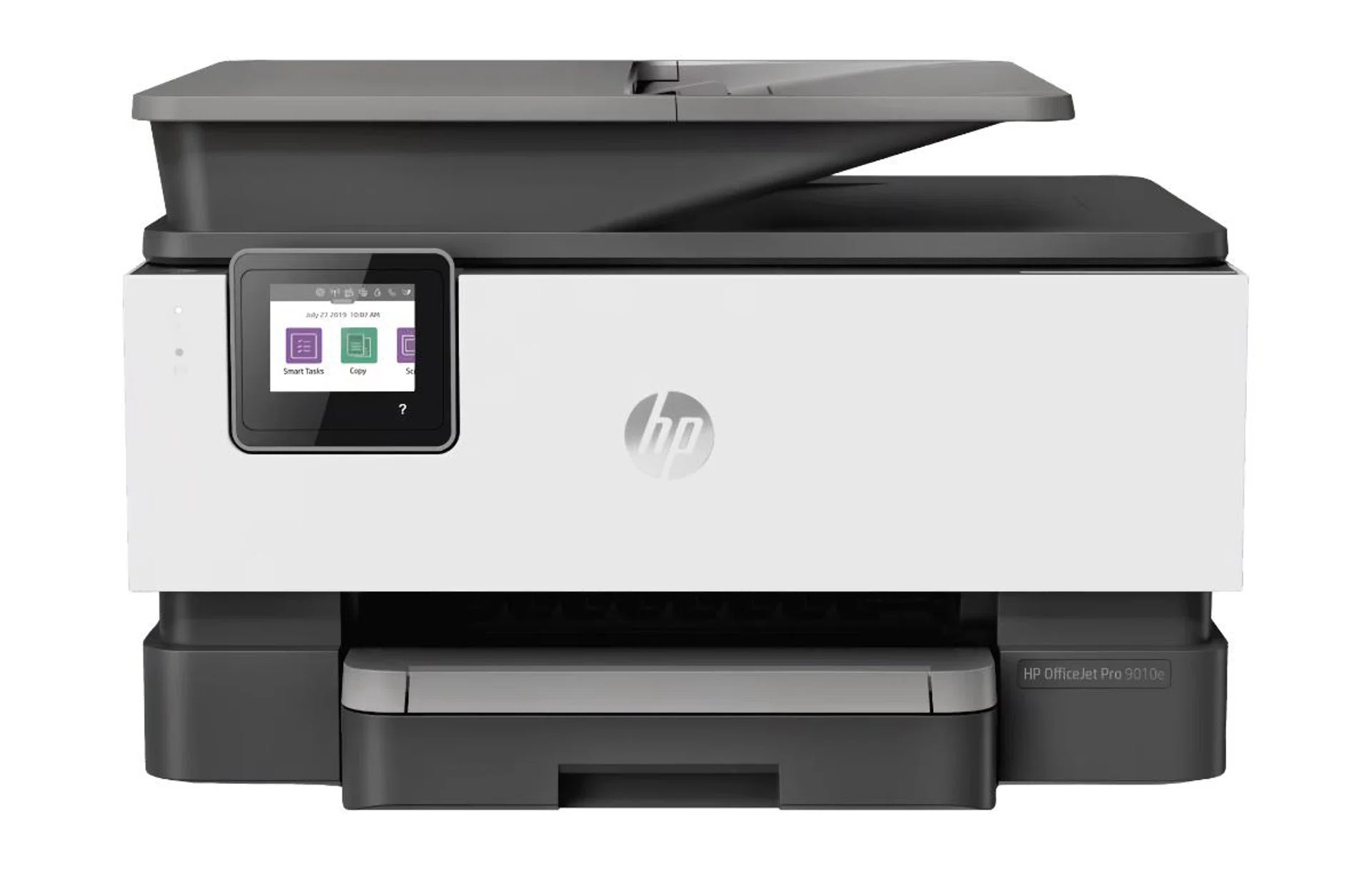
After our tests, the HP OfficeJet Pro 9010e was our best SOHO printer for Tech Awards 2023. We liked its build quality, mix of features, user-friendliness, print results, and speed in both printing and scanning.
Overall, the OfficeJet Pro 9010e felt well-built, didn’t feel plasticky and didn't feel as though parts would come off when moved -- despite the fact that it was the most inexpensive printer of the bunch. It has a nice host of features like a 2.65-inch touch-screen LCD that can tilt, a fax facility, and a 35-page ADF. It was also the only one in the category to have a paper cassette for 250 sheets of paper, and had both duplex printing and scanning capabilities.
The only complaint we had was its running costs. Compared to the other two printers in the category that we tested, the OfficeJet Pro 9010e wasn’t an ink-tank-based printer which means that its running costs are higher. This is offset somewhat by the lower price of the device.
We found it to be a fast printer, easily completing any task we need of it. It printed our twenty-page test document with an average speed of just under 17 seconds, and our forty-page test document in 27 seconds. Best of all, it didn’t sacrifice quality for speed. The text in our test document was clear, crisp, and black. There was no smudging around the serifs. Our test image was clear and not overly saturated but lighter in colour than our original image. In our scan test, it completed our scan test in an average of 27 seconds, the fastest in the category.
All in, if you're not banking on printing a lot, but appreciate the printer's performance and features, the HP OfficeJet Pro 9010e is an easy recommendation.
Epson L3550 | Canon Pixma G4770 | HP OfficeJet Pro 9010e | |
Design | 5.5 | 7.0 | 8.0 |
Features | 5.5 | 7.0 | 9.0 |
User-friendliness | 6.0 | 7.0 | 7.0 |
Performance | 7.5 | 7.0 | 9.0 |
Value | 8.0 | 8.5 | 8.0 |
Overall Score | 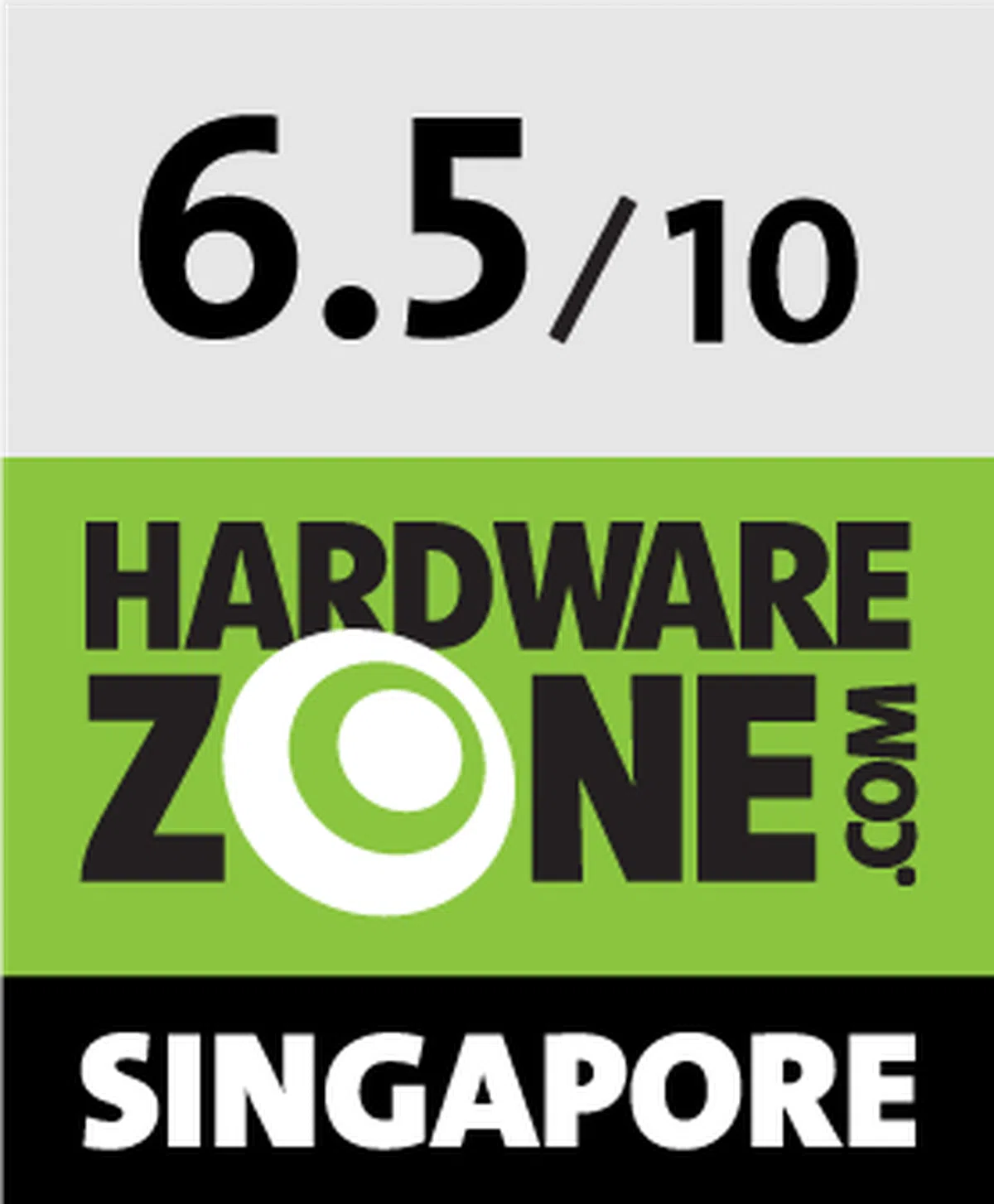 | 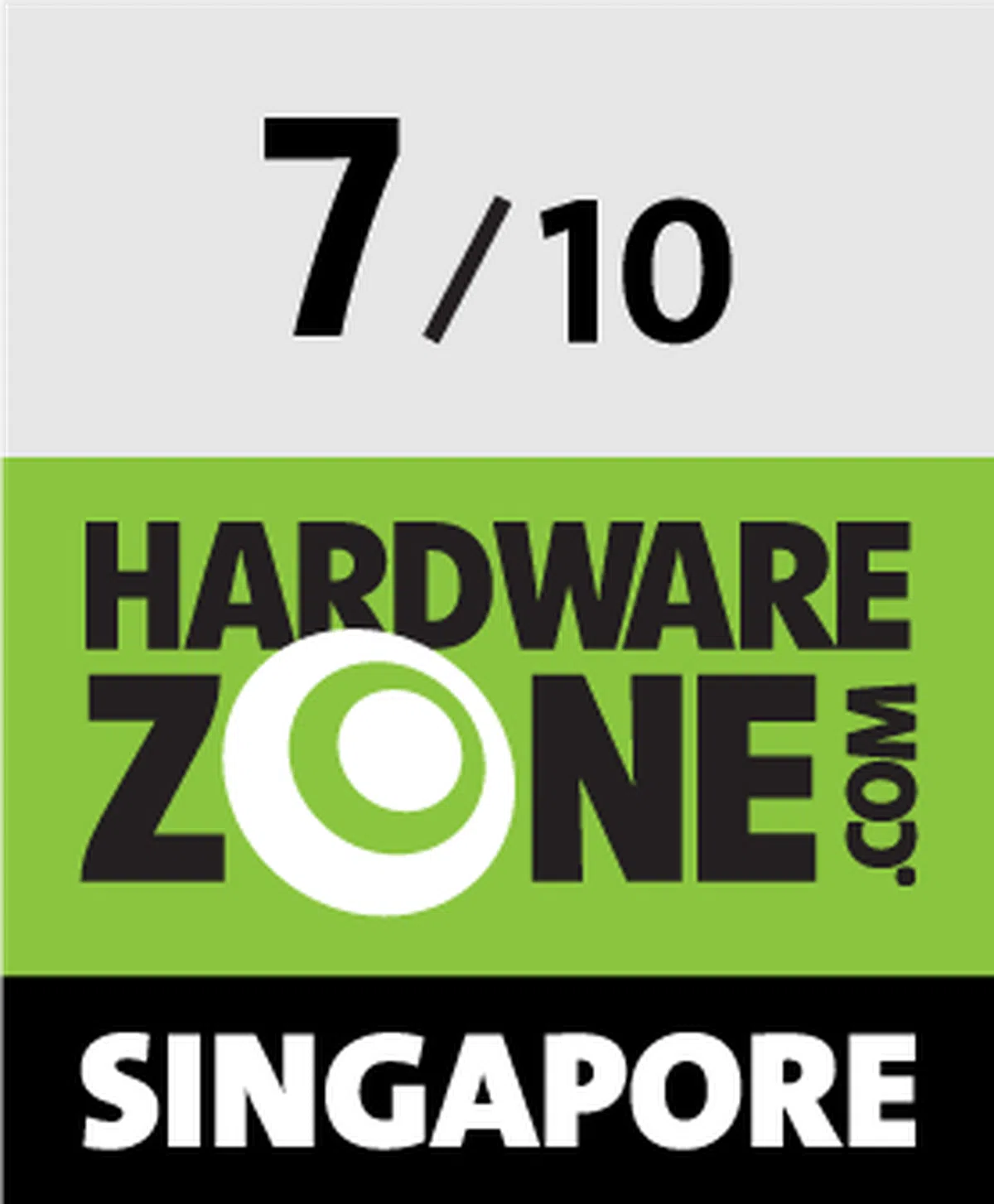 | 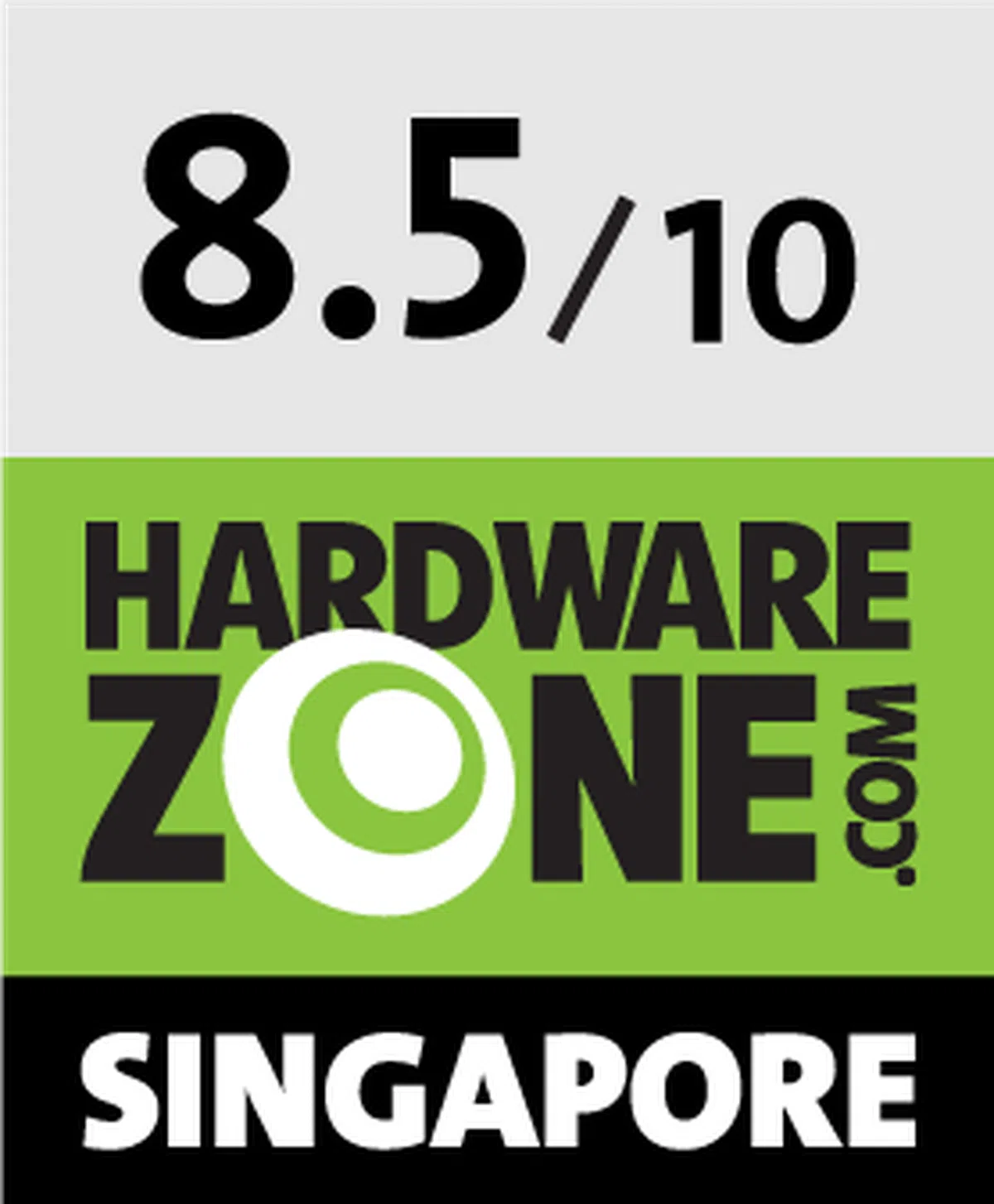 |
Price | S$369 | S$389 | S$269 |
Shopping Links |
Best SMB Office Printer: Canon Maxify GX3070
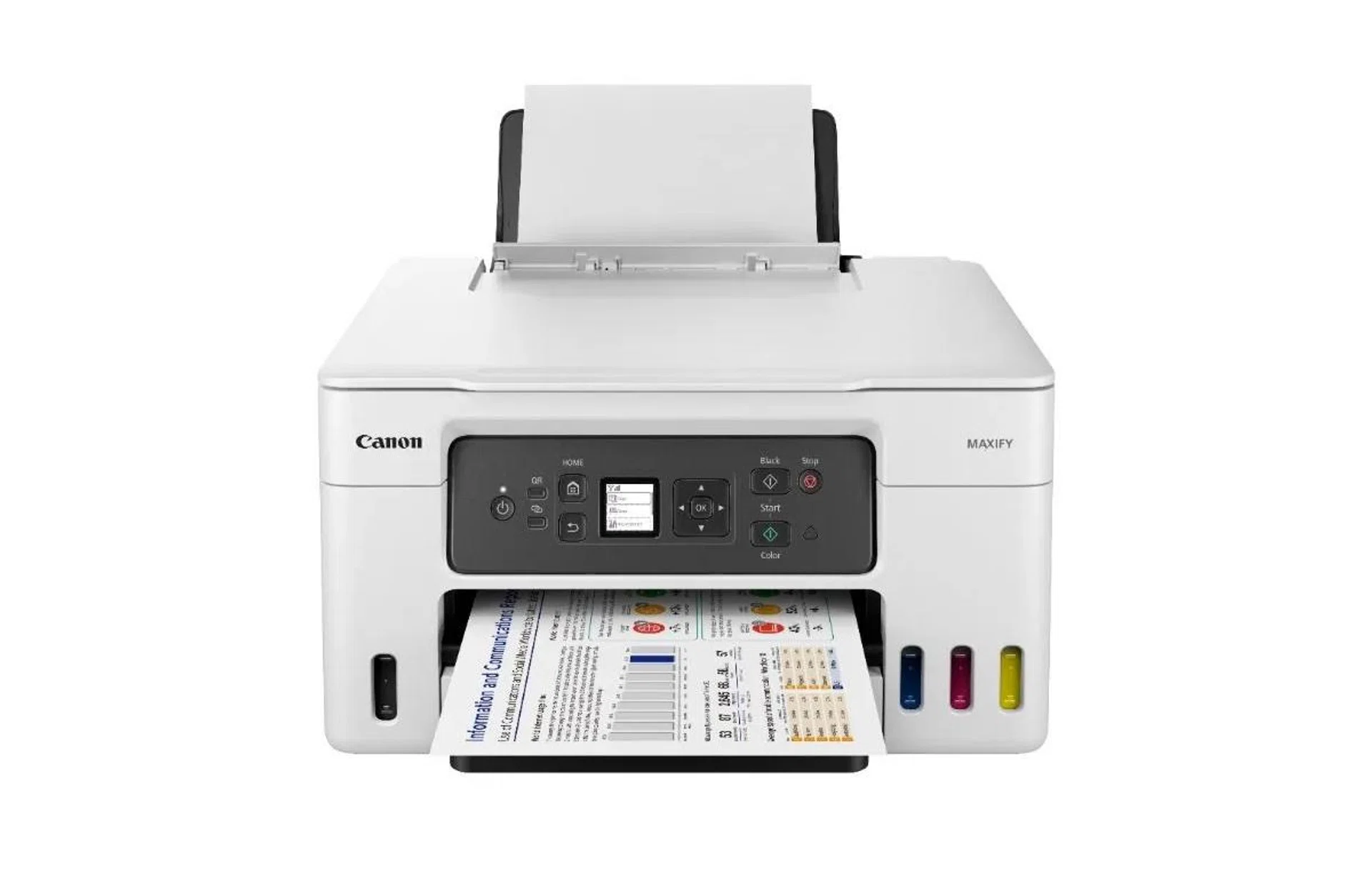
The Canon Maxify GX3070 looks like a typical office printer, all blocky and square, plus it's well put together.
In terms of features, it comes with a 1.35-inch LCD that unfortunately isn't touchscreen-enabled, a 250-sheet paper cassette, dual rear paper feed options, auto duplex printing, and an app for both business and consumer use. With a recommended monthly print volume of up to 2,500 pages, it's definitely built for high volume usage.
In our print tests, the Canon Maxify GX3070 didn't disappoint. Text from our test documents came back richly black and crisp, while Serifs and punctuation marks were clear and sharp with minimal ink running. For our test image, while the printouts were clear, the blacks were slightly oversaturated than our test image, but otherwise still plenty satisfactory.
While more expensive than the Epson counterpart by a good margin and having slightly higher running costs than it (even if both were ink-tank printers), the better overall package, design, convenience and capabilities by the Canon won us over.
Epson L5590 | Canon Maxify GX3070 | |
Design | 7.5 | 9.0 |
Features | 6.5 | 8.5 |
User-friendliness | 8.0 | 8.0 |
Performance | 7.5 | 8.0 |
Value | 8.5 | 7.0 |
Overall Score | 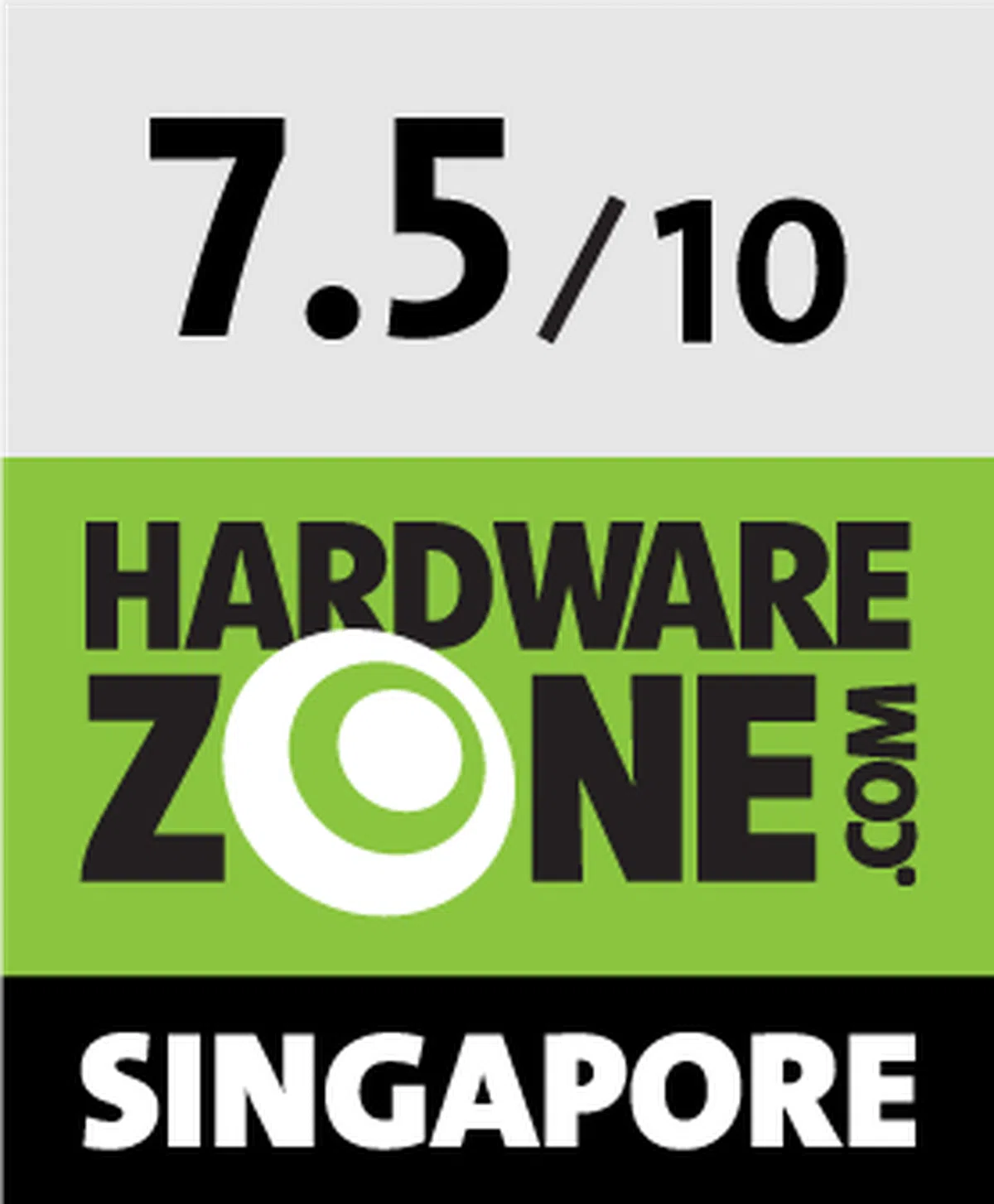 | 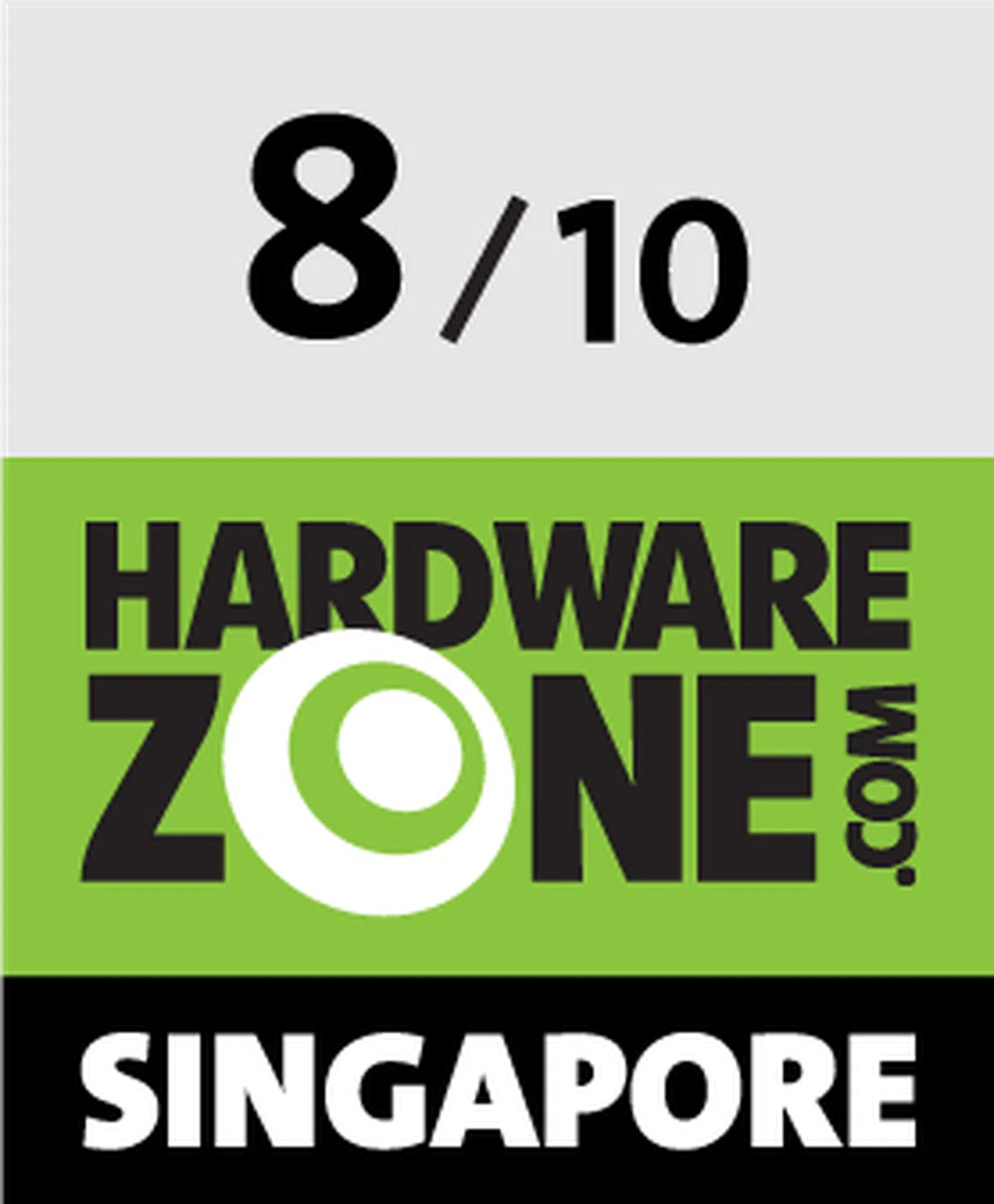 |
Price | S$469 | S$649 |
Shopping Links |