
Best printers of 2020: For the home, office and everything in between
Be it for personal high volume multi-function use, a busy family with kids or a formal office setup, we've rounded up the very best small-office-home-office (SOHO) printers and Workgroup Office printers for your consideration.
Note: This article was first published on 31st May 2020 and updated for relevancy.
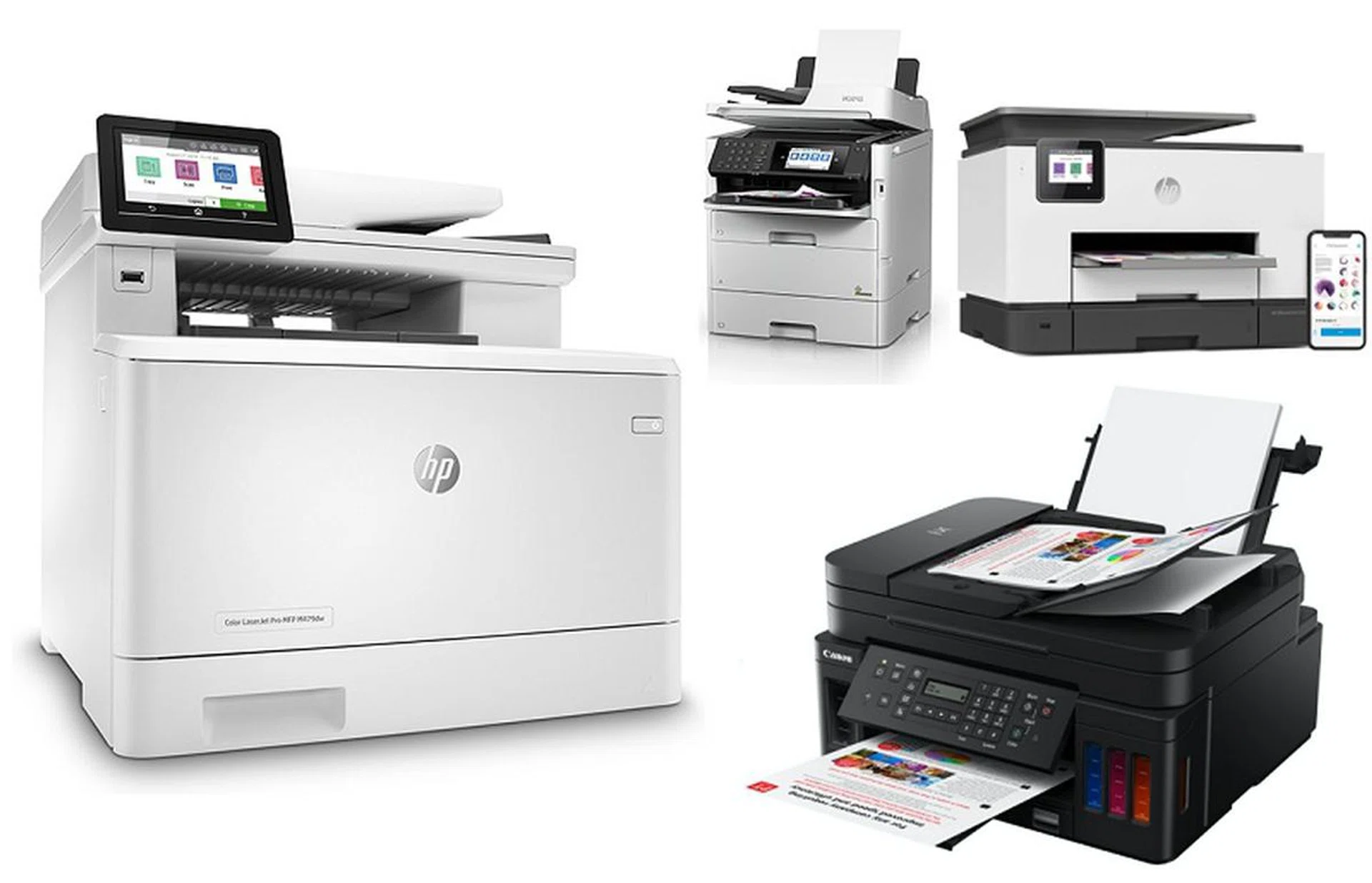
New printers for a new decade
Despite the fact Covid-19 has accelerated digital processes and tested the possibility of remote working for extended periods, the venerable printer at home, school or office isn't going to go away anytime soon. Sure, we're printing less, but the need to print will never be eliminated. Children, while happily adopting phones and tablets, paper and books are still the best medium to help them express themselves creatively, artistically, and even for some aspects of their coursework. Elsewhere in offices, certain processes can be digitised and be kept solely in the digital domain, but there are others (especially the more important documents) where they require to be printed, signed and filed away in the old fashioned manner - at least for the near future. Even if you don't print much, printers have become a great asset to help scan or copy existing documents for duplication or aid in the process of digitization, storing templates for work processes and many more.
Now with Phase 3 of re-opening in Singapore, more people are gradually heading back to the office and it's probably high time to upgrade your old workgroup printer in the office. If you've been working from home, perhaps it's also time to re-look at how your existing printer keeps pace with your needs - be it in quality, capability or just versatility.
On that note, we've rounded up the very best Workgroup Office Printers and SOHO Printers that you can consider for upgrading. These gadgets aren't exactly small and light, so we've done the heavy lifting for you to know exactly which printer you can gun for based on your needs. We'll start with the SOHO printer category first, followed by the Workgroup Office printers.
Assessing SOHO printers
Once All-In-One (AIO) printers became mainstream solutions from manufacturers, they steadily made their way into offices as essential productivity tools, easily replacing single-function printers.
Able to print, copy, scan and fax, the divide between these and their higher-end brethren usually lies in the fact that the majority are still using inkjet technology. Indeed, two of the printers tested here are inkjet-based.
For this category, we tested printers from Brother, Canon, and HP that cost around S$500, launched in 2019 and placed no restrictions in the type of print engine used. We looked at the size and footprint as space could be at a premium in a SOHO setup, along with the features and connectivity options. While ease of use was important, the overall price of the printer, print quality, and cost of printing were key winning criteria.
Nominees:
- Brother DCP-L3551CDW
- Canon G7070
- HP OfficeJet Pro 9020
Here's what we found from testing each of these printers.
Brother DCP-L3551CDW Review: Laser quality at an inkjet price
Surprisingly, Brother's S$448 LED printer DCP-L3551CDW model made the cut for our SOHO class printer assessment. For a quick recap, LED printers are most similar to laser printers, using a drum, toner, and fuser system to apply coloured or black toner to the paper. There is one key difference between the two in that laser printers use a laser (hence the name) and mirror to create a toner-attracting static charge on the printing drum while LED models use a strip of LEDs (again, hence the name).

Brother DCP-L3551CDW LED printer.
Currently, Oki, Brother, and Xerox are some of the printer manufacturers selling LED-based printers as an affordable laser option.
Like laser printers, there is the argument that LED printers are better for document printing and most of what we have seen seems to support this.
Printer Design and Features
The Brother DCP-L3551CDW had the largest footprint of the three SOHO printers tested and was also the heaviest. Understandably, the print engine used - LED printing instead of inkjet-based - is the key reason for its size as opposed to its contenders. This certainly has the look of an office laser printer with the body coming in at 410 x 475 x 414mm and weighing a sturdy 23.5 kg.
The 250-sheet paper tray was very handy and coupled with the 50-sheet ADF made this a SOHO-class workhorse. We really liked the dual auto document feeder (ADF) and multi-purpose paper tray. However, for all its large size, it had a very small LCD that was fixed in position (as opposed to being articulated which would be beneficial for a more varied placement).
While it has a stated print speed of 18ppm for both black and colour documents, we found that it took less time to buffer after the print button was pressed and thus, was the fastest SOHO printer we tested. The printer offers up to 2,400dpi print quality and also has optional high-yield toner cartridges.
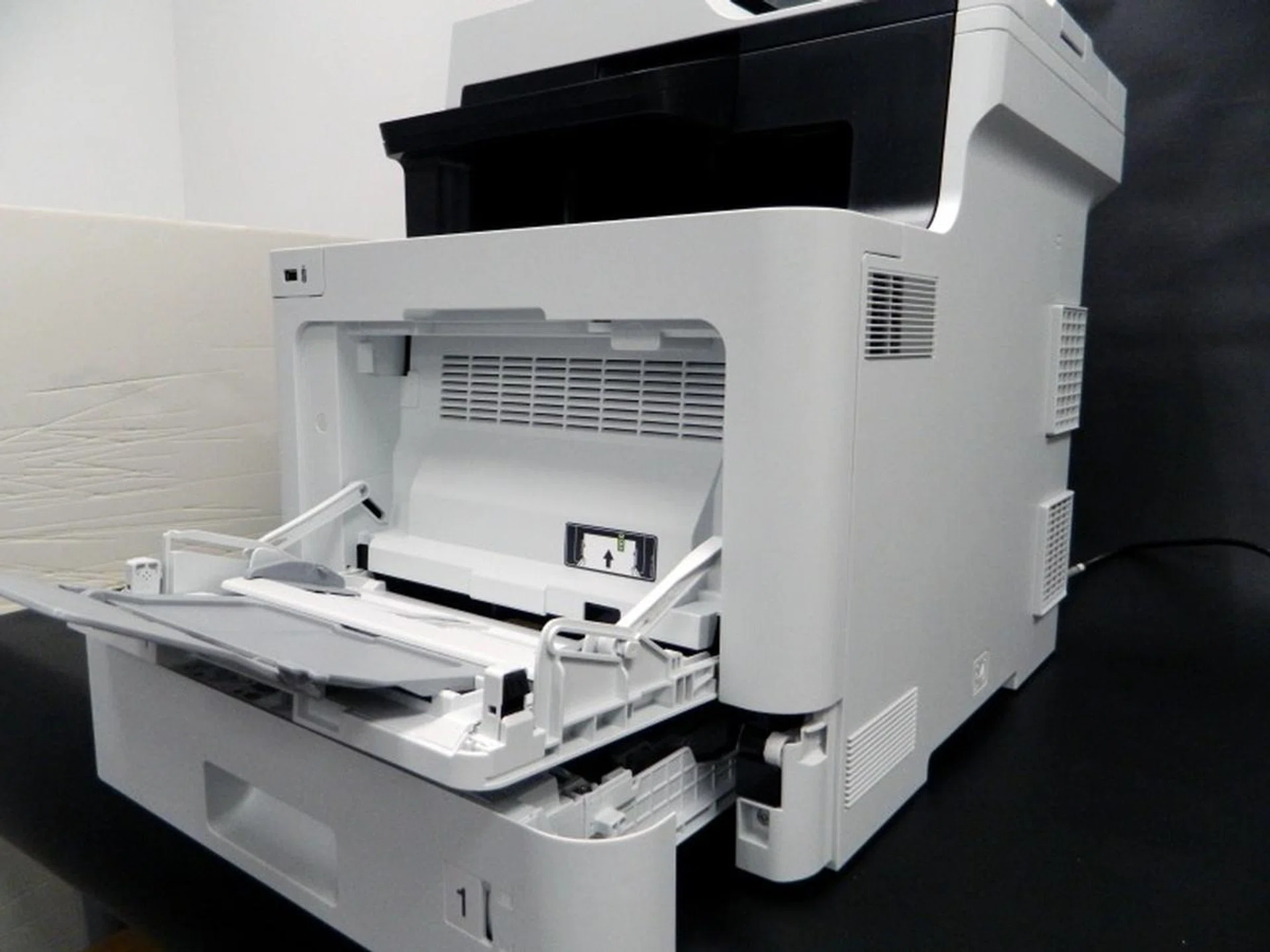
Connectivity options are plentiful such as Wireless 802.11b/g/n and Wi-Fi Direct, as well as from mobile devices using AirPrint, Google Cloud Print, and Brother iPrint&Scan. But we found it could only detect our test lab's 2.4GHz network and not our 5GHz one.
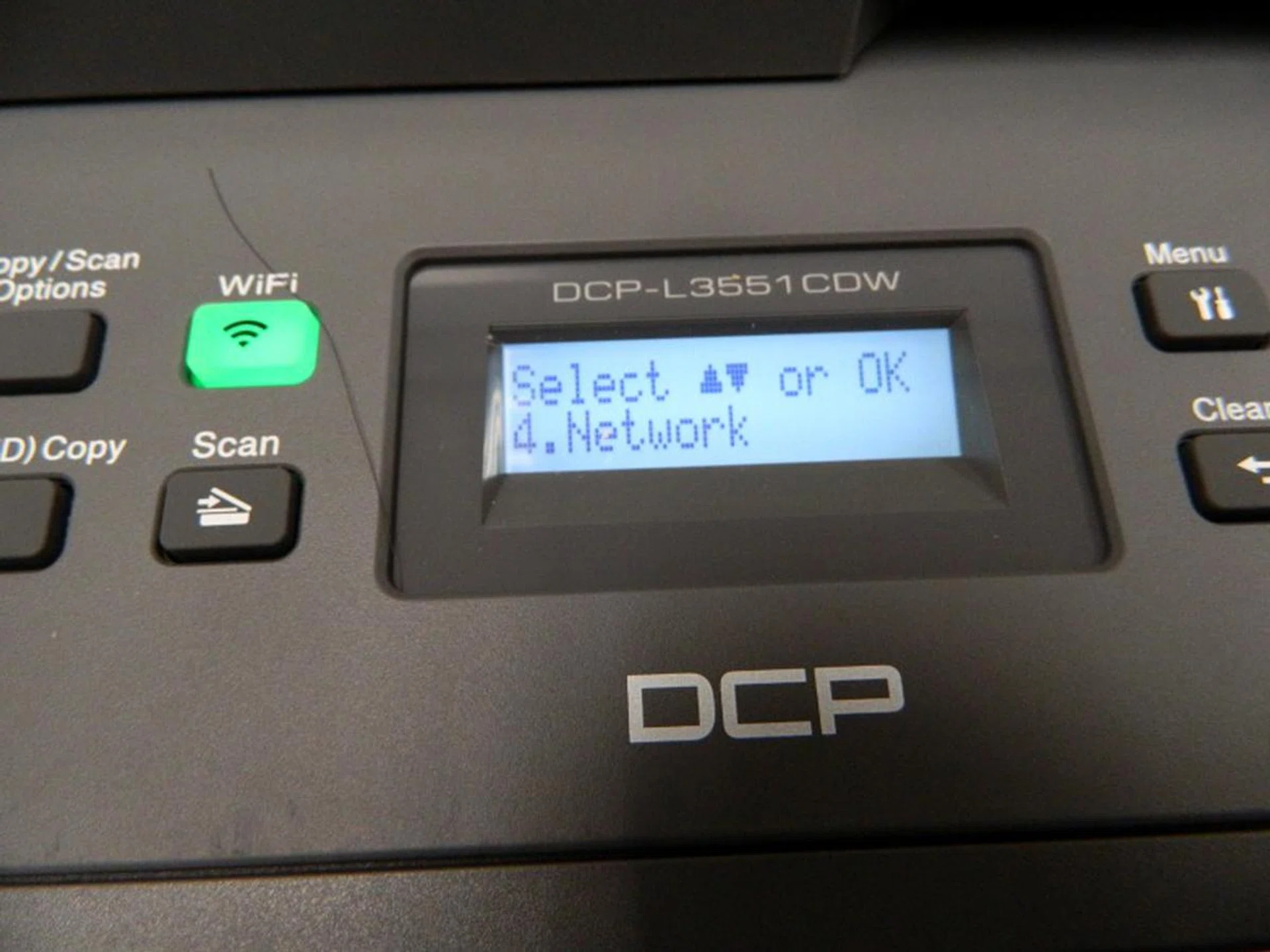
Our main complaint was with the small LCD. The small size meant that there was space for only two lines of text that made it difficult to type out passwords and navigate through menu options. Fortunately, unlike the Canon G7070, the buttons on the control panel all had descriptions explaining what each did.
Also, since it isn’t an ink-based printer, the toner replacements can be pricier than inkjet replacements although their load can also be higher.
One feature cost-conscious businesses will like is the three-year on-site warranty it comes with.
Print Quality and Speed (8-page test)
On paper, this printed out our test documents the fastest. But the difference between this and the HP counterpart was largely negligible.
Text printing was sharp and clear like the rest, with text and serifs sharp and clear. However, there was more colour spotting around the text than the other two printers tested.

Close-up scan of its text print capability.
Overall, while able to provide print results close to a laser-based device, the size and weight played against the printer in this case. And while the text in the print results came out fine, the image quality was what let it down. As seen in the below scanned image of its printout, tere was a noticeable halo around the main image and the blues were over-saturated.

Close-up scan of its colour image print capability.
Officially listed for S$448, the Brother DCP-L3551CDW LED printer is available at these online stores: Best Denki and Courts.
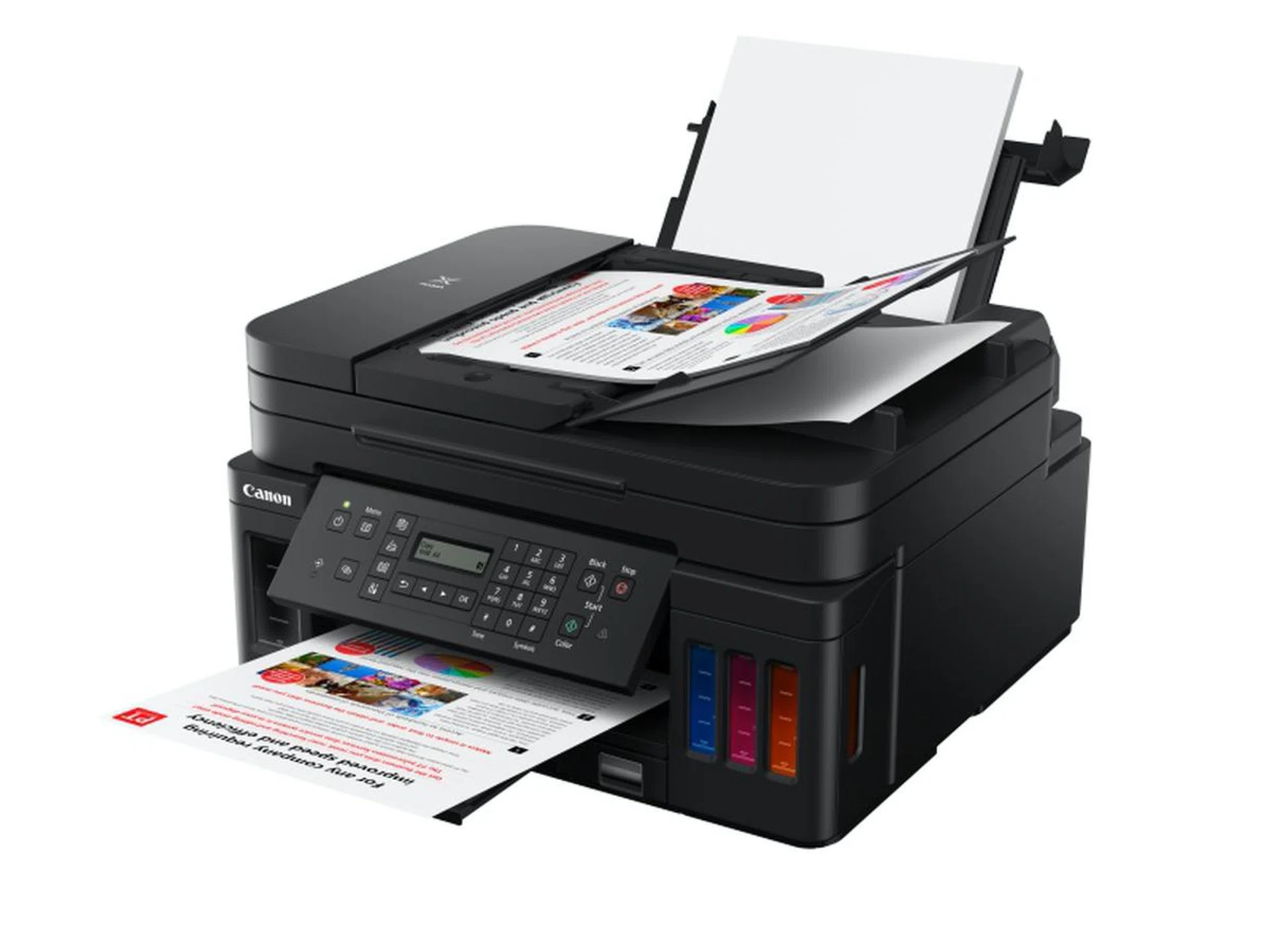
Canon Pixma G7070 Ink Tank printer.
Canon Pixma G7070 Ink Tank printer review: Small, versatile and cost-efficient
The Canon Pixma G7070 is an all-in-one printer with print, scan, copy, and fax functions.
Falling under Canon's Pixma range, this indicates that it is based on inkjet technology. But what also sets it apart is that it is one of Canon's latest Ink Efficient range of printers, using a refillable ink tank system.
It is easy to see why more manufacturers and users are falling under the spell of refillable ink tank class printers. Being able to physically see the ink level remaining imparts that level of control to the user. For the manufacturer, granted they may see less profit (no longer being able to charge more for complicated ink cartridge replacements), but they can also make their mark in terms of social responsibility for less waste through a simpler ink management system.
Printer Design and Features
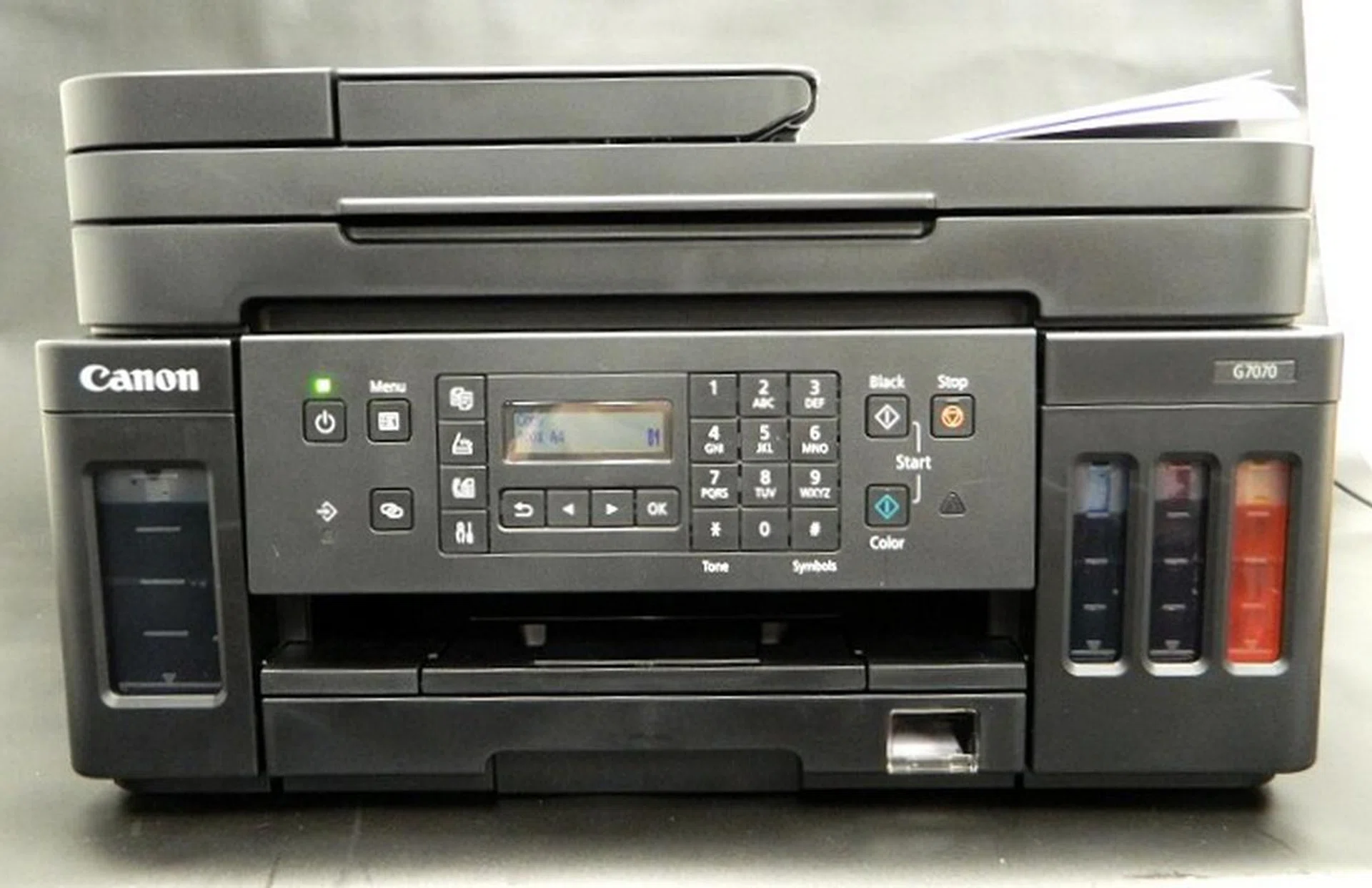
With dimensions of 403 x 369 x 234mm and weighing under 10 kg, the G7070 has a fairly small footprint (as compared to the Brother LED printer option), but still able to handle most print, scan, and copy demands of a SOHO. The only protrusions were the paper trays to hold print outs and these could be kept away when not in use to reduce the space needed for the G7070.
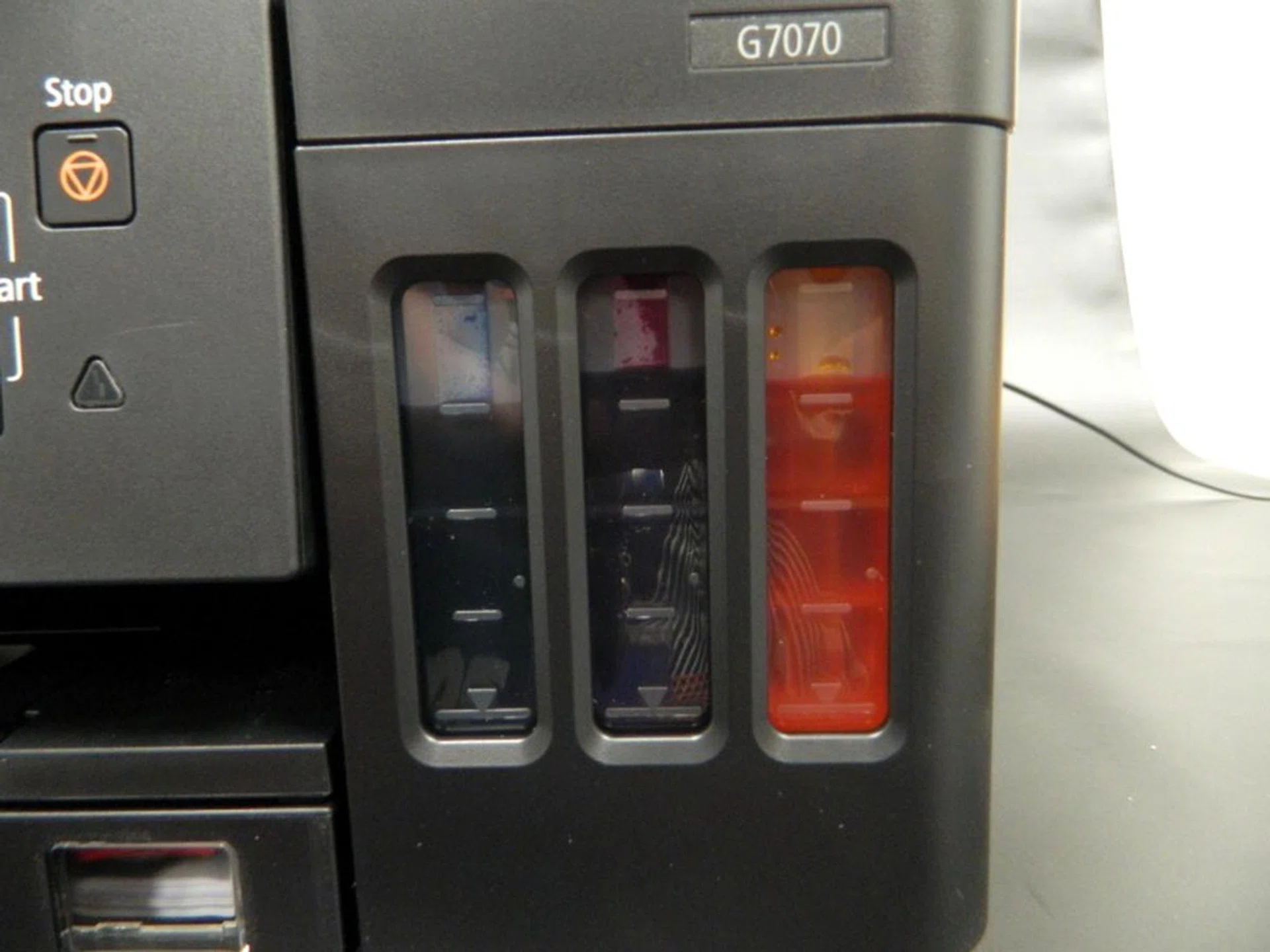
For improved efficiency and productivity, features such as automatic two-sided printing, massive paper feeding capacity, large document automatic document feeder, and full network compatibility have been incorporated.
The G7070 has a large 35-sheet automatic document feeder and a two-way paper feed design, which can load up to 350 sheets of paper in total per batch for uninterrupted printing, scanning or copying, up to 8,300 black-and-white documents and up to 7,700 pages in colour from a single ink bottle refill. This makes it the most cost-efficient model tested in terms of running cost - even if the printer's initial cost is the more expensive one of the lot at S$499.
Being able to physically see ink levels made it easy to judge when you needed to buy more. And refilling the ink tanks was also easy.
Besides network printing capabilities, it could print from various mobile devices and supports a host of connectivity options like USB 2.0, Wireless, Wired LAN, Wireless/Wired LAN Pictbridge. Wireless Direct is also present, allowing direct communication and printing from smartphones without the need for a wireless router.
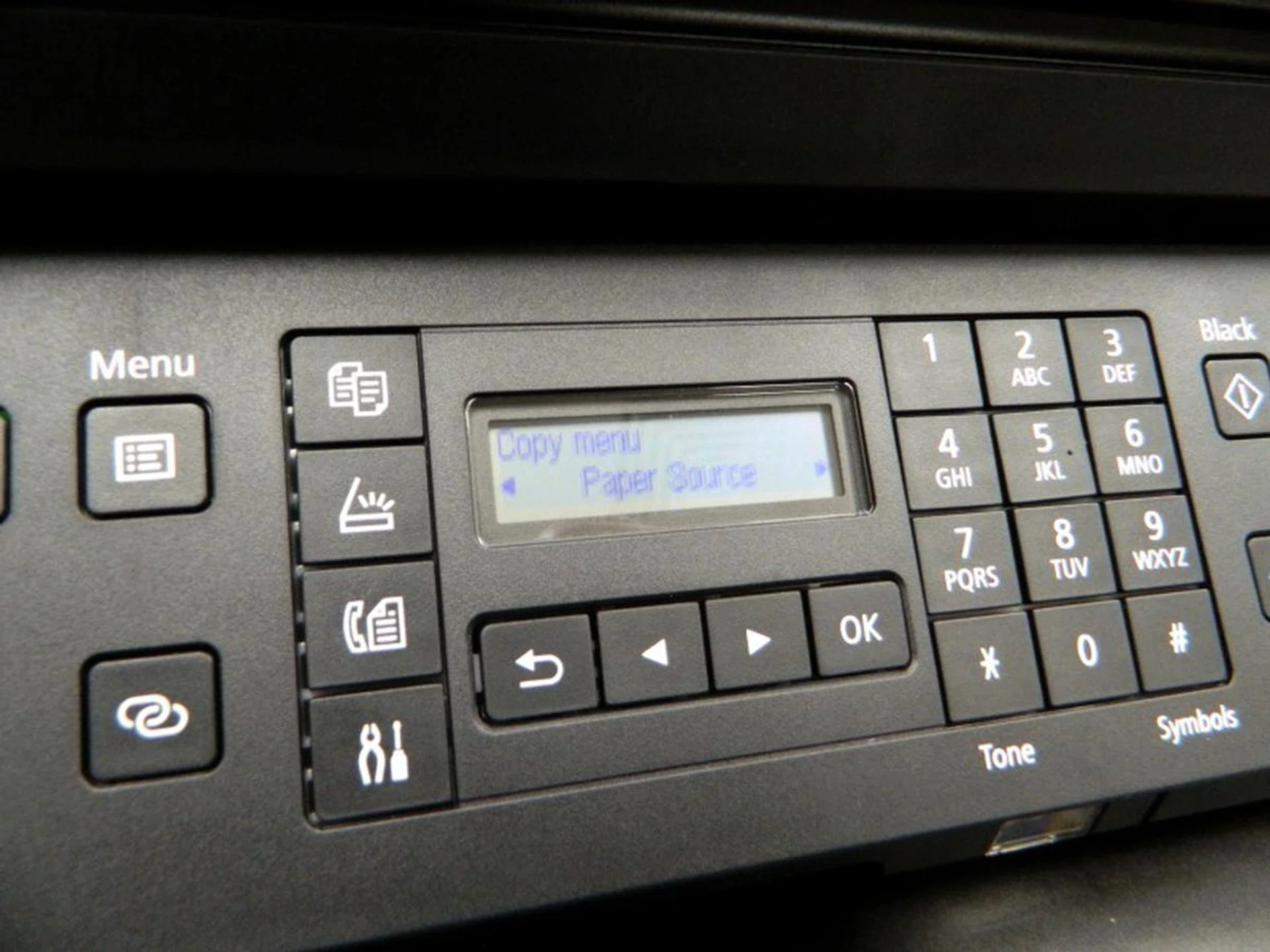
The front panel has all the functions and commands necessary to control everything you need from the G7070.
What we didn’t like however was the dual-line LCD display. It was small displaying only two lines of text, and therefore lacked the functionality of something larger that we've grown accustomed to on some of Canon's older multi-function SOHO printers. Navigating the menus and entering information like Wi-Fi passwords was fiddly and took some time. The buttons arranged around the LCD only used images to depict their function. I don't think using words would have been difficult and would make things a little more easier to understand at a glance; especially for infrequent or guest users.
Print Quality and Speed (8-page test)
Overall, it has one of the better print quality results of the SOHO printer bunch. Blacks were dark enough and the text was sharp and crisp. Serifs had no bleeding out. There was some sporadic spotting around the letters but this could only be seen under a magnifying glass like so:-

Close-up scan of its text print capability.
The colours for the image in our PDF document were closest to source but there was a wee bit of colour saturation. When under a magnifying glass, the image wasn't as sharp as we'd like but under the naked eye, you could hardly nitpick.

Close-up scan of its colour image print capability. As mentioned above, the outcome was actually closest to our source material.
It was, however, the slowest in print speed, taking more than double the time of the other two printers in the test.
Officially listed for S$499, the Canon Pixma G7070 is available on the following online store:- Canon Store, Amazon SG, and Best Denki.
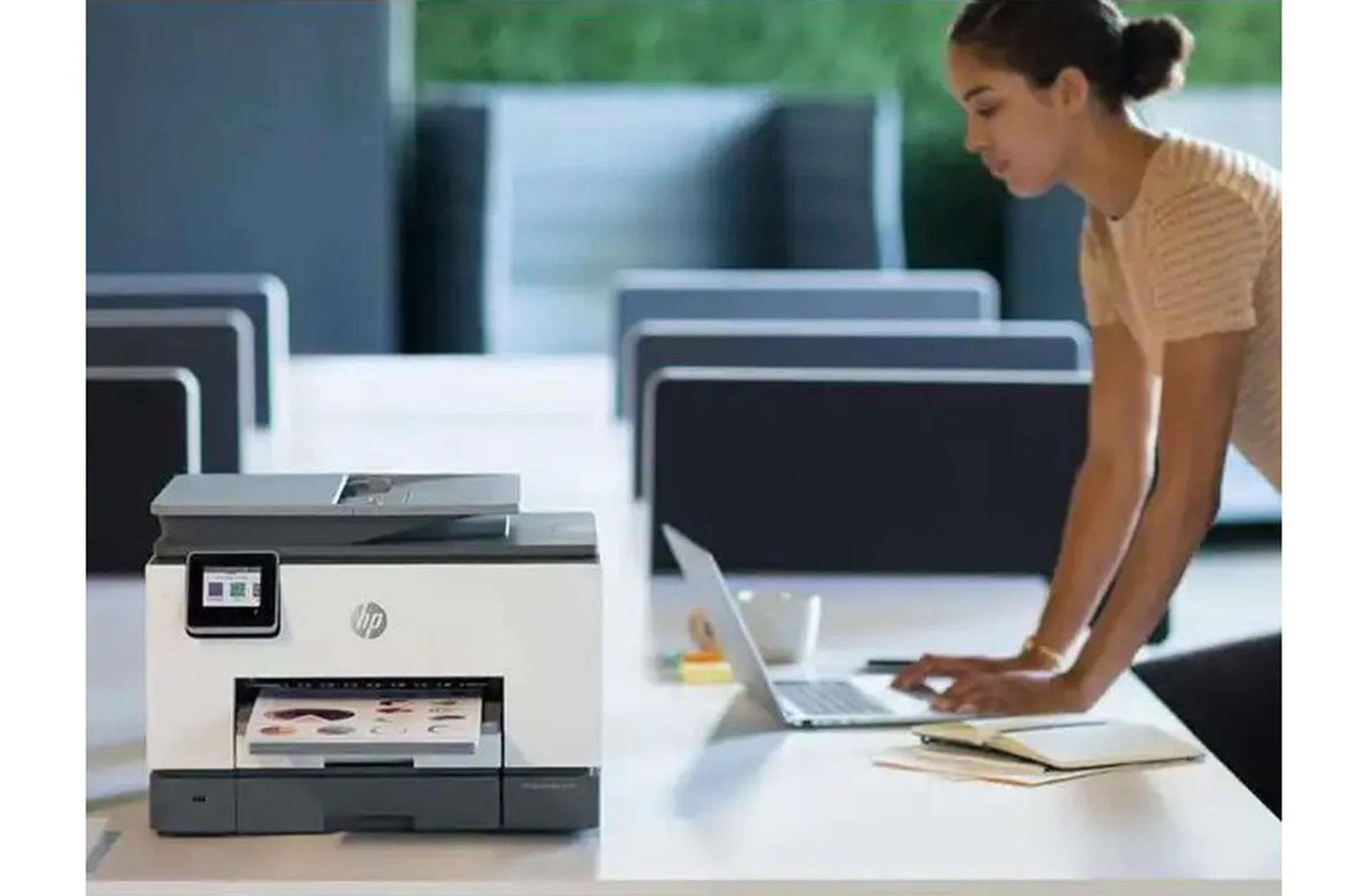
HP OfficeJet Pro 9020 inkjet printer.
HP OfficeJet Pro 9020 review: Strong performer, but high running costs
Early budget inkjet printers could never quite match their laser-based brethren in terms of speed, quality and features. While they were sufficient for home and student use, it was only a desperate small business that would even think of using it as a work machine.
But, as ink technology and delivery improved, these issues have become more or less negligible with more features added to the printers where inkjet-based AIOs are as capable as more expensive laser printers - such as the S$459 HP OfficeJet Pro 9020.
Printer Design and Features
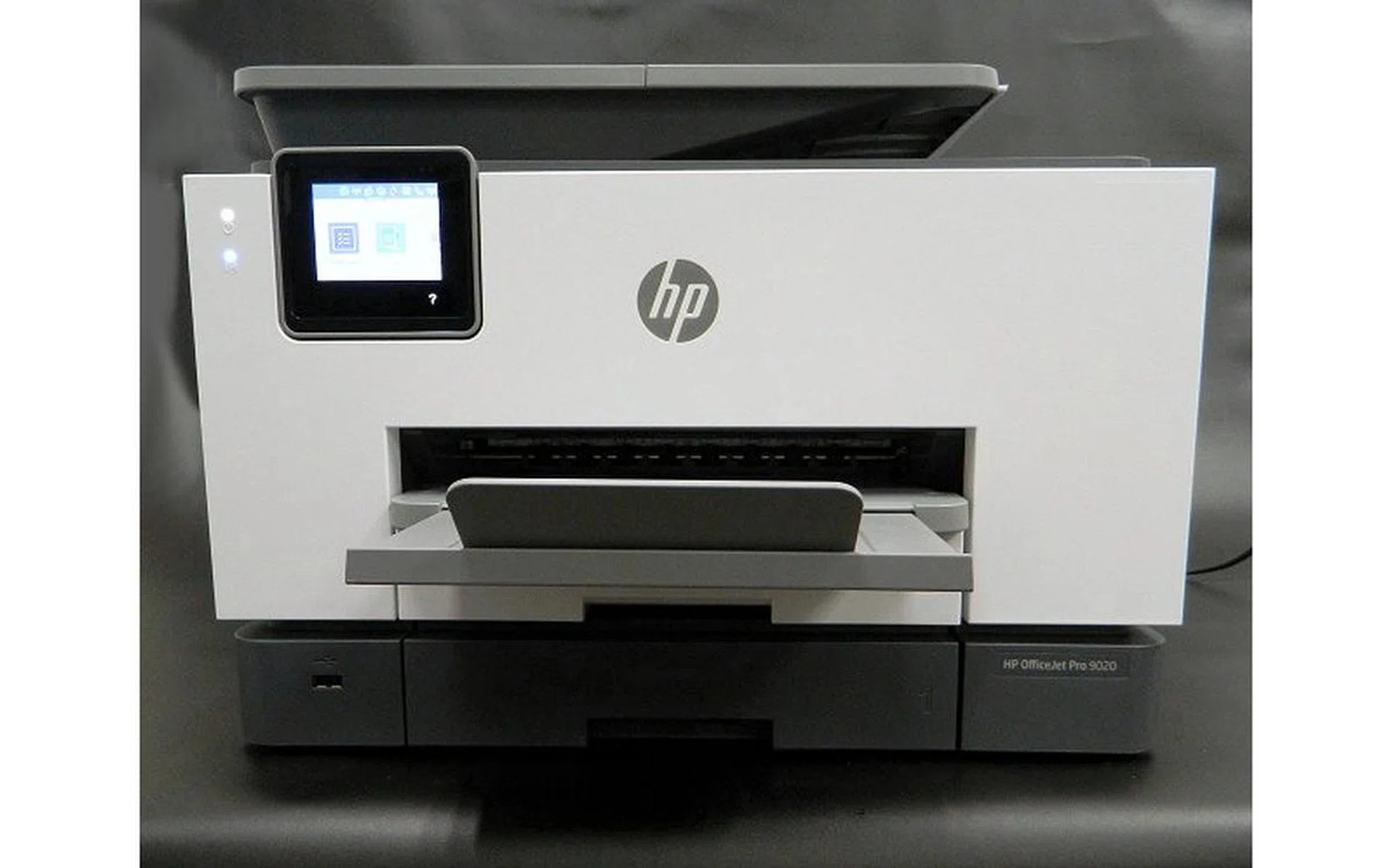
The HP OfficeJet Pro 9020 is a multi-function (print, scan, copy and fax) small office, home office (SOHO) printer that has double-sided scanning/printing up to 24ppm for black and 20 ppm in colour at 1,200 x 1,200dpi. While not quite the same level as the 2,400dpi print quality of the Brother DCP-L3551, note that the HP OfficeJet Pro can actually print much faster than the Brother LED printer's top speed of 18ppm! At 30,000 pages per month, the duty cycle is enough for most business needs. A set of CMYK ink cartridges will be able to print about 700 pages in colour or 1,000 pages in black. There are also high yield cartridges available that can print 1,600 pages in colour or 2,000 pages in black.
HP is one of the last printer manufacturers to embrace the refillable ink cartridge revolution in a big way. While they do have such options, the primary offerings are still traditional inkjet cartridge-based, including the print head that's part of each cartridge. As a result, you need to use, or at least it is recommended that you use HP original ink cartridges to ensure consistent quality output.
At 437 x 396.3 x 318.3mm and weighing 12 kg, we found the HP OfficeJet Pro 9020 adequately small-sized with few protrusions. This meant that it took up little space with its squat footprint though it's still a tad wider and much higher than the Canon Pixma G7070 (403 x 369 x 234mm). The only thing that sticks out is the sliding tray that the printouts slide onto, but this can be tucked away when not in use.
We also liked the fact that it could take up to two 250-sheet paper trays for those heavy print jobs, which is definitely handy for a small office setup.
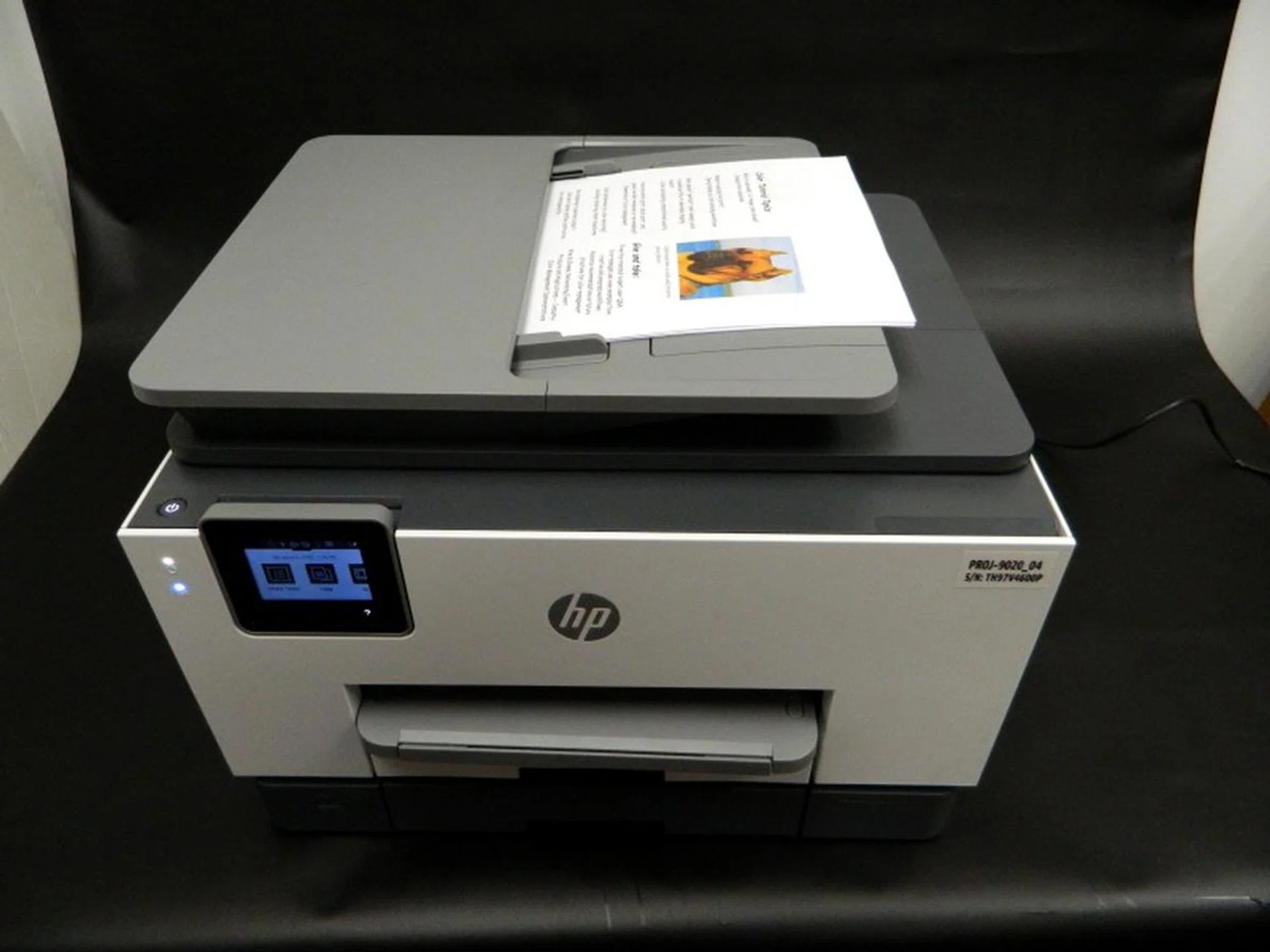
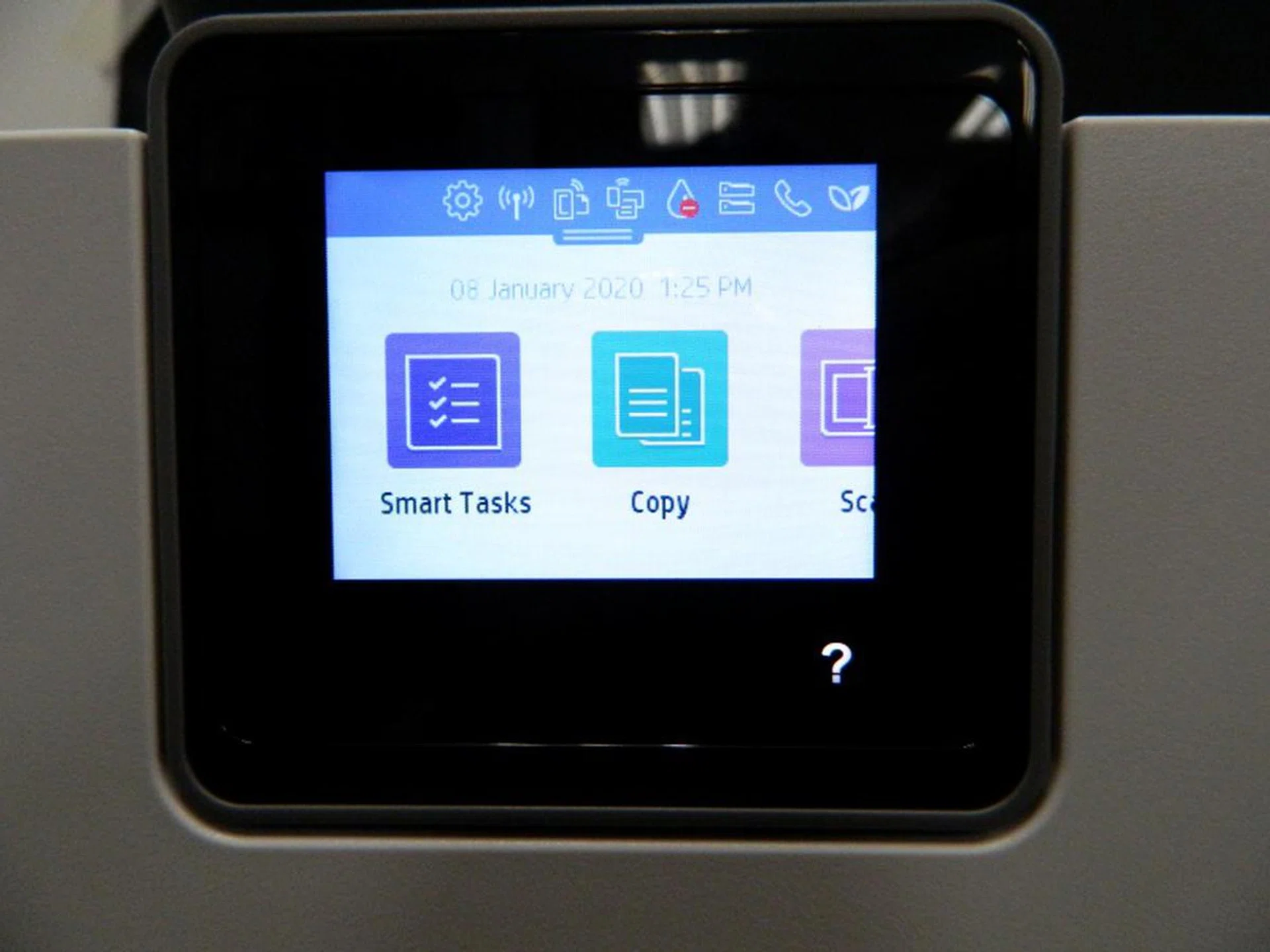
The 2.7-inch LCD although small is able to swivel and is large enough to make navigation and entering information easy.
Connectivity was easily resolved as like others tested, the OfficeJet Pro 9020 can print from various mobile devices and has wired and wireless connectivity. During our tests when connecting to our lab wireless network, the HP printer was the easiest to set up and it was able to detect both our 2.4GHz and 5GHz networks with no problems. Additionally, a smartphone, tablet, or PC can work with a downloadable app from HP that can automate some functions. For example, allowing you to set scan resolution along with what sort of file is generated (eg, PDF, etc.) from the scan and where it will be saved.
Print Quality and Speed (8-page test)
We really liked the results we got from the OfficeJet Pro 9020. Black text was dark and clear with no bleeding around the serifs. The image printing while clear had slight saturation around the dark areas and some loss of sharpness though.

Close-up scan of its text print capability.
It was also fast. The speed recorded for our tests almost tied with the fastest print time recorded from Brother, with hardly any discernible difference between them.

Close-up scan of its colour image print capability.
However, the OfficeJet Pro 9020 did have the most expensive ink replacements due to the nature of its inkjet cartridge system. And that is what hurts HP in the long run for overall running costs. Most SOHO setups tend to be cost-conscious and paying a higher price over the long run would hurt their operational costs.
Officially listed for S$459, the HP OfficeJet Pro 9020 AIO printer is available at the following online store options: HP Store, Courts, Harvey Norman, HWZ Shopping, and Lazada.
On a side note, for those looking for more personal usage needs than for a small office setup, HP does have a similar model with less paper storage and a tad slower print engine with the OfficeJet Pro 9010 at only S$359.
And the winner is...
Canon Pixma G7070 Ink Tank printer.
Canon's Pixma G7070 is pretty full-featured with added productivity features such as automatic two-sided printing, massive paper feeding capacity, large document automatic document feeder, and full network compatibility. Besides network printing capabilities, it could print from various mobile devices through wireless printing.
With its fairly small footprint, the Canon Pixma G7070 was still able to handle most print, scan, and copy demands we threw at it.
While it was the slowest to print in this group of printers, the results for both the text and image quality were very good and accurate with little colour saturation or bleeding.
Not to forget it has one other ace up its sleeves and it is its low running cost. The high print volume coupled with the lowest costing replacement cartridges made this the most cost-efficient model tested in terms of running cost and print volume - even if it is the more expensive of the lot at S$499.
Now add on the commendable print quality (for both colour and B&W) and plenty of functionality, despite the slower output, and it's hard to give this a pass if you don't necessarily need lightning-fast prints.
Brother DCP-L3551CDW | Canon PixmaG7070 | HP OfficeJet Pro 9020 | |
Design | 7.0 | 7.5 | 8.0 |
Features | 8.0 | 7.5 | 8.0 |
Print Speed | 7.5 | 5.5 | 7.0 |
Print Quality | 7.5 | 8.5 | 7.5 |
Value | 6.5 | 9.0 | 7.0 |
Overall Score | |||
Price | S$448 | S$499 | S$459 |
Shopping Links |
What about the Workgroup Office printers; how did they fare? Read on as we uncover who's best in the next category of printers!
Assessing Workgroup Office Printers
Office and workgroup printers have usually been laser-based due to their high workload, document print quality and speed. However technological improvements and lower production costs have helped bring down the prices of laser/LED printers have fallen due to technological improvements and lower production costs. Surprisingly, the quest to drive down cost per print also see the inkjet printer options among this class, thanks to ink tank printer evolution.
In this category, size and footprint are less of a concern compared to SOHO/home needs. Features, options and connectivity remain important but print load and size of prints also became factors to consider. The workload, cost of printing, speed and quality were still key criteria with the price/value being the final decision-maker. To keep things comparable, we decided to shortlist printers that were around the S$1,000 price point.
Nominees:
- HP Colour LaserJet Pro MFP M479fdw
- Epson WF-C579R
- Canon MF746C
- Brother MFC-L8690CDW
Here's what we found from testing each of these printers.
Brother MFC-L8690CDW review: A quality laser workgroup printer minus the high cost
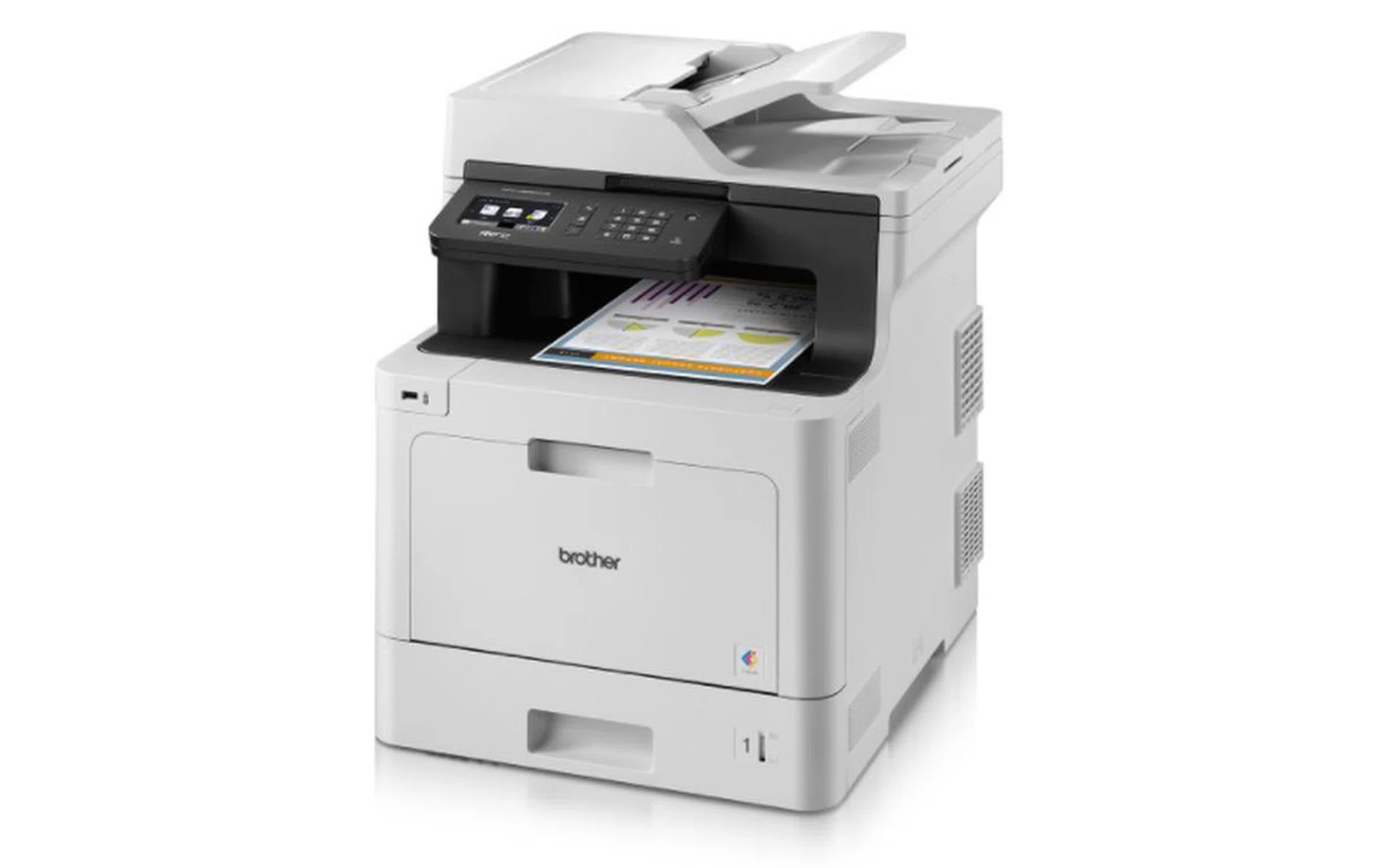
Brother MFC-L8690CDW laser printer.
Like other printers we tested for workgroups, the Brother MFC-L8690CDW is a squat, chunky build that is meant for speed and quantity. It definitely won’t win any prizes in a beauty contest but within beats the heart of a hard worker.
Similar to the other nominees in this category, as long as you are planning to print a lot of documents, and nothing graphic intensive, these printers are perfect to meet the printing needs of any office workgroup needs.
Printer Design and Features
Coming in around a hefty 27.9 kilograms, its 435 x 526 x 539mm footprint gives it a size to match.
It can hold up to 300 sheets of paper in its two trays and 150 sheets in the central output tray, while the supplied black toner cartridge is good for a very respectable 3,000 mono prints. Higher yield cartridges are available that will easily double that figure. Laser printers tend to be lower than inkjet printers in this respect, but at 2,400 x 600dpi, the print resolution is pretty good. Strangely though, Like the Canon, it can’t print in A3. Perhaps this is a new trend manufacturers are following based on actual feedback, and paper supplies bought.
You can connect via Wi-Fi or Wi-Fi Direct and it’s supported by Brother's free app called iPrint&Scan. The companion app allows users to print wirelessly from cloud services such as Evernote and iCloud and check your toner levels and scan documents remotely. During our tests, we found that it couldn't detect our 5GHz network, but it had no issues latching on to our 2.4GHz one.
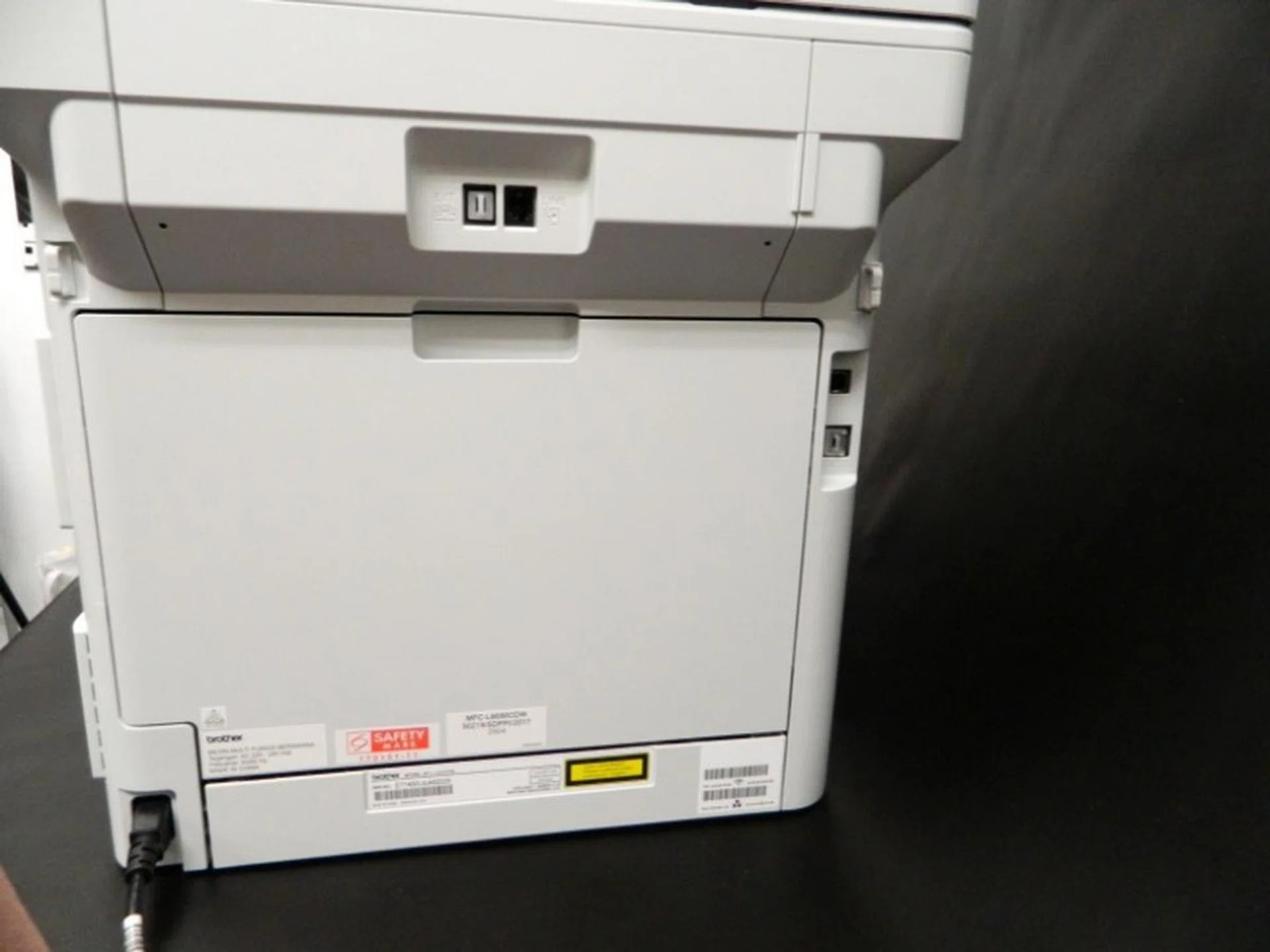
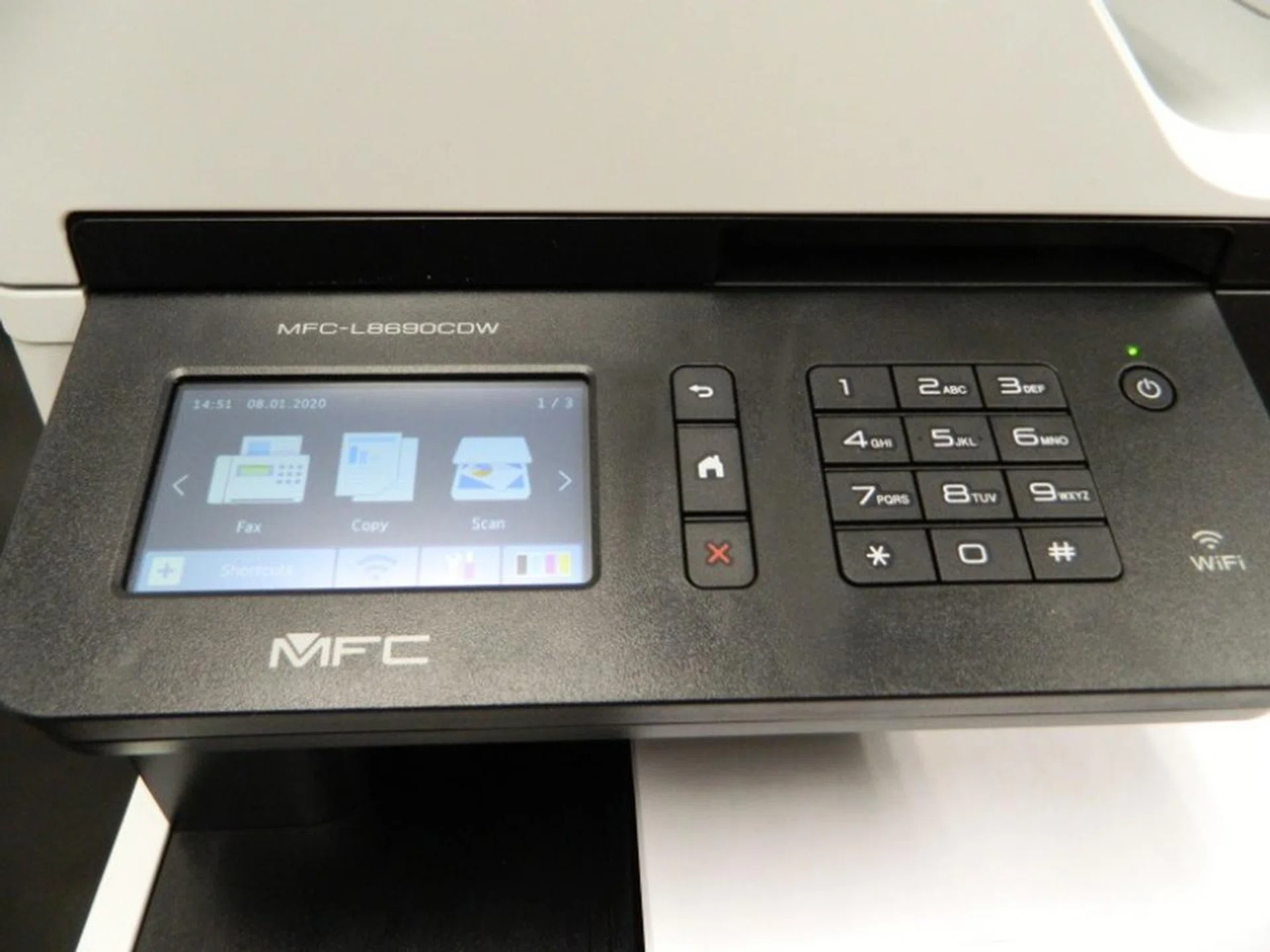
Navigation through the menu options was no problem thanks to the generous LCD size. While the 3.7- inch LCD is large enough to show all necessary detail and information, its fixed position means that viewing the information can be difficult under some lighting conditions.
Printer Speed and Quality (8-page test)
Black text printed fine, looking crisp and sharp to the naked eye. However, when magnified, the text was splotchier and overall not as sharp as the other workgroup printer contenders (though it's still sharper than some of the SOHO printer options).

Close-up scan of its text print capability.
As with most laser printers, simple graphics within our documents printed fine. But if you need to print something that is graphic intensive with more detail, think about using an inkjet or photo printer instead. The image was clear but not as sharp as some others tested. Colours were slighter than our source and we found evidence of some colour saturation and some colour bleeding.

Close-up scan of its colour image print capability.
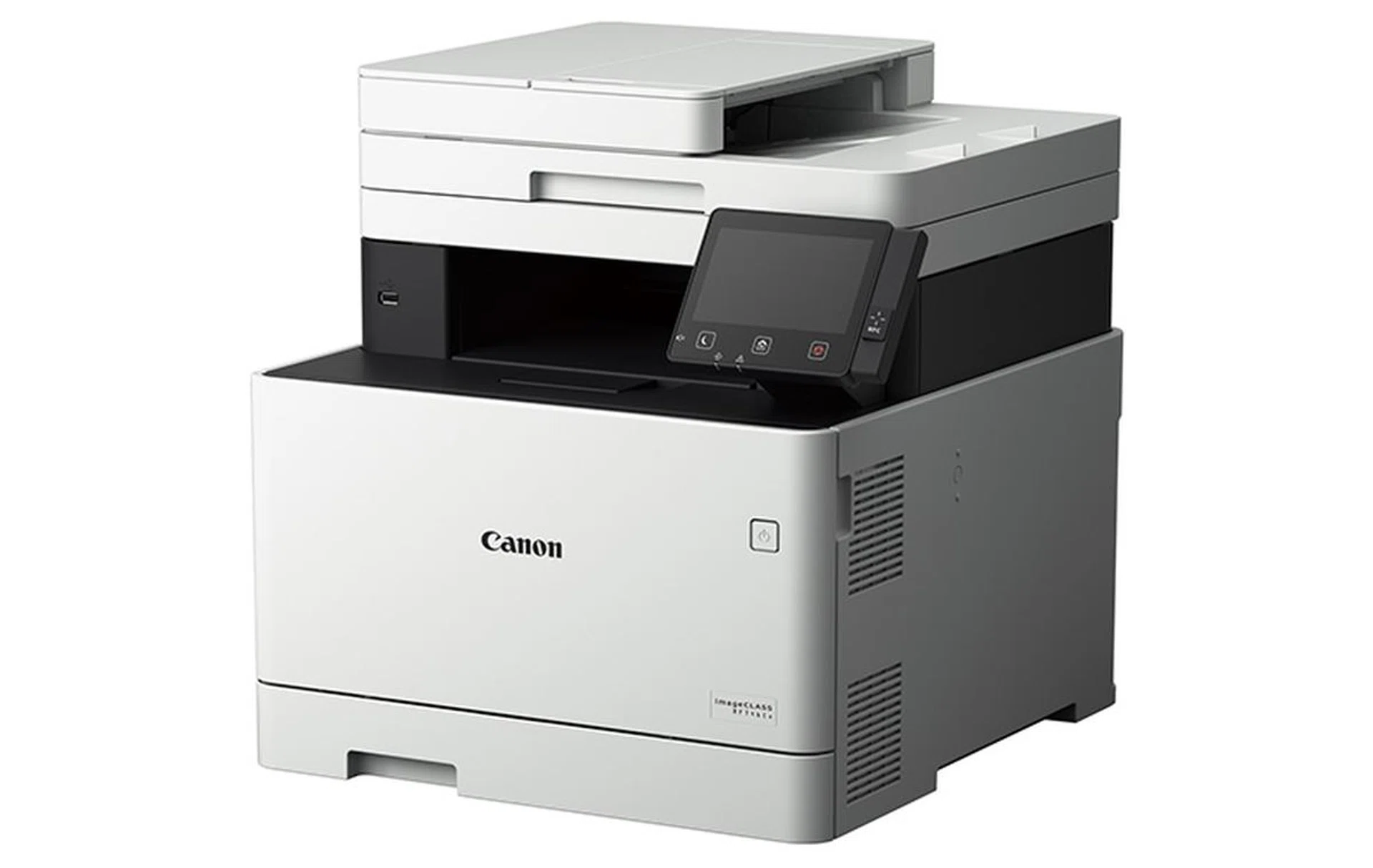
The Canon imageCLASS MF746Cx laser printer has a top print speed of 27ppm.
Canon imageCLASS MF746Cx review: Almost image perfect
Designed for office use, the Canon imageCLASS MF746Cx certainly ticks all the boxes you think of when it comes to a workgroup printer.
Squat and big, laser-based, large paper capacity, expandable paper cassette tray, fast print speeds, high duty cycle. All pretty much, check, check, check, check, and check.
In terms of delivering on office required functions, again the imageCLASS MF746Cx checks all the boxes by being able to Print, Scan, Copy, and Fax.
Printer design and features
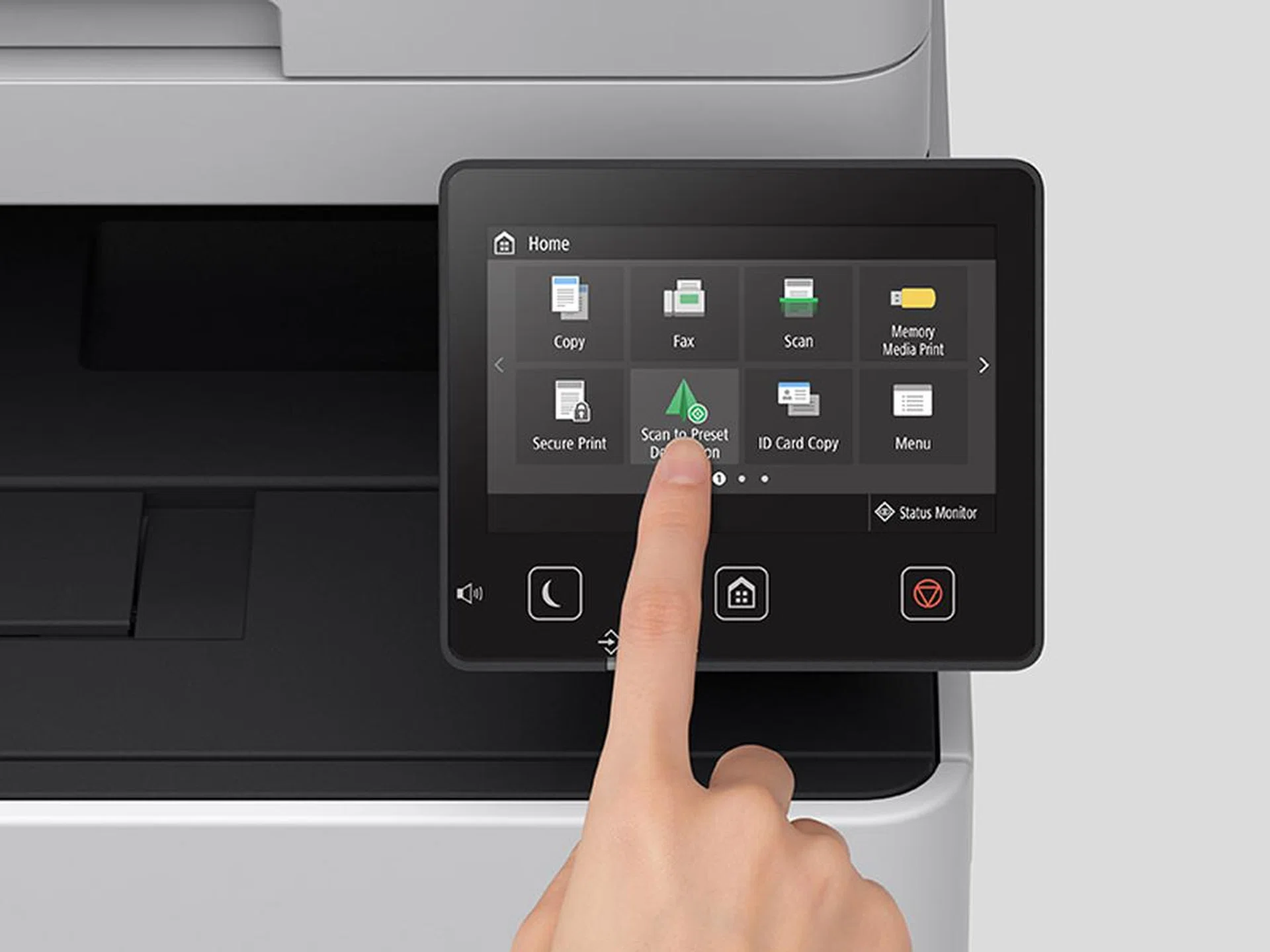
(Image: Canon.)
Besides the usual printing, scanning, copying and faxing, this laser printer from Canon has included some nice bells and whistles in the MF746Cx. It has a top print speed of 27 pages per minute (ppm) for both black and colour.
Print speeds aside, the printer has Ethernet and Wi-Fi connectivity, a 250-sheet paper tray, 50-sheet Duplex ADF that would allow for dual-sided scanning in a single pass, and a 5-inch colour touchscreen control panel. The 5-inch colour touch screen LCD panel can swivel for greater viewing flexibility. There is also an optional 550-sheet paper cassette to expand its input paper capacity to a maximum of 850 sheets. However, it can’t print to A3 paper size. A lack we have to question as it shouldn’t be hard to have included given the size of the printer.
It also employs the same V2 Colour Technology found in Canon’s imageRUNNER ADVANCE Generation 3 devices and offers a maximum equivalent print resolution of 1,200 x 1,200dpi.
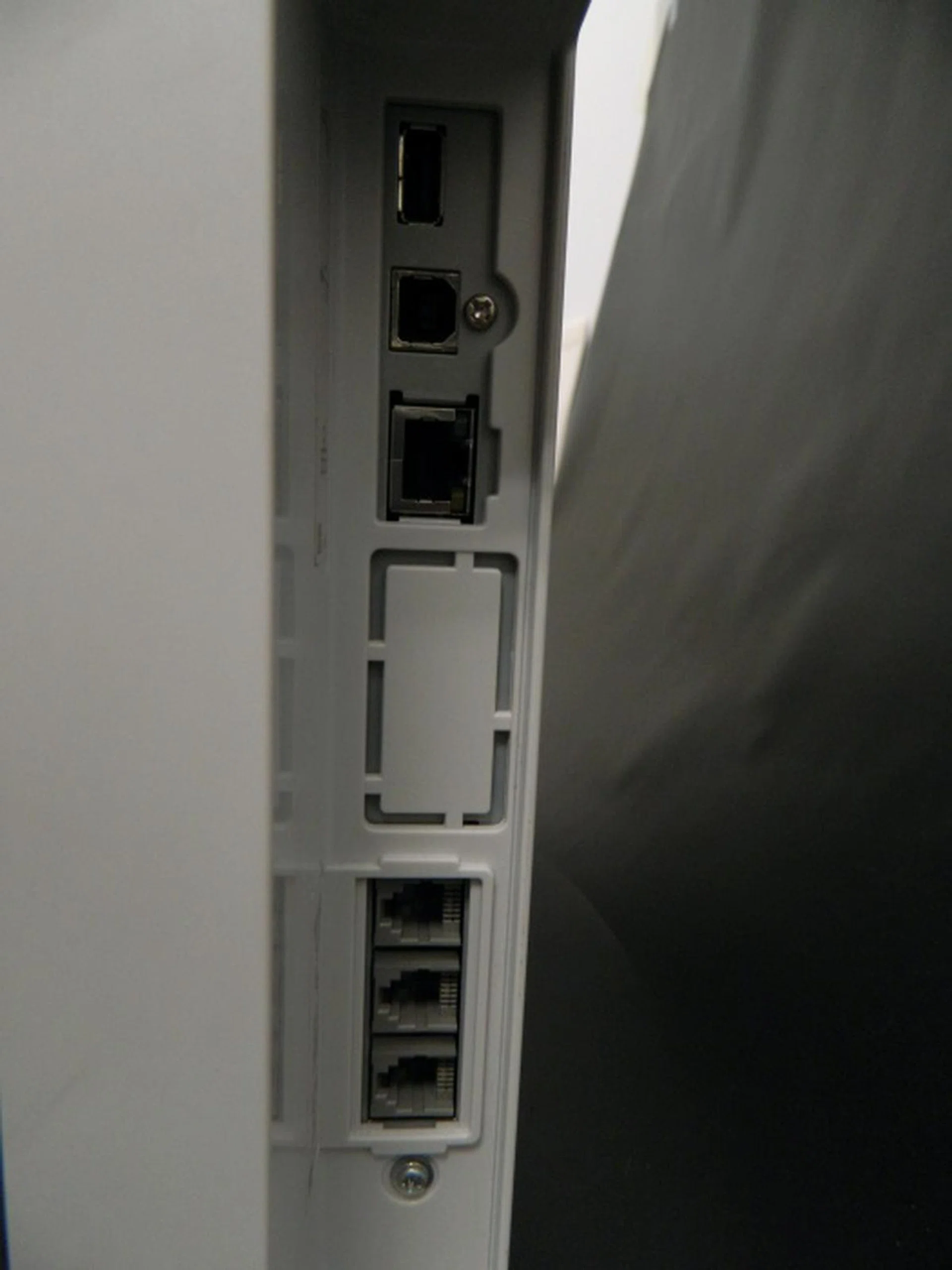
Connectivity includes an Ethernet port, modem ports for faxing, and both Type-A and Type-B USB ports. There’s another USB 3.0 port at the front, but no SD card slot which is to be expected for this range of printers. Conveniently, there's even an NFC-based tap-to-print option supported by Android devices with NFC functionality.
We found setting up the printer a tad fiddly. Connection to our test lab's wireless networks on both the 2.4GHz and 5GHz bands took the longest time of all the workgroup printers tested. It could be just our review unit though, but we would need more Canon business printers to verify.
To help users work smarter and more efficiently, the MF746Cx is equipped with an Application Library, which in a nutshell consists of little apps that help to automate common workflows, as well as frequently-used forms stored on-device for you to quickly retrieve and print. We've covered more about the Application Library here in our business printer buying guide, but if you need something more comprehensive, there's the online manual for those interested to learn more.

Print speed and quality (8-page test)
This was the second-fastest workgroup printer in our tests, only two-tenths of a second behind the HP Colour LaserJet Pro MFP M479fdw.
Printed text quality was sharp and black. There was little spotting around the letters and the serifs were sharp and clear.

Close-up scan of its text print capability.
The Canon's colour graphics looked sharp and clear. Colours looked natural and well-saturated, although also a little light overall. Textures and mid-tone transitions looked smooth. Overall it had one of the better-printed image results, but for true photo quality, we still recommend a proper inkjet-based photo printer.

Close-up scan of its colour image print capability.
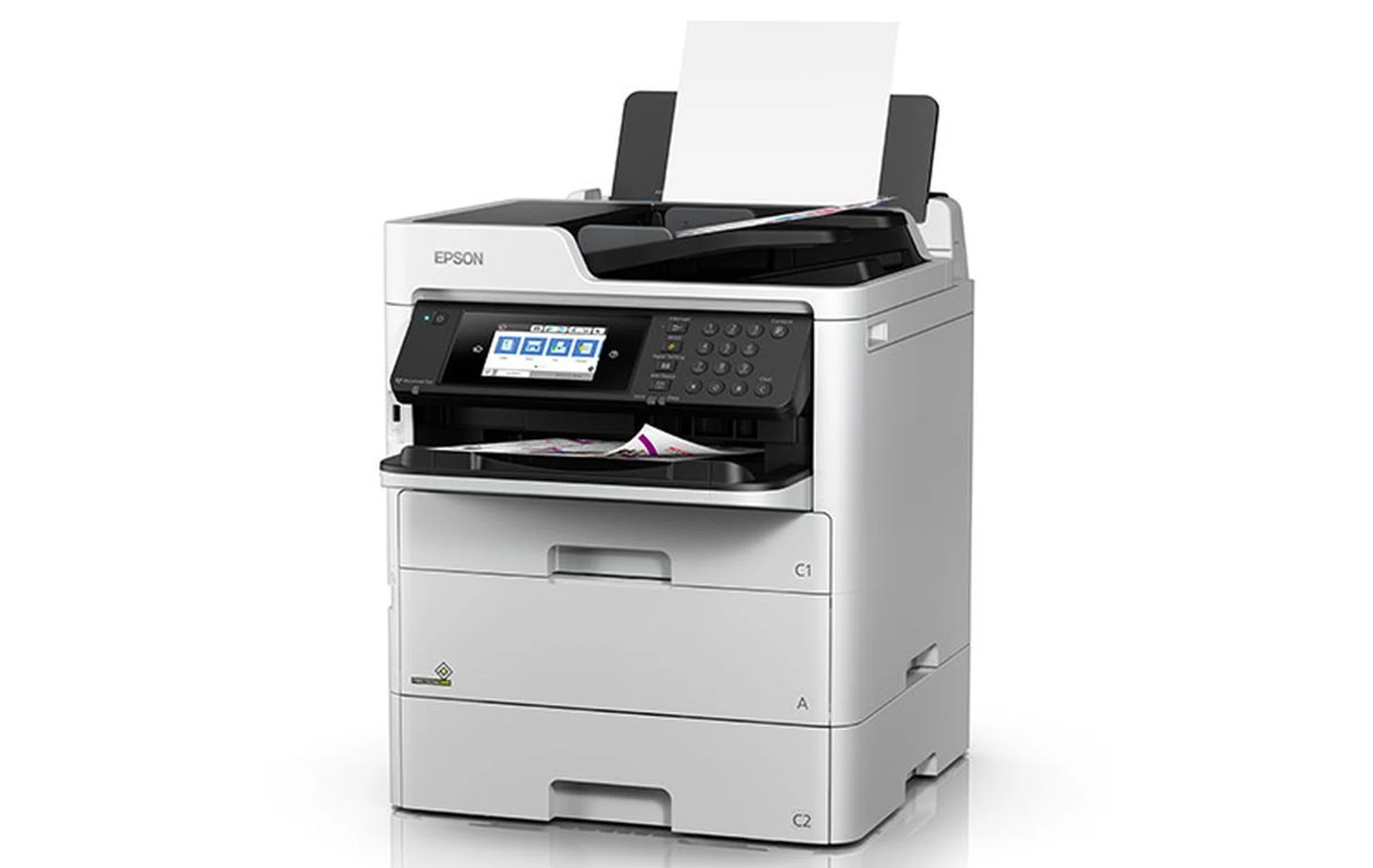
Epson WorkForce Pro WF-C579R replaceable ink pack system (RIPS) printer.
Epson WorkForce Pro WF-C579R review: Laser quality at inkjet operational costs
Unlike the other printers we tested in the workgroup class, the Epson WorkForce Pro WF-C579R isn’t a laser printer but is, in fact, an inkjet AIO (print, copy, scan and fax) printer using Epson's PrecisionCore printhead tech, which is the company’s new generation of proprietary Micro Piezo piezoelectric printheads. With the capability of generating up to 40 million precise dots per second, PrecisonCore based printheads can deliver fast printing speeds and maintain quality output. Plus, because it doesn't require to heat up like a laser printer to transfer the toner material to the paper, Epson claims its faster, less complicated and reduces power consumption. It's so fast that Epson claims it can put out a full-colour page in just 5.3 seconds.
The Epson WF-C579R also champions another saliant point that offers high capacity and ultra-low cost per page - an 'ink tank'-like system. Only this time, for high ink volume to facilitate business printing and the mounting convenience of a cartridge, Epson uses a system called Replaceable Ink Pack System (RIPS) that truly marries the best of both worlds. The high-capacity ink packs yield up to 50,000 pages in black or up to 20,000 pages in colour, helping to minimise printer downtime for even more cost and time savings. Epson also claims that their DURABrite Ultra pigment ink delivers laser-like quality prints that are water-resistant, fade-resistant and smudge-resistant.
Printer Design and Features
The Epson WorkForce Pro WF-C579R is designed to provide significantly greater paper capacity in a smaller footprint. Designed to be an office workhorse, the WF-C579R accepts paper through its two front cassettes and rear slot—combined, they can hold 830 sheets of plain paper. For businesses that print a lot, you can buy another 500-sheet cassette for a total of 1,330 pages.
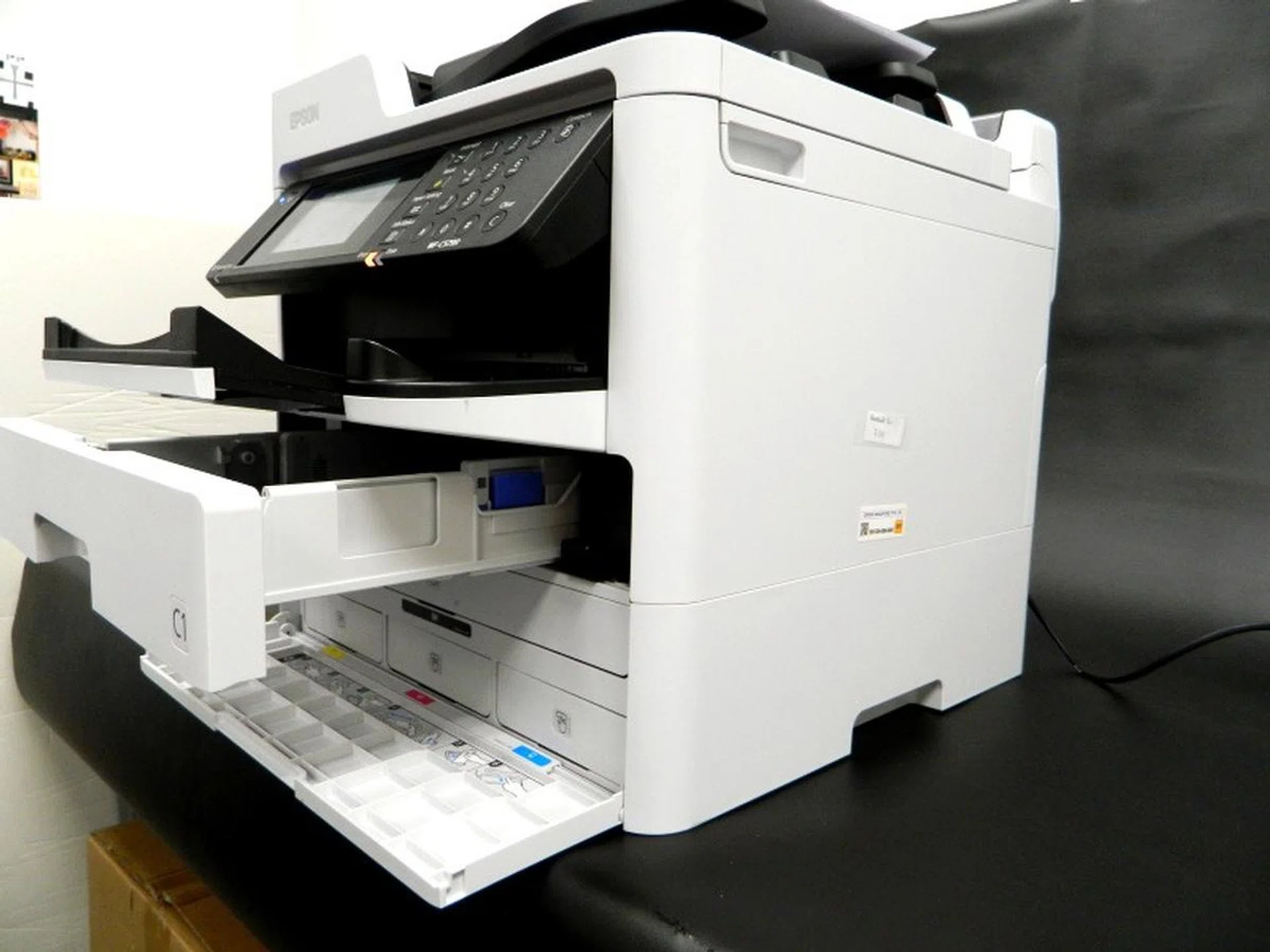
Note the 4-colour RIPS system that's neatly slotted at the bottom layer of the printer.
Being a RIPS printer also means that replacing inks is a quick and hassle-free affair. The standard ink packs that the WF-C579R uses are able to print up to 10,000 pages in black and 5,000 pages in colour, and if that isn’t enough, there are also high-capacity packs that last up to 50,000 and 20,000 pages respectively.
It can print in both colour and black at 24ipm. It can do auto-duplex printing too and is able to hit 15ipm when doing this. There's even a one-pass duplex ADF for greater scanning and copying convenience. Notice we mentioned "ipm" and not "ppm"? Referred to as images per minute, an ISO standard set up by The International Organization for Standardization, the main difference between them is that IPM is measured at a fixed resolution (or number of dots per inch), whereas PPM does not and refers to pages per minute.
Other noteworthy features on the WF-C579R include a front USB port that accepts USB flash drives (so you can print from the drive or save scans or faxes to it directly), a big 4.3-inch colour touchscreen, and support for both wired and wireless networking. Speaking of wireless connectivity, in our testing, the printer could only find our 2.4GHz network but not our 5GHz network. Like most of Epson’s printers, popular mobile printing solutions such as Apple AirPrint, Google Cloud Print, and Mopria Print Service are supported.

You'll find just one gigabit Ethernet port and an RJ-11 fax port at the rear while the front has a USB 2.0 port.
On the other hand, the one feature we did not like was that the tray that holds printouts was an attachment and if not placed correctly, could drop out.
Print quality and speed (8-page test)
In terms of speed, I can only say it wasn’t as fast as most other laser printers tested, though it was slightly faster than the Brother MFC-L8690CDW.
Print quality for the text when magnified showed that the black was not uniform throughout the letters. While they appeared black and sharp to the naked eye, it was somewhat splotchy when magnified.

Close-up scan of its text print capability.
It did, however, manage to have the truest image to our source, mostly because its print had one of the closest colour matches of the bunch. However, some colour bleeding and over-saturation was observed.
Overall, print quality was a mixed bag and the Epson WF-C579R might probably be a stronger contender where high print volume and low printing costs takes priority - even if the initial outlay is a lot higher than the competitor s at S$1,028.

Close-up scan of its colour image print capability.
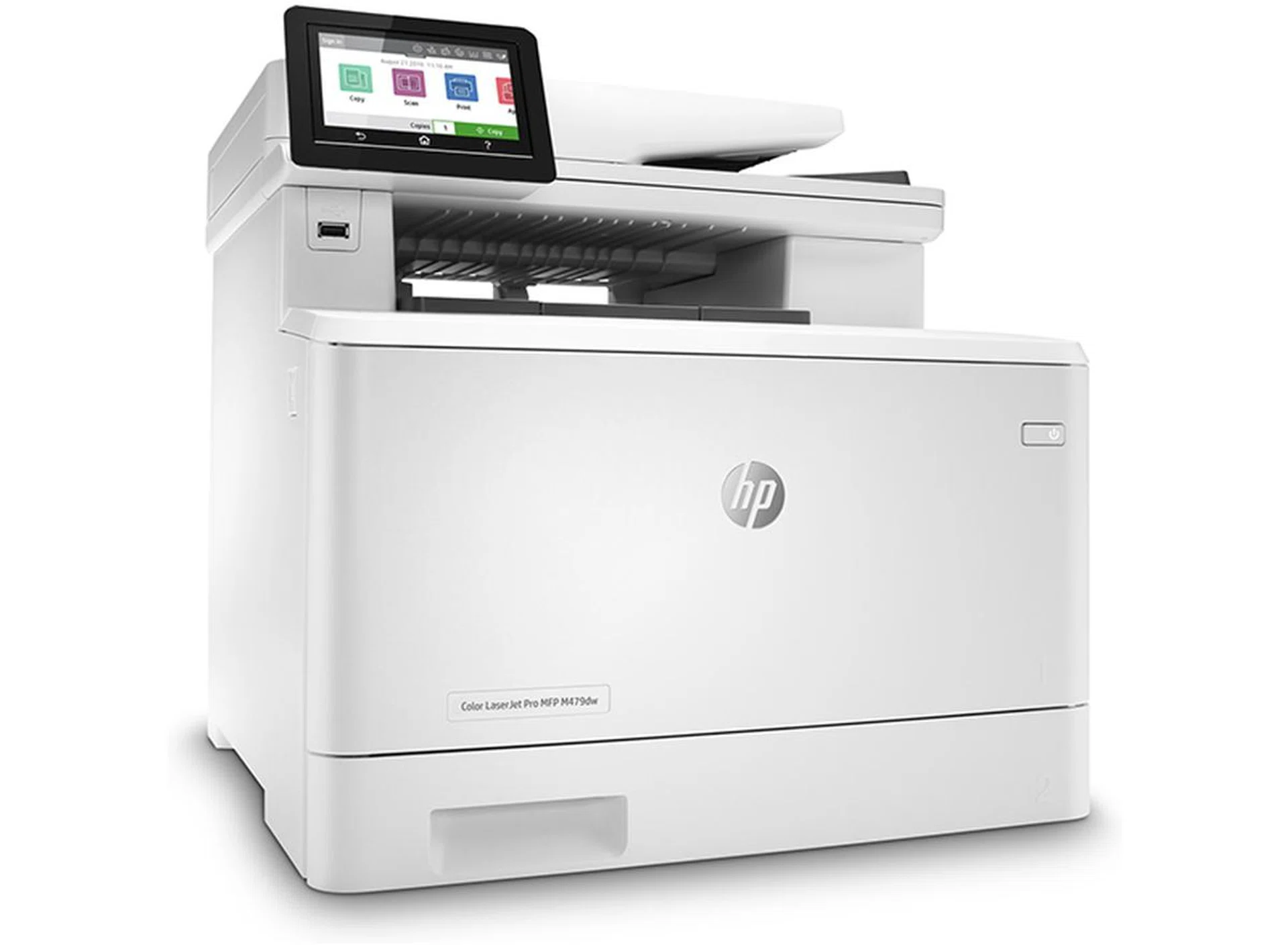
HP Colour LaserJet Pro MFP M479fdw
HP Colour LaserJet Pro MFP M479fdw review: Leading the pack
When choosing a printer for the office, laser printers have usually been the default choice with their higher workload, good document printing and high workload. Improvements to the technology have only served to cement their popularity and coupled with their lowering prices as SOHO users and workgroups are increasingly seeing them as the office printer of choice.
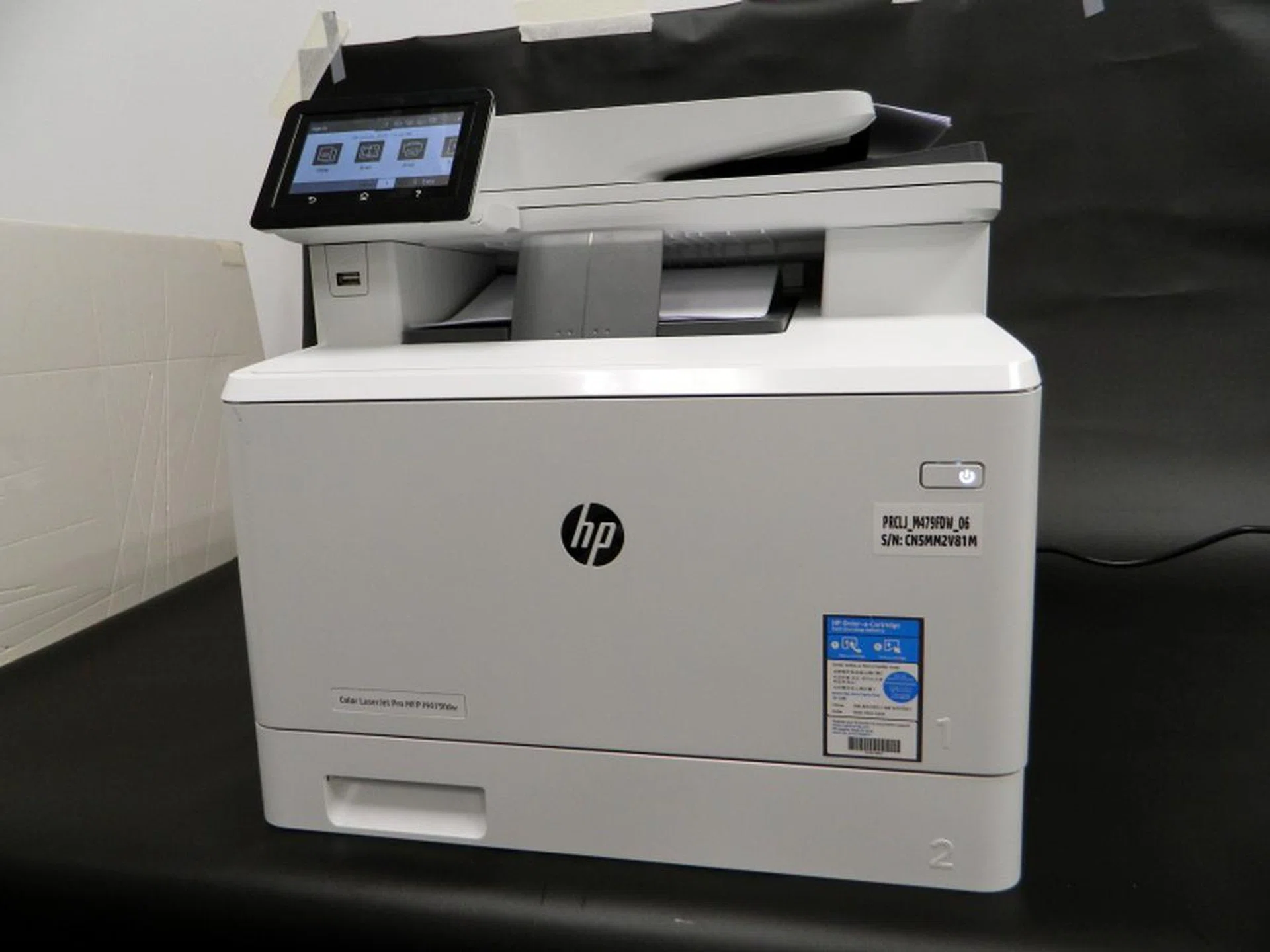
Printer Design and Features
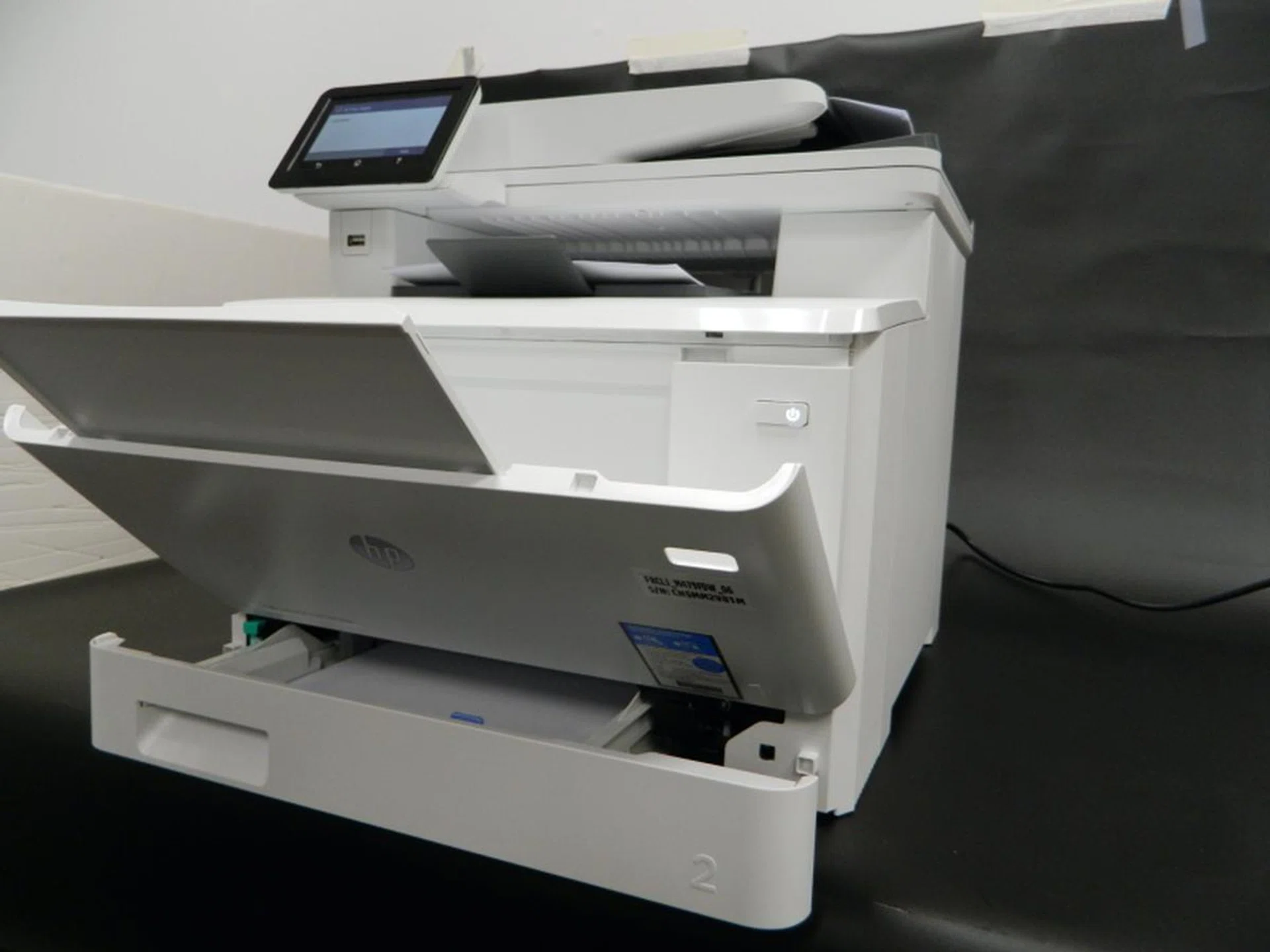
Case in point is the HP Color LaserJet Pro MFP M479fdw.
It is a 'small' office multifunction printer (MFP) that is compact, squat and has a fairly standard size (426 x 652 x 414mm) and weight (23.3kg) for this class of printers. It does take up notable volume so it's less suitable for those that need room in the office. Having said that, what we liked of the design was that there was nothing sticking out to take up more space and everything is well contained in standard operational mode - even the paper output tray.
Situated below the front panel is a port for a USB thumb drive. This makes printing without any need for a PC or device easy. Simply choose the respective option from the on-screen menu to access your USB drive and make your print run.
In its product literature, the MFP M479fdw has high print speed (up to 28ppm for black and colour), good text print quality and can be connected to multiple devices. Coupled with a reasonable price of S$899, this makes it perfect for any SOHO or office workgroup looking for that laser quality and high print capacity without breaking the bank.
The standard paper capacity is 300 sheets of up to legal-size paper. This is divided between a 250-sheet tray and a 50-sheet multipurpose feeder. An optional 550-sheet paper tray can be added, for a maximum paper capacity of 850 sheets. It includes an auto-duplex for two-sided scanning and printing. Rated maximum monthly duty cycle is up to 50,000 pages and a recommended monthly duty cycle of up to 4,000 sheets.
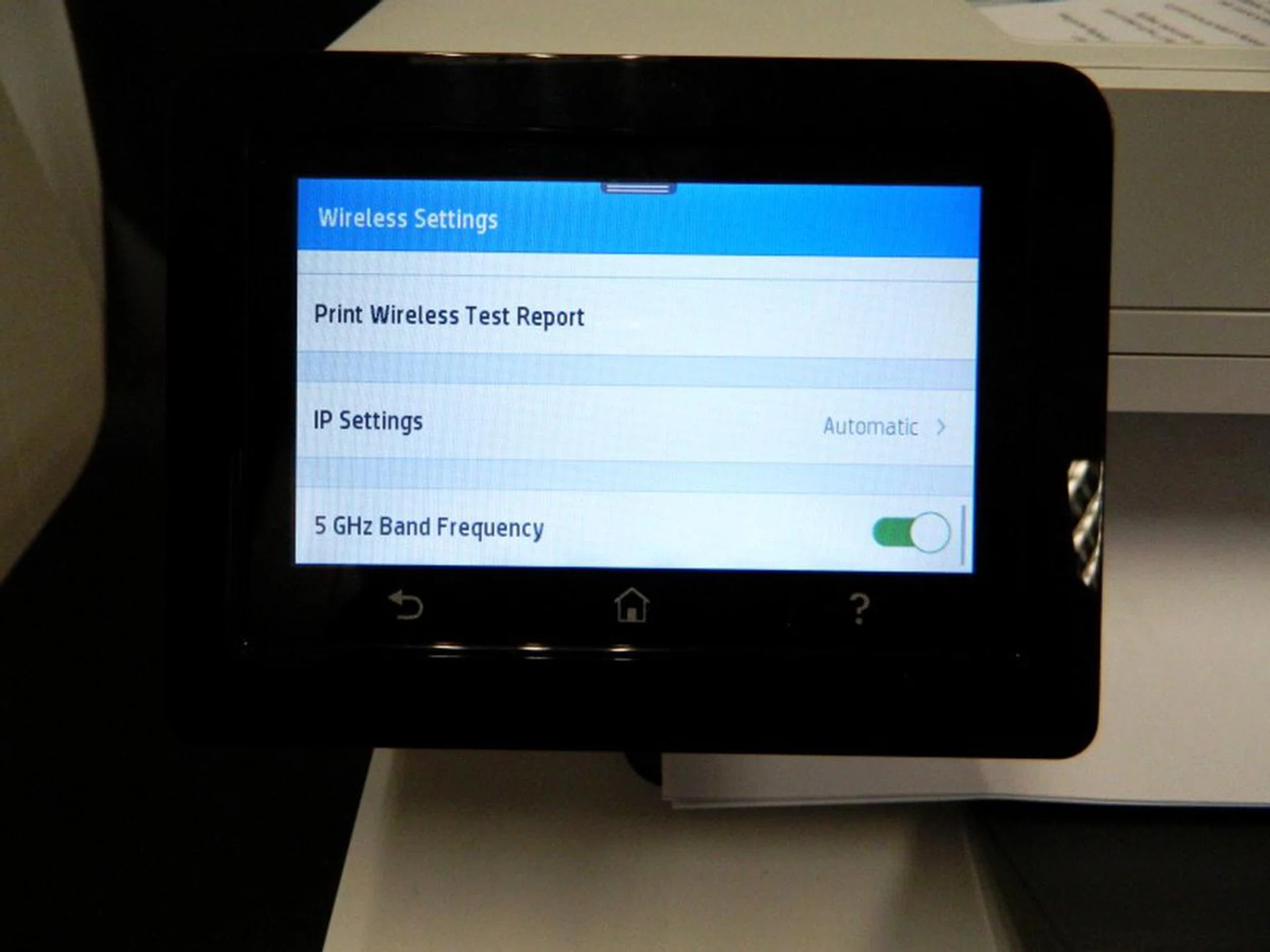
There's a lot to like about its connectivity options offered. You get the usual good selection modern printers come with, like wired and wireless printing choices including USB for connecting to a computer, and Ethernet for connecting to a wired LAN, HP wireless direct, NFC touch-to-print, Apple AirPrint, Mopria for direct printing from compatible Android devices, and Google Cloud Print 2.0. It was also one of the few contenders in our test run to detect and work effortlessly on our test lab's 5GHz wireless network band as well as the 2.4GHz band.
Having the 4.3-inch touchscreen LCD pivot was very handy. The screen was actually large enough to facilitate a virtual QWERTY keyboard on it. Menus were easily navigated but took some time to fully understand all that could be done as they allow some complex printing tasks to be achieved.
Speed and Print Quality (8-page test)

Close-up scan of its text print capability.

Close-up scan of its colour image print capability.
It was easily the fastest printer we've tested and the test results were not lacking in any way. The time taken to print the first page and the rest of the pages in the test document are also one of the best.
For the text and document printing, the HP MFP M479fdw also managed the sharpest definition and best print quality overall. Printouts were crisp and sharp while serifs showed no bleeding.
The image colours reproduced were actually very faithful to the original test document as seen on screen. The image quality, however, while sufficient, was noticeably pixelated and somewhat lacking. Overall, while it could print pictures in documents adequately, if you wanted to print actual photos it would be better to use an actual inkjet-based photo printer.
Taken as a whole, the HP Colour LaserJet Pro MFP M479fdw had the best mix of features and quality. It might not boast the same over-the-top printing yield nor the paper handling capacity of the Epson, but it's just about the right mix of performance, features and price help HP stand out. Its S$899 price point and overall capability certainly helped make it more attractive.
And the winner is...
HP Colour LaserJet Pro MFP M479fdw.
A laser-based printer, the HP Colour LaserJet Pro MFP M479fdw is of fairly standard size and weight for office deployment, which means it does take up space so it’s less suitable for those with small offices. One of its highlight features is the 4.3-inch LCD touch display, which was large enough house a virtual QWERTY keyboard on it. The menus are also straightforward and can be easily navigated.
We also liked the Wi-Fi connectivity options offered as it is one of the few tested that supported 5GHz connectivity with no problems (as opposed to some of the contenders that could only latch on to the 2.4GHz network). It can print in full colour or monochrome at close to the stated 30 pages per minute and can auto-scan two-sided documents in a single pass, thanks to its duplex auto-document feeder.
It was easily the fastest printer we've tested and was further complemented by its excellent document printing quality. The test images within the document also had the closest to true colours as seen on our screen and were sharp and clear with no colour saturation or bleeding.
But, while it could print pictures in documents very well, if you wanted to print actual photos it would be better to use an actual photo printer. That said, this is, after all, an office workhorse unit, so that's to be expected.
HP Colour LaserJet Pro MFP M479fdw | Epson WorkForce Pro WF-C579R | Canon imageCLASS MF746Cx | Brother MFC-L8690CDW | |
Design | 8.0 | 7.0 | 8.0 | 7.0 |
Features | 8.0 | 7.5 | 7.5 | 7.5 |
Print Quality | 8.0 | 7.5 | 7.0 | 8.0 |
Print Speed | 8.5 | 6.0 | 8.0 | 6.5 |
Value | 8.0 | 7.0 | 7.0 | 7.5 |
Overall | 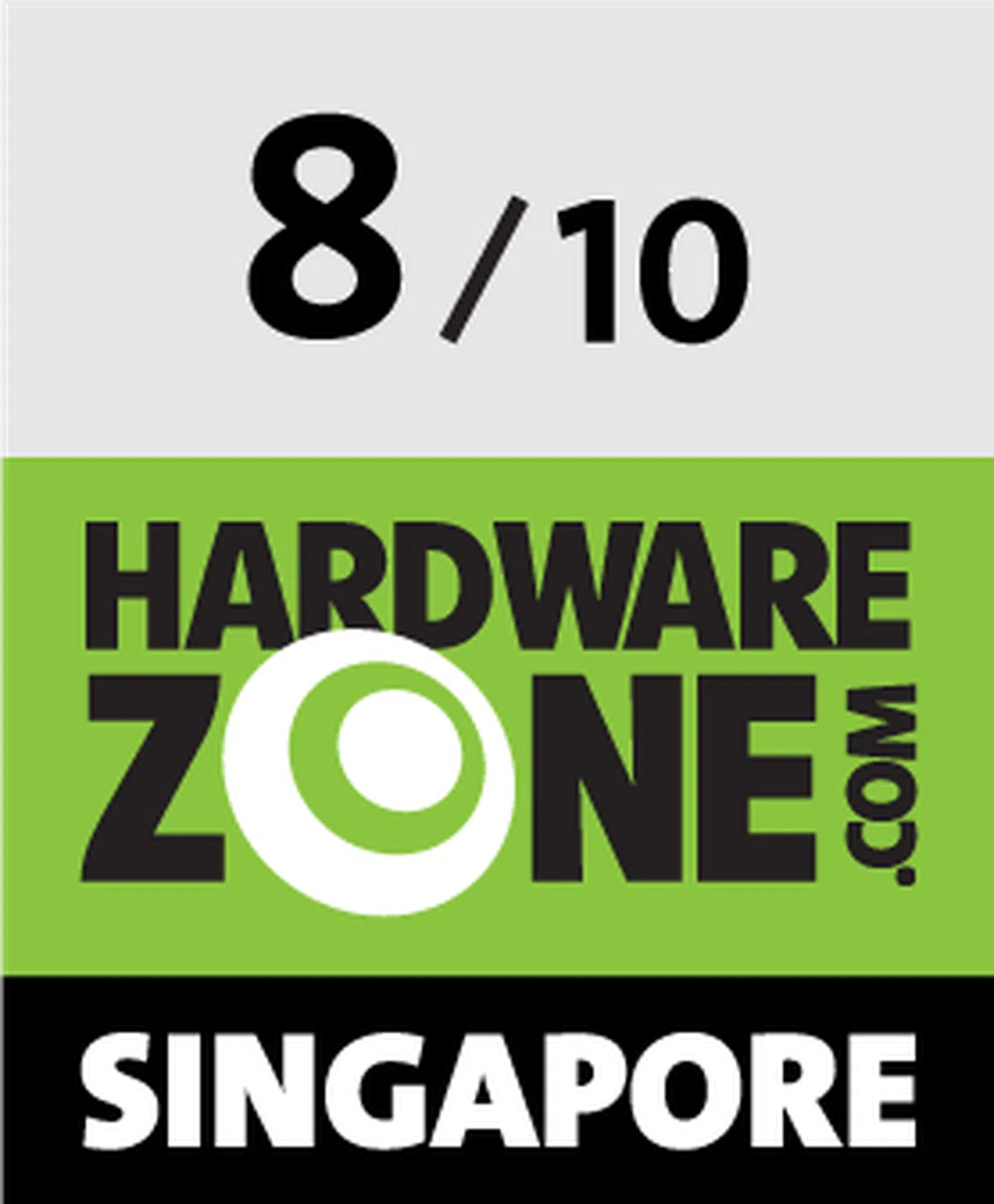 | 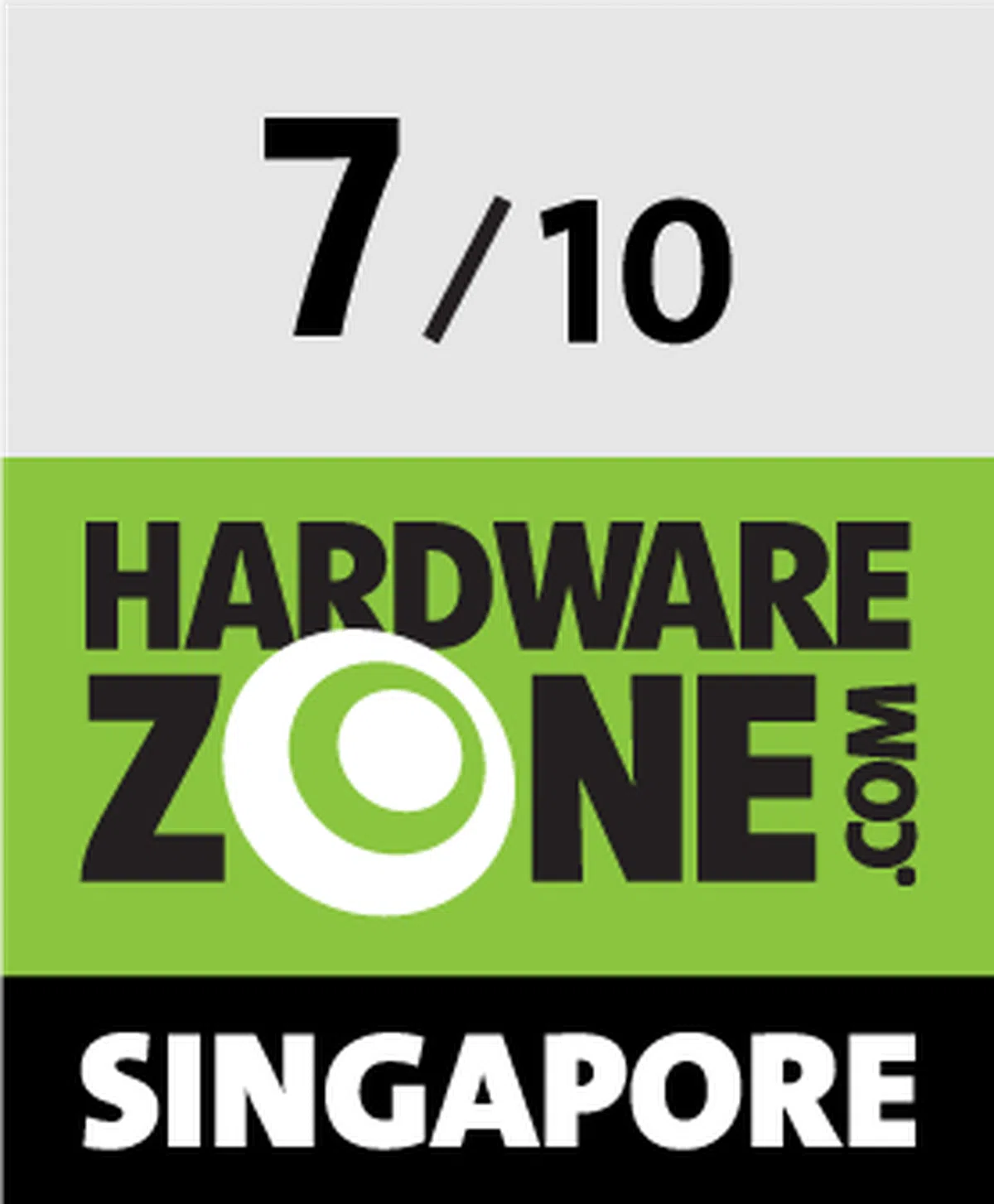 | 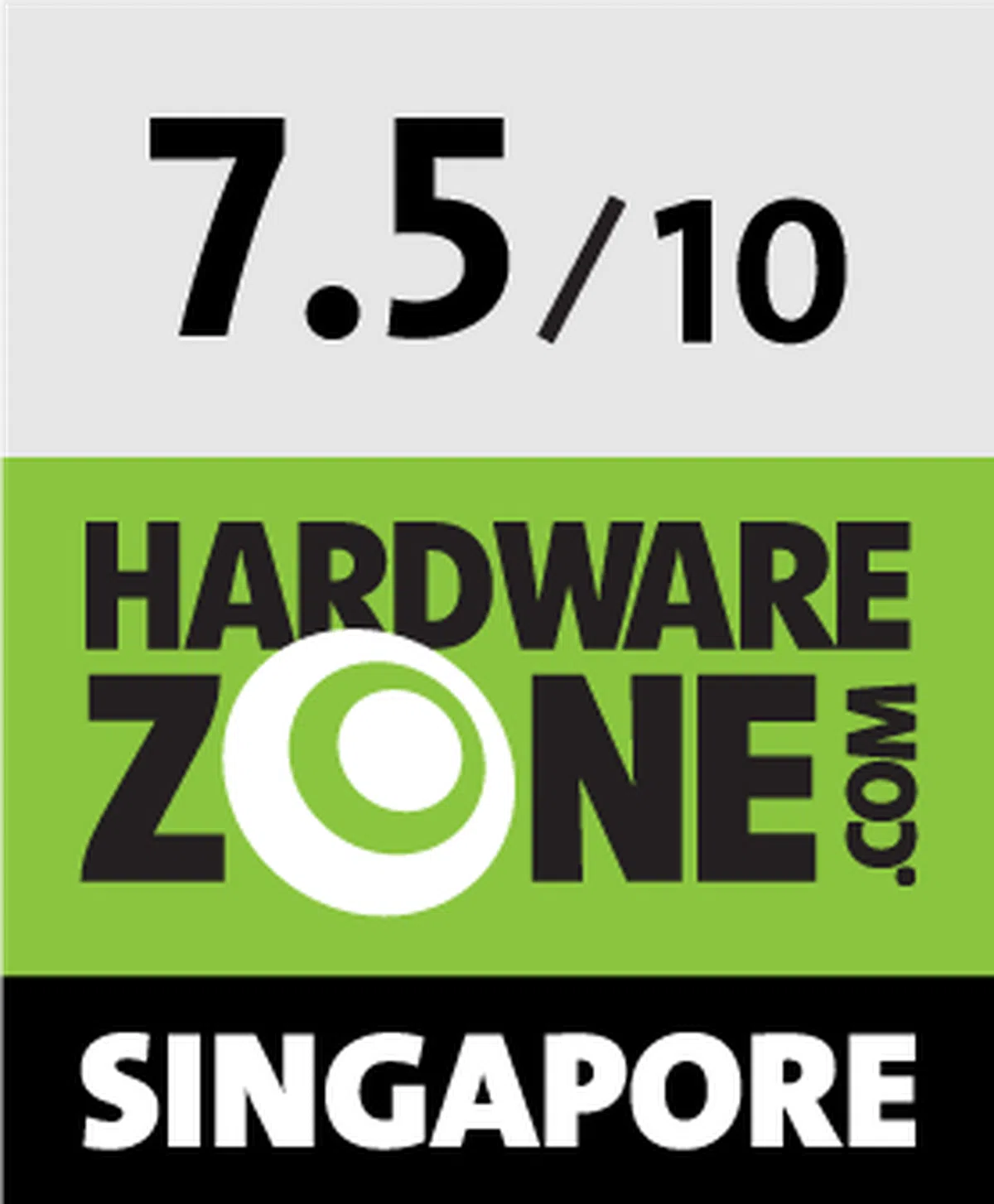 | |
Price | S$899 | S$1,028 | S$899 | S$799 |
Shopping Links |