
Steam's latest update now lets you record and share your gameplay
The recording feature has been in beta-testing since June.
#Steam #Gaming #Steamdeck

It captures only the game's window. Image: Steam
Steam has officially launched its built-in game recording feature. This feature, which recently exited beta, allows users to capture, edit, and share their gameplay footage across all Steam games, including non-Steam titles.
The recording system works together with Steam’s overlay and utilises NVIDIA and AMD graphics cards' dedicated hardware encoding capabilities to capture gameplay while reducing CPU load. However, systems without compatible graphics cards will rely on CPU encoding instead, which may cause a noticeable performance impact during gaming sessions.
You can export the clips through MP4 as well. Image: Steam
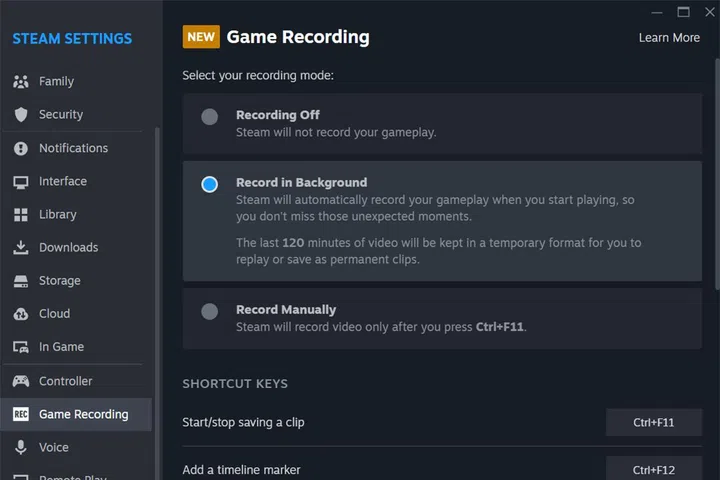
The feature has two main recording options. The first of the two is the background recording mode which continuously saves gameplay footage to your specified drive as you play. Users can specify both the duration and storage limits to prevent the recordings from taking up too much drive space.
The second mode, On-Demand recording mode provides a more traditional manual control over when you record. This means that you have complete control of when to start and stop recording through customisable hotkeys.
Both modes will work with Steam’s new timeline and marker system, allowing users to highlight important moments either automatically through game events such as achievement unlocks or manually with player-added markers. This makes it easier to find and clip the moments, regardless of which recording mode you choose to use.
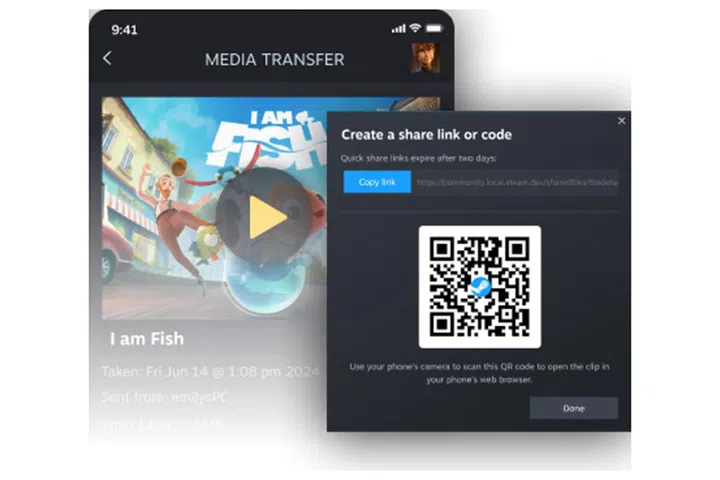
To share your clips, Steam offers multiple options including clipping and sharing footage directly through Steam, exporting the videos as an MP4 file, or transferring recordings between devices like the Steam Deck and PC. Speaking of Steam Deck, Steam says that the recording system will work on the Steam Deck, offering the same functionality as the desktop version.
How can I enable Steam recording on my PC?
Restart Steam if the Game Recording section does not appear. Image: HWZ
- Open Steam and go to Settings
- Navigate to the "Game Recording" section
- Configure your preferred recording settings, including storage location and recording quality
- Enable the Steam overlay for the games you want to record
- Use the default hotkeys or set custom ones for recording controls
Is it free to use?
Yes, Steam Game Recording is free and available to all Steam users. There are no additional charges or subscriptions required to access any of its features.
All in all, the new Steam recording feature is a great feature for users in general and will look to compete with existing game capture solutions like NVIDIA Shadowplay or third-party solutions like Medal.
Source: Steam
Our articles may contain affiliate links. If you buy through these links, we may earn a small commission.