
Dell XPS 11 - Flip to the Future
The Dell XPS 11 is an 11-inch convertible Ultrabook that transforms from a notebook into a tablet quickly. It also runs on an Intel Core Y-series processor, which allows it to consume less energy that many other Ultrabooks that use processors from the Intel Core U-series. Let's see how that turned out.

Overview
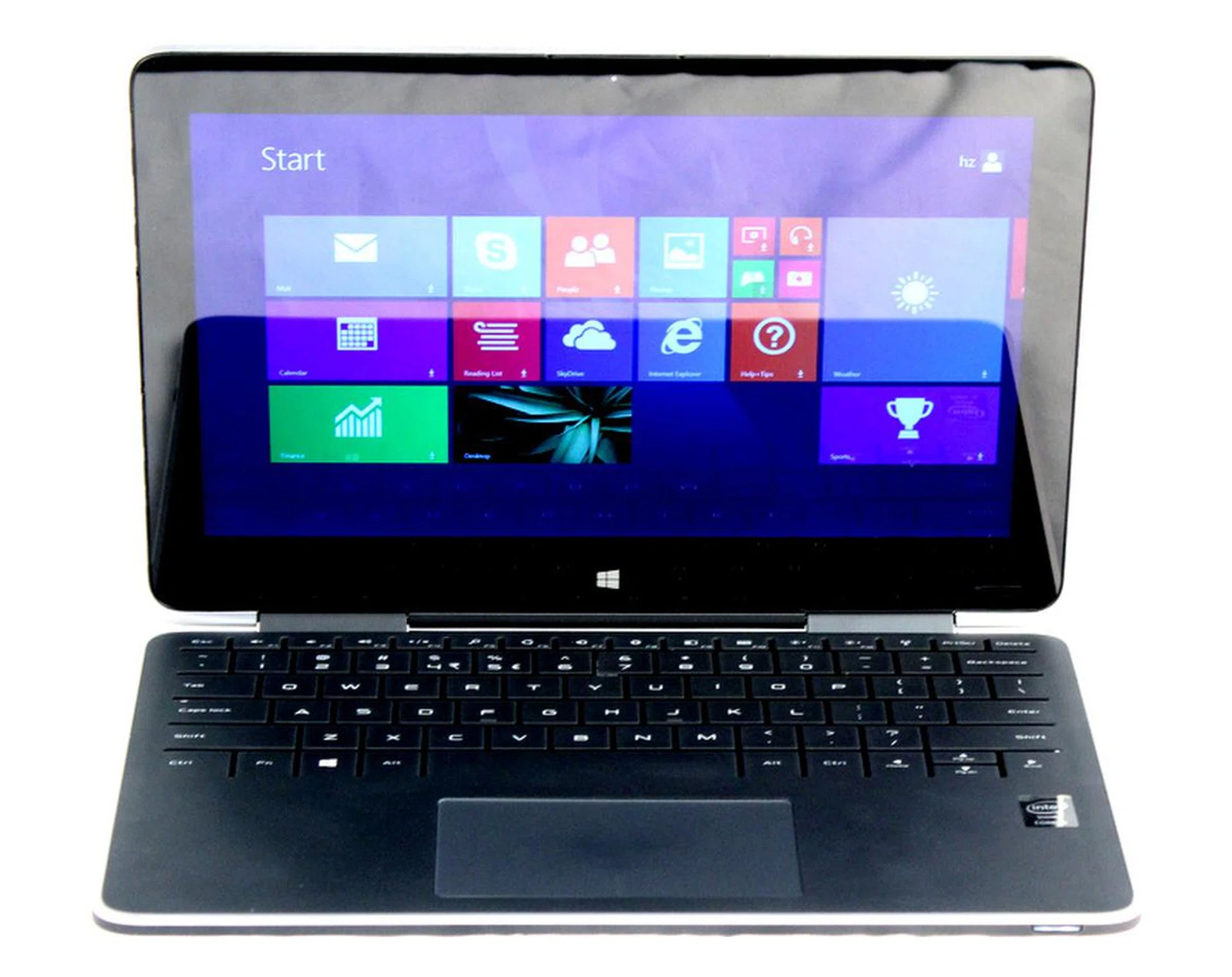
The Dell XPS 11 is an 11-inch convertible notebook that runs a fourth generation Intel Core Y-series processor that's designed for tablet use. It's energy efficient, and powerful enough to handle anything you can throw at it.
If you haven’t heard, Dell is now a private company, which means it now has more creative control over their products. Hopefully for consumers, this means more products that are better designed, with less restrictions due to the pressure for profits.
The Dell XPS 11 here is a product of the pre-private Dell, and is an 11-inch version of the very well designed Dell XPS 13 that didn't get a re-design (just upgrades) since its launch in 2012.
Having the XPS 11 looking almost exactly like the XPS 13 was a good move on Dell’s part, as there’s isn’t much about the look and feel of the XPS 13 that really bogged it down.
However, while the Dell XPS 11 can easily be mistaken for simply being an entry-level notebook, compared to the XPS 13, it really isn’t. In fact, it has several features that can’t be found on the XPS 13, like its ability to transform into a tablet with ease, its QHD display and its flat, touch keyboard.
Converting into a Tablet
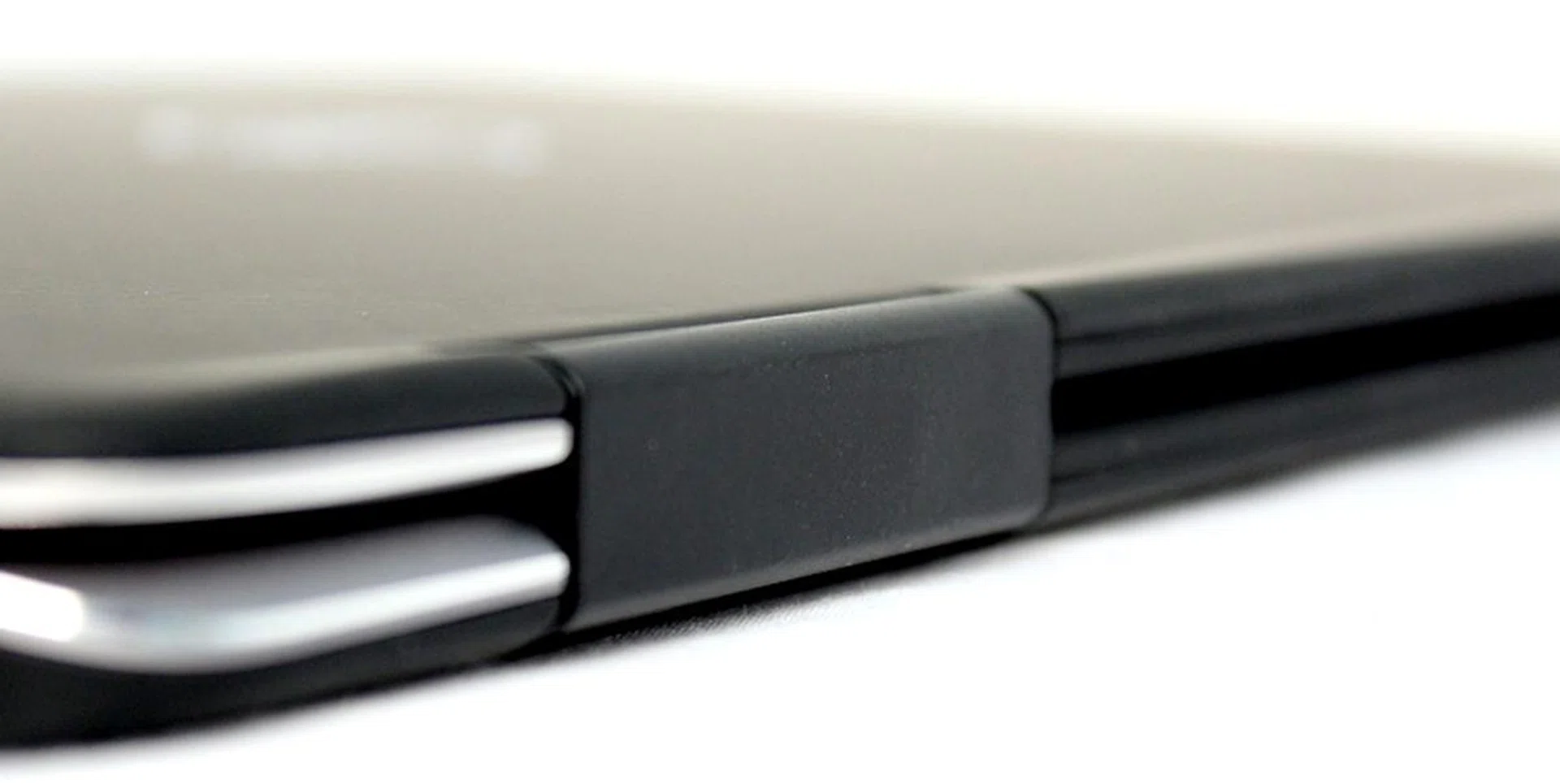
Seamless transformation into a tablet is made possible thanks to the hinges on the XPS 11.
Before you write off the XPS 11's ability to transform as another over-designed trait that's unnecessary, we'd like to point out that it uses the same method that the Lenovo Yoga 2 Pro uses - two hinges that allow the display to flip 360 degrees backwards.
It’s actually surprising to see a Dell notebook utilizing this transformation method, since Lenovo claims that the hinges that allow for this seamless transformation, had been patented. It's likely that Dell licensed the use of this design, or the mechanism is slightly different from Lenovo’s hinges.
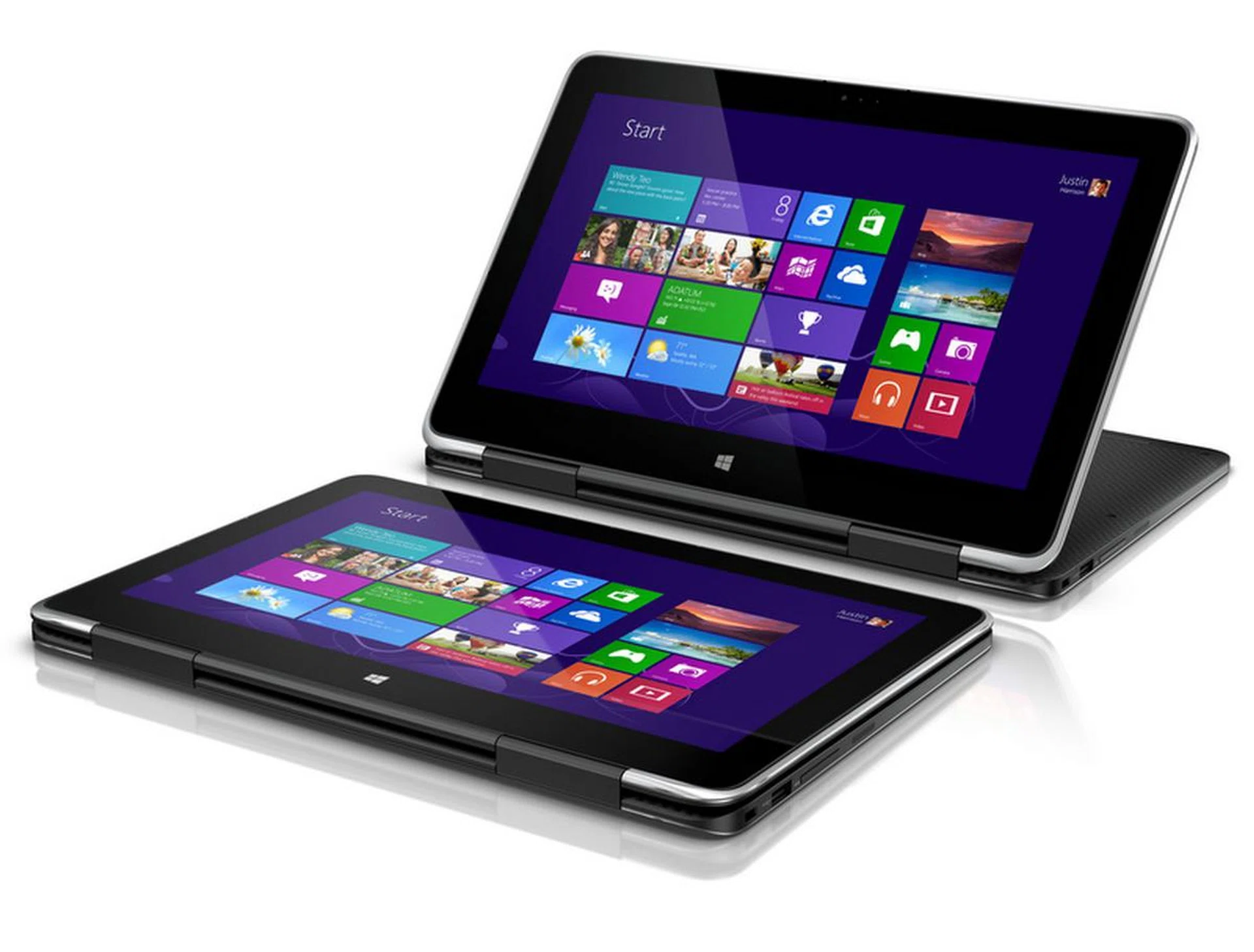
It's up to you how you want the XPS 11 to stand.
Whichever's the case, we hope that future notebooks are able to use these hinges for transformation because they’re incredible easy to use. All you have to do is flip the display all the way backwards, and the notebook becomes a tablet.
But of course, the drawback of using such a method of transformation means that your keyboard will inevitably become the back of the machine in tablet mode, and the stand in display mode.
Lenovo’s Yoga notebooks disable the keys once the lids are flipped, so there will not be any accidental key presses. Unfortunately, the keys themselves don’t go anywhere, and would still be an annoyance in tablet mode. The ThinkPad Yoga solves this problem by having the keyboard well rise to become flush with the keys, which is nice, but adds to the cost.
Touch Keyboard and Trackpad

The touch keyboard on the XPS 11 is made of silicon, and is disabled once the display goes past 180 degrees. Its rubbery texture also provides friction that prevents it from slipping from your hands.
So far, the Dell XPS 11’s approach seems to be the most logical and cost effective. Instead of having any fancy keyboard mechanism to tuck the keys away, the Dell XPS 11 has a touch keyboard. It has a silicon overlay that extends from the keyboard to the palm rest. It’s soft and rubbery, which makes it quite comfortable to touch, and provides friction to keep the machine safe in your hands.
The touch keyboard also reminds us of the Microsoft Touch Cover, which has a similar touch keyboard. In practice, the typing experience is pretty much the same. There is no tactile feedback when there is a keypress, save for the click sound Windows makes when you type on its software keyboard. This means if you're working with the volume off, there is practically no feedback at all.
While this may not affect some who are used to typing on a software keyboard on their tablet, we found that typing accuracy via this keyboard is somewhat affected. This could be due to the keyboard's small size (due to its 11-inch display size), lack of tactile feedback, or a combination of both. What we can say for sure however, is that with enough time typing on the touch keyboard, your fingers will get used to it, and your typing errors will reduce over time.
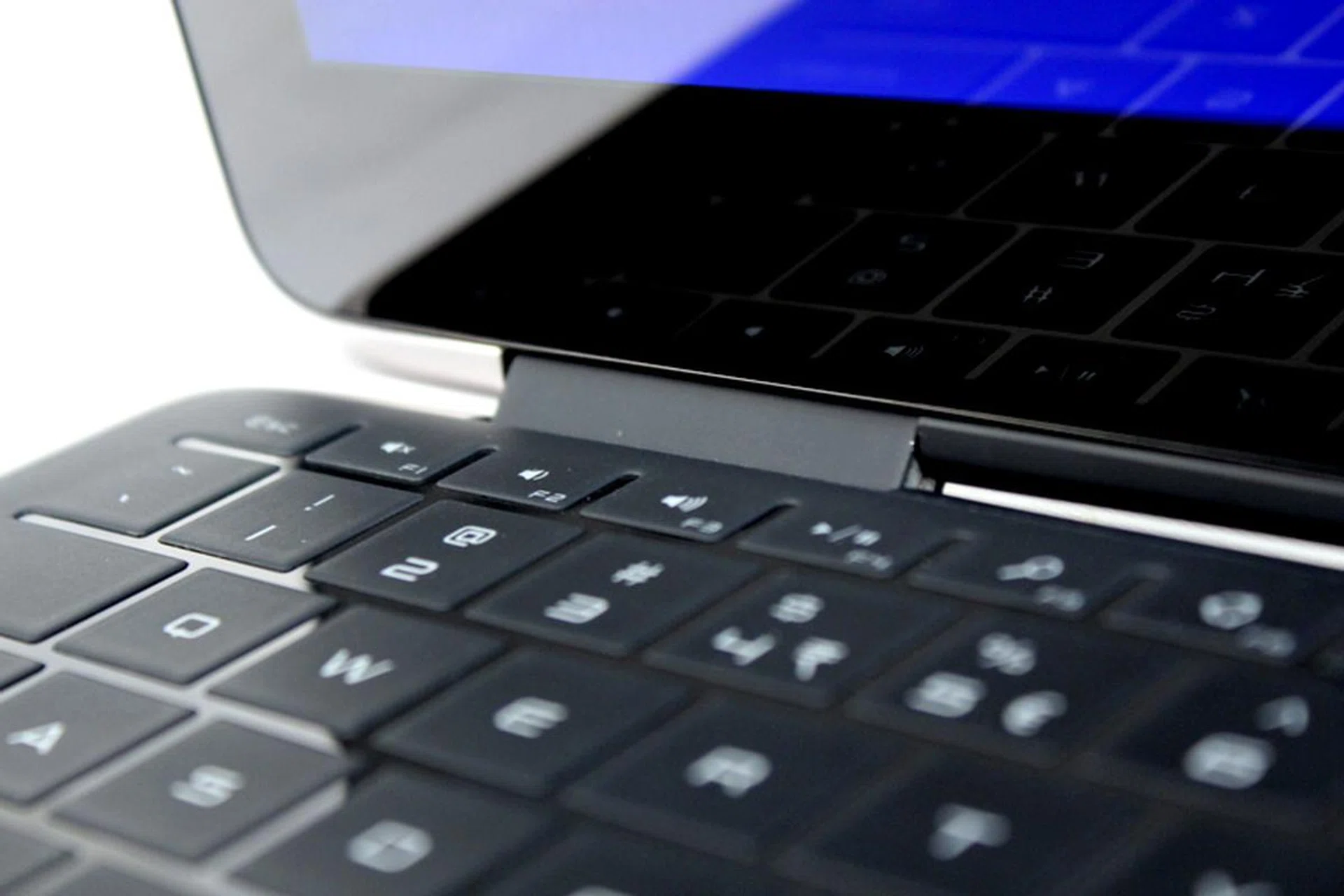
The touch keyboard goes all the way to the edges, allowing it to minimize the wastage of space.
There are also a few other things you need to take note as well. Unlike a software keyboard which only requires the lightest of touches to register a keypress, the keyboard on the Dell XPS 11 requires the use of a little bit (just a tiny bit) more of force to trigger a keypress.
We also found that the silicon material tends to trap dirt when the machine was used in stand mode. It’s easy enough to clean off, but could cause the silicon material to wear off and lose its texture after some time. Another thing to take note is that this keyboard doesn’t play well with long fingernails, as the nails will prevent the touch keyboard from sensing your fingertip.
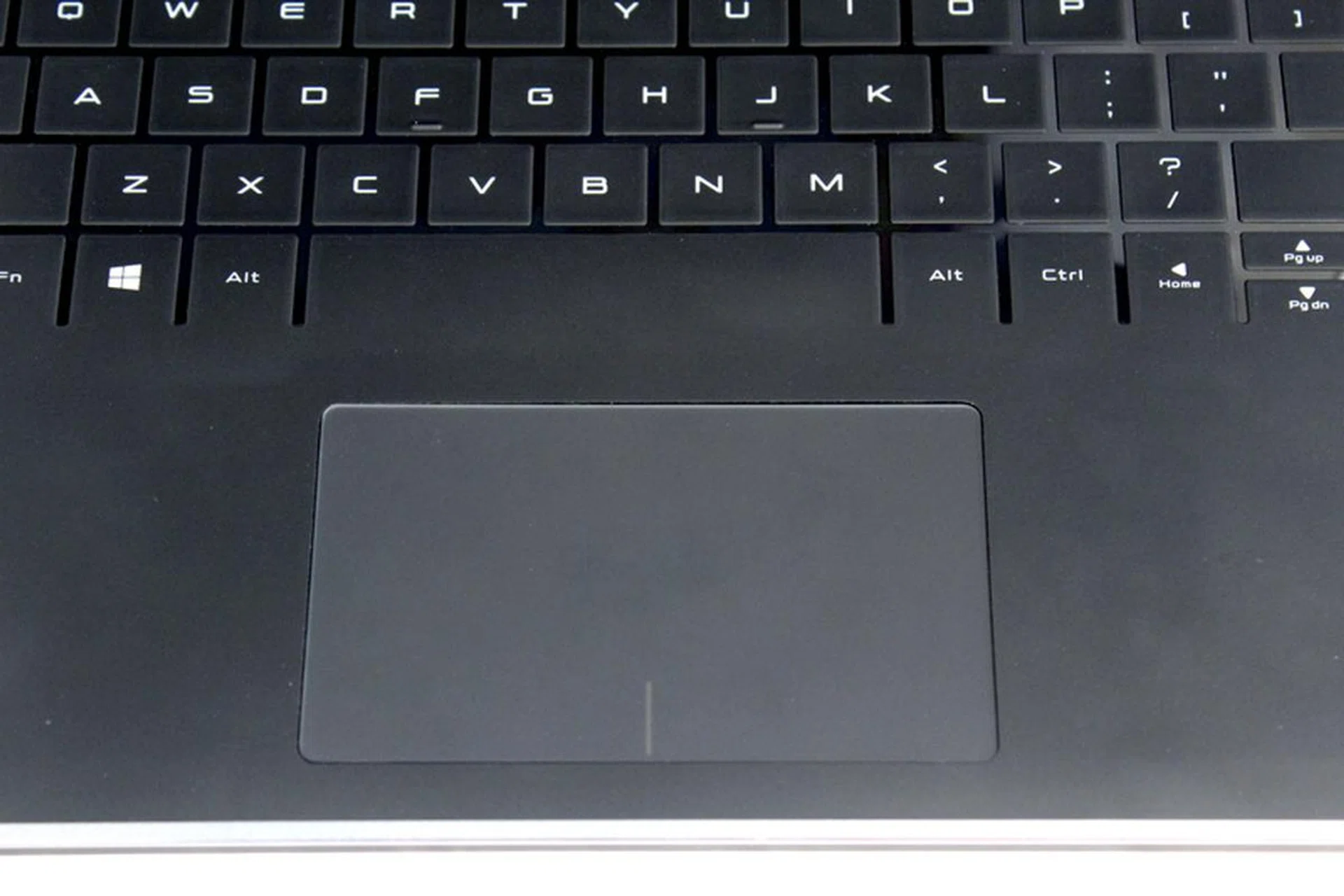
The backlit touch keyboard is almost flushed, and looks much more interesting than the usual chiclet-style keyboard. Unfortunately, it isn't as accurate to type on.
One thing we like about this backlit keyboard though, is just how good it looks on the Dell XPS 11. It’s somewhat flushed (except for the bumps that separate the keys, so it has that futuristic look that will get you envious looks at the local coffee shop.
As for the machine's trackpad, it's made of glass with a matte feel that allows for smooth navigation - as you'd expect from a premium notebook. There's not much else to say about it except it works well, and we had no issues with its sensitivity.
Design and Build

The machine's lid and bottom cover are protected by light but durable carbon fiber. The material's natural look also brings the Dell XPS a unique look, which is visible thanks to the use of transparent resin to hold the material together.
To Dell’s credit, it’s not just the keyboard that looks great. The whole machine, designed to look like the XPS 13, looks stunning. The lid and bottom of the machine is covered in carbon fiber, and you’re able to see the classic carbon fiber pattern clearly.
Carbon fibre is a material that’s meant to be tough, yet light. But we’ve come across notebooks with carbon fibre chassis that feels more plastic than premium (read: Sony Vaio Pro 13). On the Dell XPS 11, the machine feels much more solid, thanks to the matte resin-like material that’s used on top of the carbon fibre.
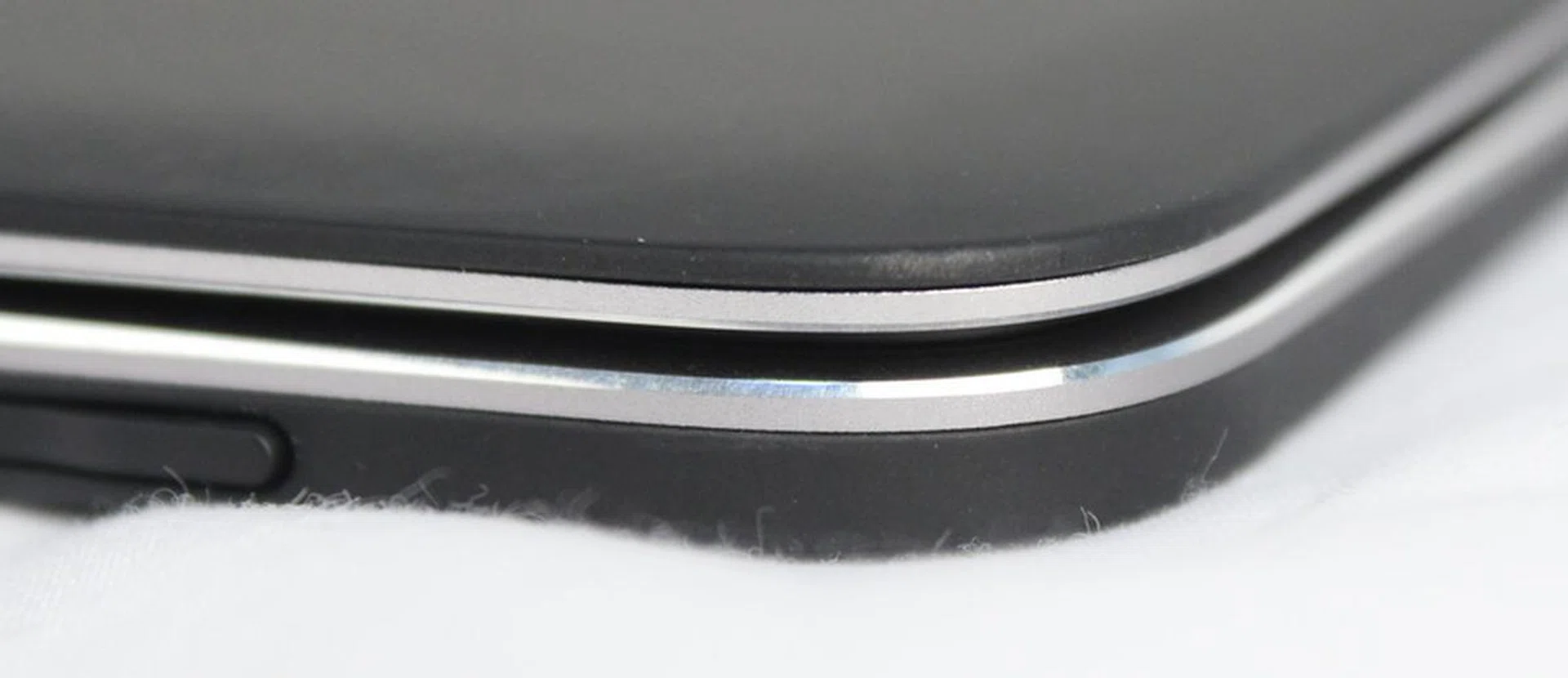
The hard and tough machined aluminum frame reinforces the machine's structure, enabling it to take plenty of abuse - intended or not.
There’s also a machined aluminum frame along the lid and bottom of the machine that further reinforces the rigidity of the whole machine, and adds to the premium look of the machine.
Multimedia Features
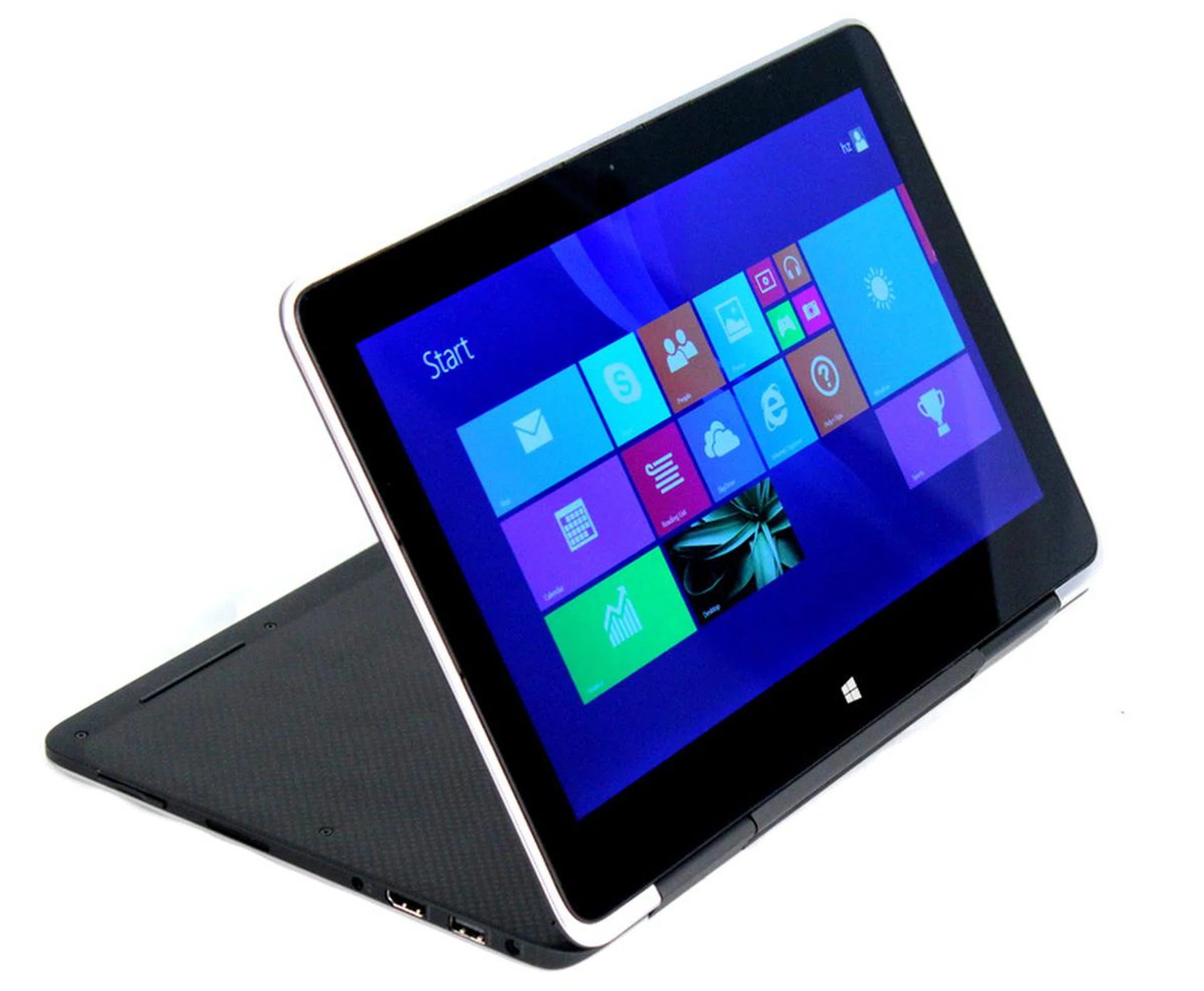
The Dell XPS 11 has an incredibly sharp, 2,560 x 1,440-pixel display.
Like we mentioned earlier, the Dell XPS 11 isn’t simply a smaller, cheaper version of th XPS 13. Besides its premium build and touch keyboard, the Dell XPS 11 also has an extremely sharp, multi-touch display. It may only be 11.6-inches, but it has a QHD resolution (2,560 x 1,440), which is great for consumption of movies and photos. Unfortunately though, it’s not an IPS panel, so viewing angles for this otherwise great display isn’t that fantastic.
To accompany that very sharp display, the XPS 11 has a pair of very powerful speakers. They’re really loud for a small machine like the XPS 11, so music and movies won’t be a problem. Expectedly, cranking the speakers up to maximum volume produces some distortion that some users might not like.
The speakers are also placed on the side of the machine, so sound is spread out well enough that even in low volumes it’s still very clear.
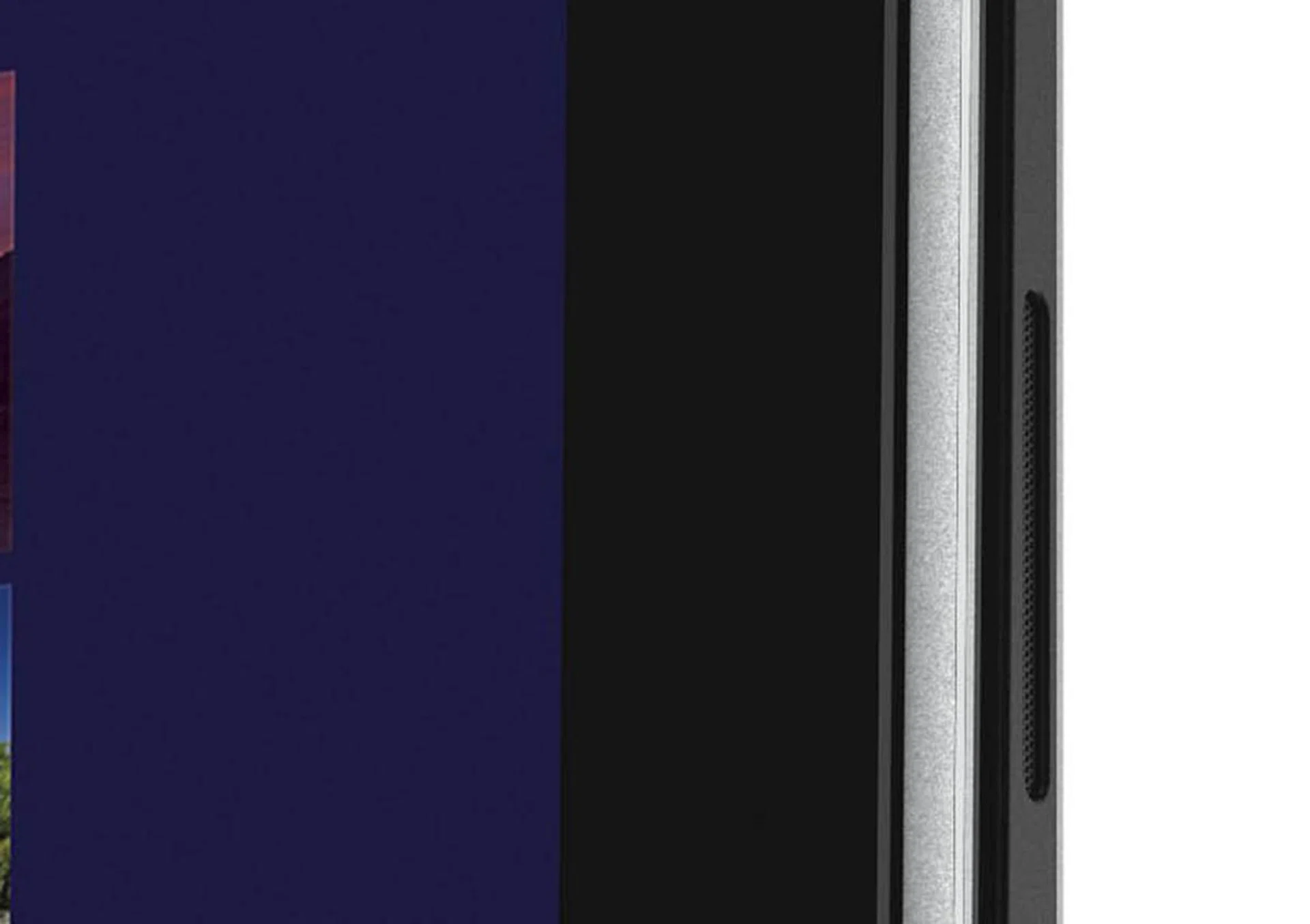
The Dell XPS 11's speakers are located at the side of the machine, and could easily be covered if you hold the device with both hands.
The problem with the speaker placement is that when the XPS 11 is in tablet mode, you'll have to ensure that you're holding the bottom half of the tablet, as holding it any higher will block the sound. Unfortunately, it's also too heavy (1.13kg) for prolonged single-handed use. Fortunately, that's where the machine's display mode comes in handy. The keyboard would be out of the way, and it allows the device to rest on your lap or tabletop with ease, while you enjoy your movies and music.
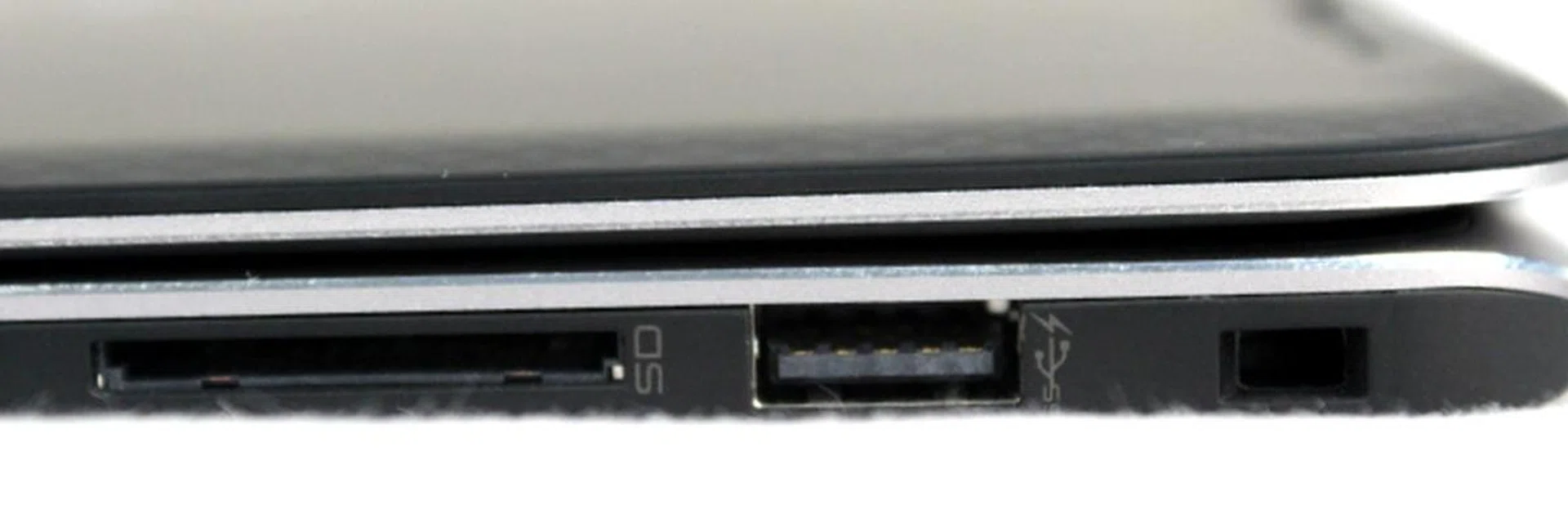
On the left of the machine, you'll find a USB 3.0 port, as well as an HDMI port and a audio combo port. On the right side, you will find a card reader, and another USB 3.0 port
Performance and Benchmarking
Just like the very thin and light Sony Tap 11, the Dell XPS 11 runs on an Intel Core Y-series processor, unlike regular Ultrabooks that typically run U-series processors. The benefit of using a Y-series processor is that it’s extremely power efficient, while providing performance that’s far better than what Atom or Celeron processors are capable of. To be specific, the Intel Core i5-4210Y has a TDP of 11.5W versus a 15W TDP of the commonly used Core i5-4200U. The lowered TDP is possible due to a lower clocked graphics core and slightly slower main processing cores.
In the benchmark tests, we pitted the XPS 11 against the Vaio Fit 13A, the ASUS Transformer Book Trio, as well as the Lenovo Yoga 2 Pro, all of which run U-series processors, but have otherwise somewhat similar configurations to our test unit.
PCMark 8
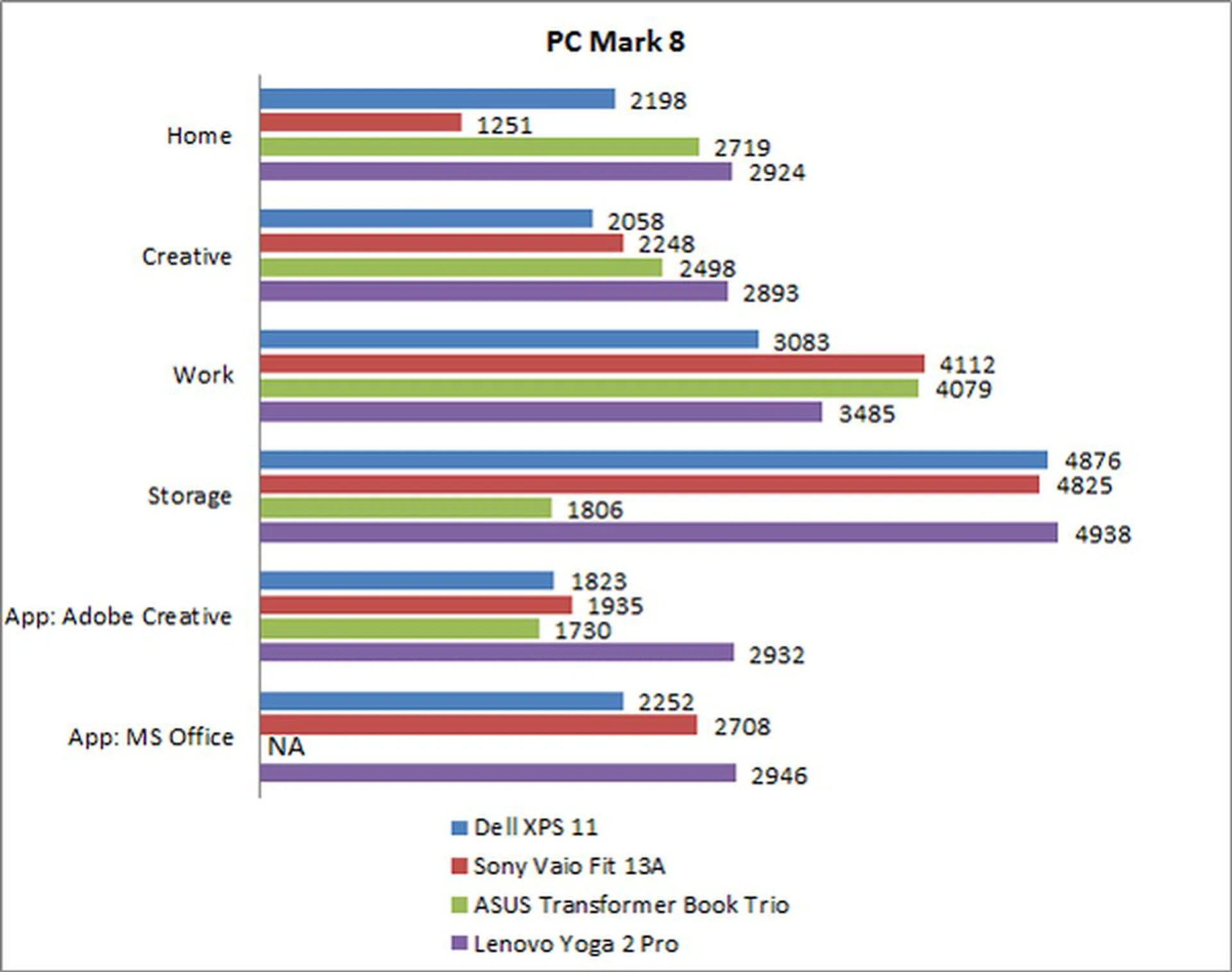
In the PCMark 8 benchmark, the Dell XPS 11 managed to keep up with the Yoga 2 Pro, as well as the Trio. Like we’ve explained in our Vaio Fit 13A review, the reason for its poor performance is its poor cooling design that restricts its CPU and GPU’s performance.
From the XPS 11’s PCMark 8 score, it’s safe to say that the XPS 11 can handle anything a U-series-processor-running Ultrabook can. Heavy use of word processing, spreadsheets, and presentations should pose no problem to the XPS 11.
3DMark and Far Cry 2
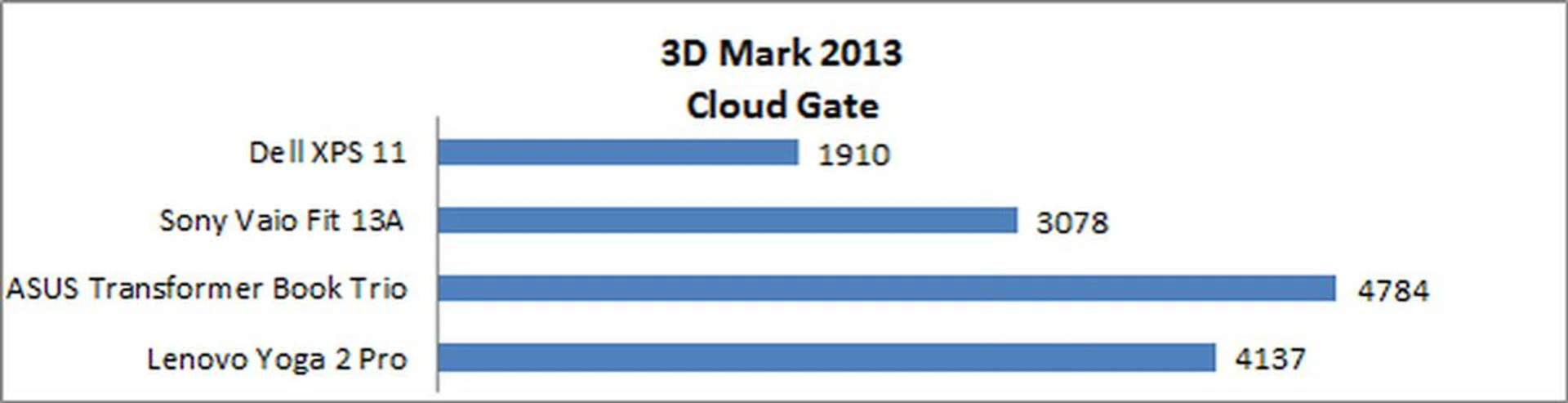
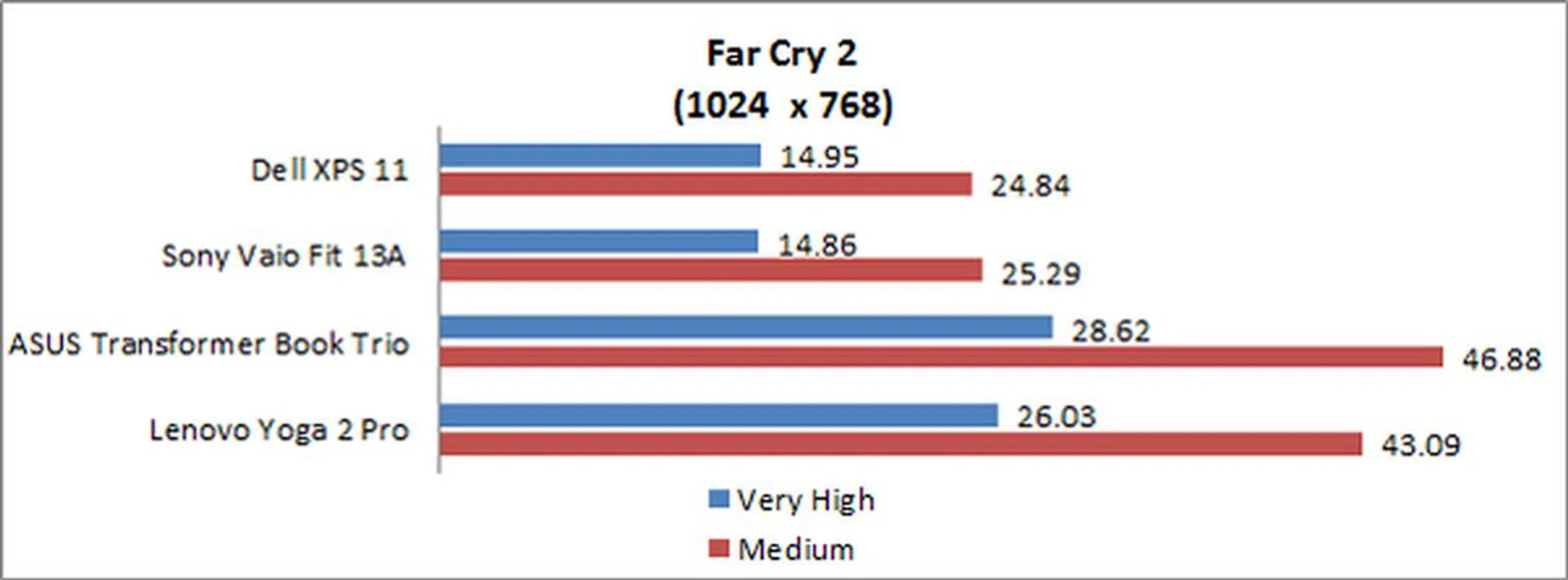
And as for gaming, the XPS 11 is clearly more inferior as it sports an Intel HD 4200 graphics, which is a tier lower than the Intel HD graphics 4400 that the other machines are running. What it means is that graphics rendering and animation effects would appear fine, but don’t expect to run any (hardcore) games on it, especially with cranked up visual effects settings.
Battery Life and Portability Index
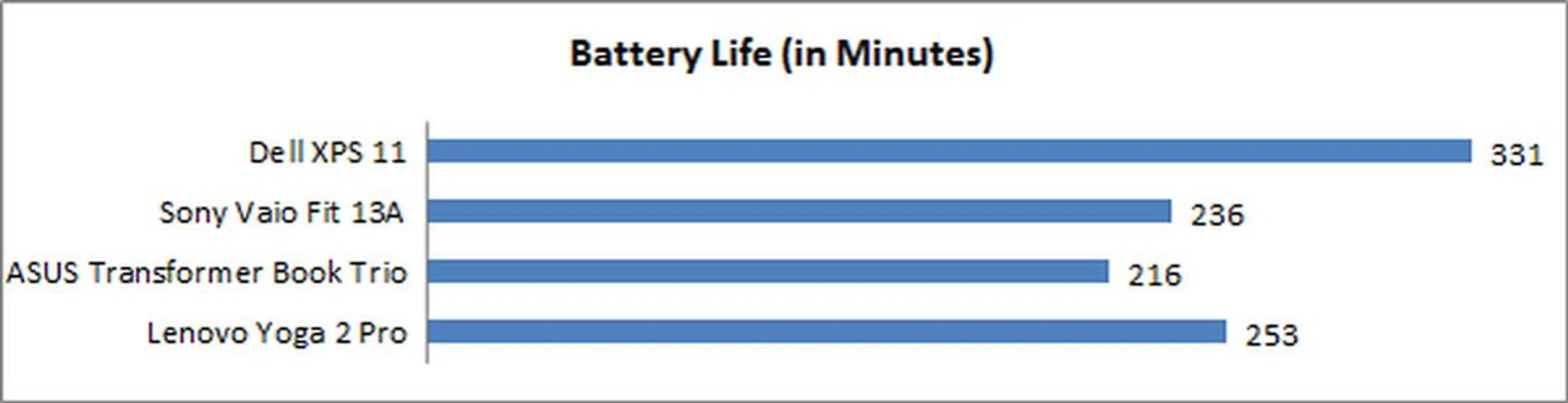
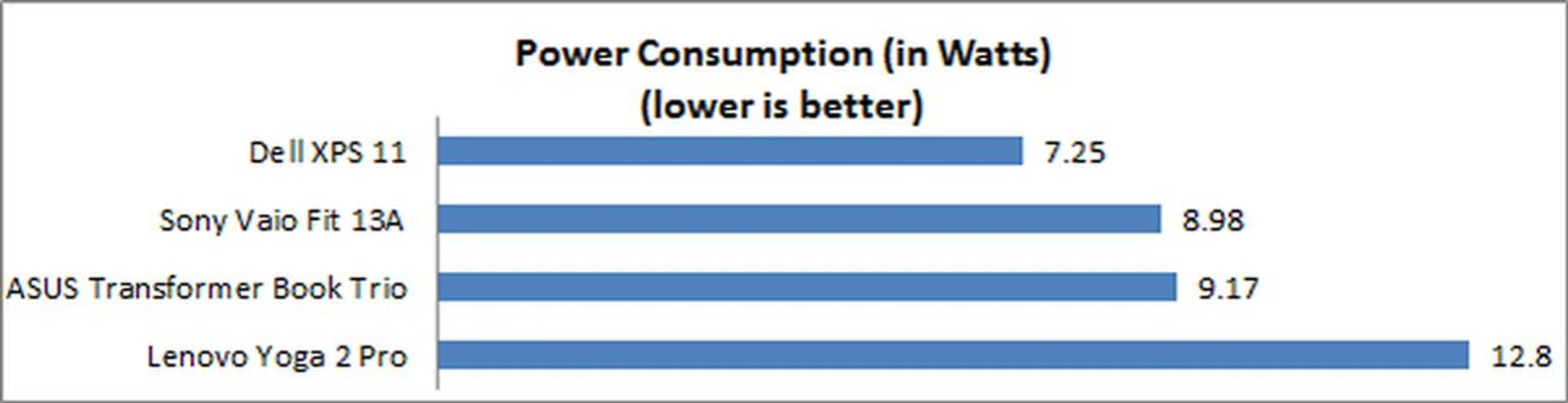
The greatest thing about having an Y-series processor, is that the notebook draws much less power, even when compared to an Ultrabook running a U-series processor. To ensure the XPS 11 has a really good battery life, Dell also equipped the XPS 11 with a massive (for its size) 40Wh battery.
As you can see from the charts, the XPS 11 managed to outlast the Lenovo Yoga 2 Pro by more than an hour in the Powermark benchmark - which puts the machine through common tasks a notebook is expected to perform, like video rendering and web browsing.
In short, if you were to use the Dell XPS 11 for less CPU intensive tasks like web browsing, or document editing, the Dell XPS 11 will be able to last you much longer - almost a full eight-hour work day if you’re judicious with power management.
Portability
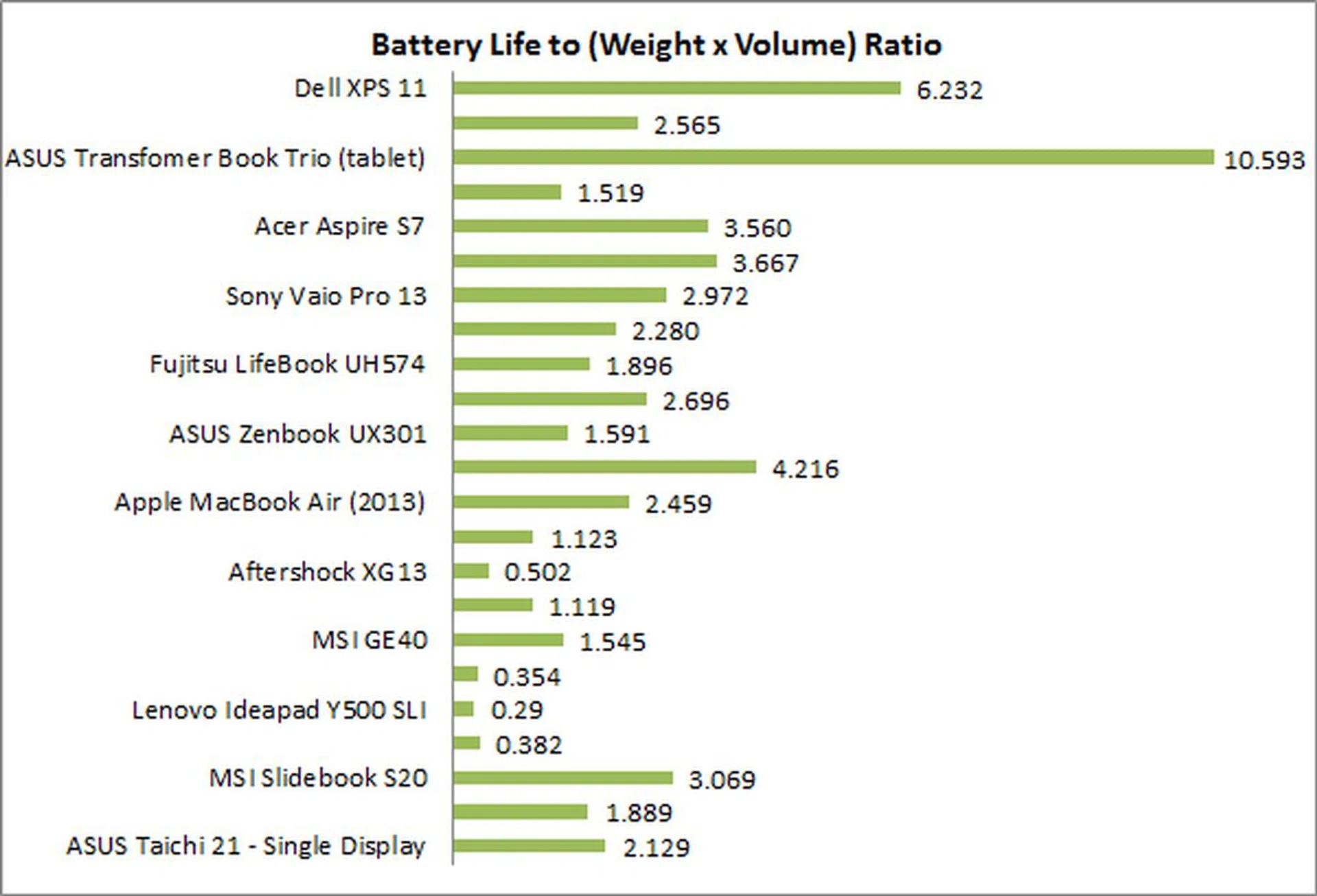
The machine’s great battery life and light weight also gives it an incredibly good portability ratio. However, take note that while its ratio is 3 times that of the Vaio Fit 13A, it’s not three times as portable.
What it just means is that between the two machines, you’ll probably get more work done out of the XPS 11, as it will stay up and run for longer periods.
Conclusion
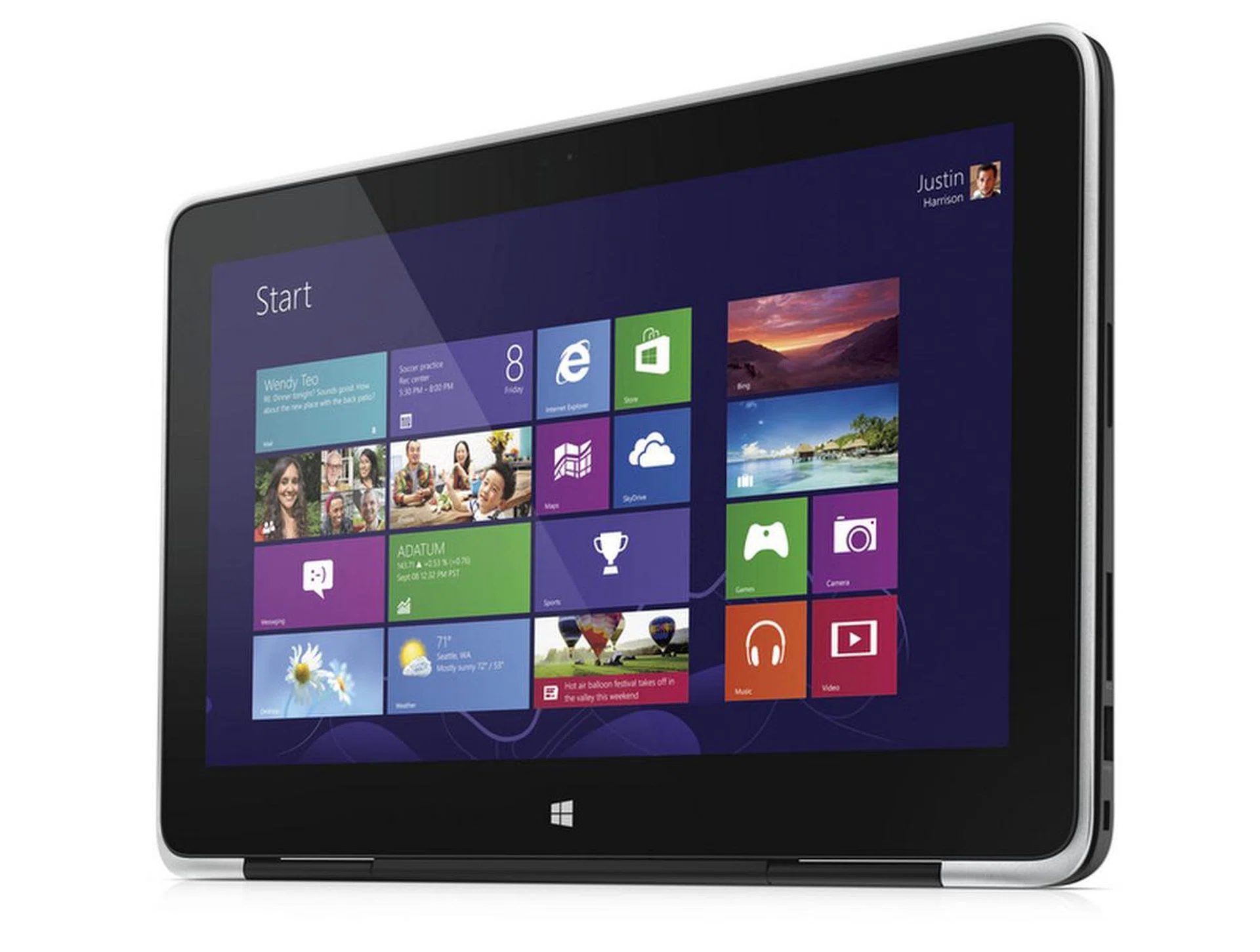
The Dell XPS 11 is a fairly capable little convertible notebook, with an excellent battery life. However, it does lack certain features (like a digitizer) that enable it to stand out from the crowd of convertible notebooks in the market.
Usually, people who are buying a notebook would be concerned of the machine’s overall look. In this department, the Dell XPS 11 definitely screams "buy me!" as loud as it can. And the best part is its sleek, dark design with aluminum frame isn’t just beautiful; it’s also very sturdy, which lets it survive the abuse that comes with daily use.
An added bonus is that the Dell XPS 11 is also able to convert into a tablet, though we suspect you won’t be using this mode very much. This mode also won’t be very useful without a digitizer stylus, something the Sony Vaio Fit 13A and Tap 11 have.
It’s also heavier than many tablets out in the market, so if you need a tablet, go get a tablet. A convertible Ultrabook isn’t going to do you much good here.
But as an Ultrabook, the Dell XPS 11 is not only capable enough to keep up with regular Ultrabooks running more power-hungry processors, its battery life is also much better than many other machines in the market, making it perfect for school work, office work, or simply just watching videos at your local coffee shop.
Now, about its price. There’s no easy way to put this if you’re keen on the XPS 11. Even though it’s a great little machine, it’s pretty pricey.
It costs S$1,999, about $100 more than the Dell XPS 13 ($1,799). In terms of actual computing performance, the Dell XPS 11 isn’t much better than the XPS 13 with a fourth-generation Intel Core i5 processor. What it has going for it is a sharper display, a much better battery life, and the ability to convert into a tablet. If you’re willing to fork out an extra $100 for those additional features, then by all means, make the Dell XPS 11 your next notebook.
That said, there's another version of the XPS 11 that costs S$1,499, but it has a slower processor (1.5GHz vs. 1.9GHz) and a smaller SSD (80GB vs. 128GB) than the one we've here.
If budget is your primary concern, then you might want to take a look at the Lenovo Yoga 2 Pro (fourth-generation Intel Core i5, S$1899), which can do everything the Dell XPS 11 can. It even has a larger, sharper 13.3-inch display which is easier to read and work on and a better keyboard to type on. The downside is, it isn’t as portable, and has a shorter battery life.
Our articles may contain affiliate links. If you buy through these links, we may earn a small commission.