
NZXT Noctis 450: A mid-tower casing with style and bling
The NZXT Noctis 450 is an improved take of the older mid-tower H440 chassis. With a new exterior and two color variants, the Noctis 450 also boasts of some new features in an attempt to distinguish it from the H440. We take a closer look at this interesting PC casing.

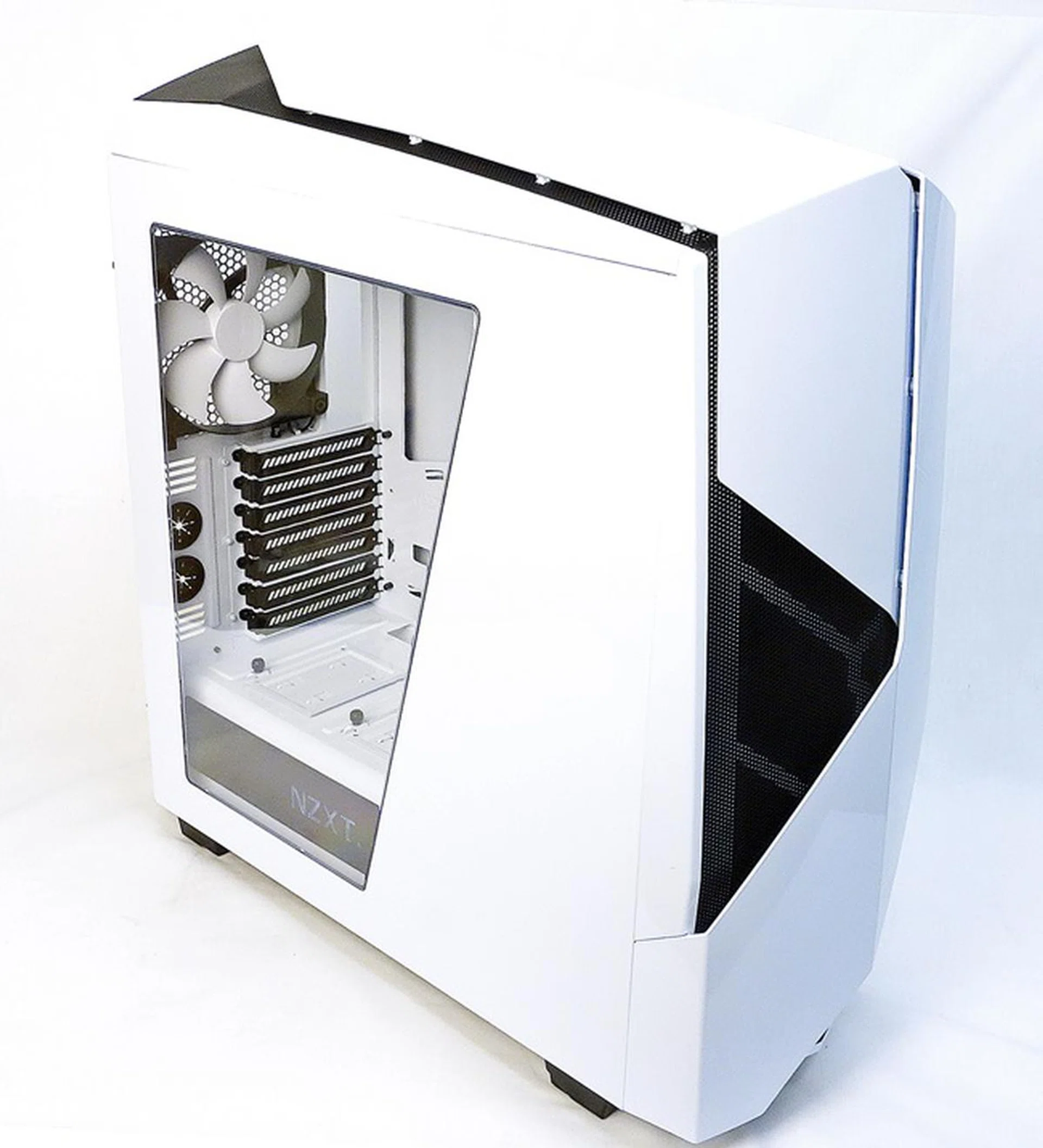
The NZXT Noctis 450 is based on the current H440. The newer mid-tower chassis has an updated appearance and comes in two colors; white and black. The white version looks resplendent with its glossy finish!
NZXT Noctis 450: A worthy upgrade of the H440?
The Noctis 450 is a new mid-tower gaming chassis from NZXT. Parked under its NZXT Concepts branding, the casing is actually an improved version of the Razer-designed H440. The Noctis 450 has a focus on cooling with the incorporation of a pulse wave modulation fan hub and its generous amount of air vents. This allows for a centralized manner of controlling cooling fans. In addition, there’s a generous amount of metal mesh at the front and top of its panels for air intake. The chassis also supports air and liquid cooling systems.
In order to get some street creds, the Noctis 450 comes with a built-in lighting system that is both decorative and functional. To give more leeway in aesthetics to system builders, the Noctis 450 comes in two colors; white and black. Our review unit was the white Noctis 450. The white paint on the metal panels felt like it had been doubled-coated, and on whole, the entire chassis looked clean and pristine! From the color variants to newly incorporated features, we take a closer look at the Noctis 450 to see what sets it apart from the H440 and the competition.
[hwzcompare]
[products=514812]
[width=300]
[caption=NZXT Noctis 450 specifications]
[showprices=1]
[/hwzcompare]
Exterior design
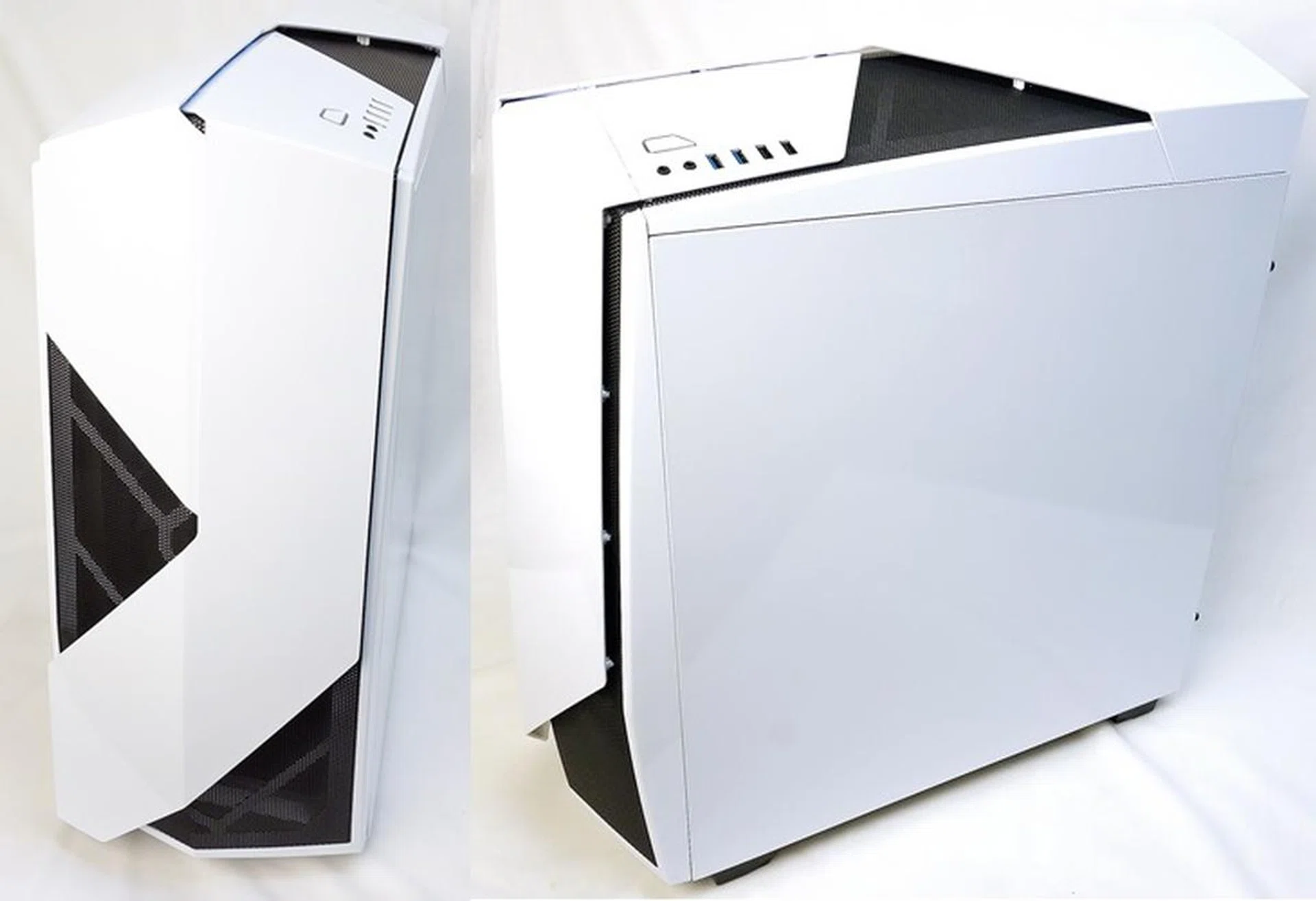
The "floating" ventilation panels are more obvious when viewed from the side.
According to its promotional literature, the Noctis 450 features “floating ventilation panels”, which are raised plastic panels over the front and top cover panels of the chassis. With their bevelled surfaces, the raised panels appear as though they are interlocked, like an intricate origami pattern. You would have to take a minute or two to let its design details sink in. From the front of the chassis, the raised plastic panels give the illusion of a white taper that extends from the bottom of the case, over its top, and to its rear. Its white facade is broken by sections of exposed black metal mesh of the chassis.
The clear side windows will allow the rig builder to show off his installed components; it also shows off the LED-lit NZXT logo.
One of the side panels has a clear acrylic window to let the system builder show off his components. At the same time, NZXT wants to exhibit its blue LED-lit NZXT logo. Speaking of LEDs, the chassis comes with a rear I/O light, as well as ground effects lighting. We will elaborate on the lighting effects later in the article.
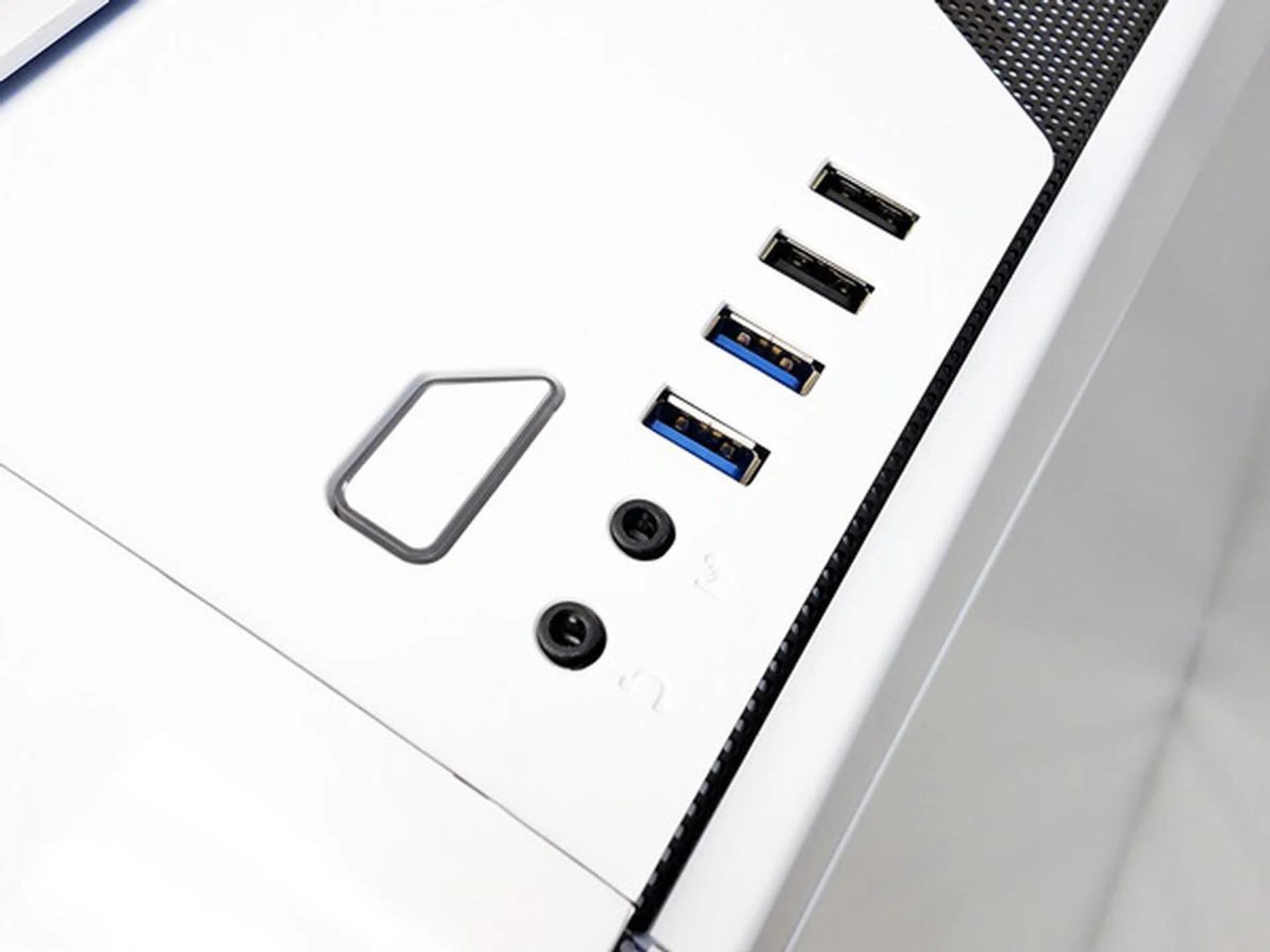
There's a pair of USB 3.0 ports (in blue), and the other, USB 2.0 ones (in black). The power button is set flushed to the top panel but there isn't a reset button.
The front I/O panel is located at the one of the angled sides of the top panel. There are a pair of USB 3.0 ports, and another pair of USB 2.0 ones. The power button is set flushed against the top panel, but the reset button is absent. There's also the standard audio output and mic input ports.
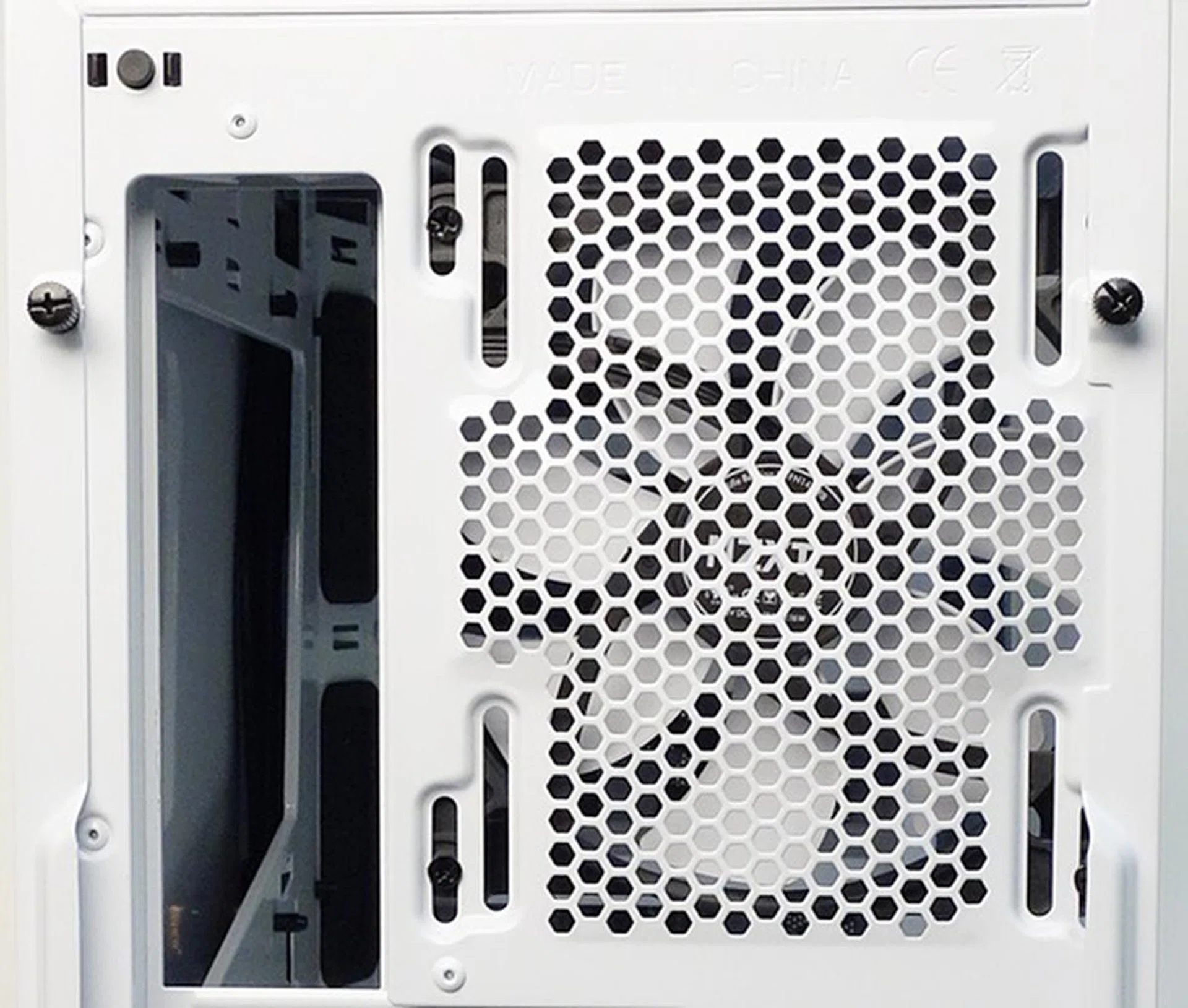
The rear, bundled 140mm outlet fan of the chassis. Noticed the mounting grooves that allow you to position the fan to suit your requirements?
To the rear of the chassis, we see the bundled, 140mm outlet cooling fan with its distinctive white blades. Incidentally, all the bundled fans are from the FN V2 series, which was launched in January last year. Like the Cooler Master MasterCase 5, the rear fan has mounting grooves so that you can adjust the position of the fan. A 120mm cooling fan will also fit. The LED control button is located at the top right hand corner.

The rear of the chassis in full view! At the top, you can see a section of the "floatling ventilation panel".
At the mid rear section of casing, you'll find a total of seven expansion slots and next to them are a pair of rubber grommets for mounting external cooling radiators. At the bottom, there’s a bracket for mounting a power supply unit and the procedure is just about the same as the Cooler Master MasterCase 5 that we reviewed recently.
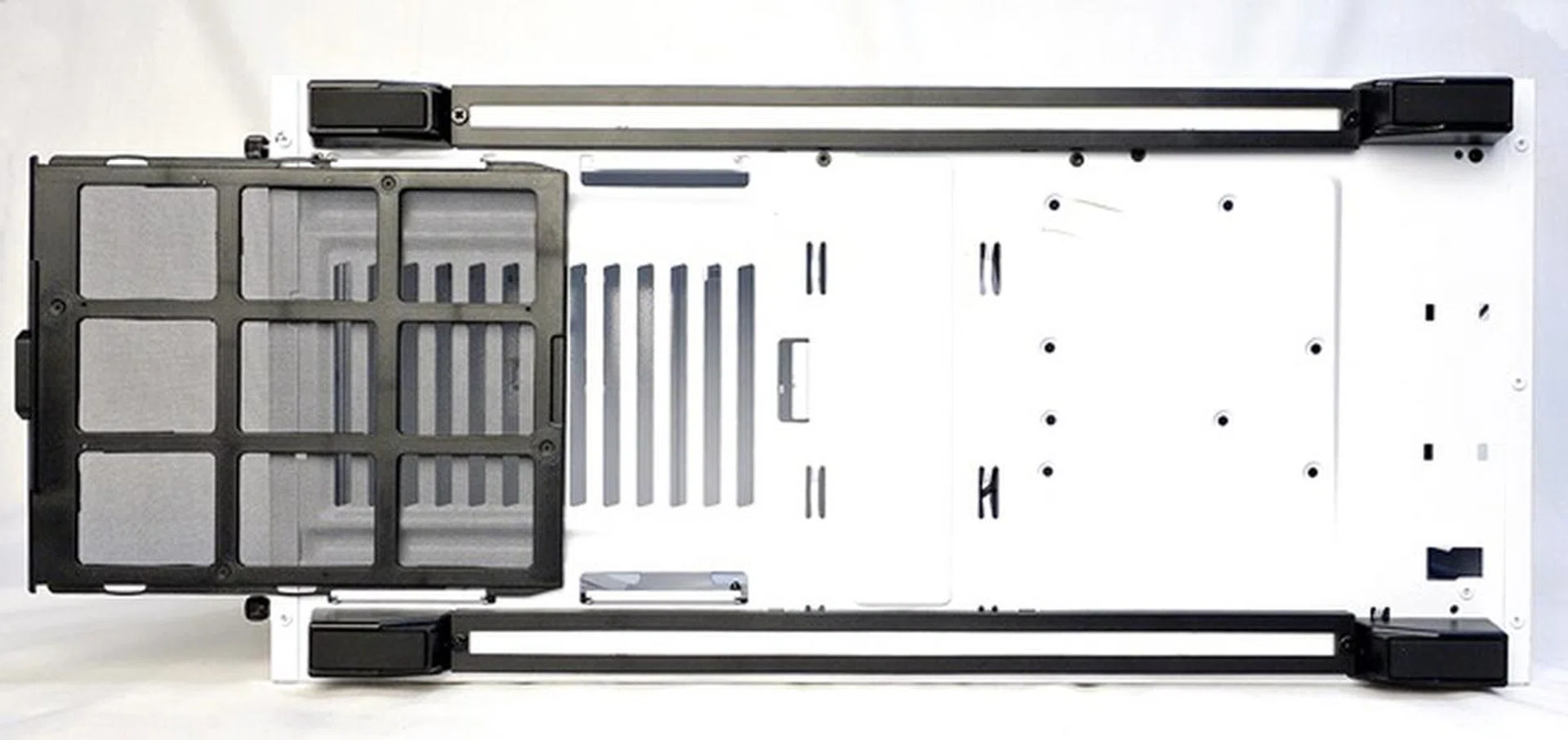
There's a removable dust filter at the bottom of the chassis to facilitate airflow out of the PSU. You can also see the rails that hold the LED mounts, which basically stretch the entire length of the case between the rubber stands of the casing.
Tipping the chassis on its side, we see the removable dust filter for the bottom air vents - specifically to facilitate airflow from the PSU. The area in front of the air vents is actually for mounting a 2.5-/3.5-inch drive. There are four raise rubber stands, and notice the black rails that connecting each pair? They are actually the housing for the bottom LED mounts that provide 'ground lighting effects'.
Interior design
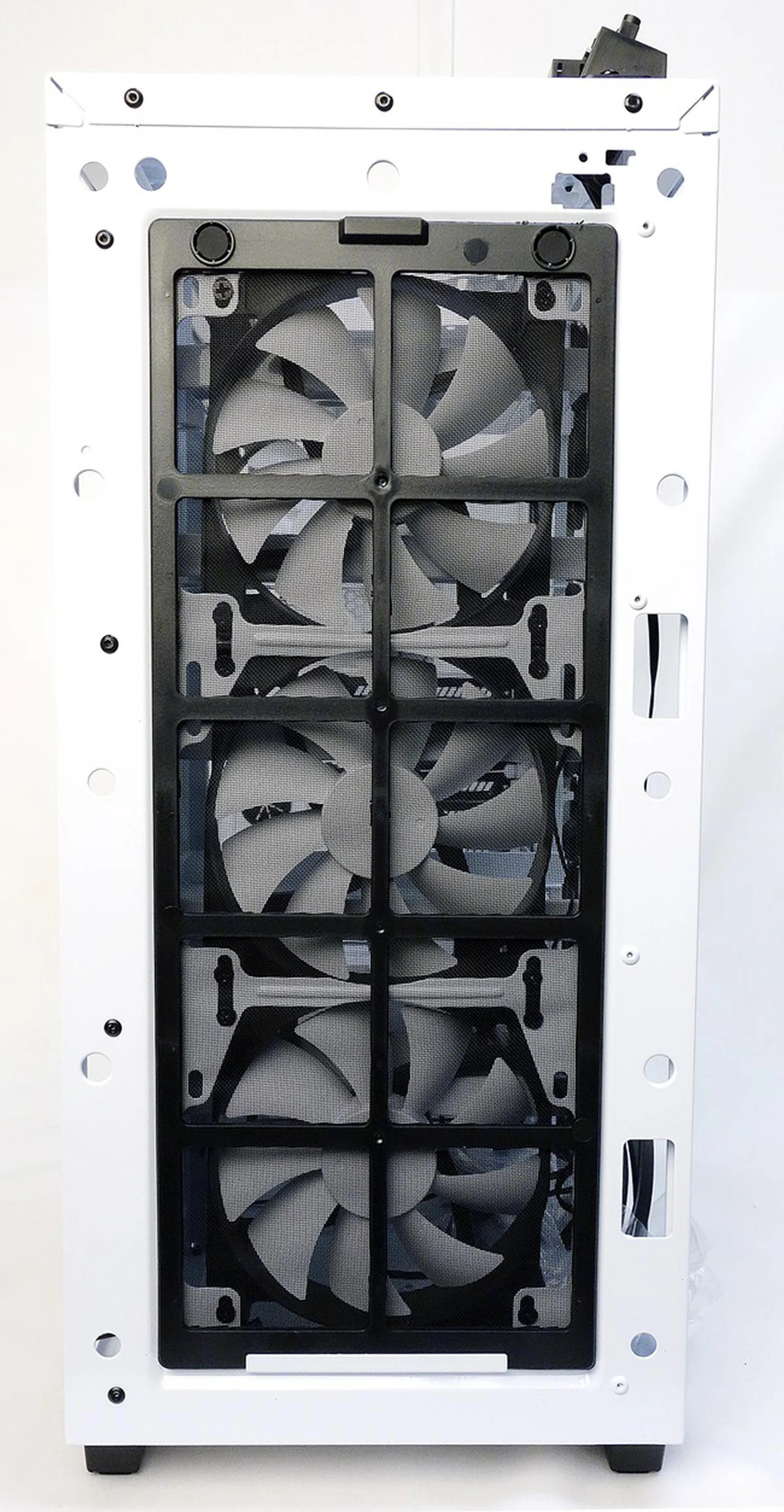
With the front panel removed, we can see its front dust filter, which is located in front of a triplet of 120mm intake cooling fans.
As usual, we remove all the panels to take a closer look at the interior of the NZXT Noctis 450. There’s a particular sequence to remove the panels for the front and top ones; it’s only after the front panel has been removed that we can proceed to remove the top panel. There’s a removable dust filter located in front of the three 120mm intake cooling fans. You can also swop out the triplets for a pair of 140mm cooling fans.
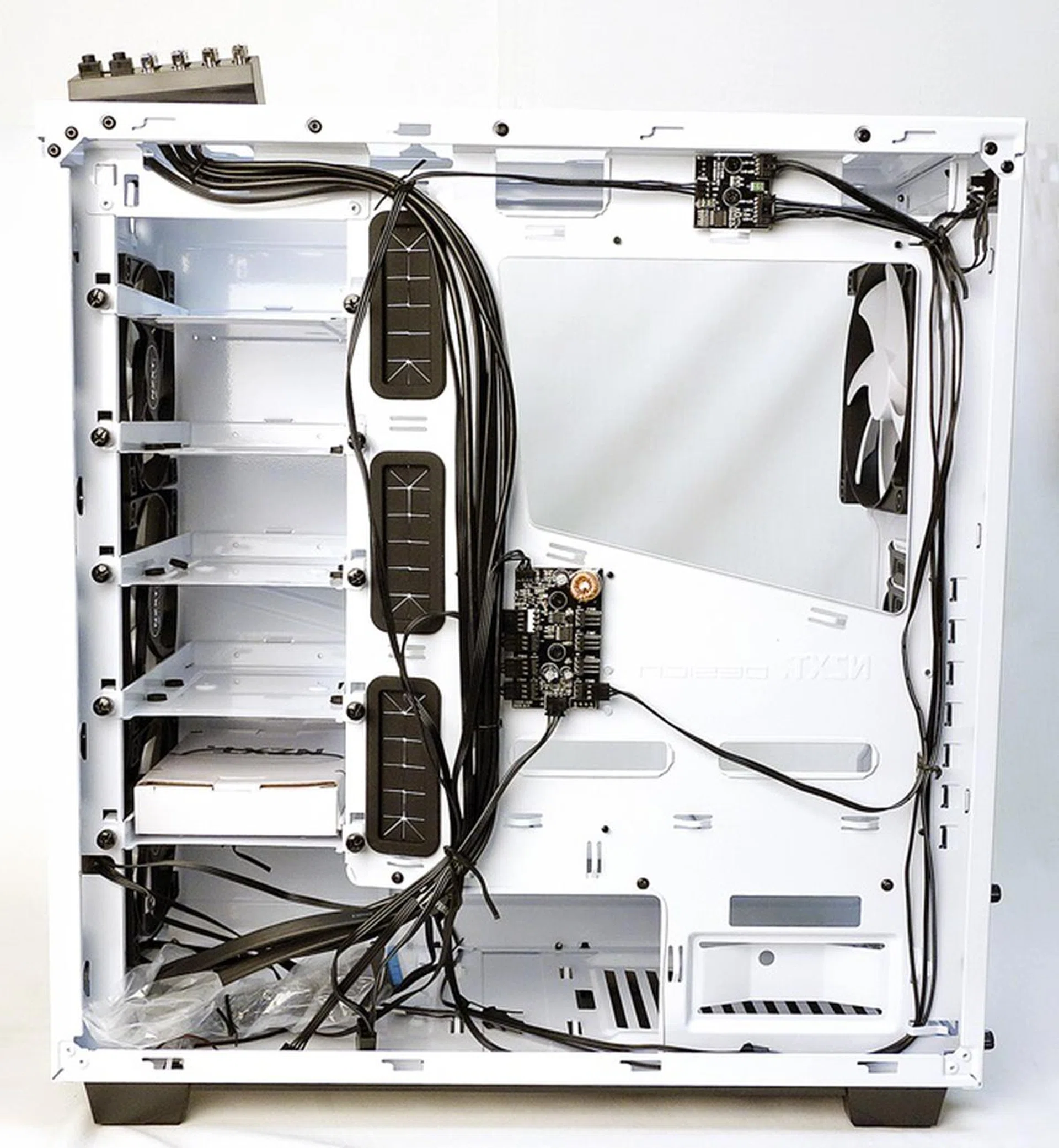
We can see the HDD mounting trays' facing are just the opposite of most casings.
Moving to the side of the chassis, we see four HDD mounting trays. The orientation of the trays are a departure from the norm as they are facing the opposite side. In most chassis, storage drives are mounted on the same side as the motherboard. For the Noctis 450, it’s just the opposite. Also, this side of the chassis appears "busier" due to the wires from its PWM fan hub and LED control PCB. More on these features later.
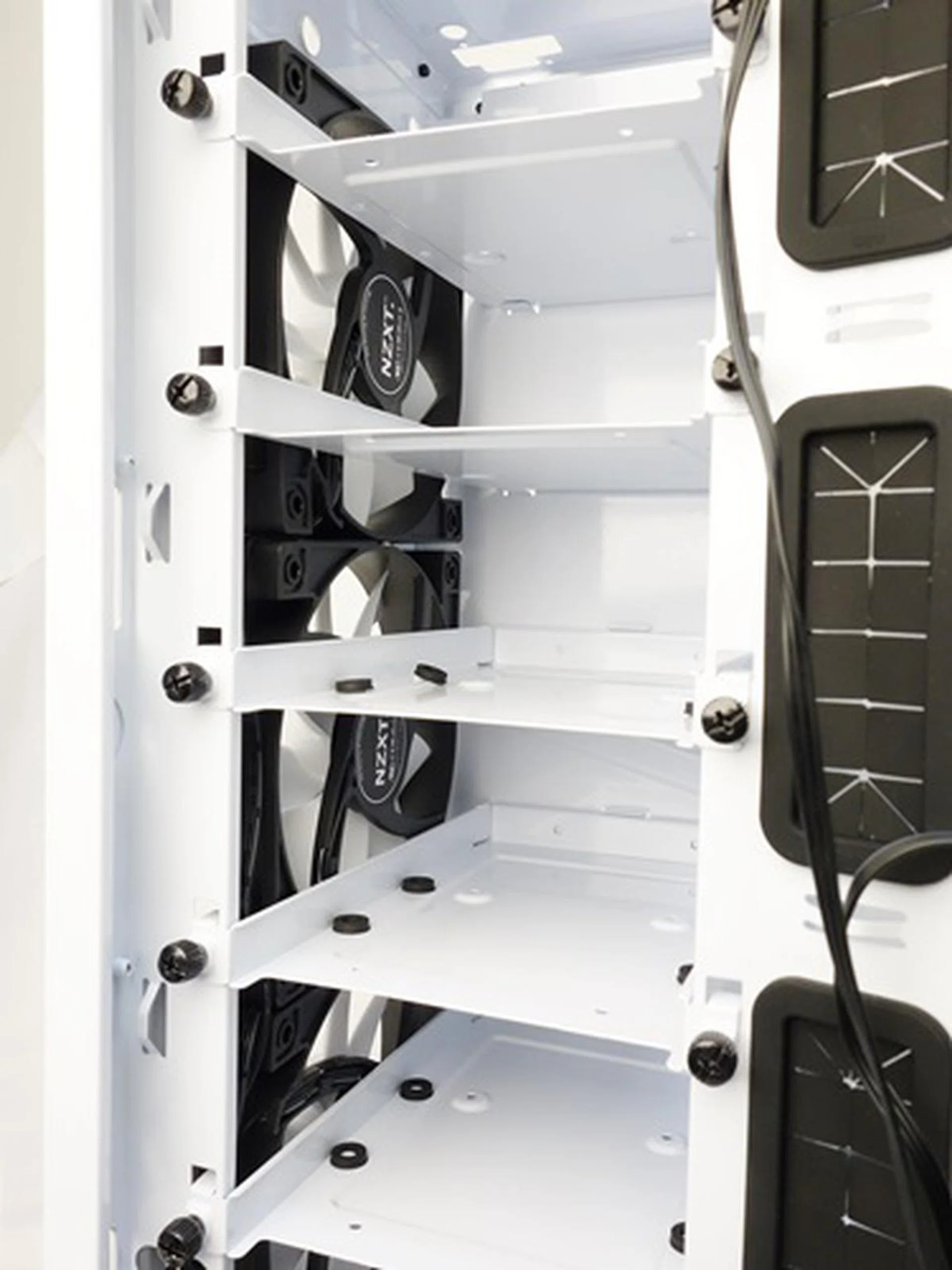
There are five HDD mounting trays in the chassis.
A closer look at the mounting tray reveals that each supports a 2.5- or 3.5-inch HDD. According to the specifications of the chassis, it is able to accommodate radiators of liquid cooling systems of the following dimensions; 240-, 280-, and 360mm. However, in order to swop out the bundled triplet of 120mm front intake fans, the HDD mounting trays have to be removed, and then replaced after the installation of the new cooling system. That's a bit tedious, but thankfully, a one-time affair for most users.
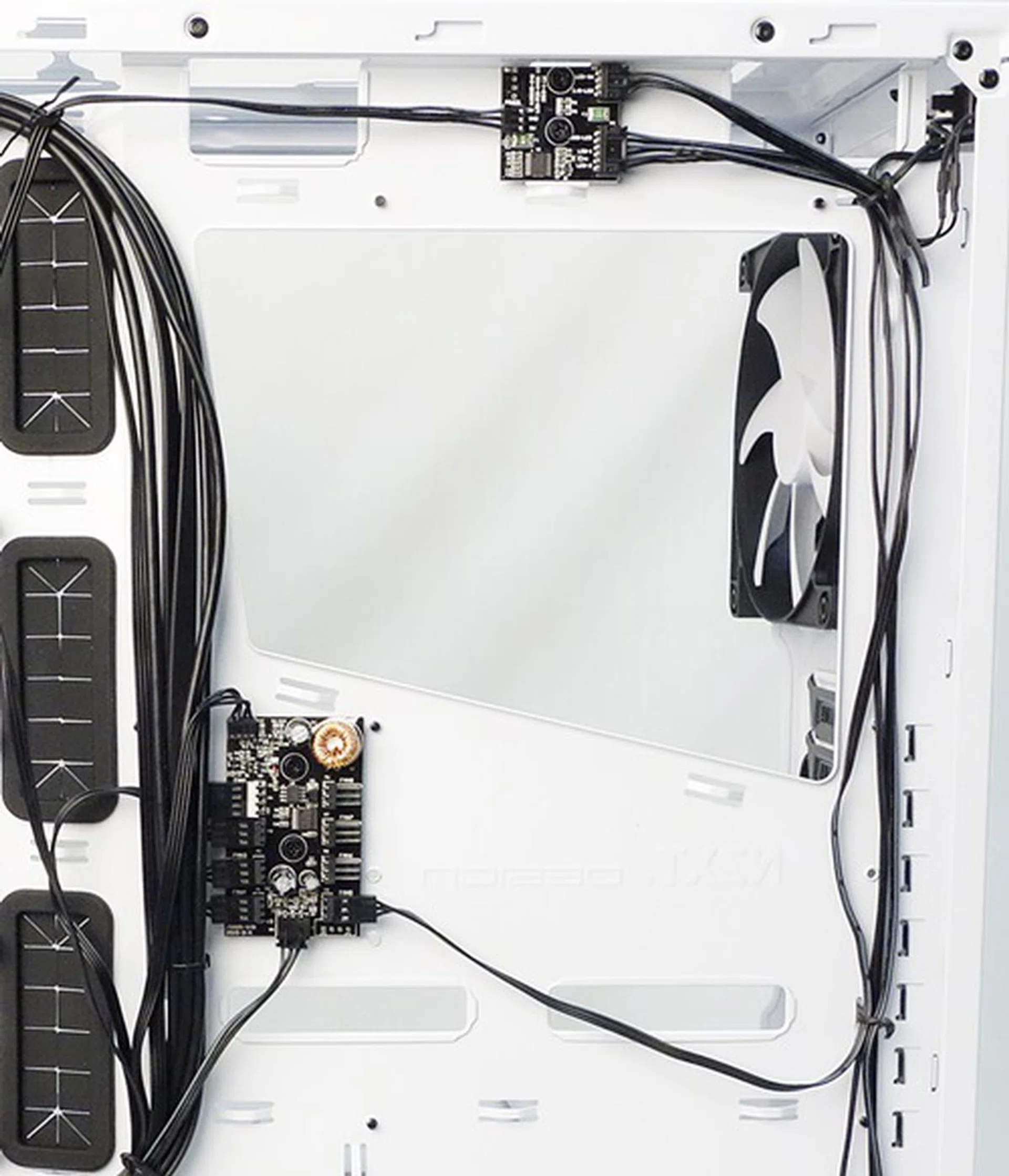
The large CPU cut-out at the motherboard mount area, and there are two control hubs located near it; one for the PWM cooling fans, and the other for LED lighting.
We also see a large cut-out for customized CPU coolers at the motherboard mount area. There aren’t any options to mount HDDs here but we do see two control hubs over here; the PWM fan control hub is located below the cut-out at the motherboard mount area. The new fan hub converts a single PWM signal from your motherboard's CPU fan header to a voltage signal for the 3-pin cooling fans. This is an improvement over the fan hub on the H440, which forced all the 3-pin fans connected to it to run at full speed at all times. According to the manual, the fan hub can support up to 8 cooling fans from the single, 12V 4pin power input from the CPU fan header. The LED control hub is near the top of the cut-out. Next, we move over to the side where the motherboard will be mounted.
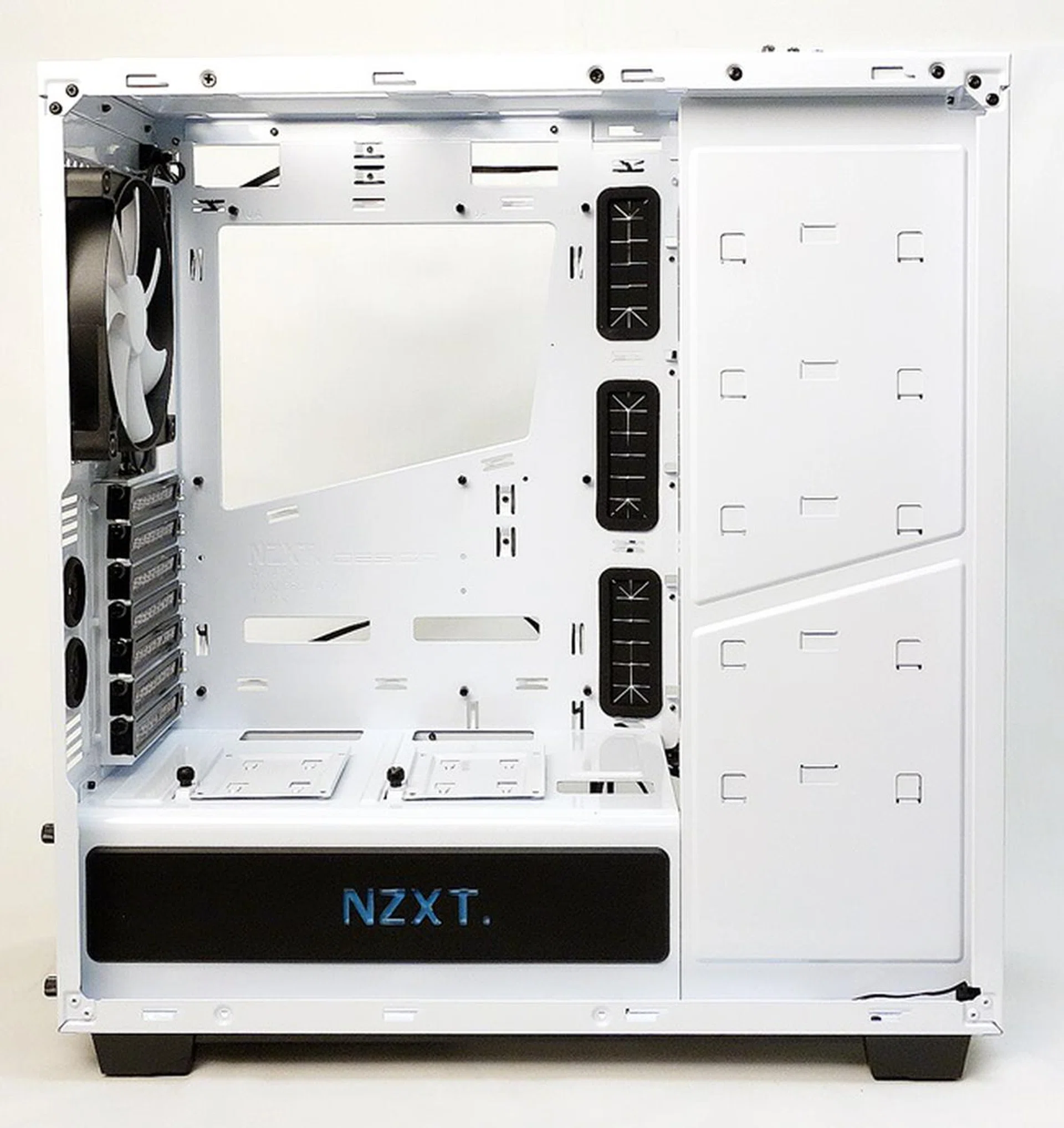
The NZXT LED logo is located at near the bottom of the chassis.
The most prominent feature is the NZXT LED logo and its illumination is controlled by the rear LED control switch. Above the logo, we see a pair of 2.5-inch drive trays. The stand-offs for the motherboard are already installed. From this angle of the above photo, you can see the perforated expansion slot covers, and the rear, bundled 140mm outlet fan. According to its manual, there's enough room to fit a radiator of a liquid cooling system with a single 120- or 140mm cooling fan. On a separate note, the Noctis 450 doesn’t support 5.25-inch optical disc drives, in case you are looking for ODD bays on this side of the chassis.
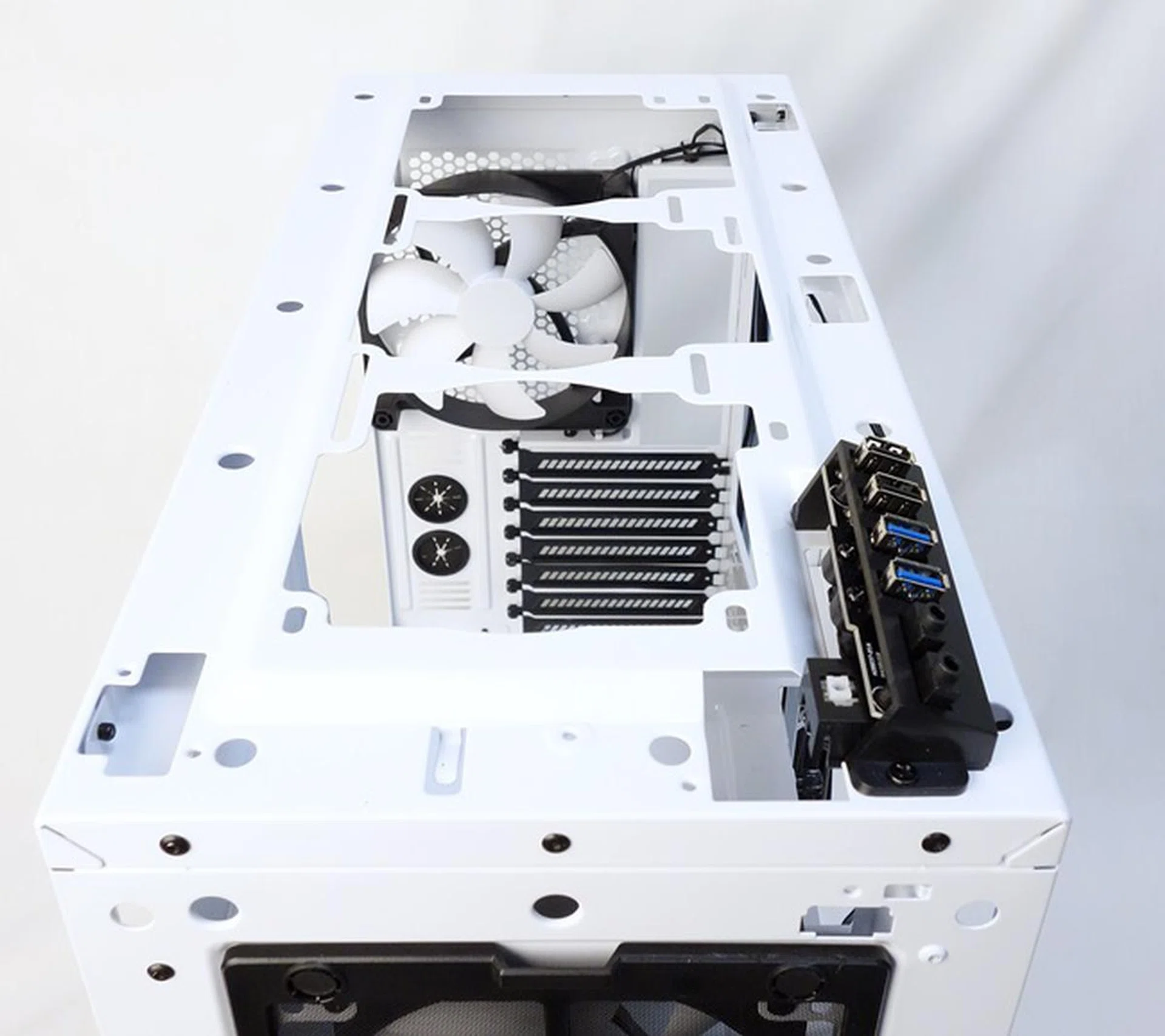
The chassis can support radiators with three 120mm cooling fans, or those with up to a pair of 140mm cooling fans
You can mount radiators of liquid cooling systems at the top of the chassis. The chassis can support radiators with three 120mm cooling fans, or those with up to a pair of 140mm cooling fans.
Installation
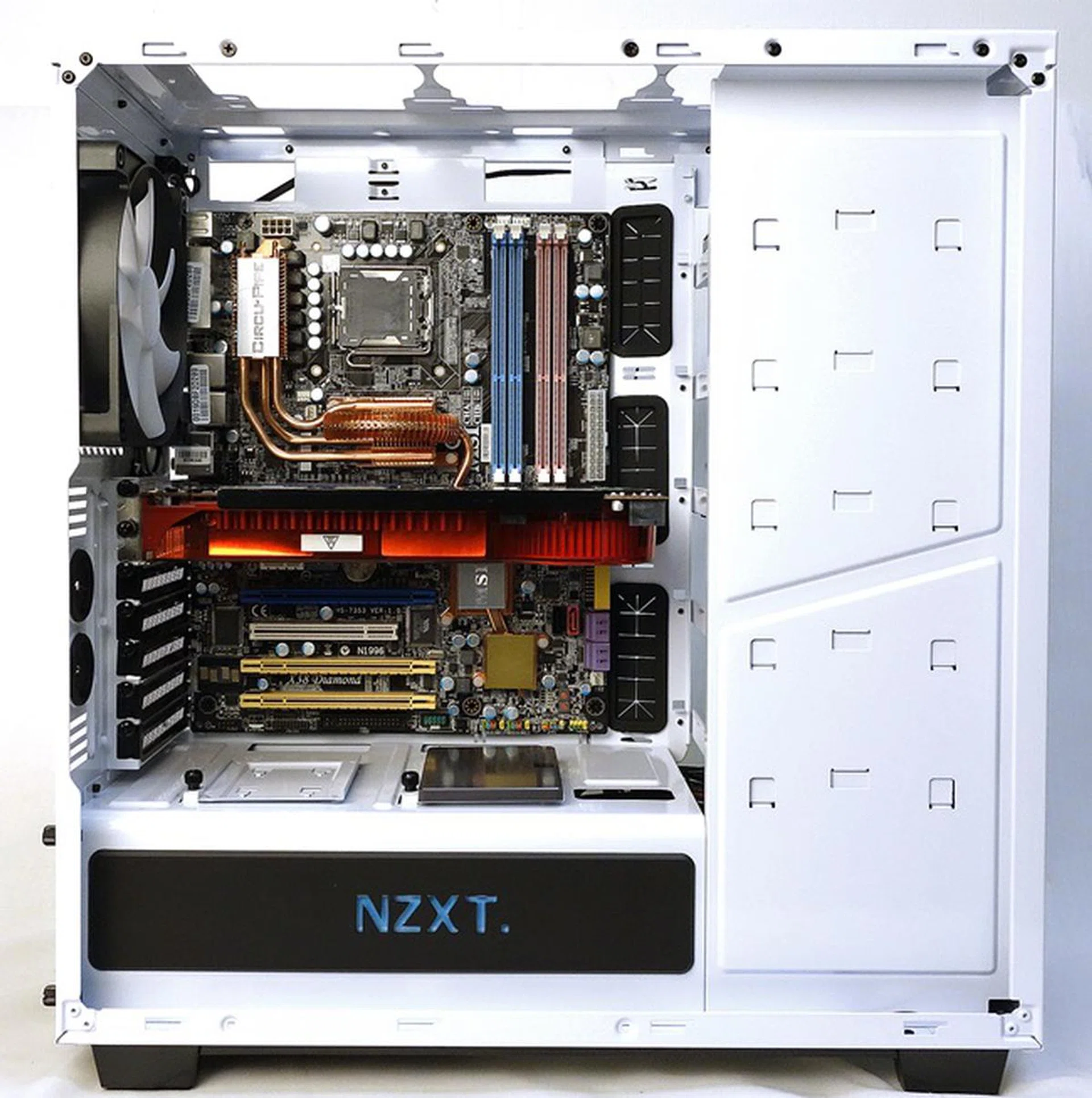
The motherboard and the graphics card were installed on this side of the chassis.
The installation experience with this new NZXT mid-tower is quite similar to that of the Cooler Master Mastercase 5. The PSU is segregated from the rest of the test installation components, unless you choose to install a 2.5- or 3.5-inch drive at the mount options just beyond the PSU. As usual, we advise against doing so as such a decision will mean the drive will be placed in the spaghetti mess of power cables from the installed PSU.
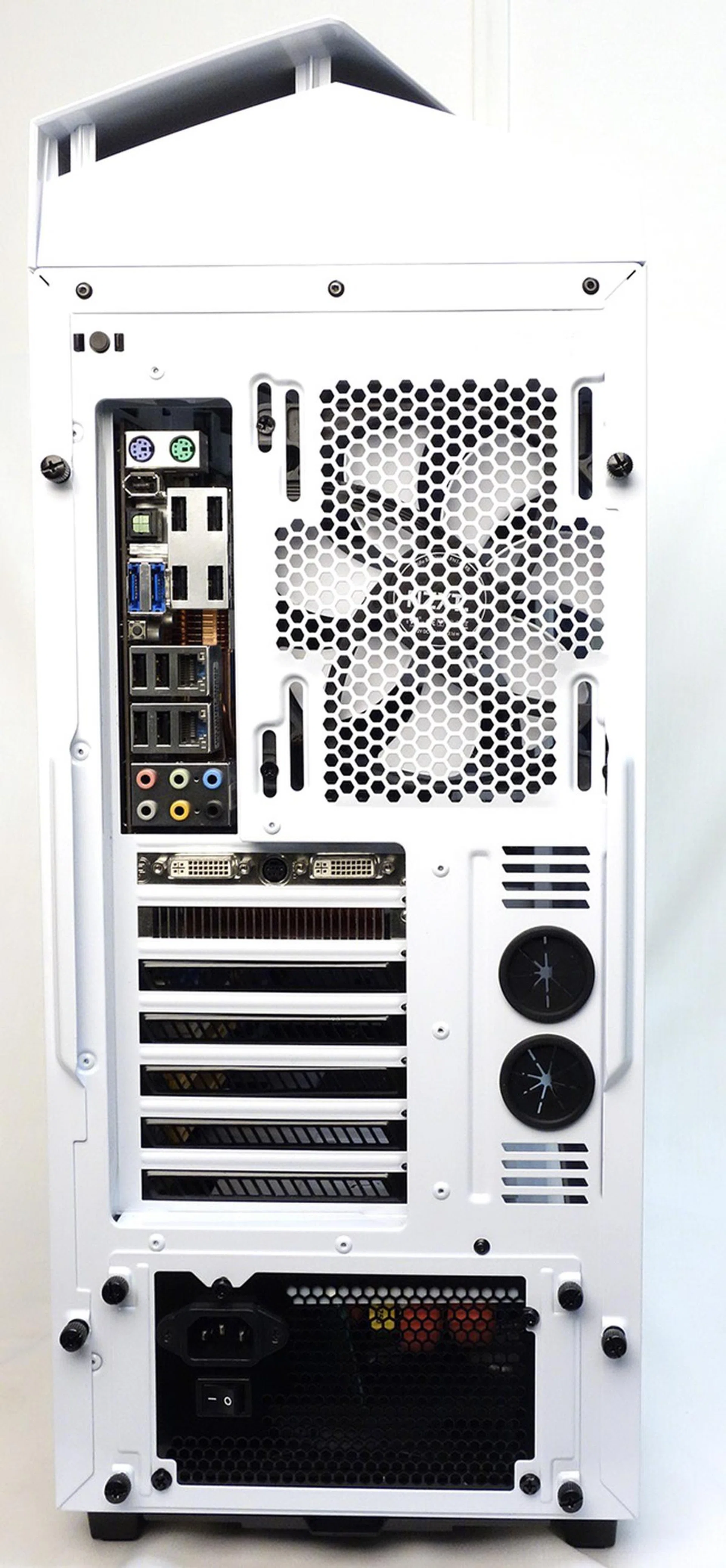
The rear view of the chassis after we installed the PSU, motherboard and graphics card.
To install the PSU, we removed the PSU bracket from the chassis and attach it to the PSU. After that, we slid the PSU from the rear of the chassis, with the anti-vibration, rubber-padded rails to guide the unit inside. The motherboard installation was smooth as the stand-offs for our ATX board were already in place. Next, we installed the graphics card and secured it with two thumbscrews. With the HDD mounting trays in place, the chassis can accommodate cards up to 305mm in length. And with the removal of the trays, cards up to 406mm in length, can be installed.
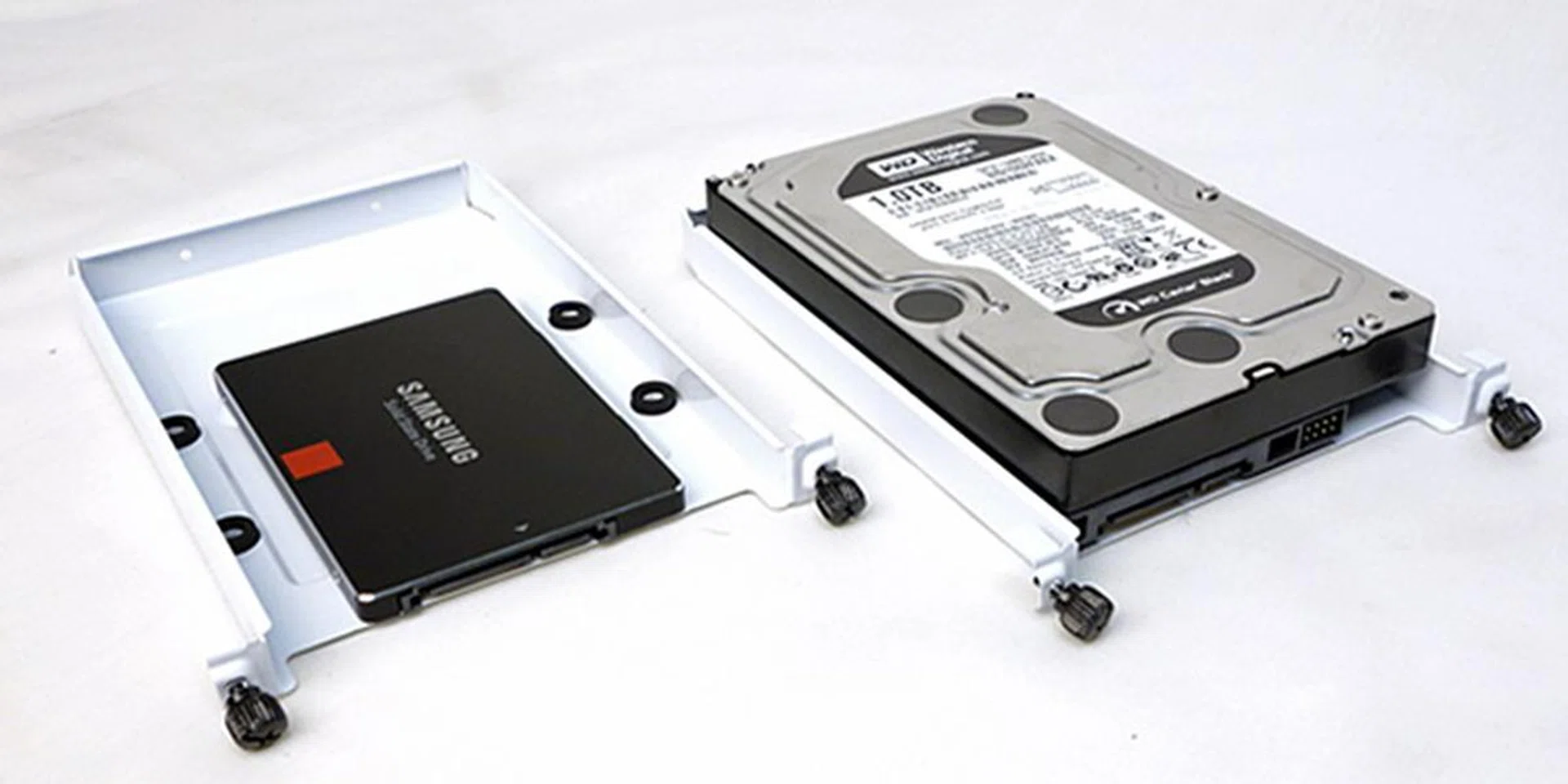
The drive installation was hassle free; we rested the 3.5-inch HDD on the rubber pads and secured it with four screws, for the 2.5-inch SSD, we secured it with a different set of four screws.
The white mounting tray is solid in build and appears to be made from steel. It has rubber mounts for supporting the drives and provides anti-vibration for the installed drives. With a screwdriver, we made quick work of installation both our storage drives to the mounting trays. The trays are then secured in placed with their thumbscrews.
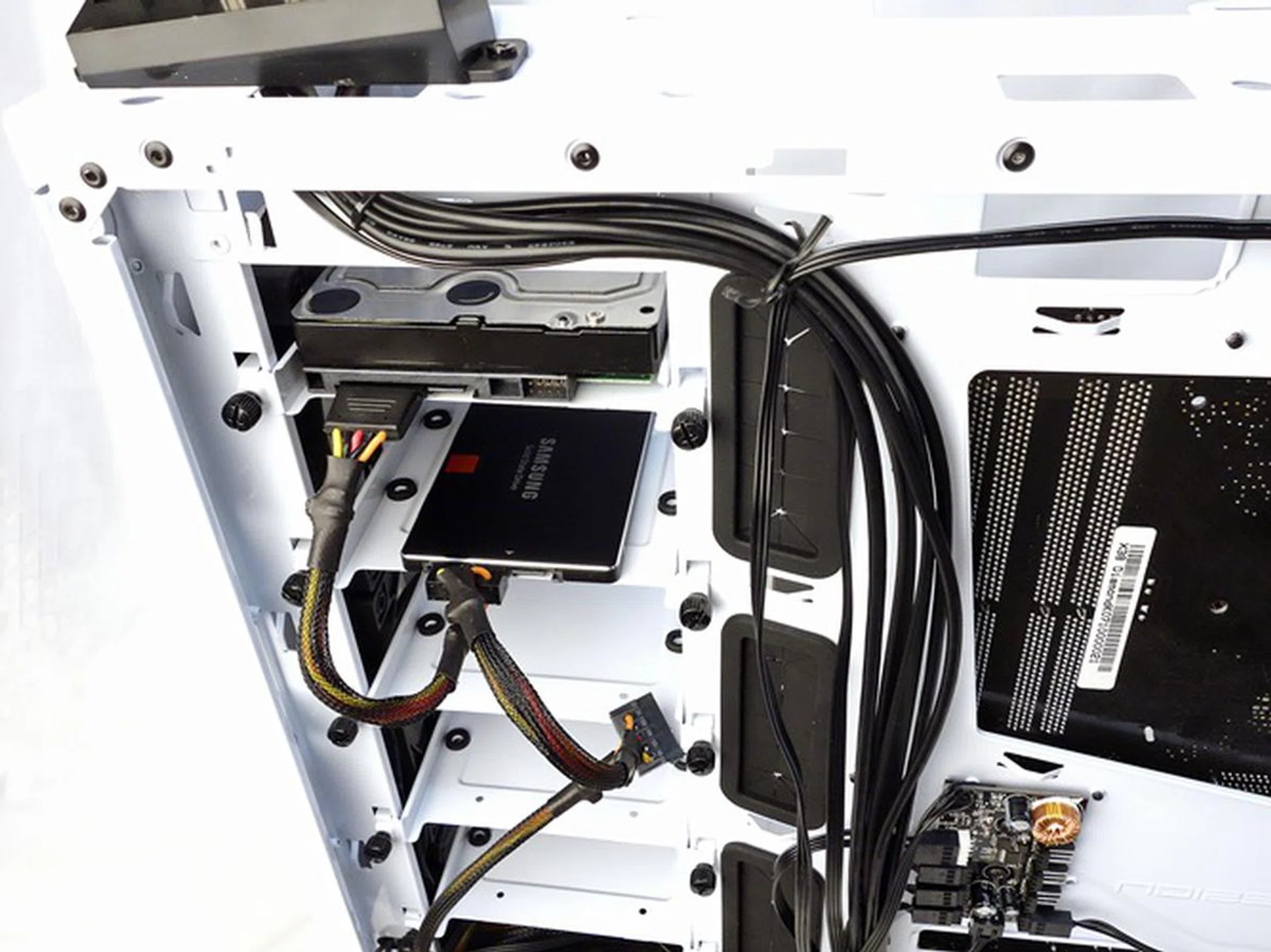
The drive mounting trays were secured to their places with a pair of thumbscrews.
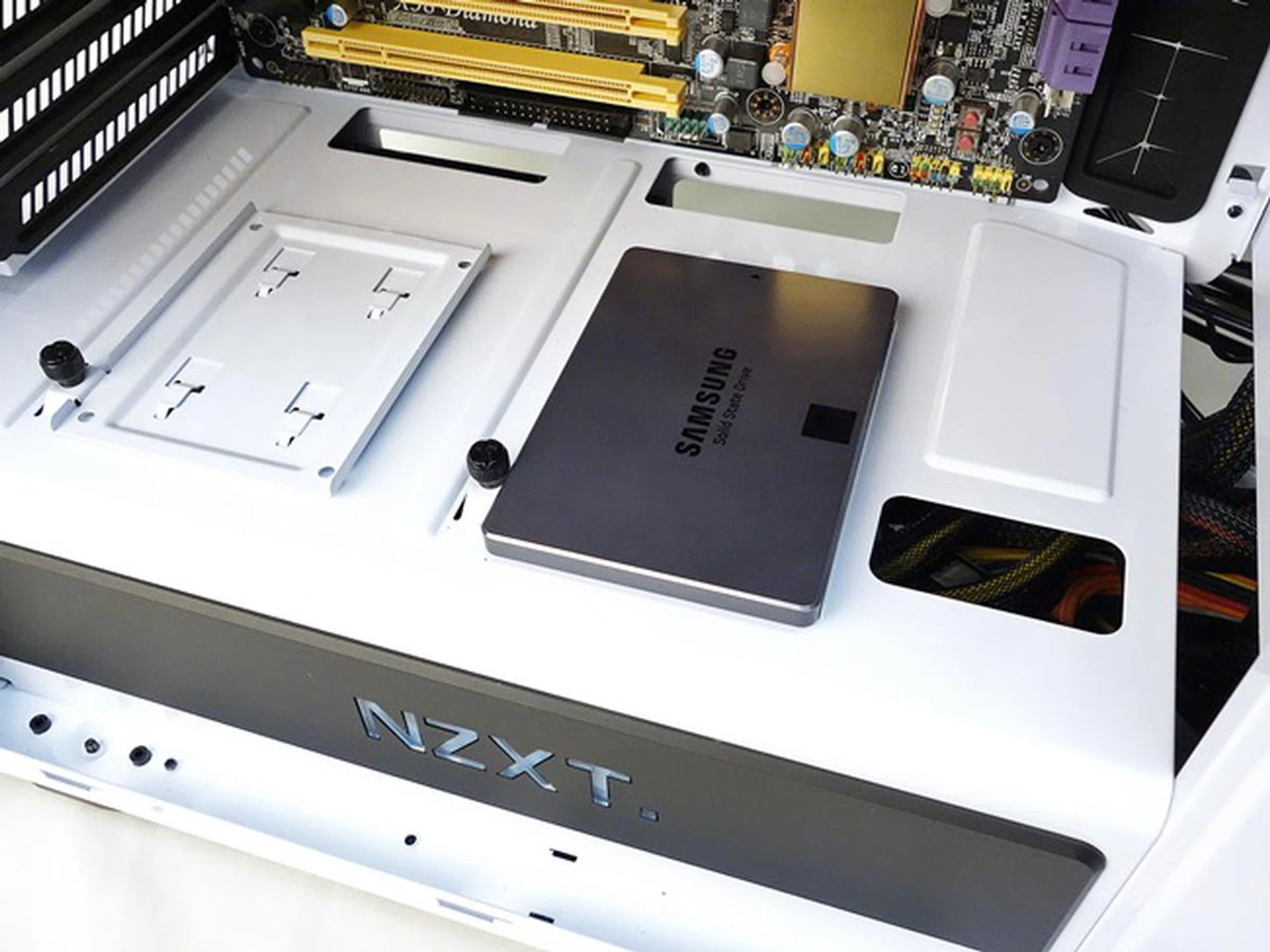
There’s also the pair of 2.5-inch mounting trays just beyond the motherboard installation area
There’s also the pair of 2.5-inch mounting trays just beyond the motherboard installation area. Unlike the earlier mounting trays, this steel tray doesn’t have any rubber mounts. After installing our 2.5-inch SSD with the bundled screws, we secured the steel mounting tray to its respective place. There are no removable drive cages nor rear mounting options for storage drives.
Light it up!
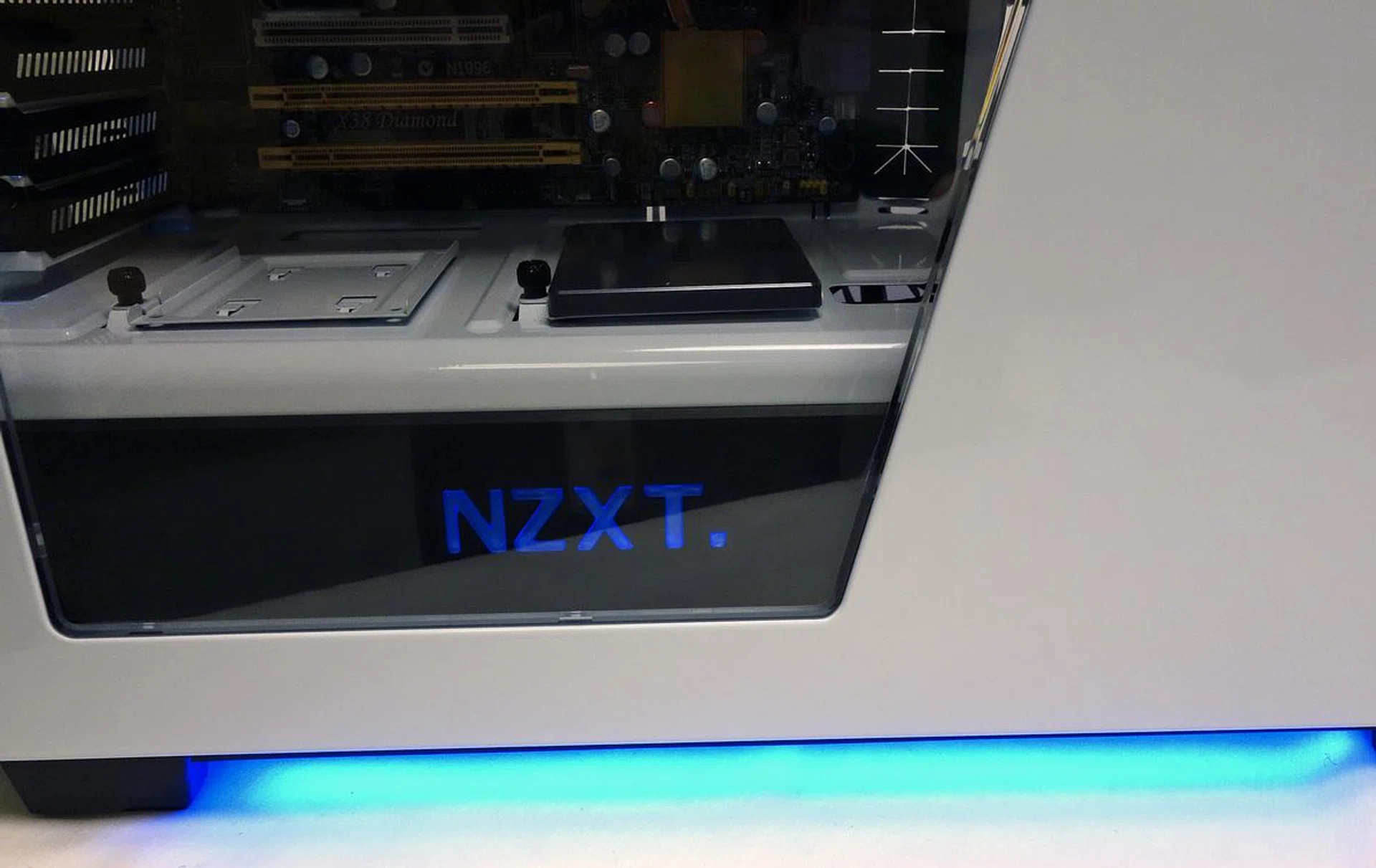
The chassis' rail lighting is set at its brightest, but the NZXT logo is hardly bright. We attribute it to a faulty LED of the logo.
For its mid-tower form factor, the Noctis 450 does come with a fair bit of bells and whistles such as its control hubs and LED lights. In this section, we focus on its illumination features which are both functional and decorative in nature. The large NZXT LED logo as well as its ground effect lightings fall into the latter segment.
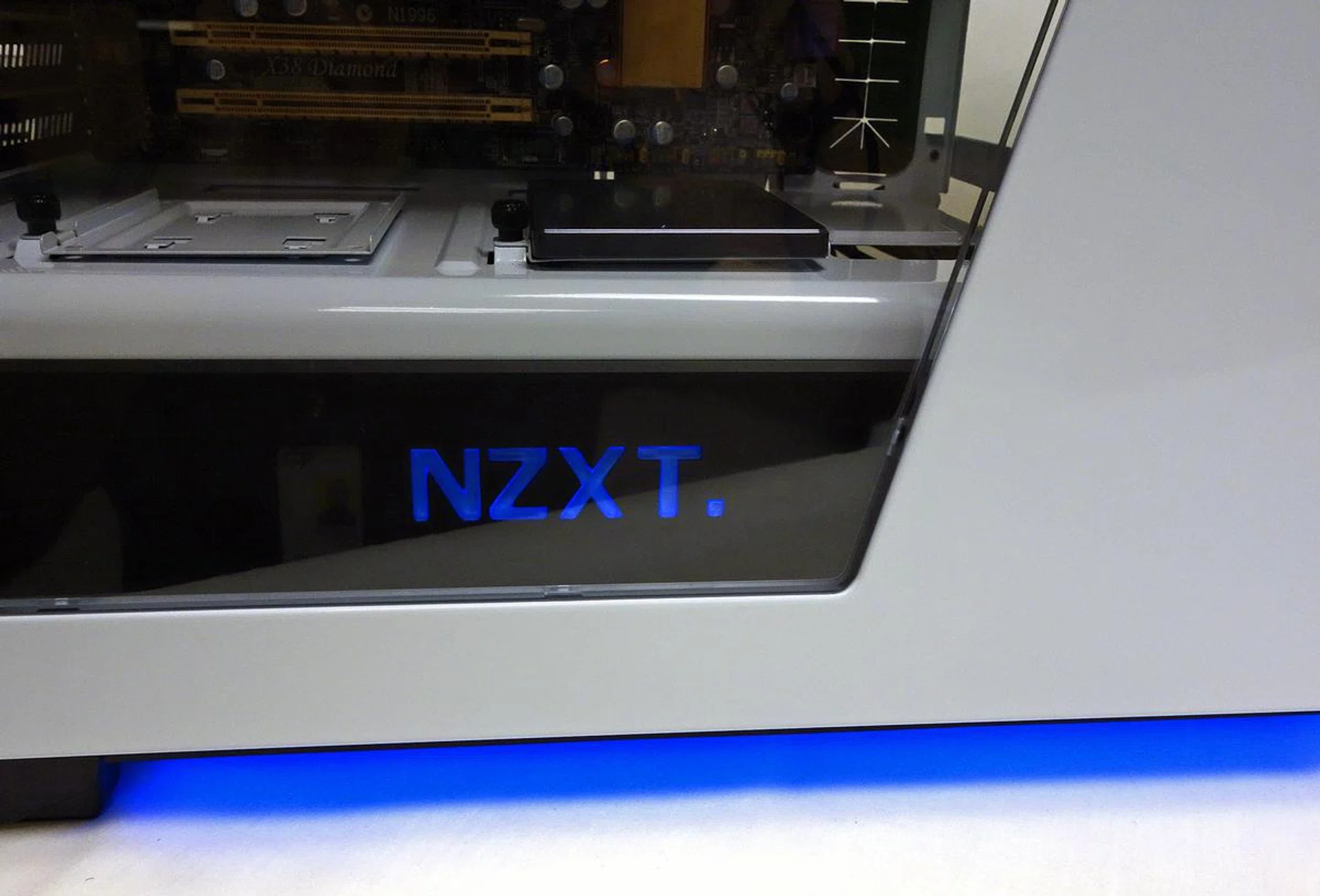
This was the ground lights at their brightest but we can't say the same for the NZXT logo.
Their level of illumination is controlled by the rear LED control switch. It toggles between the following states; off, dim, and bright. We were unable to make the NZXT logo's lighting function properly even though we had replaced it (courtesy of NZXT's local distributor). We assume that in a fully operational case, the button will operate the NZXT logo's lighting in the same manner as the ground lights.
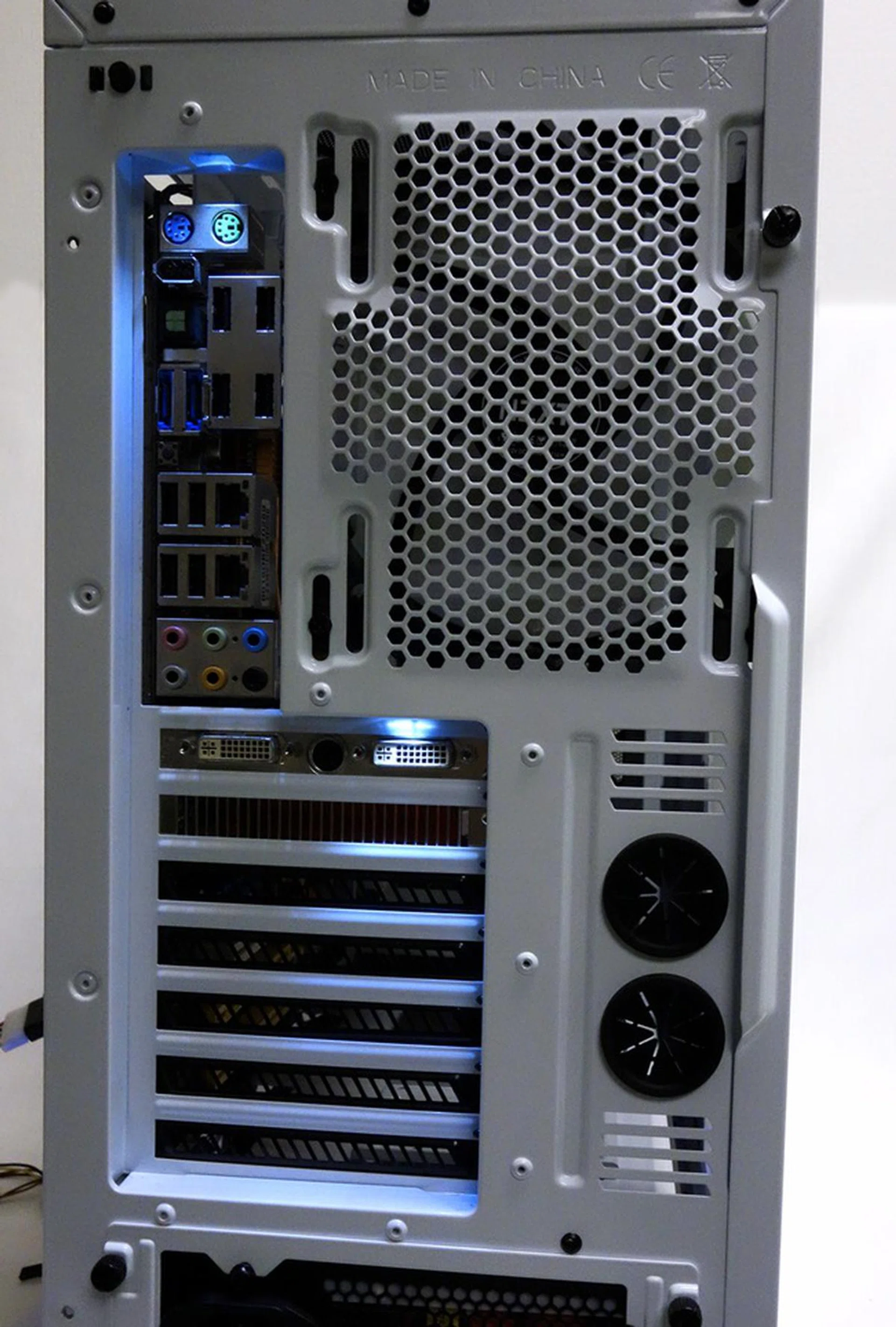
The rear LEDs provide off-white illumination and the rear button allows the user to turn them on or off.
In terms of purely functional LEDs, there are a pair of them at the chassis’ rear. One provides lighting to the rear I/O ports and connectors of the installed motherboard. The other illuminates the connectors of any installed expansion or graphics cards. The LED switch controls these functional LEDs and it just turns them on or off. It's a simple feature but it comes in very handy in practical use such as plugging in a cable in the dark.
Conclusion
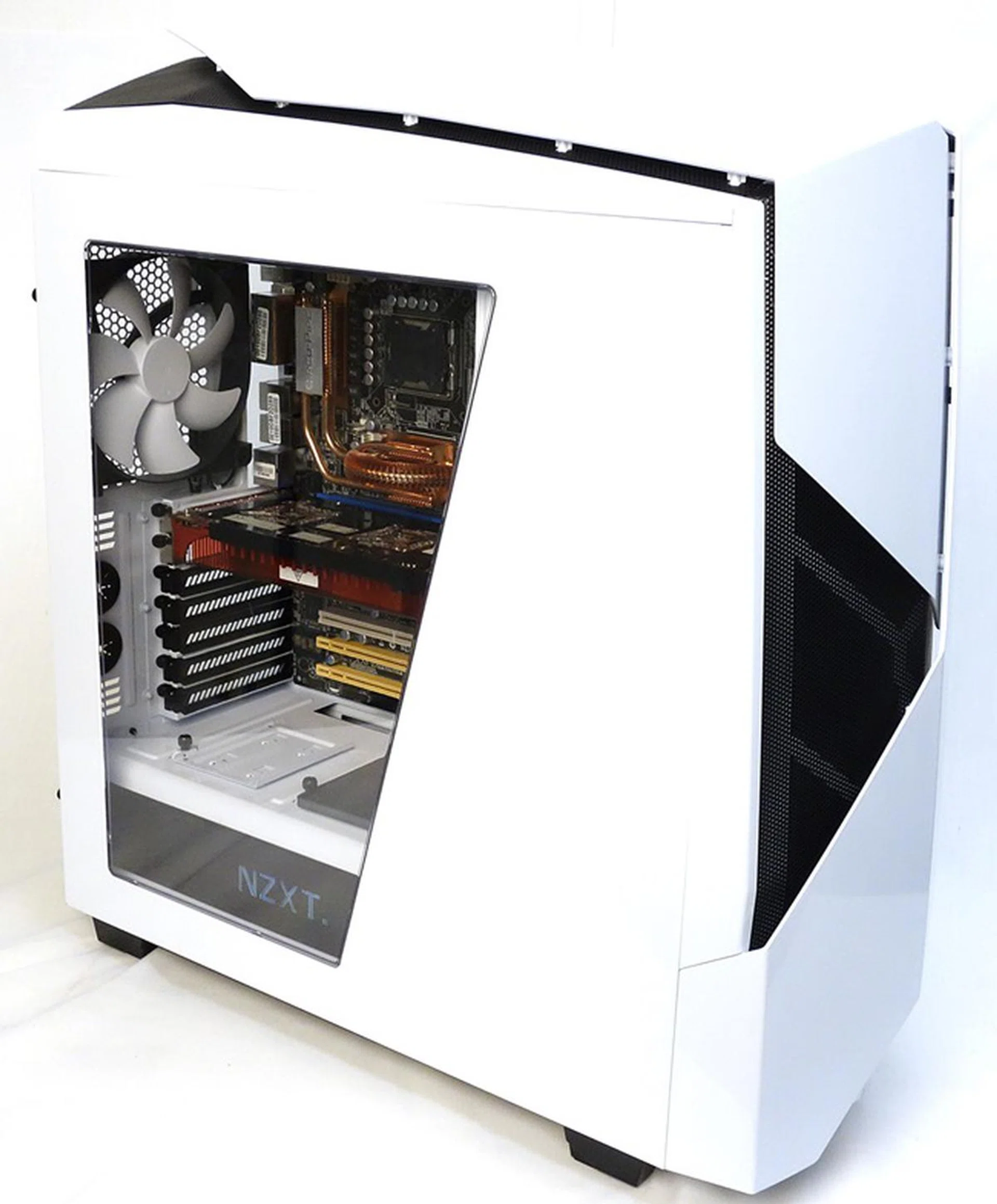
The NZXT Noctis 450 is a functional mid-tower chassis with a dash of design finesse throw in. Its designers didn't go overboard and it's a step up from the older H440 chassis.
To reiterate, the Noctis 450 is an updated version of the H440, which was launched in June last year. Although we didn’t have any hands-experience with the H440, we compared H440’s specifications and found two major improvements:-
- The fan hub of the Noctis 450 has PWM capabilities while the H440’s fan hub doesn’t come with such features.
- The exterior of the Noctis 450 has been improved with "floating ventilation panels", which are raised portions on the front and top panels, with black metal mesh for improved air ventilation.
Such improvements also come with a price; the Noctis 450 has an SRP of S$239, while the H440’s launch price was just S$188. Therefore, the Noctis 450 is rather pricey for a mid-tower chassis with bells and whistles. But before you balk at the large difference in price, do consider the enhancements it boasts that probably contribute to the price differential.
In theory, the fan hub on the Noctis 450 is able to process PWM signal inputs from the motherboard for better control of the PWM cooling fans to offer optimal cooling performance, as well as keeping the fan acoustic levels in check. The fan hub allows for such centralized operation of the cooling fans based on temperature readings from the motherboard. So for the average end-user, this bodes well for simplicity in operation where one can just install the necessary components and let the motherboard take care of the cooling requirements for his/her system. However, overclockers and power users will definitely prefer manual or user-driven means of controlling their system's cooling capabilities.
The Noctis 450 does have a cool factor with its LED-lit logo and ground lights, but if we had our way, we would prefer the LED control switch to be located at the front, preferably where the front I/O control panel is. The window side panel is a requisite in order to show off the lit NZXT logo, and the builder can use it for good effect to show off his installed components too.
Overall, the NZXT Noctis 450 is a good mid-tower chassis that doesn’t go overboard with its enhancements and presents itself as a suitable candidate for a rig builder who is taking tentative steps to 'jazz up' his or her desktop system.
Our articles may contain affiliate links. If you buy through these links, we may earn a small commission.