
Liquid Cooling Simplified - Corsair Hydro H50 CPU Cooler
Liquid cooling kits have become more accessible over the years but Corsair wants to bring it to the masses with its H50 high-performance CPU cooler. Featuring cooling technology from Asetek, the H50 promises to make liquid cooling simple and best of all, cool.

Low Cost Liquid Cooling for Consumers
It was not too long ago that when one mentioned liquid cooling for the CPU, it was an arcane field that only the really hardcore enthusiasts dabbled in. While the theory was hardly unknown (think of it as similar to what's found inside an automobile), only a few PC vendors offered it in their systems. Third-party options were practically unheard of then. This situation meant that daring enthusiasts experimented and crafted their own liquid cooling solutions from whatever they could adapt, from laboratory to automotive components. They had to do everything themselves, like shaping the 'water-block' to fit the CPU or GPU.
Since then, vendors have entered the market to provide liquid or water cooling kits that can be purchased off the shelves. These can be huge, bulky sets that include the basic radiator, pump and water-block. While things have been made more convenient, they were still rather daunting for the less experienced. After all, water and electronics don't mix and besides the risks involved during installation, the upkeep of maintaining the necessary level of coolant made it worse.
Enter Asetek, which pioneered its Low Cost Liquid Cooling (LCLC) kit that reduced the footprint of the typical liquid cooling kit dramatically, by integrating the pump, reservoir, the cold plate and the associated electronics all into one modest unit. This cooling kit debuted a couple of years ago and has gradually made its way into OEM products, with Acer, Dell, HP and Sapphire among the more notable OEMs.
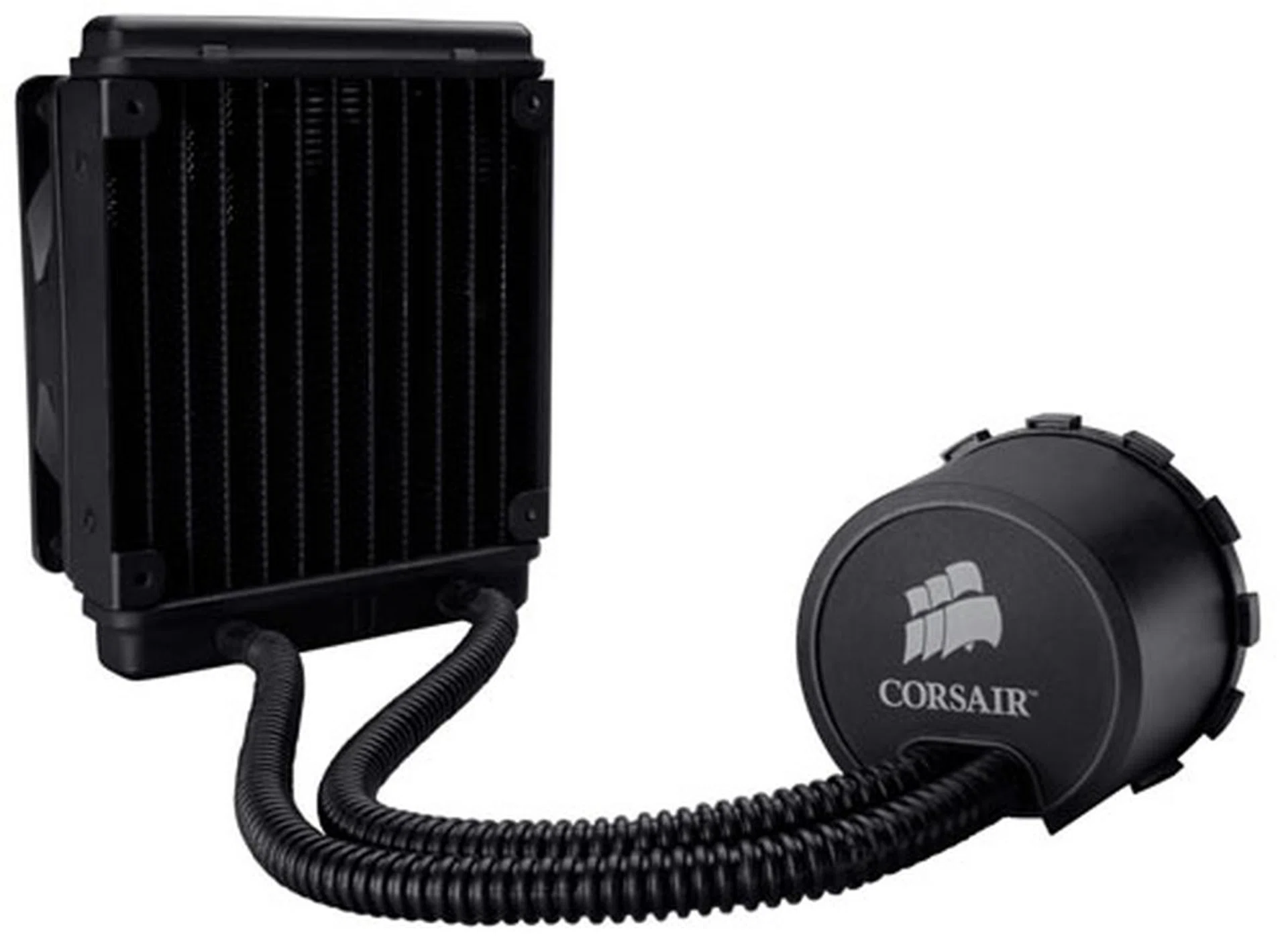
Consisting of just two separate components out of the box, the fan and the radiator, the Corsair H50 liquid cooling kit is as easy as it gets when it comes to DIY liquid cooling.
Having made inroads with OEMs, Asetek has now finally turned its attention to the consumer market. While the original Asetek LCLC kit was never available to consumers, the company has recently partnered Corsair to bring this liquid cooling kit to retail channels. The end product is what we have here today, the Corsair Hydro series H50 high-performance CPU cooler.
Like the Asetek LCLC liquid cooling kit, the Corsair H50 maintains the same closed system where the coolant is pre-filled. There's no way of refilling this liquid cooling kit, though Corsair claims that coolant loss will be minimal. A two-year warranty at least gives enthusiasts some assurance about the minimum lifespan for this cooler.
Installation
The Corsair H50 high-performance CPU cooler comes with two separate components, a 120mm cooling fan and the all-in-one unit that combines everything you'll need for a liquid cooling solution. This all-in-one unit includes the pump that moves the coolant around the twin tubes that connects the radiator where the heat is dispersed and the cold plate which is in contact with your CPU.
Currently, the cooler ships with only LGA1366 and 775 support (via two different backplates). If you require AMD or Lynnfield (LGA1156) support, you'll have to request for the appropriate backplate from Corsair technical support for a nominal shipping fee.
Installation instructions found on Corsair's quick start guide for the H50 are simple enough. There are five steps listed and as we inevitably found out, it's much easier on paper than doing it yourself. First, Corsair recommends installing the radiator and cooling fan to the back of the chassis. Now, our chassis, a Lian-Li Armorsuit PC-P50R came with its own rear cooling fan at the back. This was obviously not compatible with the radiator and hence it had to go first before we did anything else. Then came the screws that would secure both the Corsair's cooling fan and the radiator together to the chassis. (The cooling fan is sandwiched between the chassis rear wall and the radiator). Obviously, this means the H50 cooler is only compatible with chassis that can accommodate a 120mm rear ventilation fan. So those holding onto older chassis which normally come with an 80mm rear cooling fan are out of luck to install this unit.
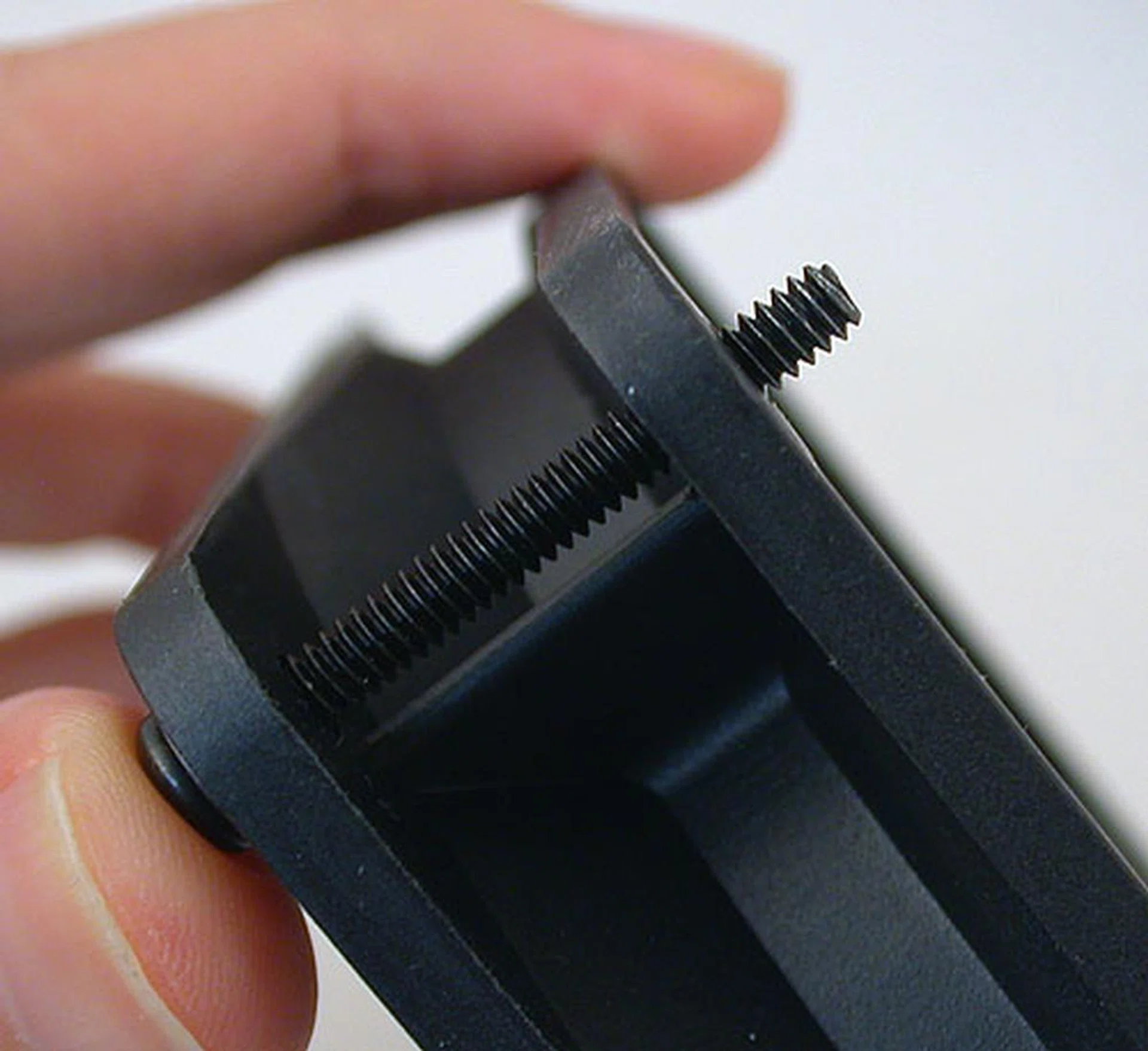
You'll have to screw the cooler fan and the radiator together to the chassis using the same set of four screws. While they may be longer than usual, this is the allowance you get for the radiator after passing through the fan.
As shown above, the screws do not have the most allowance. A chassis that has a thicker rear than usual will mean there won't be much of the screw left to secure the radiator. Even then, we had to screw mostly blind, since it was quite impossible to see whether the holes are aligned properly, especially for the inner screws.
The other issue that came up was that Corsair recommended that for optimal performance, the fan at the radiator should be an intake fan. Now this just means that one goes against the usual ventilation path, since in most cases, the rear chassis fan is an exhaust fan. If you now reverse it to intake, you'll have to find some other fan in your chassis to convert to an exhaust. Else, the airflow in the chassis will get rather messy and lead to an overall heat accumulation. This is easy enough if your chassis comes with many fans and vents but if that's not the case, you should perhaps reconsider, or do some internal fan switching.
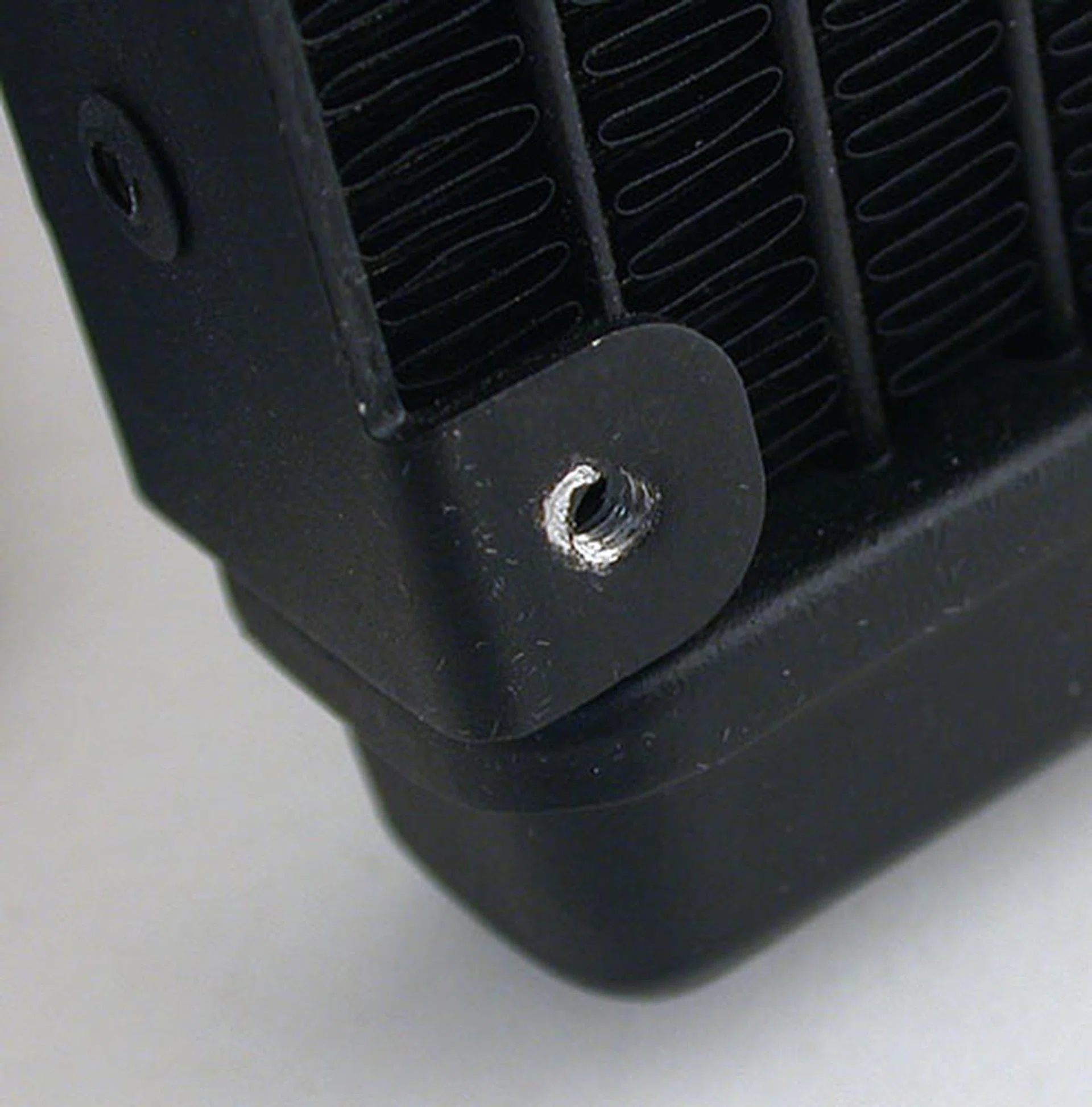
The screw holes on the radiator showing signs of abuse as we were literally in the dark, trying to find the right screw holes with trial and error.
Once the radiator is secured, the next step was to attach the backplate. This requires removing the motherboard from the chassis and is quite a common step for these multi-socket CPU coolers. This backplate comes with an adhesive backing that you should remove before attaching it. It's not the most secure of methods and on a few occasions during installation, the backplate came loose.
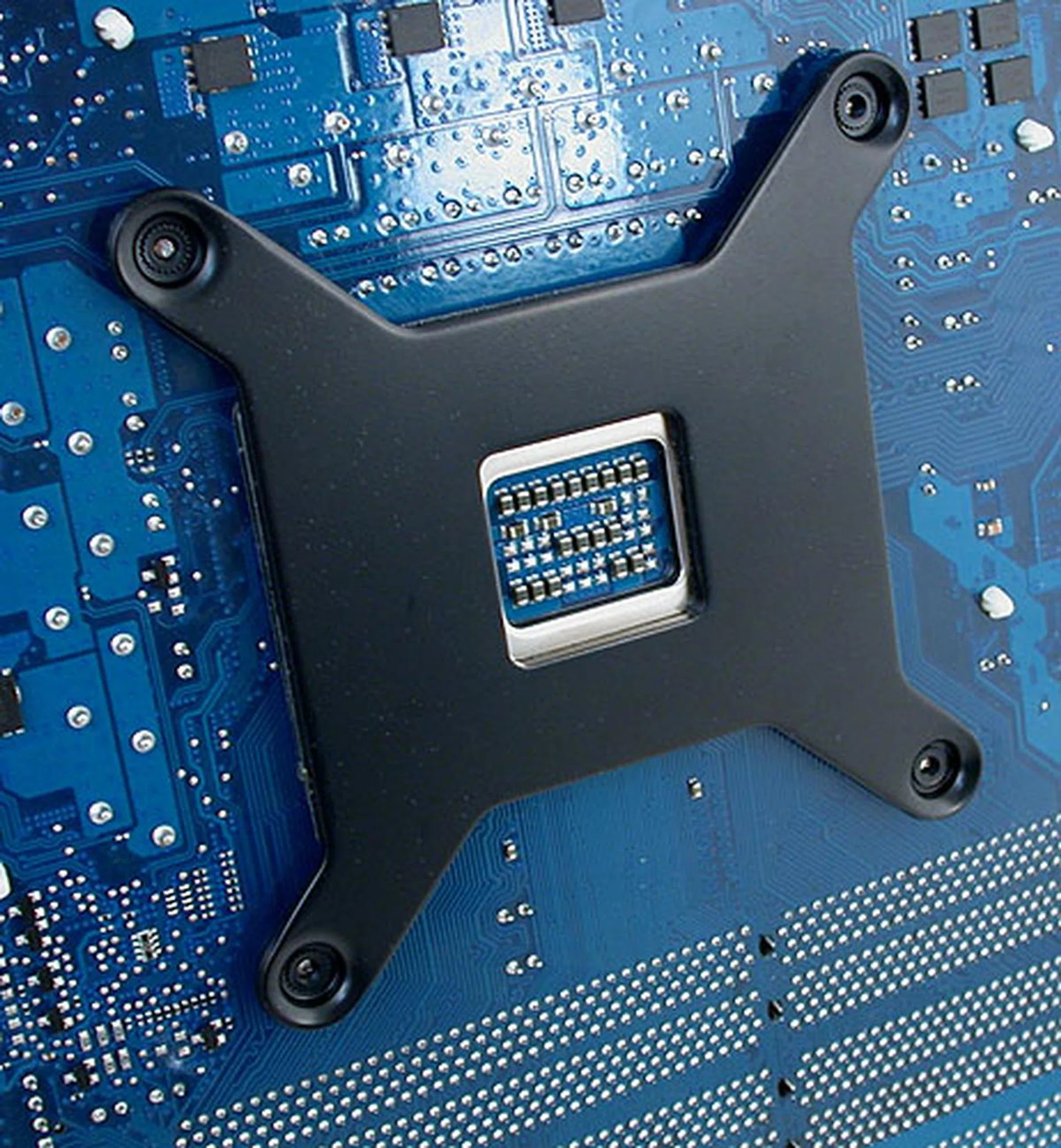
The custom backplate that needs to be attached to the bottom of the motherboard. There are two included, one for LGA1366 and another for LGA775. AMD users have to get theirs from Corsair technical support for a nominal shipping fee.
Then, you have to install the retention ring, which varied depending on your CPU socket. Here is when the backplate is likely to come loose, as you have to attach the ring to the backplate via the four screws here. You can't overdo it though else it would be too tight to fit the cold plate/pump unit.
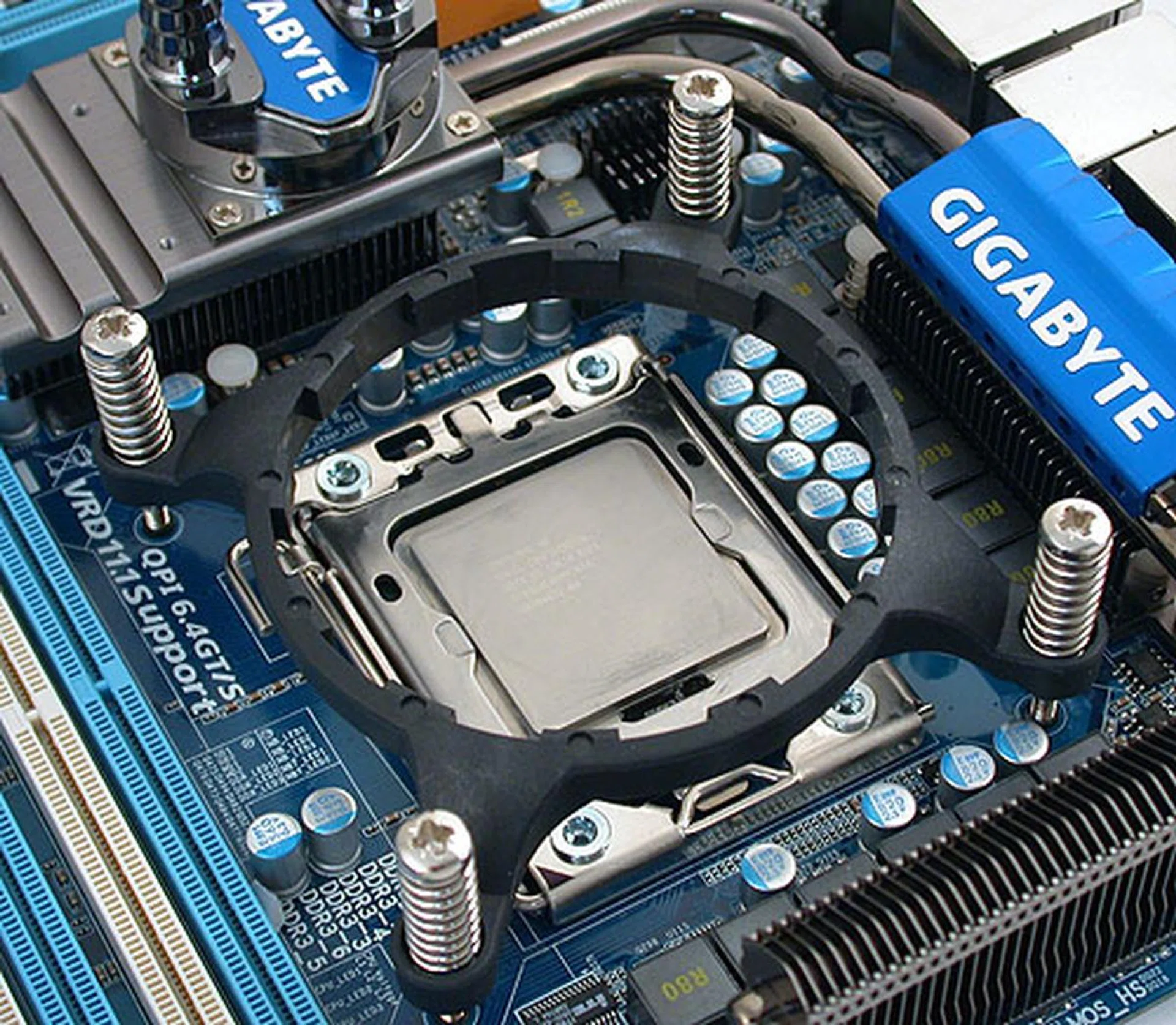
After fixing the backplate, you can now install the circular retention bracket by lightly screwing it to the backplate.
Once that was done, it was simply a matter of placing the cold plate and pump unit through the retention ring and twisting it such that it is held in place. Now you can tighten the screws on the ring but again, be careful not to overdo it and crush your CPU.
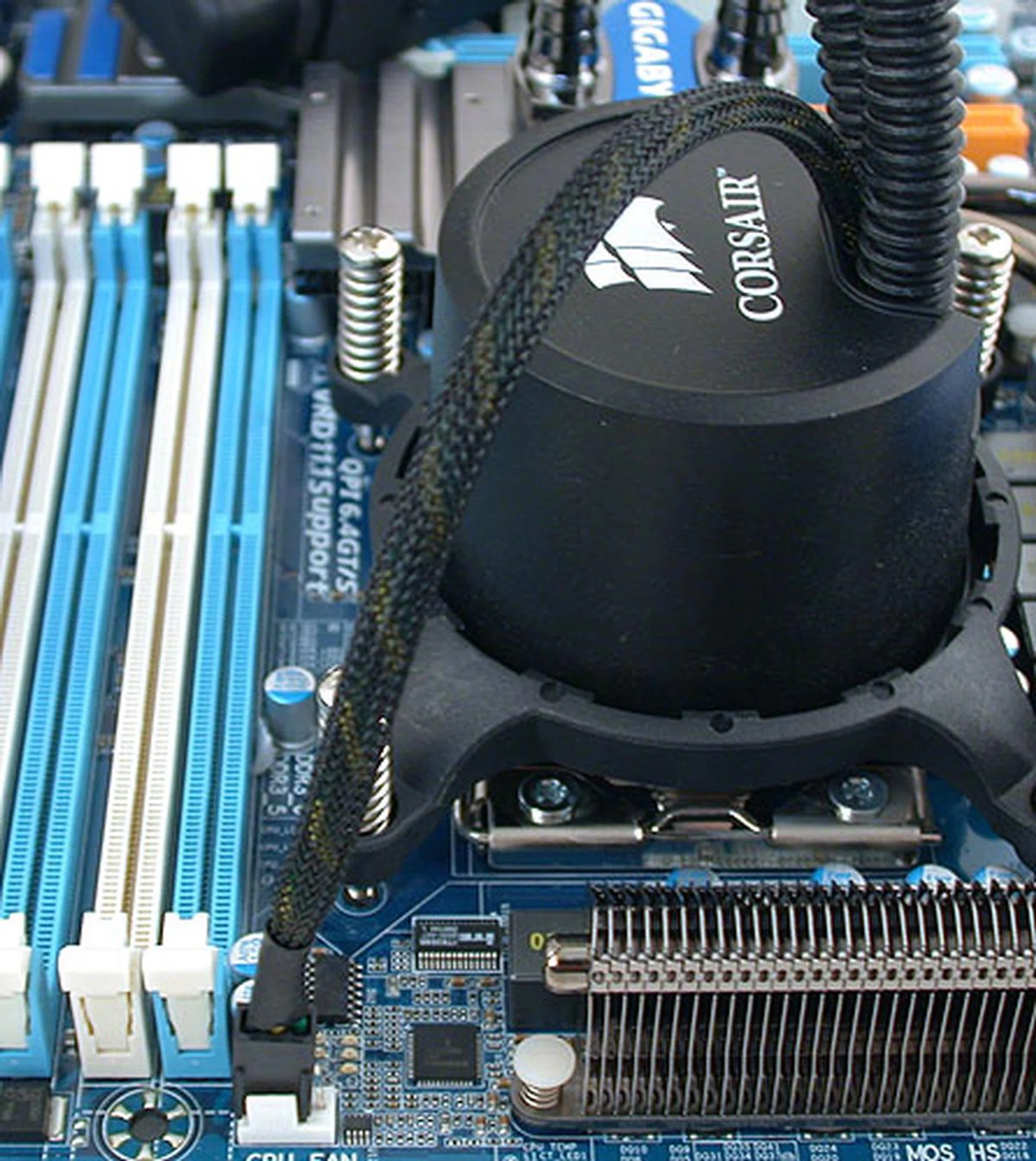
Don't forget to attach the power cable for the pump to the motherboard like any CPU cooler fan. Corsair could have made this a longer cable.
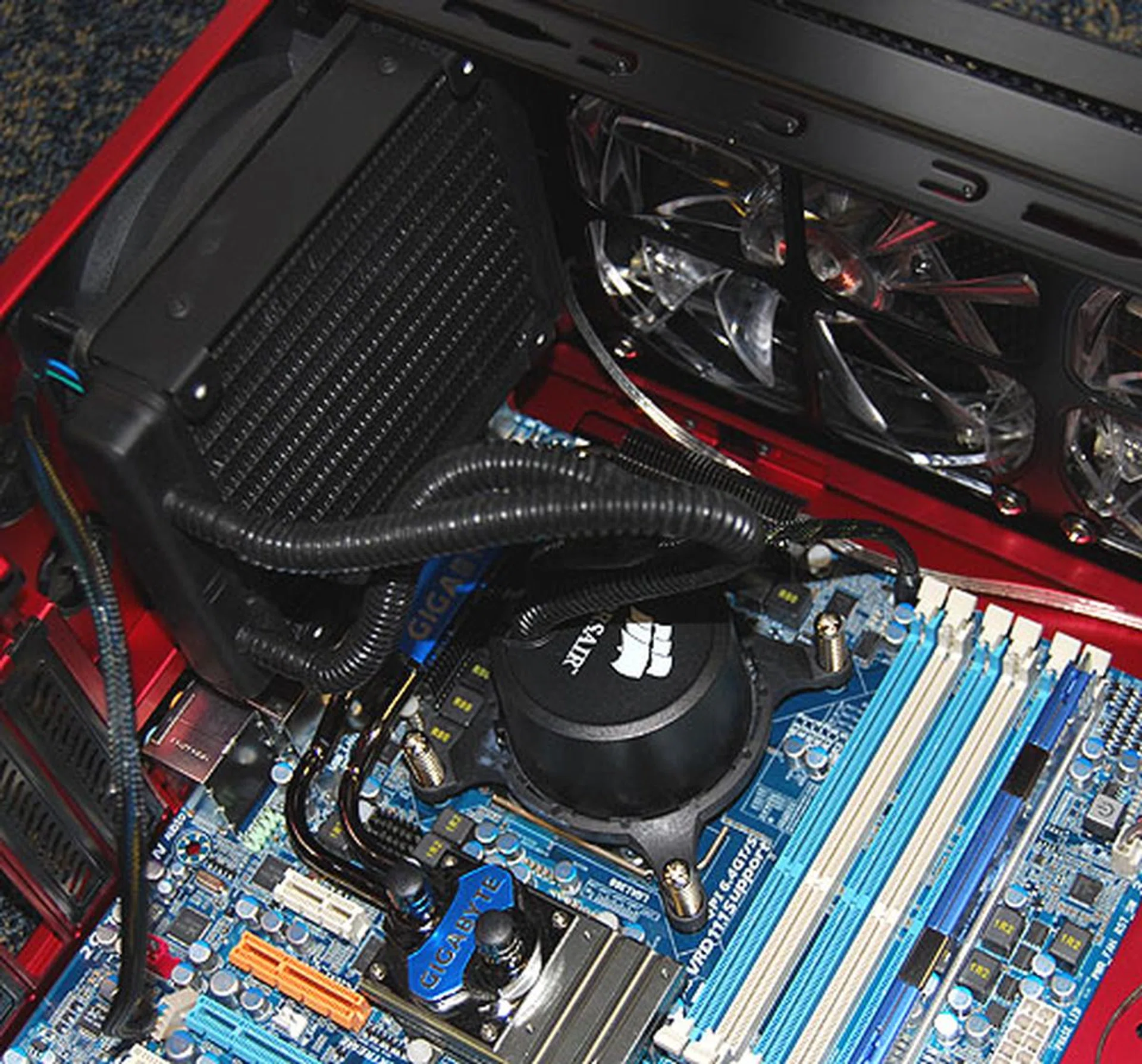
With the entire setup installed in our chassis, you can try to flex and twist the coolant tubes to fit.
Overall, the instructions for the installation are clear and the steps are themselves relatively simple to understand. We however found installing the radiator to be quite a chore due to the design where we had to screw unsighted. The screws could also be longer to cater to those chassis that may have a thicker rear wall. The backplate too could perhaps be more adhesive such that it does not fall off when we were trying to screw in the retention ring. All these factors meant that we took more time installing it than expected.
Cooling Performance
So how did the Corsair H50 fare when it came to the all-important temperature test? Our test system was a Core i7-965 processor on a Gigabyte X58 motherboard with a Radeon HD 4850 graphics card installed. We then ran the system through SPECviewperf 10 (four threads) and Prime95 (eight concurrent threads) for around 30 minutes each to find out the maximum temperature reached. Temperatures were recorded using Core Temp 0.99. For your info, our lab testing environment temperature was hovering about 22 degrees Celsius.
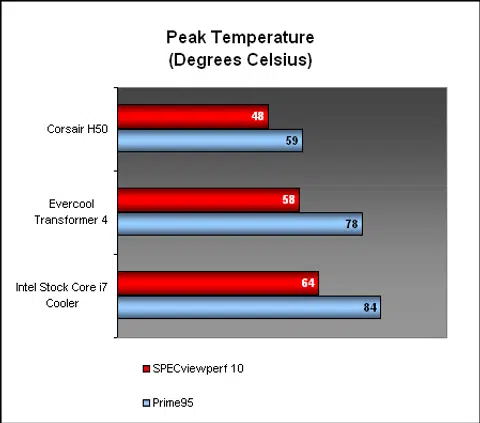
Since we did not have any other high-end CPU coolers (air-cooled or otherwise) in the lab, we relied on the performance of the stock Intel Core i7 cooler (the full height ones) and the dual-fan Evercool Transformer 4 CPU cooler, which we had previously tested here, as comparisons instead. As seen from our results, the Corsair H50 was clearly the coolest of the three, beating the air-cooled Evercool by almost 20 degrees Celsius when it came to the more intensive Prime95 section. The margin of improvement was even larger when it came to the stock cooler from Intel. Best of all, there was hardly any noise from the Corsair H50 besides the cooling fan, which caps out at a quiet 1700RPM.
Conclusion
It has taken a while but Asetek's LCLC kit has finally made it to retail in the form of the Corsair H50 high-performance CPU cooler. Convenient for users due to its smaller footprint, the sealed H50 means there's no refill option though Corsair guarantees that the coolant will last at least two years - going by its warranty - without significant loss.
There were some issues that we encountered during installation that could hamper some users but they should not deter them from getting a very good CPU cooler. Temperatures were found to be much lower than the typical or stock cooler and the noise level was admirably low. The fact that one has to switch the usual exhaust fan in the chassis to intake to suit the Corsair H50 does make us hesitate slightly at giving it our full recommendation, since changing the airflow is not the wisest option for everyone. Plus, the 120mm cooling fan and radiator size meant that your casing has to be able accommodate this at the rear before even considering this Corsair cooling kit. This means older casings that normally have only 80mm cooling fan ventilation holes are out of luck unless you are determined to mod your casing to suit it.
Compared to other liquid cooling kits, the Corsair H50 fits the 'low-cost' moniker that Asetek calls its technology. It can be found for around US$80 online or S$169 in local retail shops. That may be more expensive than most air-cooled solutions but for a liquid cooling kit, it's certainly on the affordable scale. When one looks at the cooling improvement, the Corsair H50 should only be compared to the top air coolers and at its price, it makes a good case for itself.
Our articles may contain affiliate links. If you buy through these links, we may earn a small commission.