
Aorus RTX 2080 Ti Gaming Box review: A Thunderbolt 3 dock with a liquid-cooled GeForce RTX 2080 Ti
Gigabyte decided it'd take its external GPU dock up a notch by cramming a liquid-cooled GeForce RTX 2080 Ti inside it.

A liquid-cooled external GPU
The Gigabyte Aorus RTX 2080 Ti Gaming Box isn't like most other Thunderbolt 3 docks out there. For starters, it comes with a graphics card pre-installed, so you don't get to pick what GPU you want to put inside it. The card is no less than an NVIDIA GeForce RTX 2080 Ti, but it doesn't rely on anything so mundane as air cooling. Instead, it features a closed-loop WaterForce liquid cooling system and a 240mm radiator attached to the top of the chassis.
Unsurprisingly, this very premium setup doesn't come cheap. It'll cost you S$2,269, practically the price of an entire mid-range gaming PC. The Aorus RTX 2080 Ti Gaming Box is the first external graphics dock to offer liquid cooling, and it wants you to pony up a big wad of cash to get it.
You're perfectly justified in thinking that's an insane price to pay for a graphics dock. However, you're also paying for the GeForce RTX 2080 Ti in it, which is literally the fastest gaming GPU on the planet right now. Many custom GeForce RTX 2080 Ti graphics cards already cost upward of S$2,000, so the price of the Aorus RTX 2080 Ti Gaming Box isn't entirely surprising.
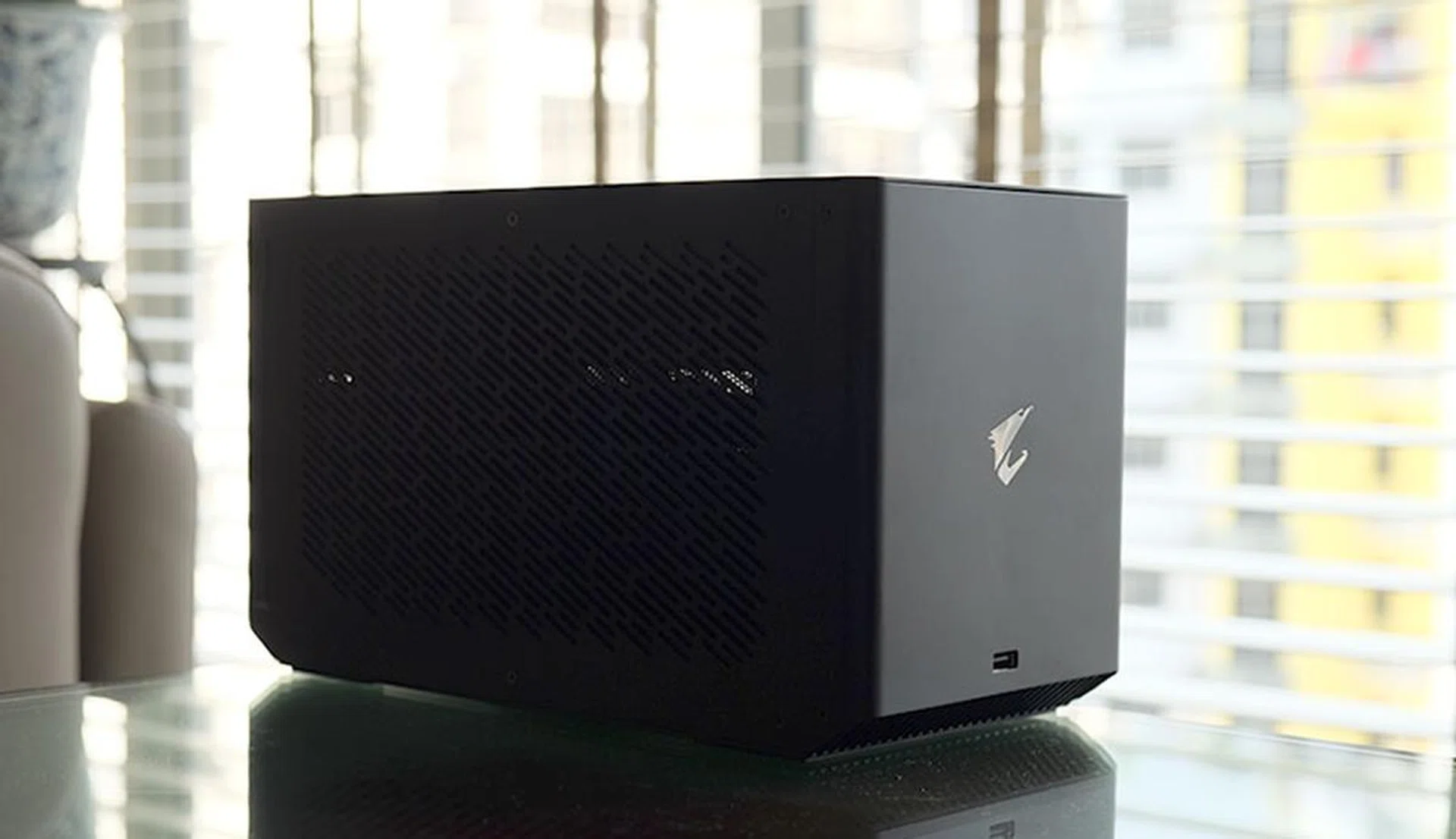
This diminutive box comes with a liquid-cooled GeForce RTX 2080 Ti in it.
Furthermore, the Razer Core X Chroma already costs S$599 without any GPU included. If you add on the price of a GeForce RTX 2080 Ti, the total cost would be in excess of S$2,599, so the Aorus RTX 2080 Ti Gaming Box is technically the more value-for-money option.
The card inside the Gaming Box has a boost clock of 1,545MHz, the same as NVIDIA's reference specification. The company probably wants you to overclock the card though, which is where the liquid cooling system might come in handy.
It's a gaming box, but it's also a dock
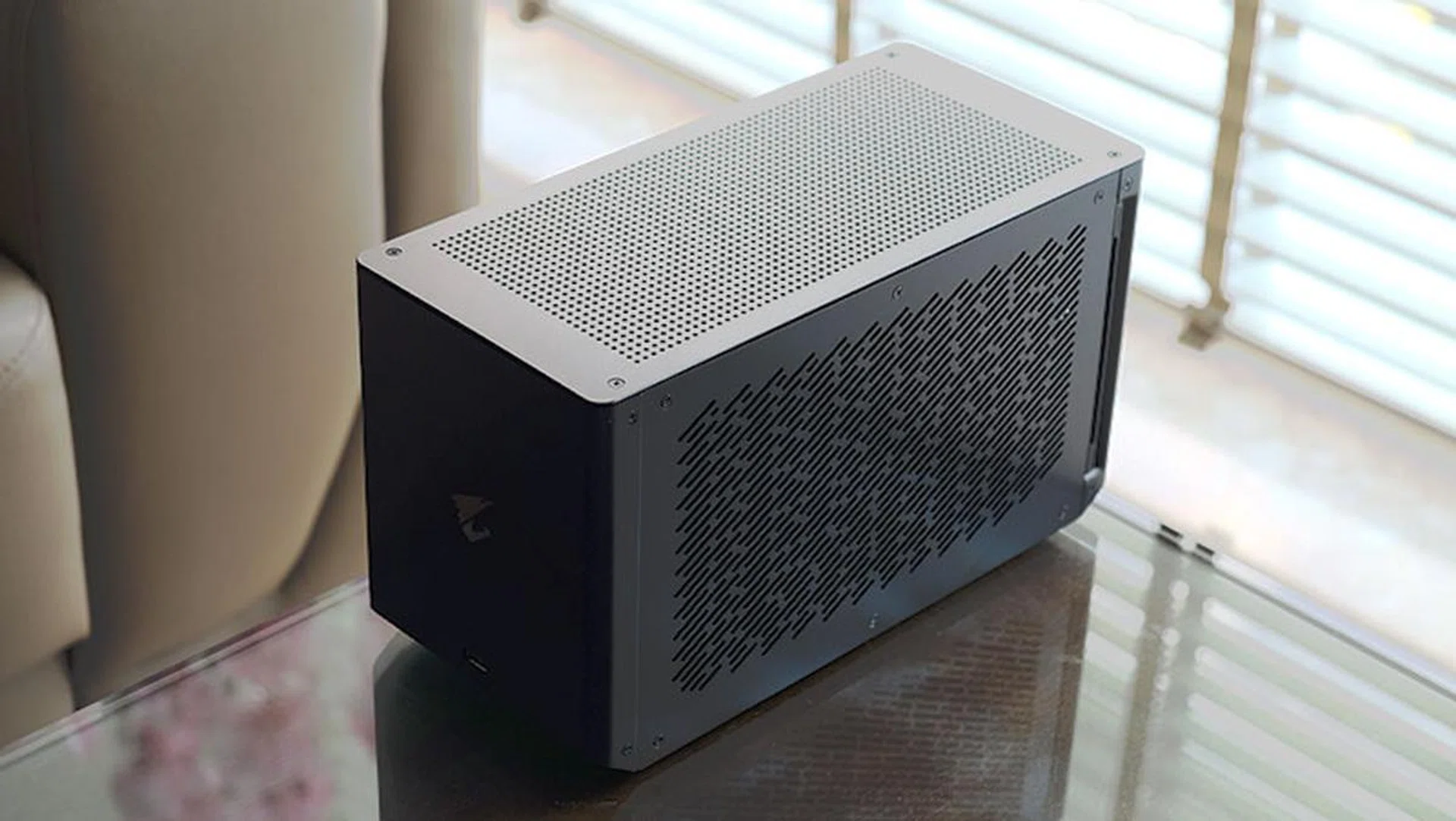
The Gaming Box offers a wide range of connectors.
Like most other external GPU enclosures, the Aorus RTX 2080 Ti Gaming Box also doubles as a dock with a wide selection of ports and connectors. You simply plug your Thunderbolt 3 laptop into the dock, and it'll charge it and let you take advantage of all these connectors as well. The setup process was pretty hassle-free for me – I plugged the Gaming Box into my Razer Blade Stealth 13, and the dock was detected automatically once the laptop booted up, no further setup required. My one gripe would be that the bundled 500mm Thunderbolt 3 cable is way too short, and I'd really have liked something longer.
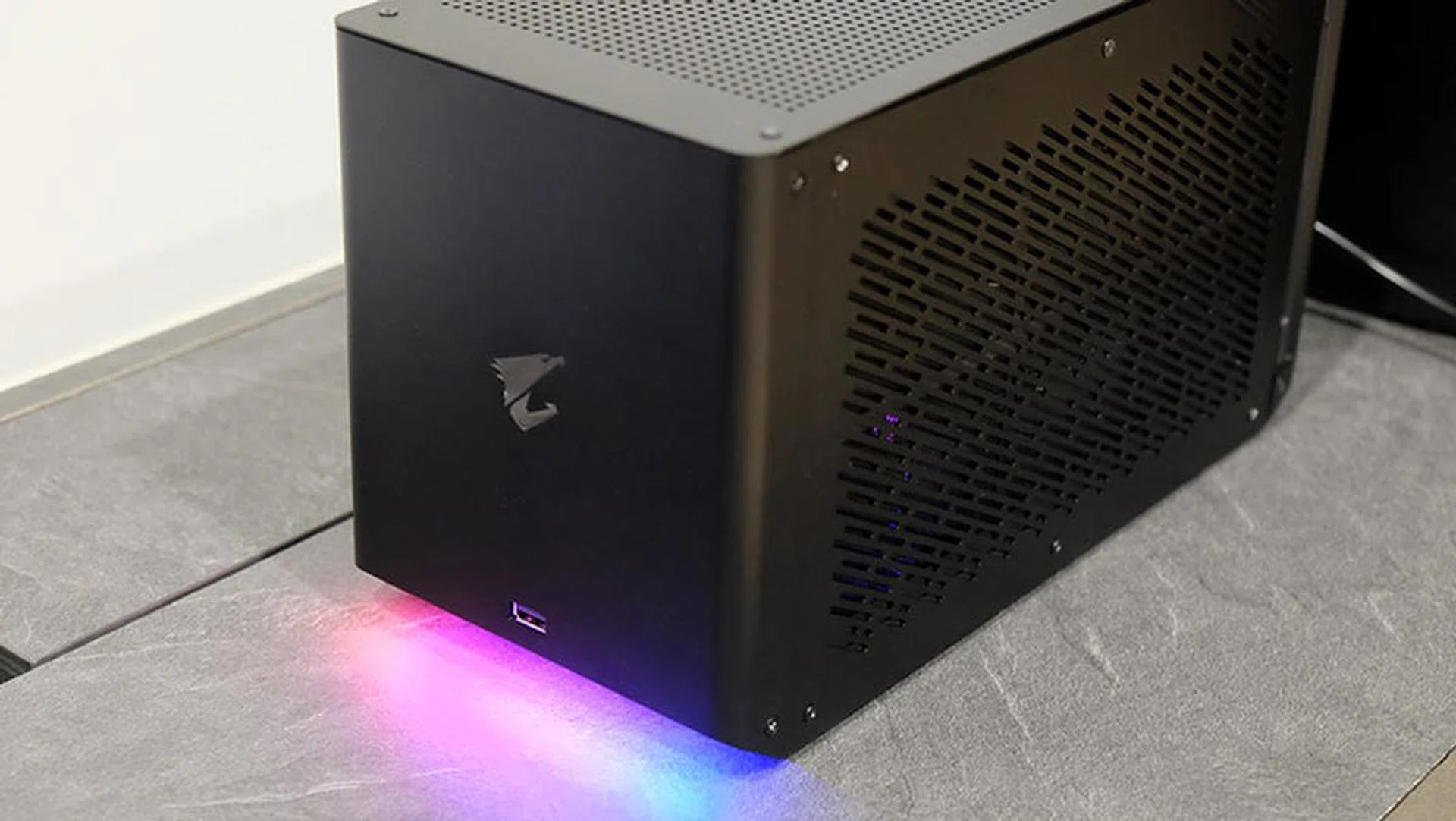
The RGB lights come on once the dock has been successfully connected.
One the dock has been connected successfully, RGB lights will come on at the front. This can be customised using Gigabyte's RGB Fusion 2.0 software. However, there's no fancy see-through side panel here, as the liquid cooling system means that the insides aren't much to look at.
Instead, the side panels come with two integrated dust filters. You can slide these out easily without having to remove the panels, so cleaning them should be a breeze.

There are removable dust filters behind both side panels.
There's a single USB 3.1 (Gen 1) Type-A port at the front, so that could come in useful for peripherals that you connect and disconnect frequently, like a hard drive or SD card reader. The rear I/O is bristling with even more connectors though, and you'll find the following:
- 1x HDMI 2.0b
- 3x DisplayPort 1.4
- 1x USB-C VirtualLink
- 1x Gigabit Ethernet
- 1x Thunderbolt 3
- 2x USB 3.1 (Gen 1) Type-A
- 1x reset button
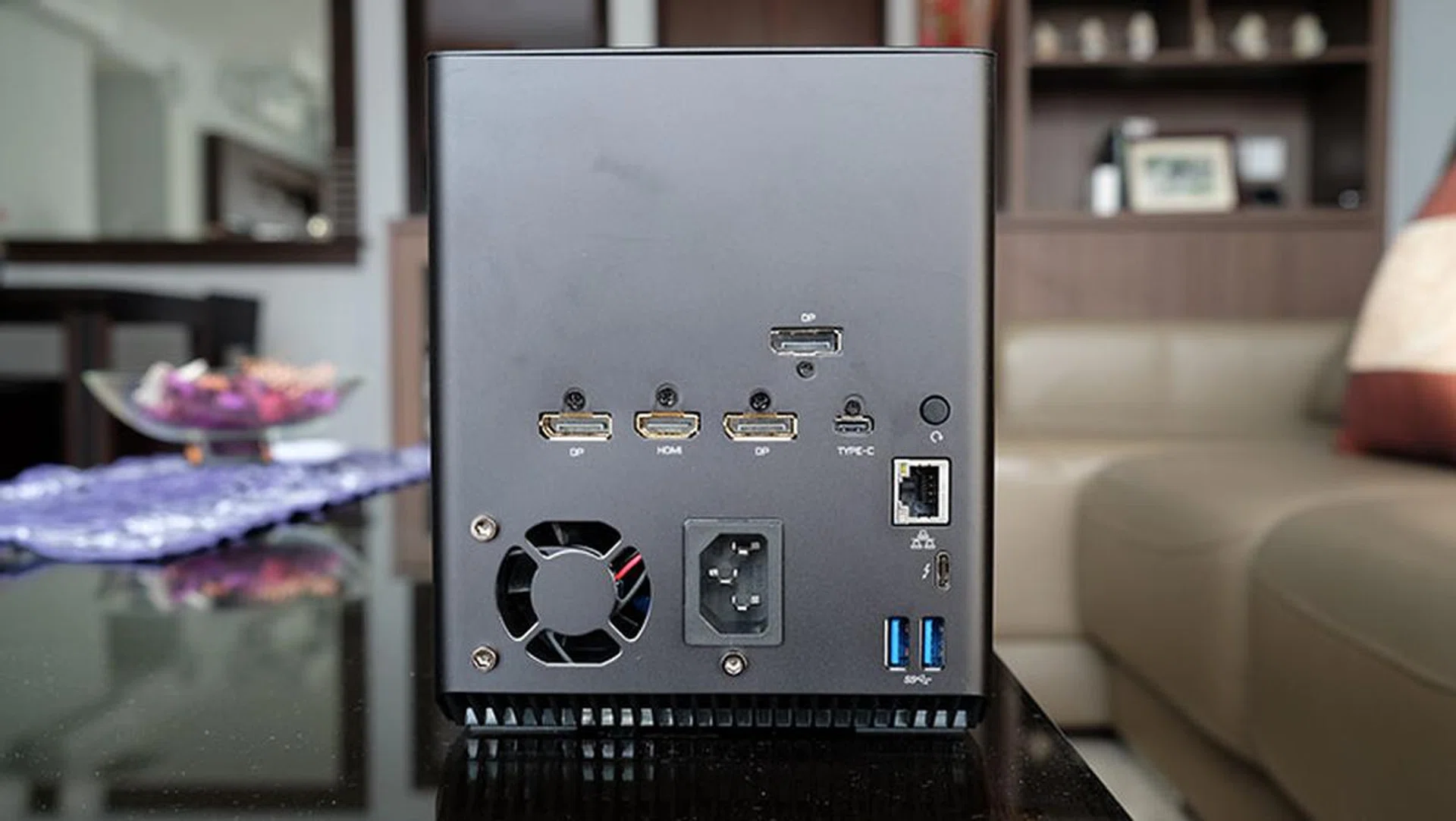
Here's a look at the ports at the rear.
I wish there could have been more USB Type-A ports though, as you have just enough for a keyboard and mouse, and an extra port at the front for just one more device. In comparison, the Razer Core X Chroma has four USB 3.1 (Gen 1) Type-A connectors.
The 450W built-in power supply seems a little on the small side though, especially since the Core X Chroma has a 700W PSU. However, Gigabyte says the Gaming Box as a whole is only expected to draw 280W, so it believes 450W is sufficient.
Separately, the Aorus RTX 2080 Ti Gaming Box also has two Thunderbolt 3 controllers to avoid any issues with mouse or keyboard lag. This can be a problem if just one Thunderbolt 3 chip is used, but having two controllers lets the GPU connect to your laptop using four PCIe lanes of its own, while the second controller makes available PCIe lanes for the Gigabit and USB controllers.
Can I upgrade the GPU?
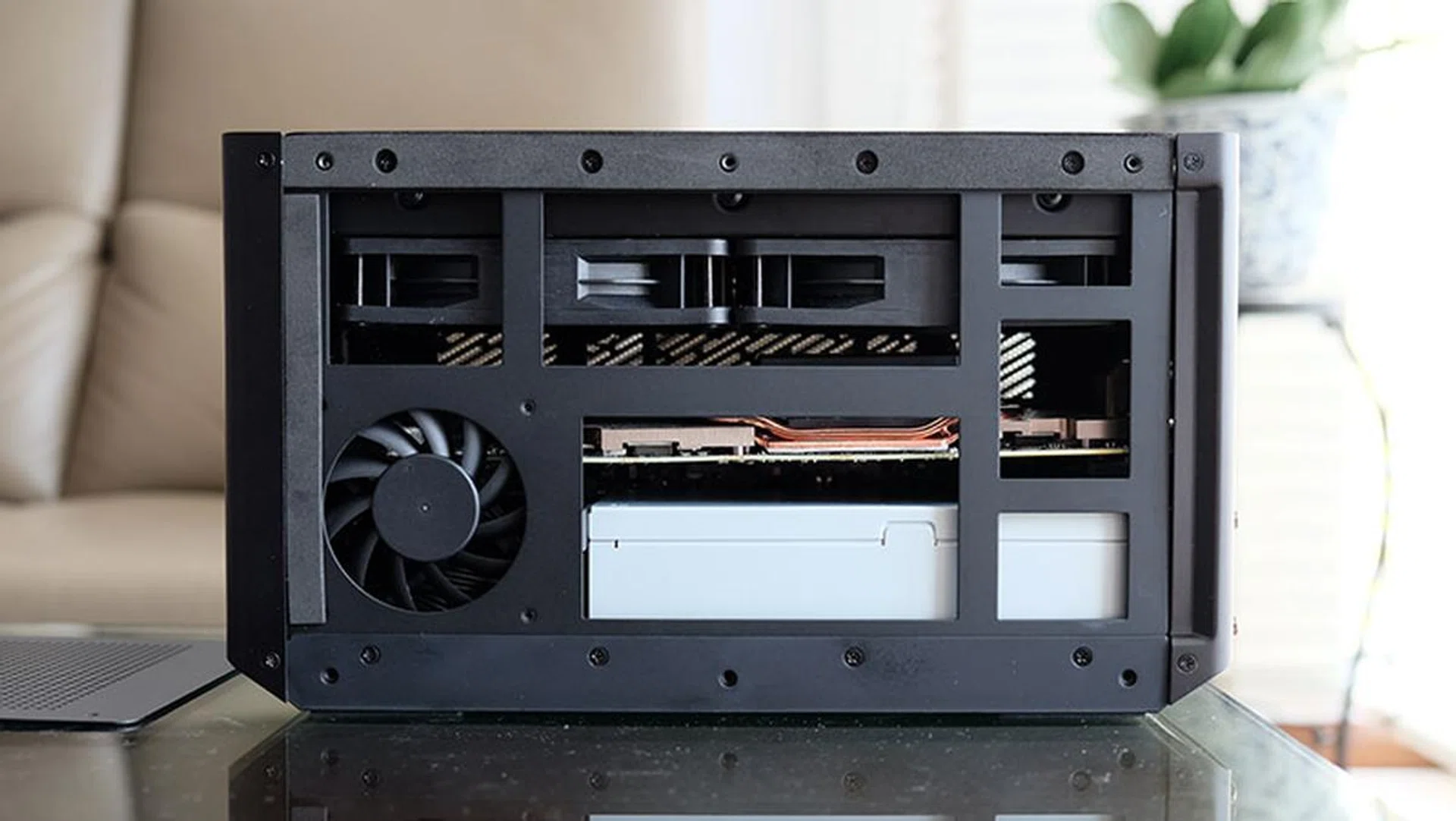
It's obvious why Gigabyte didn't include a clear side panel on this one.
Unfortunately, no. The closed-loop liquid cooling system means that the Gaming Box isn't built to be easily upgradeable. I suppose you could probably figure something out by yourself if you know your way around hardware, but that was never Gigabyte's intention. To be fair, the GeForce RTX 2080 Ti is very, very powerful, and it'll be a long while before it even approaches obsolescence.
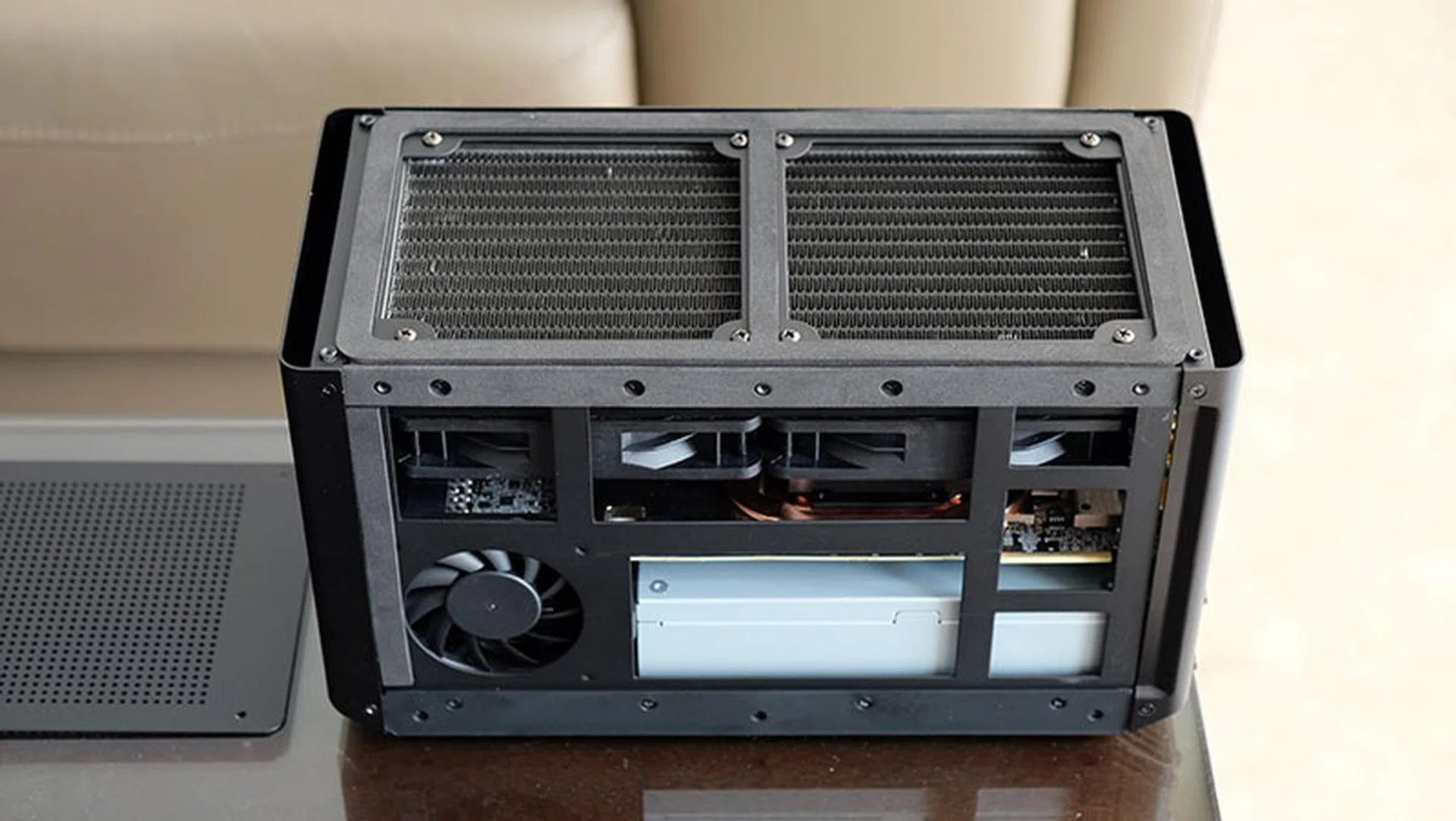
Some noise dampening foam sits between the 240mm radiator and the top panel.
However, an external graphics dock can be thought of as a modular component of a larger setup, so it does seem slightly odd that the Gaming Box does not allow for upgrading of the graphics card. It's very restrictive, to say the least, especially for such a large investment. I suppose that's the price you pay for liquid cooling, but I might be willing to give that up if it means I don't have to junk the entire dock eventually.
Who is this for?
MacOS doesn't support NVIDIA graphics cards, unless you run Boot Camp, so the Gaming Box is pretty much limited to Windows users. It'll work with any notebook with a Thunderbolt 3 port that supports external graphics in its BIOS, regardless of whether the notebook has its own discrete GPU or not.
The Gaming Box can supply up to 100W of power to your laptop, so that covers pretty much any ultrabook on the market.
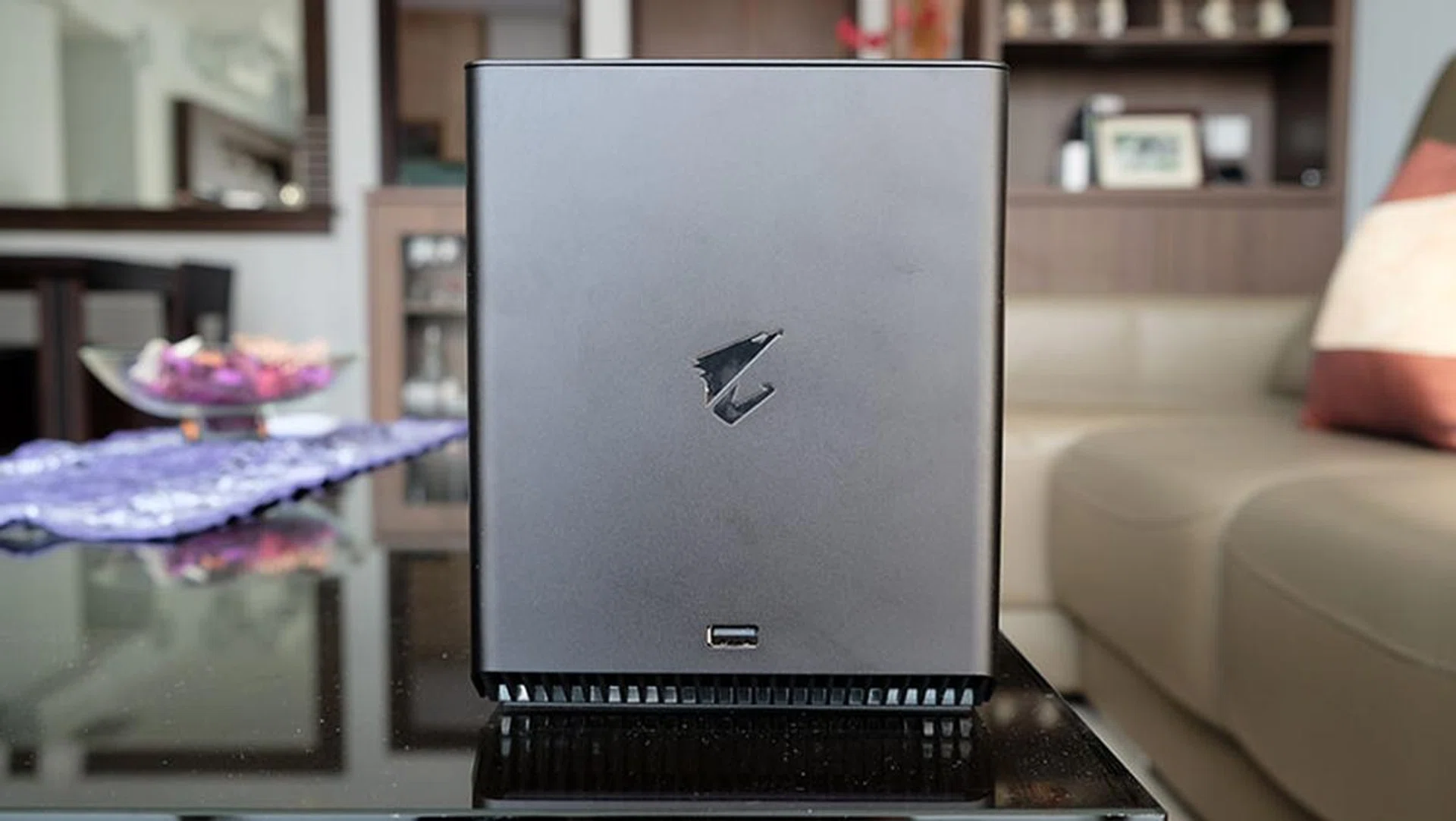
There's a single USB 3.1 (Gen 1) Type-A port at the front.
However, while there's no doubt that the Gaming Box will provide a huge boost compared to the performance you'll get with integrated graphics, it's also important to note that the GeForce RTX 2080 Ti will be severely constrained by a 15W chip like the Core i7-1065G7 (and most other Intel 10th Gen Core "Ice Lake" processors). I can see it coming in handy for someone who wants the best of both worlds though, so they get the portability of an ultrabook while on the road, and a graphics boost when they dock the laptop at home.
The Gaming Box also ships with a convenient carrying case and strap, so you can probably take it to LAN parties too.
Test setup and performance
Here's a look at the systems we're comparing:
- Razer Blade Stealth 13 (Late 2019) + Aorus RTX 2080 Ti Gaming Box
- Razer Blade Stealth 13 (Late 2019)
- Aftershock Forge 15 Pro
- Razer Blade 15
I'll be comparing the new Razer Blade Stealth 13 and its GeForce GTX 1650 Max-Q against the Blade Stealth paired with the Gaming Box. In addition, the Aftershock Forge 15 Pro and Razer Blade 15 have been included as well to show how the Gaming Box and ultrabook combination stacks up against more conventional gaming laptops with a GeForce RTX 2060 and 2070 Max-Q.
[hwzcompare]
[products=677382,667554,673300]
[width=200]
[caption=Test notebooks compared]
[showprices=1]
[/hwzcompare]
I ran the notebooks through the following benchmarks:
- PCMark 10
- 3DMark
- Deus Ex: Mankind Divided
- Far Cry 5
- Metro Exodus
- Shadow of the Tomb Raider
- Tom Clancy's The Division 2
How good is it for work?
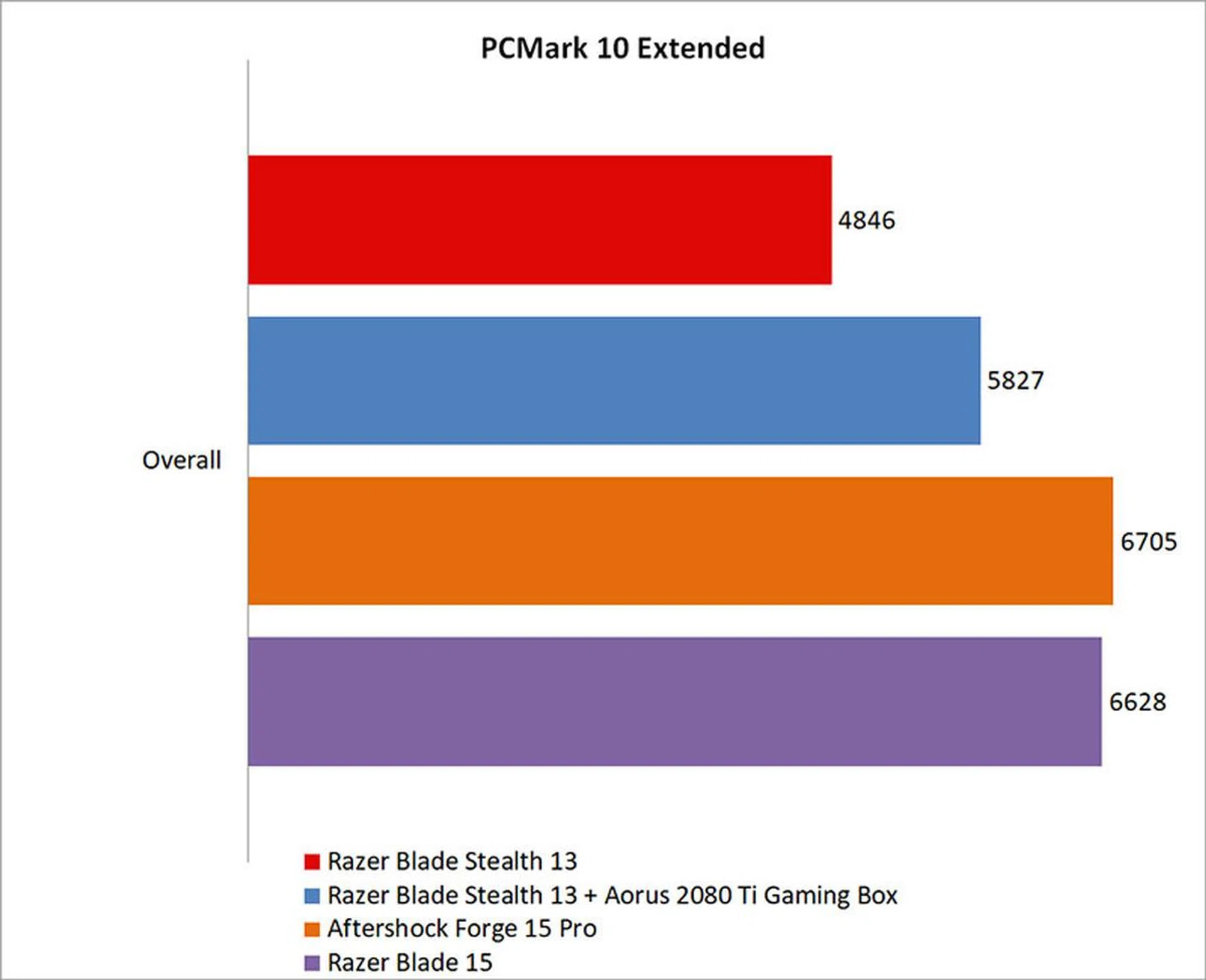
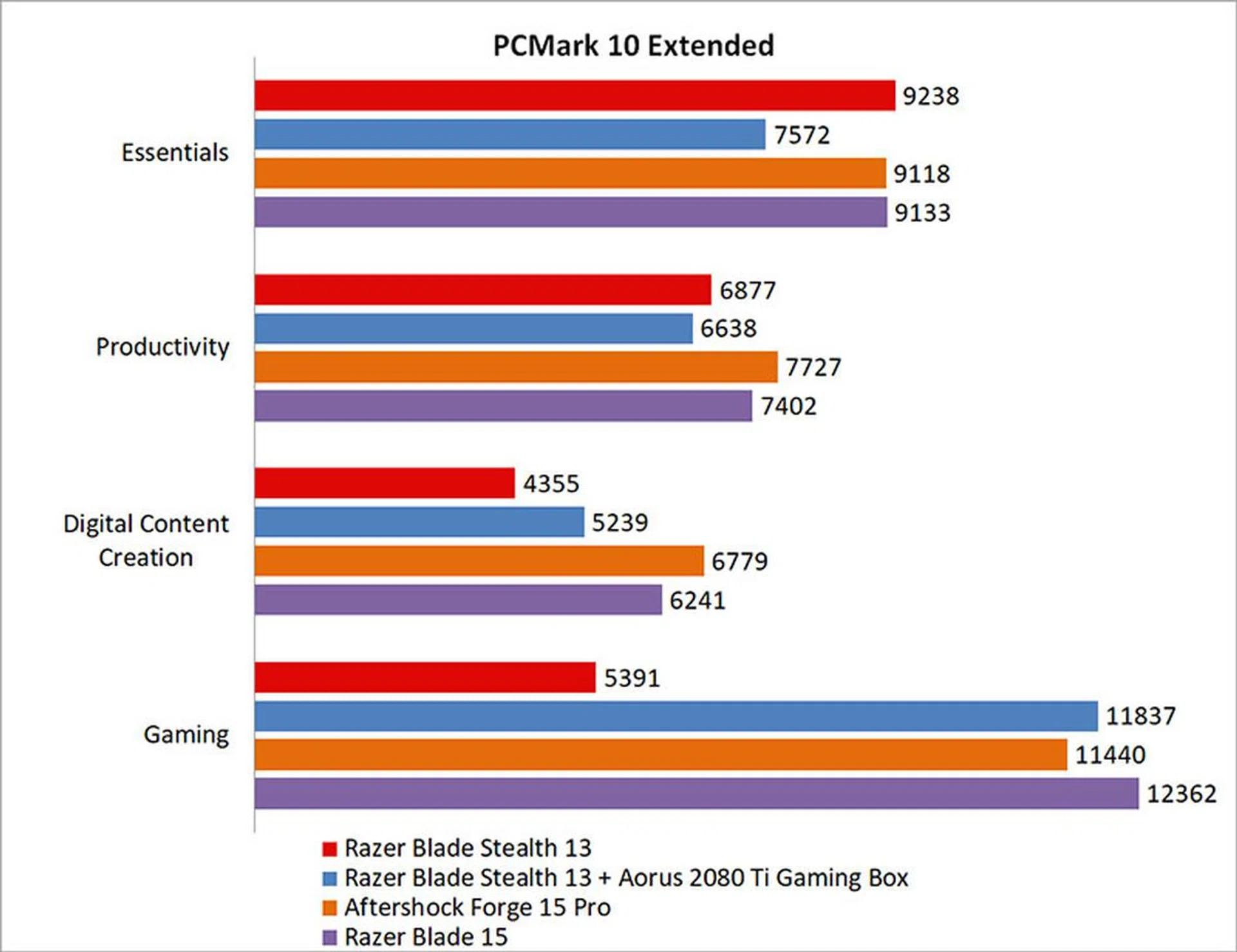
PCMark 10 Extended evaluates systems based on workloads that can be categorized into four distinct groups, comprising Essentials, Productivity, Digital Content Creation, and Gaming. This includes tests such as app start-up times, web browsing, word processing and spreadsheets, photo and video editing, and rendering and visualization tasks. Finally, gaming performance is evaluated using the Fire Strike benchmark.
The Razer Blade Stealth 13 and Aorus RTX 2080 Ti Gaming Box combination leapt to an 18 per cent lead over the Blade Stealth 13. That's mostly owed to the vastly improved gaming performance though, as the laptop and gaming dock combination oddly saw a decrease in Essentials and Productivity scores.
However, the Gaming Box still couldn't help the Blade Stealth 13 overtake the Aftershock Forge 15 Pro or Razer Blade 15.
How fast is it in games?
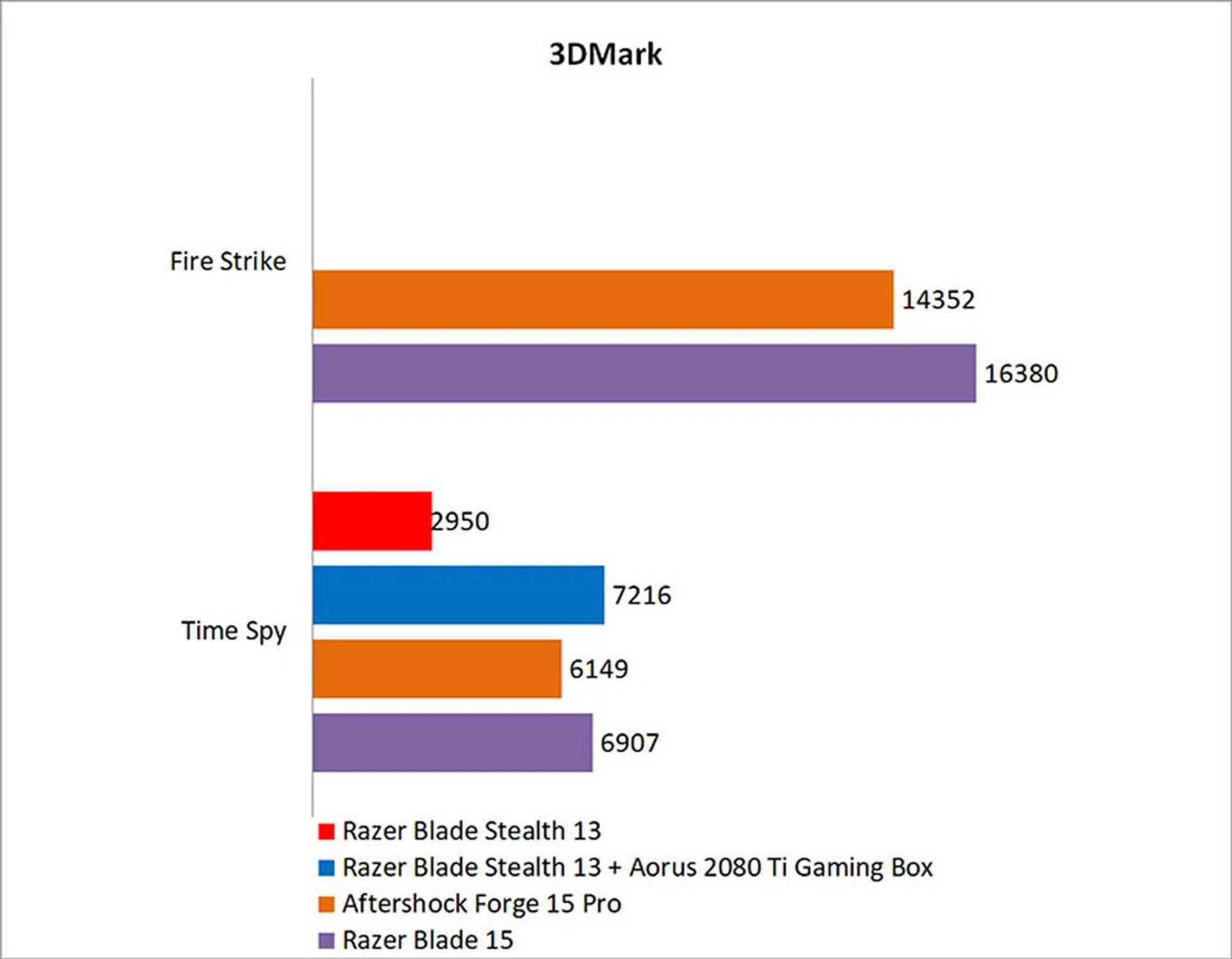
I couldn't get the Blade Stealth 13 to run 3DMark Fire Strike, even with the dock, so I'm missing results for that particular benchmark. That aside, the Gaming Box propelled the Blade Stealth 13 to a big 83 per cent jump over its original numbers in Time Spy with the GeForce GTX 1650 Max-Q. In addition, it also managed to inch ahead of the Blade 15 by 4 per cent.
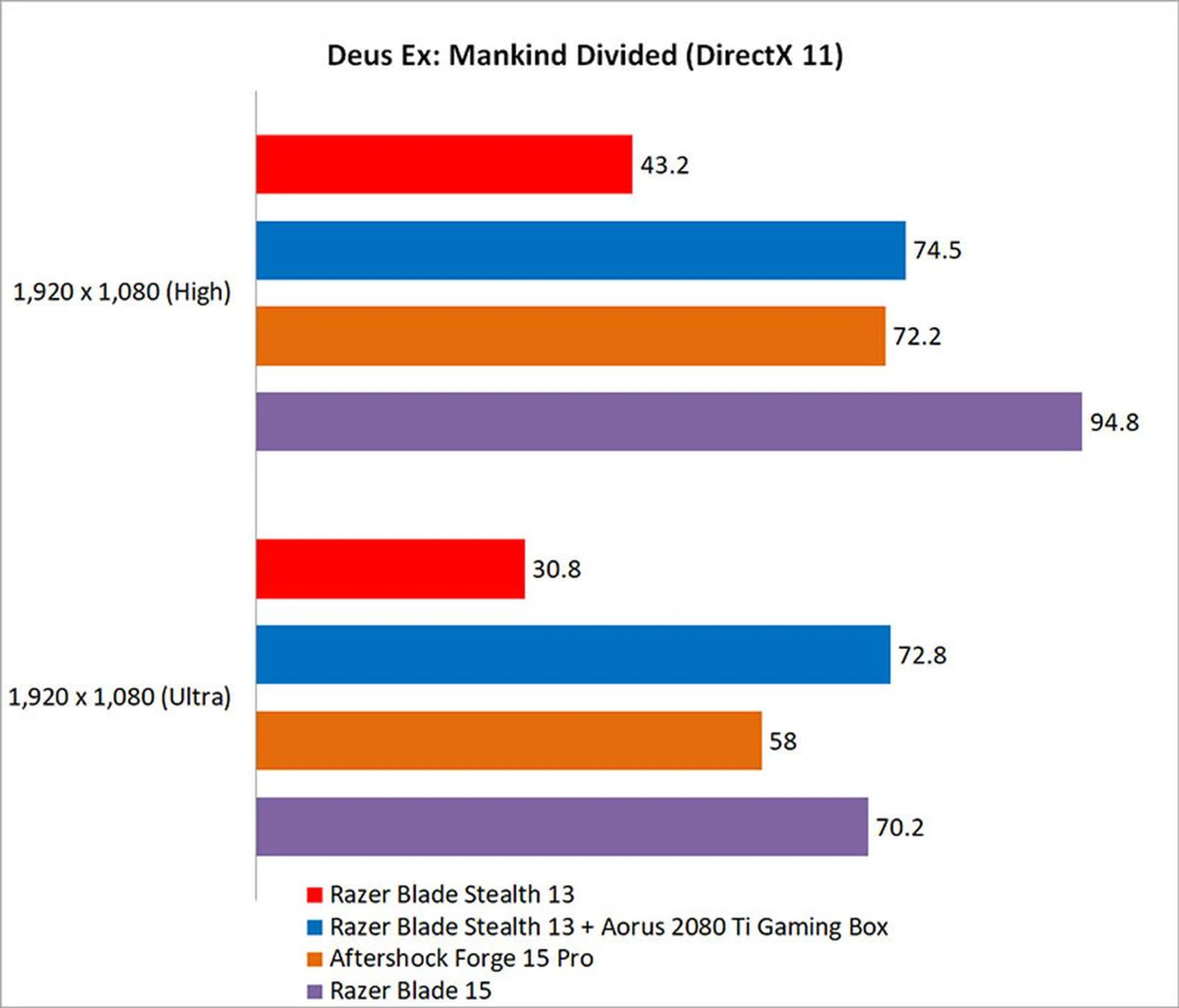
In games however, the limitations of the Core i7-1065G7 start to become very clear. In Deus Ex: Mankind Divided, the Gaming Box helped the Blade Stealth 13 improve by a solid 81 per cent at Ultra settings, but you'll also notice that the results were practically unchanged at High settings, a typical sign of the CPU being a bottleneck.
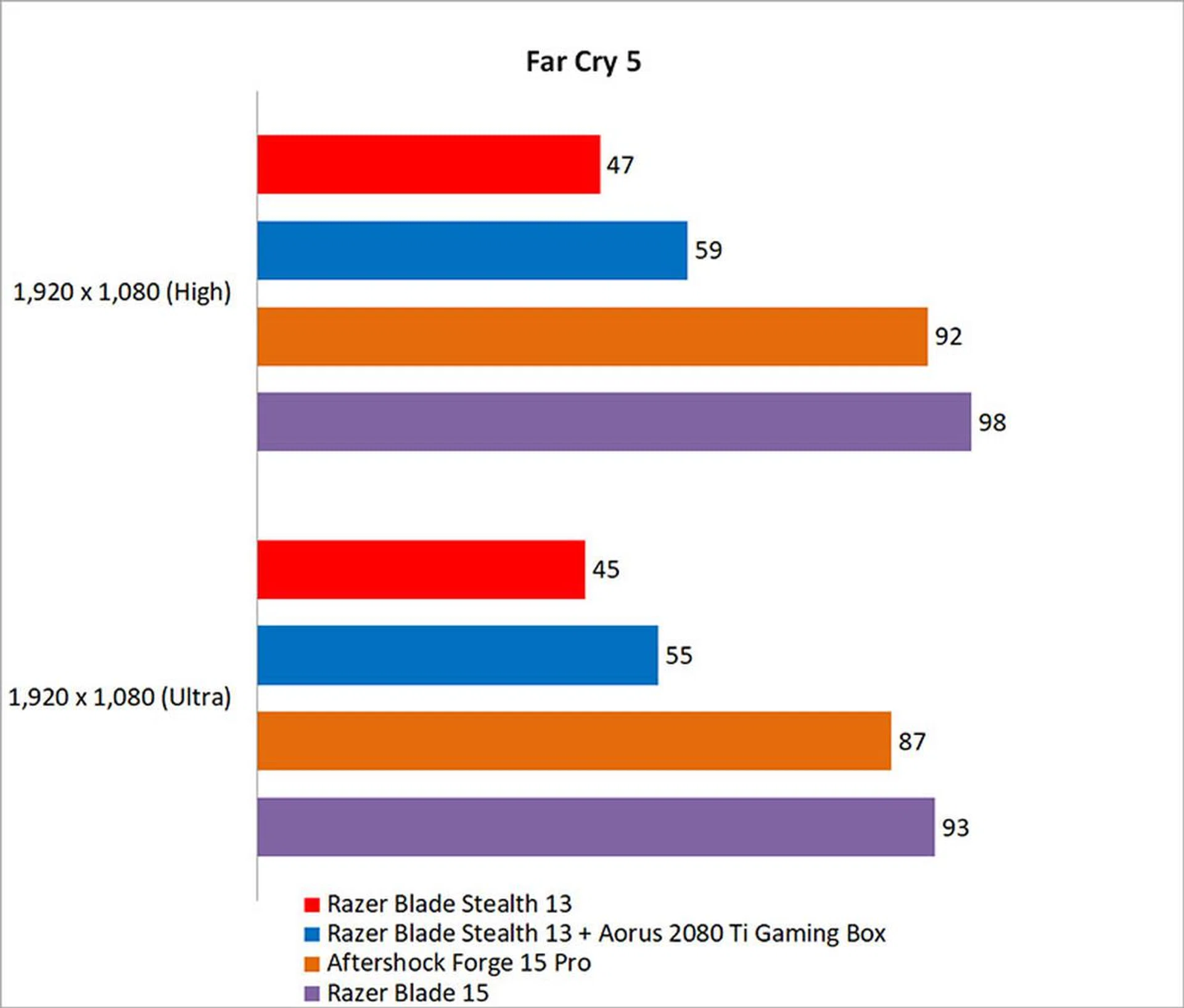
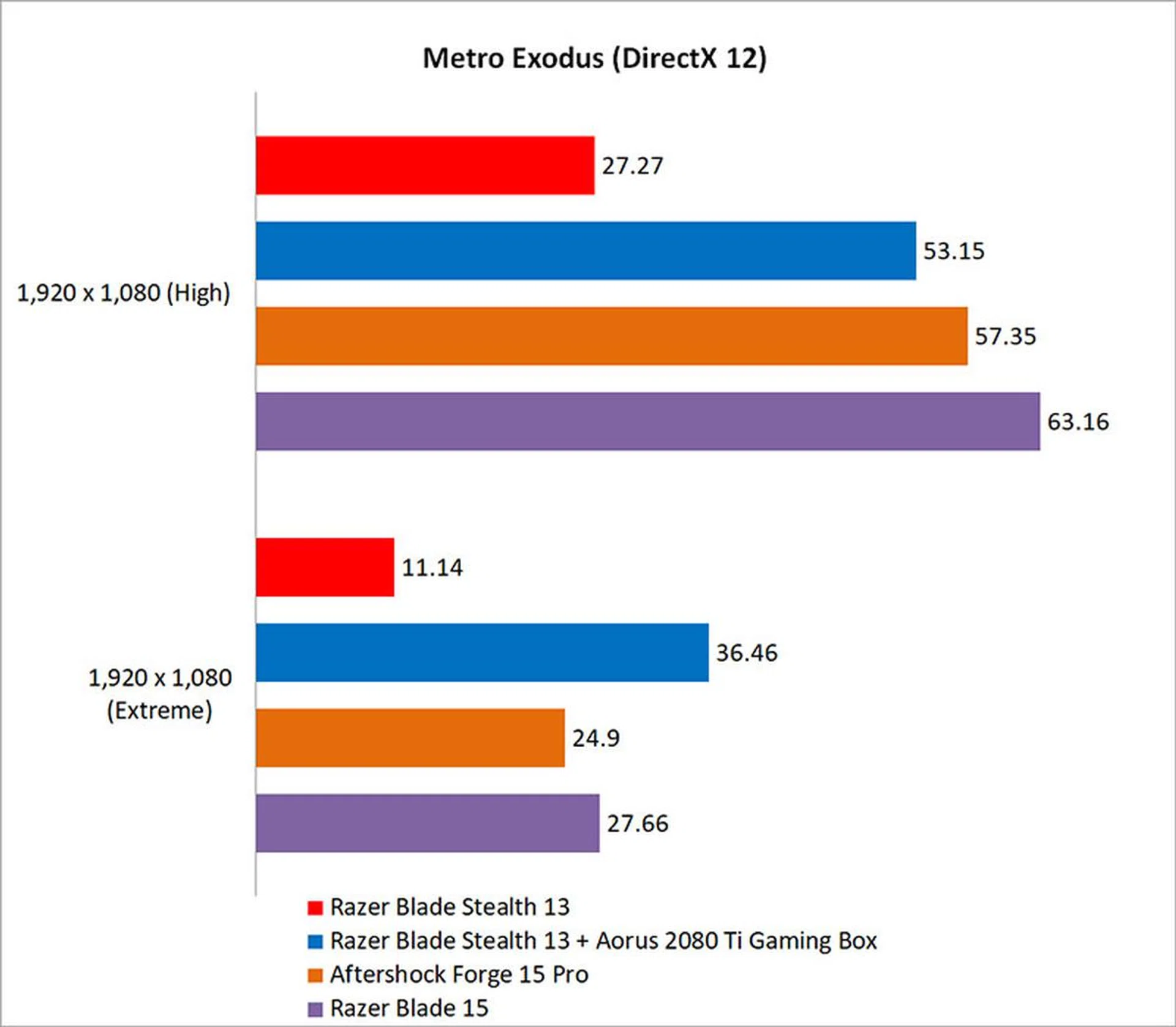
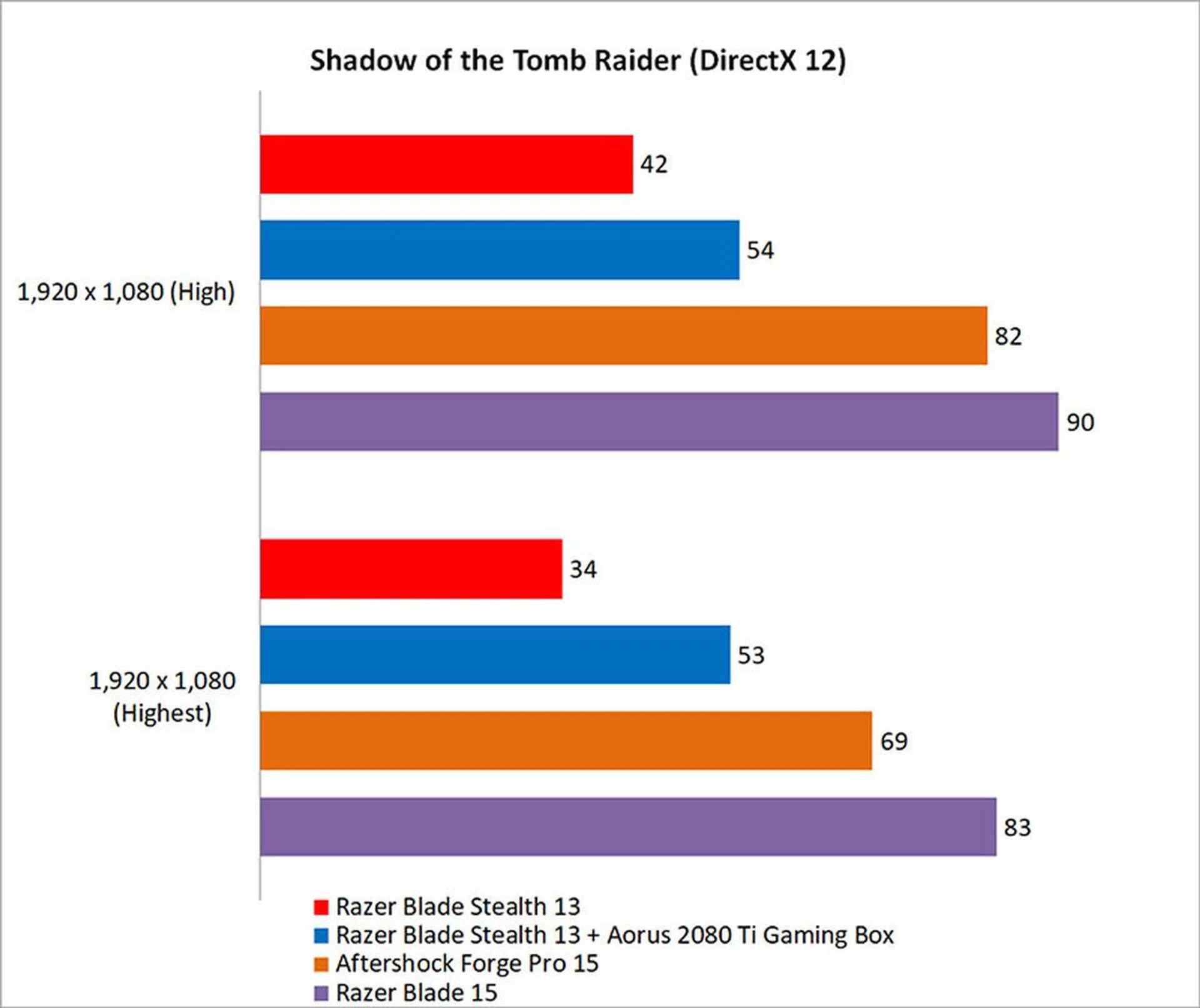
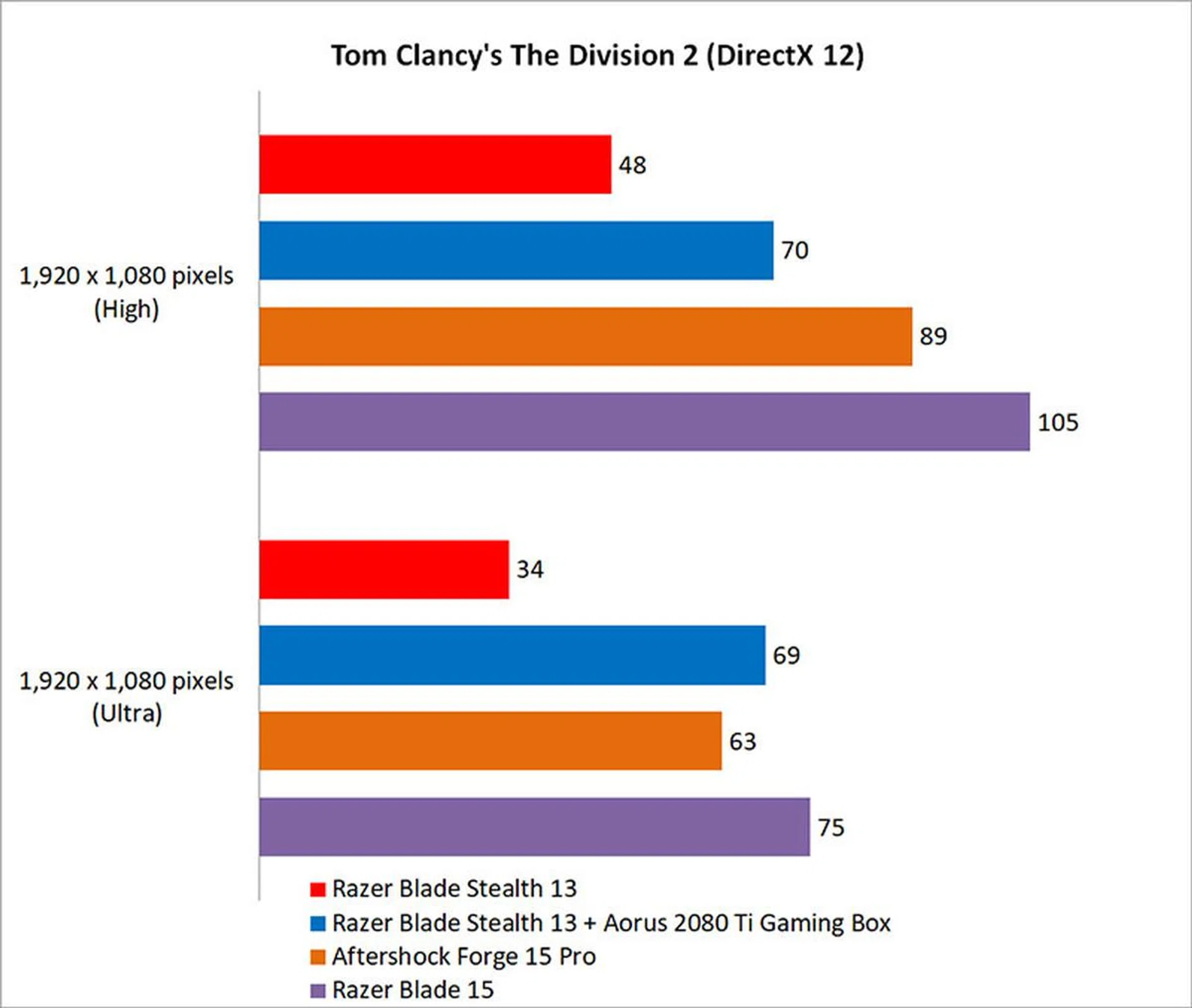
In fact, the amount of improvement you see is pretty much dependent on how important CPU performance is to the game in question. In Far Cry 5, which isn't particularly GPU-intensive, the Gaming Box saw just a 20 per cent boost in performance. It's not terrible, but it's also a lot less impressive than we saw in Mankind Divided. On the other hand, Metro Exodus and Tom Clancy's The Division 2 seem to stress the GPU a lot more, and the Gaming Box recorded a 106 and 67 per cent increase respectively. Shadow of the Tomb Raider saw a 43 per cent increase at Highest settings.
Separately, I should also point out that you almost never see the Blade Stealth 13 and Gaming Box combo overtake the Blade 15, which has an Intel Core i7-9750H and GeForce RTX 2070 Max-Q. This only happens at Extreme settings in Metro Exodus, which is a particularly GPU-intensive title. This further shows how much the Core i7-1065G7 constrains the GeForce RTX 2080 Ti.
It's also likely that the Thunderbolt 3 interface is limiting the GPU's performance. After all, you get just four PCIe 3.0 lanes, compared to the usual 16 on a desktop.
A good GPU also needs a good CPU
The Aorus RTX 2080 Ti Gaming Box is a very competent external graphics dock in its own right. However, I have to question the wisdom of only giving users the choice of a GeForce RTX 2080 Ti, and then recommending an ultrabook pairing for it. Ultrabooks generally have low-power 15W CPUs, and we've seen how limiting it can be for a powerful card like the GeForce RTX 2080 Ti.
The Thunderbolt 3 interface restricts the GPU to just four PCIe 3.0 lanes too, compared to the 16 you'd get on a desktop.
Given that the Razer Blade Stealth 13 and Gaming Box pairing still fails to outstrip the Razer Blade 15 in games, it sure doesn't seem like the S$2,269 the dock costs is a smart investment. If you're looking to improve the gaming performance on your ultrabook, it feels like a more affordable card like the GeForce RTX 2060 would be a better pick. Gigabyte has put forward an interesting and very attractive proposition with a liquid-cooled GeForce RTX 2080 Ti, but the Gaming Box doesn't quite live up to its promise, let down by the Intel Core i7-1065G7.
What's more, the Gaming Box wasn't designed to be upgradeable, so you're just stuck with a GeForce RTX 2080 Ti whose full potential you'll never be able to unlock with a mere ultrabook-class CPU. If you had an entry-level gaming laptop with the Core i7-9750H, the Gaming Box could possibly be better utilised.
Our articles may contain affiliate links. If you buy through these links, we may earn a small commission.