ASRock vs. ASUS vs. Gigabyte vs. MSI: Which flagship X570 motherboard should you get?
AMD's Ryzen 3000 processors are really popular now. But which AMD X570 motherboard should you get for the Ryzen 9 3900X?
Note: This article was first published on 18 August 2019.
X570 motherboards slug it out
AMD's Ryzen 3000 processors are supposed to work with older B450 and X470 motherboards, but as we've seen in recent days, adding support isn't as simple as rolling out a new BIOS.
For example, MSI's B450 and X470 boards have run into several compatibility issues with the new Ryzen chips, and it's gotten to the point where MSI's solution is basically to release new 400-series motherboards to make good on AMD's promise of backward compatibility. The problem was that the old MSI B450 and X470 boards used a 16MB BIOS chip, which was just not big enough to accommodate the latest microcode updates for Ryzen 3000.
It's been quite a mess, and certainly no fun for users who thought they could reuse their MSI 400-series motherboard.
Having said that, why not get an X570 board? Your graphics card may not be able to saturate a PCIe 3.0 x16 slot yet, but there are already storage devices that can benefit from PCIe 4.0. After all, if you're going to get a Ryzen 3000 processor, you might as well shell out for the chipset that was designed to work with it.
Today, we'll be looking at the following motherboards, each of which is the top X570 board for their respective brands:
- ASRock X570 Taichi - S$499
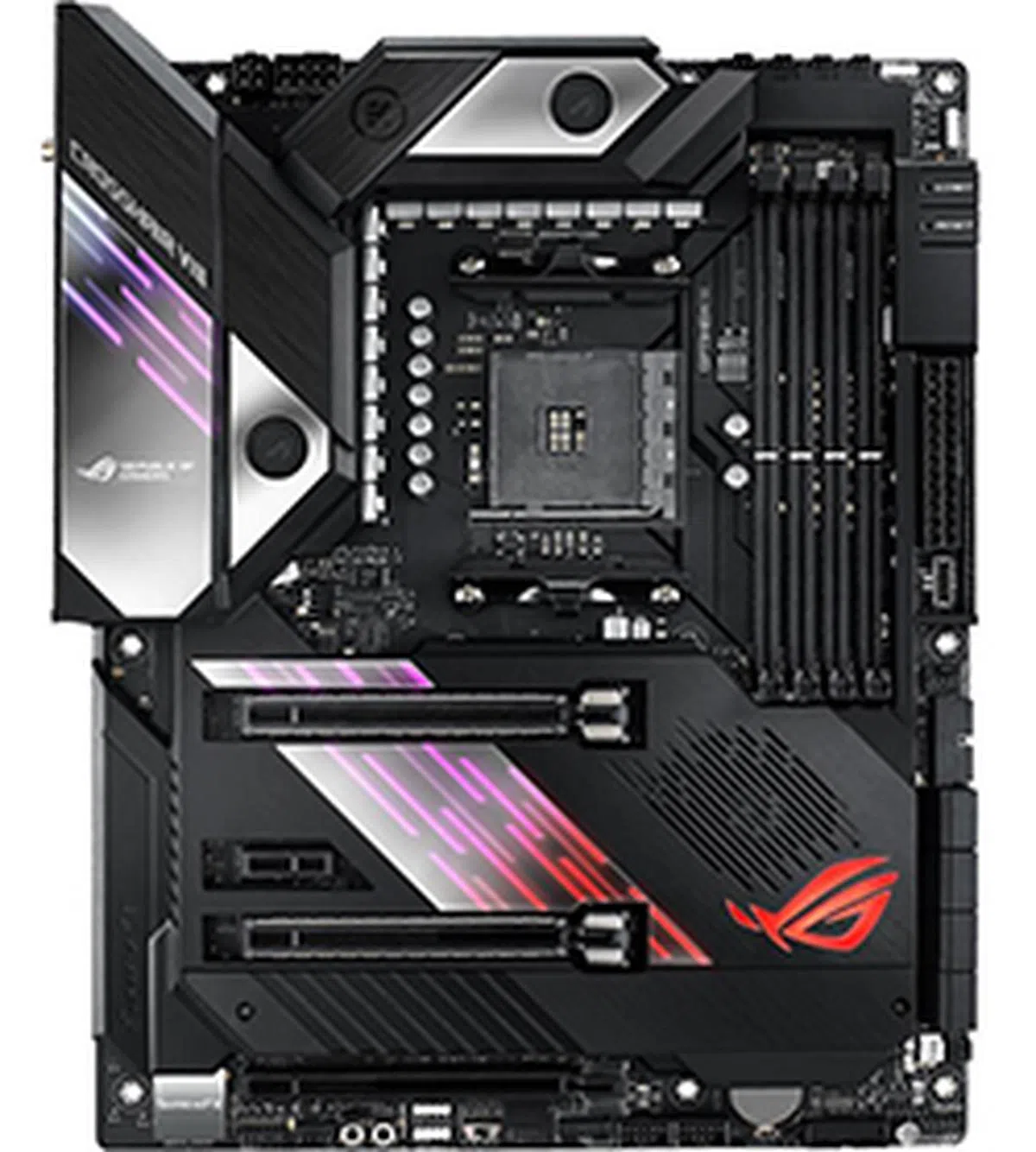
- ASUS ROG Crosshair VIII Formula - S$862
- Gigabyte X570 Aorus Xtreme - S$965
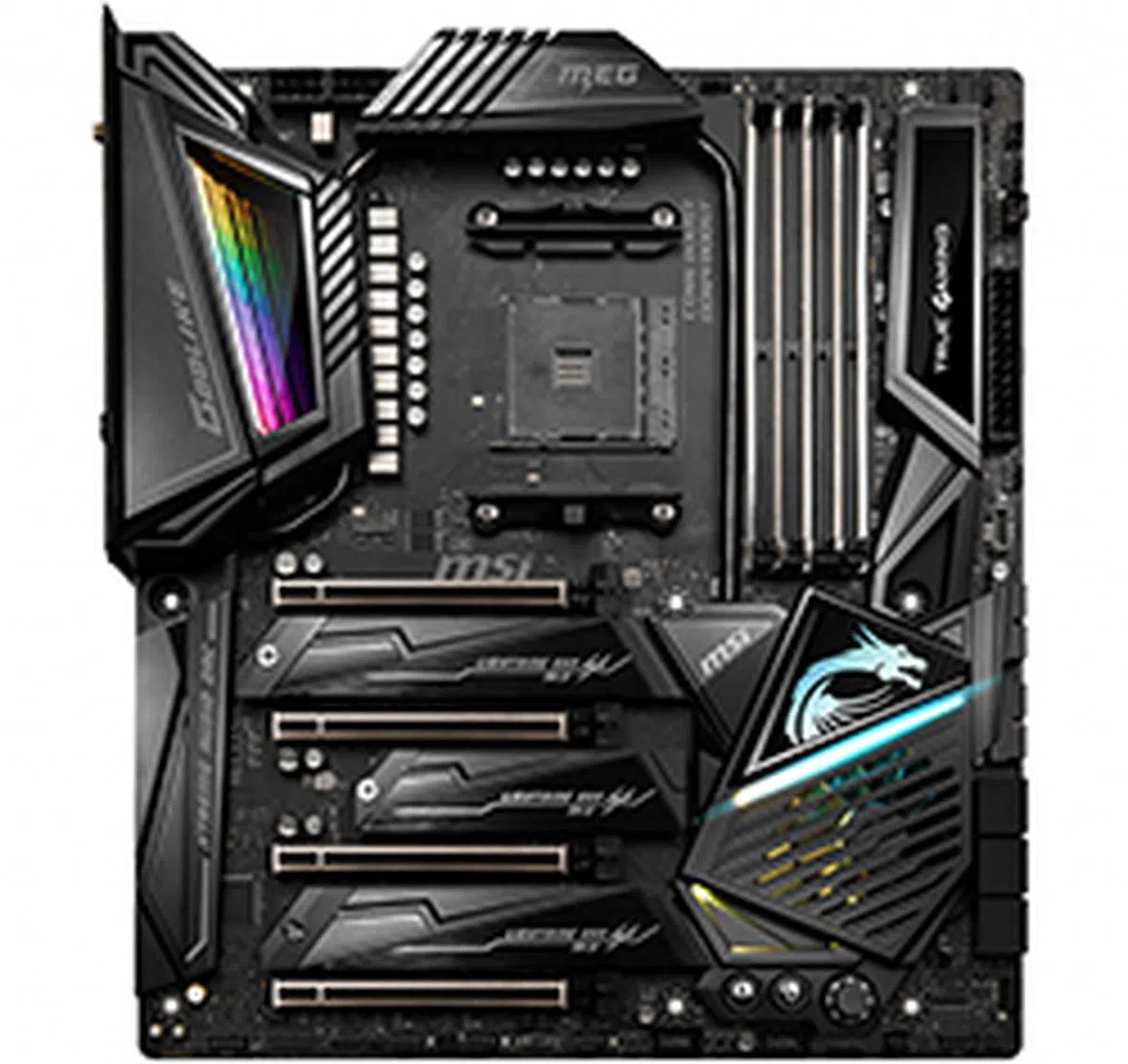
- MSI MEG X570 Godlike - S$1,269
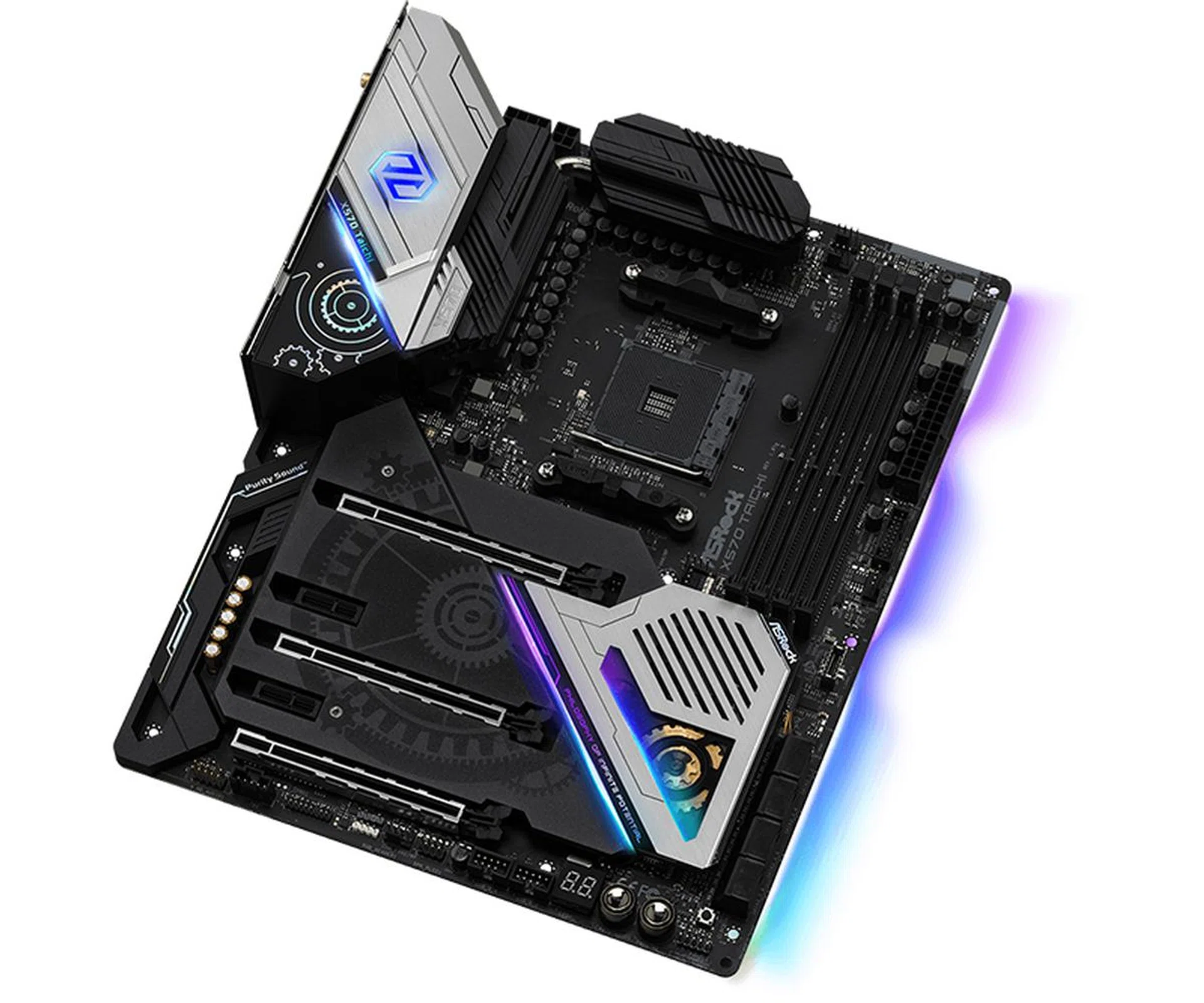
ASRock X570 Taichi. (Image Source: ASRock)
We'll be doing something different this time though. Instead of running each board through our usual benchmark suite, we'll be focusing more on things like features and usability. Our two decades of motherboard testing has shown us that in recent times, there is very little variation between boards in terms of performance. Quite often, the variances fall well within the benchmarking differential tolerance and thus, pure performance alone is no longer an indicator of motherboard performance. The biggest difference is probably in the area of overclocking, where differences in the VRM design actually matter. However, the Ryzen 3000 processors were not designed with a ton of manual overclocking headroom in mind, so we don't feel that that's the most important aspect of the boards to look at this time either, at least for someone who isn't looking to shatter some overclocking records.
In fact, AMD's own Robert Hallock has said that you'll probably see more benefit from overclocking your memory (and by extension the Infinity Fabric) and enabling Precision Boost Overdrive.
Instead, given the reports of Ryzen 3000 not boosting or idling properly, we'll be looking at this behaviour across all these boards. On top of that, we'll be testing the Precision Boost Overdrive (PBO) feature to see the specific parameters each board imposes.
Finally, we'll test the new AutoOC feature that supposedly lets a single core boost up to 200MHz higher. Again, this is not a guarantee, and the frequency and boost duration still depend on firmware-managed limits on each board. That said, we're going to try to find out if some boards let you squeeze more out from the combination of PBO and AutoOC.
ASRock X570 Taichi
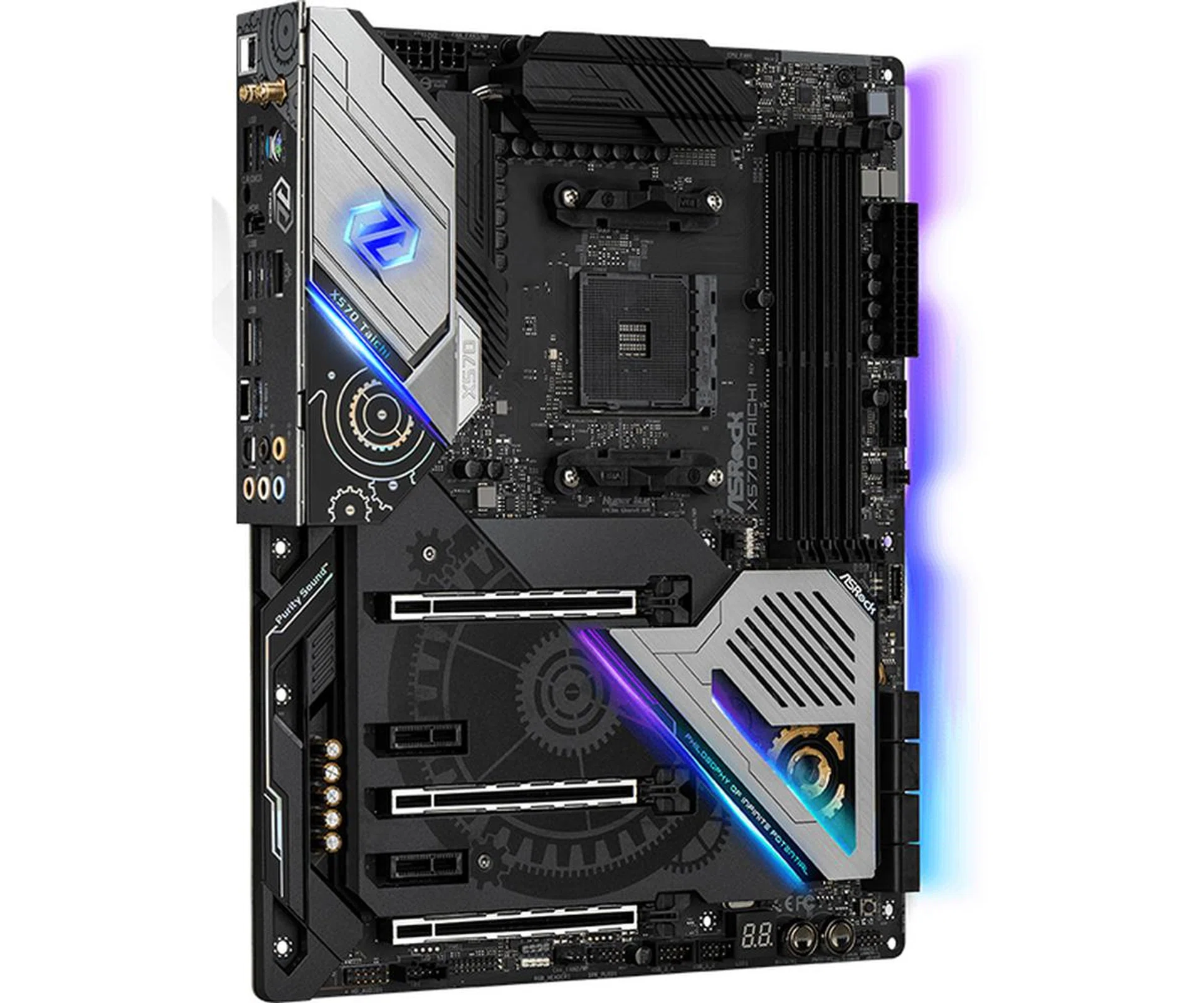
ASRock X570 Taichi. (Image Source: ASRock)
The ASRock X570 Taichi is the most down-to-earth board in this shootout. As far as flagship boards go, it's super affordable at just S$499, but the price should give you an inkling that it isn't really competing in the same league as the others. I should also point out that ASRock does have a more premium X570 model, the X570 Aqua, but that's a limited edition board with only 999 units made. For all intents and purposes, the X570 Taichi is ASRock's top X570 board that you'll actually be able to buy.

This may be ASRock's most premium Taichi board yet.
ASRock has long been the brand you go to if you want to get the most bang for your buck, but this may be one of the fanciest Taichi boards I've seen so far. One of the biggest changes coming from the X470 model is the addition of the plastic shroud over most of the PCB and also a back cover as well. The familiar Taichi cogwheel is printed on this shroud instead of the PCB itself, and there are RGB LEDs built into the I/O cover, chipset heatsink, and the right edge of the board. The aluminum backplate also helps shore up the structural integrity of the board and conveys a more premium feel.
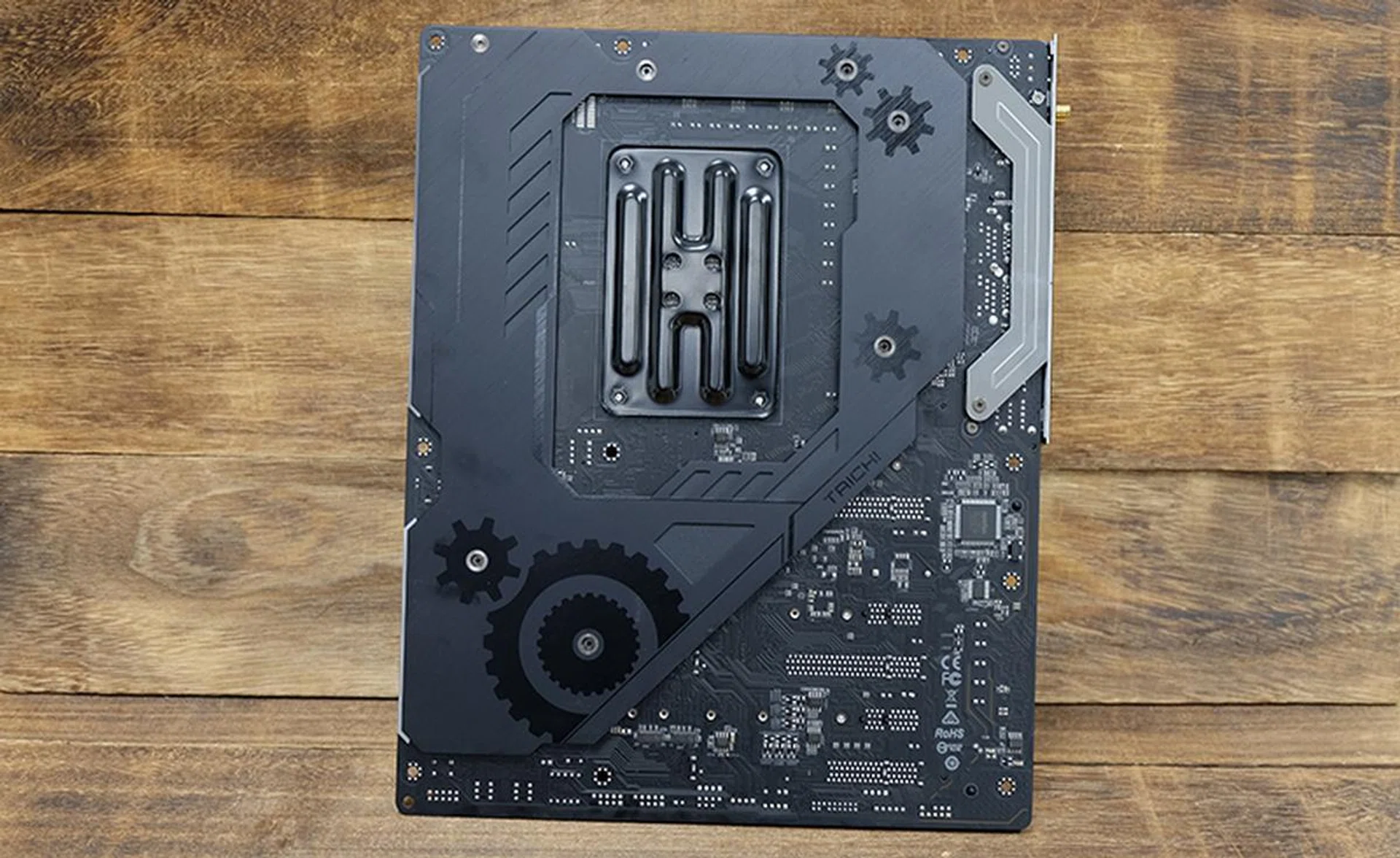
The Taichi features a metal backplate for some extra structural rigidity.
Like most other X570 boards, the Taichi comes with active cooling for the chipset and an aluminum alloy top cover that doubles as a passive heatsink. The 6,000RPM fan can get quite noisy at full speed, but ASRock has fortunately added options that let you tame the fan.
What are its expansion and connectivity options like?
That's a nice step up in terms of aesthetics, but it does sacrifice a bit in terms of usability and ease of access to the M.2 sockets. The board has three M.2 sockets in total, two of which support both PCIe 4.0 and SATA devices and a third which supports only PCIe drives. They are all hidden underneath a protective shroud, and you'll have to remove three screws and take off the shroud to get at them. That would have been okay if the screws could have been opened by regular a Phillips screwdriver, but I had to use a Torx T9 screwdriver to get them out.
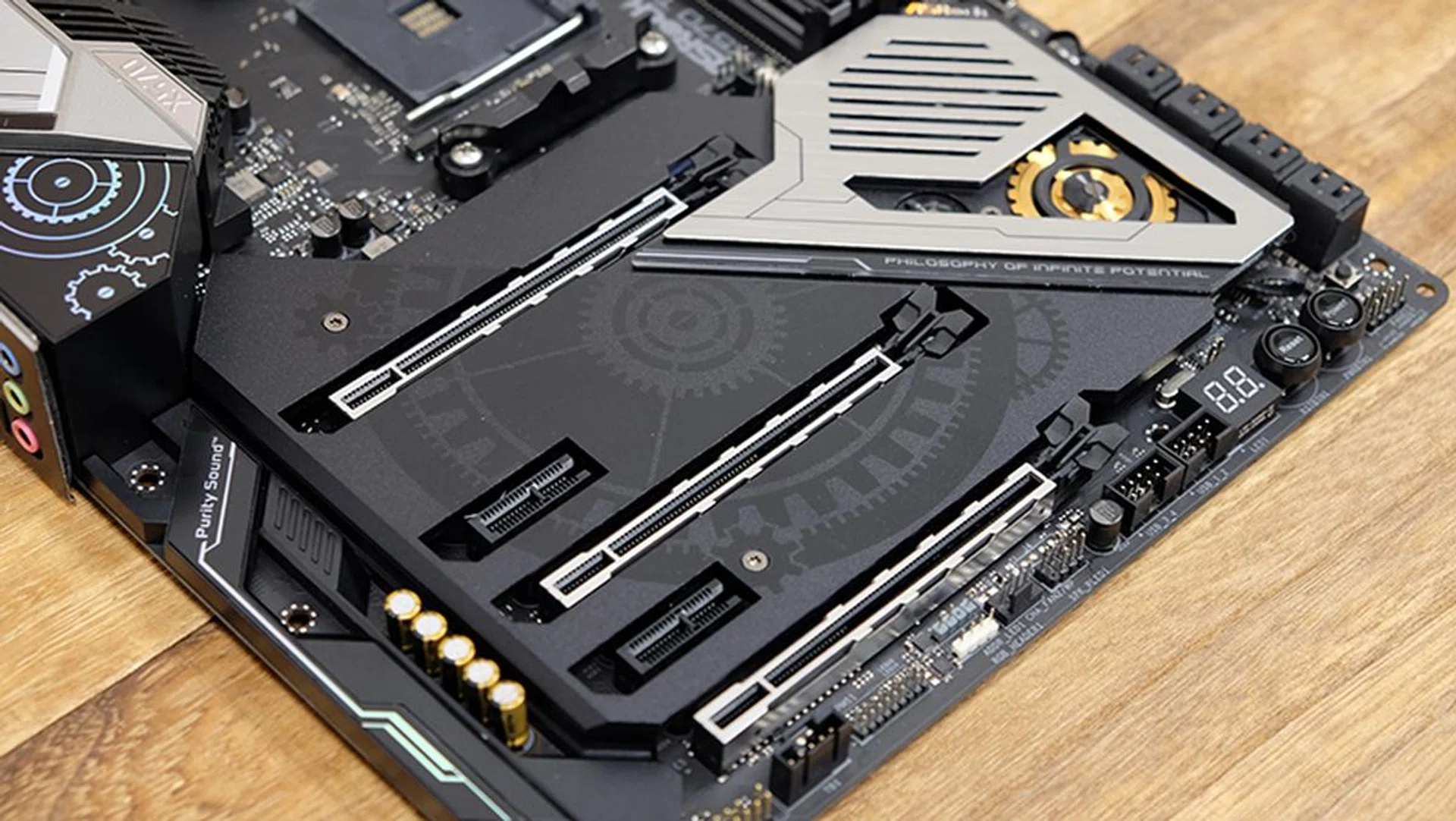
The three M.2 sockets are hidden beneath the shroud.
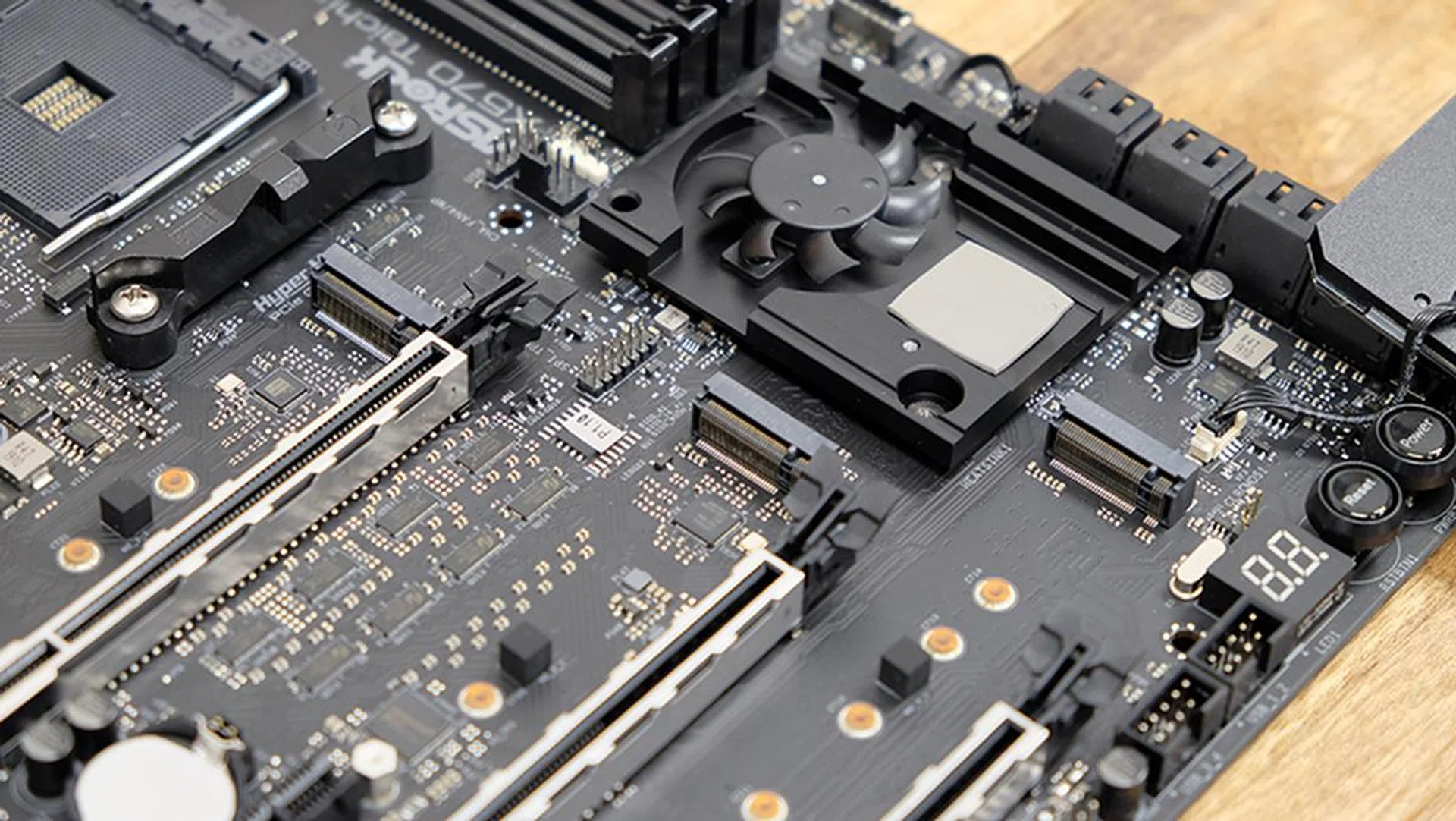
You can see here the three M.2 sockets and the chipset fan.
The third M.2 socket also shares PCIe lanes with the third PCIe slot, so you can't use both of them at the same time. Elsewhere, the X570 Taichi features eight SATA 6Gbps ports, which should be more than enough for most people.

The Taichi has a total of eight SATA 6Gbps ports.
Another new addition is the upgraded Wi-Fi module. The Taichi now has Intel's Wi-Fi 6 AX200 adapter, which supports speeds up to 2.4Gbps. That's paired with a Gigabit Ethernet port on the rear, powered by an Intel I211-AT controller.
Compared to the X470 Taichi, the I/O panel now has an integrated I/O shield to make the installation process slightly simpler. ASRock threw in a BIOS update button as well, and there's also a dedicated Clear CMOS button. Other than that, however, not much has changed in terms of the rear connector offerings, and you're still getting one USB 3.2 (Gen 2) Type-A, one USB 3.1 (Gen 2) Type-C, and six USB 3.2 (Gen 1) Type-A ports. I'd have liked the Clear CMOS button to be more easily accessible though, but unless you're often fiddling with the CMOS and BIOS updates, you might prefer it in its current form to avoid pressing it inadvertently.
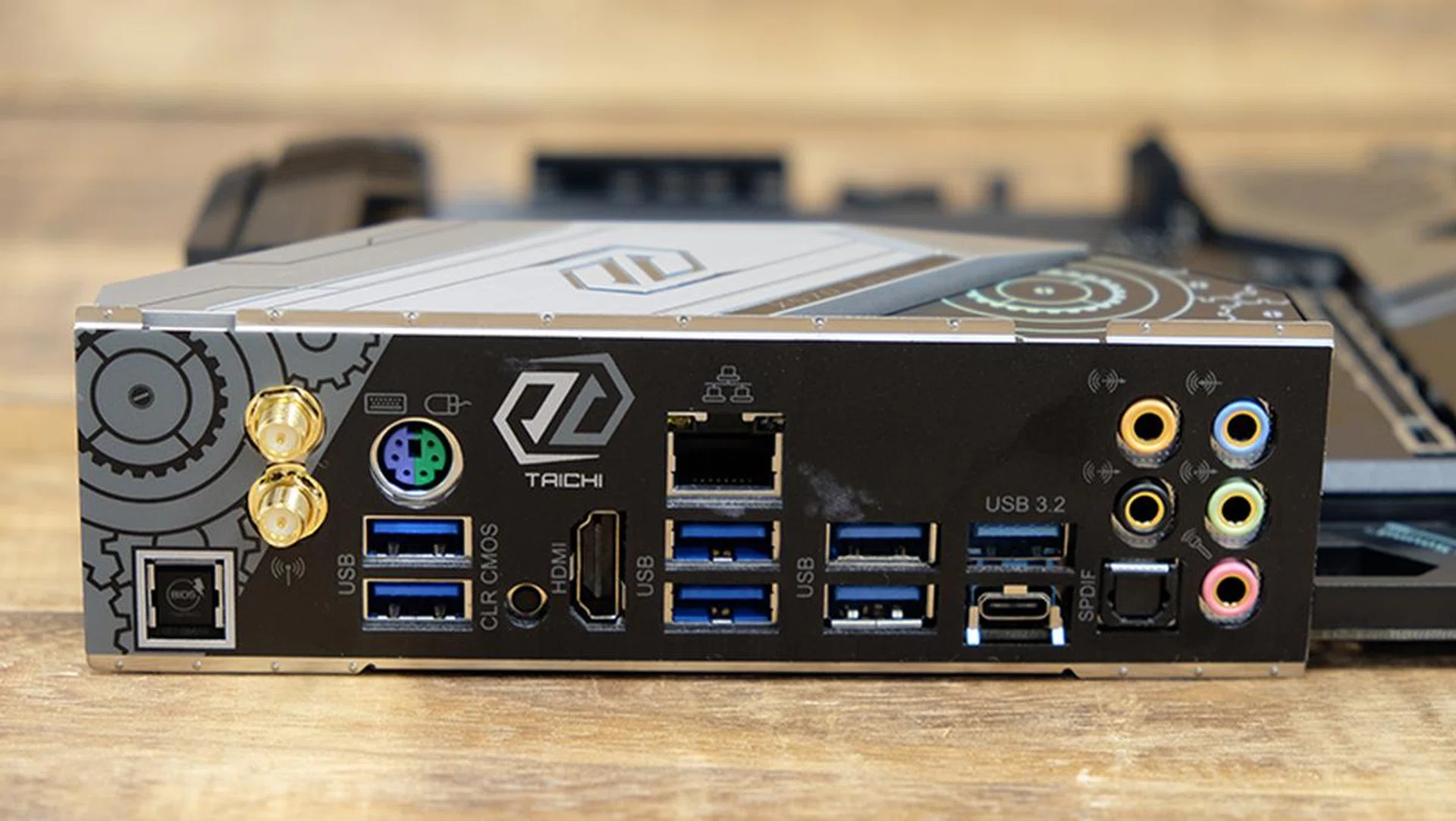
The Taichi could do with more USB 3.2 (Gen 2) ports.
All things considered, that's a little disappointing since the AMD X570 chipset and Ryzen 3000 processors both support up to four USB 3.2 (Gen 2) ports. But like Intel, AMD is implementing a flexible I/O configuration on X570, so board makers have some freedom to choose what they want to include. That said, it looks like ASRock wants to keep costs down instead of going all out with the high-speed USB ports.
In terms of front-panel headers, the X570 Taichi will output to a USB 3.2 (Gen 2) Type-C connector, in addition to two USB 3.2 (Gen 1) ports and four USB 2.0 ports. However, one thing to note is that the USB-C header is located directly in line with the top PCIe 4.0 x16 slot, which means it actually interferes with the installation of the GPU if it is in use. This is not a problem if you don't need the USB-C header, but seeing as many modern cases feature a USB-C port on the front, this might actually be an issue.

Note the front panel USB-C header on the far right, near the first PEG slot and the DIMM slots. That's going to get in the way of most high-end GPUs.
Finally, the motherboard features three PCIe 4.0 x16 and two PCIe 4.0 x1 slots, with support for NVIDIA SLI or 3-way CrossFireX. As is pretty much the norm now, they're also all reinforced by steel and ASRock says they have extra anchor points to maintain signal stability and hold up the larger and heavier graphics cards.
How many fan and RGB headers are there?
The Taichi doesn't have the richest offering when it comes to fan headers, but you still get four 4-pin fan connectors for chassis fans and separate headers for the CPU and water pump fans. With the exception of the 1A CPU fan header, all the other headers fans can handle up to 2A, which is pretty decent.
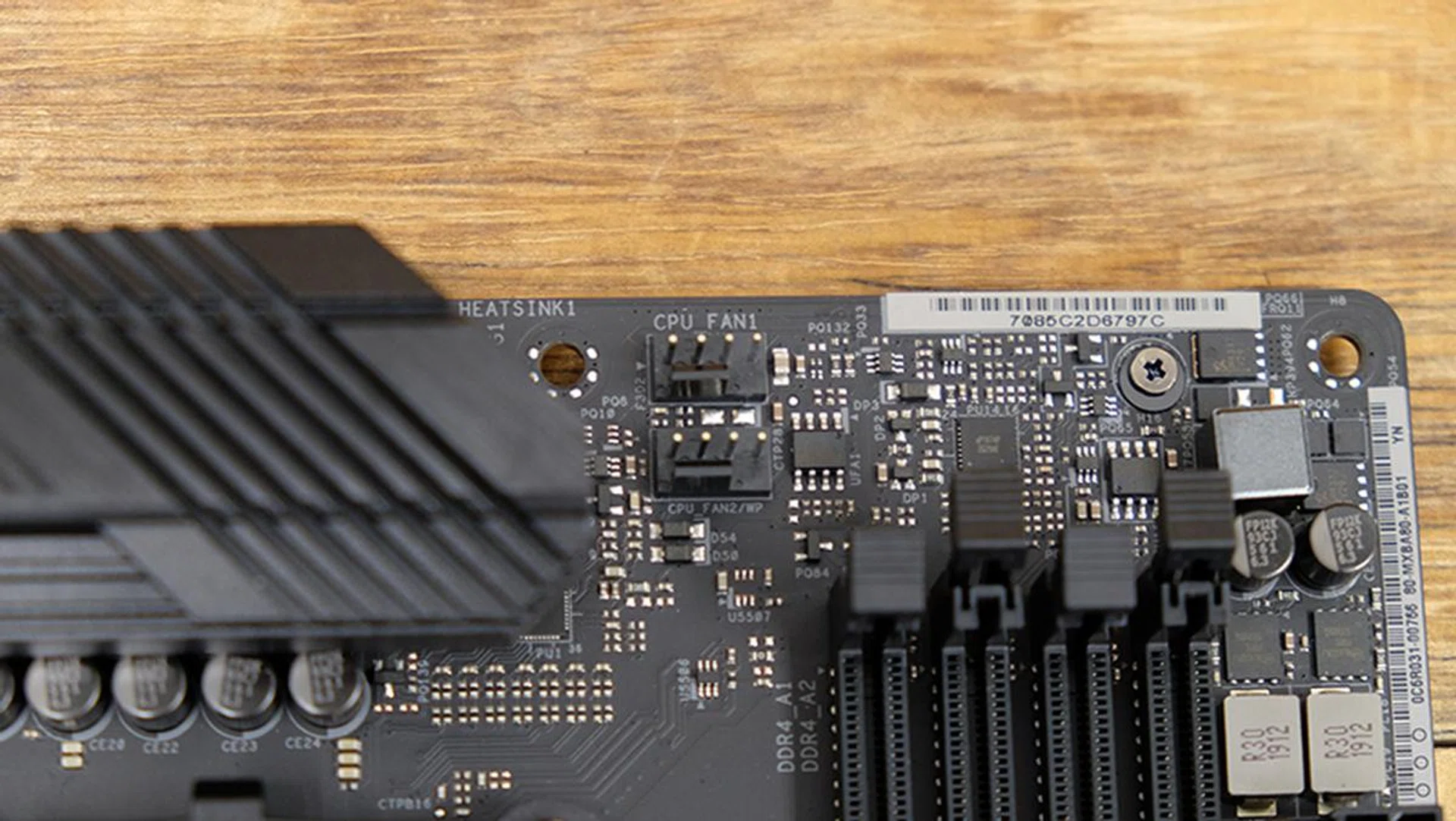
The CPU fan and water pump headers are located one atop the other.
The board also has three separate LED headers, with distinct labels such as the AMD fan LED header, RGB LED header, and addressable LED header. The AMD fan header is meant for the RGB LED cable that comes with AMD's Wraith Prism cooler, but it'll take any LED strip with a maximum load of up to 3A and length of 2.5m.
At the bottom right, you'll find the power and reset buttons and debug LED, in addition to another Clear CMOS button, the system panel header, front panel USB 2.0 connectors, and RGB LED headers.

What about the VRM design?
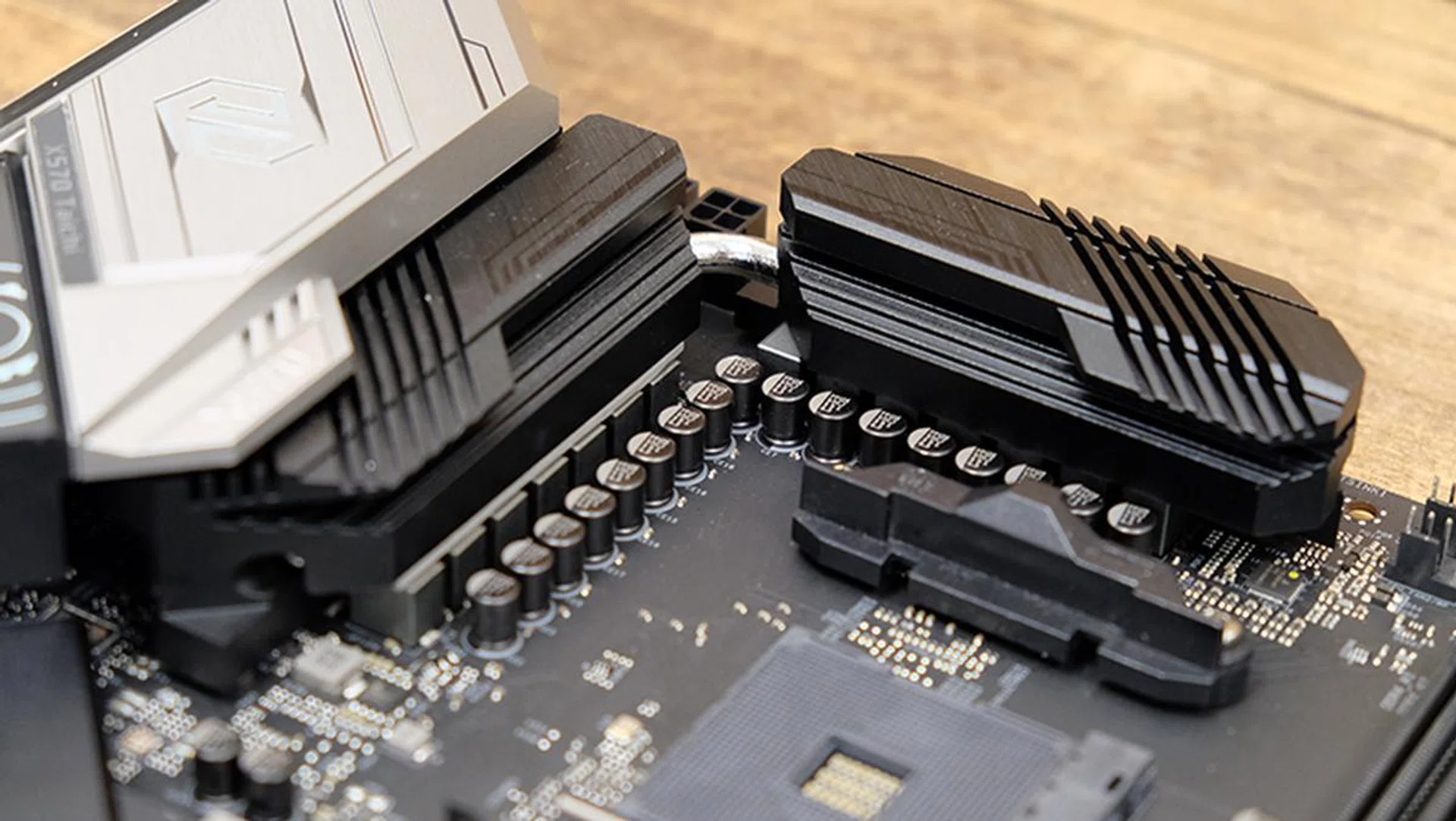
ASRock has gone with a 12+2-phase VRM design.
The VRM uses a 12+2-phase configuration, but it uses Intersil ISL6617A doublers to get up to 14 phases for both the CPU and SoC. It only has 6+1 true phases, but ASRock has installed 14 50A MOSFETs, 60A chokes, and Nichicon 12K capacitors, so that's some quality stuff right there. That's topped off by an extra-large aluminum alloy heatsink that soaks up heat from the MOSFETs and chipset.
Is the BIOS interface intuitive?
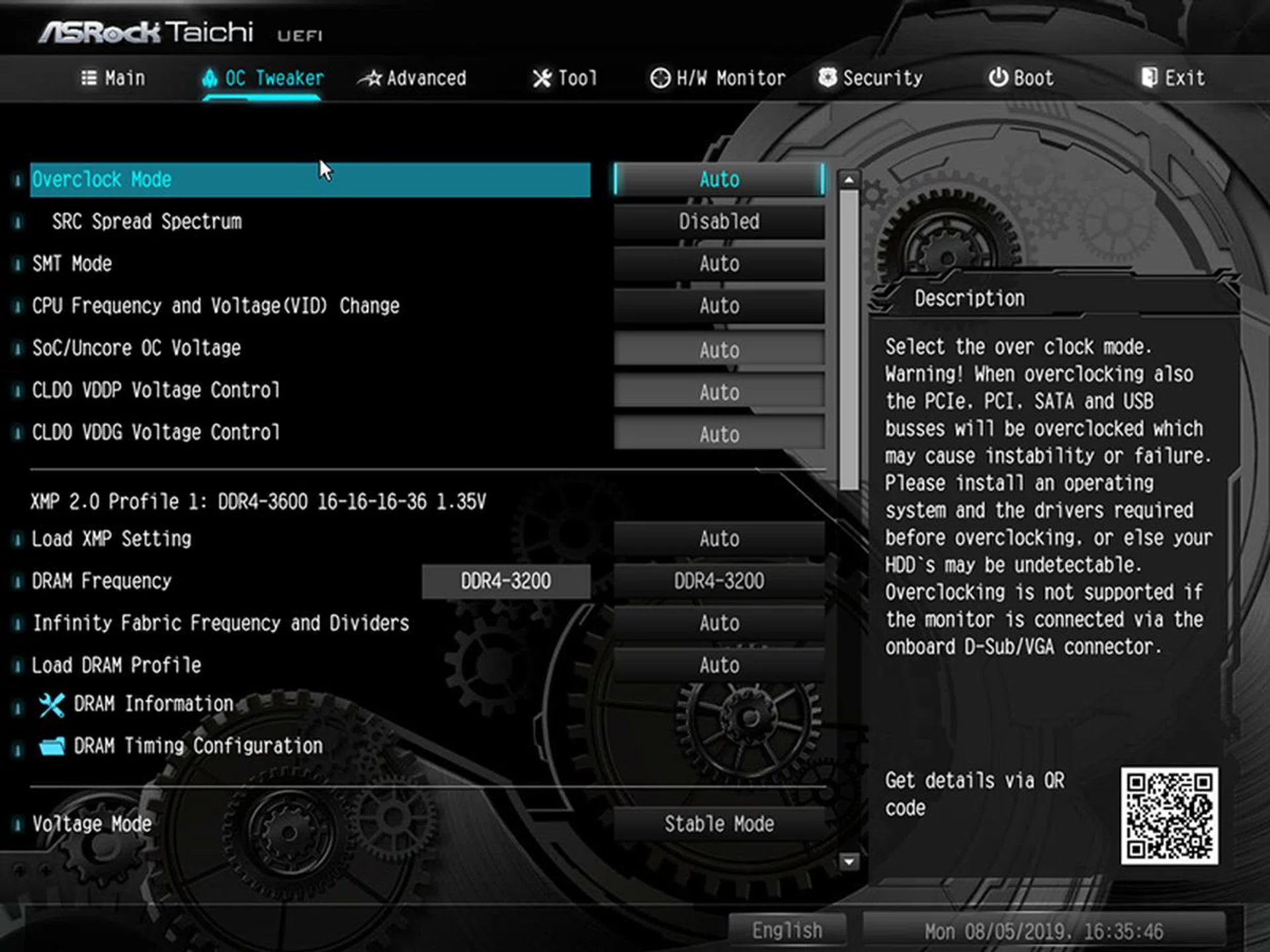
The Taichi's BIOS is reasonably easy to navigate, with clear headers that show you where to find the setting you're looking for. At the time of writing, ASRock is also one of the first to have ready a BIOS update that fixes the issues Ryzen 3000 has with running Destiny 2.
However, I ran into some issues loading the XMP profile for my G.Skill Trident Z Royal memory that would have ramped it up to 3,600MHz. The system just refused to boot afterward, and I could only get around it after clearing CMOS and setting the speed to a more modest 3,200MHz instead.
The H/W Monitor section also contains the settings for adjusting the chipset fan, and you can quite easily set a custom fan curve of sorts or pick from one of the other presets, including Silent, Standard, or Performance.

ASUS ROG Crosshair VIII Formula
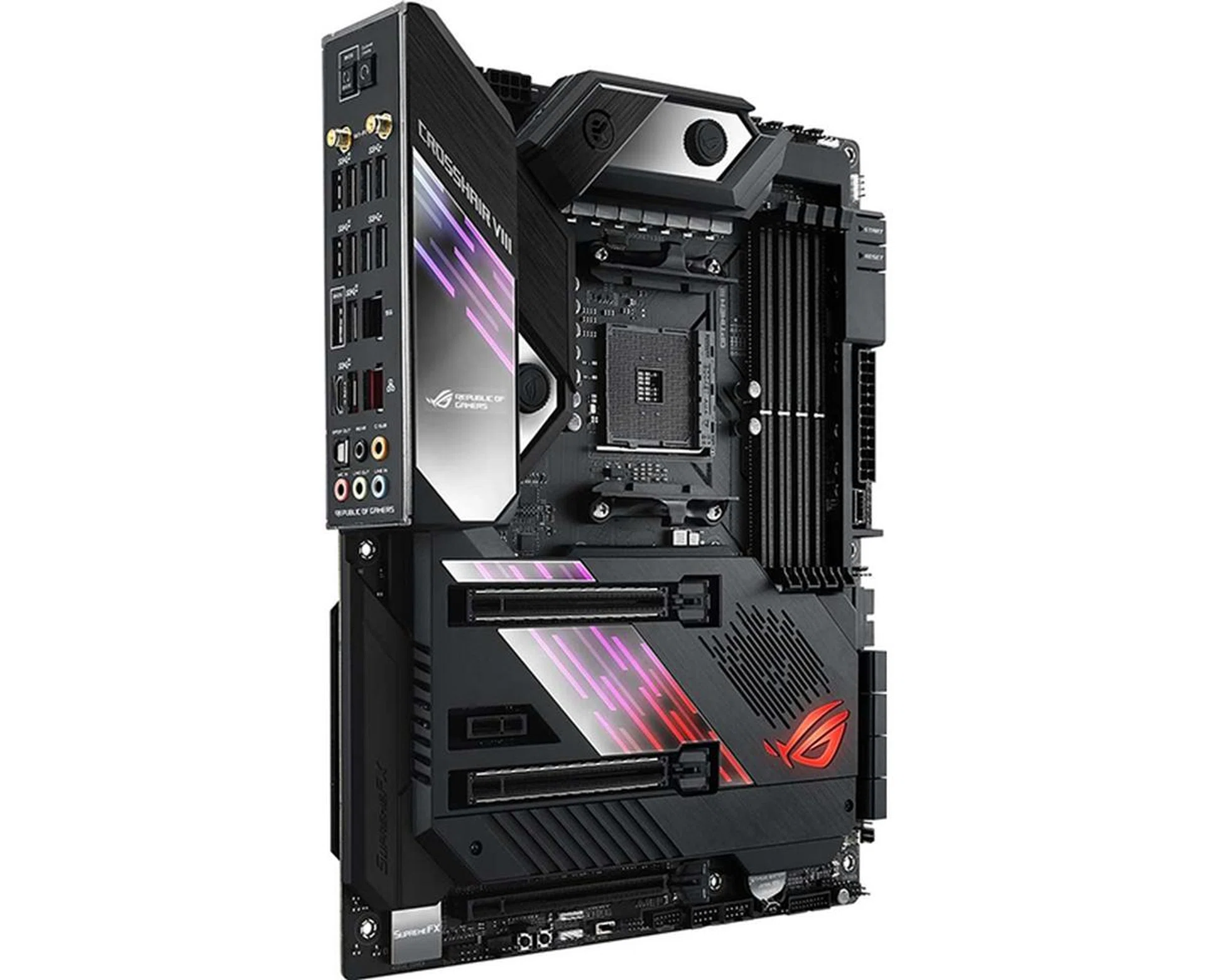
ASUS ROG Crosshair VIII Formula. (Image Source: ASUS)
The ASUS ROG Crosshair VIII Formula is ASUS' flagship X570 motherboard and its highest-end AM4 board to date. There isn't even a Crosshair VII Formula board to draw comparisons with and the highest-end X470 board from ASUS is probably the ROG Crosshair VII Hero (Wi-Fi). At S$862, the Formula is competing with the best of the best, and it features a ton of features geared toward the most serious enthusiasts, with the ability to integrate a custom liquid cooling loop into the VRM heatsink and even an LN2 Mode switch.
Having said that, I should point out that there are a lot of similarities with the Crosshair VIII Hero (Wi-Fi), which is only slightly cheaper at S$722. Why would you get this board over the latter? That's a question I'm still trying to answer, and I believe it comes down mostly to aesthetics, liquid cooling support, and that fancy LiveDash OLED display.

When powered off, the board's dynamic displays take on a striking mirror-like look.
The Formula boasts a full-coverage shroud over most of the PCB, and even the power and reset buttons have a shroud built over them for a cleaner and more elegant look.
The 1.3-inch LiveDash OLED display sits on the I/O cover and can show you useful information such as the power status and error codes for the CPU, memory, or graphics hardware. It's useful for some quick troubleshooting, but you can also upload your custom logos or animations and have them displayed on your motherboard.
Compared to the Hero (Wi-Fi), the Formula also adds a solid steel backplate in a stealthy black that helps reinforce the PCB to prevent bending.
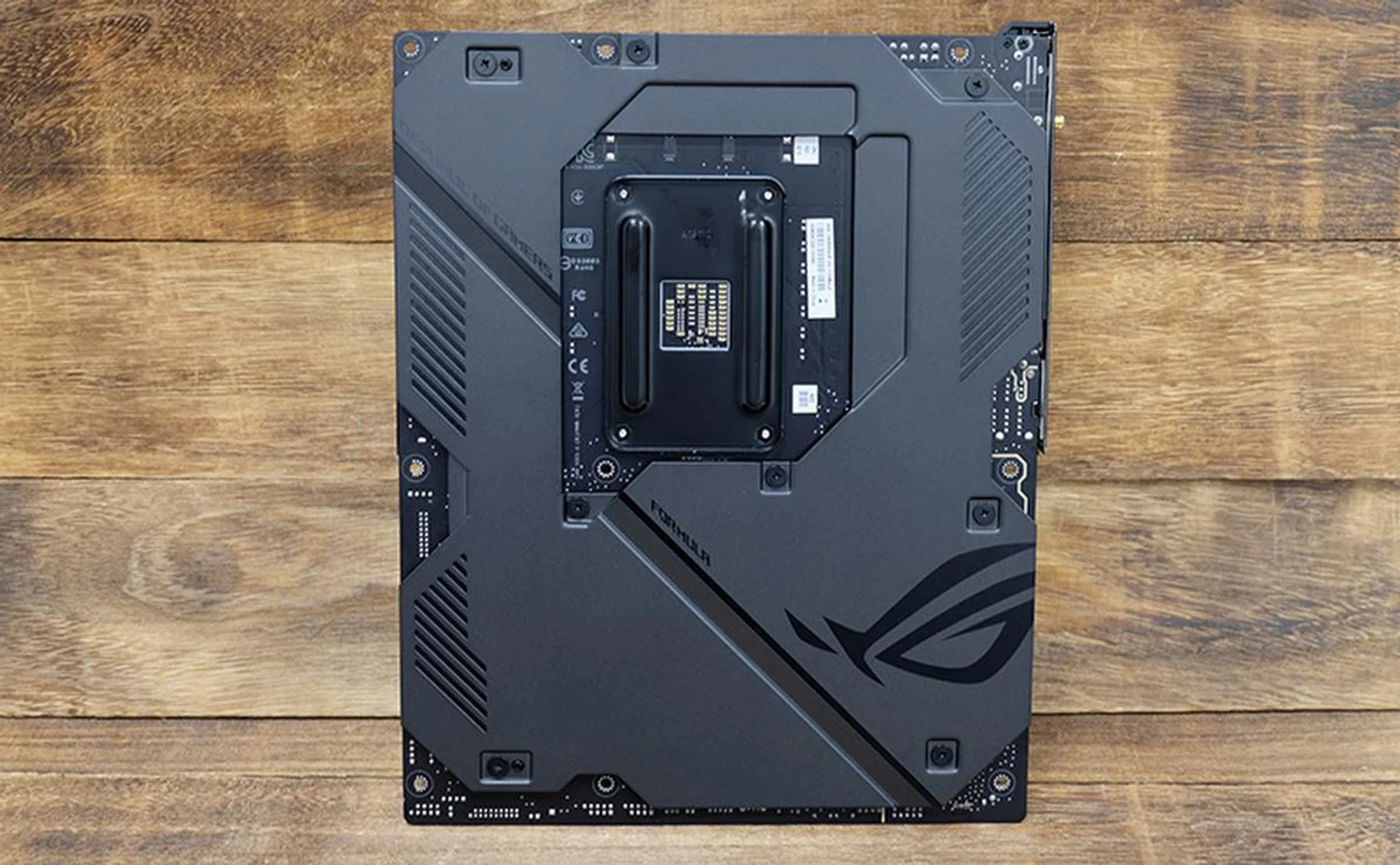
Here's a look at the metal backplate.
What are its expansion and connectivity options like?
In terms of expansion slots, it has three PCIe 4.0 x16 and a single PCIe 4.0 x1 slot. Only the first two x16 slots come directly from the CPU though, and the third runs in x4 mode and draws on lanes from the X570 chipset. Like most other boards today, the x16 slots are also reinforced with metal. However, while some of the other boards have this for all the slots, and even the DIMM slots, the Formula has only reinforced the top two slots.
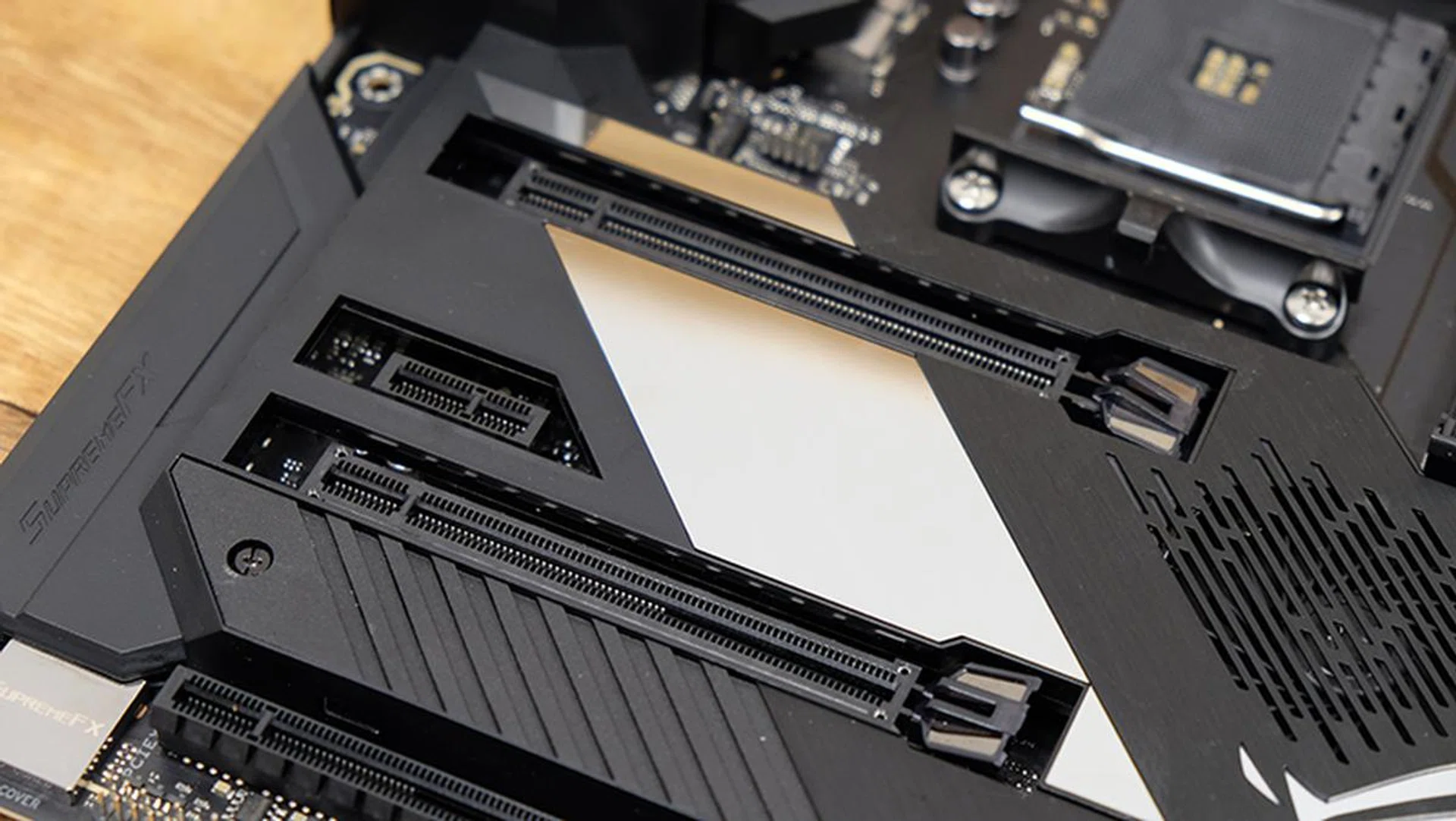
Only the top two PCIe x16 slots are reinforced with metal.
ASUS hasn't bothered to provide any display outputs on the rear I/O, because let's face it, if you're buying the Formula, you're not going to be pairing it with an APU onto it. Instead, the I/O panel is bristling with USB ports, including one USB 3.2 (Gen 2) Type-C, seven USB 3.2 (Gen 2) Type-A, and four USB 3.2 (Gen 1) Type-A ports. You'll also find two RJ-45 jacks, one powered by an Intel I211-AT Gigabit LAN controller and the other by the Aquantia AQC111 5G LAN. Wi-Fi is provided by an Intel Wi-Fi 6 AX200 module, which supports a maximum throughput of up to 2.4Gbps and the latest Wi-Fi 6 standard.
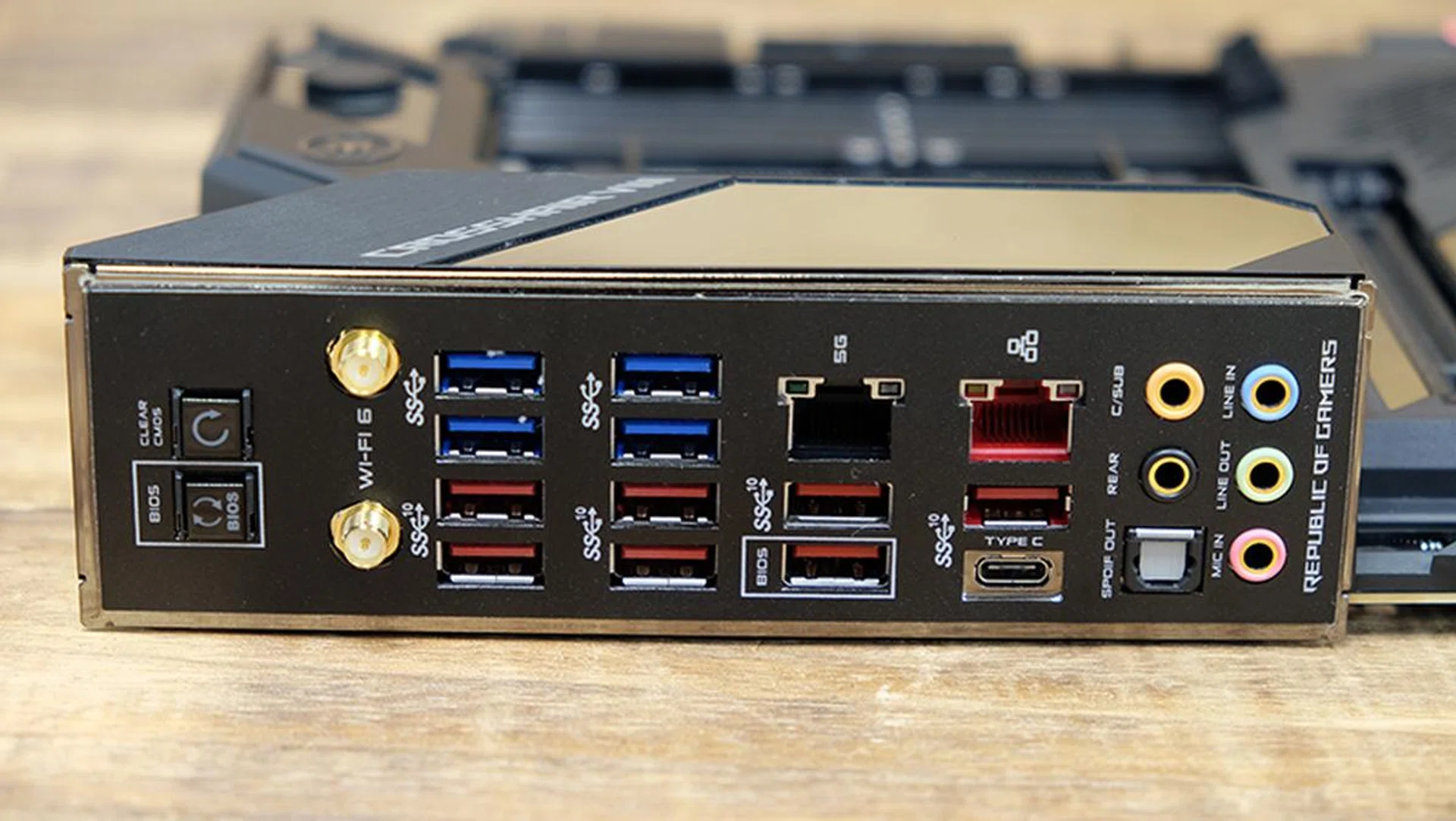
The board has a whopping seven USB 3.2 (Gen 2) (red) and a 5G Ethernet jack.
For convenience, there's also a Clear CMOS button here, in addition to a USB Flashback button. The latter is particularly useful for AMD boards, since the company has consistently made backward compatibility a priority with Ryzen.
In terms of front panel connectors, the Formula will output to one USB 3.2 (Gen 2) Type-C, four USB 3.2 (Gen 1) Type-A, and four more USB 2.0 ports. The board features an integrated I/O shield as well to help simplify the installation process.
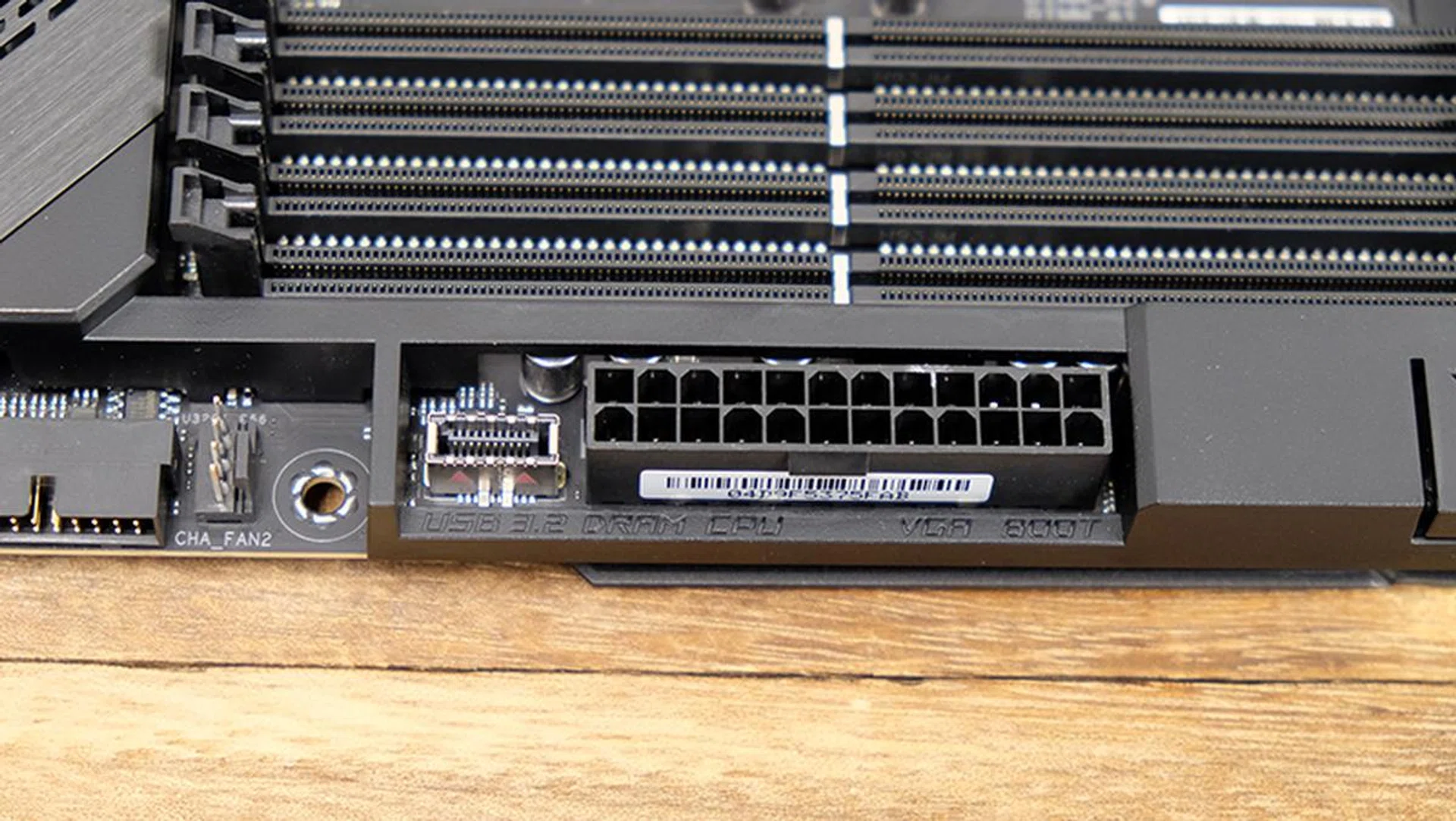
The USB-C front panel header sits beside the 24-pin ATX connector.
Storage options are pretty good too, comprising two M.2 sockets, both of which support PCIe 4.0 and SATA drives. They are paired with eight SATA 6Gbps ports, which together with the second M.2 socket, draw lanes from the X570 chipset. Like the other boards here though, the M.2 sockets are hidden beneath the shroud, so you'll have to remove some screws to get at them.
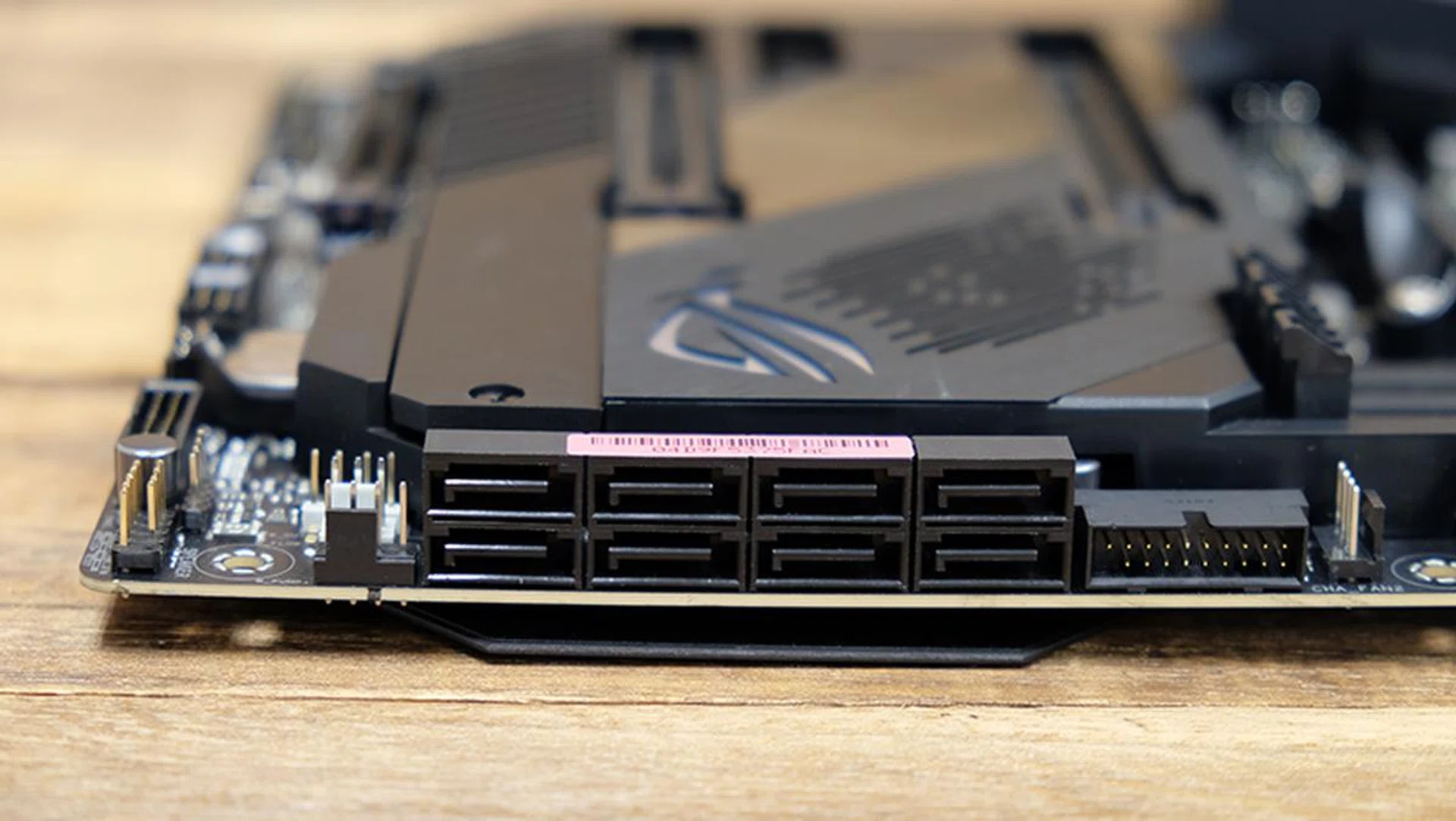
The board comes with eight SATA 6Gbps ports.
Are your drives going to suffocate under there? At the very least, ASUS has included aluminum heatsinks to go with them, so there's some form of heat dissipation available.
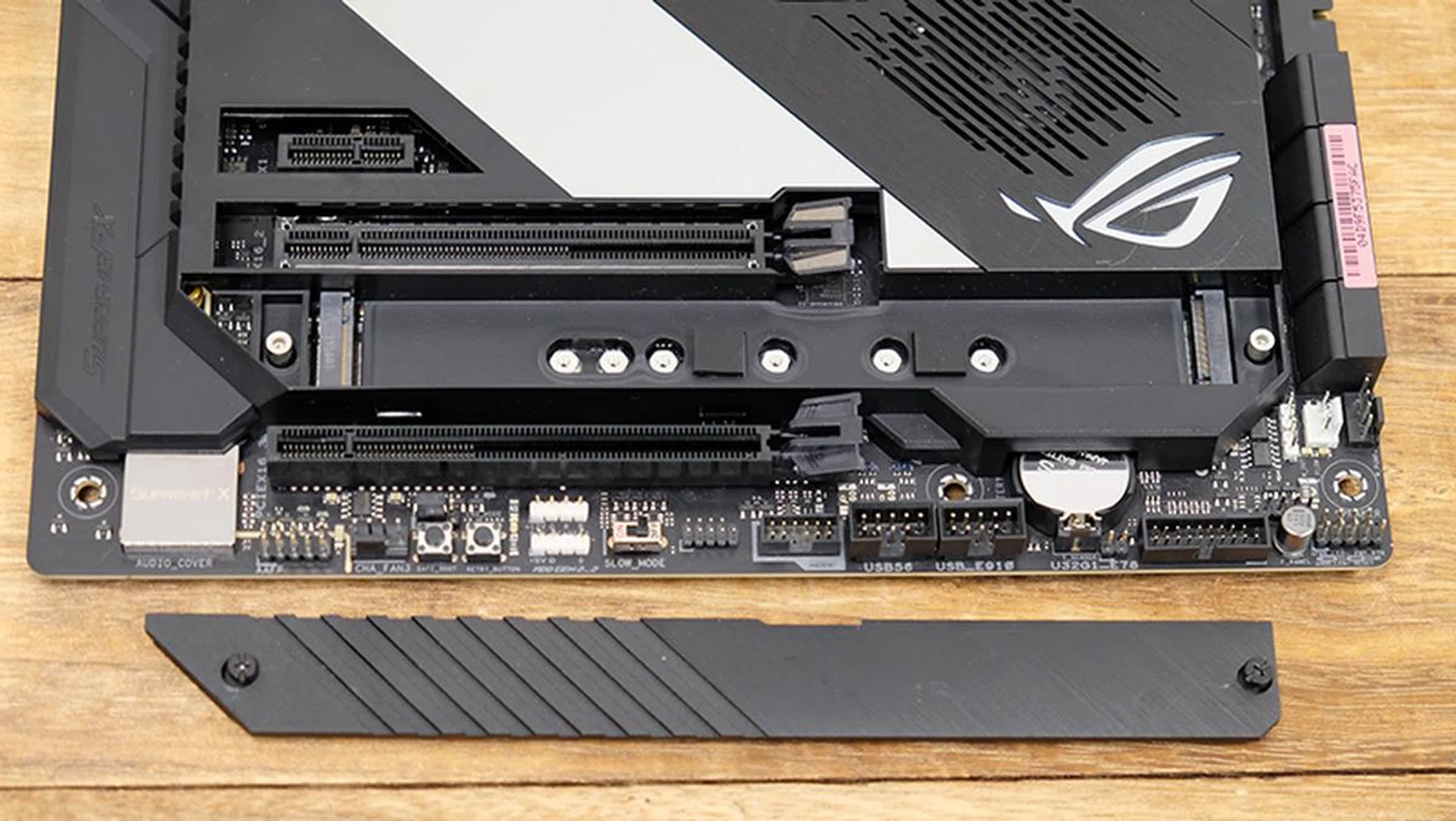
The aluminum heatsink pops off to reveal the two M.2 sockets.
How many fan and RGB headers are there?
ASUS pretty much has a dedicated fan header for everything, including clearly labeled CPU and CPU OPT connectors, three chassis fan headers, one AIO pump, one H_AMP, and one water pump connector. Each of these will take up to 1A fans, although the H_AMP and water pump headers will work with up to 3A fans.
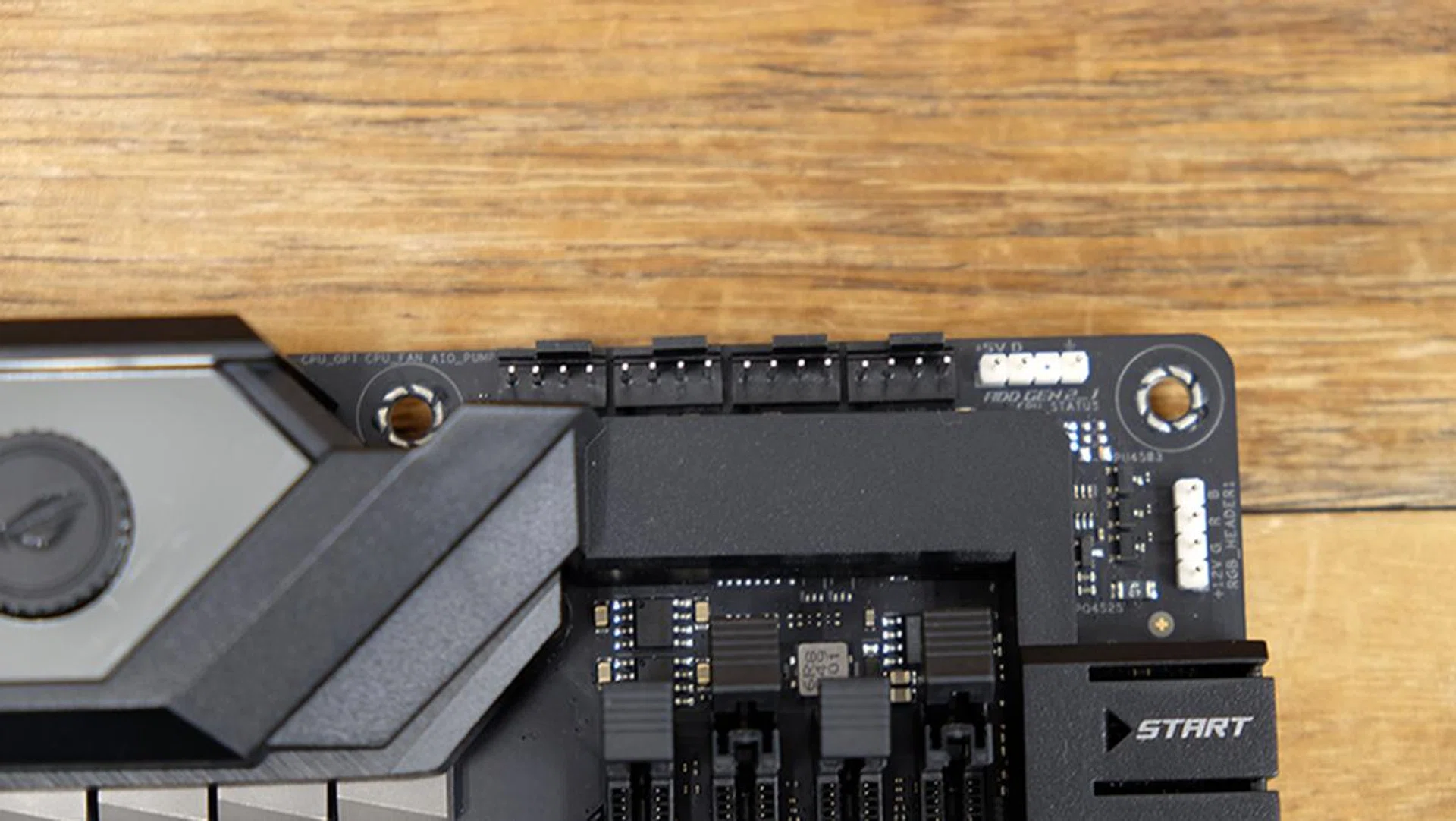
The CPU_OPT, CPU_FAN, AIO_PUMP, and H_AMP headers are located in a row at the top right of the board. On their right sits one addressable and one regular RGB LED header.
When it comes to cooling, the biggest feature of the Formula board is EK's CrossChill EK III hybrid cooler, which covers the VRM with a combined water block and heat sink. You can either connect it to a custom liquid cooling loop or use it as-is with an air cooling solution. According to ASUS, the new design also offers wider copper channels than before and a large copper surface area for heat transfer.
If the board's built in RGB lighting isn't enough for you, you can hook up LED strips to the two Aura RGB and two addressable headers.
To cater to extreme overclockers, the Formula also comes with Safe Boot and ReTry buttons and a Slow Mode switch. They all do slightly different things, but one thing they have in common is that they help you get around boot failures.
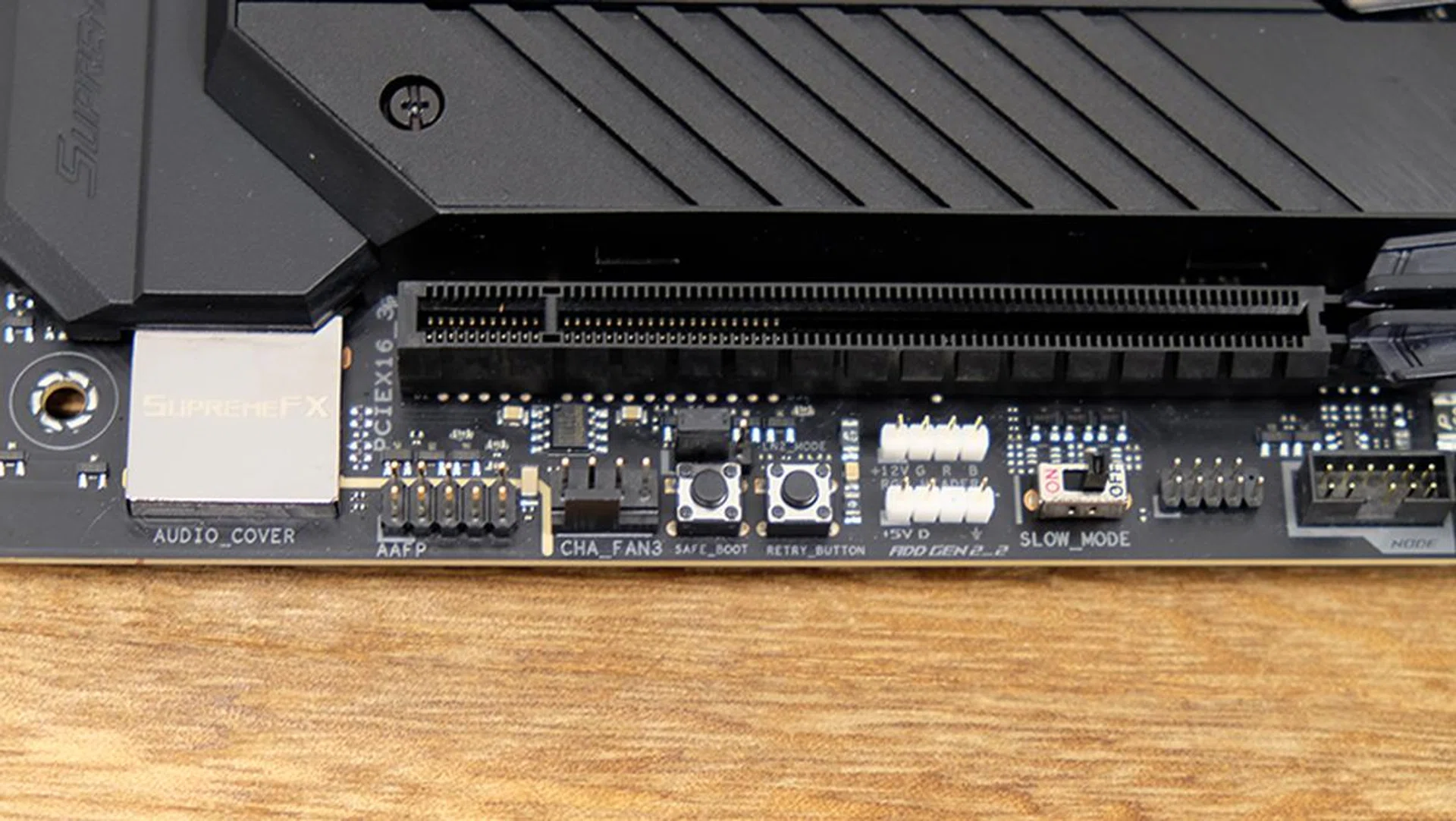
The Safe Boot, ReTry, and Slow Mode buttons/switches are located along the bottom edge, alongside one addressable LED and regular RGB LED header.
What about the VRM design?
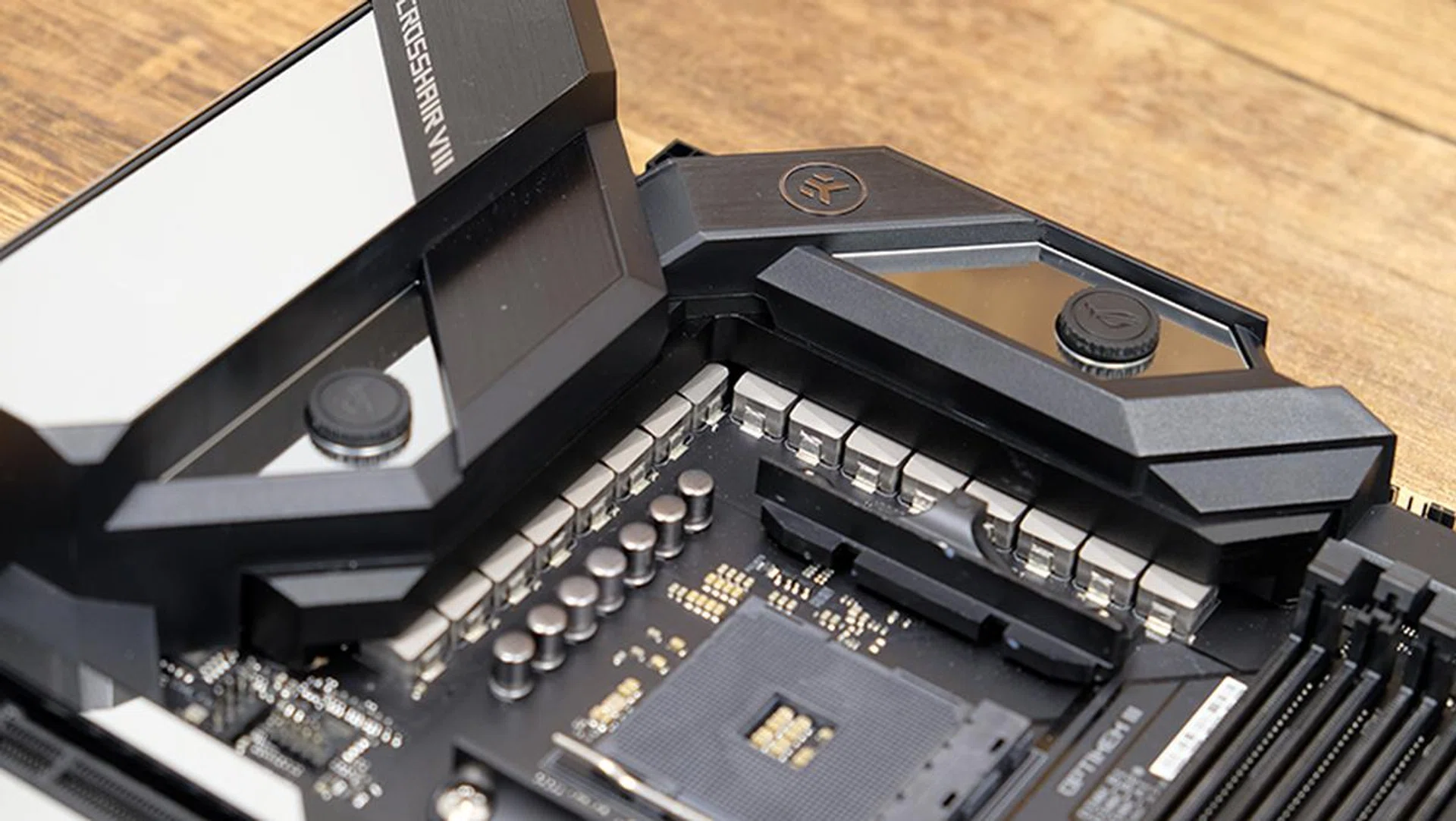
You can count here the 16 chokes used in the VRM.
The VRM uses a 14+2-phase design with 8 true phases. It comprises of 16 Infineon PowlRstage IR3555 MOSFETs, each rated to handle up to 60A. Each MOSFET is accompanied by a high-permeability alloy-core choke rated for 45A, and paired with solid-polymer capacitors that generally last longer than their electrolytic counterparts.
ASUS hasn't used any phase doublers here, but there are still only 8 true phases because of its use of a parallel rail design.
Is the BIOS interface intuitive?
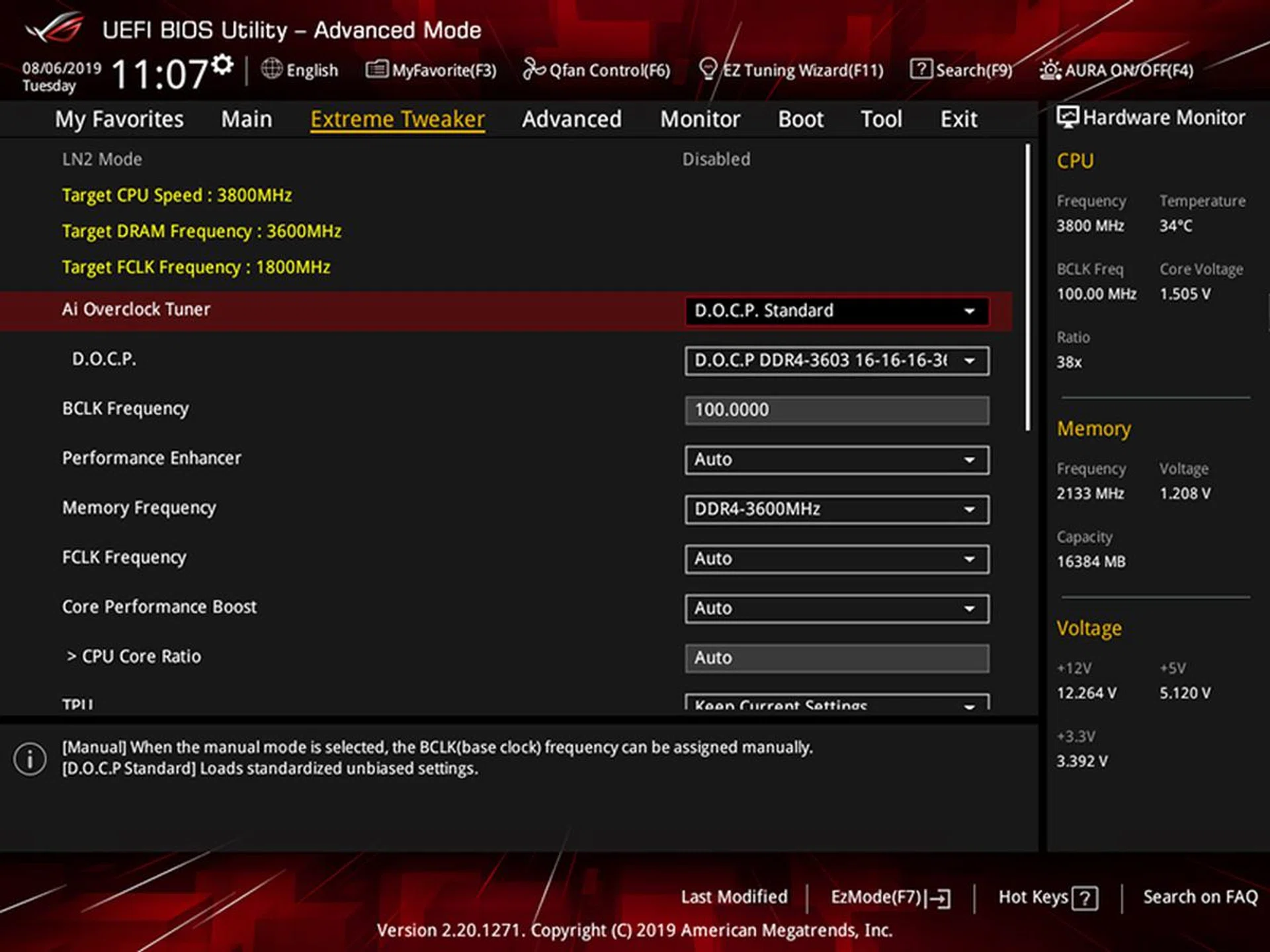
The D.O.C.P Standard profile is what ASUS calls XMP on AMD motherboards.
ASUS generally has one of my favorite BIOS interfaces, and the Formula isn't much different. The layout doesn't feel too cramped and is easy on the eyes, and all the options are clearly labelled and where you might expect to find them.
However, you might get a little confused if you're looking for the XMP option. ASUS refers to this as D.O.C.P, but they really do the same thing.
The options for Precision Boost Overdrive are located under the Advanced tab, in case you want to try to improve the performance of your processor.
Gigabyte X570 Aorus Xtreme
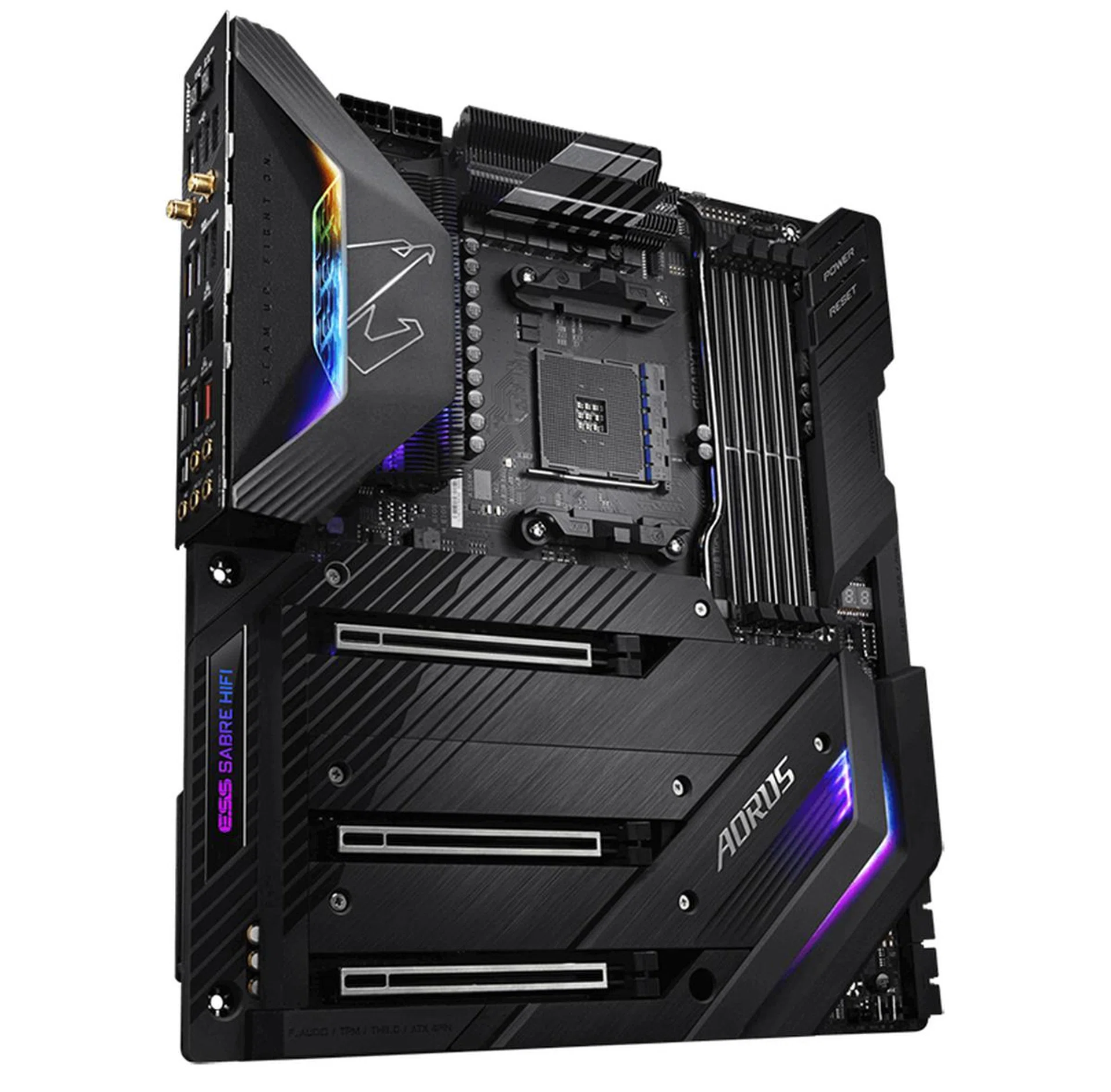
Gigabyte X570 Aorus Xtreme. (Image Source: Gigabyte)
Gigabyte's top X570 motherboard certainly looks the part, with beefy heatsinks, snaking heat pipes, and shielding for the majority of the PCB. However, where the board really stands out is in the overclocking department, and the X570 Aorus Xtreme features a true 16-phase power delivery subsystem to provide smoother and cleaner power to your Ryzen 3000 processor.
But with overclocking comes plenty of heat, which is where Gigabyte's so-called Thermal Reactive Armor comes in. One surprising thing to note is that the X570 chipset is only passively cooled on this board, the lone exception in this shootout where everyone else has a fan built into the chipset heatsink. While it may lack the integrated fan, it tries to make up for that with a multi-layered chipset heatsink that is connected by a heat pipe to the extensive heat sink fin array that cools the VRM. This effectively means that the entire motherboard is now a giant heatsink.
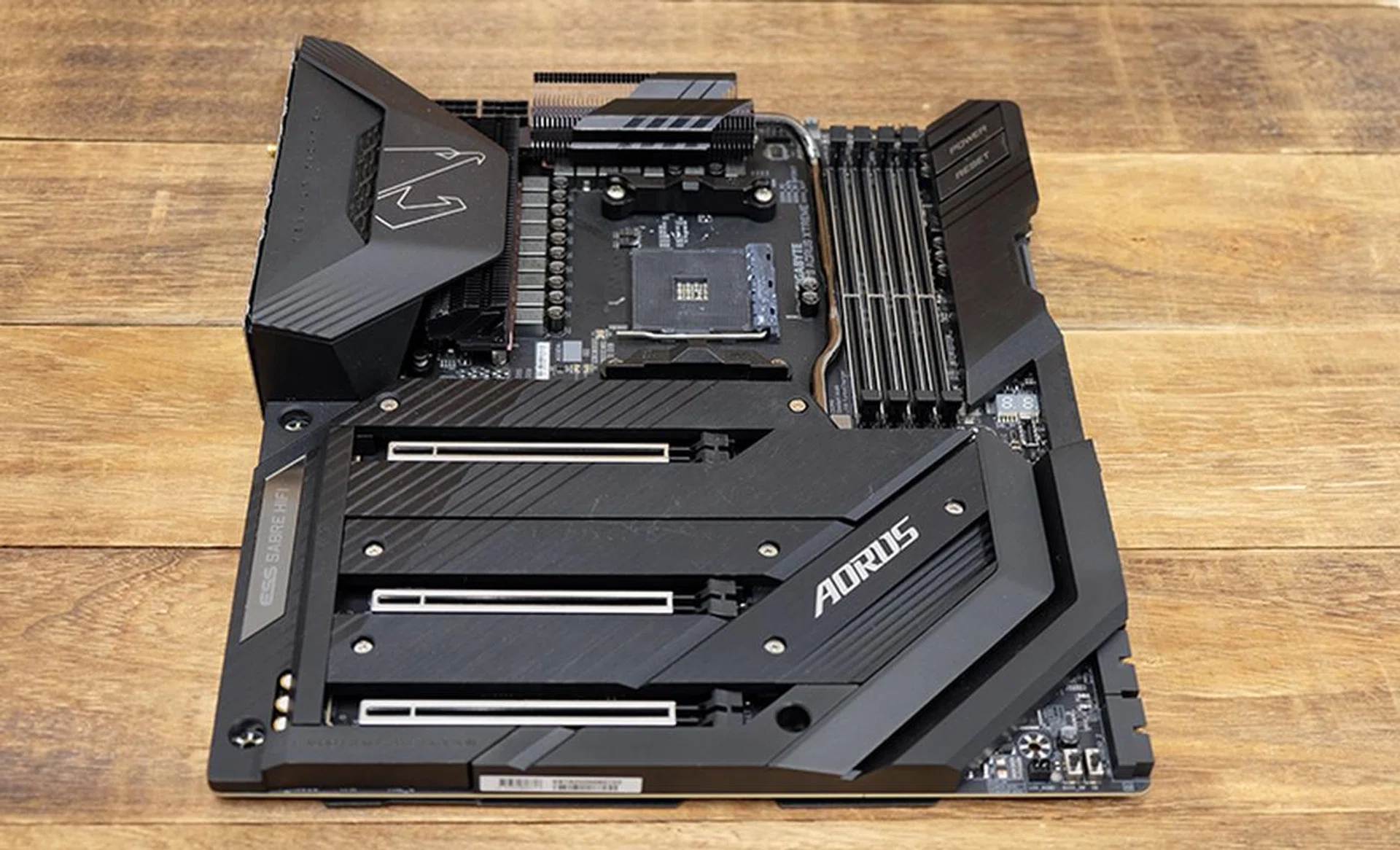
The entire motherboard basically acts as one giant heatsink.
This fin array reportedly increases the surface area available for heat dissipation by 300%, compared to traditional heat sinks of the same size. Heat pipes also come into direct contact with the MOSFETs, which further helps with heat transfer. Elsewhere, Gigabyte employs thicker Laird thermal pads, which boast improved thermal conductivity as well.
The back of the board also features an aluminum base plate that also acts as a heat sink for the rear of the PCB. A thin layer of what Gigabyte refers to as NanoCarbon is further coated on the base plate through electrostatic adhesion to improve thermal radiation. In fact, the company says this can lower the temperatures of PWM components on the motherboard's back by up to 10 per cent.
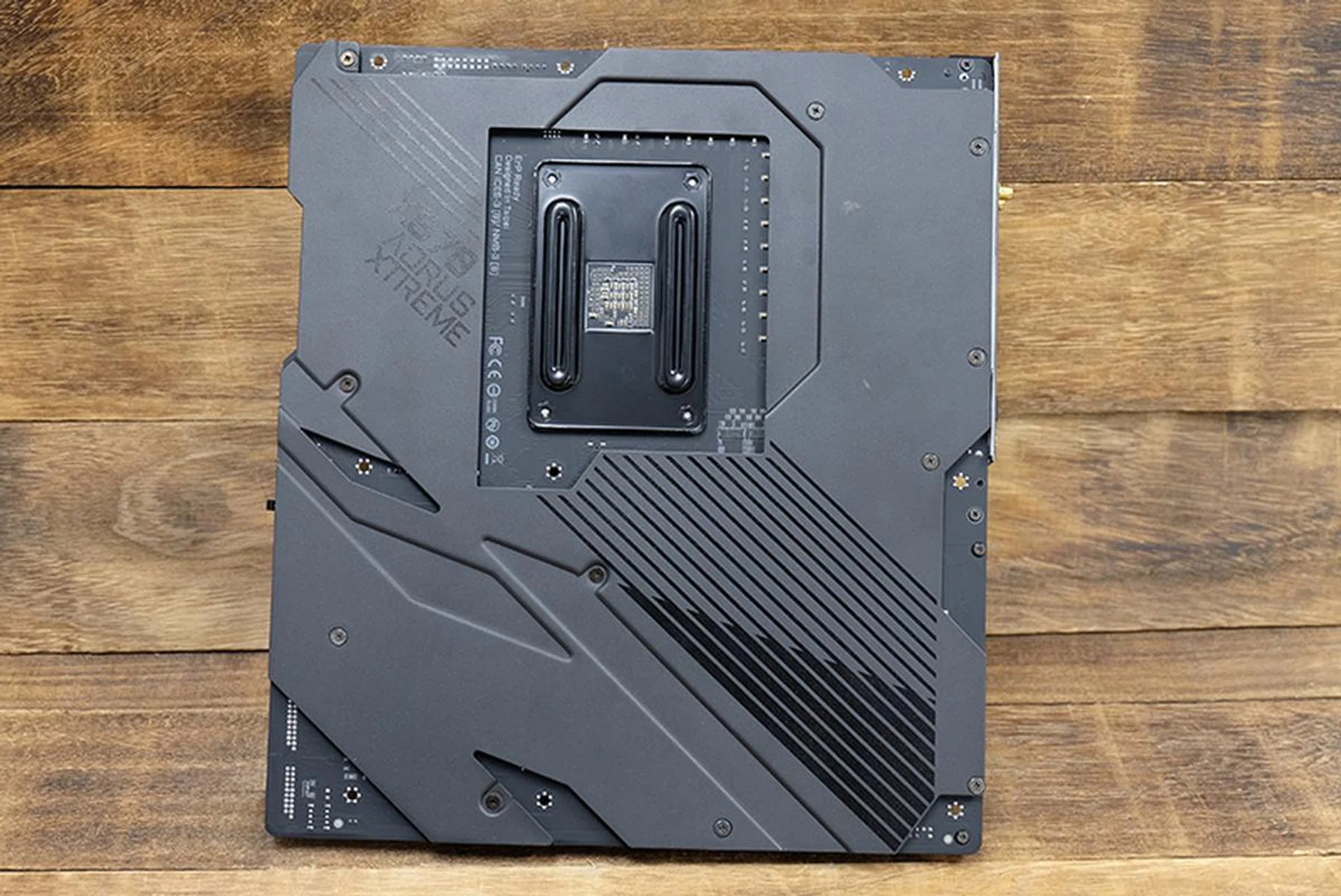
The backplate doubles as a heatsink for the PCB as well.
One of the reasons why Gigabyte chose to omit any integrated fans in the I/O cover or chipset heat sink is noise. As it turns out, the company is so concerned about staying quiet that it's bundling a noise detection cable with the board to help you monitor your overall system noise and adjust fan speeds accordingly. You don't need to worry about privacy though, as the cable doesn't record any sound and only detects sound pressure.
Another point that deserves mention is that Gigabyte clearly put some thought into cable management. All the ports on the right edge are side-mounted, which should make routing and tucking your cables away slightly easier. It also means the board looks a lot cleaner as you don't see the cables sticking straight out of it.
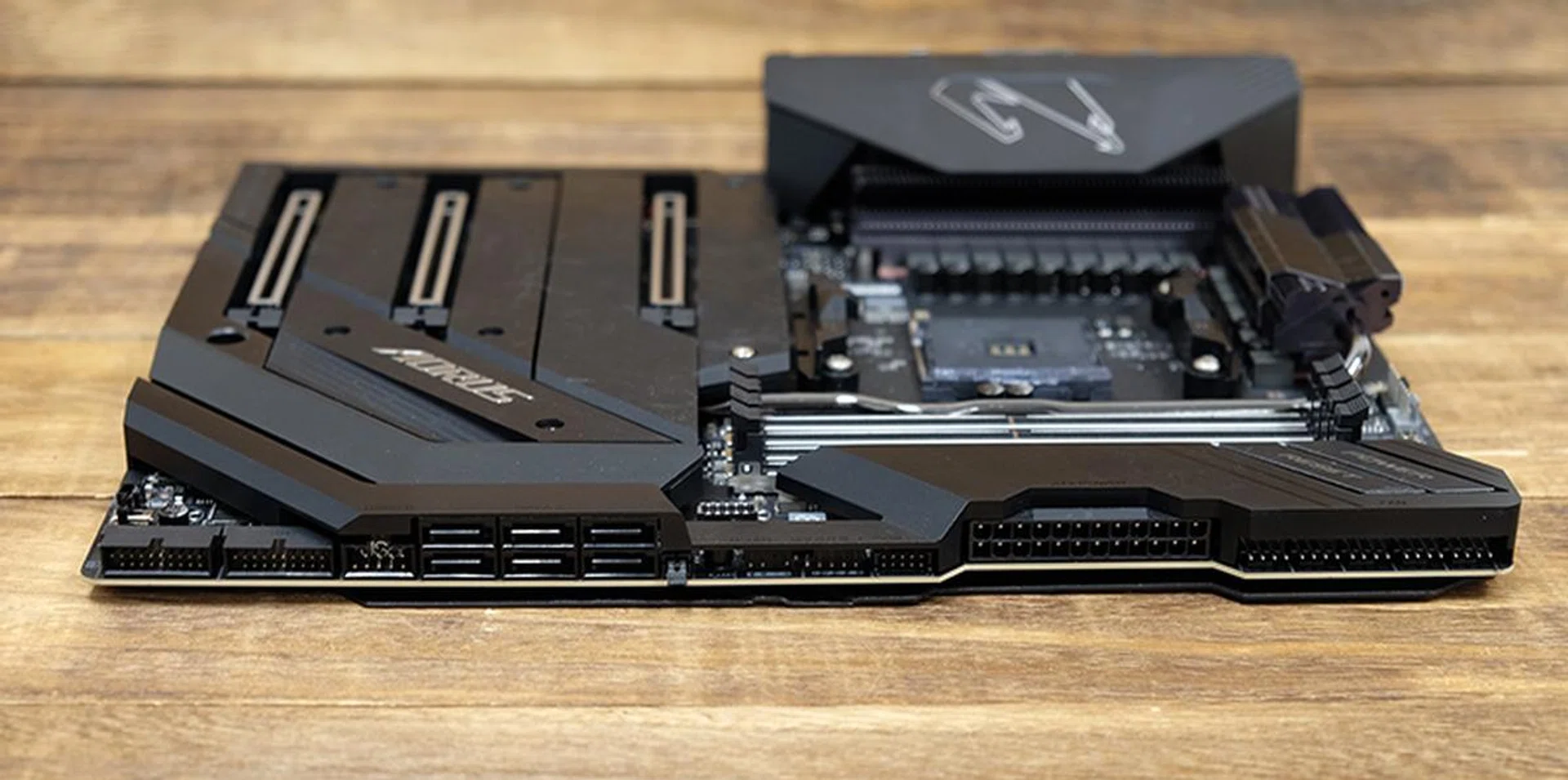
A look at the ports on the right.
However, it's missing a dynamic OLED display that the ASUS and MSI motherboards have. I don't find this to be a super significant omission, and Gigabyte has instead focused on areas where there are more substantive gains, but it's something to take note of if you were hoping to customize the onboard display. That said, you do get a regular 2-digit debug display, so Gigabyte still has the troubleshooting essentials covered.
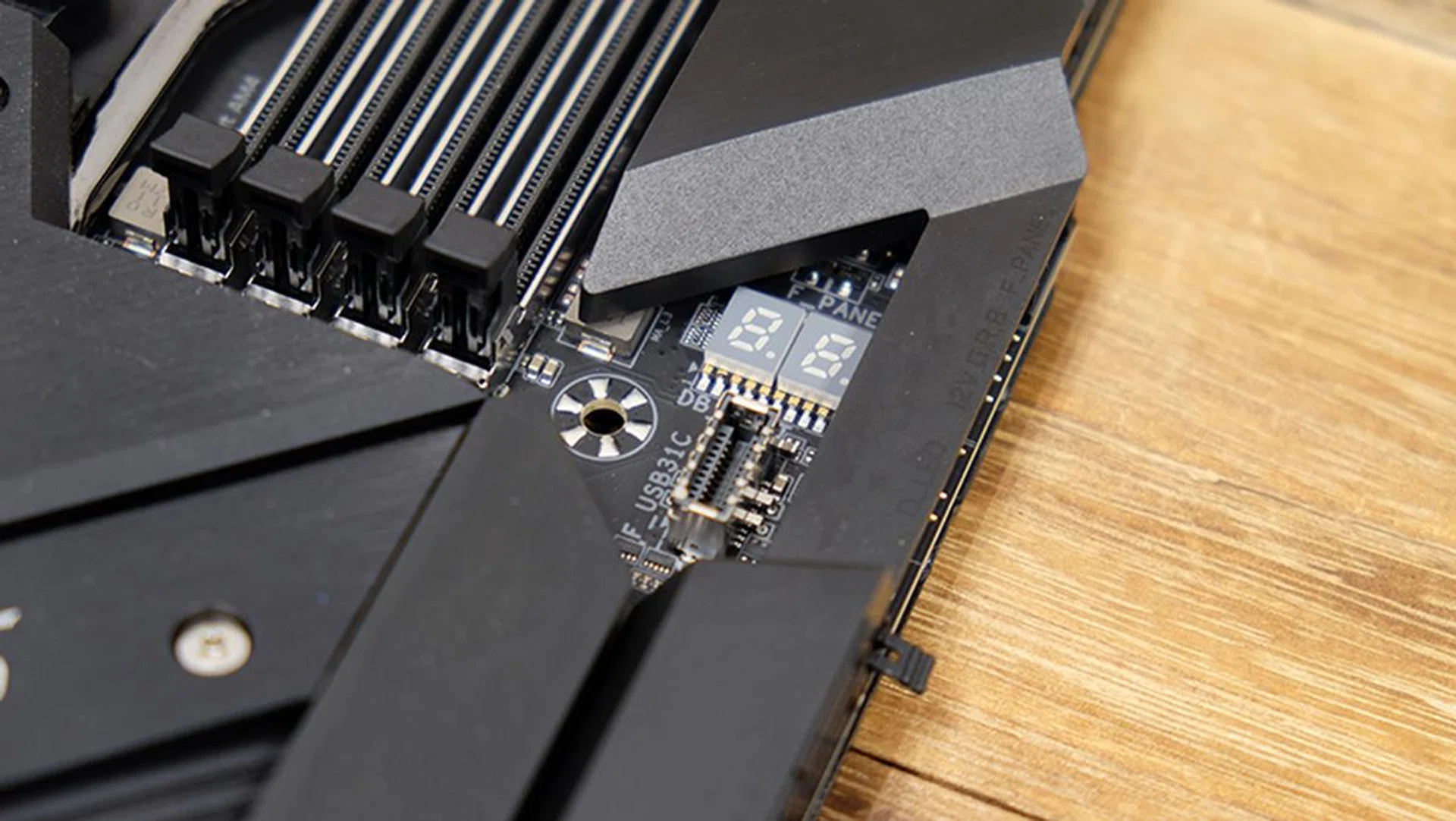
The debug display is located right next to the DIMM slots.
What are its expansion and connectivity options like?
In terms of expansion slots, the X570 Aorus Xtreme has three PCIe 4.0 x16 slots, the third of which runs in x4 mode and draws lanes from the X570 chipset. Of course, they're all reinforced by metal, and Gigabyte says it uses a one-piece stainless steel design for both the PCIe and DIMM slots. In addition to protecting the slots against damage, the metal supposedly also helps prevent the PCB from flexing since the more rigid slot won't bend either.
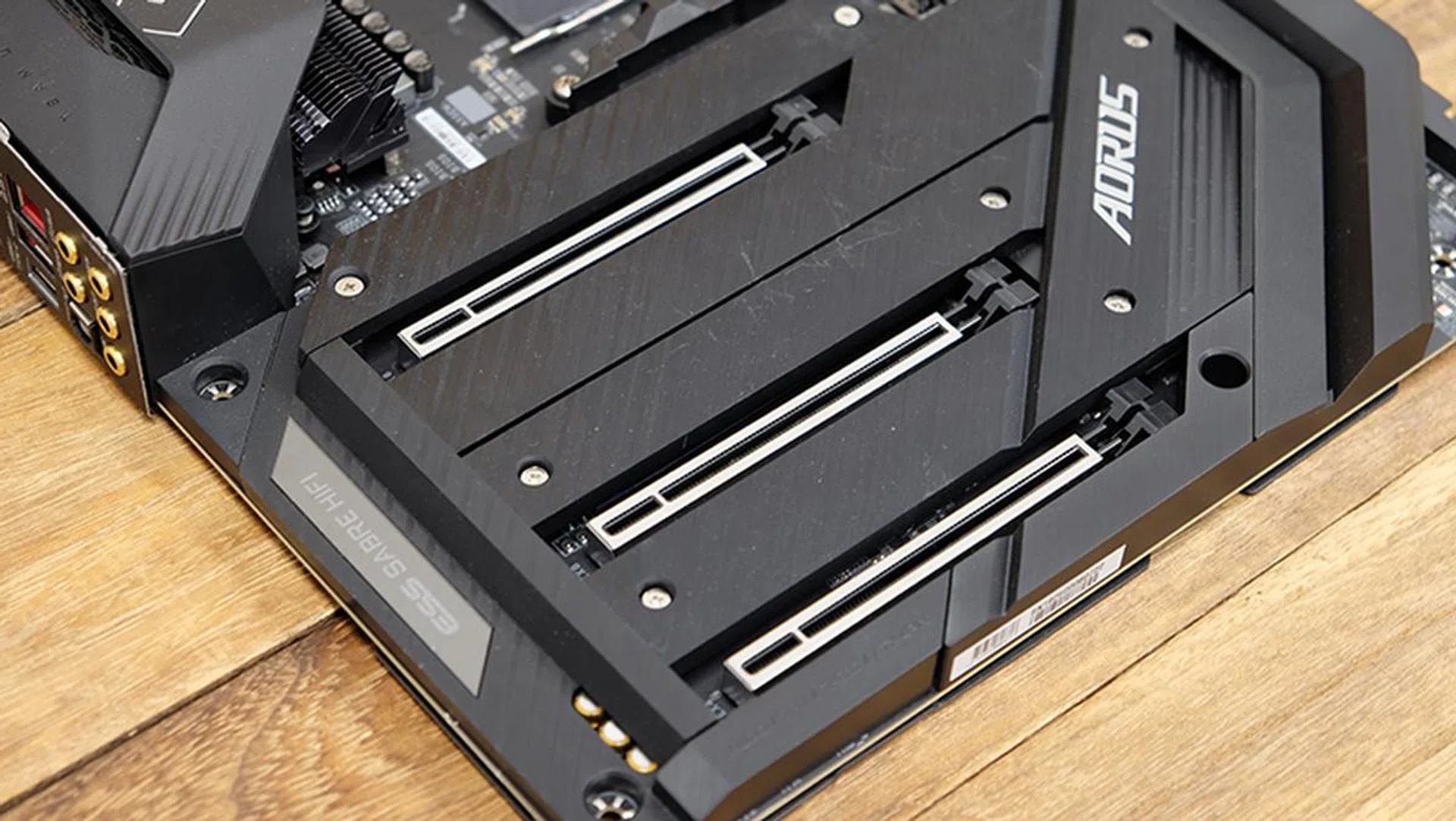
All x16 slots have been reinforced by metal.

The DIMM slots have been beefed-up with metal as well.
The rear I/O panel doesn't have any integrated display outputs since anyone who buys this board is probably going to have a pretty powerful discrete GPU anyway. Instead, you'll find an Aquantia AQC107 controller for 10Gbps network connectivity and a second Intel Gigabit LAN port, in addition to support for Wi-Fi 6 and Bluetooth 5. You'll also find one USB 3.1 (Gen 2) Type-C, five USB 3.2 (Gen 2) Type-A, two USB 3.2 (Gen 1), and four USB 2.0 ports round the back.

A look at the rear I/O panel.
It's the only board here to include four slower USB 2.0 ports on the rear panel, but you can probably just use these for connecting peripherals like your mouse, keyboard, and headset. There are also buttons for updating the BIOS and clearing CMOS, which pretty much appear to be the standard offering these days.
As for front panel USB headers, the Aorus Xtreme supports one USB 3.2 (Gen 2) Type-C, four USB 3.2 (Gen 1), and two USB 2.0 ports.
On the storage front, there are six SATA 6Gbps ports and three M.2 sockets. Each of the latter has its own Thermal Guard heat sink to reduce throttling and they all support both PCIe and SATA drives. The third M.2 socket shares lanes with SATA_4 and SATA_5, so installing a PCIe drive there will disable the latter two SATA connectors.
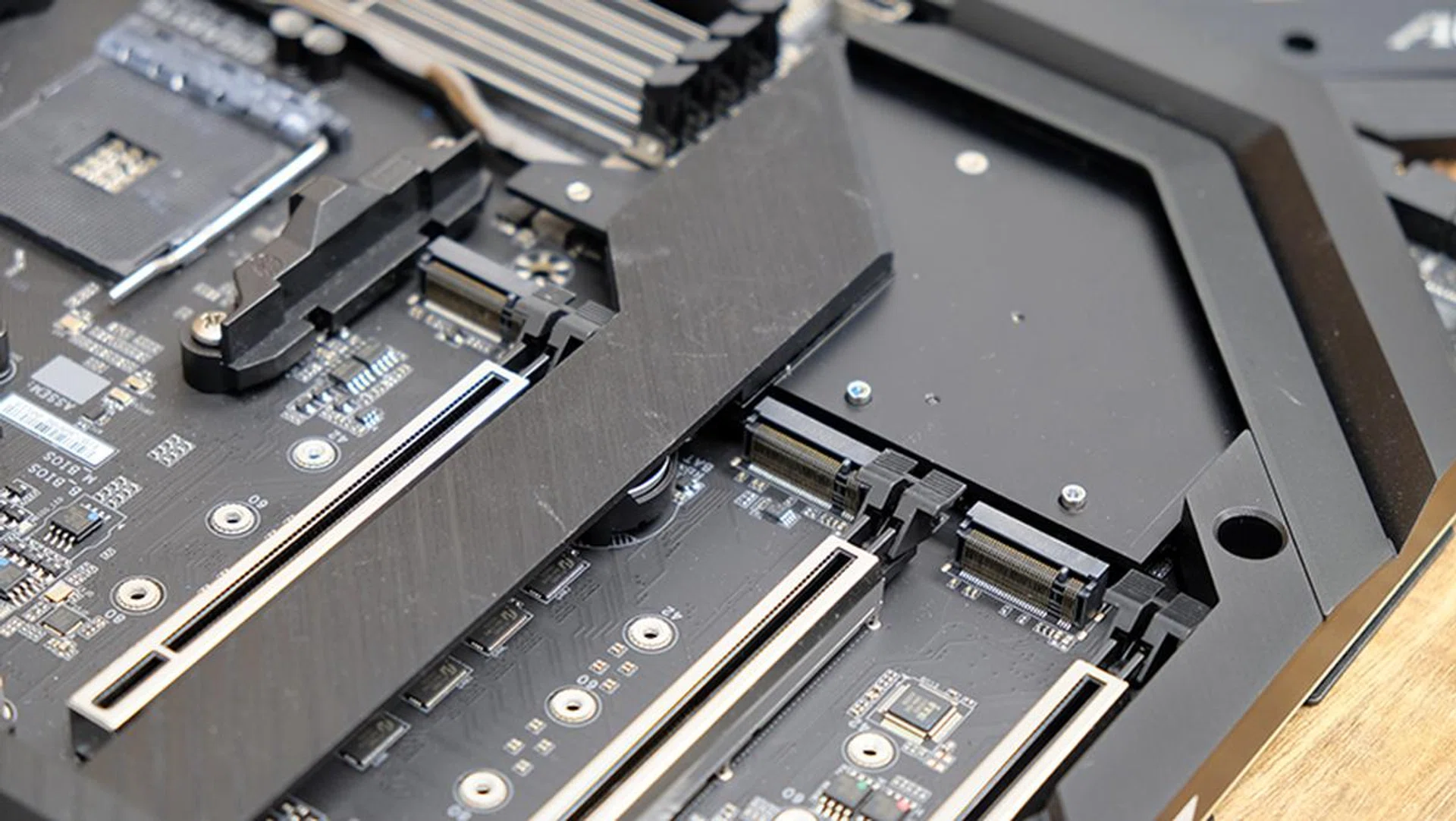
The metal heatsink cover comes off to reveal the M.2 sockets.
How many fan and RGB headers are there?
For fan connectors, the Aorus Xtreme has one CPU fan header, one fan header for an AIO pump, four chassis fan headers, and two more that can be used for either a chassis fan or water cooling pump.
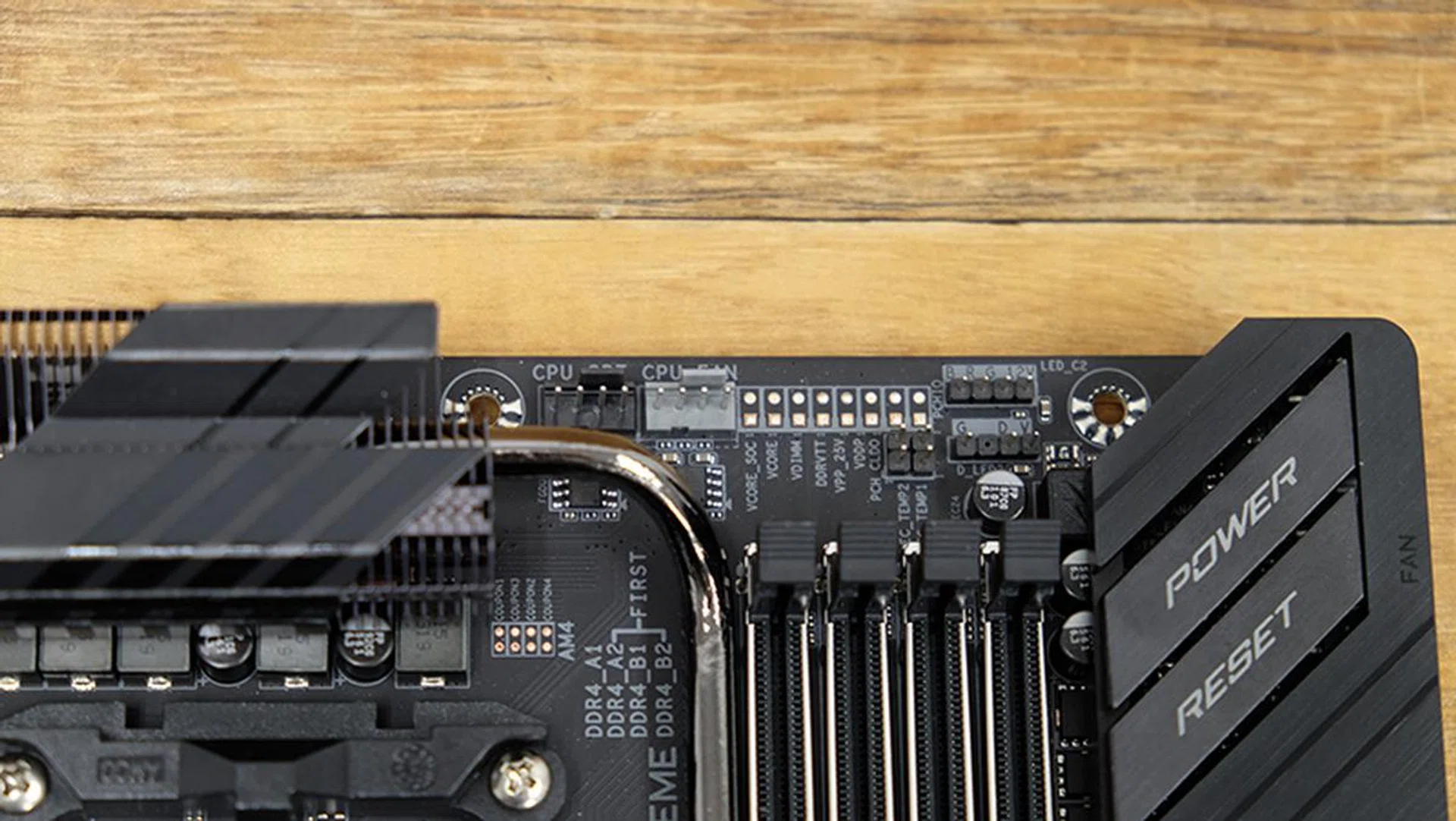
The CPU_OPT and CPU_FAN headers are located next to each other, alongside some voltage measurement points.
That makes for a total of eight, but the bundled RGB Fan Commander adds eight more fan and eight more RGB headers. Every single fan and LED strip hooked up to the Fan Commander can also be controlled independently, so you still get to maintain pretty fine-grained control over your system. The Fan Commander takes the form of a compact hub, and its magnetic base means you can install it just about anywhere in your case quite easily.
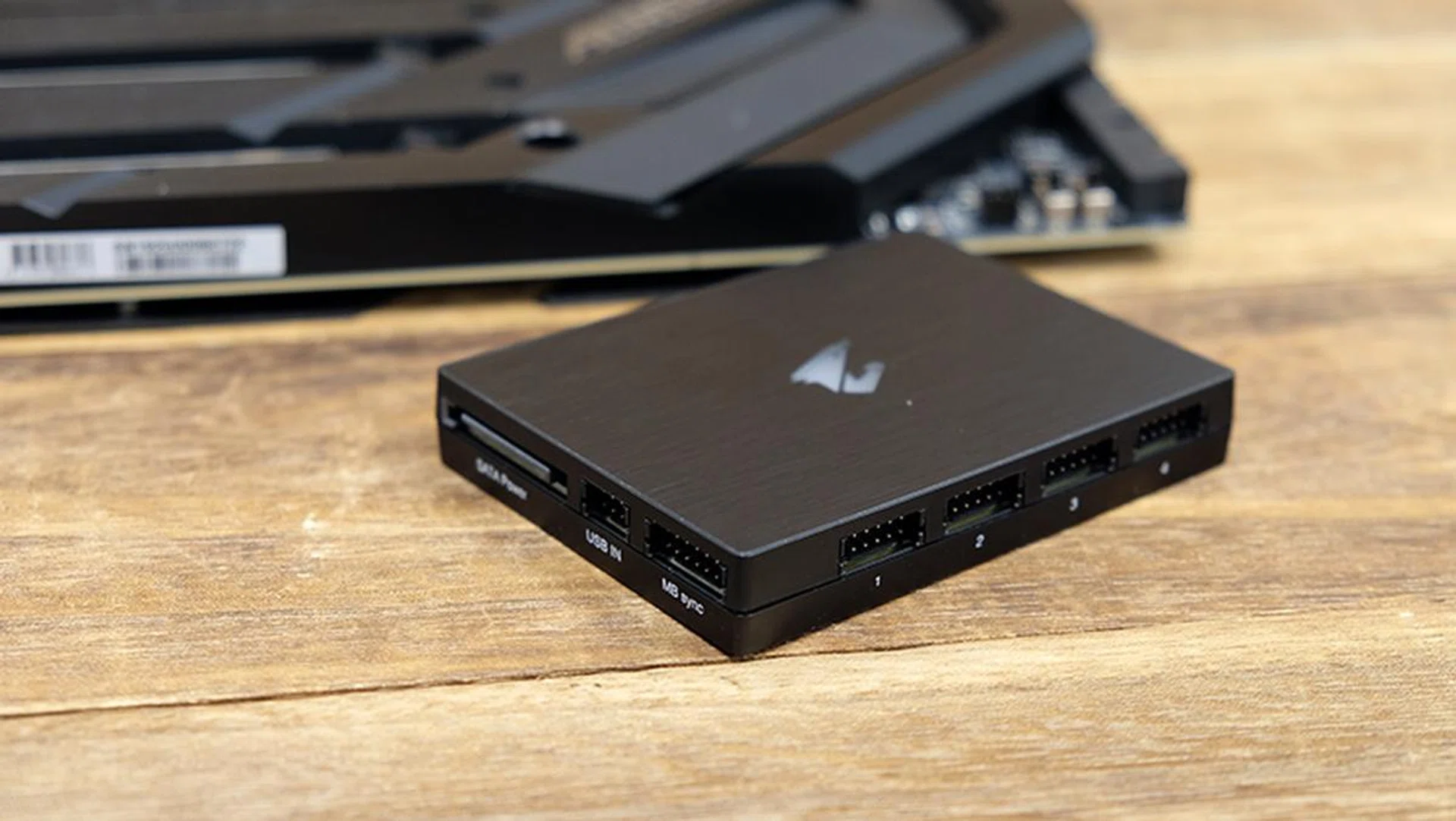
The RGB Fan Commander will let you hook up up to eight more fans.
Other than that, the board itself has two addressable LED strip headers and two regular LED headers, which seems to me to be more than enough for most builds.
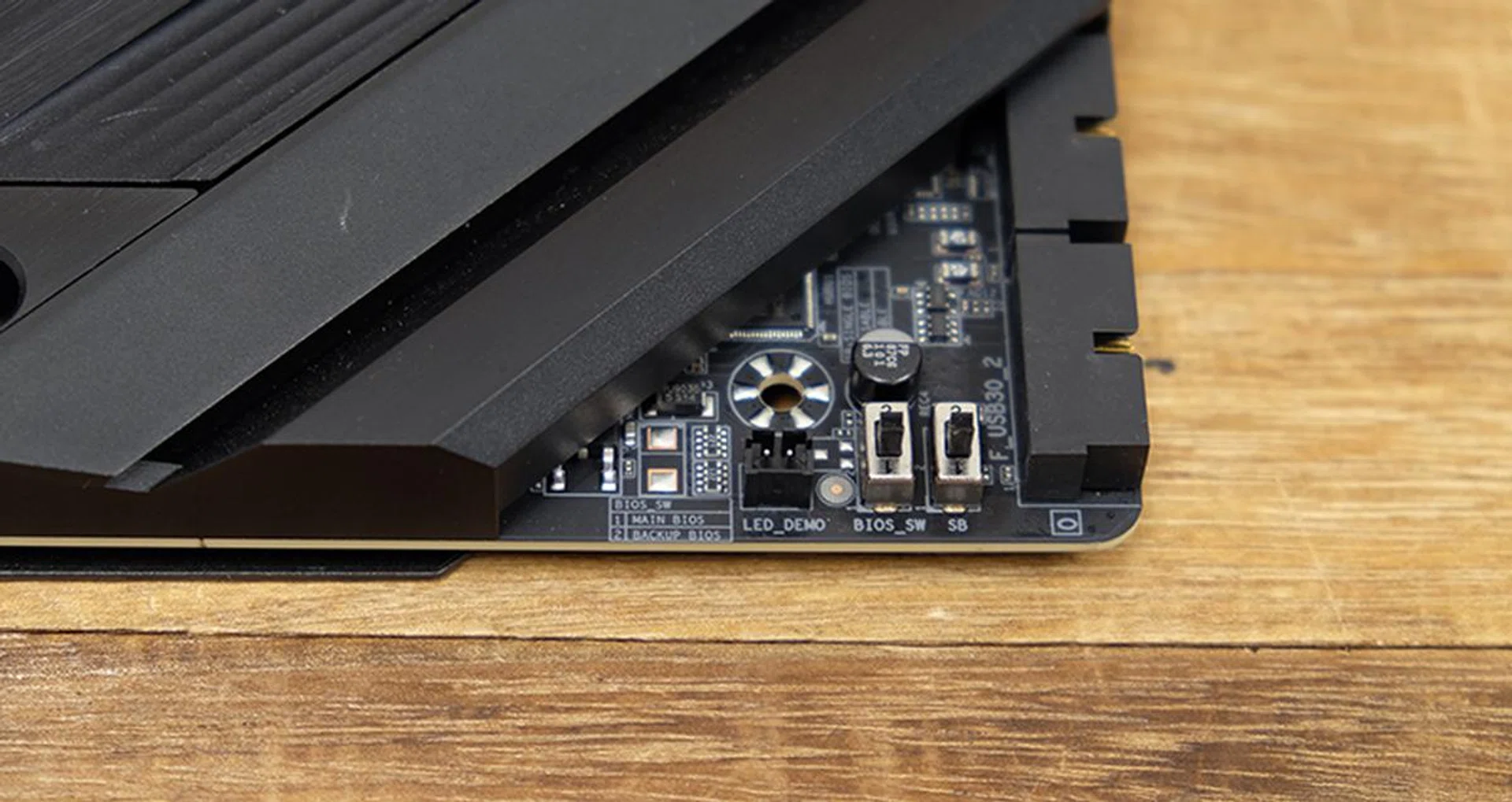
The Aorus Xtreme also features dual onboard BIOSes, and there are switches at the bottom to toggle between the main and backup BIOS and dual or single BIOS mode. Two LED indicators also correspond to the main and backup BIOS, so you know which one is active.
Finally, a small, removable section of plastic conceals the front panel audio, TPM, and other headers. Gigabyte didn't want to clutter the board with a ton of exposed headers or switches, and I do appreciate its efforts to make the board look neater and sleeker.
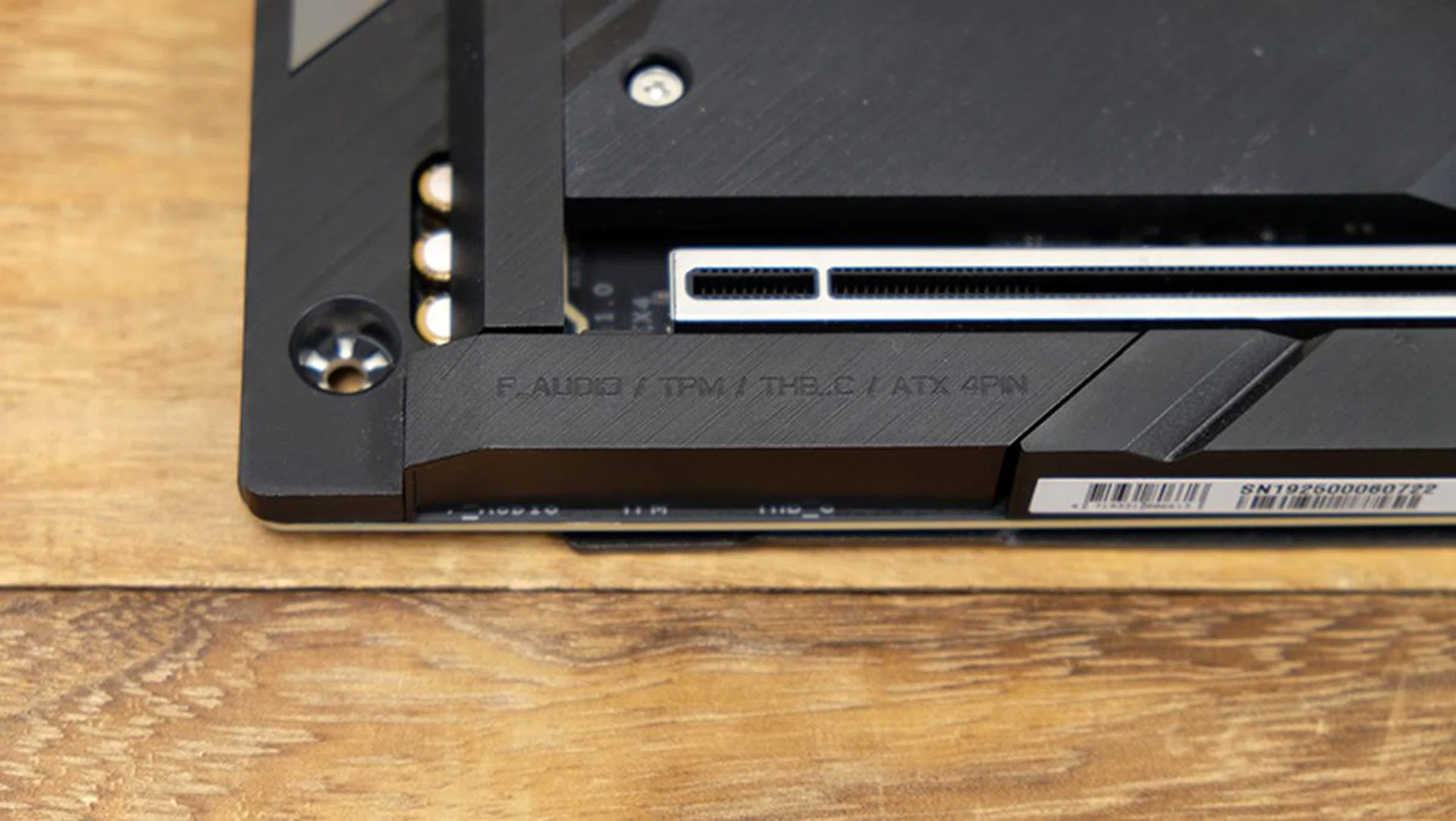
The front panel audio header sits under this cover.
What about the VRM design?
The X570 Aorus Xtreme has 16 true phases, which means no phase doublers were used at all. This direct VRM implementation straight from the Infineon PWM controller is still quite rare today, with many high-end boards still opting for phase doublers to turn an 8-phase VRM into a 16-phase one.
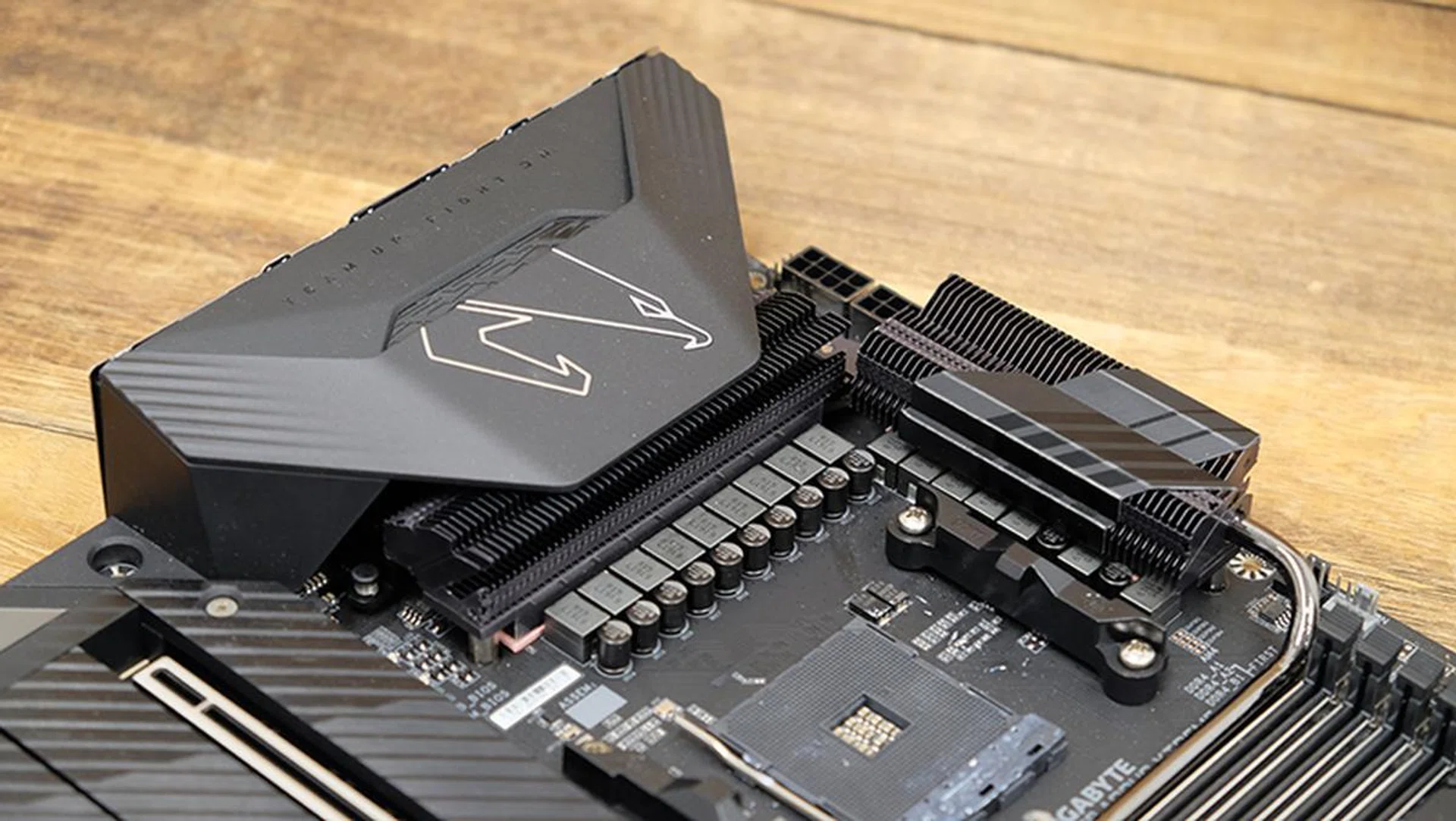
This is the only X570 board to feature a true 16-phase power design.
As a simple rule of thumb, the more VRM phases on a motherboard, the more stable the supply of power to the CPU. Each phase produces a burst of power, or pulse, that is staggered from the last, so the higher number of phases ensure that there are fewer troughs in between pulses and a smoother supply of power for the processor. This is particularly vital when you're trying to push a chip to its limits, which is why the X570 Aorus Xtreme looks like it could possibly be the board to get for serious overclockers.
Furthermore, more power phases exist can reduce the power loading levels on each VRM and MOSFET, and also lower operating temps to increase your chances of a higher overclock.
The Aorus Xtreme uses the new Infineon XDPE132G5C digital PWM controller, the first in the industry to offer a true 16-phase design. In addition, it features Infineon TDA21472 PowlRstage MOSFETs that are capable of providing at least 70A of power, for a total of up to 1,120A. Gigabyte says it's trying to ensure that power design will never be a bottleneck for the X570 Aorus Xtreme, and it's pairing its souped-up VRM with dual 8-pin CPU connectors and a 2x copper PCB that supposedly provides additional power trace paths between components to handle higher power loads.
On top of that, there is an extra 6-pin PCIe power connector for the graphics card.
Is the BIOS interface intuitive?
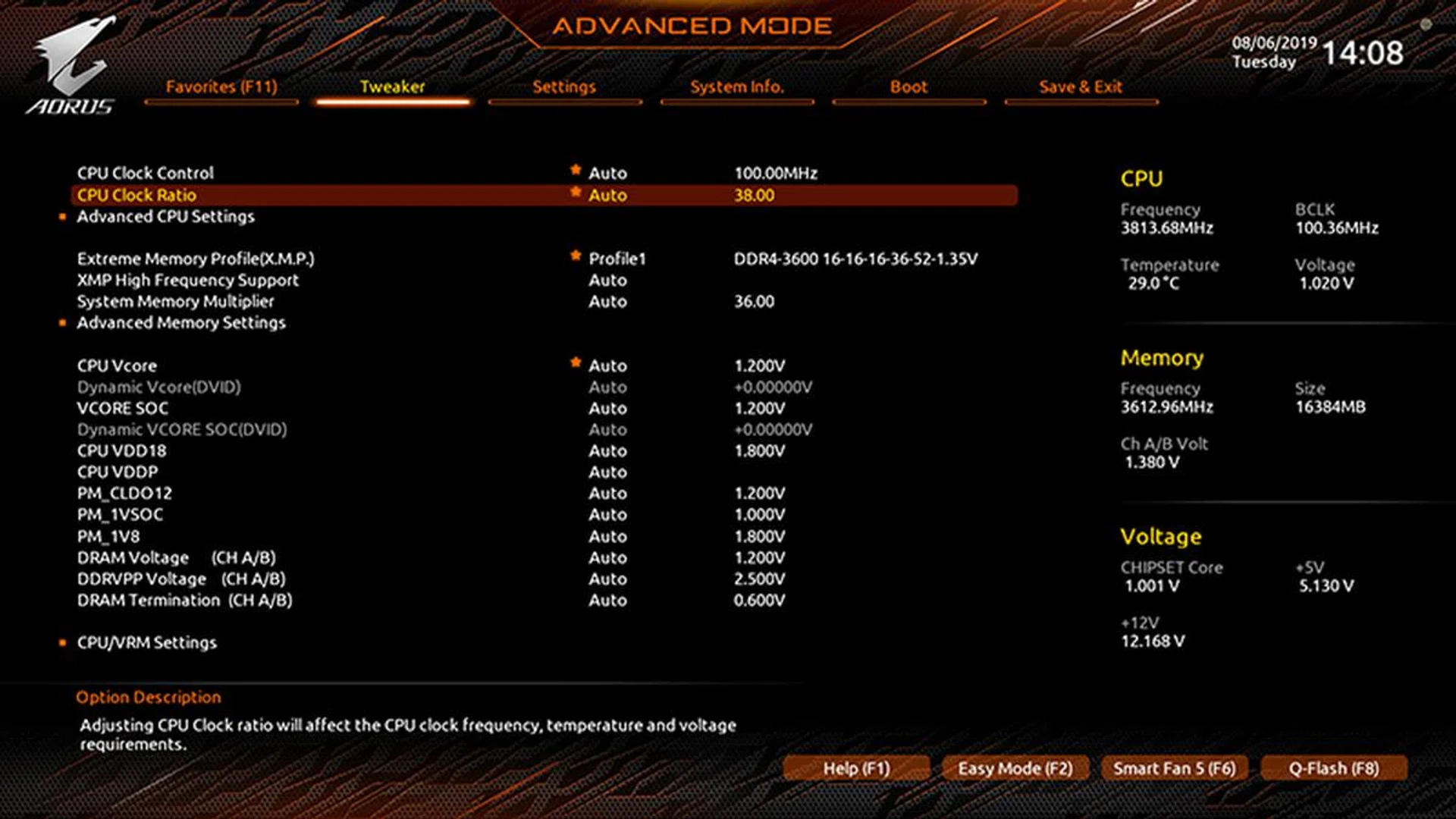
You can find most of the key overclocking settings in the Tweaker section.
Compared to ASUS, the Aorus motherboard has a more cramped BIOS interface. I'd have preferred for the menu items to have more spacing between each other, but I'm really just nitpicking here. Overall, navigation is pretty straightforward, and there are also quick shortcuts to key features, such as the fan curve controls and Q-Flash BIOS update.
If you want to turn on Precision Boost Overdrive in the BIOS, that's located under the Settings header.
MSI MEG X570 Godlike

The MSI MEG X570 Godlike is one of the most impressive boards to take in. (Image Source: MSI)
Just like the other motherboard manufacturers, MSI is stepping up its game in terms of its X570 offerings. It's shooting higher than ever before, and the MEG X570 Godlike marks the first time that it's bringing its flagship Godlike model to an AMD Ryzen chipset.
For starters, the Godlike features a 14+4-phase power design, comprising an IR Digital PWM controller, DrMOS power stages, and titanium chokes.
In addition, it is equipped with dual 8-pin CPU power connectors and an eight-layer PCB, the latter of which helps accommodate the additional trace paths required to sustain the greater amount of power. According to MSI, it's actually using a server-grade PCB here in order to ensure PCIe 4.0 performance and better stability.
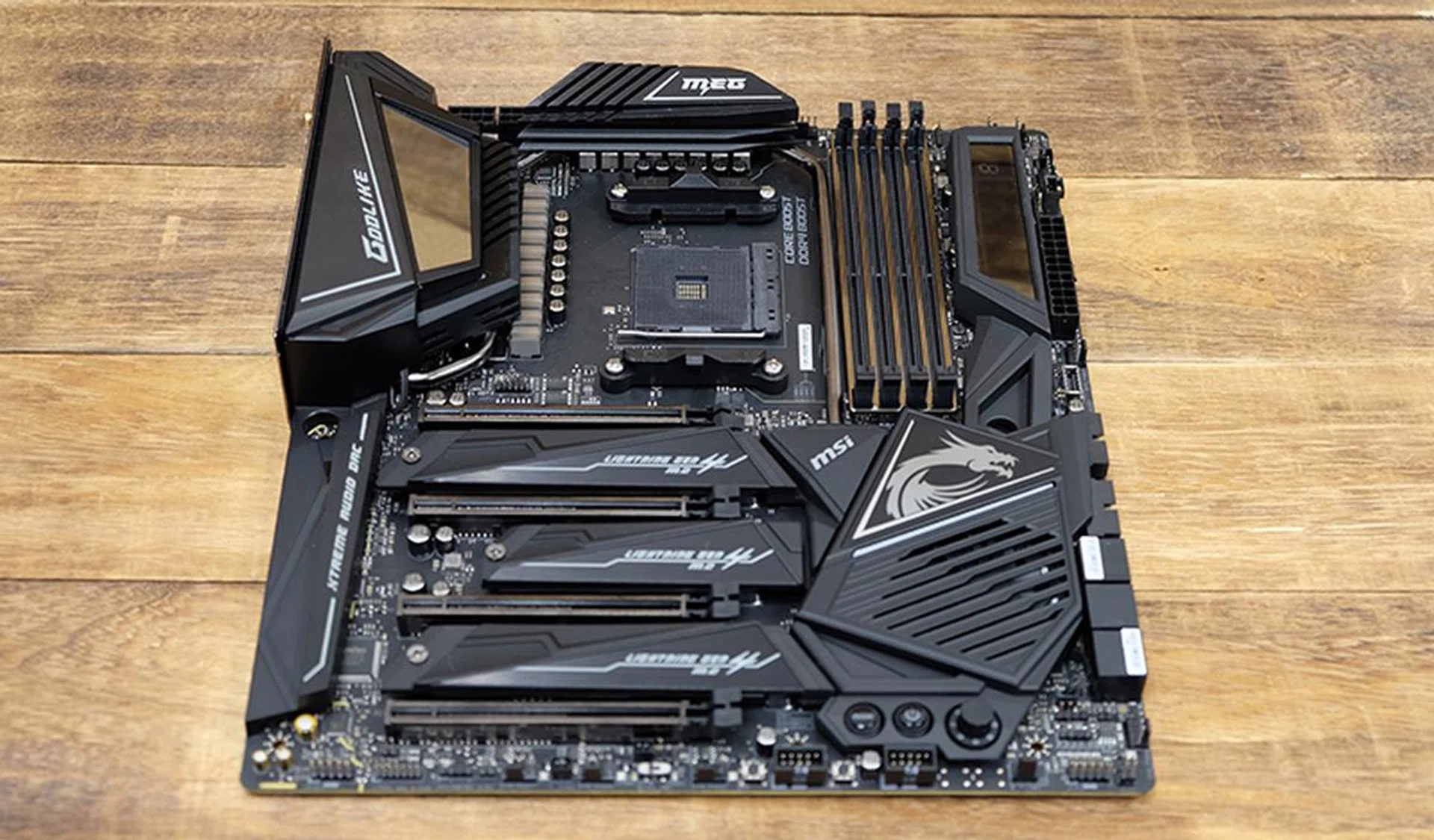
The board doesn't look like much when it's powered off, but you'll notice the dynamic OLED display on the right.
The X570 chipset is also expected to generate more heat and pull more power than its predecessor, to the tune of 11W compared to roughly 6W on X470. That's a big part of why you're suddenly seeing fans integrated into the chipset heat sinks of so many high-end X570 motherboards, and the MEG X570 Godlike is no different. Its integrated double ball-bearing fan works to keep to chipset cool, and it is also linked to the VRM heat sink via a single heat pipe to increase the surface area available for heat dissipation.
And speaking of cooling, one potentially useful feature is MSI's Zero Frozr technology, which you may recognize from the company's graphics cards. This is a smart tuning system that can automatically adjust fan speeds based on the chipset temperature, but it can also completely turn down the fans when system loads are low.
Another nifty feature is the Dynamic Dashboard OLED display on the right. This can display system information like CPU temperature or be set to show off your own custom GIFs. The special mirror reflection effect you get on the I/O shroud is also pretty fantastic, and it's sure to be a nice fixture in your case.
The board costs a whopping S$1,269, and MSI has just about thrown the kitchen sink at it. However, there's still one glaring omission, and that's the metal backplate, or lack thereof. It's not that important a feature, but I'd expect a board that costs this much to include it anyway, since the ASRock X570 Taichi, which costs less than half its price, also has one.
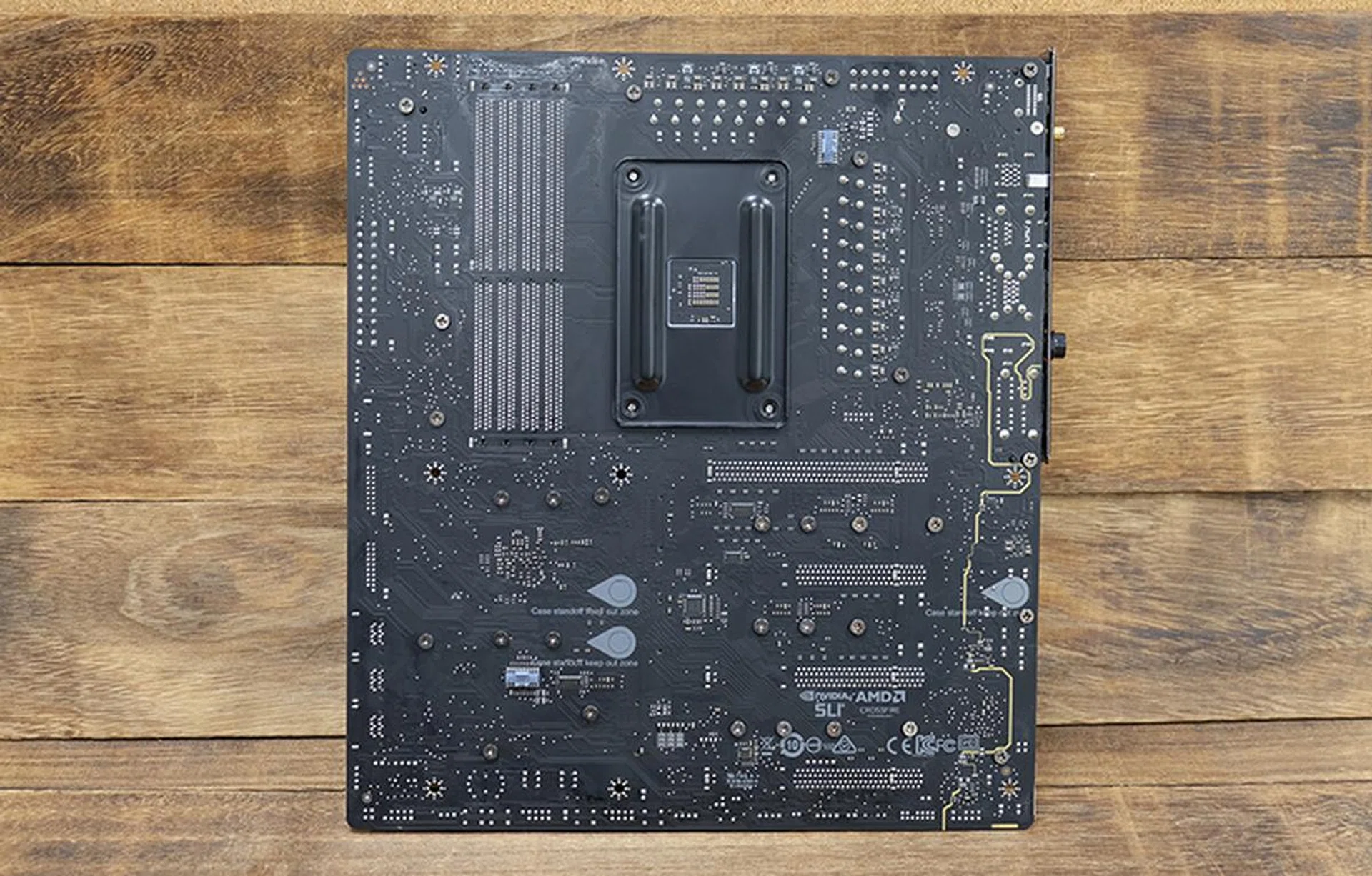
The board lacks a metal backplate.
What are its expansion and connectivity options like?
It feels like a big focus of the Godlike's design is on expandability. It features four PCIe 4.0 x16 slots, three M.2 sockets, and six SATA 6Gbps. On top of that, it also ships with a couple of expansion cards, including a 10G Super LAN card for ultra-fast connections if your network supports it and an M.2 Xpander-Z Gen 4 card that can hold two more M.2 PCIe 4.0 drives. The latter even has its own heat sink and fan to keep your drives running cool. Each of the motherboard's built-in M.2 sockets have MSI's Shield Frozr heat sinks as well to reduce thermal throttling.
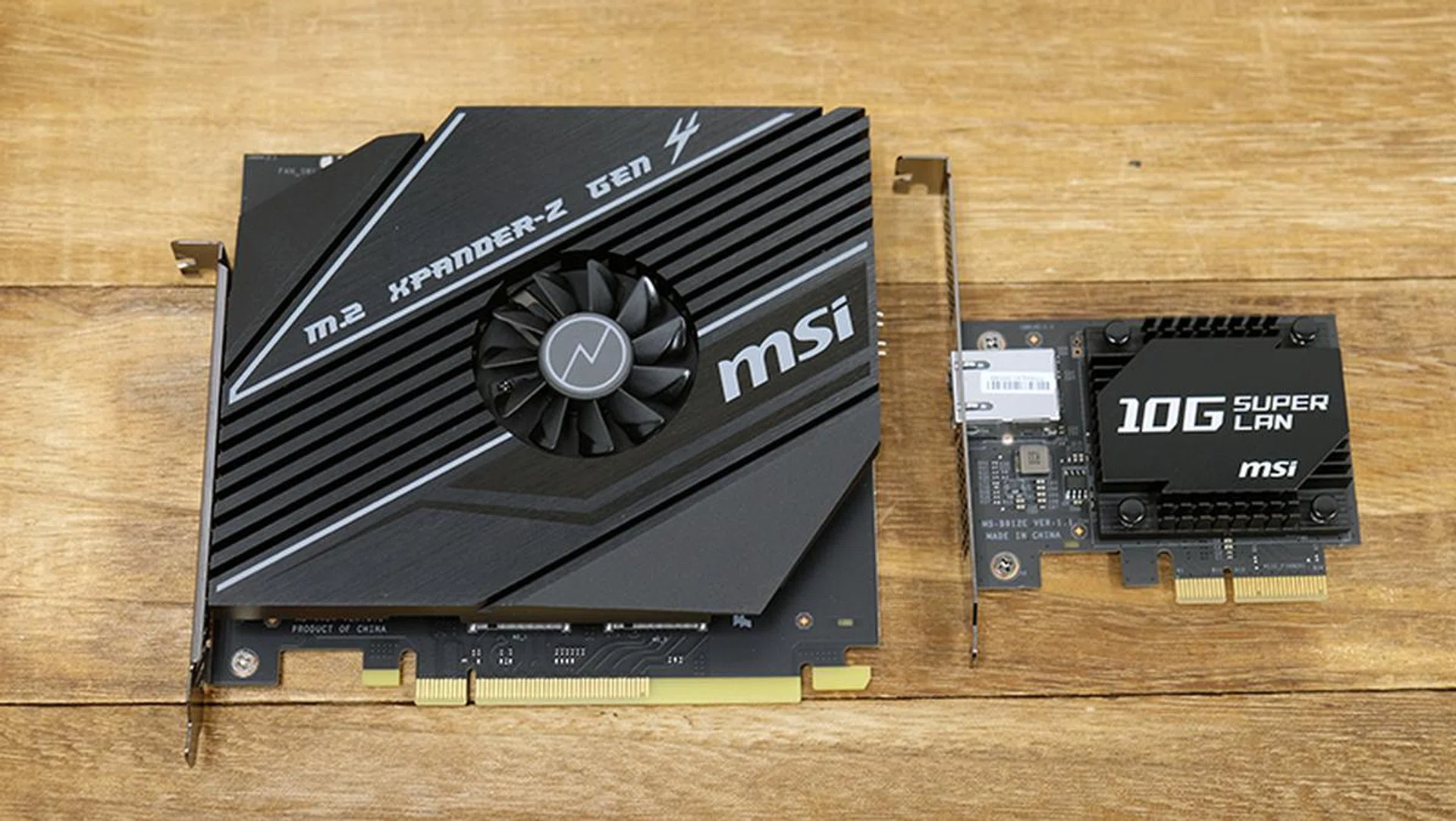
The Godlike comes bundled with a couple of PCIe expansion cards.
Three of the PCIe 4.0 x16 slots draw lanes from the CPU, while the last one takes lanes from the chipset and only runs in x4 mode. Both the PCIe and DIMM slots also come with metal reinforcements to make them more robust.

You can see here the metal reinforcements that have been applied to the DIMM slots.
On the storage front, only four of the six SATA 6Gbps are provided directly by the chipset. The remaining two are actually provided for by an ASMedia ASM1061 chip. The three M.2 sockets come from the chipset, where two of them support both PCIe and SATA drivers and the third supports just PCIe devices.
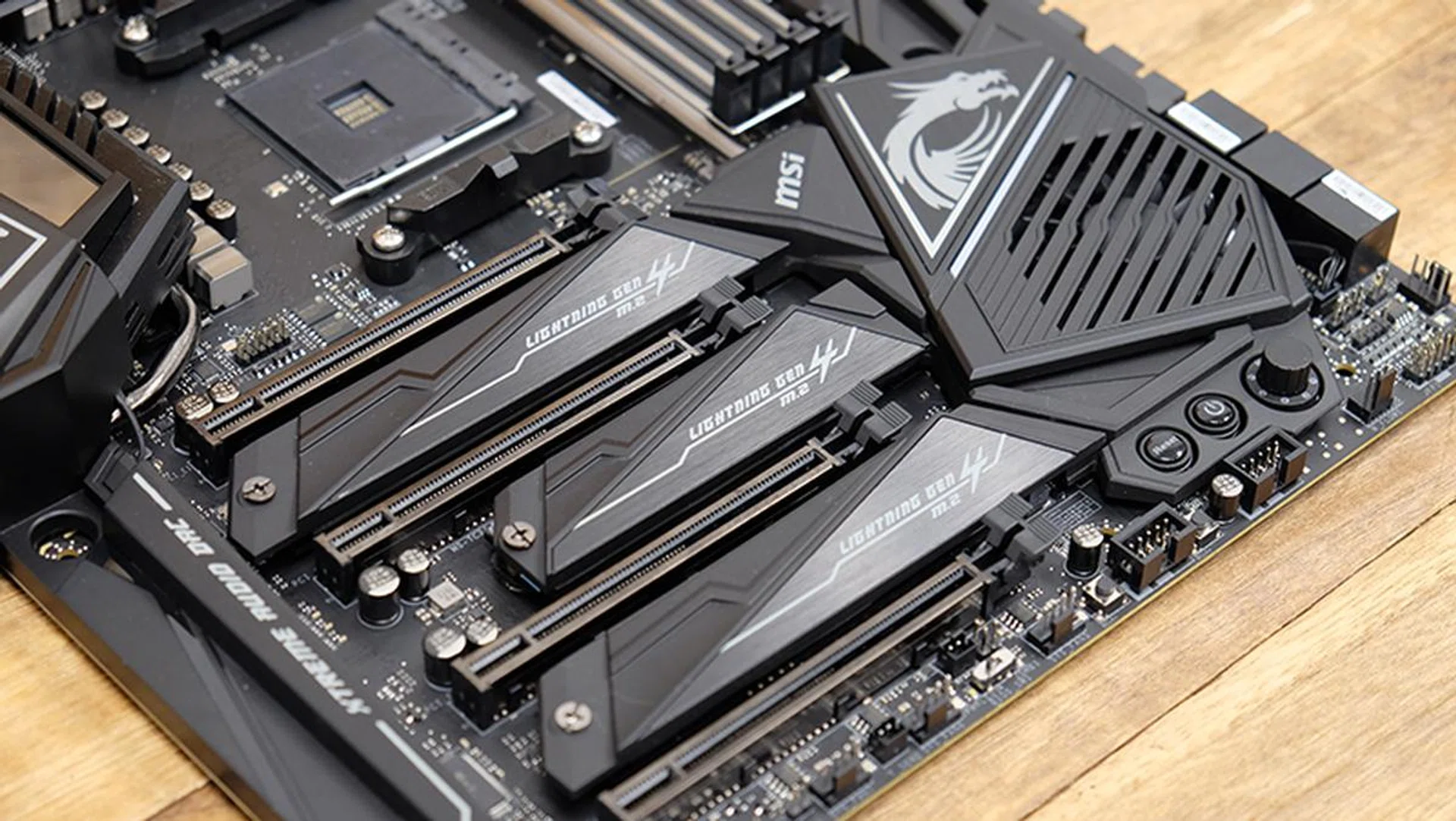
Each of the M.2 sockets have their own heatsink.
To further add value, MSI has also included some sleeved black and red SATA cables to go with the board.
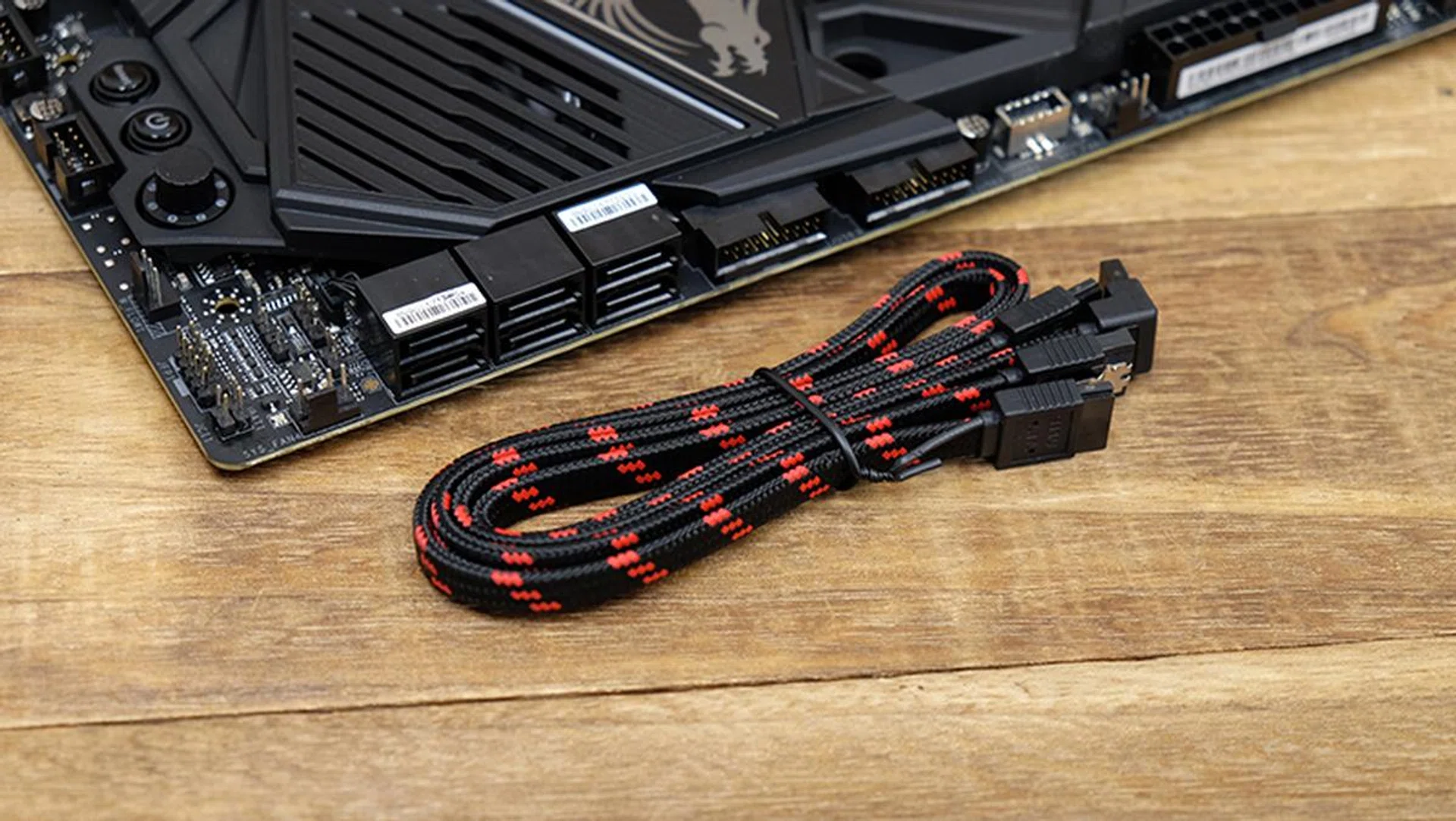
The Godlike comes bundled with sleeved SATA cables.
The rear I/O panel also features an integrated I/O shield for easier installation, and you'll find one USB 3.2 (Gen 2) Type-C, three USB 3.2 (Gen 2) Type-A, two USB 3.2 (Gen 1) Type-A, and a PS/2 connector for legacy devices. There are also two RJ-45 jacks, both powered by Killer LAN controllers. One of them supports speeds up to 2.5Gbps in case your internet plan supports that. There's also a 6.3mm headphone jack that will take higher end headphones without the need of an adapter.
Compared to the other boards though, the selection of USB ports feels a little sparse, and I definitely think a board that costs this much could use additional USB 3.2 (Gen 2) connectors.
Like the other boards, there are also buttons for updating the BIOS and clearing CMOS at the back.
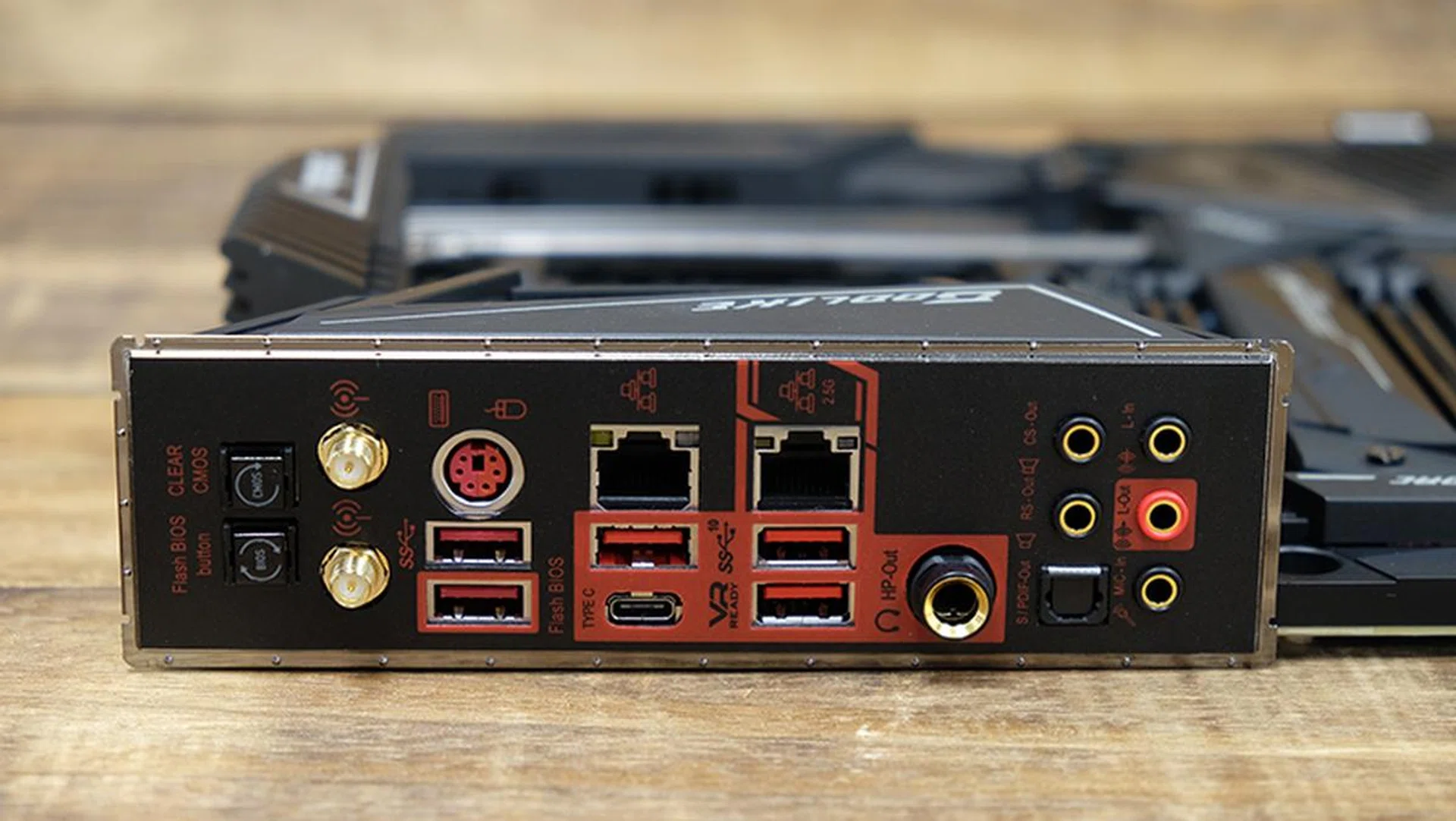
Here's a look at the rear I/O ports.
The latest Wi-Fi 6 standard is supported as well, but MSI has opted for the Killer Wi-Fi 6 AX1650 module instead of the equivalent Intel solution.
In terms of front panel support, it can output to one USB 3.2 (Gen 2) Type-C, four USB 3.2 (Gen 1), and four USB 2.0 ports.
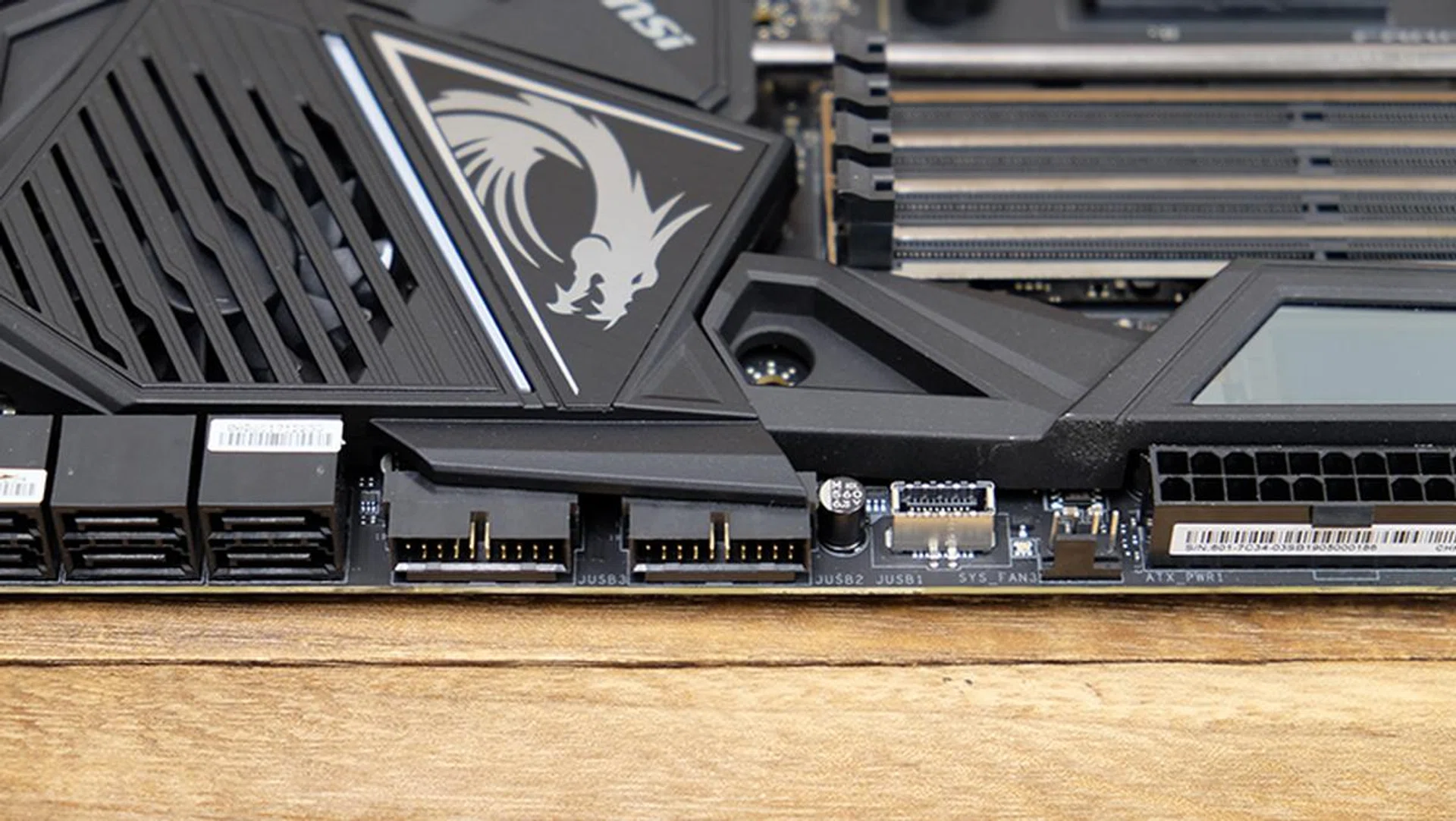
The front panel USB-C header is located in the middle of the board, adjacent to the USB 3.2 (Gen 1) internal headers.
How many fan and RGB headers are there?
There is no shortage of fan headers available, and the Godlike comes with separate headers for the CPU fan and water pump and seven other headers for chassis fans. There's also a 3-pin header for measuring water flow, in case you want to set up a custom loop. There is no support for fans that pull more than 1A though, so don't go installing a high amperage fan on one of the onboard headers.
If you want to add third-party LED strips to your case, you can hook them up to the 4-pin RGB LED connector, two 3-pin addressable LED connectors, or the 3-pin Corsair LED header. As the name suggests, the latter will only work with Corsair products, which you can then control using MSI's Mystic Light software.
This JCORSAIR1 connector is actually more useful than it seems. After all, Corsair does make some popular accessories, including excellent RGB fans. However, fans like the LL120 RGB can be quite a pain to manage, since you need to connect them to a fan hub and then to the Corsair Lighting Node Pro to control the lighting effects. The JCORSAIR1 header eliminates the need for the Lightning Node Pro, and you can connect the Corsair fan hub directly to the motherboard and control the effects using Mystic Light.
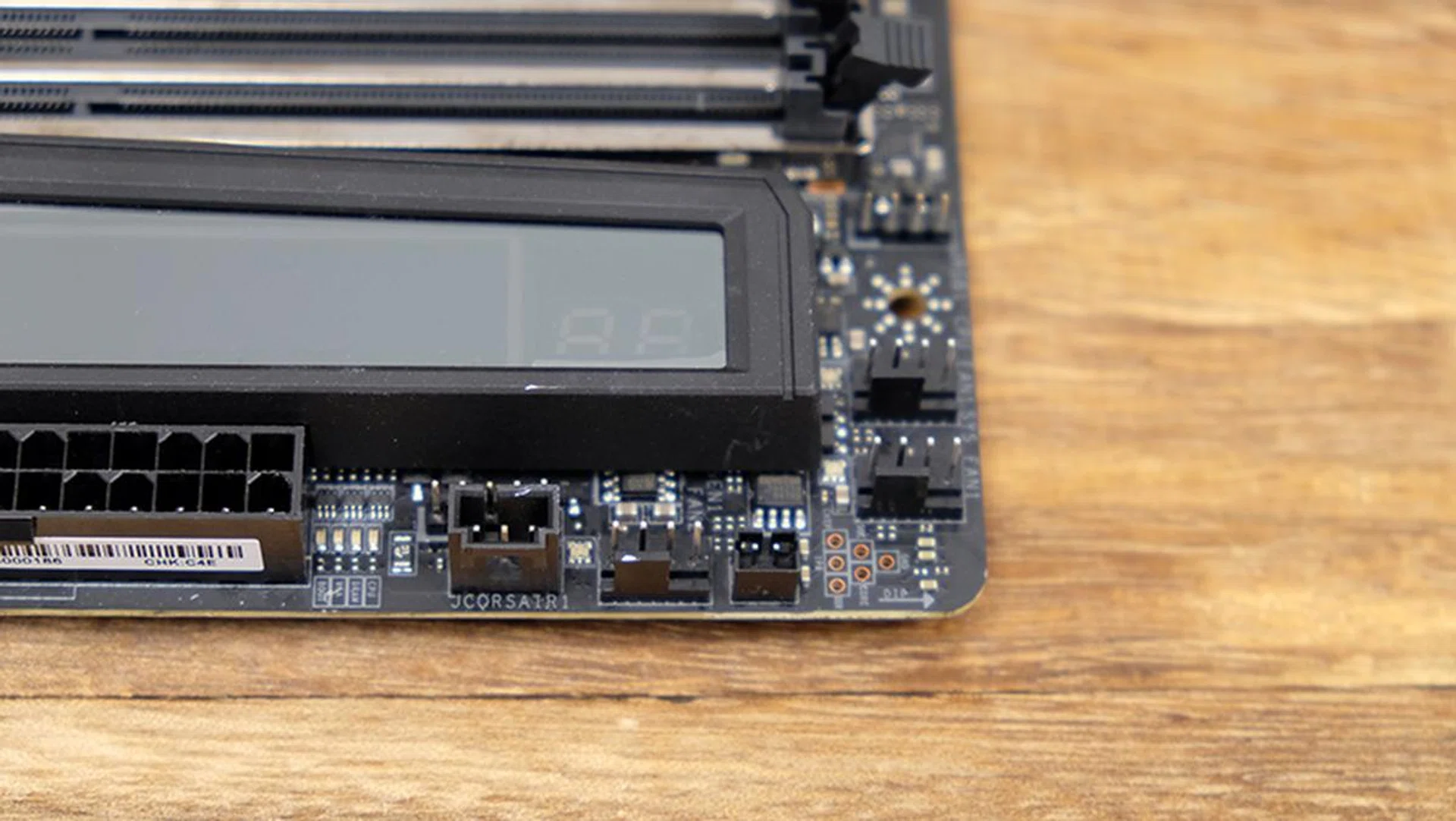
The JCORSAIR1 header makes connecting Corsair RGB fans a lot more convenient.
Finally, the board comes with power and reset buttons at the bottom, in addition to the Game Boost knob and BCLK adjustment buttons. Each stage on the Game Boost knob corresponds to a preset frequency and voltage, and it can be thought of as a quick way to overclock your processor without fiddling with the BIOS. However, it's by no means a guarantee of achieving any specific overclock, and I expect that enthusiasts will prefer to get their hands dirty with manual adjustments anyway. You can also quite easily adjust the BCLK in the BIOS itself, so the hardware buttons don't solve a super pressing need either.
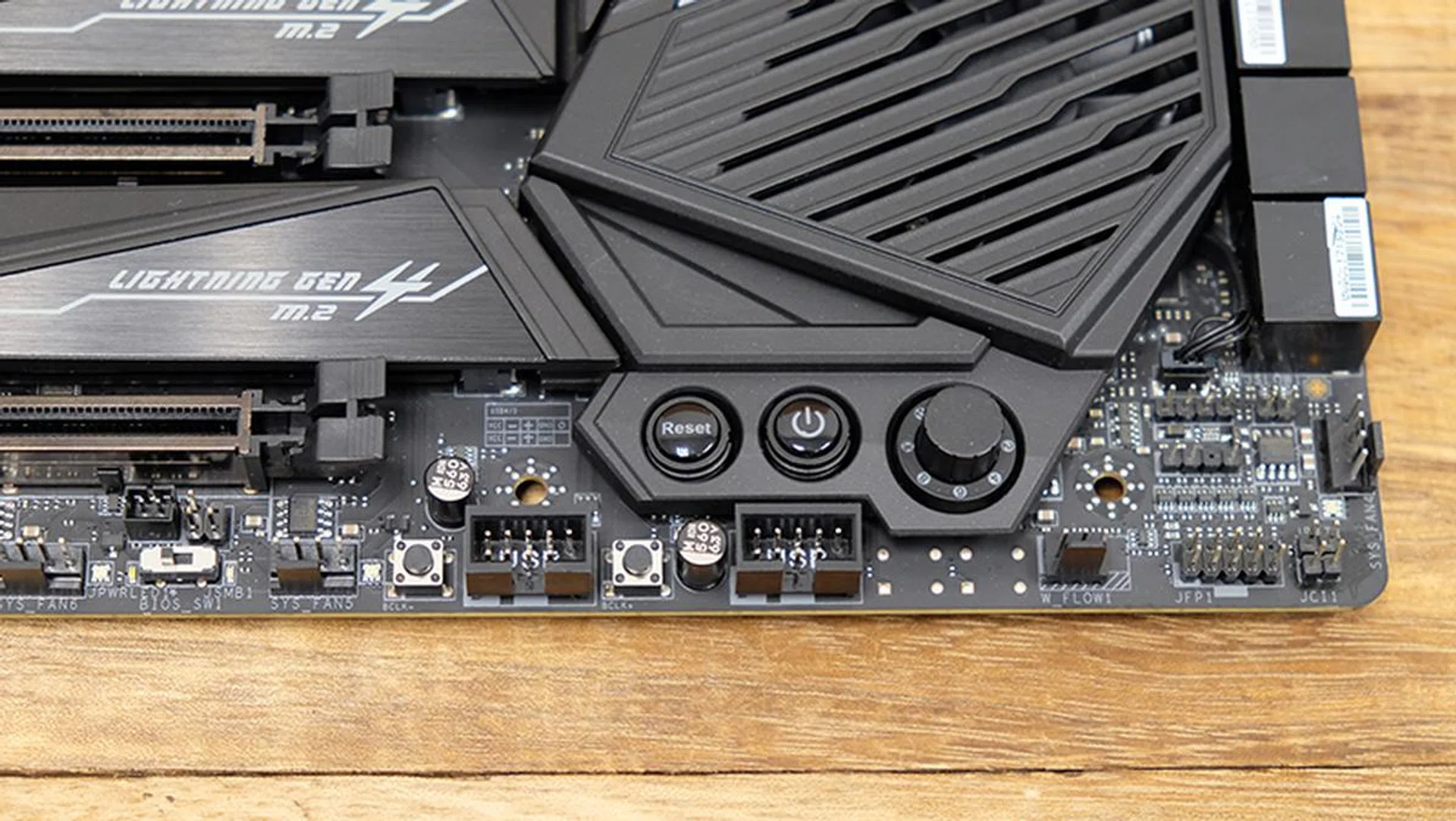
The Game Boost knob tries to give you a hassle-free way to overclock your processor.
What about the VRM design?
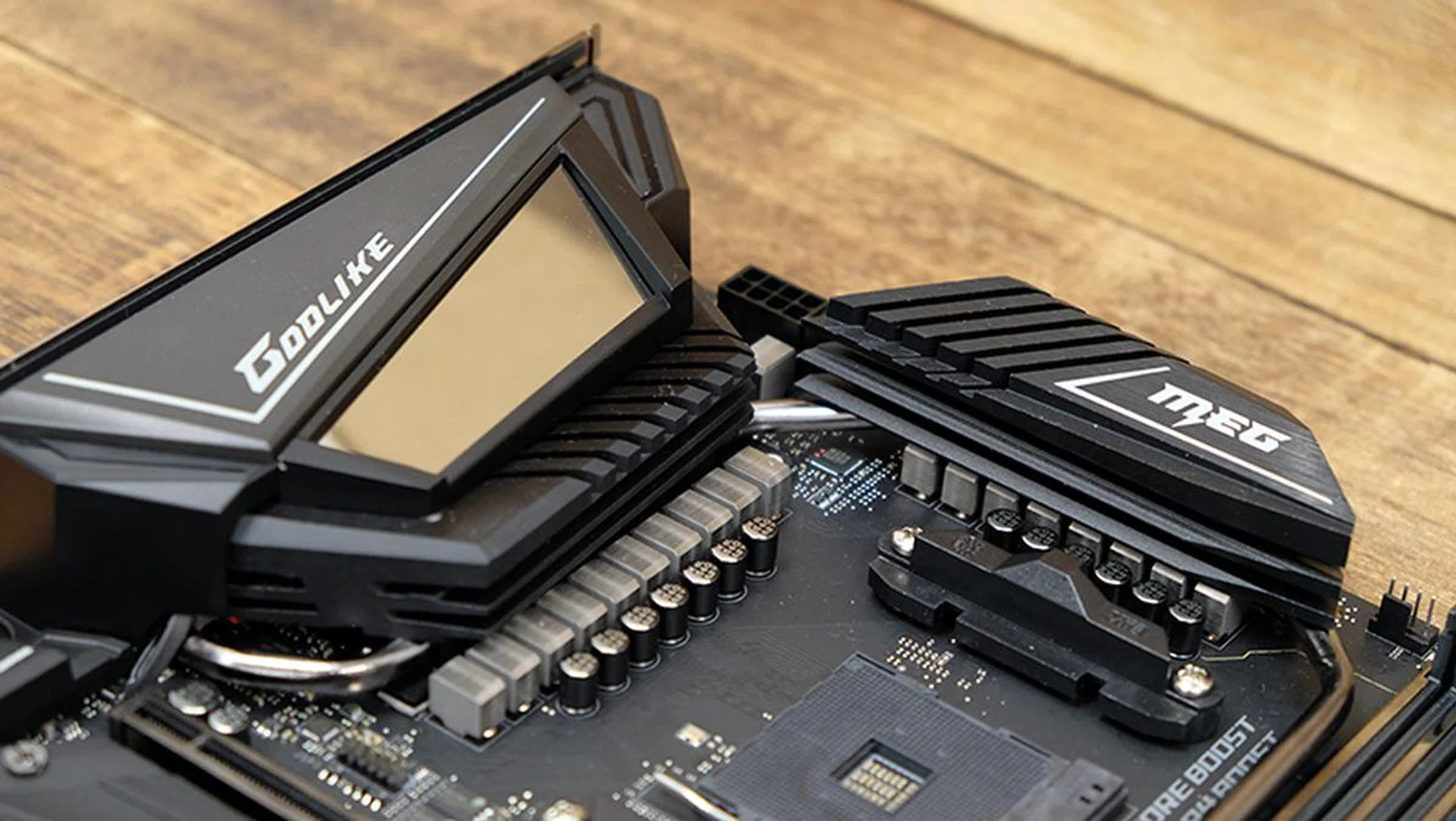
The board uses a 14+4-phase power design.
MSI has gone with a 14+4 design, but it still doesn't quite match Gigabyte's implementation. The PWM controller is an IR35201 that supports up to eight phases. There are in fact eight true phases, relying on seven Infineon IR3599 phase doublers for the CPU VCore. It also features 14 Infineon Smart Power Stage TDA21472 MOSFETs that are rated for up to 70A and 14 titanium chokes.
Is the BIOS interface intuitive?

There's a greater focus on visuals in MSI's Click BIOS 5.
MSI has placed a greater focus on the visual arrangement of its menu items, and the Advanced Mode sees key settings grouped into large tiles. You can see Settings, OC, and M-Flash in the image above, but deselecting OC will also reveal tiles for OC Profile, Hardware Monitor, and Board Explorer on the right. The latter doesn't really do anything, but it's a quick way to view information on the motherboard without having to refer to the manual.
Features overview
To round things up, here's a top-down view of the key features of each board so you get a clearer idea of how they stack up against one another:
ASRock X570 Taichi | ASUS ROG Crosshair VIII Formula | Gigabyte X570 Aorus Xtreme | MSI MEG X570 Godlike | |
VRM | 12+2 (7 true phases) | 14+2 (8 true phases) | 14+2 (all true phase) | 14+4 (8 true phases) |
Memory | DDR4-4666 | DDR4-4800 | DDR4-4400 | DDR4-4800 |
PCIe expansion slots | AMD Ryzen 3000
AMD X570
| AMD Ryzen 3000
AMD X570
| AMD Ryzen 3000
AMD X570
| AMD Ryzen 3000
AMD X570
|
Multi-GPU |
|
|
|
|
Storage |
|
|
|
|
Networking |
|
|
|
|
Rear I/O |
|
|
|
|
Front panel support |
|
|
|
|
Audio | Realtek ALC1220 | SupremeFX S1220+ ESS Sabre ES9023P DAC | Realtek ALC1220-VB+ ESS Sabre ES9218P DAC | 2x Realtek ALC1220 + ESS Sabre ES9018 DAC |
Cooling headers (1A, unless otherwise stated) |
|
|
|
|
RGB headers |
|
|
|
|
Internal buttons |
|
|
|
|
Diagnostics | Debug LED | LiveDash OLED | Debug LED | Debug LED + OLED display |
BIOS | 1x 256Mb | 1x 256Mb | 2x 128Mb | 2x 256Mb |
Form factor | ATX | ATX | E-ATX | E-ATX |
Price (SGD) | $499 | $862 | $965 | $1,269 |
Does Ryzen boost properly on these boards?
The Ryzen 3000 processors have generally been considered quite the triumph for AMD, but there have also been teething problems, such as complaints that the chips weren't boosting to their rated specifications, even on a single core. There's were also reports of abnormally high idle voltages, although that appears to have been mostly resolved.
For this shootout, we're going to focus on the behaviour of the Ryzen 9 3900X in each board instead of our usual benchmark suite. That's because performance is so similar between motherboards these days that you're mostly reduced to haggling over minuscule differences, when in actuality the differences in features matter more.
Ryzen 3000's boosting issues vary from board to board, so we'll take a look at how the Ryzen 9 3900X plays with each board and whether or not you should expect to wait for a BIOS update to fix the problem.
The BIOS versions we used for each board are as follows:
ASRock X570 Taichi | ASUS ROG Crosshair VIII Formula | Gigabyte X570 Aorus Xtreme | MSI MEG X570 Godlike | |
BIOS version | 1.70A | 0702 | F3i | 7C34v11 |
I should point out that both the ASRock and Gigabyte BIOSes already feature the latest AGESA 1.0.0.3 ABB microcode updates, which contains fixes for Destiny 2. After I completed my testing however, ASUS released a BIOS update, version 0803, that also contains the updates. At the time of writing however, MSI has yet to roll out a newer version with the fixes.
To check for idle voltages, I closed all background programs and only opened CPU-Z while running the Ryzen Balanced power plan. I then read the core voltage from the monitoring panel. Next, when checking for the maximum boost clock, I switched to the Ryzen High Performance plan and ran Cinebench R20's single-threaded benchmark. Clock speed information was taken from HWiNFO.
ASRock X570 Taichi | ASUS ROG Crosshair VIII Formula | Gigabyte X570 Aorus Xtreme | MSI MEG X570 Godlike | |
Idle voltage | 0.95V | 0.440V | 0.192V | 0.336V |
Highest observed clock | 4600.1MHz | 4566.9 | 4575.5 | 4625.1 |
For idle voltages, anything below 1V is considered normal, so all the boards don't have any issues in this area. Even so, it's interesting to note how much lower the idle voltages are on the Gigabyte board.
However, with regard to boost clocks, only the ASRock and MSI models managed to hit 4,600MHz or higher, which is the official boost clock for the Ryzen 9 3900X. You'll also notice that there doesn't seem to be any correlation between the AGESA 1.0.0.3 ABB update and hitting the rated specifications, since MSI's BIOS hasn't incorporated those updates yet but ASRock's has.
To be fair, AMD didn't say anything about fixing the boost clocks when it rolled out this update, so it looks like it very much depends on individual board makers to implement their own fixes rather than a cure-all from AMD's side.
How about some benchmark numbers?
Having said that, I think we might be really splitting hairs here, and there also doesn't seem to be a correlation between boost clocks and performance in Cinebench R20. Oddly enough, even though the MSI MEG X570 Godlike could boost above 4,600MHz, it also had the lowest single-threaded score.
Furthermore, Precision Boost Overdrive (PBO) and Auto Overclocking don't seem to make much of a difference, and nowhere did I see the Ryzen 9 3900X coming close to 4,800MHz (Auto OC is supposed to enable up to a 200MHz increase over the maximum boost clock), even with the Thermaltake Water 3.0 360 Riing RGB Edition cooler. Granted, Auto OC is not intended to be taken as a guarantee of higher clock speeds, so you sort of have to just live with whatever you get.
To recap, PBO raises three power parameters – PPT, TDC, and EDC – in order to allow the CPU to maintain boost clocks for longer and more often, in theory. The default limits for a 105W chip like the Ryzen 9 3900X are 142W for PPT, 95A for TDC, and 140A for EDC. Enabling PBO raises the limits on each board, and the variance in the table below shows that board makers are pretty much free to set the numbers based on what they expect the board to be capable of.
ASRock X570 Taichi | ASUS ROG Crosshair VIII Formula | Gigabyte X570 Aorus Xtreme | MSI MEG X570 Godlike | |
Package Power Tracking (PPT) | 1000W | 395W | 1300W | 1000W |
Thermal Design Current (TDC) | 540A | 255A | 700A | 490A |
Electrical Design Current (EDC) | 540A | 255A | 840A | 630A |
Auto OC | ASRock X570 Taichi | ASUS ROG Crosshair VIII Formula | Gigabyte X570 Aorus Xtreme | MSI MEG X570 Godlike |
Highest observed clock | 4599.9MHz | 4566.5MHz | 4600.6MHz | 4525.3MHz |
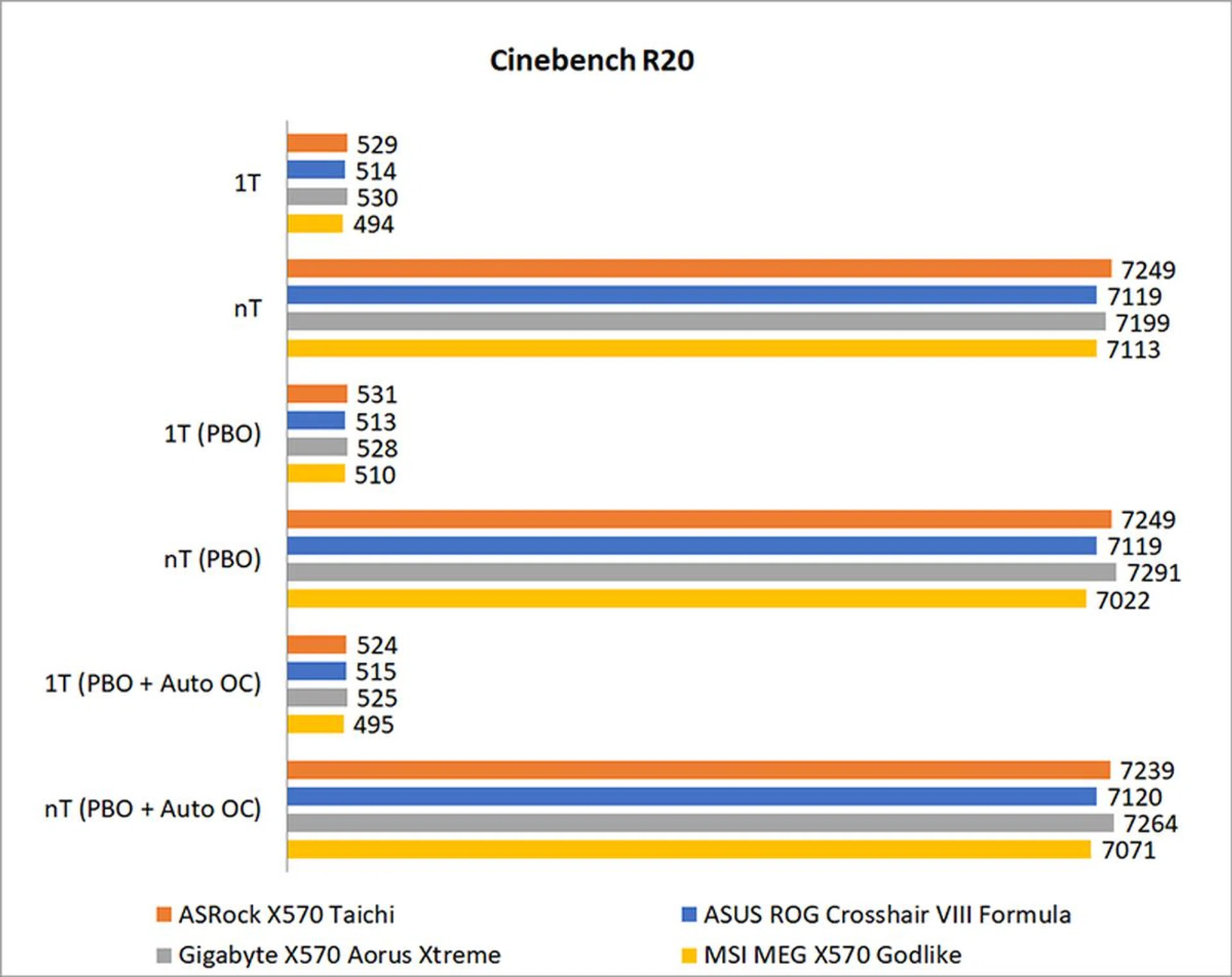
Despite the ASUS ROG Crosshair VIII Formula having vastly lower PBO limits than everyone else, that doesn't seem to have made a difference in terms of performance, and there were generally no vast improvements to speak of. That said, because PBO also raises thermal limits, it will have less of an effect on CPUs that already have a good cooling solution installed, so it's possible that you might see a bigger difference with something like the stock Wraith Prism cooler.
In most cases, performance was mostly unchanged (in some cases it even dropped) when comparing between having PBO on or off. The biggest differences were seen with the MSI MEG X570 Godlike's single-threaded performance, where it showed a 3 percent improvement, and the Gigabyte X570 Aorus Xtreme's nearly hundred point boost in the nT benchmark. However, the latter actually only translates to a piddling 1.3 percent improvement, and that's considered a good result, so I think it's safe to say that PBO isn't really much of a differentiator in this case.
The same goes for Auto OC, and even the Gigabyte X570 Aorus Xtreme's true 16-phase design couldn't help it squeeze out more from the Ryzen 9 3900X, although it did help it hit 4,600MHz. Conversely, the MSI board was no longer able to achieve the rated speeds.
Final thoughts
When you're looking at motherboards this high in the product stack, I think it's safe to say that they're all pretty decent and have just about everything you need. However, what I can't say is that they're all equally good and worth your money. There's also no getting away from the fact that certain combinations of features work better than others, and it makes more sense to pay for these than some other implementation.
That said, here's a wrap-up of where each board stands.
ASRock X570 Taichi

Image Source: ASRock
The ASRock X570 Taichi is the most affordable board of the lot at S$499, so this comparison isn't entirely fair. That said, with the exception of the limited edition Aqua motherboard, this is the highest-end X570 board from ASRock, so it'll have to do.
The Taichi checks most of the right boxes, featuring plenty of storage expansion options, support for Wi-Fi 6, and easily accessibly BIOS flashback and Clear CMOS buttons on the rear I/O. Compared to previous Taichi boards, it also feels more premium, with a metal backplate and shielding for the PCB. However, one thing that's lacking is the number of USB 3.2 (Gen 2) ports. It only has two of these, including one Type-C port, while the rest are slower Gen 1 connectors. It also doesn't have any headers for measuring water flow and has comparatively fewer fan headers than the competition, although its five chassis fan headers should be enough for most folks. In addition, each chassis fan header also supports fans up to 2A, which is a step above what most of the other boards are able to accommodate outside of specific high amperage headers.
The VRM design isn't quite as impressive as what you get on the other boards either, but that's to be expected because of the price. However, the issues I experienced with boot-up after applying the memory XMP profiles, and the less than ideal placement of the front panel USB-C header, mean that there are still some thorny issues to navigate.
ASUS ROG Crosshair VIII Formula
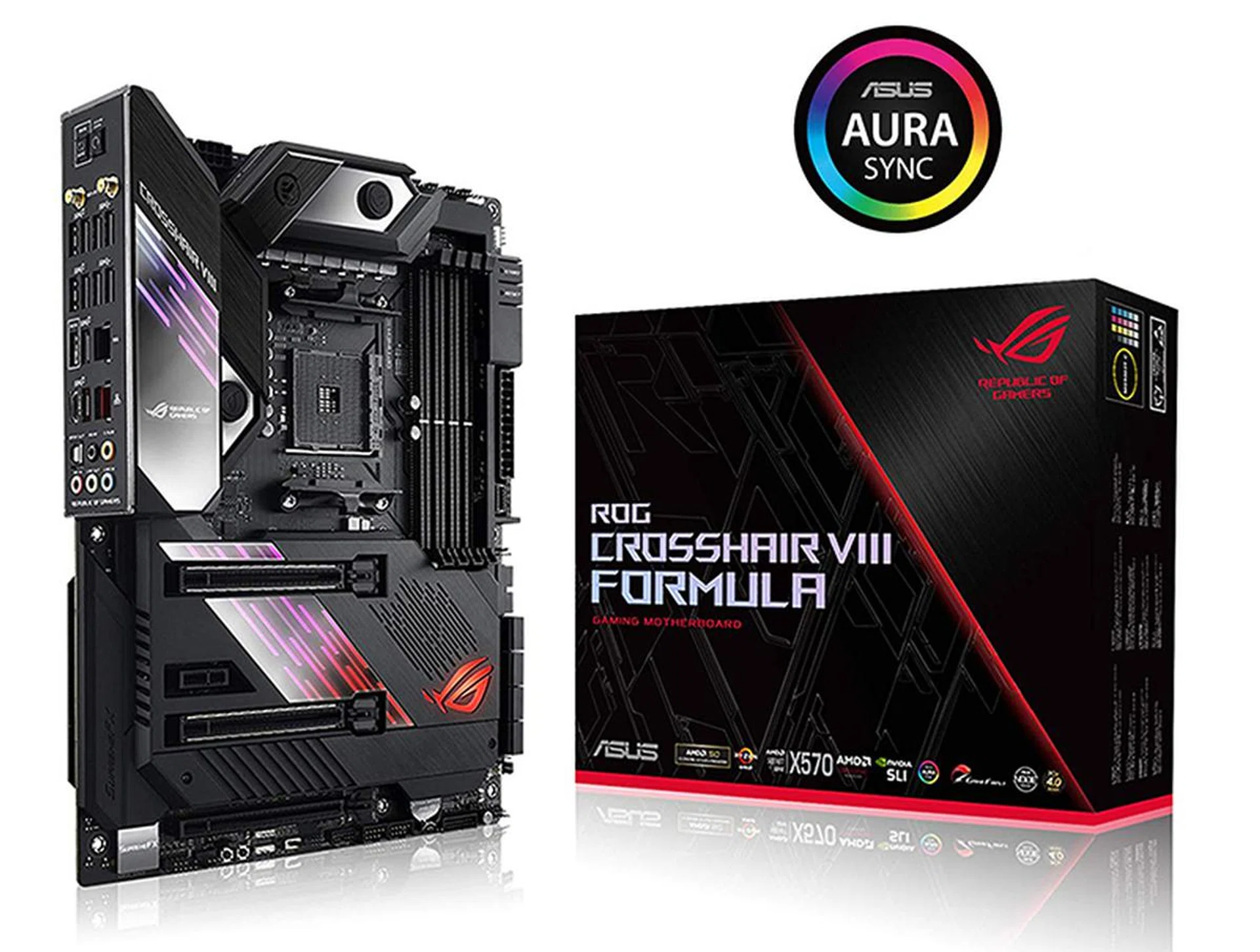
Image Source: ASUS
The ROG Crosshair VIII Formula is a really good board that won't let you down. However, I have to question if it's really worth getting it over the Hero (Wi-Fi) model, which shares most of its key specifications and features. For instance, both boards share the same VRM design, so you're not getting more premium components by shelling out for ASUS' flagship board. Elsewhere, while the Formula has an additional USB 3.2 (Gen 1) header and 5GbE LAN port, it otherwise shares the same selection of USB ports and fan headers as the Hero (Wi-Fi).
What the Formula offers over the Hero is basically the ability to cool the VRM using liquid cooling, the fancy LiveDash OLED display, and fuller coverage of the PCB with the plastic shielding. To be fair, the Hero board isn't that much cheaper either, costing S$722 to the Formula's S$862, which makes sense given how much of a feature overlap there is.
Still, it's cheaper and offers mostly the same thing, so you have to decide how much you need the Formula's additional features. With the exception of the liquid-cooling support for the VRM, you're mostly paying for better aesthetics. Furthermore, the beefy VRM heatsinks on high-end motherboards today are generally more than enough to keep the MOSFETs cool, and the liquid cooling support doesn't add a ton of value. All things considered, I think you're better off getting the Hero (Wi-Fi). And if you really want the most technically capable board, the Aorus Xtreme is a better choice.
Gigabyte X570 Aorus Xtreme
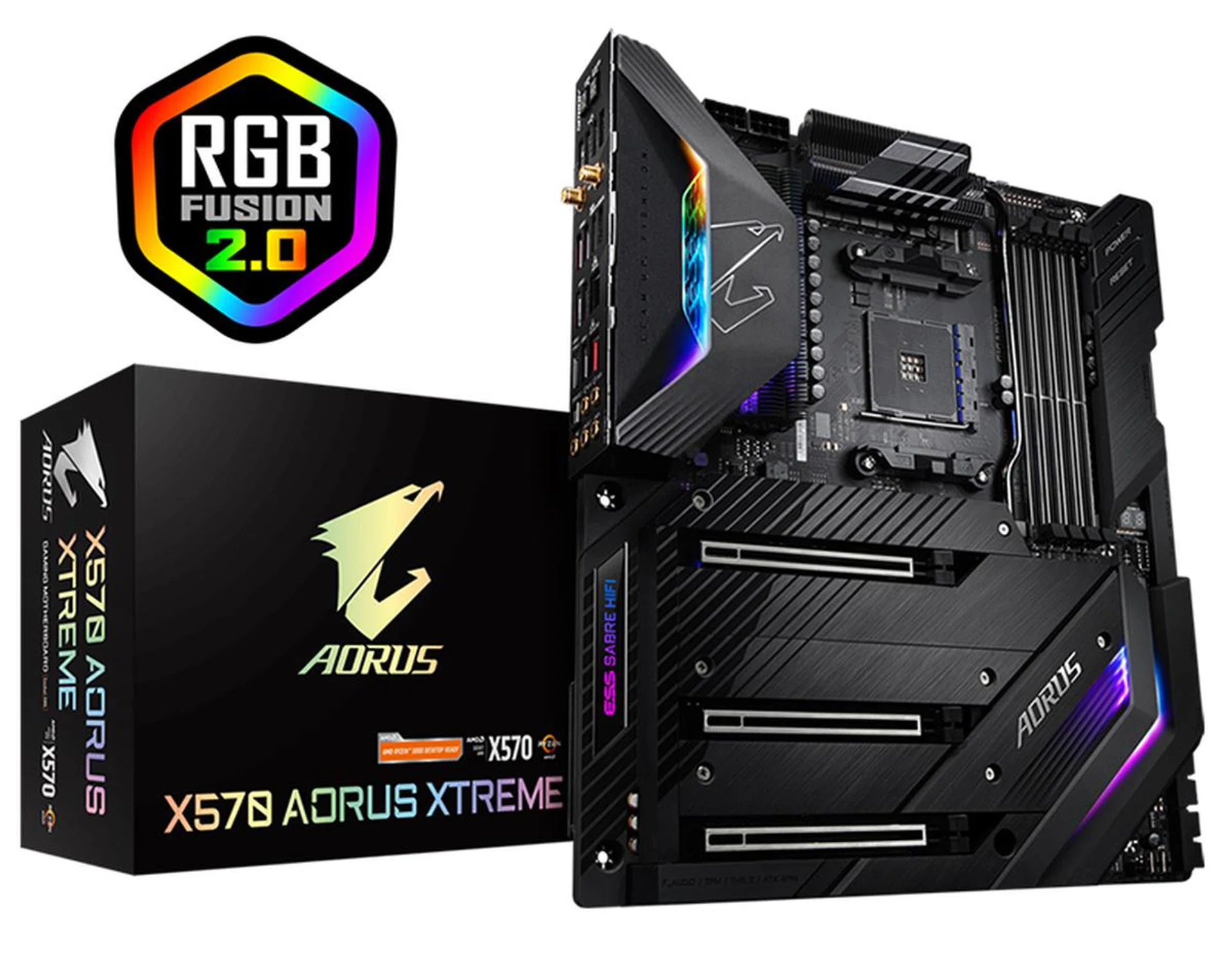
Image Source: Gigabyte
I think Gigabyte has made a smart investment in an area that enthusiasts really care about, and that's overclocking. The Ryzen 3000 chips may not have a ton of overclocking headroom, but if you want to go all out with LN2 overclocking, the X570 Aorus Xtreme has got your back. The true 16-phase VRM is an industry first, and there is currently no X570 board that matches it. If you want the best possible power circuitry, you get the Aorus Xtreme.
At S$965, it's still quite a bit cheaper than the MSI MEG X570 Godlike, while offering, in my opinion, a more robust feature set in an area that enthusiasts will appreciate. It's also managed to include 10G Ethernet connectivity on board without requiring an add-on card like the MSI board. Storage and USB options are similarly robust, and I don't find this board lacking seriously in any way.
To cap things off, it's the only board to not feature active cooling for the chipset. The entire board acts as a heatsink, a design that works quite well, so you don't have to worry about noise or fiddling with an extra fan curve. All things considered, I think the Aorus Xtreme is quite the standout board here, even in a field of uniformly excellent competitors.
MSI MEG X570 Godlike
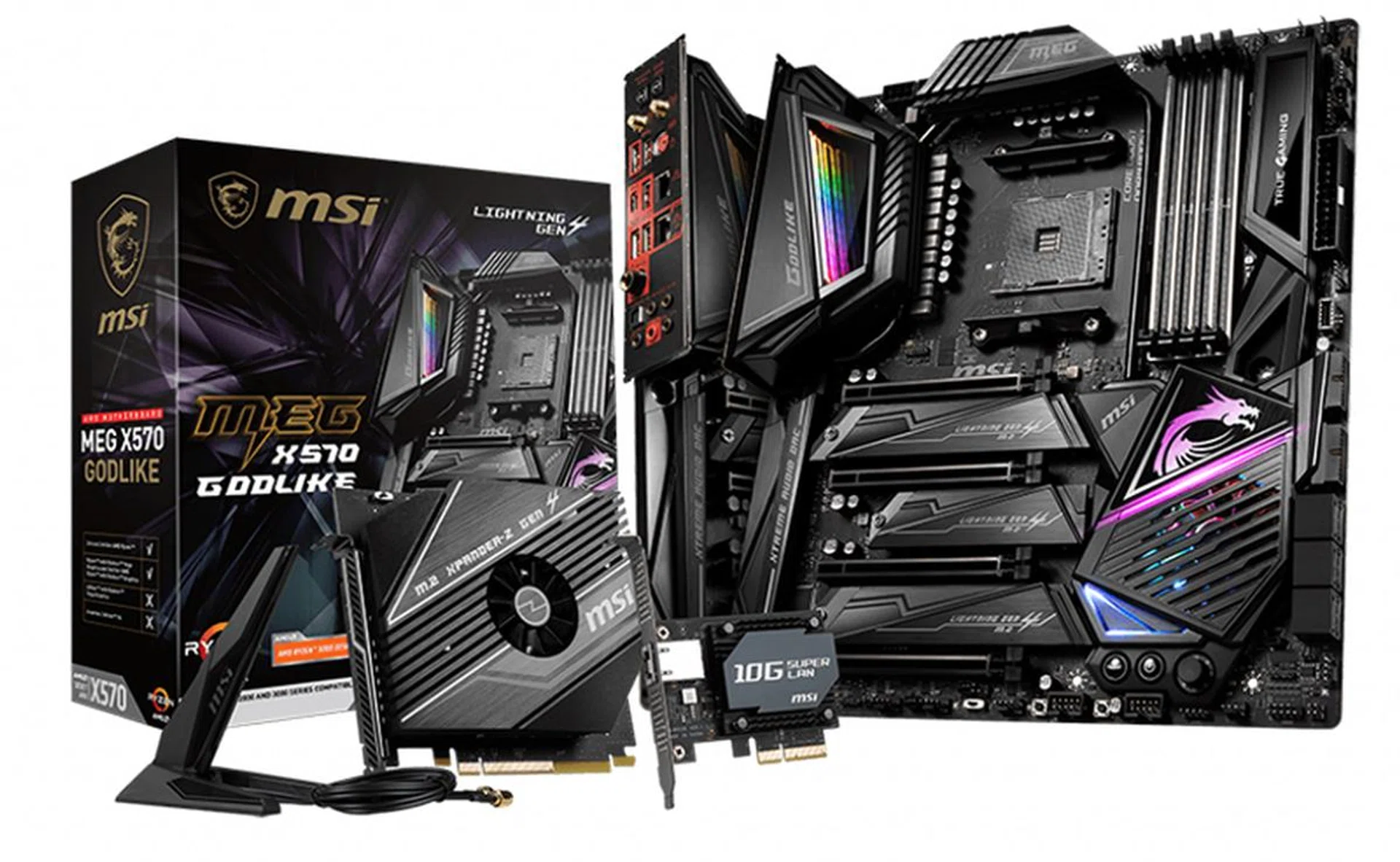
Image Source: MSI
Overall, I'm not sure what this board has exactly that justifies its S$1,269 price tag. It certainly has some very cool features, such as the mirror reflection effect on the I/O shroud and the onboard OLED display. MSI hasn't skimped on quality and features either, and you get top-notch components used in the VRM design, individual heatsinks for all three M.2 sockets, and support for semi-passive operation on the chipset fan. On top of that, MSI has gone all in with the expansion card options, boasting a 10G Ethernet card and the M.2 Xpander-Z card that holds two more PCIe 4.0 drives.
However, it feels like you're paying extra for expansion cards that you probably won't use. After all, do you actually have 10G internet and five M.2 devices? I'm not discounting the fact that some folks will actually be able to take advantage of both these features, but I'm pretty sure they comprise a very small subset of users. I'd much rather have them available separately as add-on options and then pay for them if I need them.
The X570 Godlike is a great motherboard. I just don't like the idea of paying for features that I didn't ask for and don't need. What's more, the ASUS ROG Crosshair VIII Formula and Gigabyte X570 Aorus Xtreme, which are arguably the Godlike's closest competition, cost S$862 and S$965 respectively while offering a very similar feature set.
Which board should you get?
I originally thought it would be difficult to tease out a winner, but that's actually not the case now. The Gigabyte X570 Aorus Xtreme is quite clearly a cut above the rest here, boasting premium features like a true 16-phase VRM design, onboard 10G Ethernet, and passive cooling for the PCH that does away with noise entirely. The VRM implementation and passive chipset cooling are things that no other X570 board has, so the Aorus Xtreme is entirely unique in this respect.
The MSI board is too pricey, while the ASUS motherboard lacks meaningful differentiation from the Hero (Wi-Fi). The ASRock board is a decent alternative if you're on a tighter budget, but it doesn't really compare in terms of usability and features. I'm not saying you shouldn't buy the ASUS ROG Crosshair VIII Formula or MSI MEG X570 Godlike though. The ASUS board will still serve you well if you want to try liquid-cooling your VRM and prize bells-and-whistles like the configurable OLED display. Similarly, the Godlike motherboard places a strong focus on aesthetics and will be a good fit for someone who can utilize its bundled 10G and M.2 expansion cards.
But if you're just looking for a solid board that will give you the most utility, there's no beating the overall proposition of the Gigabyte X570 Aorus Xtreme.
Model | Features | Value | Overall | Price (S$) |
ASRock X570 Taichi | 7.5 | 8.0 | 7.5 | $499 |
ASUS ROG Crosshair VIII Formula | 8.5 | 7.5 | 8.0 | $862 |
Gigabyte X570 Aorus Xtreme | 9.0 | 7.5 | 8.5 | $965 |
MSI MEG Z390 Godlike | 9.0 | 6.5 | 8.0 | $1,269 |
 | |
 | |
 | |
 |