
Samsung UD590: An all-round 4K monitor that doesn't break the bank
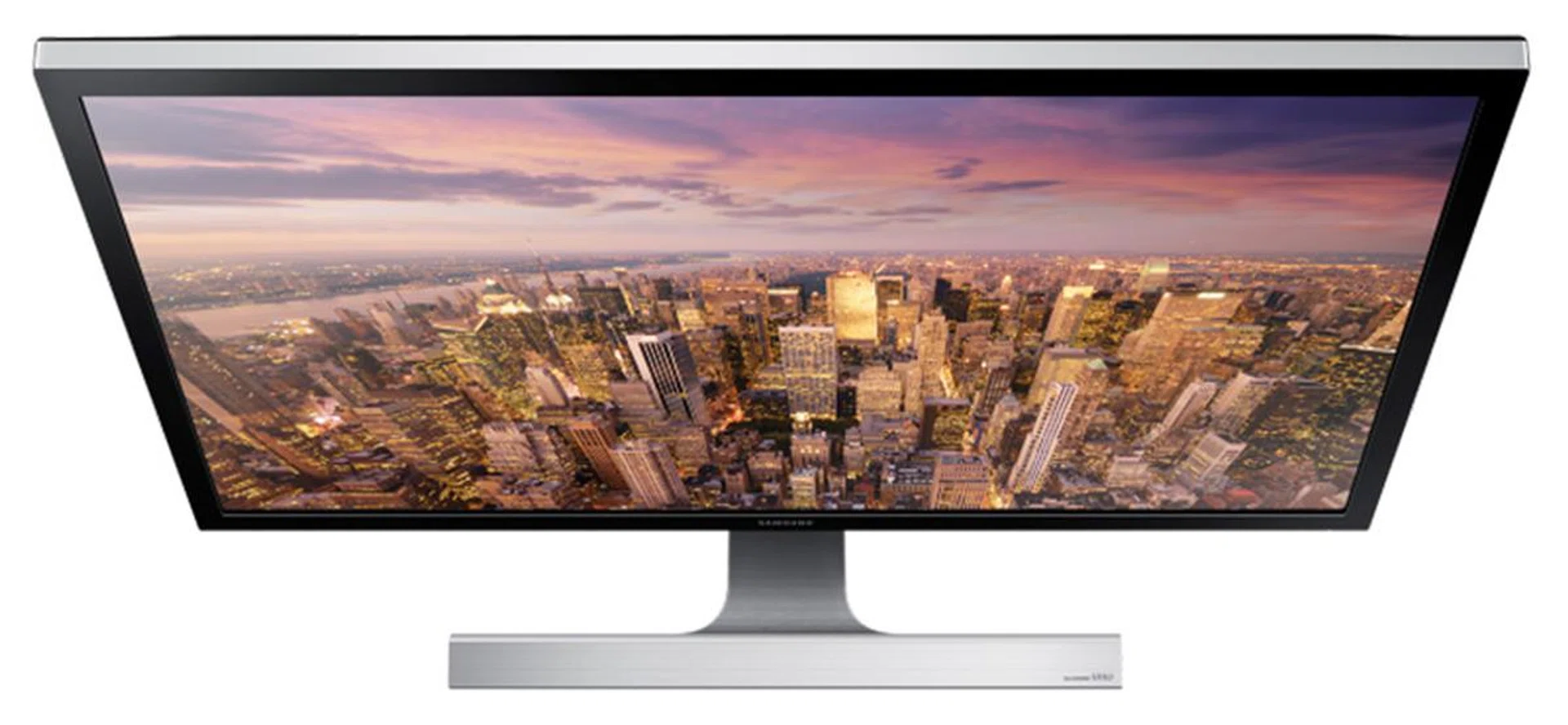
The Samsung UD590 is a 28-inch 4K monitor capable of 1 billion colors, and comes with two HDMI and one DisplayPort inputs. Best of all, it costs just S$899. We tell you if it's any good.

8 million pixels on your desktop
In our review of Samsung’s latest 4K TVs, we said that buying a small-screen 4K TV makes no sense as one won’t be able to notice the image quality difference between that and a similarly-sized 1080p set. Naturally, that’s assuming a typical TV viewing distance, which is at least 3 to 4m away for most people.
But what if the 4K display has to be placed very close to you, you know, like your notebook’s display or your desktop monitor? Due to the much closer proximity, it’s now much easier to make out the improvements that the extra pixels bring, like the sharper text and icons and the increased level of detail in photos and games.
For professional users like photographers and videographers, a 4K monitor will also enable them to edit their work at native (or close to native) resolutions, not to mention more desktop real estate for controls and other windows.
Like how it makes little sense to buy a small 4K TV, from a visual, productivity, and (especially) comfort standpoint, it also makes little sense to buy a small 4K desktop monitor. Probably the smallest we’d go is 24 inches, like Dell’s UltraSharp UP2414Q.
In our opinion, the more logical size for a desktop 4K monitor (to strike a balance between gaining useful screen real estate and being able to discern the improvements without the need to squint your eyes or sit dangerous close) is 28 inches. Manufacturers clearly think so too, as this is the size class that saw the most activity recently. For example, there’s ASUS’ PB287Q, Dell’s P2815Q, and Samsung’s U28D590DS, the last of which is what we’re taking a closer look in this article.
“Minimal design”
Like its TVs, Samsung’s current crop of monitors adopts a minimalist design approach, which means clean lines, a nice and simple-looking aluminium stand, and very, very few control buttons. The black enclosure that houses the 28-inch, 3,840 x 2,160-pixel TN (twisted nematic) panel (for a pixel density of 157ppi) is made of plastic, but Samsung has given it the brushed metal treatment. You can tilt the panel (about -1° to 15°), but you can’t swivel or rotate it. The height isn't adjustable either.
The rear of the UD590 is very clean too. You’ve two HDMI inputs, a DisplayPort terminal, and a 3.5mm headphone jack smacked right in the center, alongside a DC input jack for hooking up to the external power brick. Speakers, USB ports, and provision for a VESA mount are conspicuously missing.
For those with deep pockets and are considering a dual-UD590 setup, the monitor has a glossy black bezel that measures 1.7cm all round.
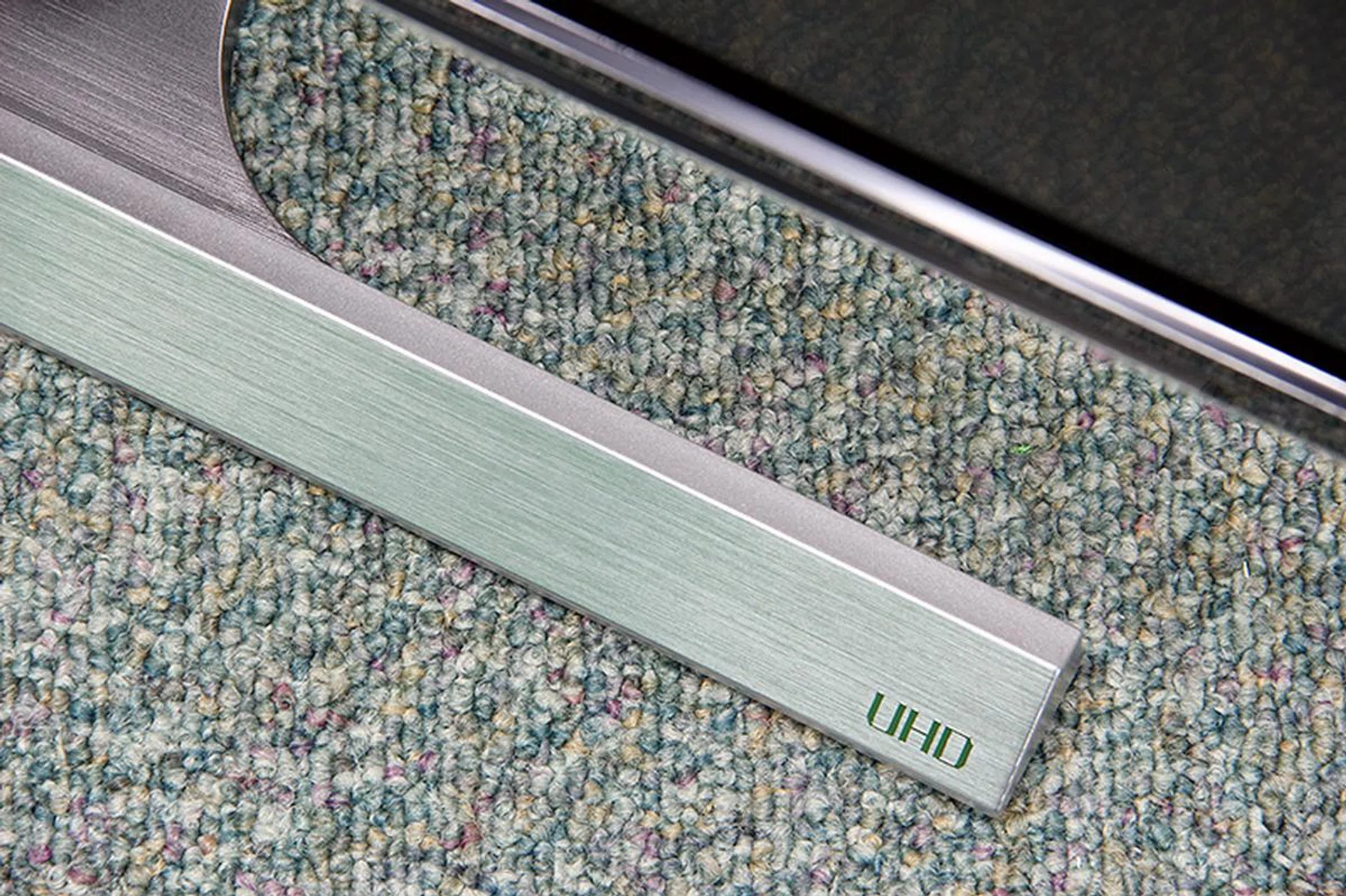
The stand is pretty enough, but the lack of ergonomic adjustments means that more effort is needed on the user's part to achieve a comfortable viewing position.
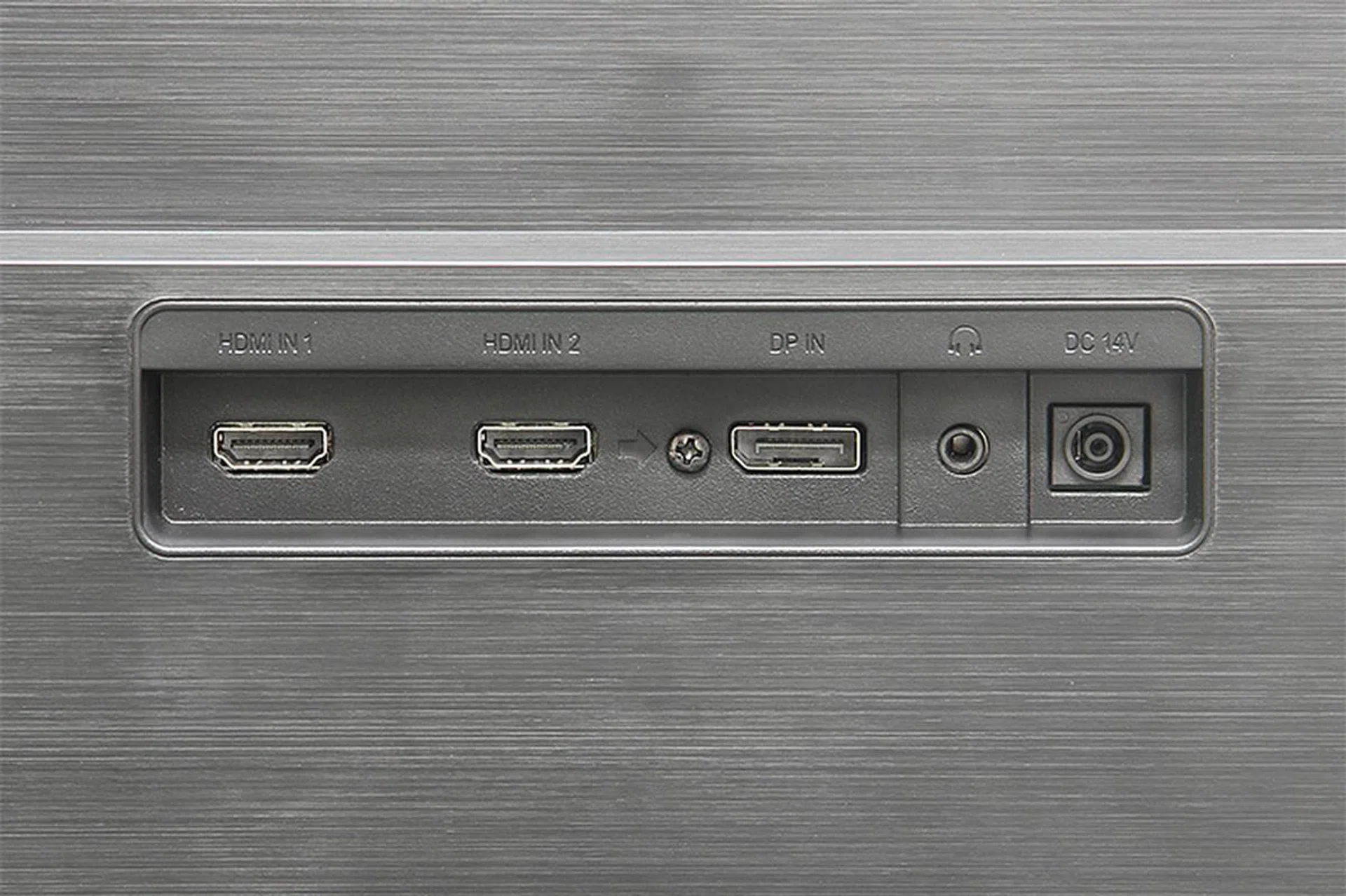
Naturally, it's an all-digital video input affair for the UD590.
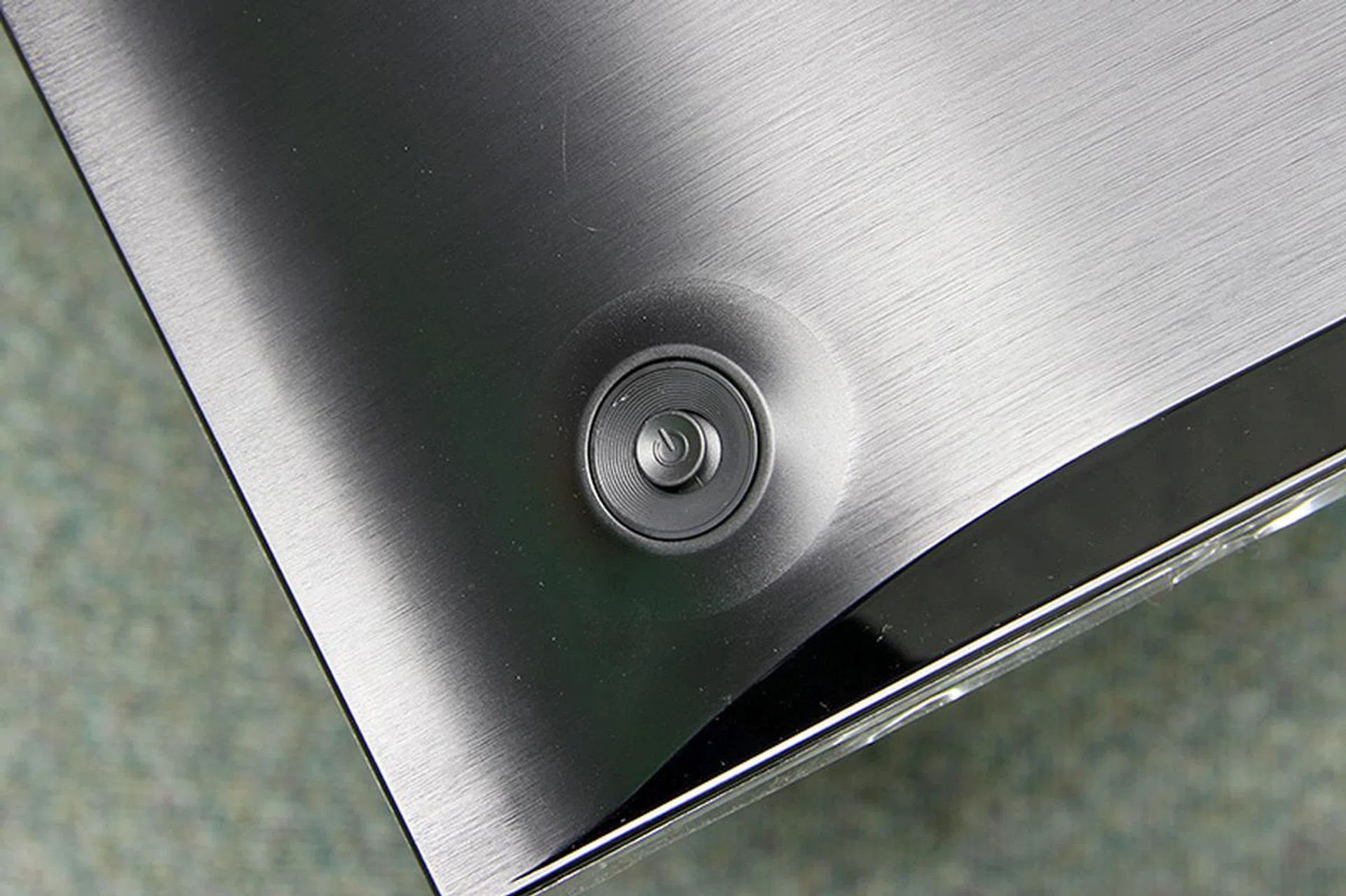
While navigating the OSD with a 5-way controller isn't as straightforward as dedicated physical controls, we've to admit that we'll take it over touch buttons anytime.
And at the bottom left corner at the back is the ‘Jog’ button, which is a directional pad with a Power/Enter button at the center. Suffice to say, this is used for navigating the onscreen display (OSD). When the center button is pressed, an onscreen guide would appear, telling you which button to press next for a particular function. Frankly speaking, we’d very much have preferred dedicated buttons, simply because we can adjust settings faster this way. Not to mention that unlike a TV, there’s no remote control we can fall back on here.
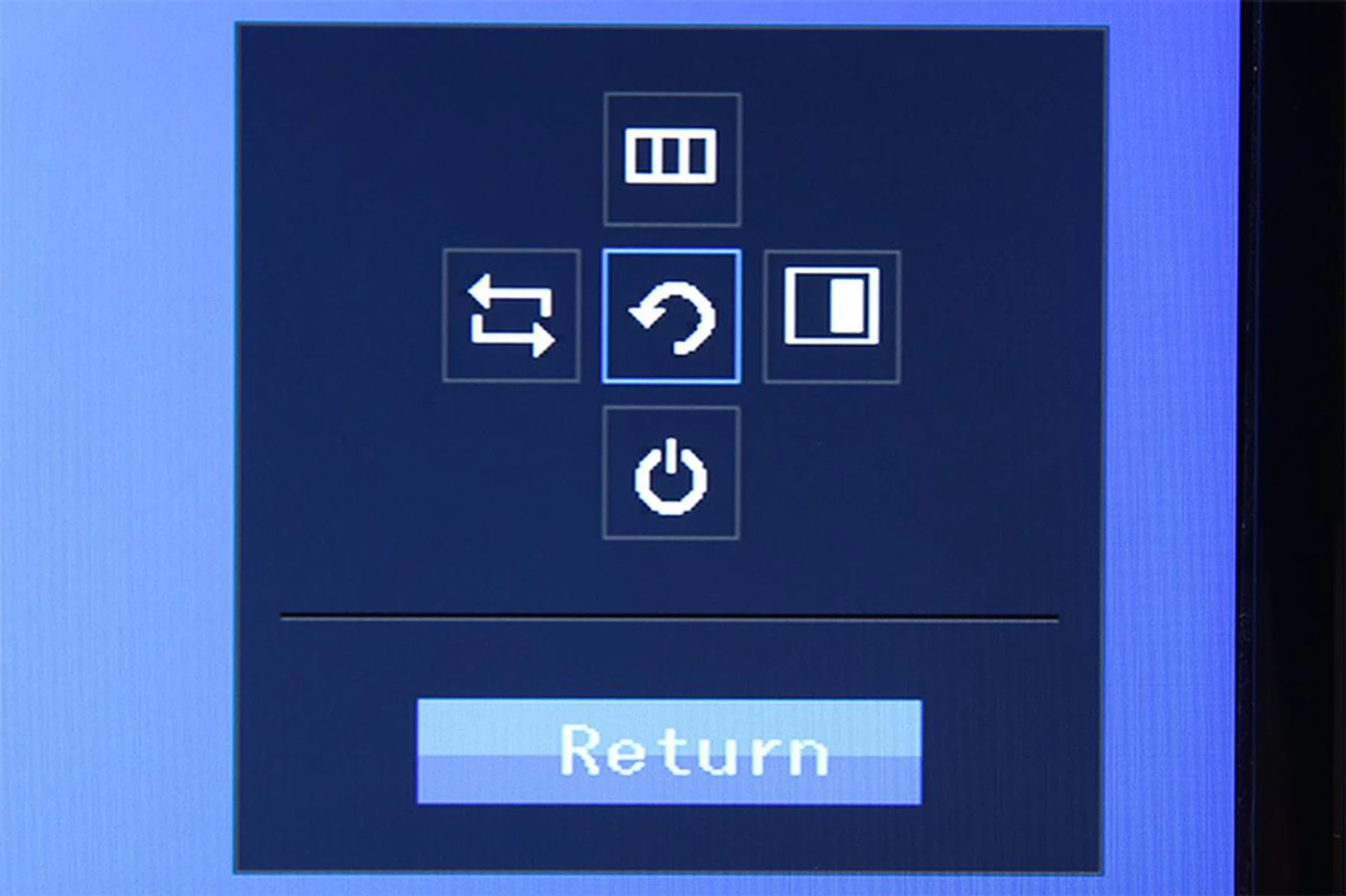
This menu pops up when the center button is pressed. From here, you can choose to either fire up the full OSD, or toggle the source, PiP/PbP, or power settings.
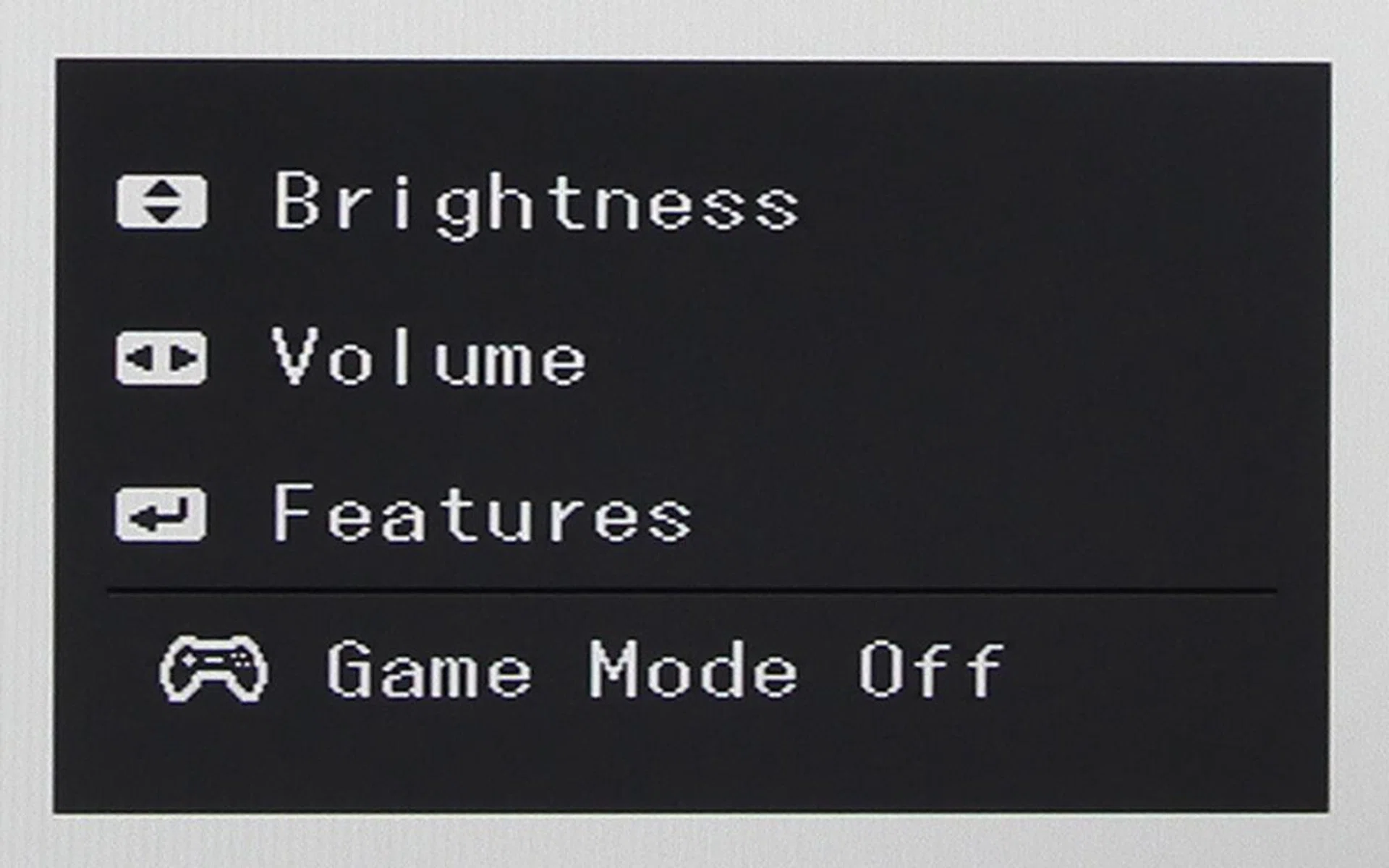
Pressing any of the directional buttons instead of the center button will land you on this menu. From here, you can quickly jump to the brightness/contrast/sharpness or volume sliders.
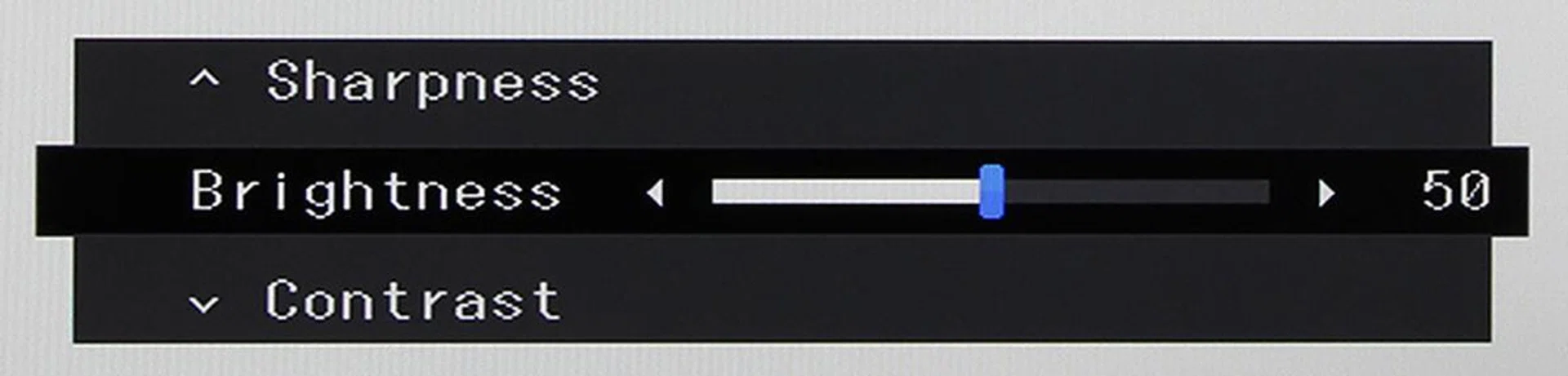
Protip: To quickly reach the brightness slider, press the up button twice.
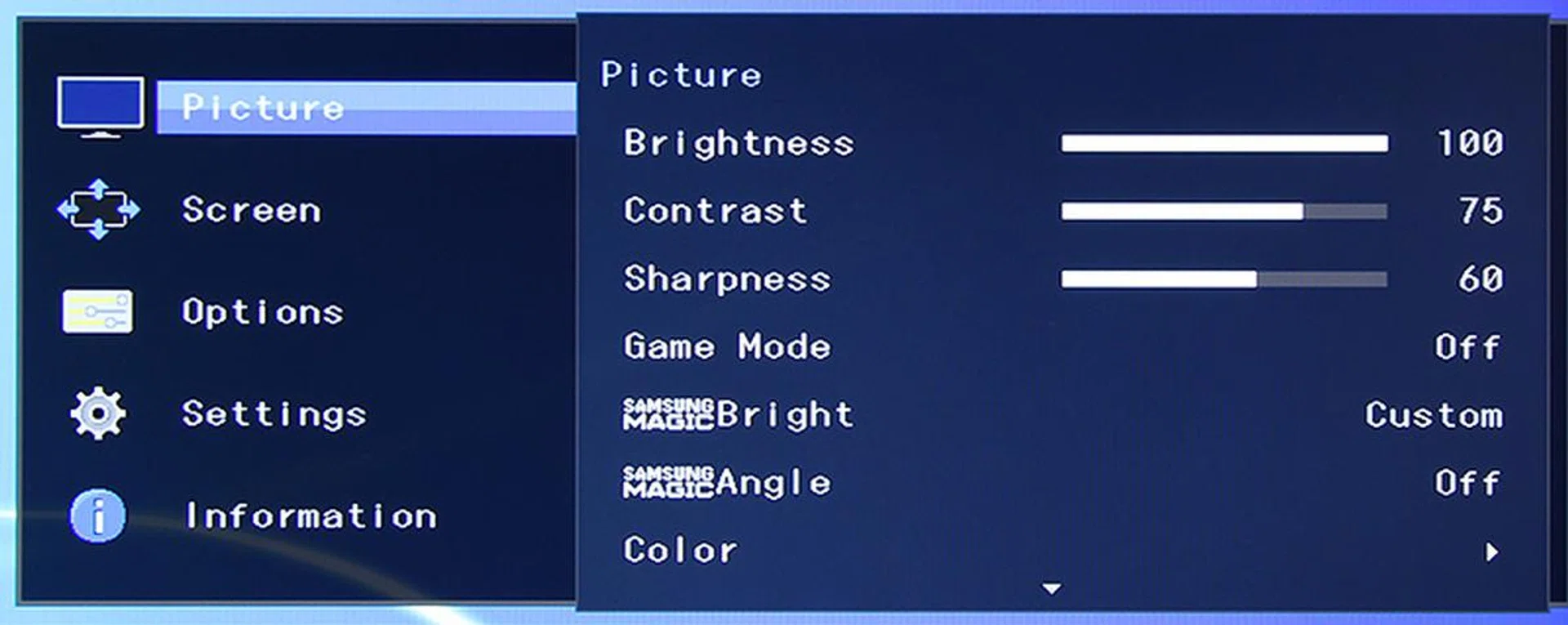
In other words, the main OSD is three presses away.
Magic settings
Beyond the usual brightness, contrast, and sharpness settings, the Picture menu in the OSD is also home to two proprietary settings called MagicBright and MagicAngle.
In a nutshell, MagicBright houses the different presets, each with its own picture parameters. There’s Standard; Dynamic Contrast, which gives a sharper image and higher contrast than Standard; Cinema, for video content; and Custom, which lets you adjust preferences to taste.
Then there's MagicAngle, which attempts to give you the best possible looking picture according to the angle you’re looking at the screen from, by playing around with the monitor’s brightness and contrast automatically. For example, there are two Lean Back modes for when you’re looking at the monitor from a lower angle; a Standing mode for when you’re standing and looking down at the screen; a Side mode for when you’re looking from the sides; and a Group View mode for when you’ve other people around you looking at the same screen. This is a pretty clever idea considering TN panels are known for their restrictive viewing angles, though we don’t see this being a key or heavily used feature for the type of audience this 4K monitor is targeted at.
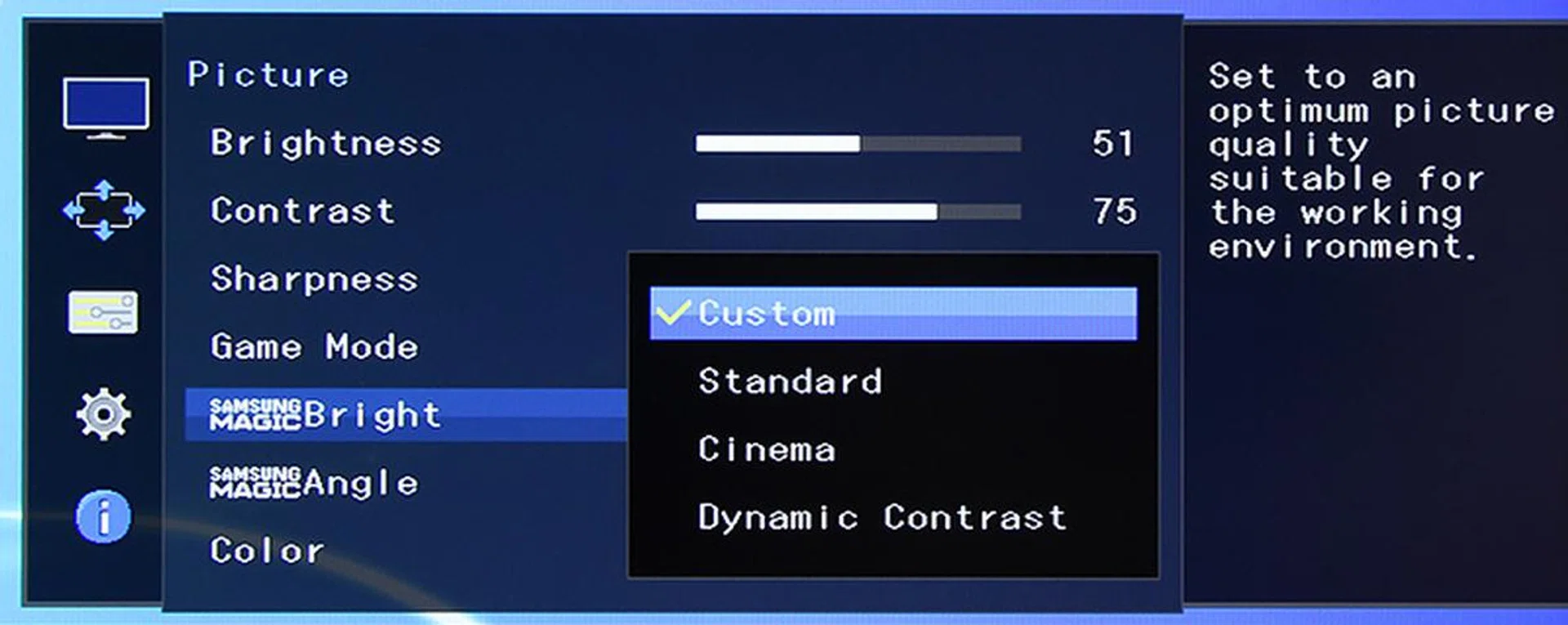
Think of options in MagicBright as presets for different types of content.
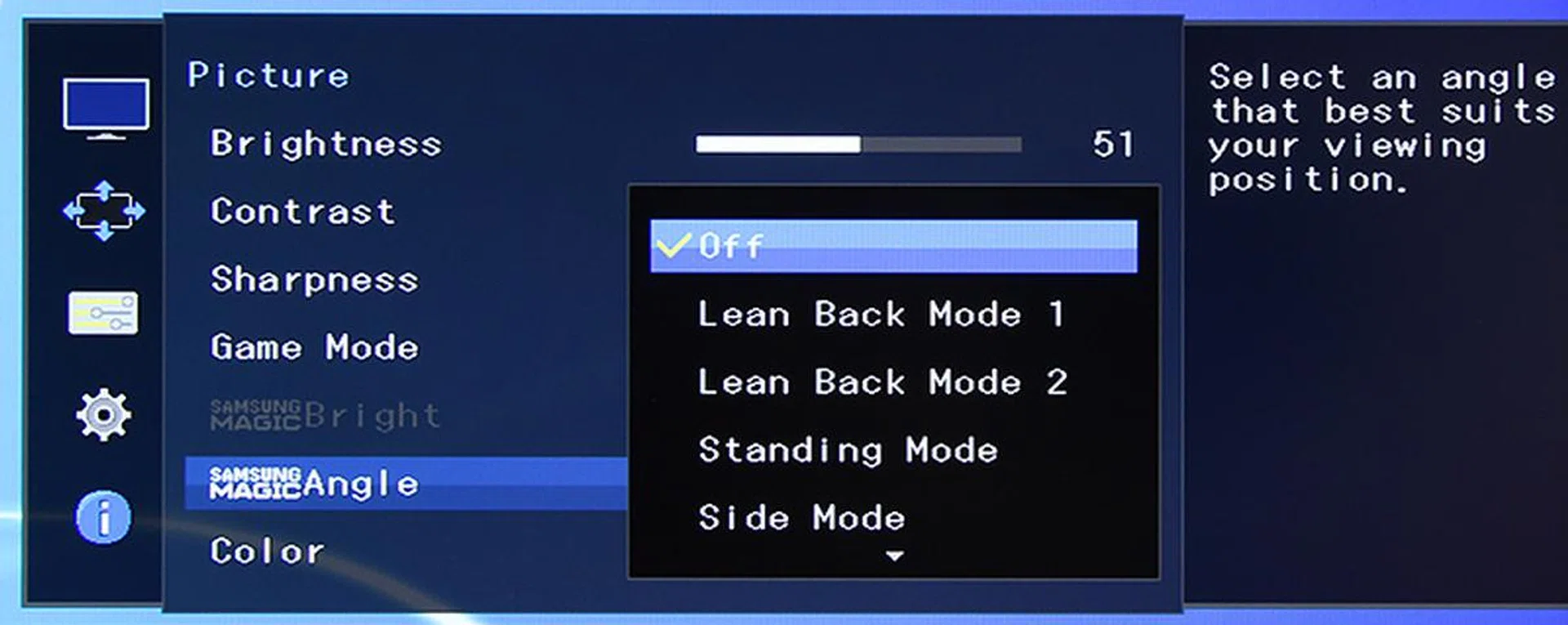
A long-time feature in Samsung's monitors, MagicAngle attempts to optimize colors and contrast based on the angle you're looking at the screen from.
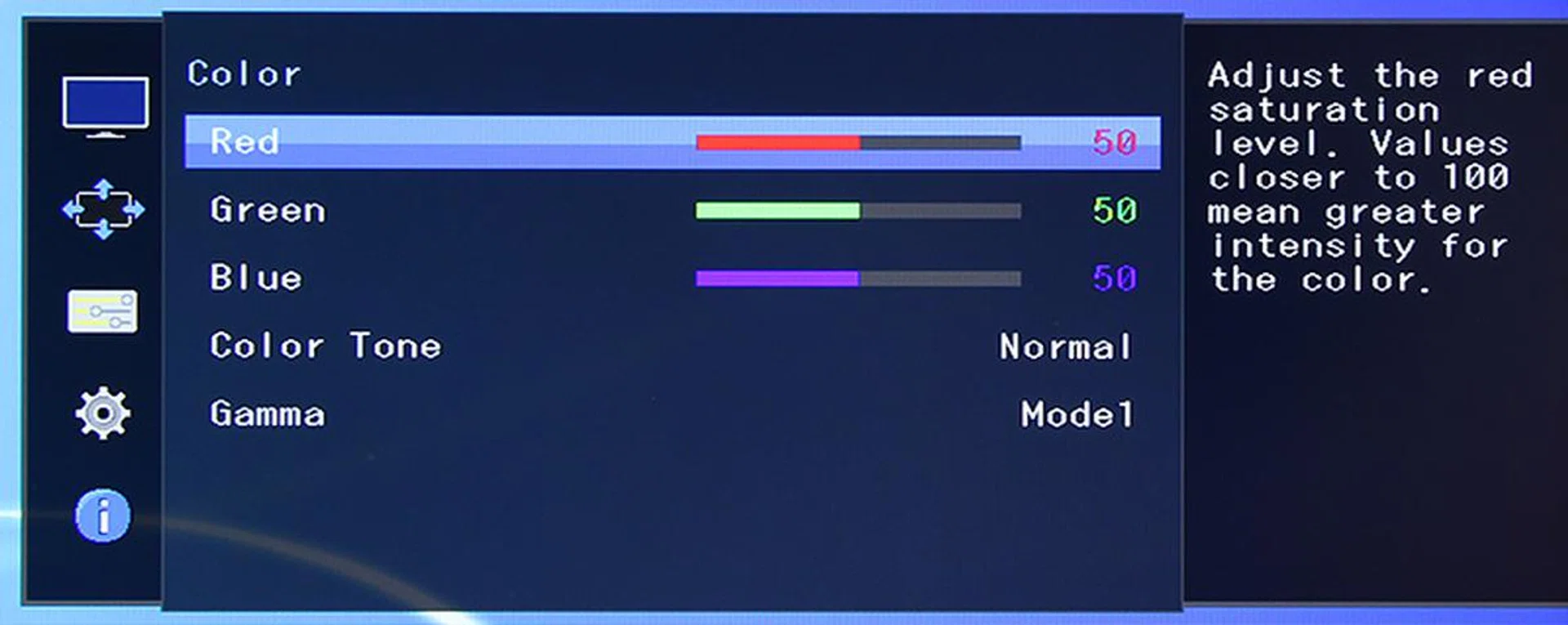
For tweakers, the Color sub-menu houses settings for color tone (color temperature), gamma, as well as red, green, and blue levels.
Performance
We tested the Samsung UD590 through both the HDMI and DisplayPort inputs. The primary reason is that the monitor’s HDMI 1.4 port supports 4K (3,840 x 2,160) at 30Hz, but the DisplayPort 1.2 port goes up to 60Hz.
Also worth pointing out here is that the UD590’s TN panel has an anti-glare coating. For the most part, other than reducing the glossiness (that some people like) and cutting down reflections, image quality doesn’t look to have suffered from the rather light AG coating.
Text, photos & movies
It probably goes without saying that text looked super-sharp on the UD590. At native 4K resolution, UI elements like icons and text on Windows can look very small, but you can always scale them up in Control Panel. The point is: this reviewer can make out fonts at 6-point size so much easier on this 4K monitor than a 1080p one.
Now, Samsung says that the UD590 supports up to 1.07 billion colors, which seems to suggest a 10-bit panel. Given this is a TN panel, this is likely an 8-bit with FRC (frame rate control) implementation. Regardless, we found grayscale tracking to be very good out of the box, with just the reds slightly lacking. The Color Tone setting affects color temperature, and we found the default Normal setting to hit the nail on 6,500K. For the Gamma control, the default Mode 1 represents 2.2, Mode 2 is 2.0, and Mode 3 gives 2.4. In other words, if you’re aiming for D65 and a gamma of 2.2, you can leave these settings as-is.
Surprisingly, the Cinema MagicBright preset has a higher brightness than the Standard preset (233cd/m² vs. 384cd/m², according to our measurements). Standard is what we’d recommend, as it’s very close to the 200cd/m² we usually aim for, and it gives a decent black luminance of 0.39cd/m². Other than the Dynamic Contrast preset, contrast ratios for the rest hover anywhere between 600 and 700:1.
With regards to screen uniformity, with a 100% white field, we measured the average deviation of other sections from the center of the screen to be 9%, with the main culprit being the dimmer lower-right corner. It’s unlikely that you’d notice anything during real-world use though.

TN panels have come a long way. While viewing angles still don't stand shoulder-to-shoulder with IPS, other aspects like grayscale tracking and color accuracy have improved considerably. (Video: GoPro Hero4: The Adventure of Life in 4K on YouTube.)
Better performance can be eked out through calibration, of course. As we mentioned earlier, we went for 200cd/m², which we found to be ideal for most settings (e.g., in the office). At this level, colors appeared accurate and still fairly poppy, with very minimal banding. To get to 200cd/m², we dropped the brightness slider to 50. For darker environments, you may prefer a dimmer display, say 120cd/m². To hit that, drop the slider all the way to 24.
The UD590 didn’t go beyond the sRGB color space however, though we already expected that because of its TN panel. Color shifts and contrast dips still happened during off-center viewing (especially in the vertical fields), and it’s in these cases where the aforementioned MagicAngle function can come in handy, though it’s hardly a cure-all solution.
Upscaled 1080p content also looked good on the UD590. Needless to say, you get boatloads of details if you feed it with a native 4K signal. While the Cinema preset provided us with vivid colors and high contrast, blacks didn’t go as dark as we’d have liked.
Picture-in-picture & picture-by-picture modes
As we mentioned at the beginning, productivity stands to gain a boost when you’ve such a high-res screen. For example, video pros can have 1080p footage onscreen without scaling when they’re editing them, with ample room to spare for other control windows.
The UD590 also packs a couple of nifty modes to improve multi-tasking. There’s a picture-in-picture (PiP) mode where you’ve a main screen as well as another inset window displaying content from another source. There are three resolutions to choose from via the monitor’s OSD for this secondary window: 720 x 480, 1,280 x 720, and 1,980 x 1,080 pixels.
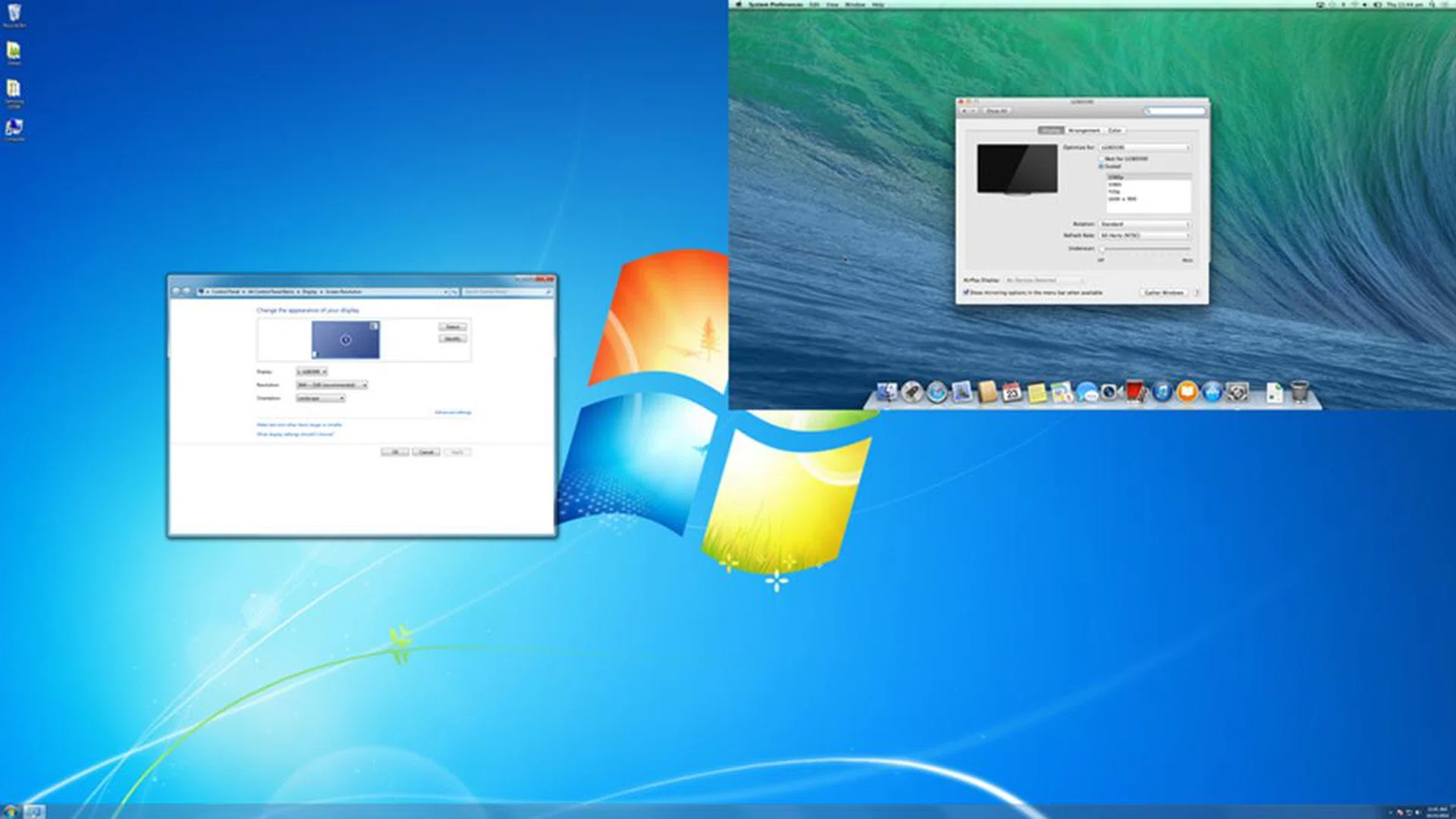
Here's a 1080p image from another source (a Mac) overlaying the main 3,840 x 2,160 pixel-resolution screen. You can also choose which corner to place this second screen.
In addition, there’s a picture-by-picture (PbP) mode that (as the name implies) splits the screen horizontally in half to let one source take up the left half of the screen and another source the right half. This mode works best for connecting two computers to a single monitor. Now, you can easily bring up that document you’ve on your laptop and place it side by side with the document you’re now working on on your desktop PC.
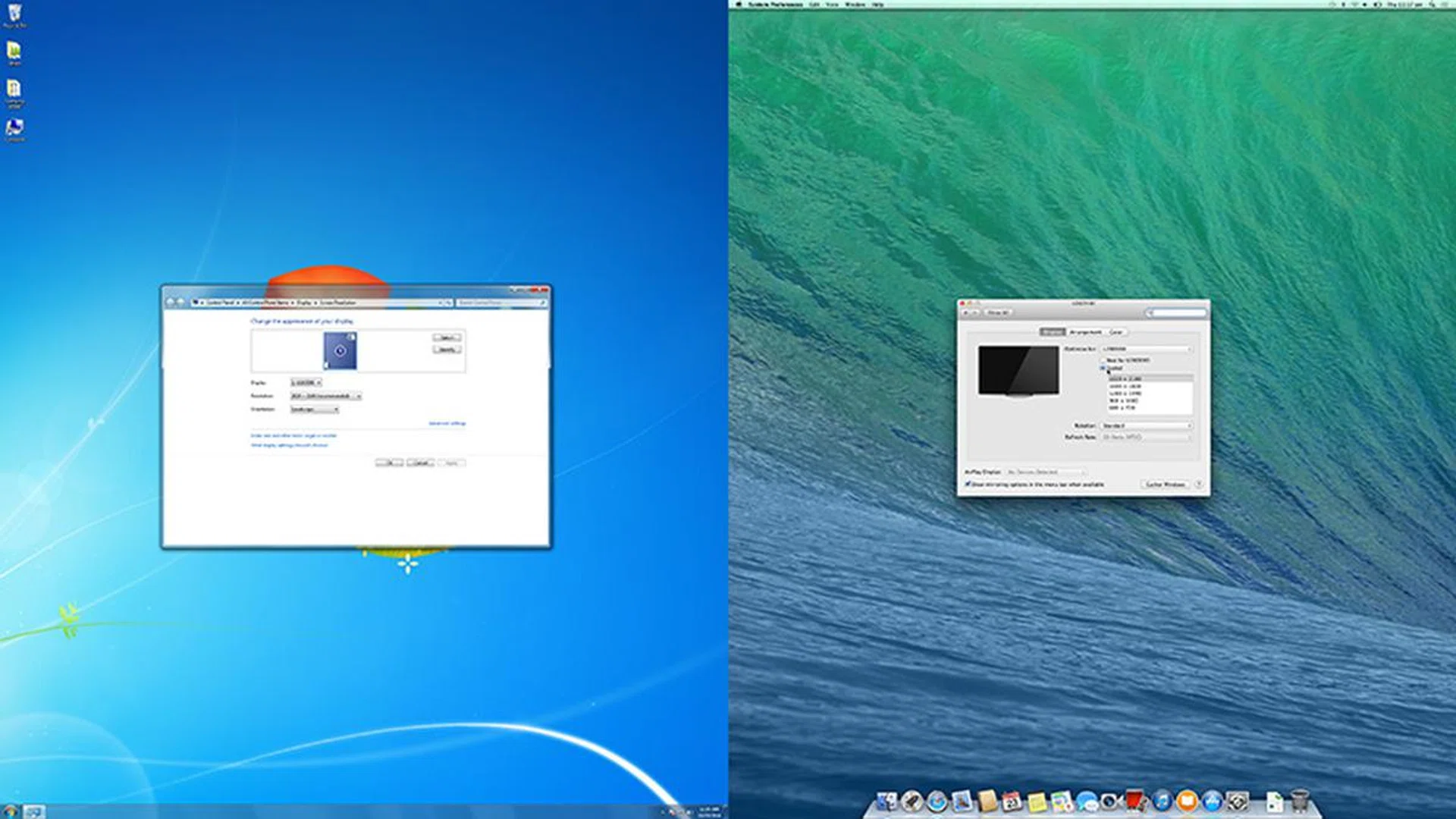
In Picture-by-Picture mode, the screen is split in half to display output from two different source devices simultaneously. Resolution for each half is 1,920 x 2,160.
Lastly, for both PiP and PbP modes, you can choose which source you want to hear the sound through the headphone jack.
Gaming
TN film panels have long been the poster child for gaming monitors because their quick pixel responsiveness results in fewer display artifacts, such as ‘ghosting’ and blurring of moving images, in games and movies.
The Samsung UD590 has a 1ms response time (gray-to-gray), pretty much de rigueur for gaming monitors these days. Response time compensation (RTC) is featured here, as evidenced by the presence of three response time options in the OSD: Standard, Faster, and Fastest. For the most part, this monitor exhibited screen redraw times faster than those with IPS panels, which means we didn’t noticed any severe streaking. Overdriving using the Fastest setting can reduce response time further, but you get obvious dark halo behind the moving subjects. In short, keep to the default Faster setting. On a related note, we also noted good vibrancy and color saturation when we turned on the Game mode in the Picture menu.

The Fastest setting is too aggressive, and should be avoided.
To our surprise, input lag was very acceptable. Yes, on occasions, it did feel a tad worse than 1ms full HD monitors, but it wasn’t a vast difference. That said, if you’re a hardcore gamer who has no desire to do 4K gaming, the 27-inch ASUS PG278 that we recently tested is hands-down a better gaming monitor. While this 2,560 x 1,440-pixel resolution monitor also has a 1ms TN panel, it wipes the floor with the UD590 in both refresh rate and input lag tests, thanks to its much higher 144Hz refresh rate and support for NVIDIA’s G-Sync technology.
Conclusion: A sign of things to come
It’s easy to see the lure of the Samsung UD590 (and all the other sub-S$1,000 TN-based 4K monitors) if you don’t need a ginormous or pro-level 4K monitor, which can easily cost several thousands of dollars. Sure, the TN-based monitors may produce a less accurate picture and have limited viewing angles compared to those using more fanciful panels; but like how it has played out in the full HD segment, for most people, a modern TN panel is actually good enough for the most part.
In the case of the UD590, we noted good brightness, grayscale, and color performances, though black luminance and contrast are somewhat in the middle of the pack, compared to the top TN and IPS-based monitors.
Amenities-wise, in addition to a nice-looking design (albeit a rather limited stand), we like the UD590’s picture-in-picture and picture-and-picture modes that put the dual HDMI and single DisplayPort inputs into more productive use. Remember though, to run at 3,840 x 2,160 at 60Hz, you’ve to use DisplayPort (and switch to version 1.2 in the OSD), since the HDMI port tops out at 30Hz at 4K. (For those wondering, you can’t use two HDMI cables to run 4K at 60Hz.) Our test bed sports an NVIDIA GeForce GTX 660 graphics card, and it ran non-3D-intensive 4K at both refresh rates (the card has both HDMI and DisplayPort terminals) swimmingly.
Another group of users likely to be drawn to the UD590 is gamers. By virtue of its fast TN panel, it performed well in our response time and input lag tests. Sure, it’s no match for the 144Hz and G-Sync-capable ROG Swift PG278Q, but the PG278Q doesn’t do 4K and costs S$1,259.
Of course, whether your system can handle 4K gaming (or video) is another story altogether. For decent frame rates, a pair of NVIDIA GeForce GTX 780 / GTX 980 cards or a set of AMD Radeon R9 290 cards is a good starting point for optimizing cost and getting decent performance, while an R9 295X2 is even better. If you’re a hardcore gamer, getting a better graphics card is probably where the savings you gain from the recent crop of 'affordable' 4K monitors should go to.
4K is here to stay for TVs; it's the same (maybe even higher) for desktop displays.
The Samsung UD590 is priced at S$899, and comes with a 3-year on-site warranty.
Our articles may contain affiliate links. If you buy through these links, we may earn a small commission.