
Oki B840dn A3 Mono LED Printer - The Speed of Light
The Oki B840dn is a single-function, workgroup-oriented LED printer that's capable of up to A3 printing. Join us as we put its 40ppm speed claim to the test.

The LED Proposition
There’s always been some level of confusion among consumers regarding the difference between a printer using laser technology and one that uses LED technology. In truth, both use the same underlying print technology, which is using static electricity to apply toner to paper. What differs however, is how light is being transmitted to form the image on the drum. Simply put, with a laser printer, an optical scanning system is used and laser scans from one end of a line to the other; and it does this line by line.
On the other hand, an LED printer has a print head that’s made up of an array of light emitting diodes. So instead of scanning from one end to the other, the LEDs in the row flash at once (but selectively) to create the latent image. And some of you might have guessed it: a 600dpi LED printer means that the print head has 600 LEDs per inch. Multiply that by the length of the array and you get several thousands of tiny LEDs.
Proponents of the LED camp will tell you that this results in printers that are more compact, quieter (due to fewer moving parts) and more affordable, compared to their laser counterparts. In the past, the biggest complaint about LED printers was their low resolution (usually not more than 600dpi). But with advancement in LED technology, that’s less of an issue these days. In the market right now, there are several printer bigwigs that have LED printers in their stable of products, such as Brother, Fuji Xerox (with its SLED variant), Lexmark and Oki.
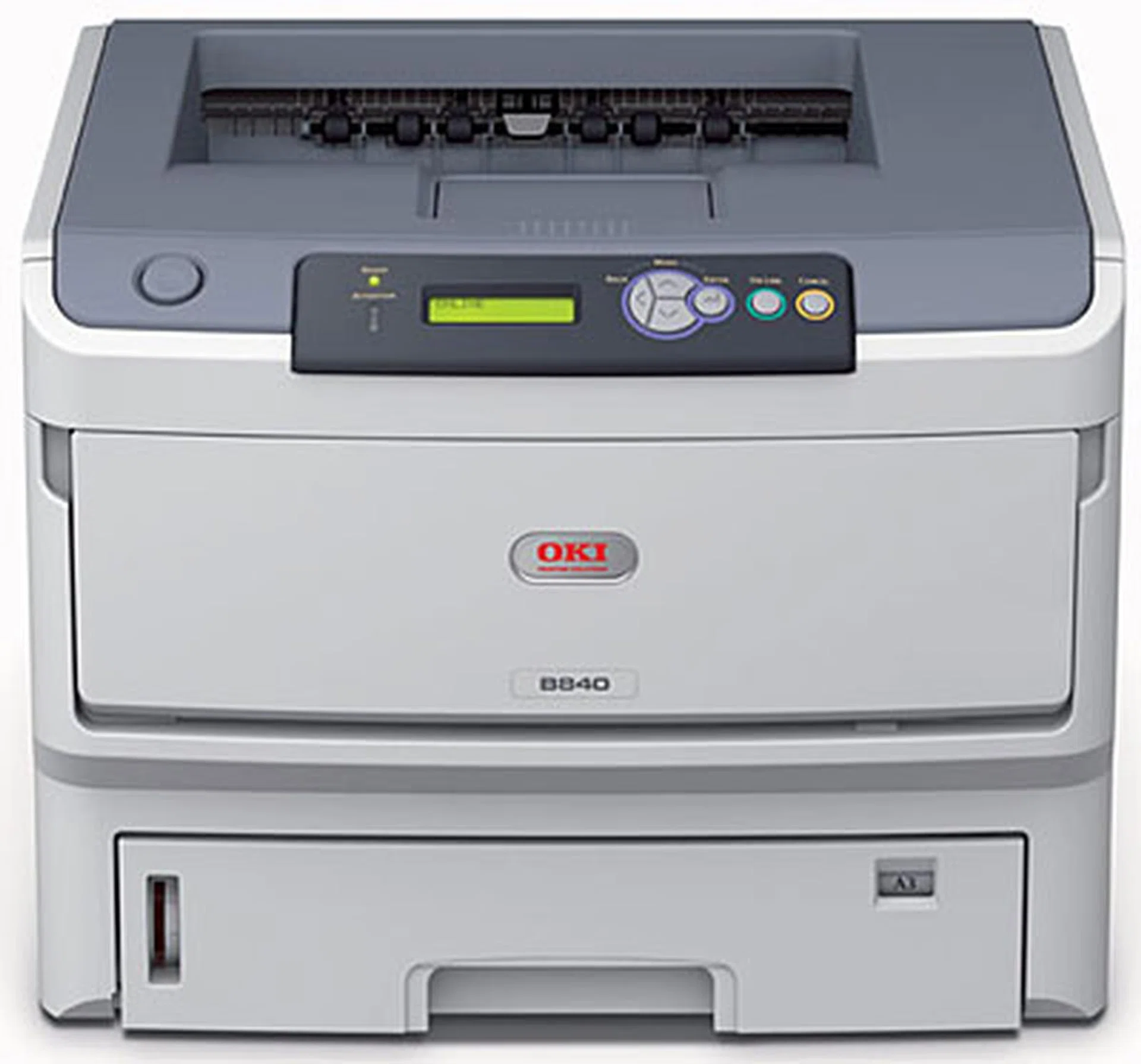
When loaded, the Oki B840dn weighs about 28kg.
The Oki B840dn that we’ve here is an A3 monochrome LED printer targeted at businesses and small to medium workgroups (up to 30 users). It prints in A4 at a speed of 40ppm (pages per minute) and in A3 at 22ppm. In order to better cope with rendering load (especially in a networked environment with many users), it’s equipped with a 533MHz processor and 128MB of RAM. Print resolution tops out at 1200 x 1200dpi. It can be hooked using a variety of interfaces: USB, Ethernet (10/100 Base-TX) or parallel. It also does emulation for common printer languages and SIDM (serial impact dot matrix) such as PCL 5e, PCLXL, PostScript3, Epson FX and IBM ProPrinter. To get up to speed with its full specs, check the product specs (also seen in the shortcut next to the article thumbnail).
Expandability
Depending on where you’re located, you may find the Oki B840 in as many as three configurations. The B840n comes with network connectivity but doesn’t support duplex printing. The B840dtn comes with network and duplex features, as well as an additional 530-sheet paper tray (on top of the standard 530-sheet one). The B840dn (which is what Oki Data Singapore carries) comes with both network and duplex support. To speed up processing of large files, the RAM can be upgraded to a maximum of 640MB. You can also order a 16GB SD card that's used for storage of overlays, macros and downloadable fonts, and for automatic collation of multiple copies of multi-page documents. We’ve prepared a price list of the accessories and consumables below.
Type | Price |
256MB RAM | S$319 |
512MB RAM | S$532 |
16GB SDHC (upon special request) | S$519 |
2nd/3rd Paper Tray (530 sheets each) | S$499 (each) |
6,000-page Toner | S$116 |
15,000-page Toner | S$223 |
30,000-page Drum | S$199 |
Getting It Up and Running
To get to the fuser and toner cartridge, simply press the top cover release button located on the left of the front control panel. To remove either of them, just grab the top and pull it upwards. It’s recommended that you clean the LED array (using a clean, lint free cloth and nothing else) whenever a new cartridge is installed, or when you notice faded vertical areas in a printout.
Software installation is a matter of popping in the DVD and following the on-screen prompts; the Oki wizard will guide you through most of the steps. The Windows New Hardware wizard will start too. You can have it automatically search for the drivers, or you can point it to the correct location to speed up the process. Strangely enough, only the PCL driver was installed; we had to install the PostScript driver manually. In addition, the driver didn’t recognize the duplex unit, even after us uninstalling and re-installing the drivers several times. Eventually, we got the duplex function to work by using the drivers downloaded from Oki's website.
During our tests, we didn’t encounter any paper jam. In the case that it does occur, you’ve to rely on the LCD for status and error messages. For the most part, clearing a paper jam (be it at the input, feeding or exit stage) shouldn’t be too difficult, due to easily accessible covers. The user guide provides helpful instructions on how to clear a jam.
Body Elements
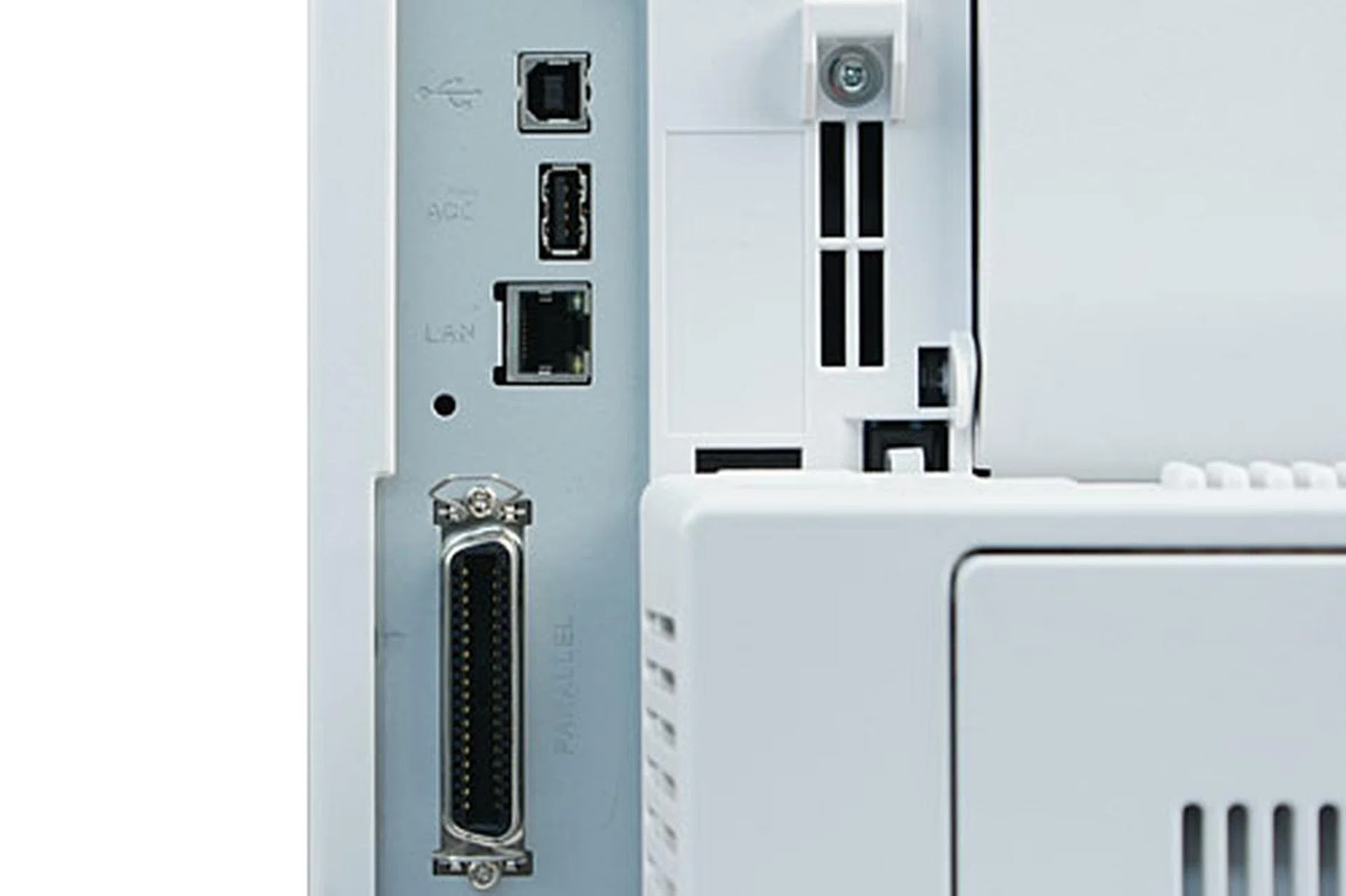
From top: USB, ACC, LAN and Parallel ports.
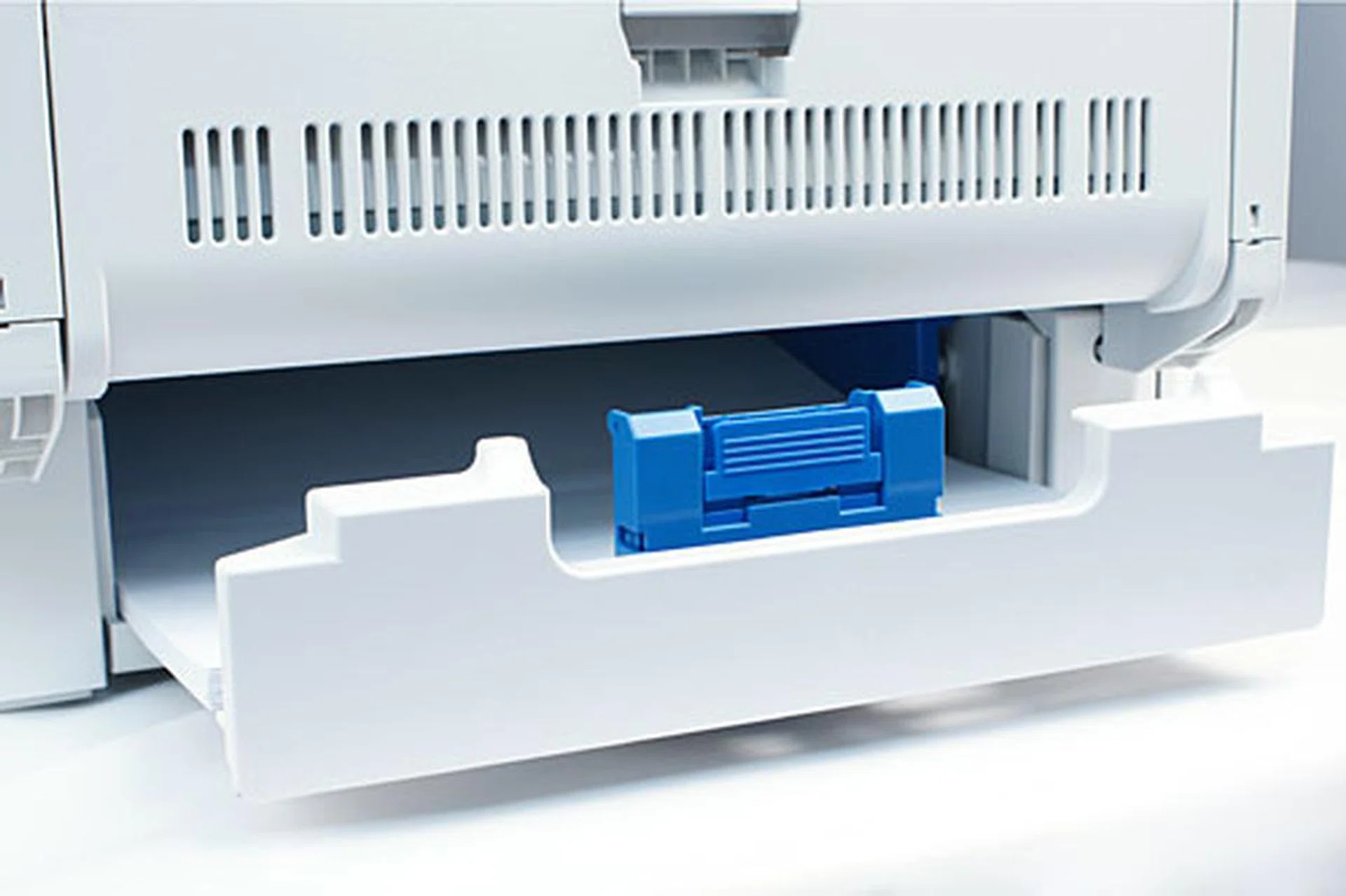
Extending the 530-sheet paper tray (for A3 printing) would have it jut out about 13cm from the back. Above it sits the duplex unit.
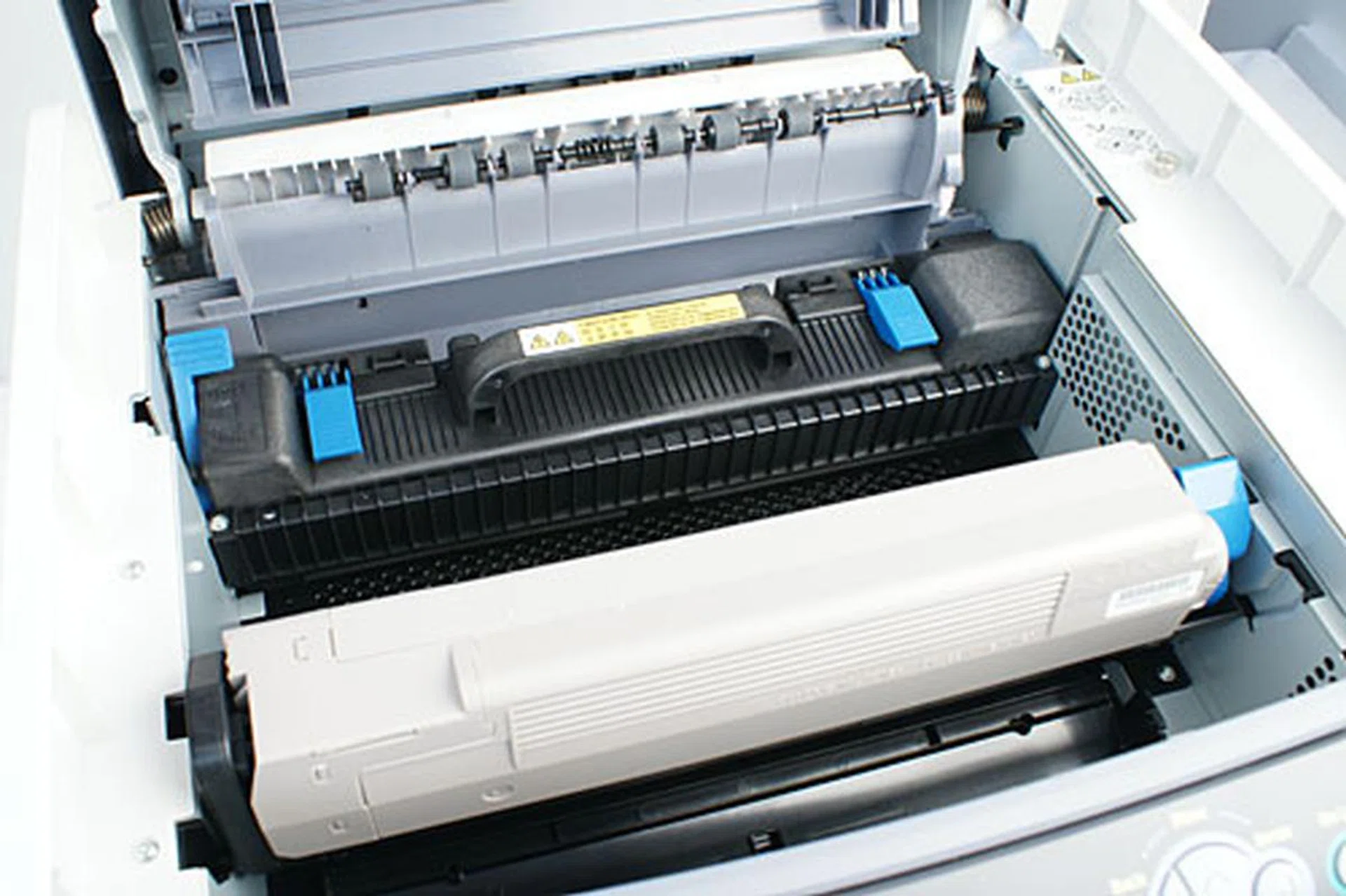
Lifting the top cover reveals the fuser unit (black contraption with handle) and the toner cartridge.
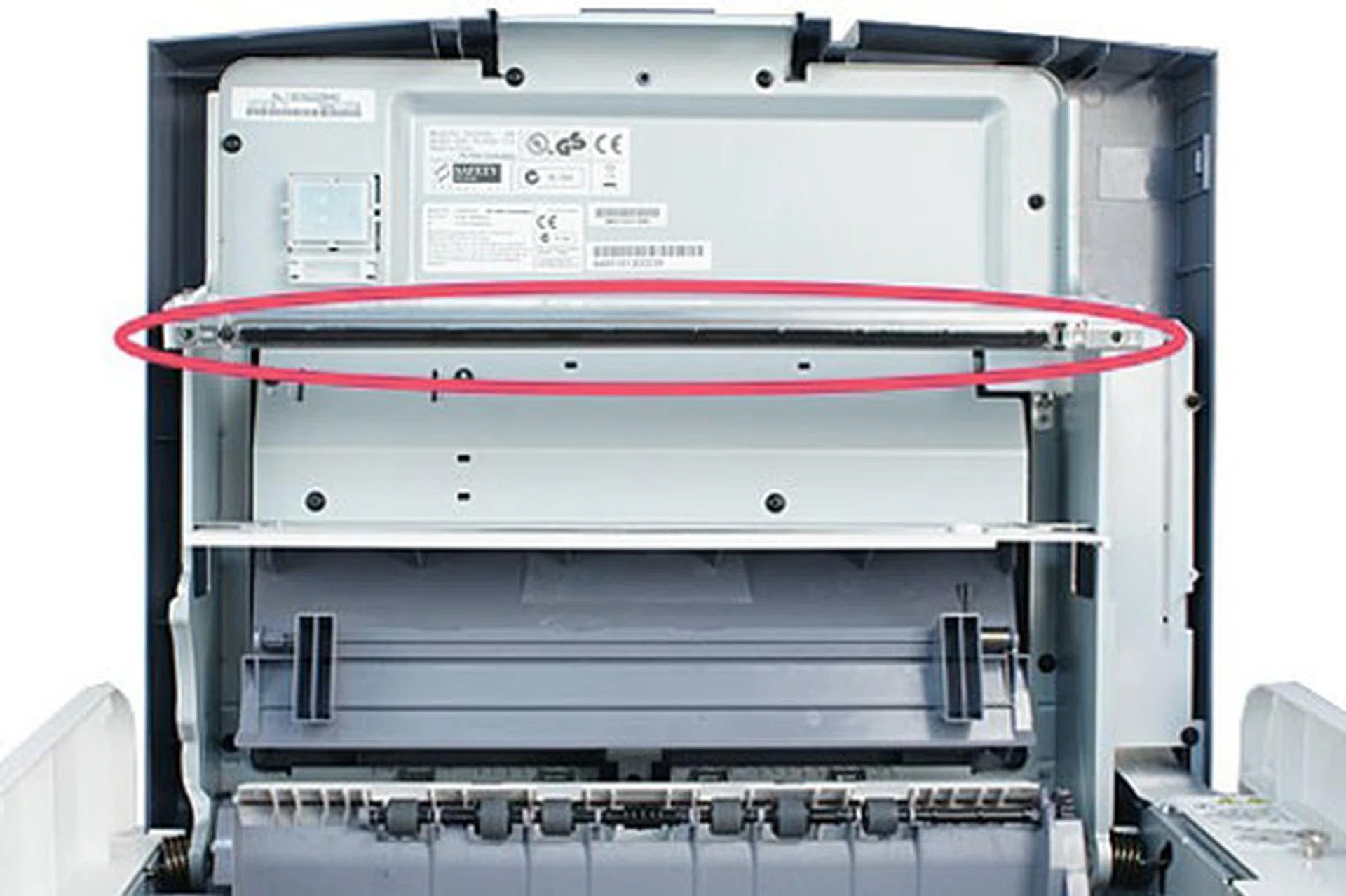
Circled in red is the LED array, which is located under the top cover.
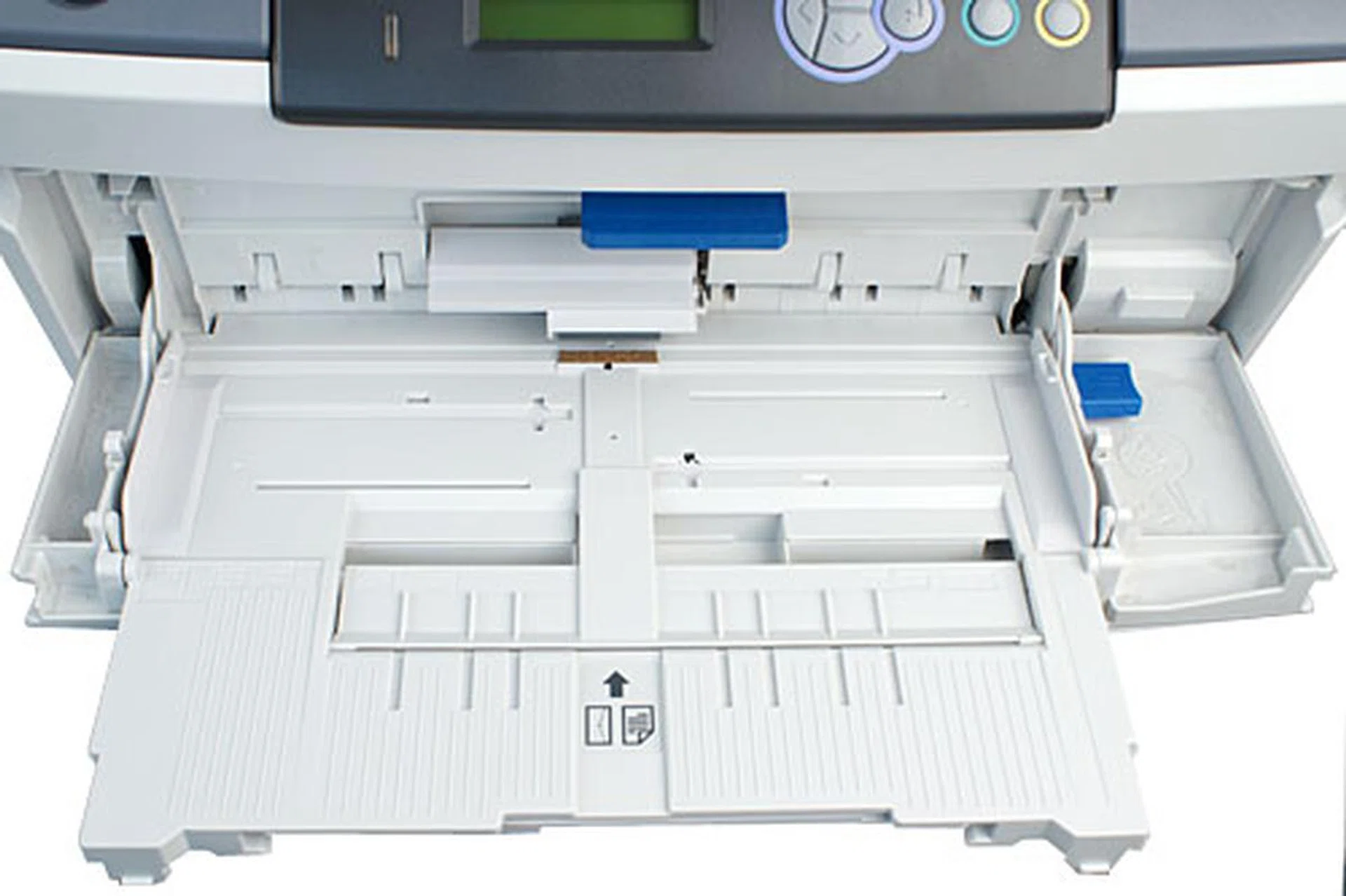
Opening the front cover reveals a 100-sheet multi-purpose tray. It accepts paper weights up to 200gsm, and can be used for manual duplex.
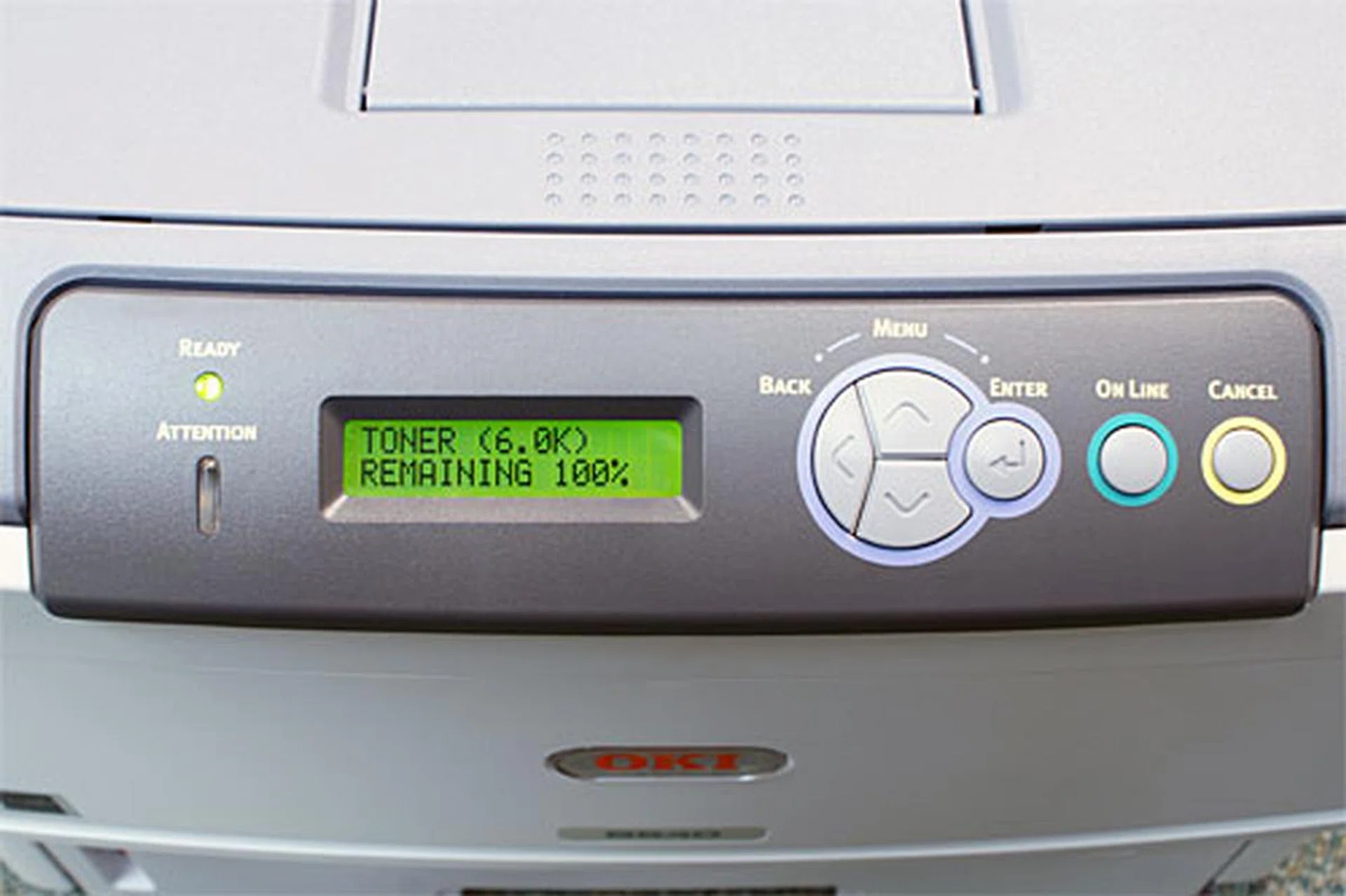
The monochrome LCD can display two rolls of up to 16 alphanumeric digits. You can press the On Line button to cancel power saving mode.
How We Test
Here at HardwareZone.com, we perform a variety of tests to evaluate a printer's print speed and print quality. Our test suite mimics what and how an average person would print in the real world. For AIOs, we conduct additional copy and scan tests (not applicable to the Oki B840dn since it's only a single-function printer). Also, we only use the manufacturer's recommended consumables. So for those who're interested, here is the list of tests that we do.
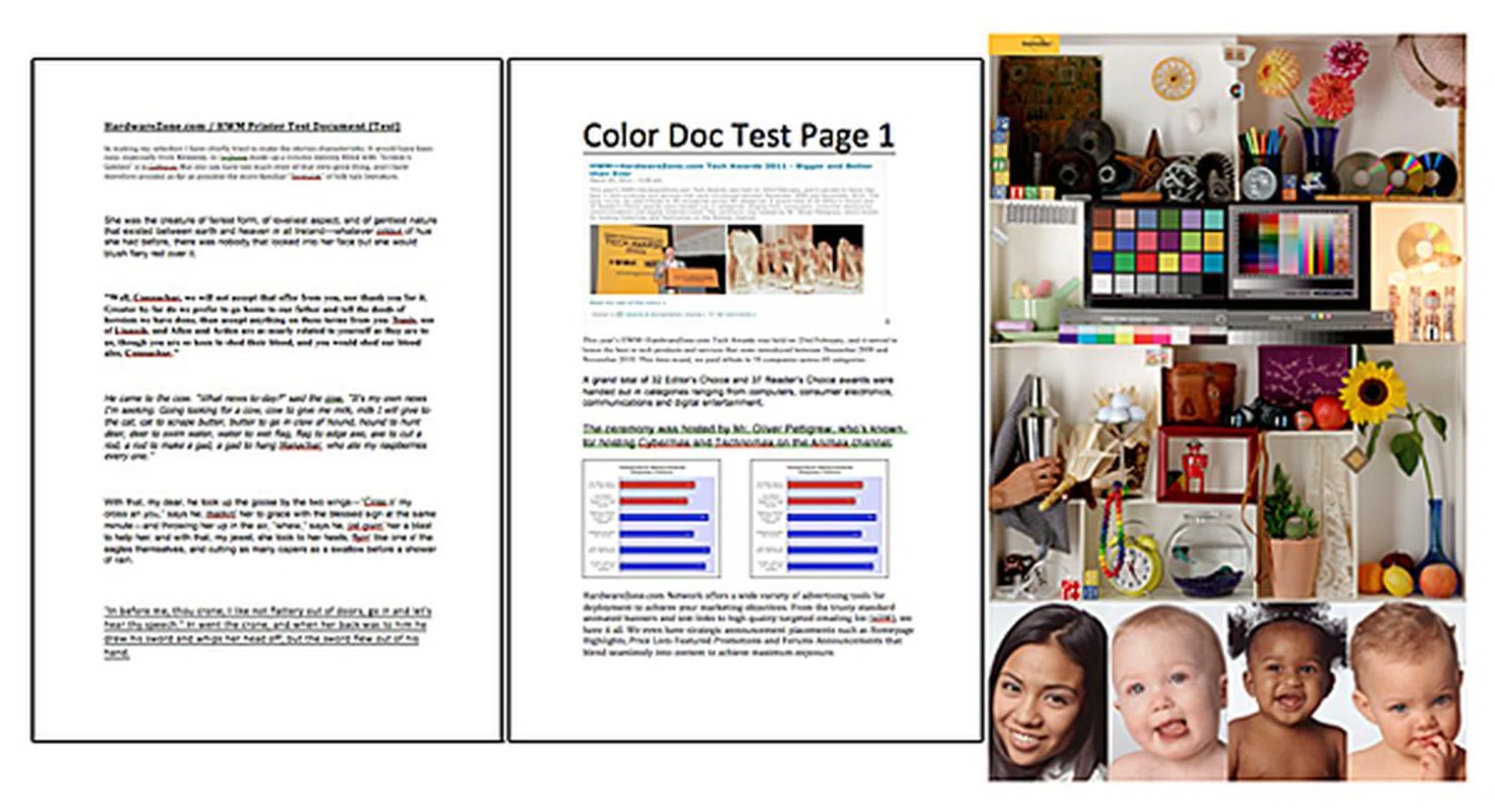
Examples of the documents we use in our tests.
Print Speed Test
For grayscale test, we use an all-text document consisting of various fonts and sizes. For color test, we use a document mixed with black text and colored graphics. Timing starts upon job initiation and stops when the last page drops on the output tray. For pages-per-minute (PPM) conversion, we omit the time to print the first page. Duplex (two-sided) print timings are recorded if the printer comes with a duplex unit. Normal quality setting in the driver software is selected if the default isn't already at this setting.
Copy Speed Test
(not applicable to Oki B840dn)
For multifunction printers that have an ADF, we also test how fast a 10-page document is copied. Again, timing starts upon job initiation and stopped when the last page dropped on the output tray. For AIOs that don't have the luxury of an ADF, we use a single-page document and duplicate it 10 times using the flatbed scanner. Timing started upon job initiation and stopped when the last page dropped on the output tray. For copied-per-minute (CPM) conversion, we omitted the time to copy the first page. As usual, we use the printer's Normal quality setting.
Scan Speed Test
(not applicable to Oki B840dn)
For scanning, we time how long it takes to scan a single-page document from the flatbed scanner to the PC (into either JPEG or PDF format), using the manufacturer's software. In the presence of an ADF, we'd conduct another test using a 10-page document. Various scan resolutions are used, starting from 300 dpi. Timing starts upon job initiation and stops when the files are ready.
Photo Print Speed Test
(Not applicable to Oki B840dn)
If the printer is able to print photos (especially for inkjet printers), we'd time how long it takes to print the popular PhotoDisc target image. A separate monochrome image is also used. The paper type setting in the driver is adjusted to reflect the type of photo paper being fed. Timing starts upon drawing of paper and stops when the printout lands on the output tray. Typically, the borderless photos are printed in two sizes: 4R (4 x 6-inch) and A4 (8.3 × 11.7-inch).
Quality Evaluation
Armed with all the printouts from the tests above, we'd spend some time evaluating their qualities. Two tools are indispensable at this time: a calibrated monitor (for photo and scan quality evaluation), and a good magnifying glass (because some fonts are printed at very small sizes).
Performance
Speed Test
The Oki B840dn starts up very quickly from a power-off state; in our tests, it took about 20 seconds to be ready to print. First-page-out timing (we define this as from the time we hit the print button on the computer to the time the printout landed on the output tray) was just a hair over 10 seconds.
Print speeds for a 10-page A4 black-and-white (B&W) Word document and a 10-page A3 document took just 24 and 36 seconds to print respectively. We calculated the print rates to be about 41 and 23ppm (pages per minute) – slightly exceeding Oki's own claims of 40 and 22ppm. Of course, Oki’s testing methodology is different from ours; but in a nutshell, we've proved that the B840dn is a very speedy printer.
On the other hand, duplex speeds are measured to be about 32ppm (A4) and 17ppm (A3).
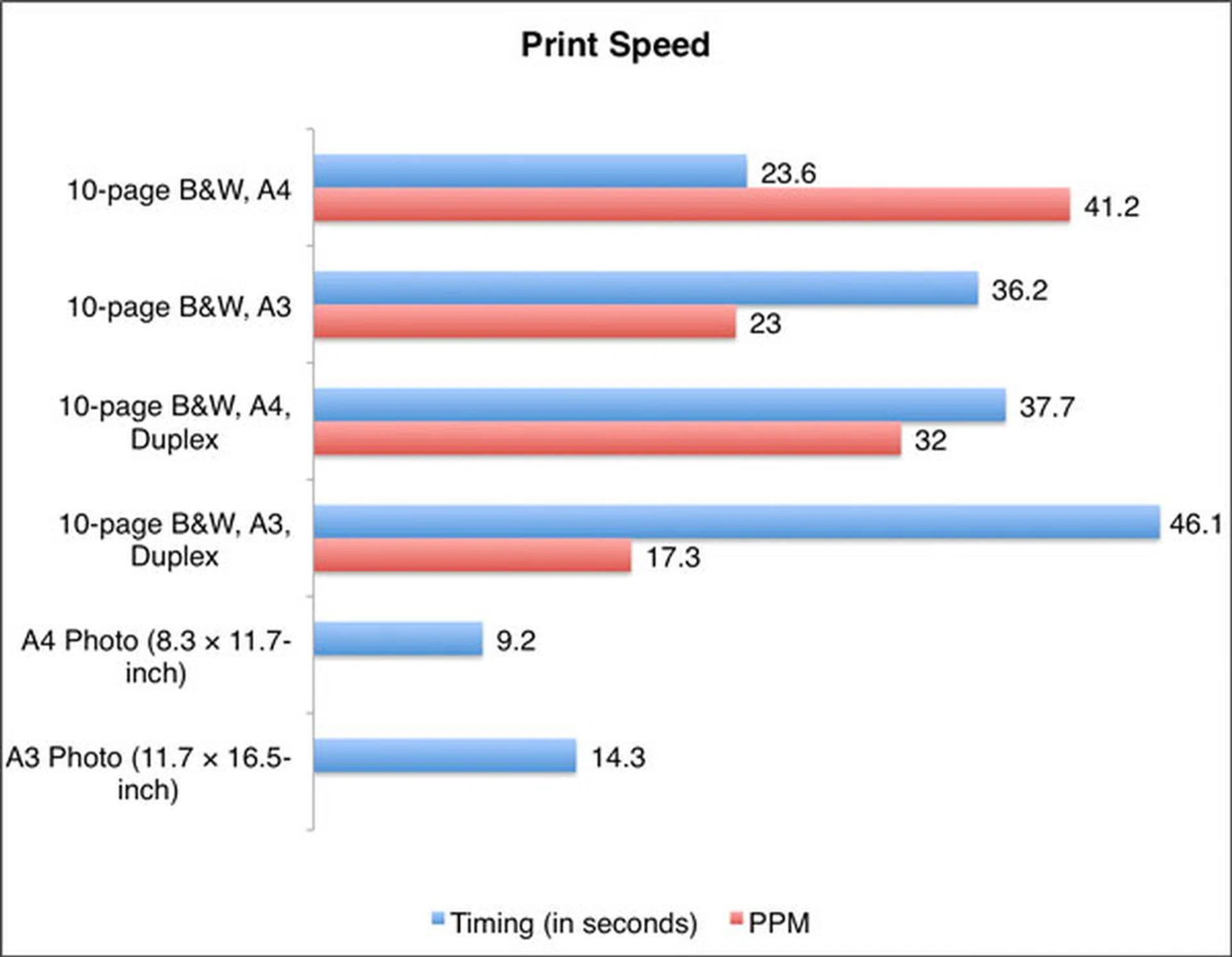
Image Quality
Below are crops of the Oki B840dn's document print outputs at various resolutions. The font used was Arial at size 12.
 |
 |
 |
Overall, we would rate the Oki B840dn's text print quality as excellent; it's dark, full-bodied, and crisp - even for small font sizes. At an arm's length, it's hard to discern the difference between 300dpi and 600dpi (what you're seeing here has already been blown up several times). If we were to nitpick, it'd be that at 300dpi, under close observation, diagonal lines exhibited a stair-like effect.
The difference in resolution is more obvious when we scrutinizes print quality for graphics. Unsurprisingly, at 300dpi, print dots are more apparent due to the increased amount of space between each dot. Checking the Toner Save option made little difference to print quality, though it did render the page a shade lighter.
In normal (600dpi) print mode, mono reproductions from color originals showed very little banding. Our test photos turned out reasonably well too, though with some loss of details in shadow areas. Dot pattern, while present, was hardly noticeable; it got better when we moved up to 1200dpi. Even at the highest resolution, there isn’t much of an impact on print speed.
Criteria | Score (out of 10) |
Text Prints | 9.0 |
Graphics Prints | 8.0 |
Photo Prints | 7.5 |
Speedy Gonzales
All in all, the Oki B840dn is a very good workgroup mono printer. The compact size and small footprint are more apparent if you were to remove the rear-attached duplex unit and not extent the paper tray. As you can see from the results, print speed is without doubt the strong suit of this printer. And in our opinion, this is the main reason why the B840dn is priced at S$1999. If you were to look at the market today, a 25ppm laser/LED A3 mono printer is easily about S$1000. Sure, you can find a few 25-30ppm printers that cost around S$500, but their expandability options are arguably more limited, and they probably sport a lower duty cycle (the B840 has a recommended monthly duty cycle of 20,000 pages). And those with speeds in excess of 45ppm can easily cost three times as much.
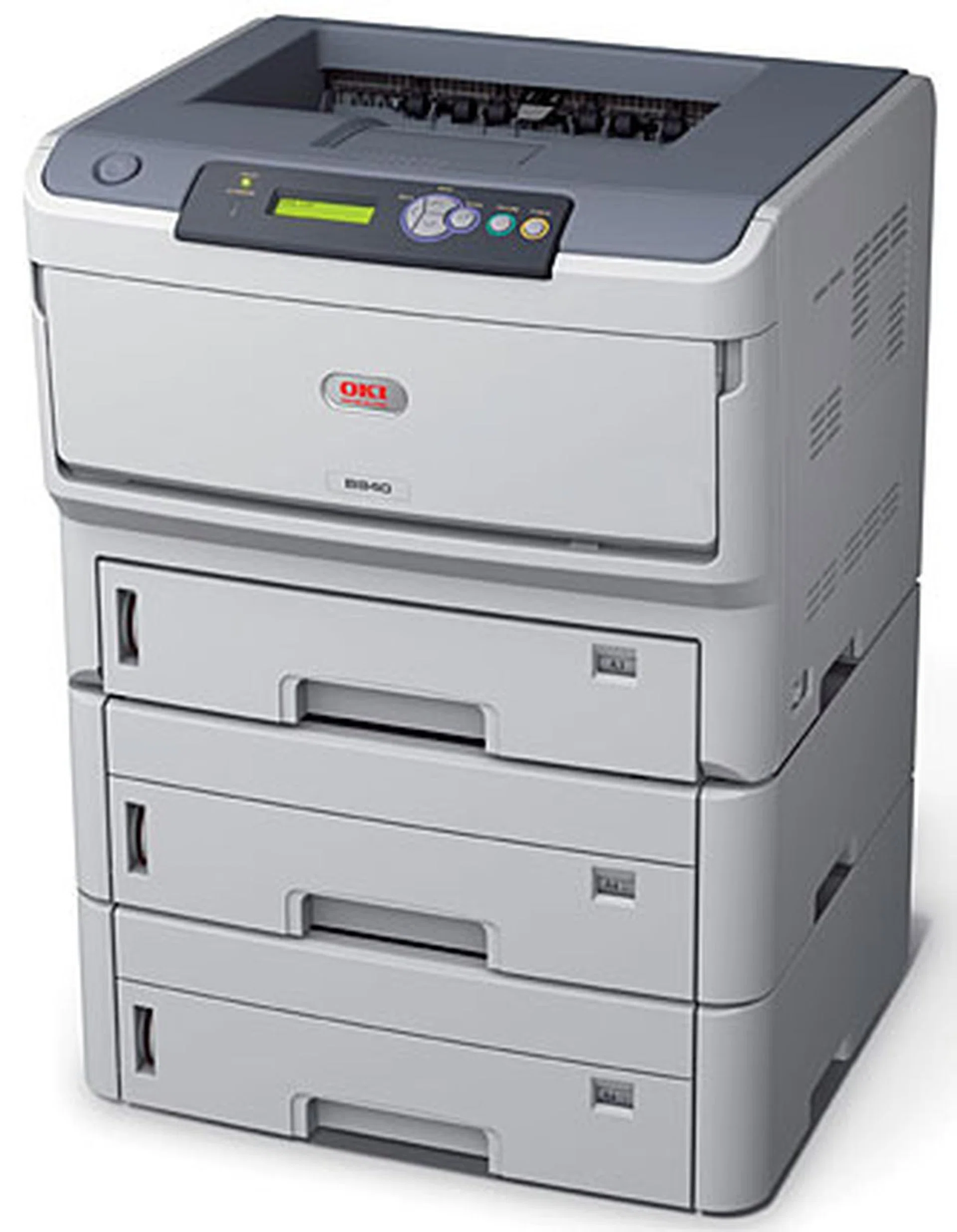
You can add two additional trays for a 1,690-sheet maximum paper capacity. For a speedy printer like the Oki B840dn, it's probably a necessity in a very high print-run environment. With good print quality to boot and A3 printing capabilities, this is an LED printer that will deliver for its capital investment.
The B840dn has many other things going for it too. A3 versatility, duplex function and great expandability aside, it also comes with a good set of software features. For example, you can password-protect a document until you’re physically at the printer to enter the password (requires the SDHC card). With PrintSuperVision, you can monitor and manage printers across the network remotely. And Print Control lets you check print usage and costs.
Admittedly, the B840dn isn't for everyone or every workgroup, especially those who need color printing and other functions such as copy and scan. But if mono printing is all you need and speed and quality matter a lot, you absolutely owe yourself a favor to give it a closer look.
Our articles may contain affiliate links. If you buy through these links, we may earn a small commission.