
Lexmark Genesis S815 All-In-One Printer - Snap and Print
There's a reason to the striking appearance of the Lexmark Genesis S815 AIO printer; and that's its use of a camera system to handle the scan function. Come in and see what else it's capable of in our detailed review.
Scanning Re-imagined
It’s not often that we get excited over a single-function printer, much less a multifunction one. The Lexmark Genesis S815 is probably an exception in recent memory. As you can see from the picture below, it’s shaped unlike most all-in-one (AIO) printers. But its refreshing aesthetics pale in comparison to another radical change that takes place under the hood. To be more specific, the S815’s scanner is powered by a 10-megapixel sensor, and works rather like a digital camera.
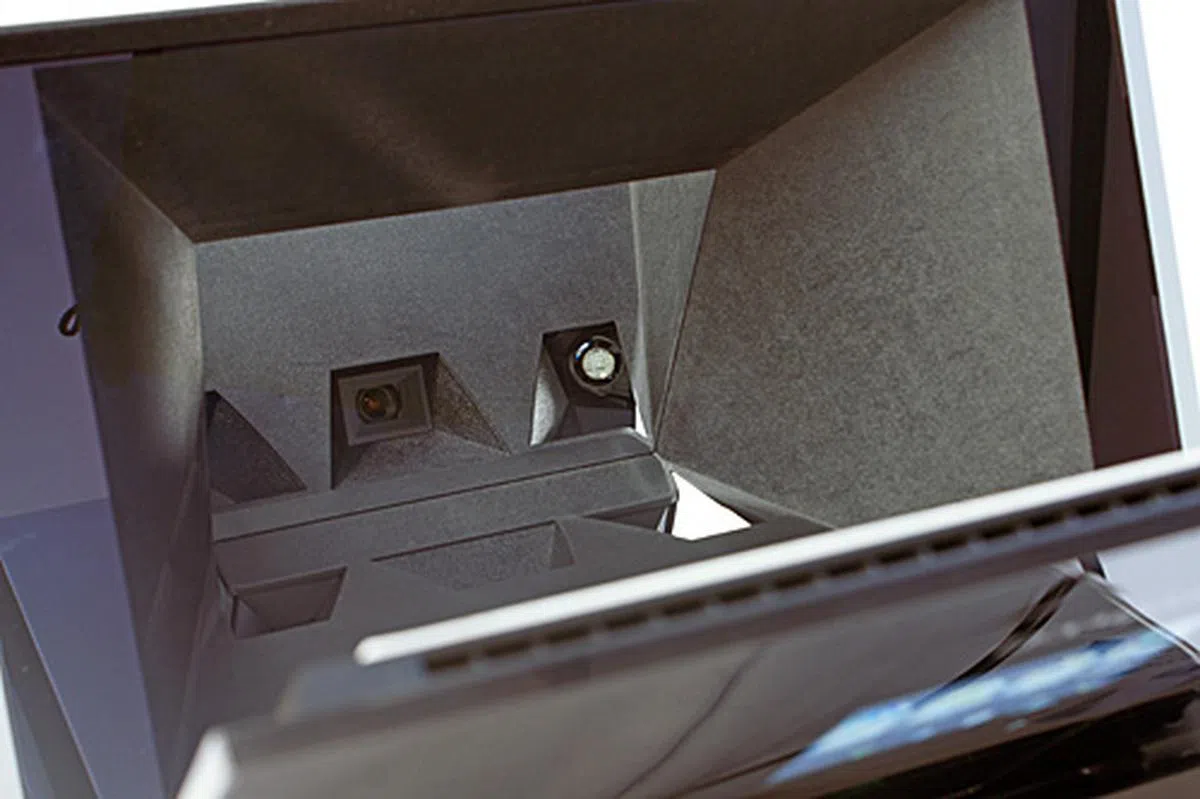
Termed Flash Scan by the Lexington-based company, the technology involves a lens, red, green and blue LEDs, and a 10-megapixel monochrome CMOS sensor. During scanning, the LEDs flash in quick succession; and through the lens, the sensor captures the images and composite them into a full-colored image. In layman’s parlance, instead of having the scanner moving across the document to be scanned, it takes photos of the document.
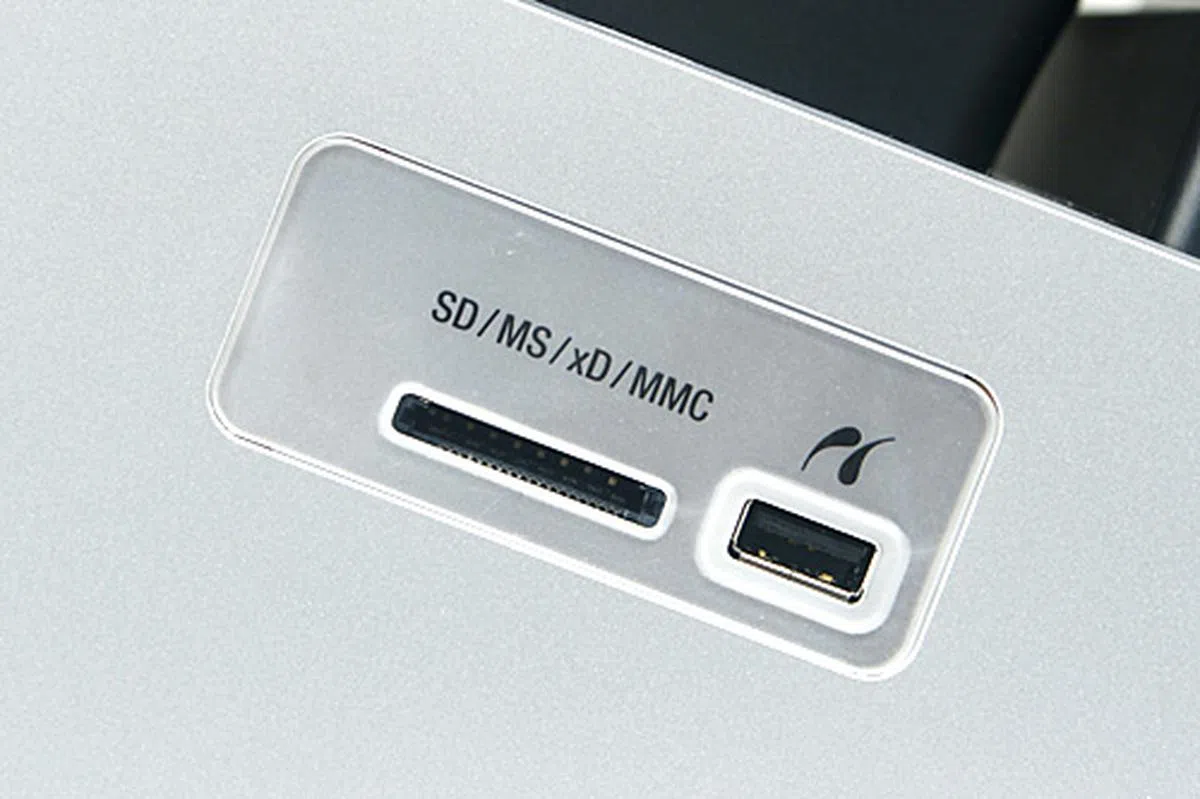
The radical scanning method aside, the S815 is a four-in-one (print, copy, scan and fax) multifunction machine with a 4.3-inch touchscreen LCD. It comes with built-in 802.11b/g/n Wi-Fi with support for the Wi-Fi Protected Setup (WPS) standard for getting the AIO onto a wireless network easily and securely. Direct printing can be achieved via the PictBridge-enabled USB port and multi-card slot. The S815 also has something called SmartSolutions, which are little applets that you can add to the AIO and control via the LCD to streamline repetitive tasks. For example, there are "solutions" for scanning business cards, viewing your Google Calendar, viewing and printing your photos from MobileMe, Photobucket, and Picasa, and reading RSS feeds. If you're an Apple iPad, iPhone or iPod touch user, you can also download the Lexmark LexPrint app from the Apple App Store, which allows you to print wirelessly from the mobile device (the devices need to reside within the same network).
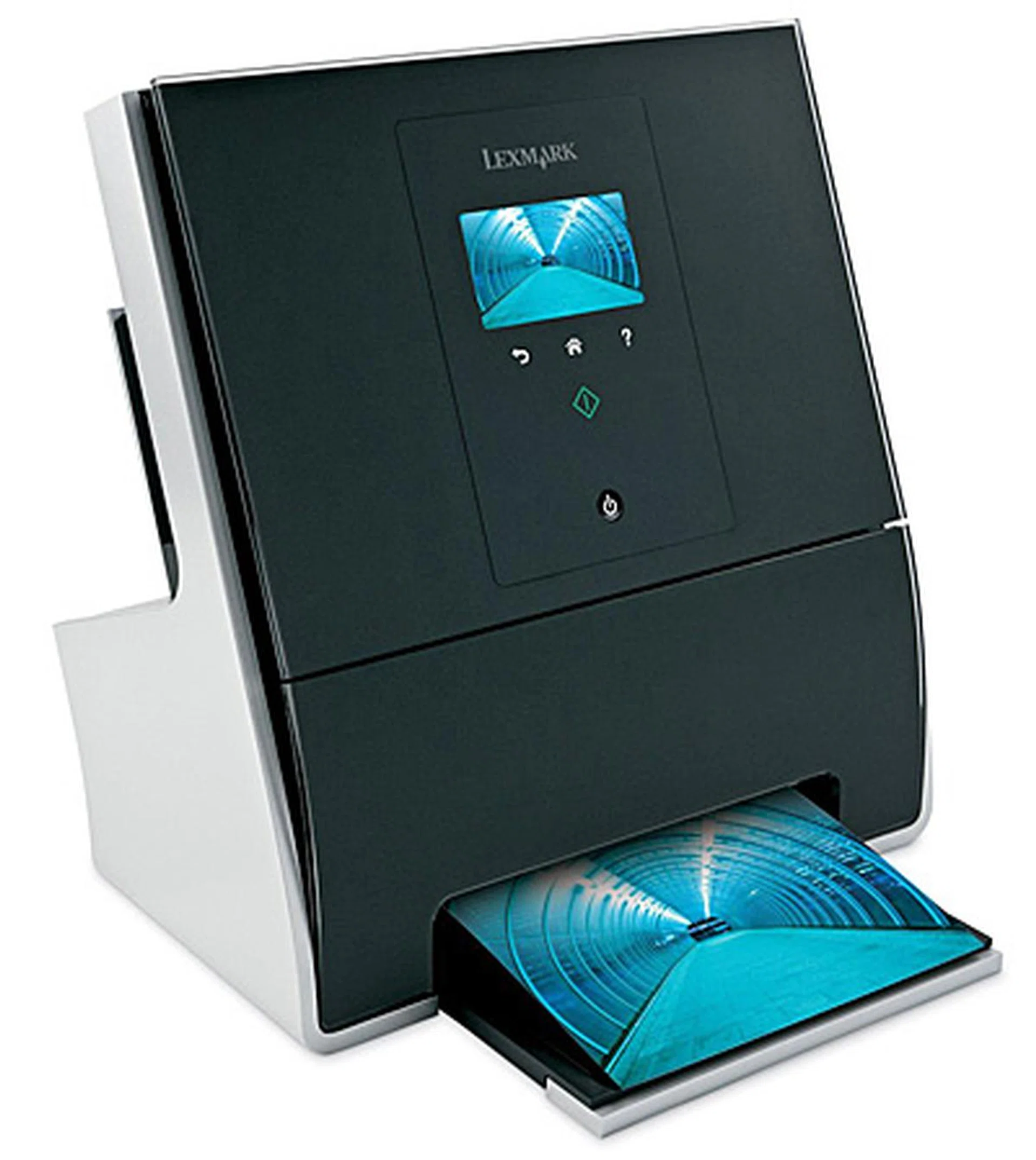
The Lexmark Genesis S815 looks and works (at least in the scan department) very different from most AIOs out there.
Printer | |
Speed | Draft: 33 ppm (mono) / 30 ppm (color) Normal: 18 ppm (mono) / 11 ppm (color) Laser Quality: 10.4 ppm (mono)* / 6.6 ppm (color)* * In accordance with ISO/IEC 24734 |
Resolution | 4800 x 1200 dpi (color) / 2400 x 1200 dpi (mono) |
Copier | |
Speed | 25 cpm (mono) / 21 cpm (color) |
Enlarge/Reduce | 25 - 400% |
Scanner | |
Type/Method | Flatbed/Mono CMOS image sensor |
Resolution | 10 megapixels |
Fax | |
Modem | 33.6 Kbps |
Paper Handling | |
Input/Output | Input Tray: 100 sheets (75 gsm bond) or 25 sheets of photo paper Output Tray: 50 sheets |
Direct Photo Printing | |
PictBridge | Yes |
Card Slots | Accepted Cards: Sony Memory Stick, Memory Stick PRO, Secure Digital (SD) Card, MultiMediaCard (MMC), xD Card With Adapter: Sony Memory Stick Duo, Mini SD Card, Sony Memory Stick PRO Duo, SanDisk TransFlash Memory Module, RS-MMC, xD Card Type M, Type H, MMC Mobile, Micro SD Card, SDHC Card |
Others | |
Memory | 64 MB |
Interface | USB, 802.11b/g/n Wi-Fi |
LCD | 4.3-inch, WQVGA color touchscreen LCD |
Power | 20 W (avg. while printing) |
Noise Level | 41 dBA (while printing) |
Max. Monthly Duty Cycle | 3,000 pages (Recommended page volume: 200 - 770 pages) |
O/S Supported | Microsoft Windows XP, XP Professional x64, Vista, Vista x64, Windows 7; Mac OS X (10.4.4 - 10.6.x for Intel), Mac OS X (10.3.9, 10.4.4 - 10.5.x for Power PC); Linux (available at www.lexmark.com) |
Dimensions | 420 x 386 x 321 mm |
Weight | 8.7 kg |
Like a Mini Kiosk
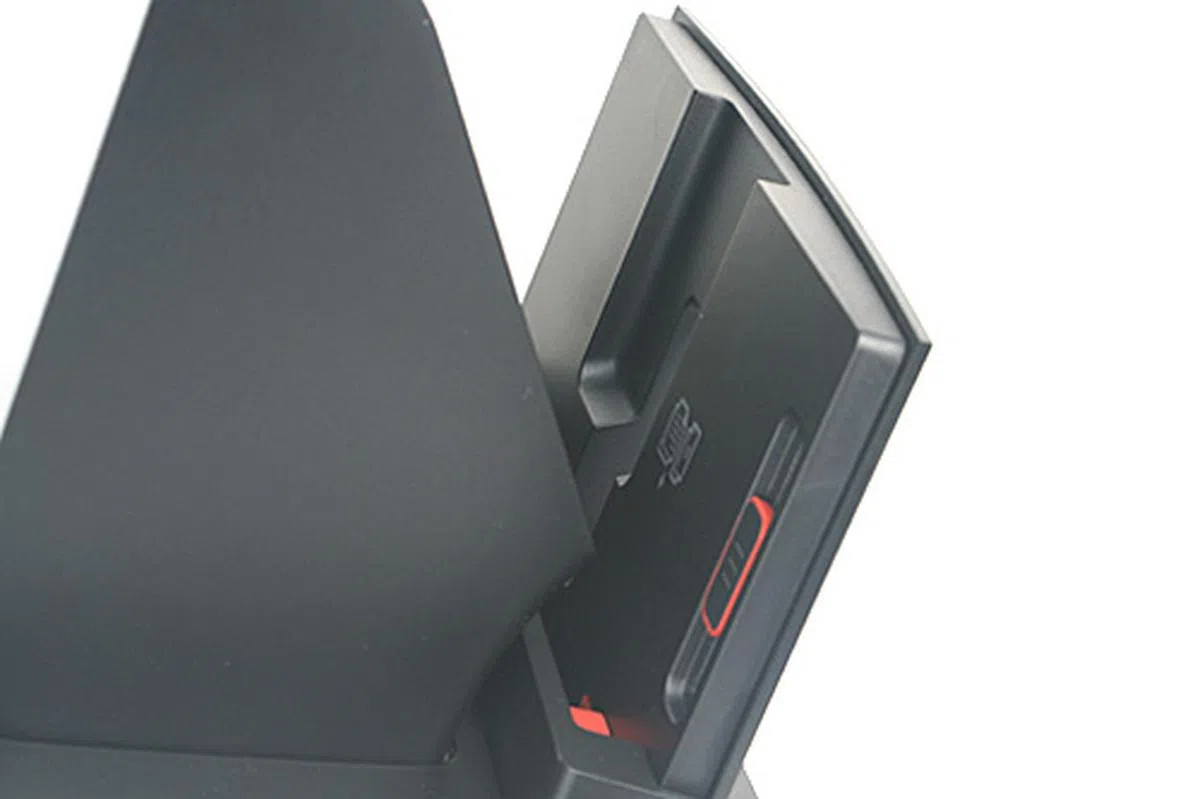
The Genesis S815 has a smaller footprint (39 x 32cm) than most AIOs but stands roughly twice as tall (42cm). This is a result of the near-upright position of the scanner unit, which is necessary due to its depth (the use of lens and mirrors takes a fair bit of space). In fact, the printer engine (along with the output tray) literally sits below the scanner. Only a single 100-sheet plain paper input tray is provided for at the back; so if you need to print on a different media, the existing papers have to be removed first. During use, we found that because the scanner unit slightly obscured our view of this tray, we had no choice but to get up from the chair and peer over the printer to make sure we’ve seated the paper properly.
The whole front surface of the S815 sees a layer of black translucent plastic covering the black plastic chassis to create that piano-black finish. A small cloth is thoughtfully provided for you to wipe away any fingerprint and dust. There’s even a slot behind the front door for you to keep the cloth after using it. All in all, the printer looks swanky and modern. And given its distinct appearance, be prepared for curious glances whenever someone passes by your desk.
Control Panel
The control panel resides on the scanner lit itself, and consists mainly of two parts: the 4.3-inch touchscreen LCD and the touch-sensitive controls below it. The only physical button is the Power button. When the printer is on, pressing it would switch it to Power Saver mode.
Most of the interaction is done with the touchscreen LCD. The backlit touch “buttons” only appear when a function (Back, Home, Help, Start and Cancel) is available. As its name implies, the Home button brings you back to the Home screen (shown in the image below). Here, you can access the copy, scan, fax, memory device (appears when you’ve a flash drive or memory card connected) or SmartSolutions menu. As mentioned earlier, SmartSolutions lets you add custom apps to the printer. However, the process requires the printer to be connected to the computer (the latter needs to login to the SmartSolutions website). It’d be great if we can download the apps via Wi-Fi directly onto the printer sans the computer.
If you copy or scan a lot, the vertical placements of the scanner and the control panel make both a boon to use. Because the scanner glass is slightly angled, there’s no worry of the document falling off the scanner glass. There’s also a clip that runs the length of the upper part of the glass for you to clip on to smaller-sized documents. We like that after placing a document and closing the scanner lid, the S815 would take a picture of the document and preview it almost instantly on the LCD screen. From there you can choose to either copy, scan, or fax the document; or run a “solution”. In terms of user interface design and user experience, the Genesis S815 scores very highly.
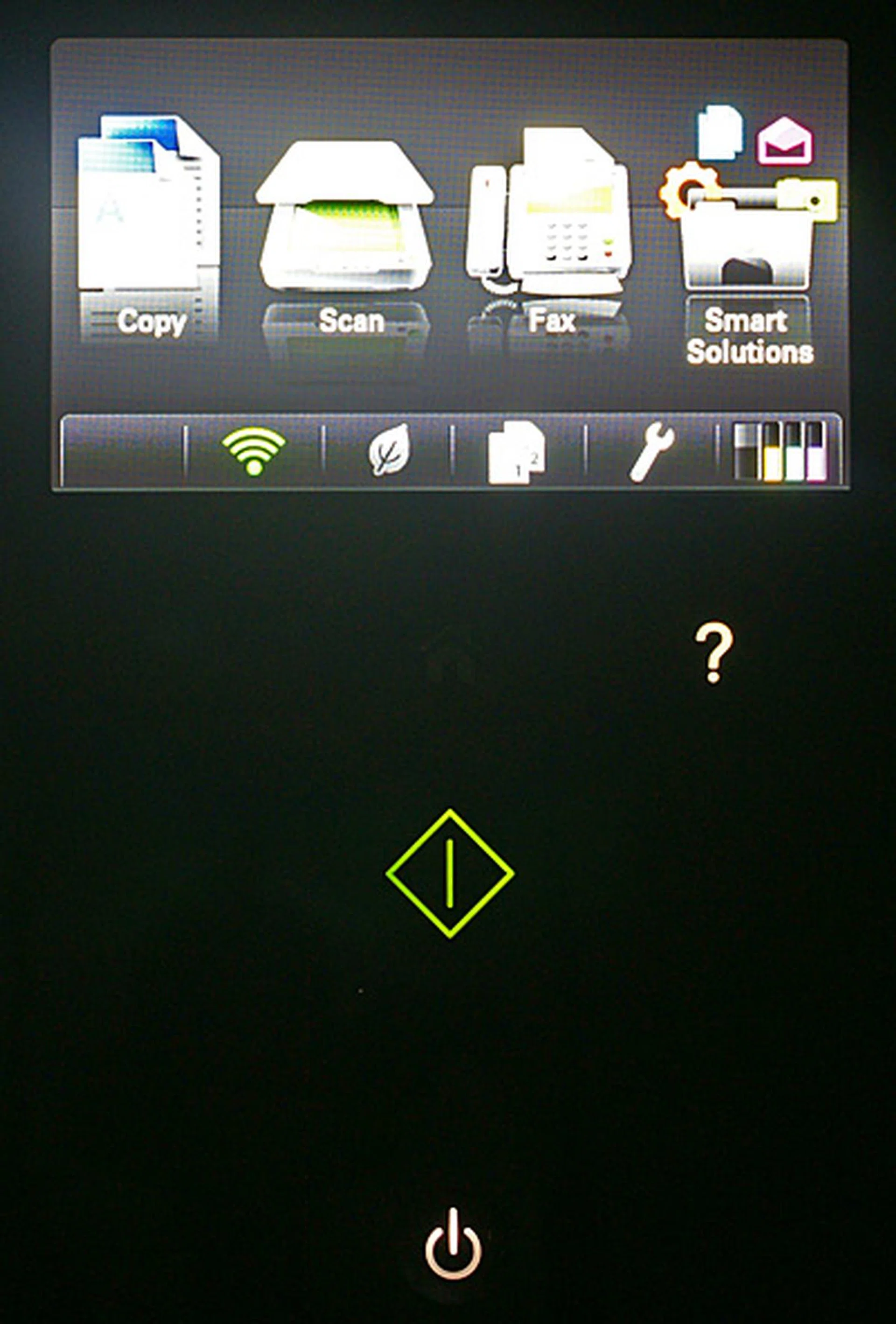
Most of the setting adjustments are done using the 4.3-inch touchscreen LCD. Below it are a few touch "buttons" that light up selectively depending on the mode or menu you're in. The Help and Start buttons are shown here; other buttons include Back, Home and Cancel. The only tactile button is the Power button at the bottom.
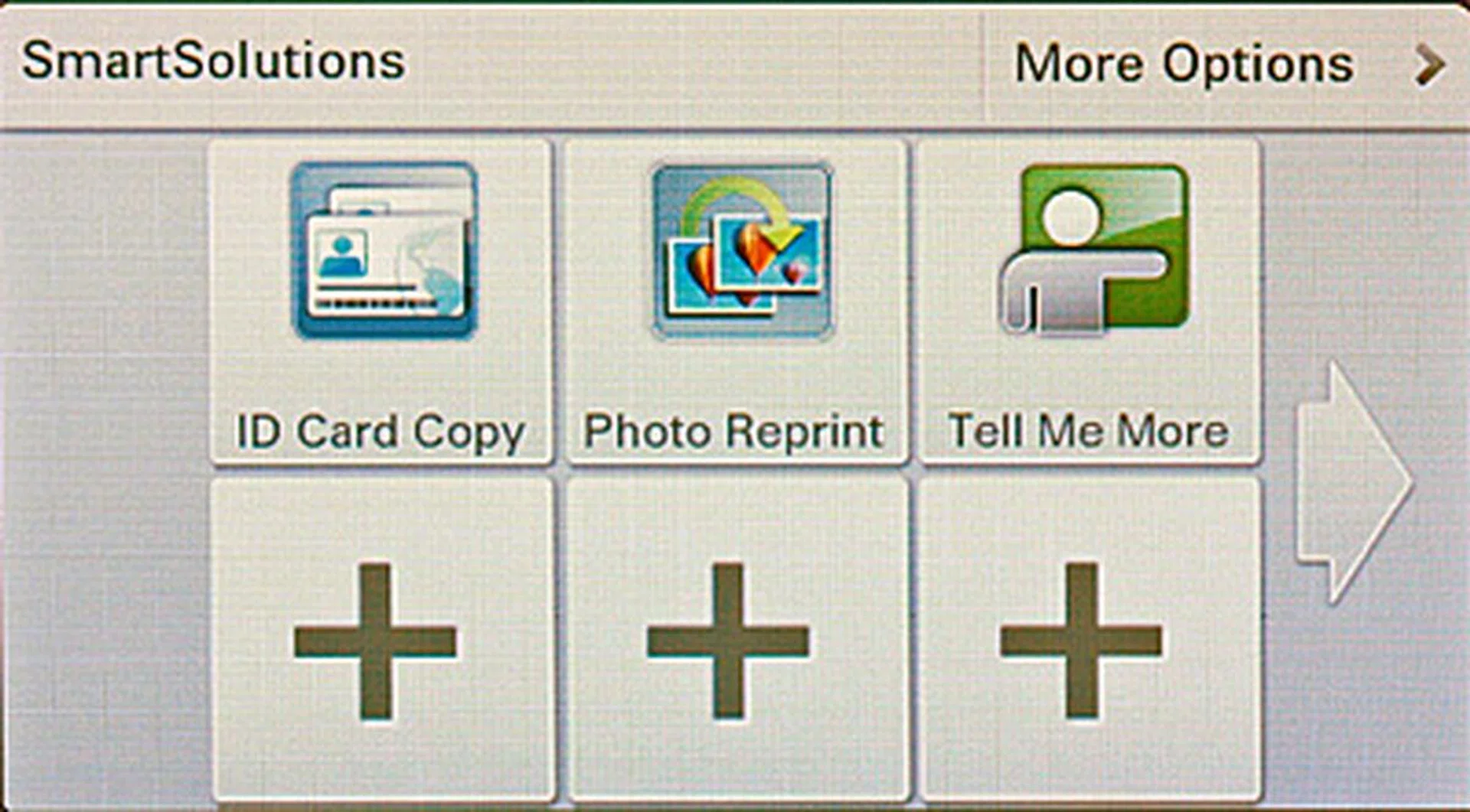
Think of SmartSolutions as little applets that you can add to the printer to streamline repetitive tasks. A few of them are preloaded, but you could easily add a lot more. For example, there are "solutions" for scanning business cards, viewing your Google Calendar, viewing your photos from MobileMe, Photobucket, and Picasa, and reading RSS feeds.
Body Elements
 |  |
 |  |
Ink Cartridges
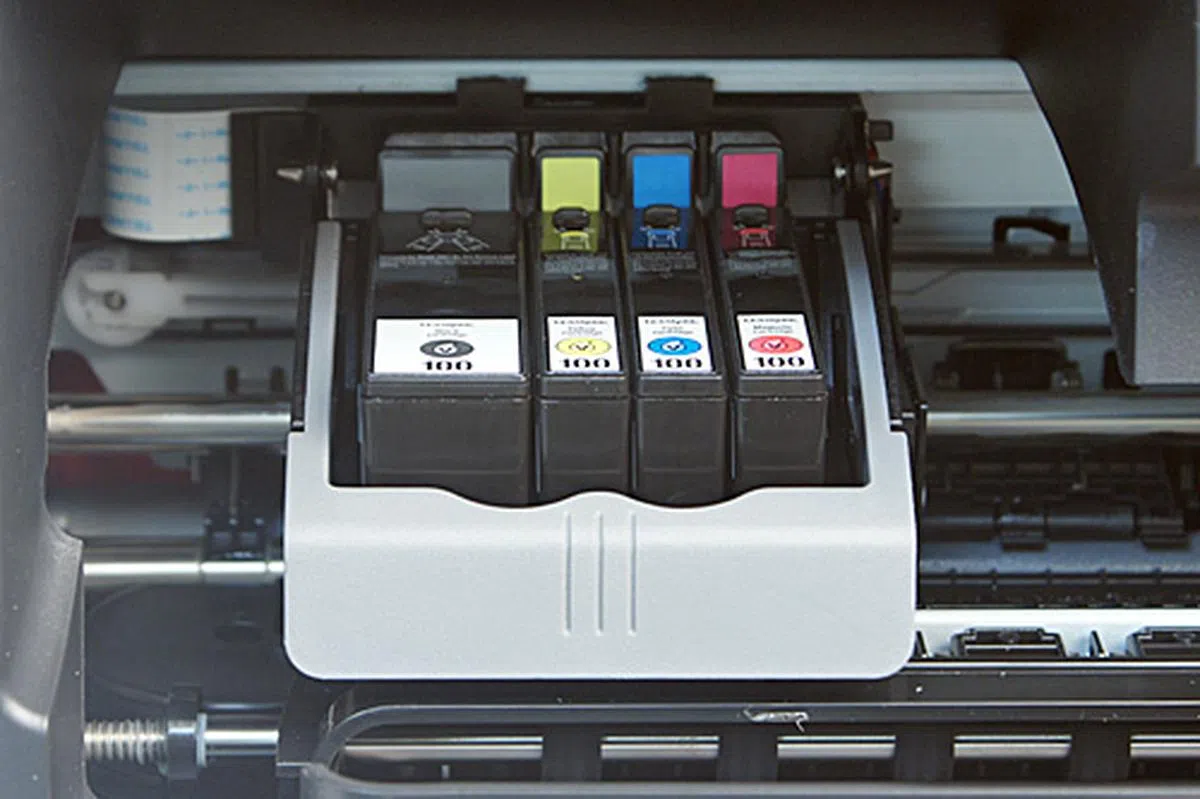
The Genesis S815 uses a total of four dye-based inks (cyan, magenta, yellow and black), with each color having its own cartridge. It's worth noting that Lexmark has something called Return Program Cartridges which are sold at cheaper prices compared to the regular, similar-yield cartridges. Here in Singapore, the Return Program Cartridges can be bought from Popular Bookstore or Challenger. The used cartridges can be returned to the Lexmark office, or you can call Lexmark to arrange for a supplies partner to pick them up from you.
Type | Rated Yield | Price |
100XL Cyan High Yield Return Program Ink Cartridge (14N1069A) | 600 (each) | S$28.90 (each) |
100XL Magenta High Yield Return Program Ink Cartridge (14N1070A) | ||
100XL Yellow High Yield Return Program Ink Cartridge (14N1071A) | ||
100XL Black High Yield Return Program Ink Cartridge (14N1068A) | 510 | S$41.57 |
100 Cyan Return Program Ink Cartridge (14N0900A) | 200 (each) | S$17.02 (each) |
100 Magenta Return Program Ink Cartridge (14N0901A) | ||
100 Yellow Return Program Ink Cartridge (14N0902A) | ||
100 Black Return Program Ink Cartridge (14N0820A) | 170 | S$26.72 |
How We Test
Here at HardwareZone.com, we perform a variety of tests to evaluate a printer's print speed and print quality. Our test suite mimics what and how an average person would print in the real world. For MFPs, we conduct additional copy and scan tests. Also, we only use the manufacturer's recommended consumables. Here is a list of tests we put an MFP through:
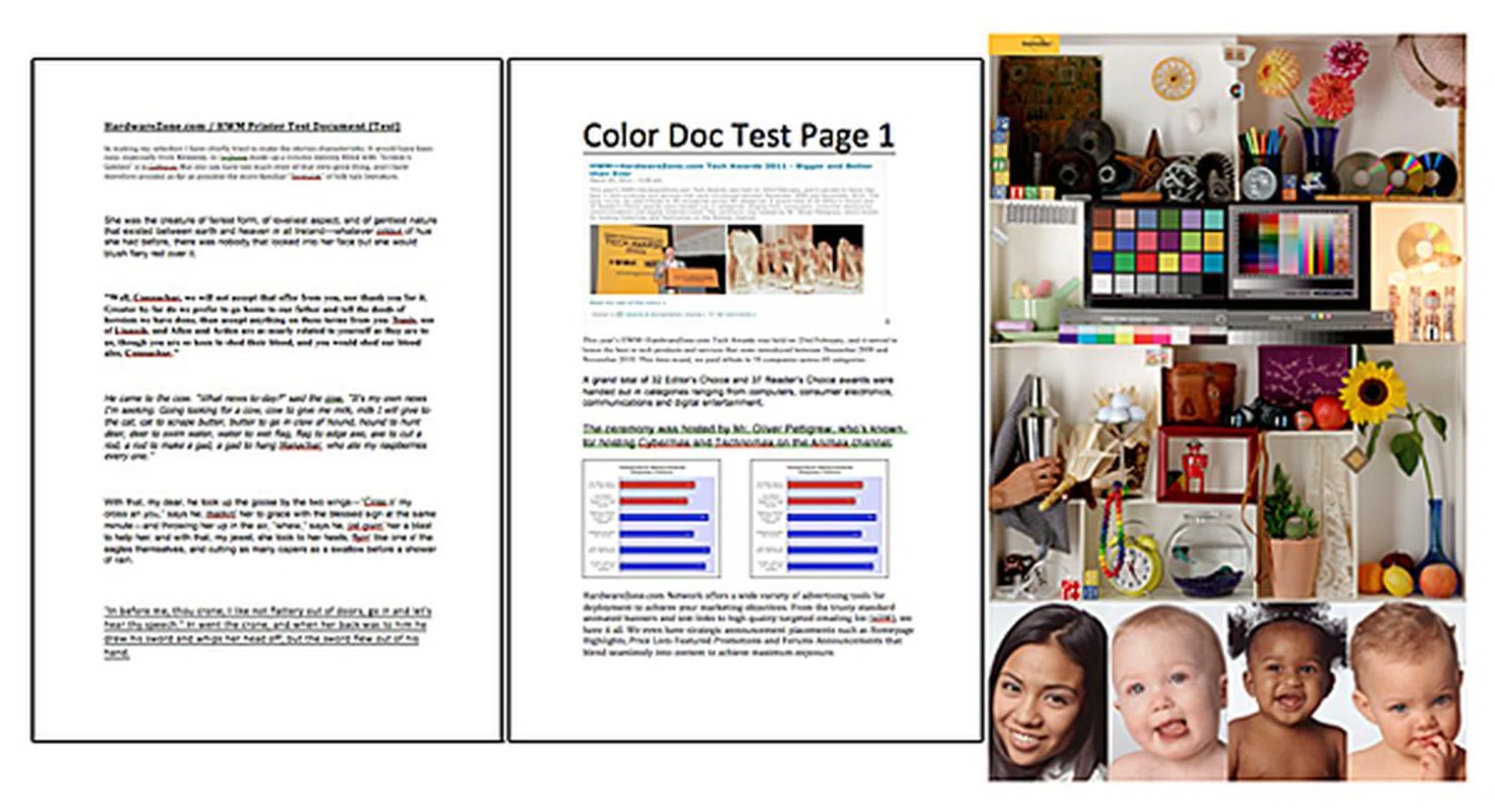
Examples of the documents we use in our tests.
Print Speed Test
For black-and-white print speed test, we use an all-text document consisting of various fonts at different sizes. For color-capable machines, we also use a document consisting of black text and colored graphics. Timing starts upon job initiation and stops when the last page drops on the output tray. For pages-per-minute (PPM) conversion, we use the saturated print rate; that is, we omit the time to print the first page. Auto duplex (two-sided) print timings are recorded if the printer supports it. Normal quality setting (or equivalent) in the driver software is selected if the default isn't already at this setting.
Copy Speed Test
For MFPs that have an automatic document feeder (ADF), we also test how fast a 10-page document is copied. Again, timing starts upon job initiation and stops when the last page drops on the output tray. For MFPs that don't have the luxury of an ADF, we use a single-page document and duplicate it 10 times. Timing starts upon job initiation and stops when the last page drops on the output tray. For copies-per-minute (CPM) conversion, we omit the time to copy the first page. As usual, we use the printer's Normal quality setting.
Scan Speed Test
For scanning, we time how long it takes to scan a single-page document from the flatbed scanner to the PC (into either JPEG or PDF format), using the manufacturer's software. In the presence of an ADF, we'd conduct another test using a 10-page document. Various scan resolutions are used, starting from 300 dpi. Timing starts upon job initiation and stops when the files are ready.
Photo Print Speed Test
If the printer is able to print photos (especially for inkjet printers), we'd time how long it takes to print the popular PhotoDisc target image. A separate monochrome image is also used. The paper type setting in the driver is adjusted to reflect the type of photo paper being fed. Timing starts upon drawing of paper and stops when the printout lands on the output tray. Typically, borderless photos are printed in two sizes: 4R (4 x 6-inch) and A4 (8.3 × 11.7-inch).
Quality Evaluation
Armed with all the printouts from the tests above, we'd spend some time evaluating their qualities. Two tools are indispensable at this time: a calibrated monitor (for photo and scan quality evaluation), and a good magnifying glass (because some fonts are printed at very small sizes).
Speed Test
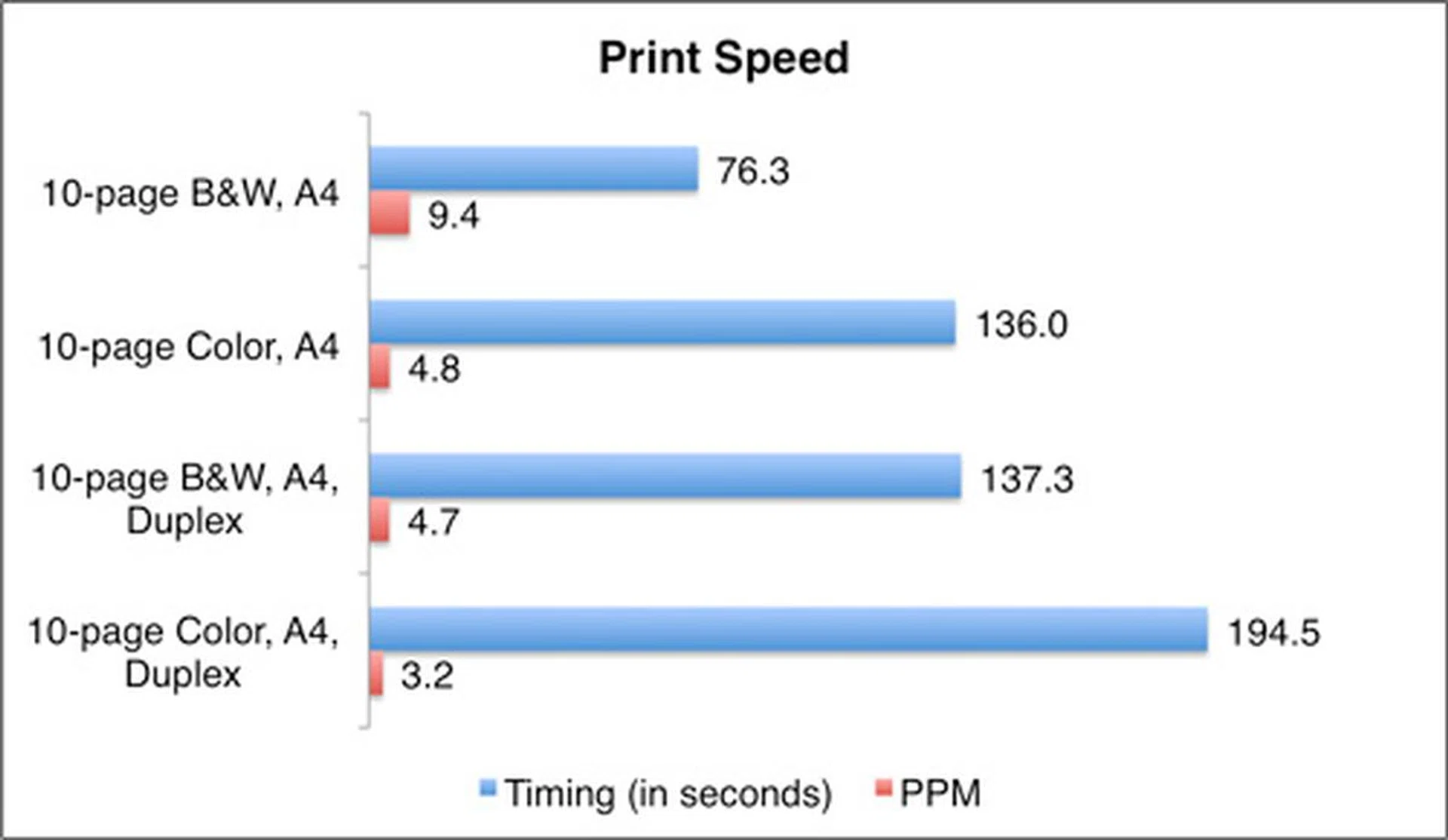
Print speeds for a 10-page A4 black-and-white (B&W) Word document and a 10-page color document clocked in at about 9 and 5 ppm (pages per minute) respectively. These speeds stack up well against the similarly priced Canon Pixma MX886 that we’ve recently reviewed, which clocked in at about 10 and 5 ppm respectively for the same tasks.
The Genesis S815 also supports automatic two-sided printing. We tried it, and a 10-page B&W document took about 2 minutes and 17 seconds to print, while a 10-page color document took about 3 minutes and 15 seconds. For an inkjet printer, the 4.7 ppm (mono) and 3.2 ppm (color) duplex printing speeds can be considered to be fast - especially when pegged against a more established business printer like the Canon Pixma MX886.
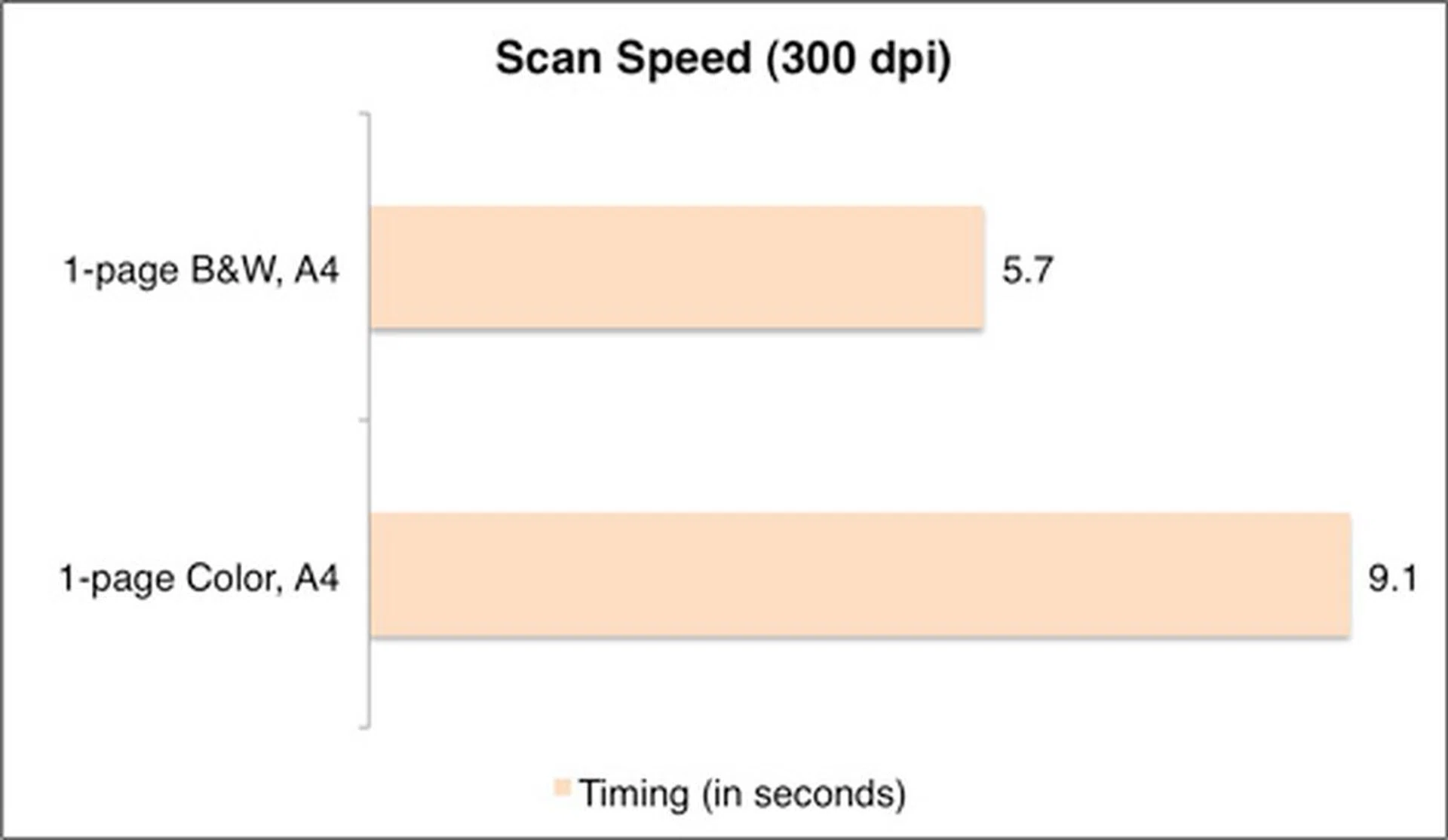
Thanks to the Flash Scan technology, scanning a one-page A4 color document took merely nine seconds - that's three times as fast as the MX886. The B&W scan was even speedier, clocking in at less than six seconds. While we envision that it wouldn’t take a very long time to copy a 10-page document by swapping each page manually, we couldn’t help but imagine what it’d be like if Lexmark is able to incorporate an ADF (auto document feeder) onto the S815.
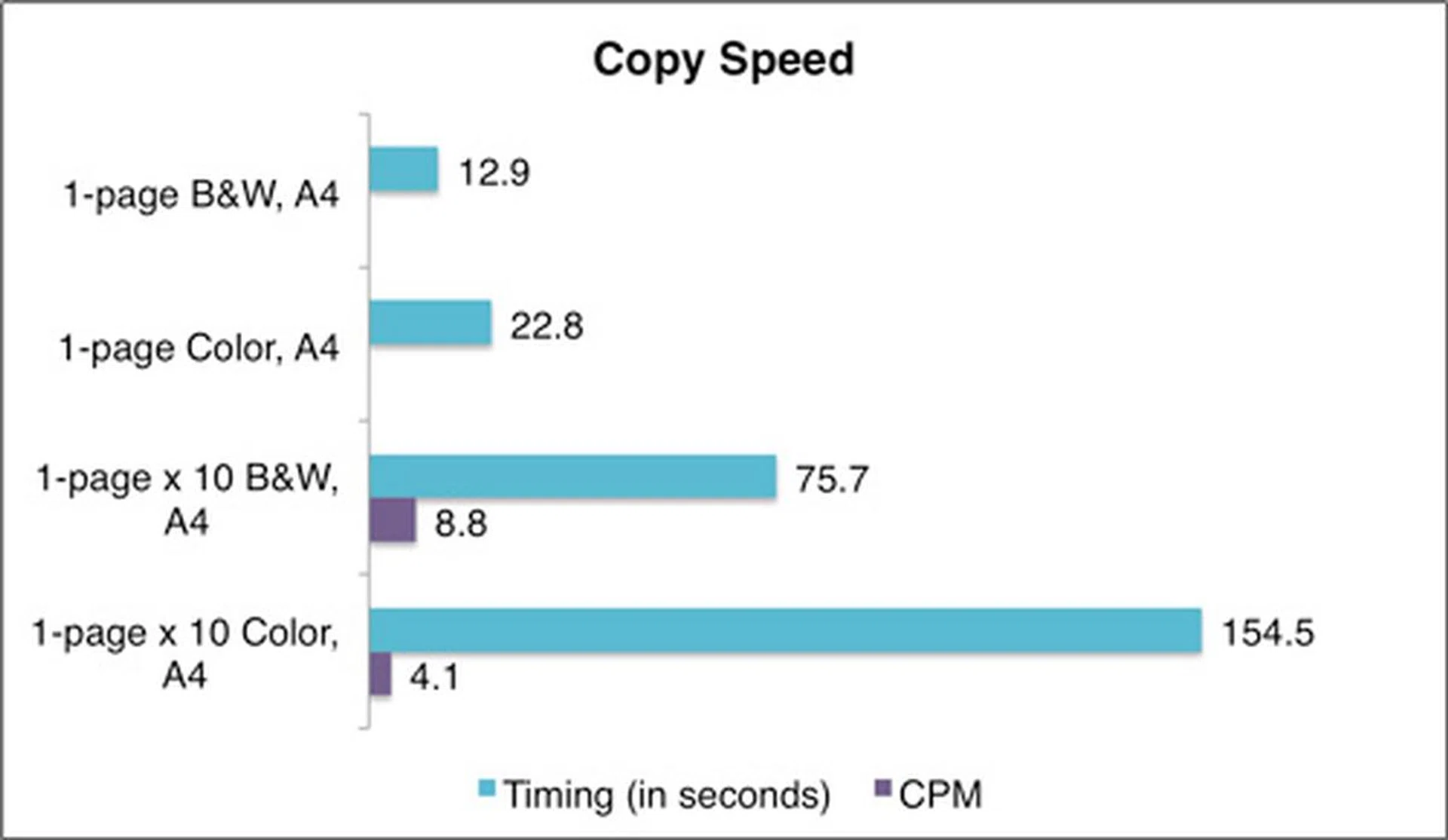
Surprisingly, copy speeds didn’t see dramatic performance increases due to Flash Scan. A single-page B&W document took about 13 seconds to copy, while a color document took about 23 seconds. Comparatively, . No doubt that the S815 scans faster than the MX886, but the latter’s faster responsiveness and print speed combine to achieve a faster overall timing.
Further testing revealed that the S815's photo print speeds weren't too shabby either. Not many printers can print an A4-sized photo in less than a minute, but the S815 took 58 seconds. The 25 seconds it took to print a 4R photo also compares reasonably against the MX886’s 20 seconds.
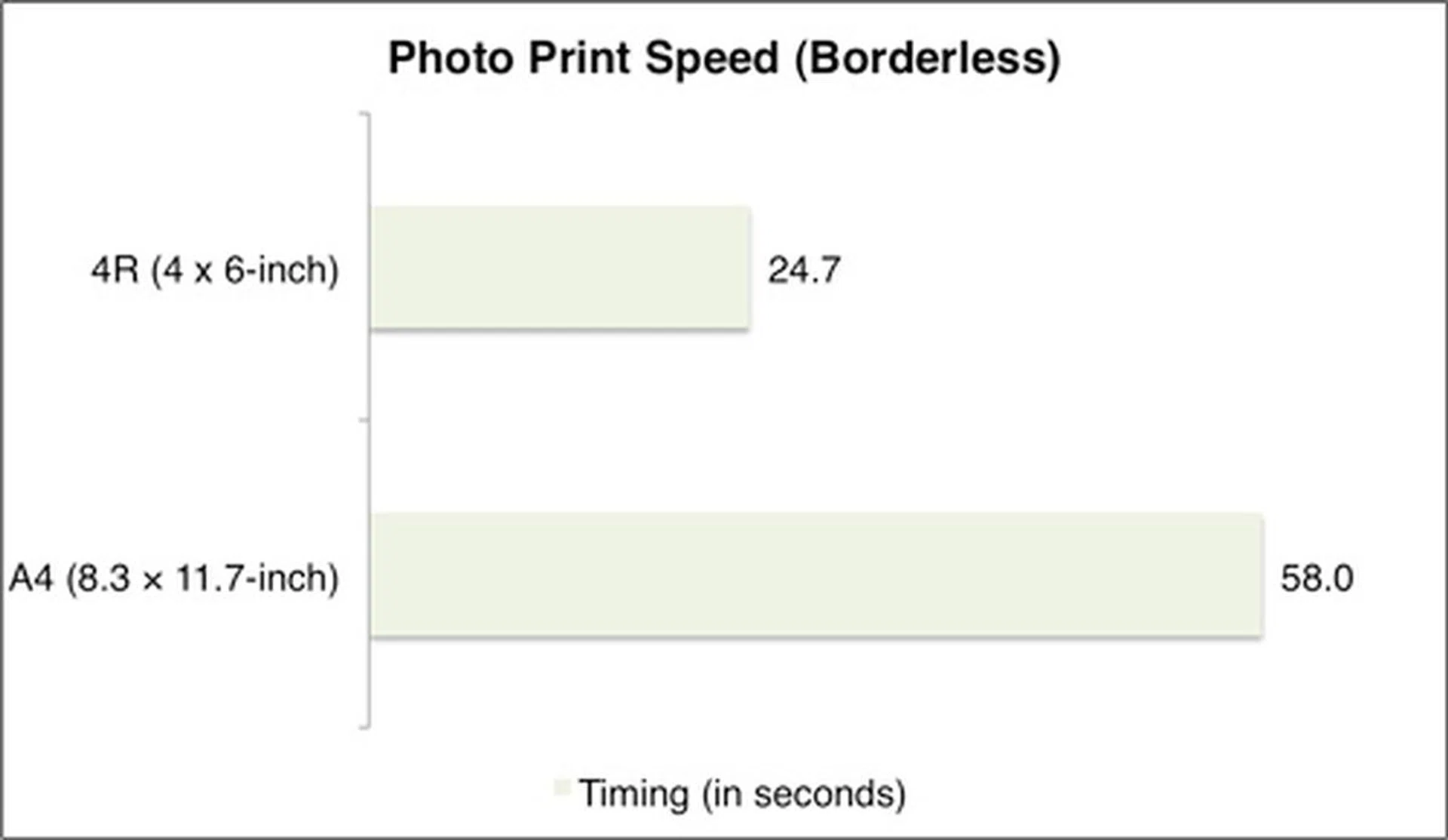
Overall, the Lexmark Genesis S815 performed very well in our speed tests, excelling especially in scan and photo print jobs.
Image Quality
Below are crops of the Genesis S815's document print and copy outputs. The font used was Arial at size 12. As mentioned in the test setup page, the Normal quality setting was used. When printing the document that consisted only of pure black text, the 'Print using black ink only' option was selected. For most printers, if this option isn't selected, color inks may be mixed and used even when printing black text or graphics. This is often done to improve print quality and longevity.
 |  |
 |  |
Overall, we were very happy with the Genesis S815's text print quality. Text was very black and very well formed, rivaling some of the best we've seen from other brands. On the other hand, the copied version wasn't as black as the original, and the letters appeared thinner (most apparent in the B&W copy). Graphics quality was very respectable too: generally sharp and with good contrast. While print dots could be seen when we scrutinized photo paper print closely, they became hardly noticeable when viewed at an arm's length away. Contrast and sharpness were a tad too much for our liking, but they did lend to a punchy-looking image.
A Closer Look at the Scan Quality
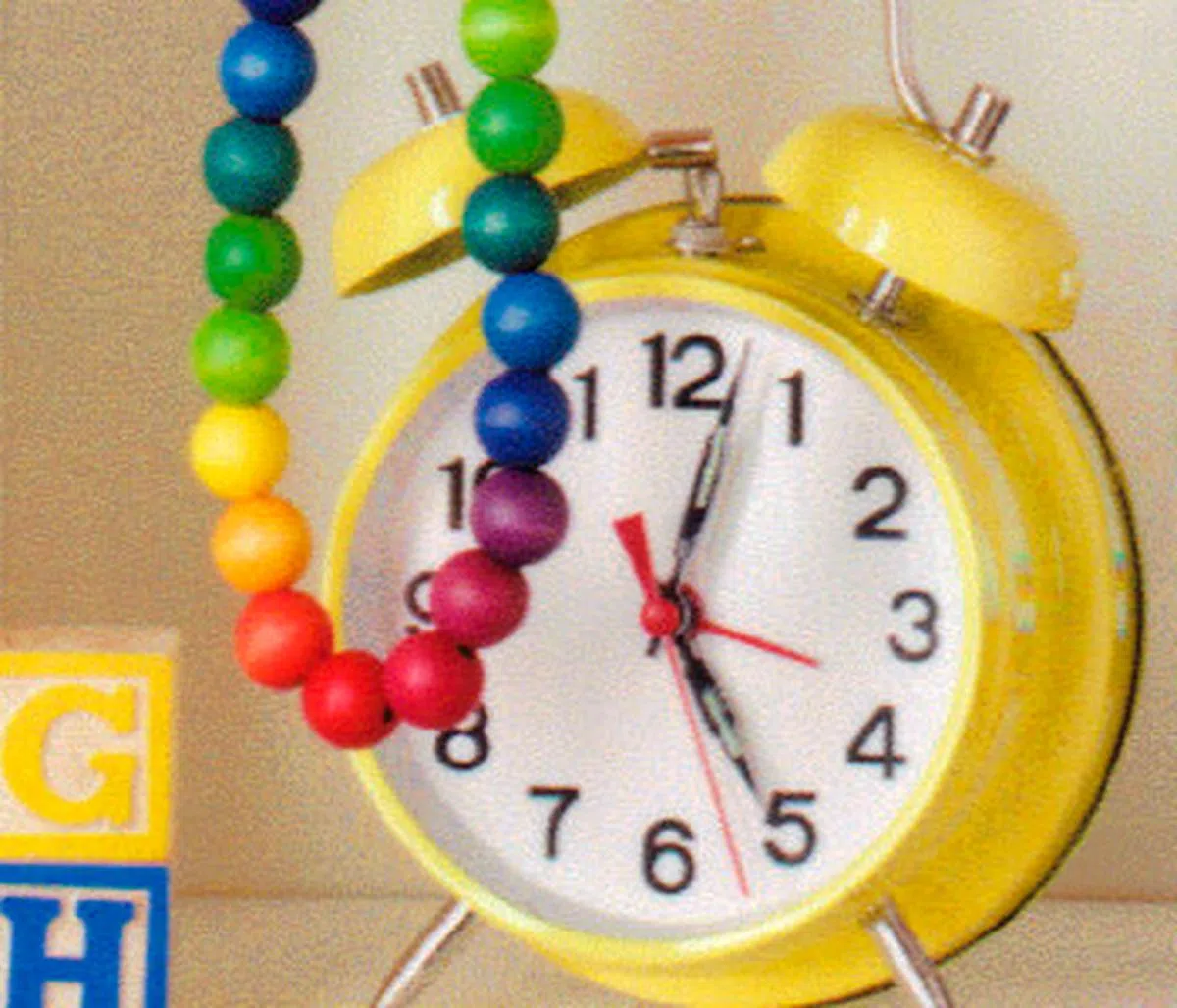
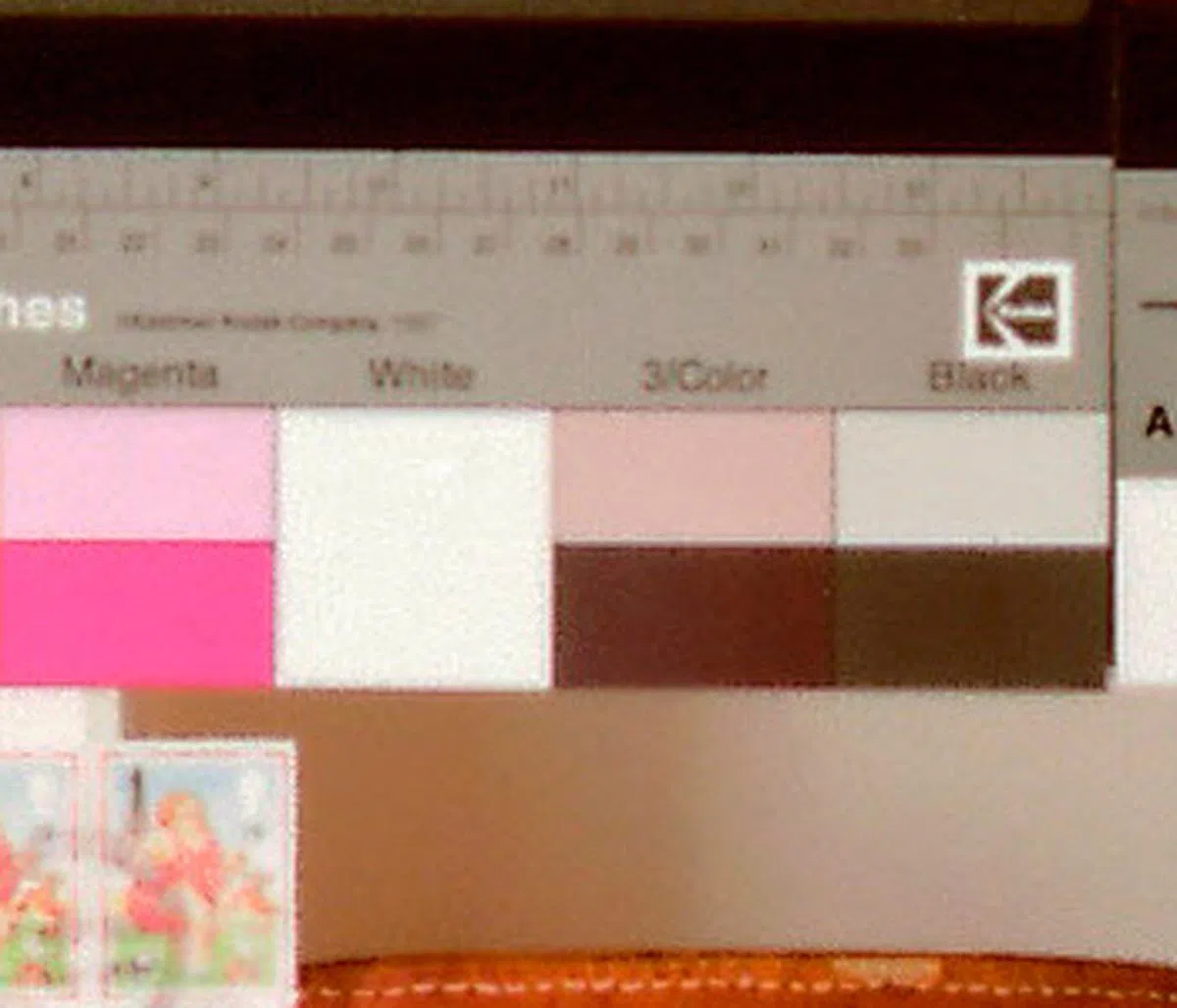
We've already established in our speed tests that the Flash Scan technology resulted in super-fast scans. But since the Genesis S815 also claims to use a 10-megapixel imager to scan (or should we say capture) an image, we became very eager to find out how the quality would stack up against a typical AIO using a CIS (contact image sensor) scanner. Though we've used the Lexmark Prospect SE Pro208's scans in the comparisons below, we've also compared the S815's scan results against those from other AIOs we've reviewed in the past to derive our conclusion.
In general, the S815's scan quality turned out to be good. To put it another way, it didn't disappoint us, but neither did it wow us. Because it functions rather similar to a digital camera, we expected some degree of distortion, especially toward the peripherals. To our relief, distortion was non-existent. For the most part, the scans showed smooth gradations and pleasing colors. However, they also appeared soft. Details, while present, were not as sharp. They looked as if they had gone through some kind of noise-reduction or smoothening process.
In the end, these results would also mean that the Genesis S815 is probably a better option for photos since they don't really require sharp details but could benefit from smoother gradients. Documents with line diagrams, sketches and CAD drawings for example, would fare better with a typical CIS-based scanner. As such, it really depends on your personal needs and what you might dabble with more often - there's no clear winner from our findings.
 |  |
 |  |
Criteria | Score (out of 10) |
Text prints | 8.0 |
Graphics prints | 8.0 |
Scan quality | 8.0 |
Photo prints | 8.0 |
Conclusion
We’ve to applaud Lexmark for bringing something new to this boring table of AIO printers. The Genesis S815 has essentially ditched the CIS scanning technology used in all AIOs these days, and opted for a lens-and-sensor system, a la a digital camera. The result is way faster scans, though not faster copies because the latter would pull the print engine into the equation. As we detailed earlier, the moment you drop the document behind the scanner lid, the camera would kick into action; and within a couple of seconds, show a preview on the ample 4.3-inch LCD screen, and let you choose your next step. The flow is natural and doesn’t take much thinking on the user’s part. The ability to install custom apps for simple but repetitive tasks is also a great idea. For all of these traits mentioned, we're bestowing the Most Innovative Product award to the Lexmark Genesis S815.
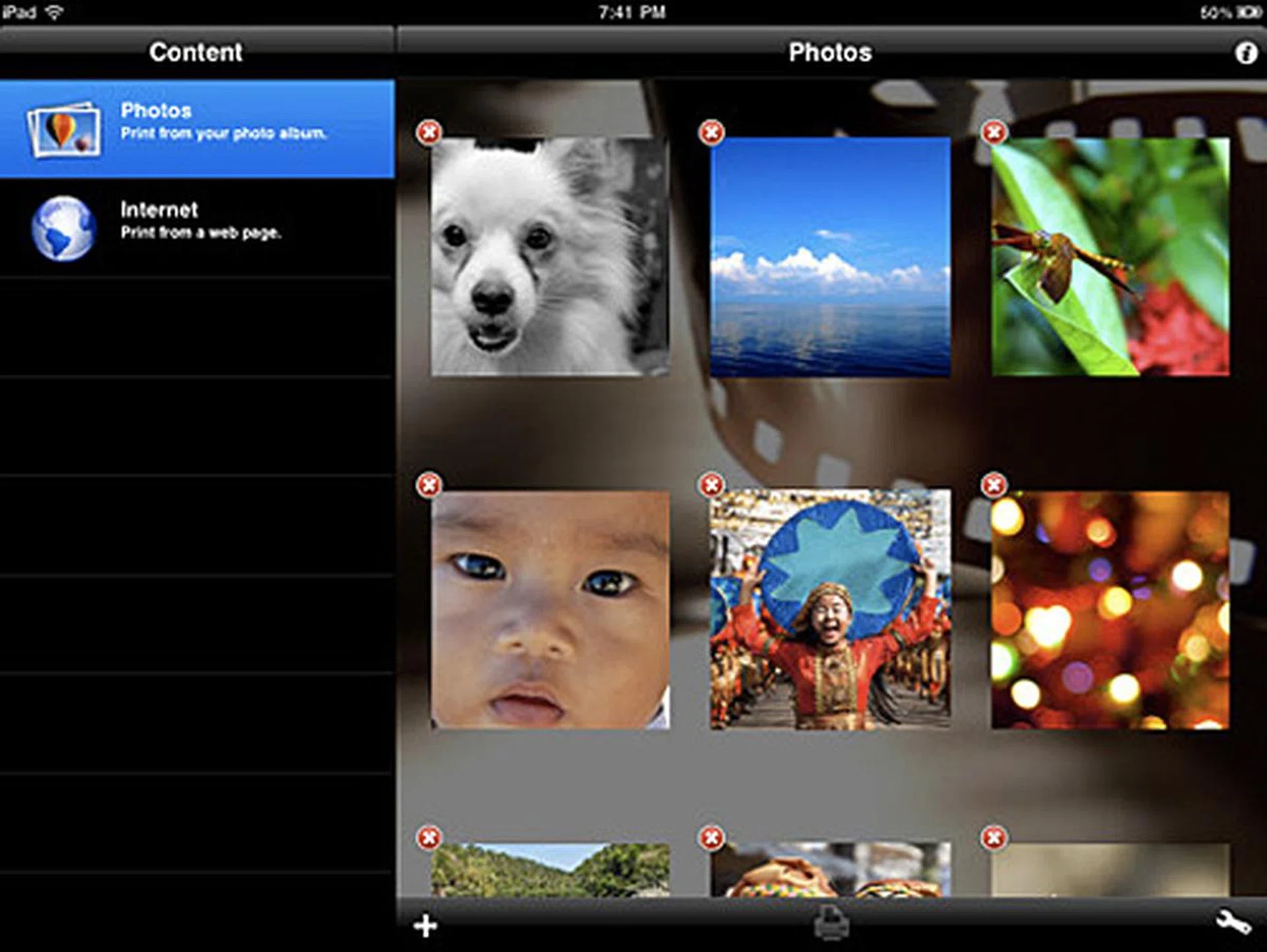
Have an iPad or iPhone? The Lexmark LexPrint is a free app that allows you to print from your iDevice using any Lexmark printer. Depending on the printer model, a separate LexPrint Listener program may be needed on your computer. (Image credit: Lexmark)
It doesn’t hurt that in the process, Lexmark has created a pretty good-looking device. While the S815’s footprint is smaller than most printers, its increased height inevitably gives people the impression that it’s quite big. The usual fare of multi-card slot, PictBridge-enabled USB port, 802.11b/g/n Wi-Fi and fax modem we’ve come to expect on an AIO are all present. Our only gripe is the single paper input tray. We’d like a second tray to hold more paper, or to dedicate it for specialty media, such as photo paper. It would also have been great if an ADF was incorporated in some manner, but that would probably added a lot more to the price tag.
Performance-wise, it measures up well against offerings from Canon and Epson, in both print speed and print quality. The S815 doesn’t have the luxury of a separate pigment-based black ink to improve its black text quality, but from we’ve seen, it probably doesn’t need to. Graphics quality was respectable, but photos printed on photo paper showed slight heavy-handedness in terms of contrast.
All in all, we'd recommend the Genesis S815 priced at S$499 to those who scan or copy a lot. These are two areas where the Flash Scan technology and the clever UI design combine for a great user experience.
Our articles may contain affiliate links. If you buy through these links, we may earn a small commission.