
Note: This article was first published on 31st December 2019.
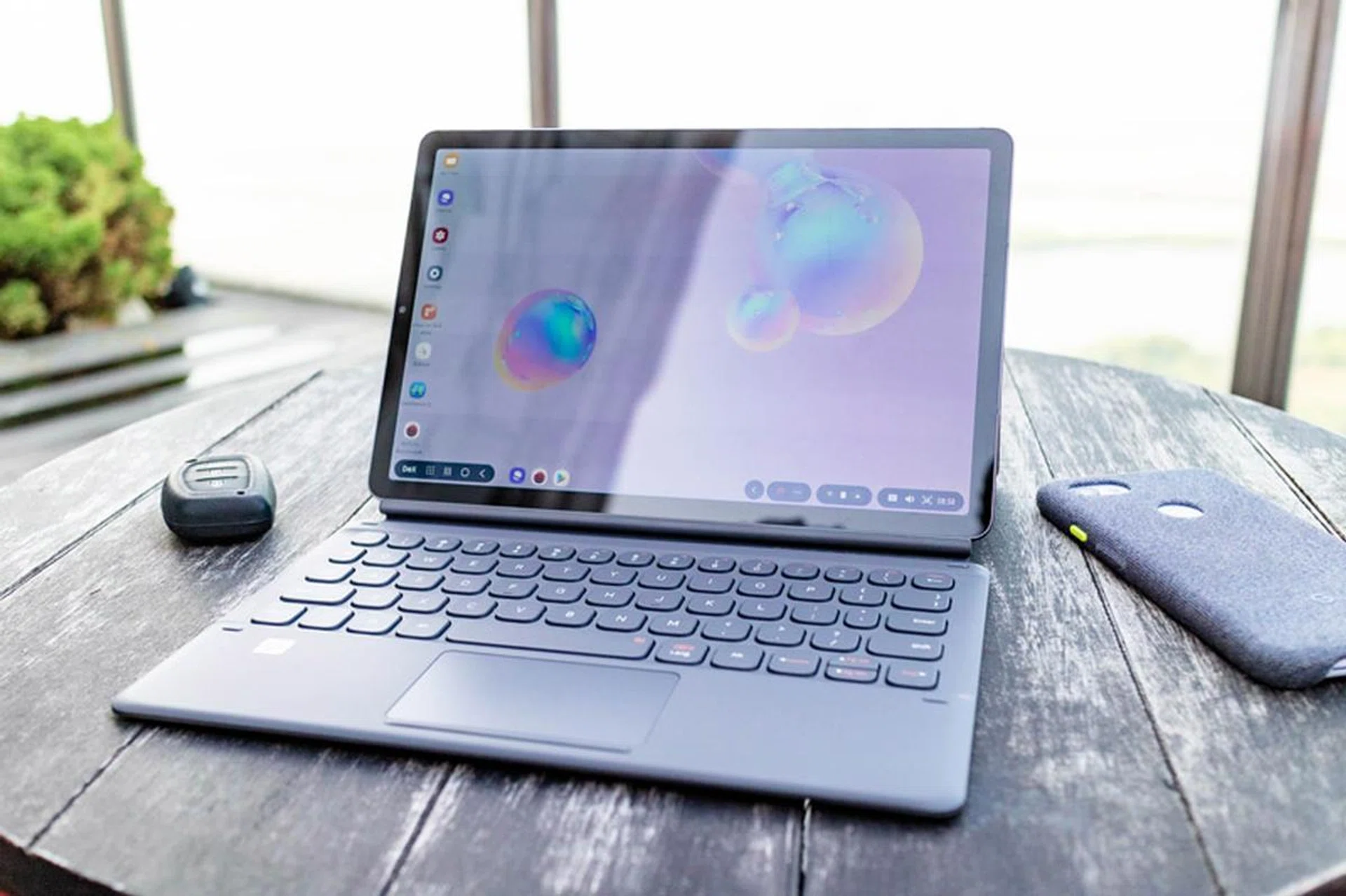
Can Samsung still champion a premium Android tablet?
Last year when I reviewed the Tab S4, I was worried that given the dwindling support for Android tablets by Google, the Tab S4 might be one of the last Android tablets that we would ever see. More so, Google has completely pulled out of the tablet market, signalling perhaps that there isn't much a use-case besides a big screen, which will probably be the domain of foldable screen smartphones moving forward.
Thankfully, Samsung continued to hold the fort and released Tab S5e in the middle of 2019. Despite its name, Tab S5e was not the successor of Tab S4. It was a mid-range tablet without S-Pen support.
In August 2019, amidst the launch of both the Galaxy Note 10/10+ and the enigmatic Galaxy Fold, Samsung had also launched the Tab S6, Tab S4’s true successor. Will their new Android tablet renew hopes of a ‘renaissance’, a revival in the interest of Android tablets? Or will it succeed Tab S4 in holding the same title of probably being the last of what Android tablets could truly be?
We spent a couple of months using it intensively, and here's my opinion of it.
Design, Display, and Audio
It seems that Samsung has silently acknowledged the design flaws that made Tab S4 worse than the Tab S3, went back to the drawing board and made small but substantial changes to the design of Tab S6. The obvious change will be the usage of an aluminium unibody instead of polycarbonate (finally), making the tablet lighter and exudes a more ‘premium’ feel. Indeed, at 420g, it is 62g lighter than its predecessor, at the same weight as mid-range Tab S5e, and lighter than other tablets of similar size, which clearly makes it the lightest tablet in the 10-inch category. (For reference, the new iPad is more than 480 grams.)
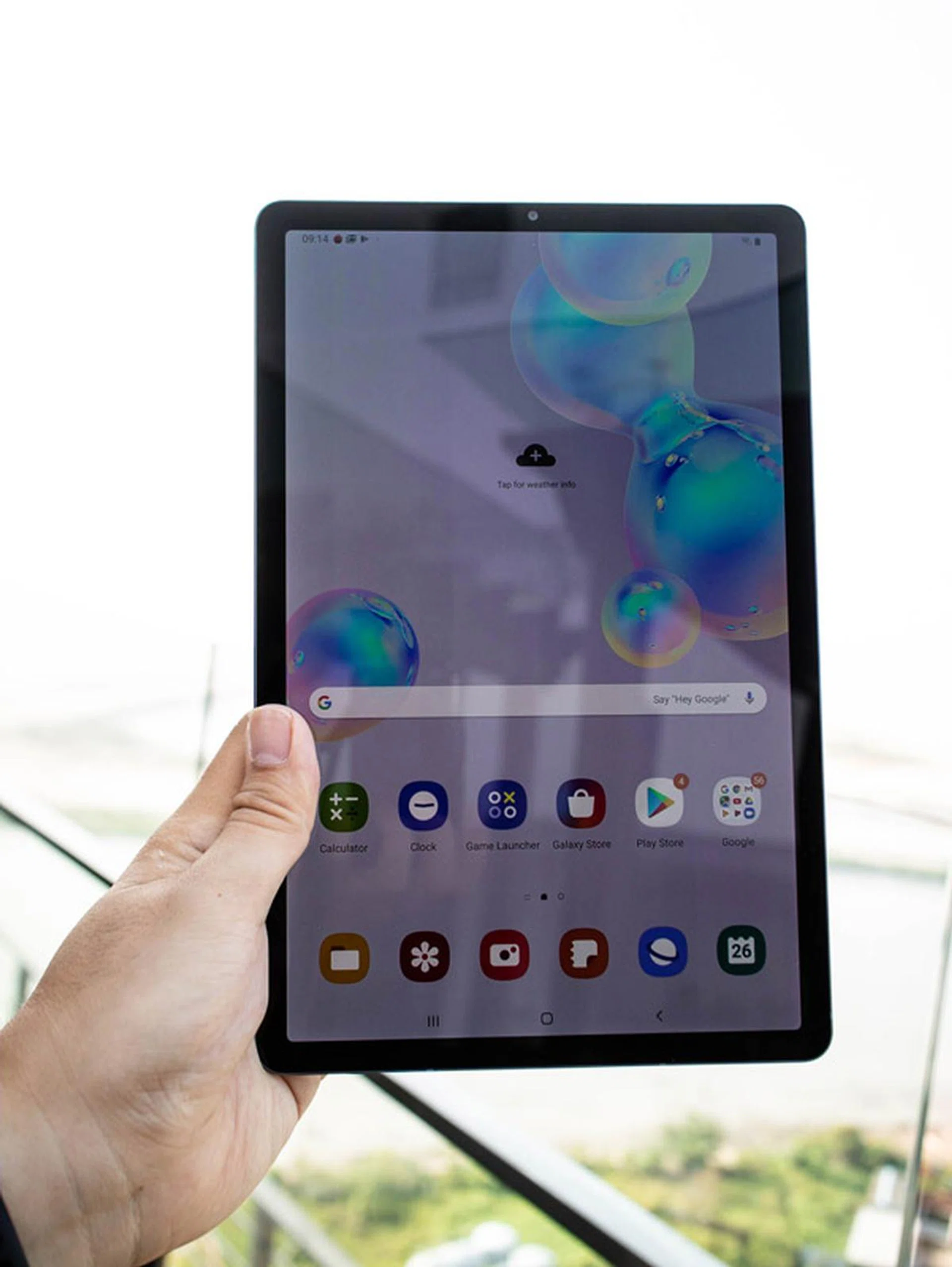
Probably also due to the use of a unibody aluminium build, Samsung managed to shrink the overall footprint slightly. While still sporting the same Super AMOLED 10.5-inch WQXGA (2,560 x 1,600 pixels resolution) screen from Tab S4, Samsung managed to shrink the bezels, making Tab S6 slightly smaller at 244.5mm x 159.5mm. They also managed to significantly slim the tablet to 5.7mm, making it also the thinnest tablet for its screen size. It still has the same AKG quad-speaker setup as Tab S4, maintaining the excellent aural experience I had with Tab S4.
Goodbye Iris Scan, Hello in-screen fingerprint sensor
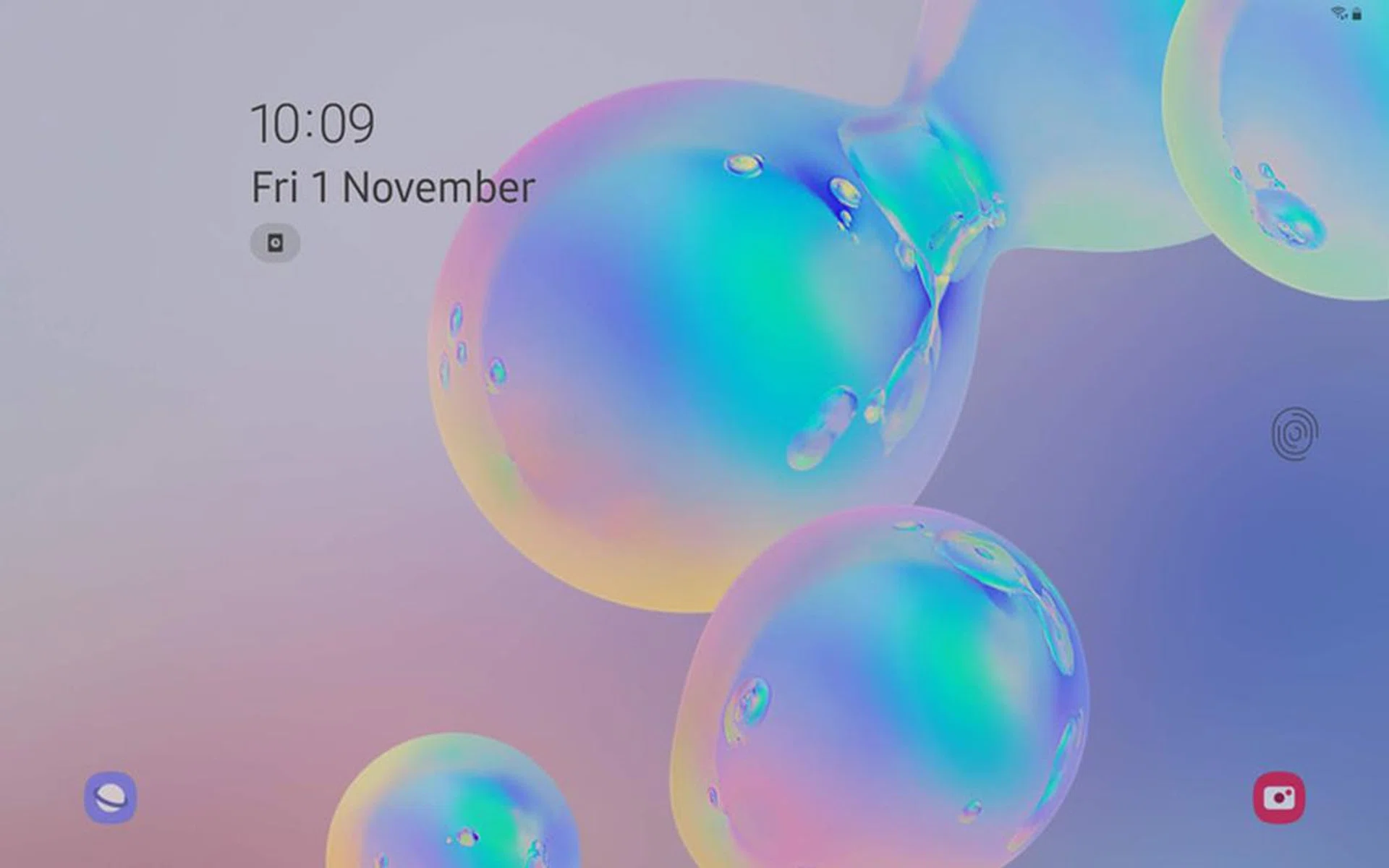
Notice the on-screen fingerprint scanner indicator?
While iris unlock works flawlessly on Tab S4, it seems that Samsung has decided to remove iris scanning technology altogether in their devices launched in 2019, and Tab S6 is no exception. In place of the trusty Iris Scan, Samsung has incorporated an in-screen fingerprint sensor on the bottom side of Tab S6 - the same technology they've implemented in their current flagship devices (Galaxy S10 and Note10 series). The fingerprint unlock is fast, though it remains to be seen if putting on tempered glass protectors would adversely affect the sensitivity of the sensor.
Unfortunately, it also felt like a step backwards. Iris Scan was very convenient while using the Tab S4 and worked charmingly. However, the unlocking experience on the Tab S6 seems to harken back to the Tab S3 days of using physical fingerprint sensor - just that the sensor is now under the screen and in a fixed location. On a phone, fingerprint scanning is relatively near where your fingers might stretch about the device, but on a product the size of a tablet, it's not as convenient. Perhaps if Iris Scan wasn't introduced on the Tab S4, we wouldn't have such comments, but we kind of miss it on the Tab S6.
S-Pen, now attachable (sort of)
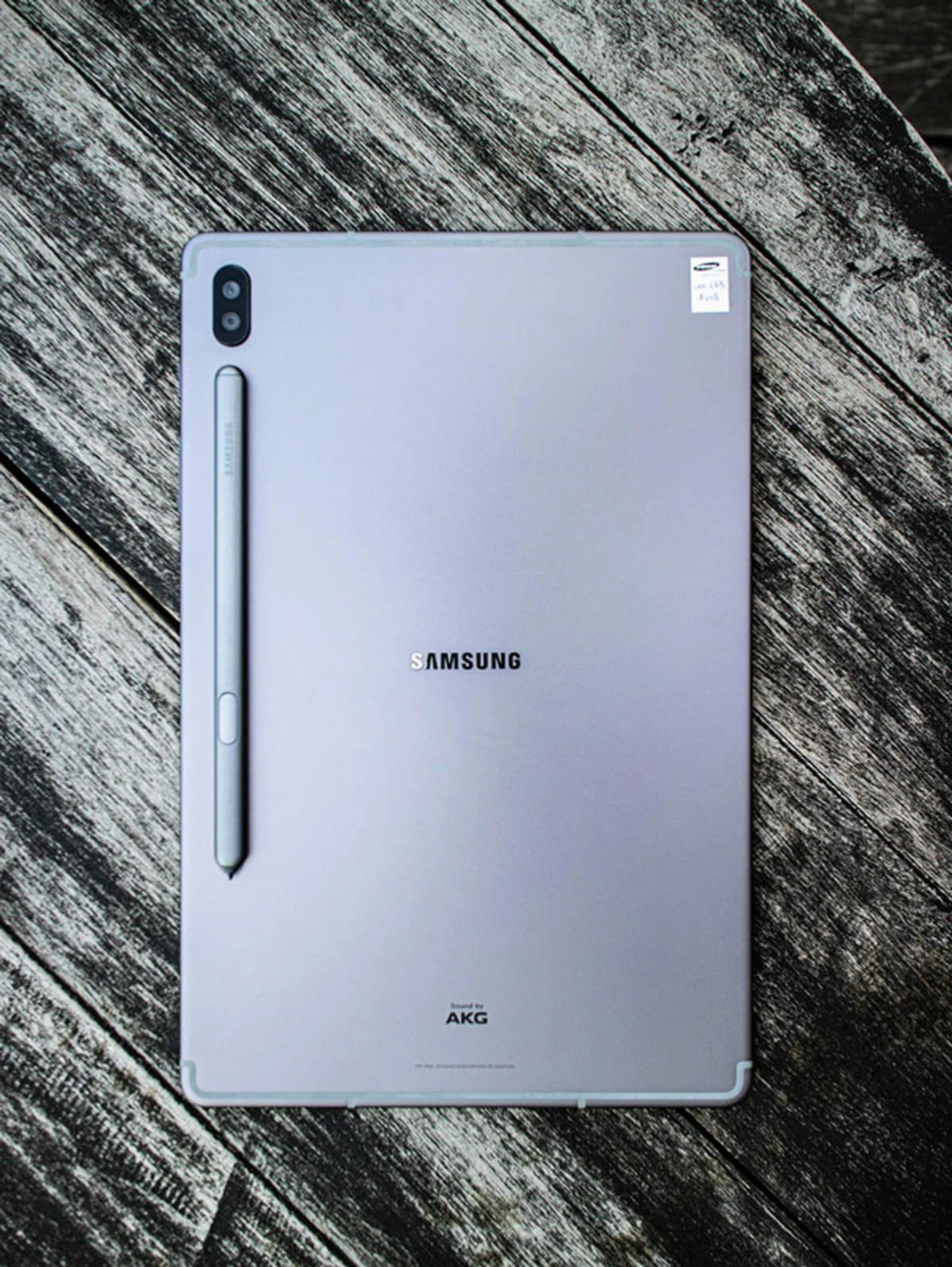
S-Pen holder, or more like S-Pen inset
While Tab S4’s S-Pen is classy, there is no way to attach it on the tablet itself, much like the first-generation Apple Pencil. The S-Pen concept was redesigned with the Tab S6 as it shed the classy image and instead returned to a functional design similar to Tab S3’s S-Pen. It is done for a practical reason though - the S-Pen is now magnetic, and the tablet has an inset on its back for the S-Pen to attach itself magnetically.
Similar to the Note9 and Note10’s S-Pen, it also has capacitive charge and the S-Pen can be used as a clicker for presentations or perform gesture actions. To charge the S-Pen, just place the S-Pen on the designated inset, and the screen will display a notification indicating current charge and charging status, which is similar to Apple Pencil 2’s charging mechanism.
The disadvantage the S-Pen holder design is its position; there is no way to put the tablet flat on the surface with the S-Pen attached. The magnetic force holding the S-Pen is also not strong enough to prevent the S-Pen from falling out accidentally. It is perplexing as to why Samsung did not take cues from Apple iPad Pro, who likely took cues from Microsoft's Surface on attaching the stylus to any side of the tablet. The only way to mitigate this issue is to purchase and use the optional Book Cover.
Optional Book Cover and Keyboard matters
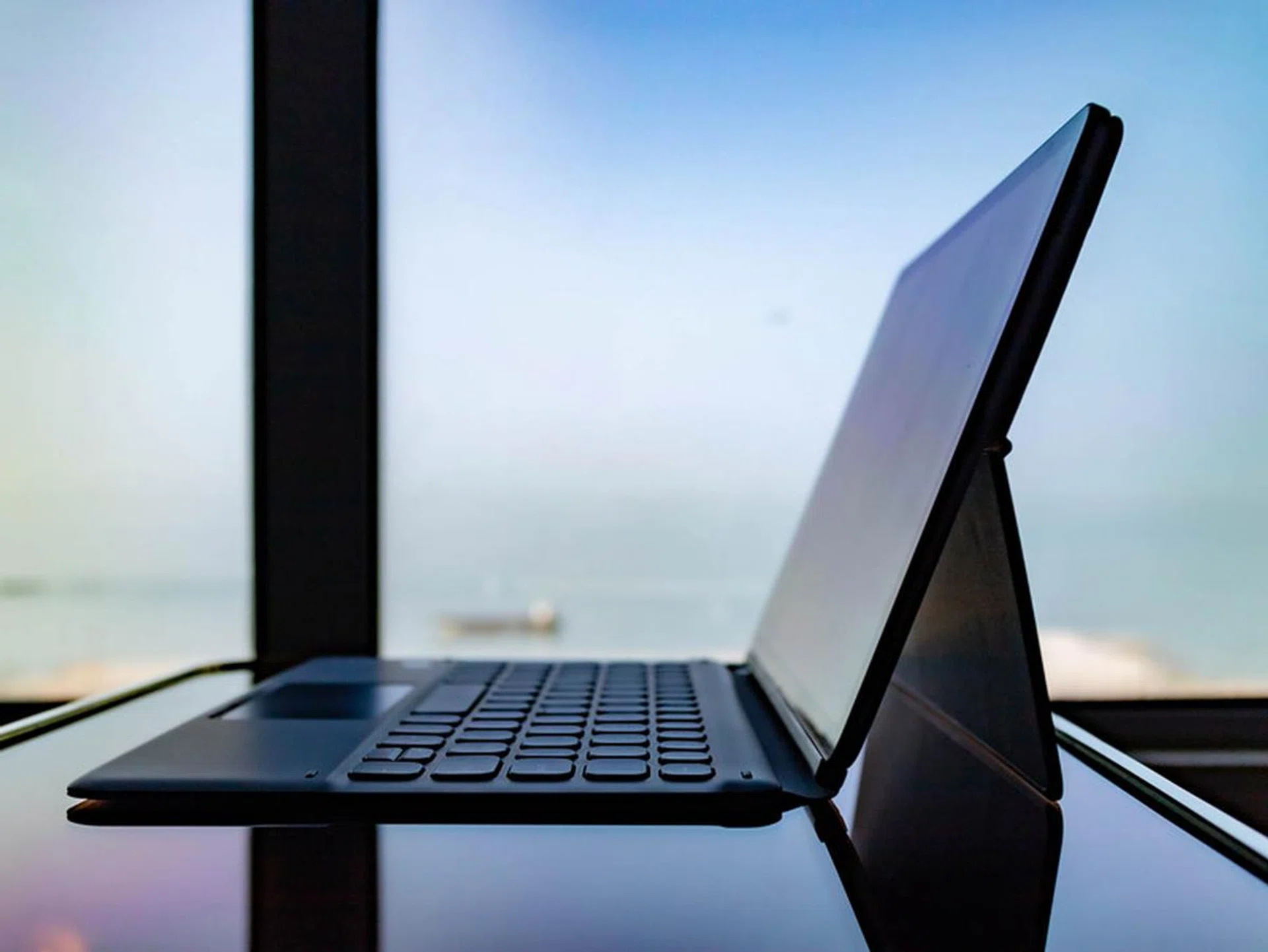
Slimmer and sleeker keyboard cover
One of my biggest dislikes for Tab S4 is its Book Cover Keyboard accessory. It was huge, clunky, difficult to attach the tablet to, and felt cheap. Good news, Tab S6’s Book Cover and Keyboard, Samsung’s official keyboard accessory for Tab S6, is well polished. Samsung borrowed some design elements from its own 2018 Galaxy Book and incorporated into the Book Cover.
The Book Cover with Keyboard has two parts: one is the actual keyboard cover, which attaches itself directly on the edge of the tablet with the keyboard connector. The other is the back cover, which the user has to stick on the back of Tab S6. The back cover’s purpose is to serve as a kickstand for the tablet, and it also contains a small pocket that encloses the S-Pen holder. When completely unfurled, the Tab S6 with Book Cover keyboard looks like how Microsoft Surface supports itself when in use.

Pocket for the S-Pen
With this change in design, much of the problems plaguing Tab S4’s Book Cover Keyboard has been addressed, including having a touchpad! A touchpad gives users fine-grained control for precision interaction, such as a cursor in a word processor application.
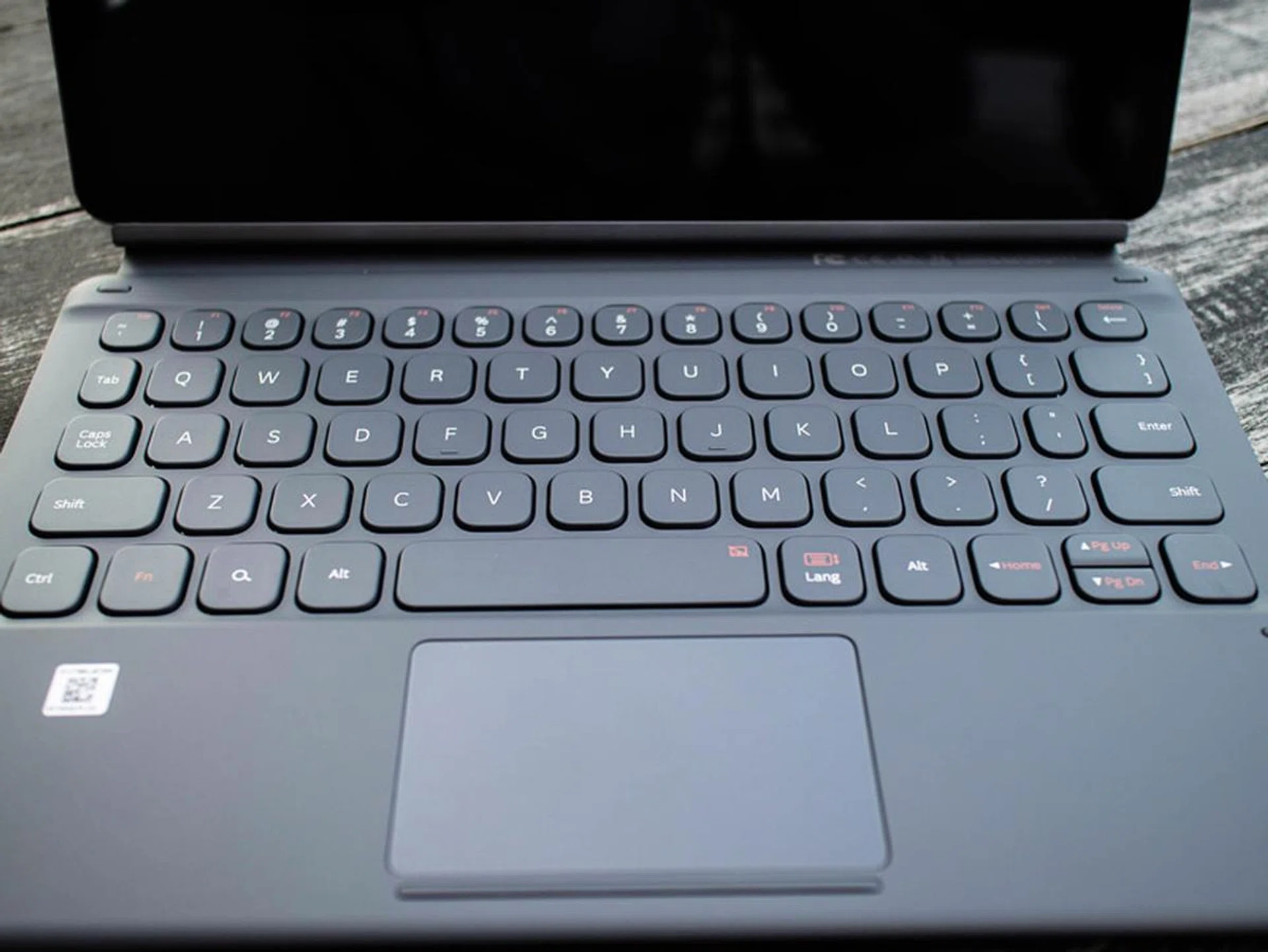
A touchpad!
Another improvement is the buffer space between the top row of keys and the screen. On the Tab S4, the design was bad as my knuckles kept knocking on the screen. This is no longer the case when using the Tab S6.
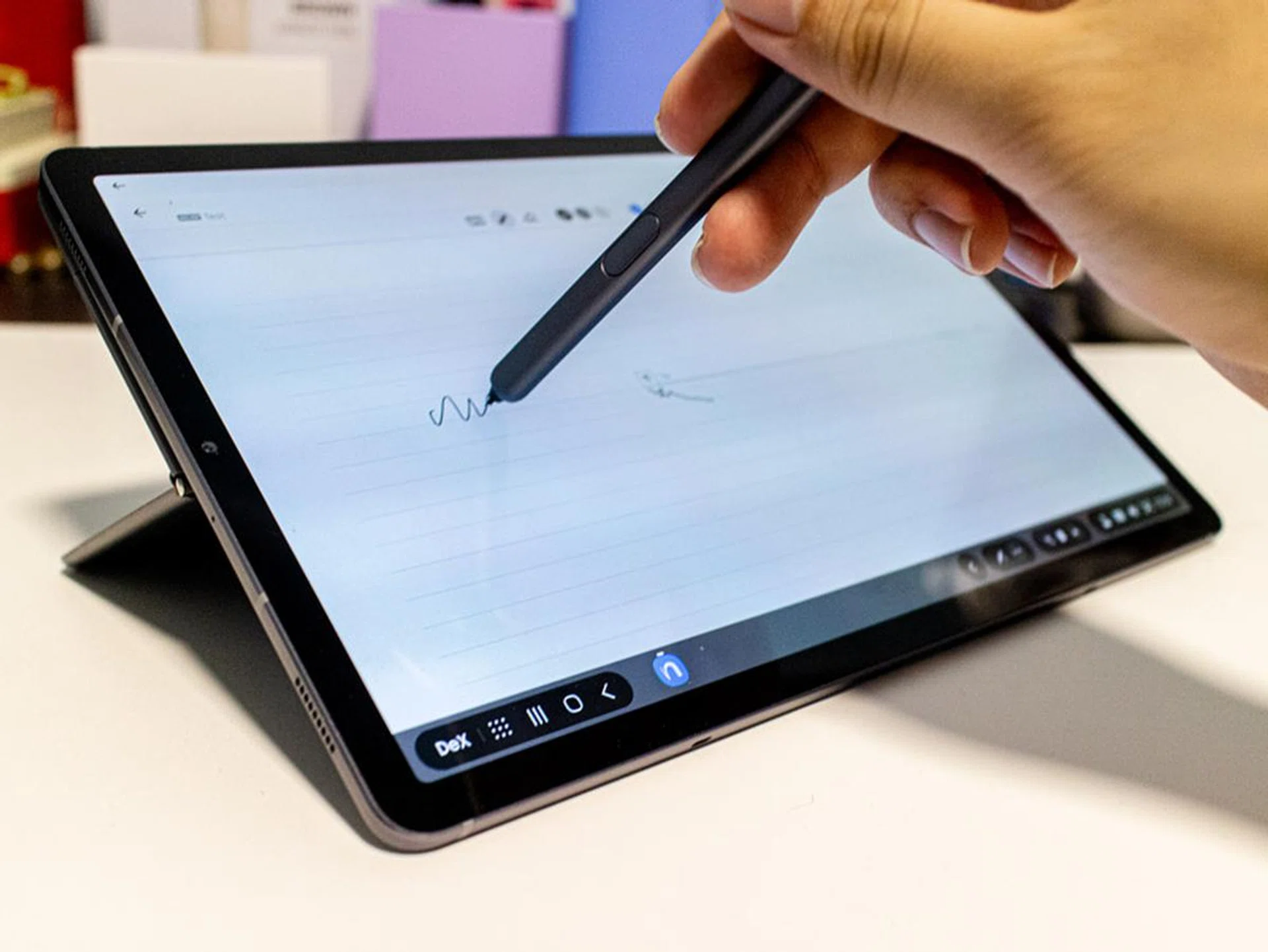
Surface Drawing mode.
With an adjustable kickstand, it now allows you to control the angle of view of the tablet. Users can even do a "Surface drawing mode" on the Tab S6, if the tablet is detached!
As an example, this time, I tried typing a draft of this review on the Tab S6. While I had to get used to the slightly different keyboard shortcuts, especially in terms of app switching, I was able to finally type most of the draft on the Tab S6 effortlessly. No accidental knocks on the screen, no need to tap on the screen to adjust cursor - the whole typing experience was good.
The Book Cover with Keyboard also slimmed down slightly: with a thickness of 6.8mm and weight of 359g, this yields a total tablet weight of 779g and thickness of 12.2mm. This puts its weight close to an Apple iPad Pro 11 (765g) and even the smaller Surface Go (also 765g) with their keyboard accessories attached, so it's fairly comparable.
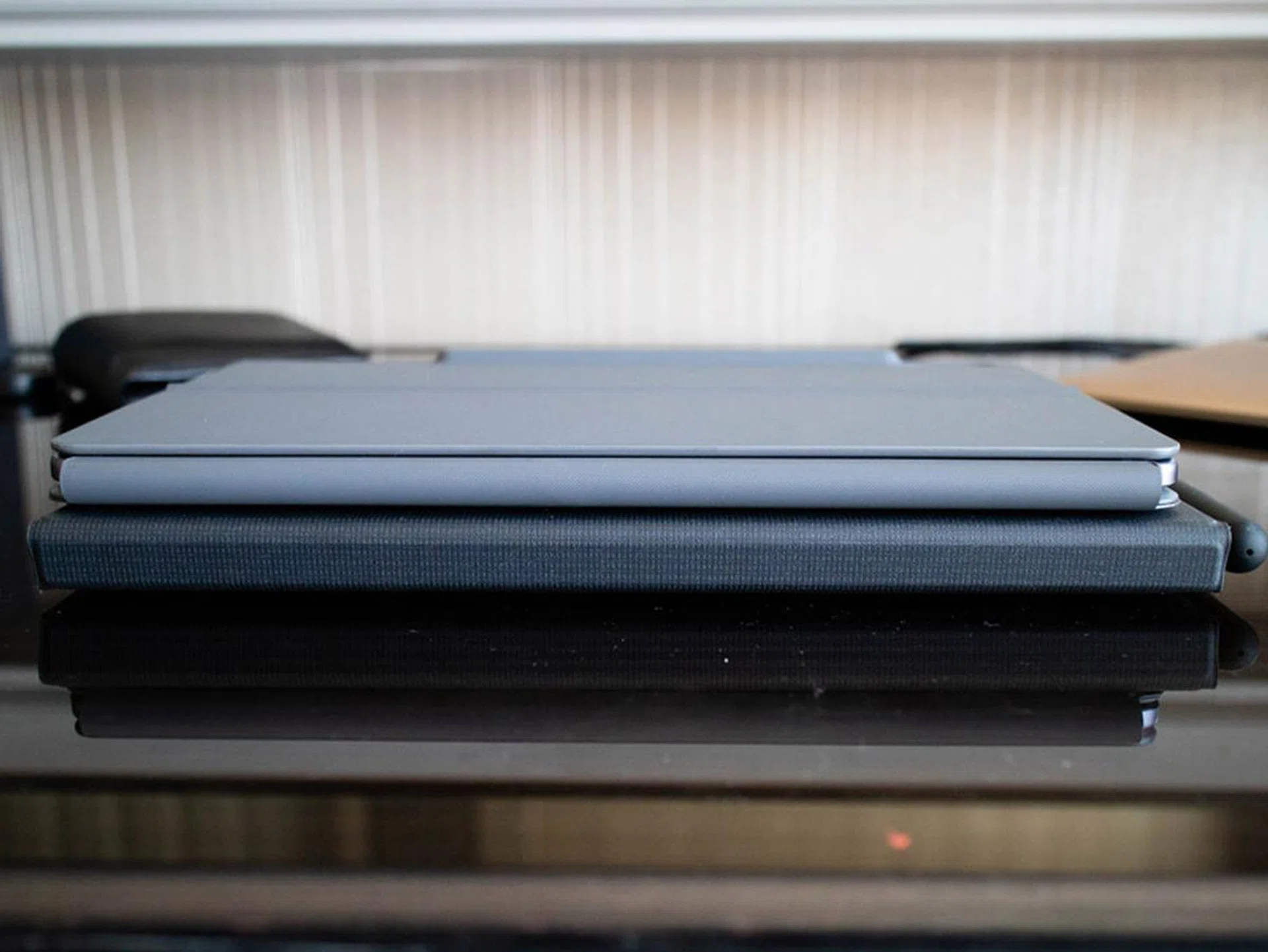
Here's a shot of the Tab S6 with the Book Cover attachment placed on top of the Tab S4 with its Book Cover attachment. The newer Tab S6 is definitely more handy with all its optional accessories.
One major caveat of Tab S6 though: the back cover does not stick on the tablet’s back by magnetism. There is actually a strong semi-adhesive layer on the back cover to stick on the tablet. While it is possible to detach the back cover, it takes a lot of effort to pry it off. Considering that adhesives wear out over time, especially with multiple attachments/removals, this forces the user to decide whether to use the Tab S6 as a laptop replacement for long term and sacrifice the flexibility of switching to a tablet-only form, or to indulge in such flexibility at the cost of wearing out the adhesive fast. If the user decides on the latter, he or she must be very careful about keeping dust and dirt away from the adhesive layer too. Overall, not an ideal attachment option.
The DeX experience on Tab S6 (2019 edition)
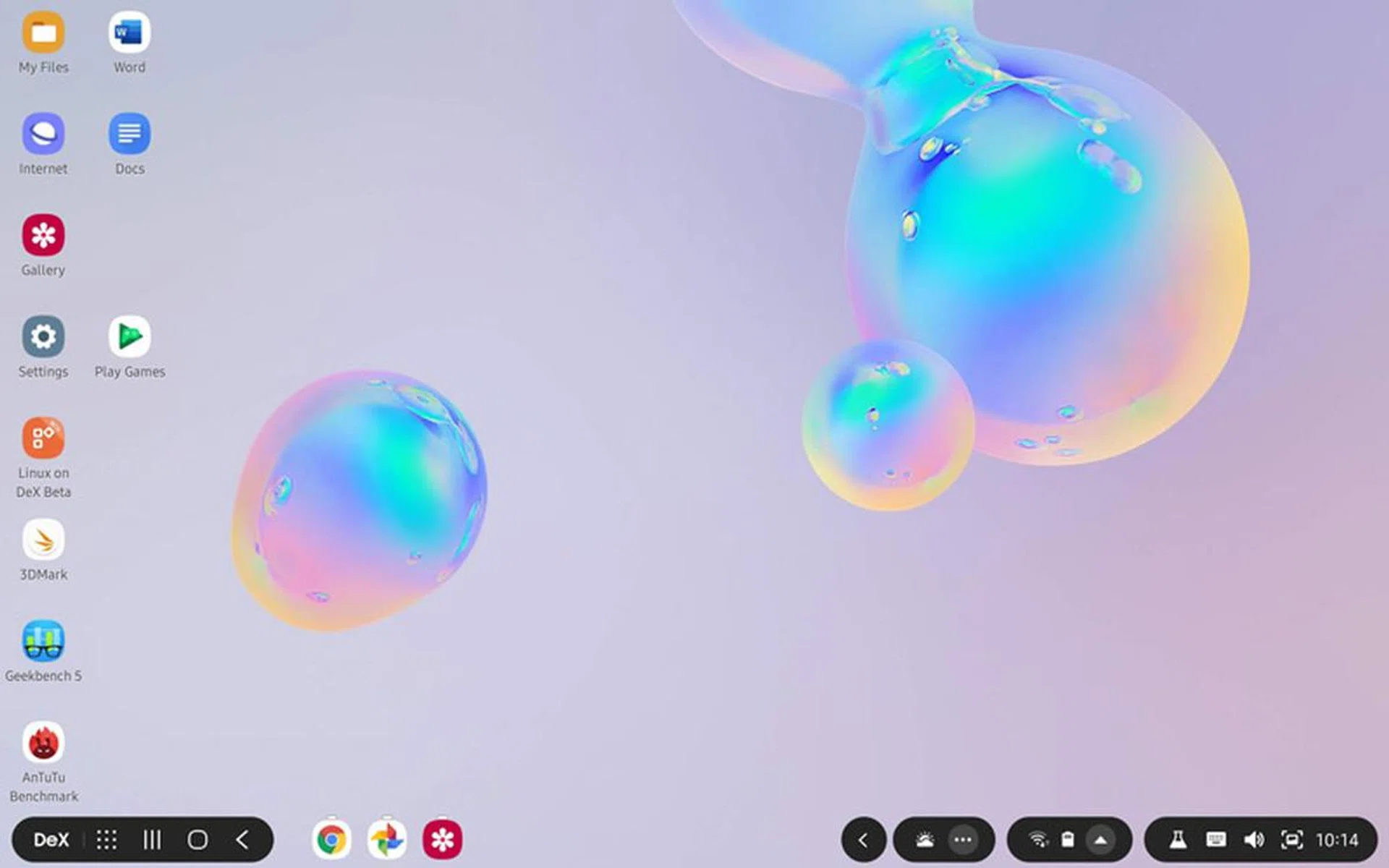
Not much different from past DeX
The DeX mechanism on Tab S6 is similar to that of its predecessor: just toggle Samsung Dex and DeX mode will be activated. Similarly, it is still possible to use DeX without a keyboard or mouse, but it is recommended to use the Book Cover and Keyboard for DeX for maximum mobile utility.
One year on since the last review on DeX on Tab S4, one hopes to experience major improvements in DeX mode. However, similar issues still persist. There are some issues that are fixed, such as YouTube’s resizing problem, but others such as the experimental feature of resizing apps isn't optimized for DeX, and still remains as an experimental feature. Fortnite still remains unplayable in DeX mode. The only apps that work - those that matter - are Microsoft Office and Google’s productivity suite of apps, which, taking into perspective, positions DeX awkwardly against Microsoft’s Surface, including the underpowered but still fully-featured Surface Go.
I once surmised that the introduction of Linux of DeX (LoD) can revive interest in the DeX platform. A quick summary of LoD: it is Samsung’s experiment in running actual Linux (Ubuntu by default) on top of DeX. Indeed, a month after the publication of my Tab S4 review, LoD for beta was announced, with support for the then Tab S4 and Note 9, amongst other Samsung flagships at that time.
Unfortunately, Samsung has formally killed the LoD beta since then. LoD would have been a compelling killer feature for on-the-go developers even if it remained as a beta option to tool with.
Samsung previously introduced the concept of launching DeX on one’s personal computer when the device is connected. This adds another mode of usage for DeX. Yet, in another disheartening manner, Samsung did not introduce this function in Tab S6.
Benchmark Performance
Reversing the previous trend of including previous generation processors in their flagship tablet series, Samsung has finally incorporated a Qualcomm Snapdragon 855 chip in the Tab S6, the same series used in other flagship phones launched in 2019. With a flagship processor, it performs far better than its predecessor but still falls behind its major competitor, Apple, by a huge margin. In fact, its benchmarks are almost comparable to iPad mini instead of iPad Pro!


Real-world usage performance
Benchmarks numbers tell the hard-technical details. In real-world usage, comparing Tab S6 to Tab S4, there aren't obvious performance improvements; the Tab S6 is better than Tab S4 mostly on ergonomics and improved user experience. However, when comparing Apple to Samsung, even the smaller iPad mini does feel more fluid than Tab S6, presumably due to the iPadOS optimization and its powerful A12 chip, compared to Qualcomm Snapdragon 855.
Battery life
Tab S6 comes with a 7040 mAh battery pack, which is slightly smaller than its predecessor (7300mAh). While the reduction in battery capacity is marginal, the battery life has reduced compared to the Tab S4 (~7 hours vs. > 9 hours). While it definitely outlasts its Apple counterparts, it falls short of its predecessor by a big margin. Once again, in the battery life test, a 720p video was played repeatedly at full brightness and at maximum volume, with both Wi-Fi and Bluetooth on and some occasional email push.

Real-world battery usage
In reality, nobody actually plays videos for 9 hours straight, unless one is taking a low-cost flight to Athens from Singapore. As such, having a tablet with > 7 hours of video playback battery life is more than sufficient for lightweight tasks and productivity work, considering that the newer Tab S6 has improved design, user experience, build, is lightweight and more compact. Having said that, the only other time you might need a very long battery up-time is perhaps if you're driving up to Malaysia - those jams can be nasty.
Conclusion
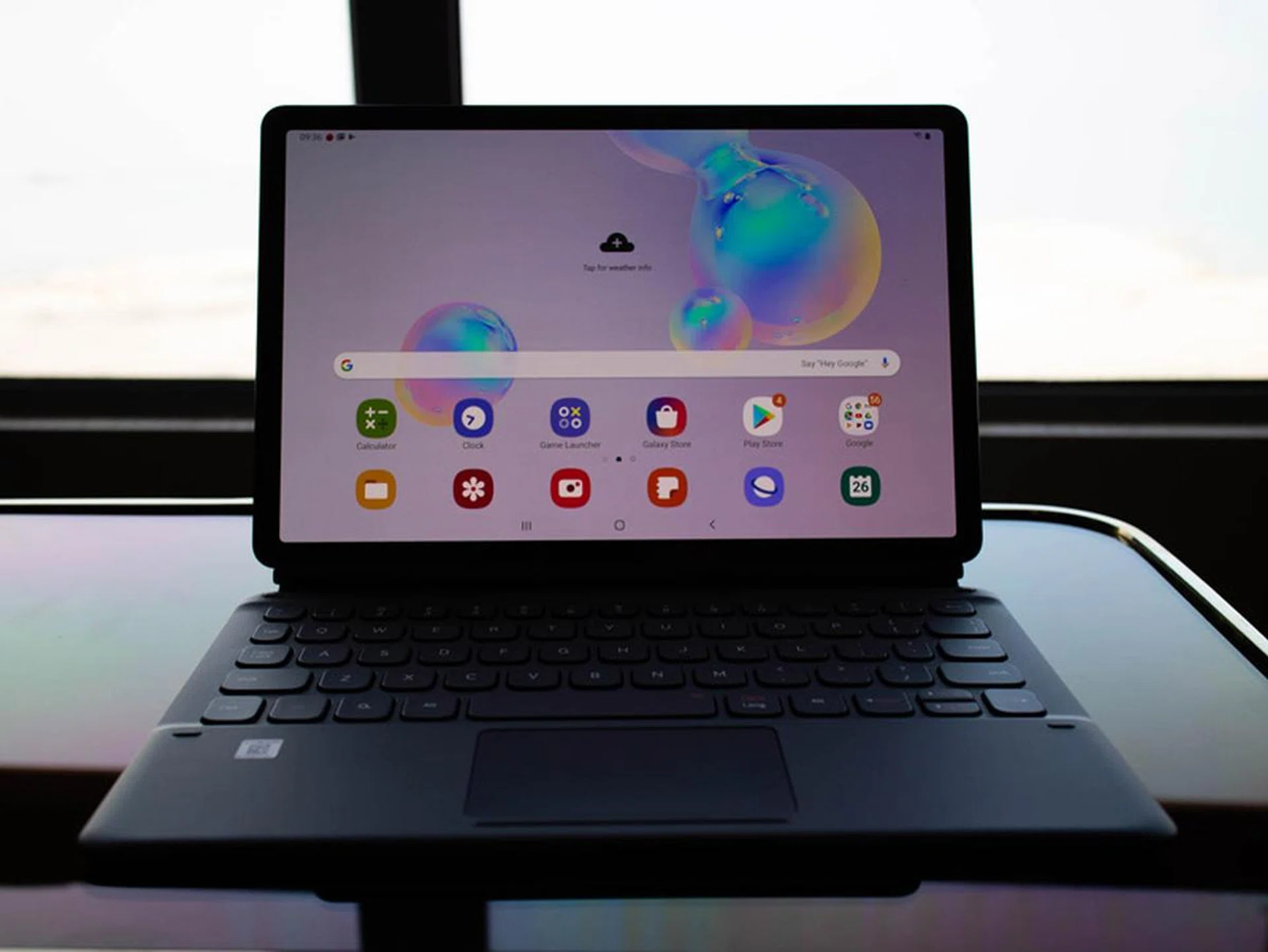
It is without a doubt that Tab S6 is a marked improvement over its predecessor in terms of design and ergonomics. Combined with the redesigned optional Book Cover and Keyboard, Tab S6 is now closer to that of its main competitor, the 11-inch Apple iPad Pro, in terms of size and weight. The inclusion of a touchpad in the keyboard cover, as well as the kickstand, makes Tab S6 a possible laptop replacement - but only as far as hardware design is concerned.
What makes Tab S6 fall short of being a laptop replacement overall is its software. Let’s face it. Android in its vanilla form can never have a user experience remotely comparable to that of a tablet made for productivity, let alone full-fledged laptops, or even the iPadOS. In fact, given that Google’s guide on Android development has pretty much shifted focus away from targeting tablets, all hopes on popular apps integrating polished tablet interfaces have now evaporated. Hence Android tablets squarely rely on regular mobile apps designed for the phones.
This is why Samsung has to come out with DeX, and DeX is actually good at its core. However, improvements have stagnated, and mostly cosmetic, with many issues encountered a year ago still yet to be resolved or mitigated.
In fact, it can be argued that since Linux on DeX is not available on the Tab S6, but still currently available on the Tab S4, that the predecessor actually has a notable edge over Tab S6 in the software department that enables a different set of possibilities and usage scenarios. But that's likely to hold true only until the Tab S4 gets its Android 10 upgrade, in which LoD will no longer exist in the system. While it can be said that most users will not care about running Linux on a tablet, it is still a crucial differentiating point for prosumers, especially in the face of iPad Pros’ insane speed of video and graphics processing, and Microsoft Surface series of… well, just plain old full-featured Windows operating system.
At the very least, unlike Tab S4, the Tab S6 is competent to tackle a good range of office productivity tasks - if and only if your purpose for Tab S6 is plainly for that. It must be stressed that if you do want to primarily use it run an office productivity suite, you will have to attach the optional Keyboard Cover (which has an integrated kickstand). However that adds to additional costs and worse yet, it will be hard to switch back and forth to a plain tablet form due to the adhesive layer on the cover which makes it hard to remove. Which makes one wonder, why not just get a Microsoft Surface if you need a convertible device for office productivity tasks in a native Windows environment without any application limitations?
Here's how the Tab S6 SKUs are priced:-
- Wi-Fi only, 128GB: S$998
- LTE, 128GB: S$1,098
- LTE, 256GB: S$1,298
The price points are better than the Tab S4, while the base storage has increased substantially to 128GB. The Book Cover with Keyboard accessory, though, has its recommended retail price increased to S$268, and comes only in Gray colour. This means a total of $1,266 for a basic mobile productivity suite - without any chance of a basic yet proper software development environment or having the ability to run a wider variety of x86 applications. Comparatively, the Apple iPad Pro with Smart Keyboard combo goes for S$1,468, while an equivalent basic Microsoft Surface Pro setup costs from S$1,737. So while Samsung does have a price advantage, it's up to the readers to decide on their usage needs to determine which is the best route to proceed.
Perhaps the interesting thing is that while Samsung’s flagship Tab S series has always been compared against iPad and iPad Pro, Samsung now faces a yet another contender: Microsoft’s Surface Pro X. While demos of this device seems promising, and given that it actually can emulate general PC programs well (in tech talk, x86 programs), at this point in time, Surface Pro X is still quite expensive.
So who should buy the Galaxy Tab S6?
All things said and done, if you're comfortably happy with your set of Android apps, appreciate a big screen device that's light and portable, love to watch and consume videos on the go for long durations and only require Microsoft Office suite on Android for any productivity tasks, the Samsung Galaxy Tab S6 slots in quite well for this need and as we've compared, doesn't cost as much as its immediate rivals, but it's not exactly affordable either.
For those interested, you can check out online retail options from Lazada (or here for better offers), Shopee and Samsung.
Our articles may contain affiliate links. If you buy through these links, we may earn a small commission.