

Overview
In December 2011, Google chairman Eric Schmidt ignited speculation of a Nexus-branded tablet when he revealed that the company planned to "market a tablet of the highest quality" in the next six months. It was hardly any surprise since Android as a tablet platform hasn't gained much traction despite the flood of Android tablets in 2011. Apple and its iPads still managed to dominate and Google needed a new strategy to move forward or risked leaving the lucrative tablet market entirely in the Cupertino company's hands.
Six months later at Google I/O 2012, the company unveiled its latest Android 4.1 operating system, codenamed Jelly Bean. While the version number jumps a mere 0.1, the new features and enhancements are nothing short of staggering. The flagship bearer for Jelly Bean is the Nexus 7, Google's first Nexus-branded tablet. Is the Nexus 7 the magic bullet that Google needs to break Apple's stranglehold on the tablet space? Well, read on to find out: -
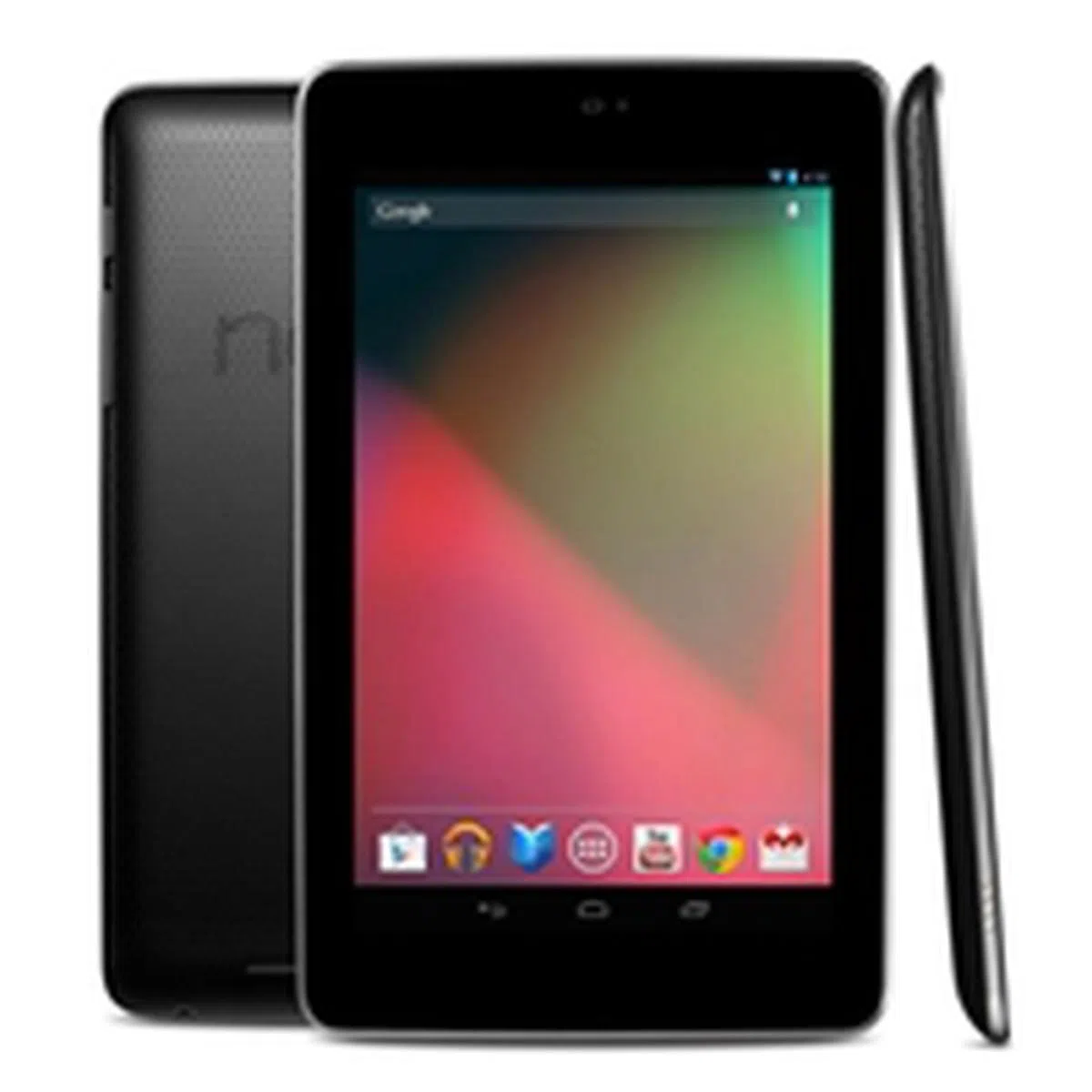 | Key highlights of the Google Nexus 7
|
Design
While there is a general rule that you get what you pay for, the Google Nexus 7 is probably an exception. Despite its lower than average price point (check out the prices for the current crop of 7-inch tablets), the Nexus 7 boasts quite a solid build that is comparable to the more expensive 7-inch tablets such as the BlackBerry PlayBook.
One striking design aspect of the Nexus 7 is its rubberized back, which gives a nice textured feel and offers good grip of the device in your hands. Furthermore, its non-glossy surface makes sure that fingerprints and smudges do not spoil the sophisticated look of the Nexus 7.
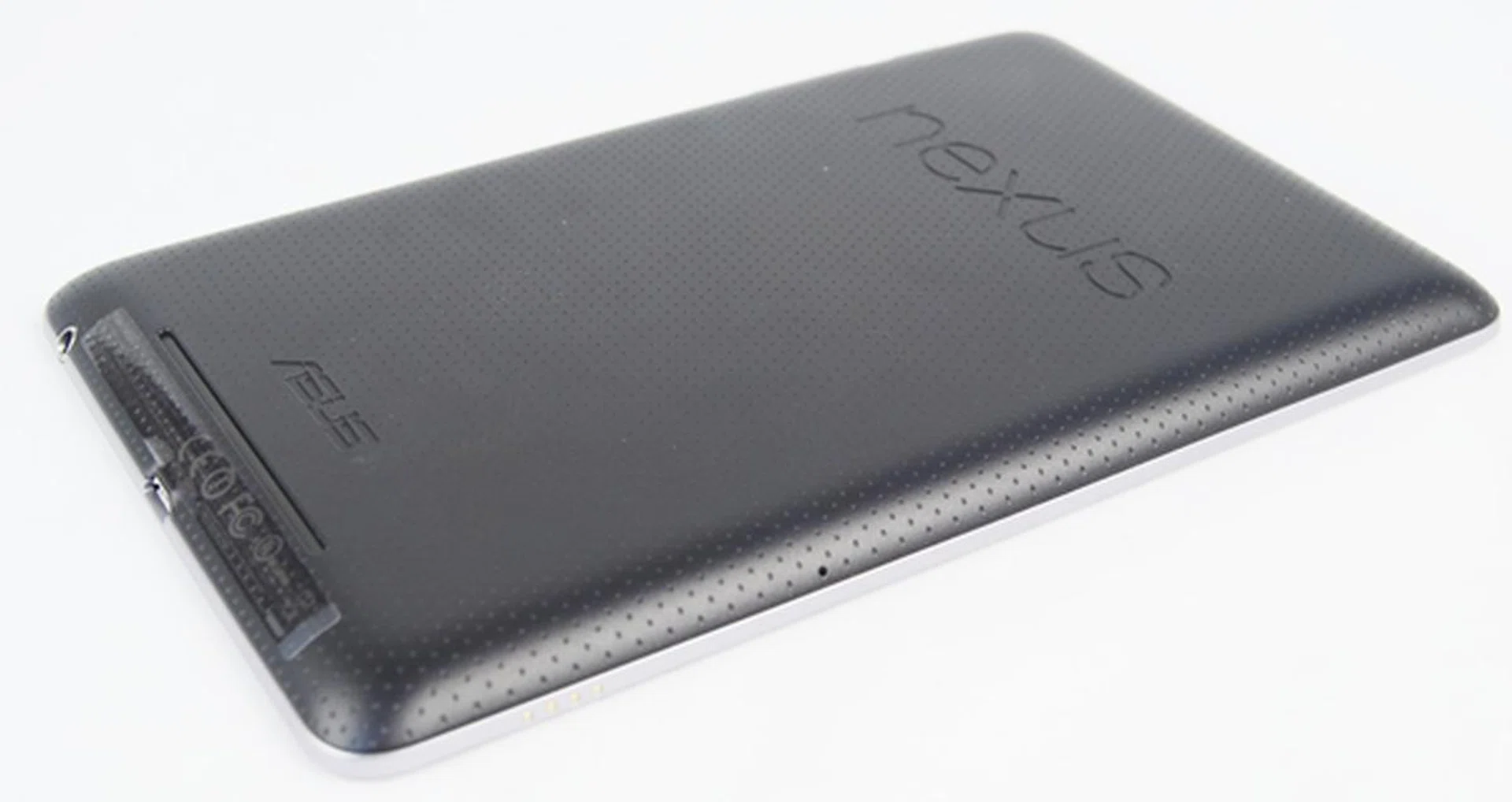
The dimpled pattern on the back of the Google Nexus 7 gives it a unique look and nice feel. Both the Nexus and ASUS branding are embossed at the top and bottom section respectively.
However, we cannot say the same for the 7-inch display. As with most tablets in the market, it attracts fingerprints and smudges very easily. We recommend getting a matte screen protector or the official screen protector from ASUS, which is specifically designed to minimize these problems.
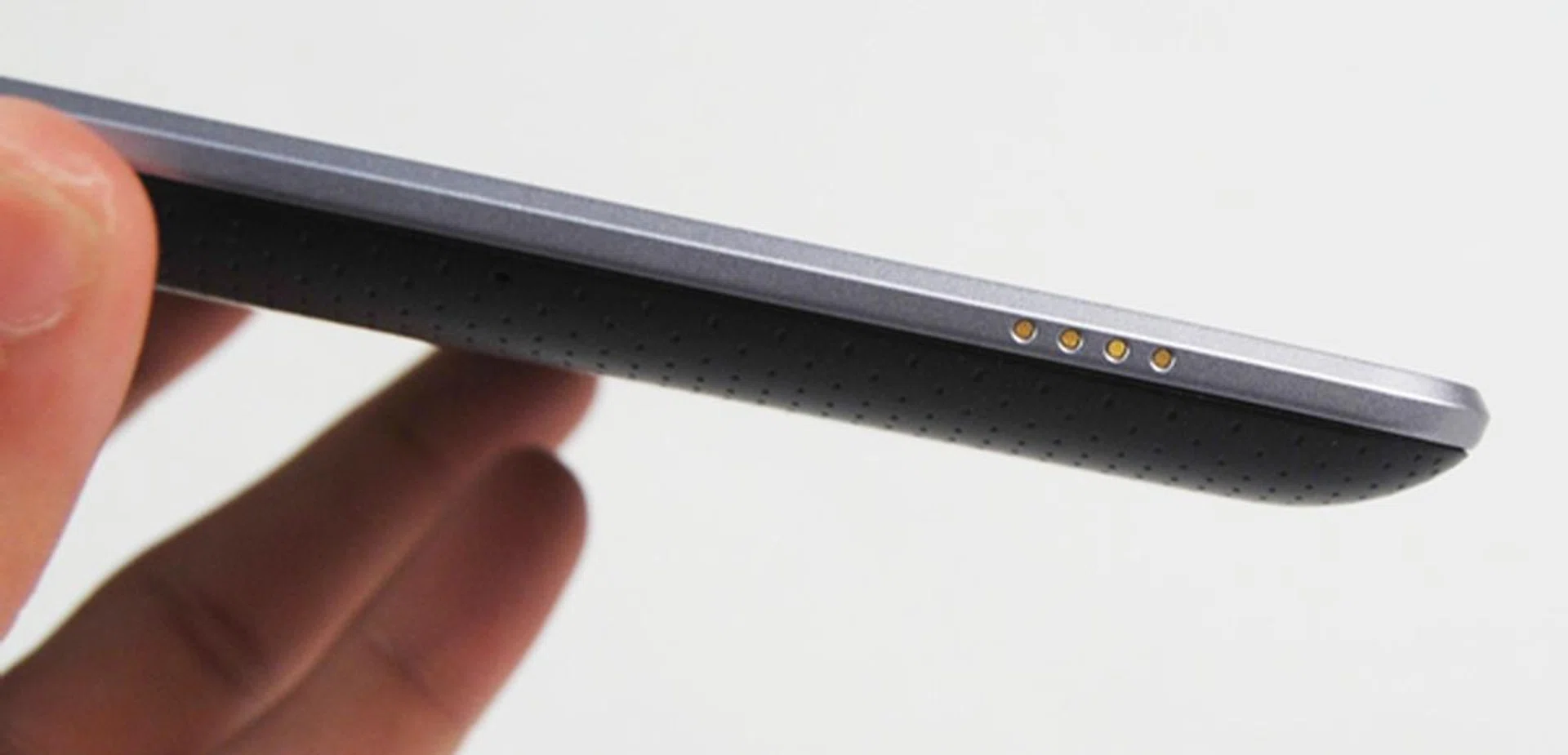
You can find the contacts for the dock on the left edge of the Google Nexus 7. This can be put to good use with the Nexus Dock accessory that allows you to view multimedia content and charge the tablet at the same time.
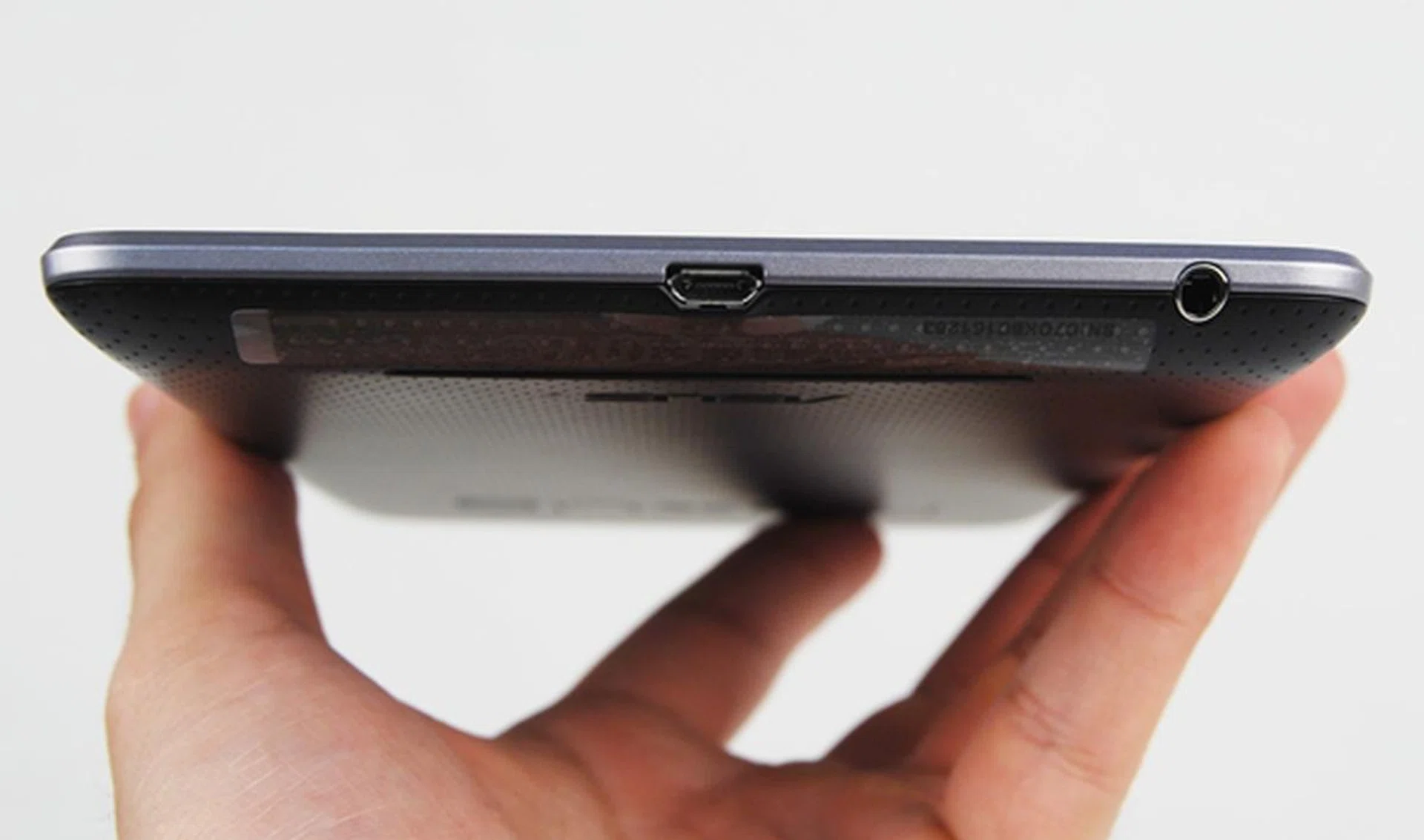
Compared to the proprietary connectors found on ASUS and Samsung tablets, the choice to use microUSB port will bring convenience to Nexus 7 users as they can use any microUSB cable to charge and transfer files. On the far right is the 3.5mm audio output jack.
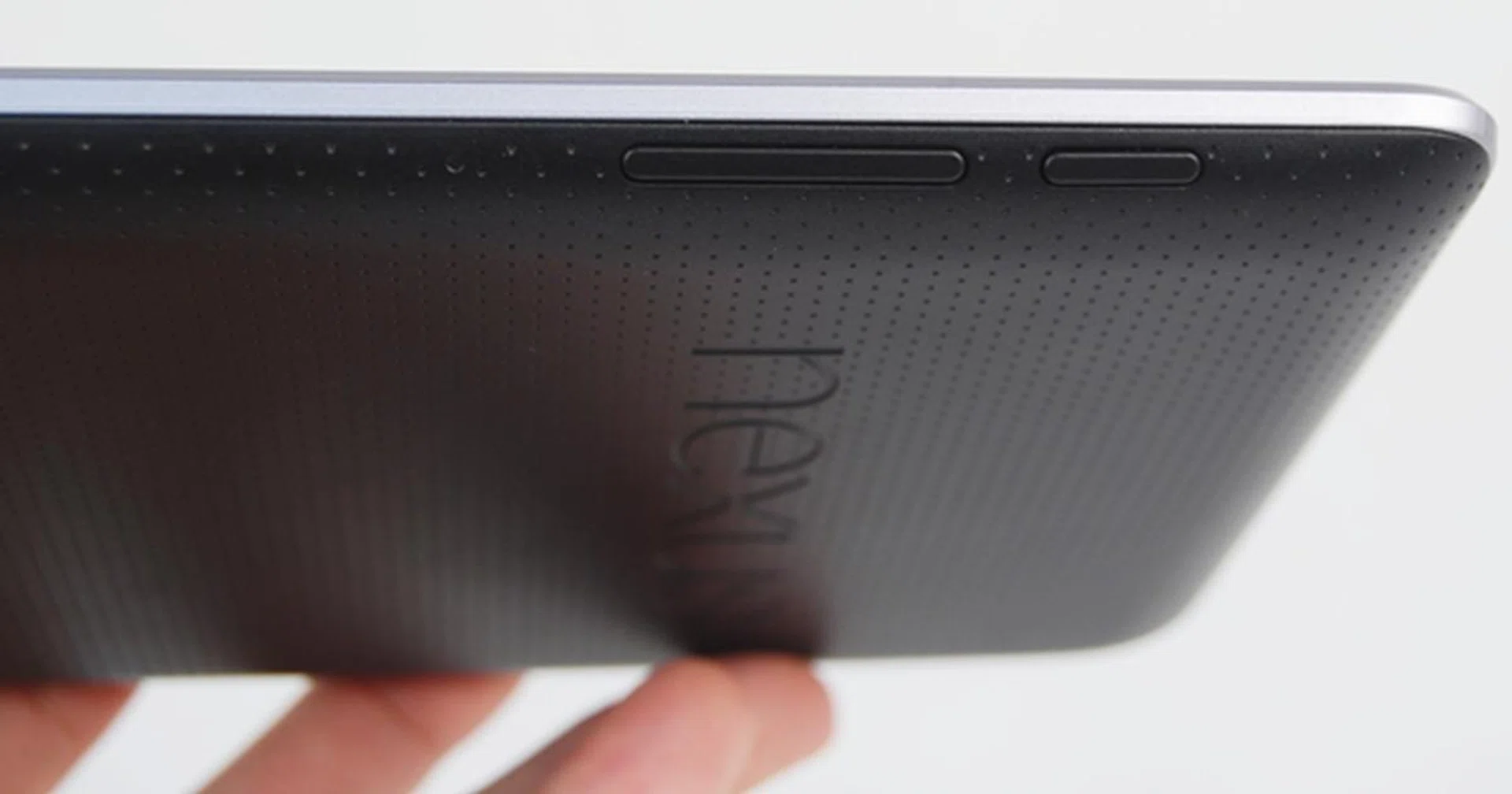
The top right edge of the Google Nexus 7 houses the power/sleep button and the volume controls. The buttons are raised slightly, hence provide good tactile feedback when pressed.
In terms of handling and physical dimensions, the Nexus 7 competes favorably against other tablets of its class. Even though its side profile of 10.45mm positions the Nexus 7 a far cry from the thinnest tablet, the Toshiba Excite X10 at 7.6mm thin, the Nexus 7 is by no means bulky.
The Nexus 7 is one of the lightest tablets at 340g, and this is a huge plus point especially when portability is considered an important aspect in this product segment. For those who want to compare the Nexus 7 with the other tablets of its class, here's a quick run-down:
- Google Nexus 7 - 198.5 x 120 x 10.45mm, 340g
- Acer Iconia Tab A100 - 195 x 117 x 13.1mm, 410g
- Amazon Kindle Fire - 190 x 120 x 11.4mm, 413g
- BlackBerry PlayBook - 194 x 130 x 10mm, 425g
- Huawei MediaPad - 190 x 124 x 10.5mm, 390g
- HTC Flyer - 195.4 x 122 x 13.2mm, 420g
- Samsung Galaxy Tab 2 (7.0) - 193.7 x 122.4 x 10.5mm, 344g
- Samsung Galaxy Tab 7.0 Plus - 193.65 x 122.37 x 9.96mm, 345g
- Samsung Galaxy Tab 7.7 - 196.7x 133 x 7.89mm, 335g
Features
The launch of a new Nexus device is always accompanied by the release of a new Android version. This time, the Nexus 7 was introduced along with Android 4.1 Jelly Bean, the most polished Android operating system yet since its inception in 2008. In a nutshell, Jelly Bean is the faster and smoother version of Ice Cream Sandwich which was introduced in October 2011. Here are some of its main features: -
Enhanced Notifications

A new look that gives you more information and features.
The notification drop-down tab in Android 4.1 received a few modifications which make an already good system even better. Aesthetically, the interface sports a cleaner look, which makes individual notifications more distinct and easier to read.
You can drag down with two fingers to expand or collapse the notifications. In the screenshot shown above, you can view more information of the email by simply swiping down. Some notifications allow you to take action from the tab itself. For example, you can share a screenshot (press power and volume down button simultaneously) of the Nexus 7 on the notification tab.
How do you deal with an overwhelming number of notifications from multiple apps? Well, Android 4.1 gives you the option to turn off the notifications for specific apps. This is achieved by going to the "App Info" screen and unchecking the box, hence giving you total control over what notifications to receive and what not to.
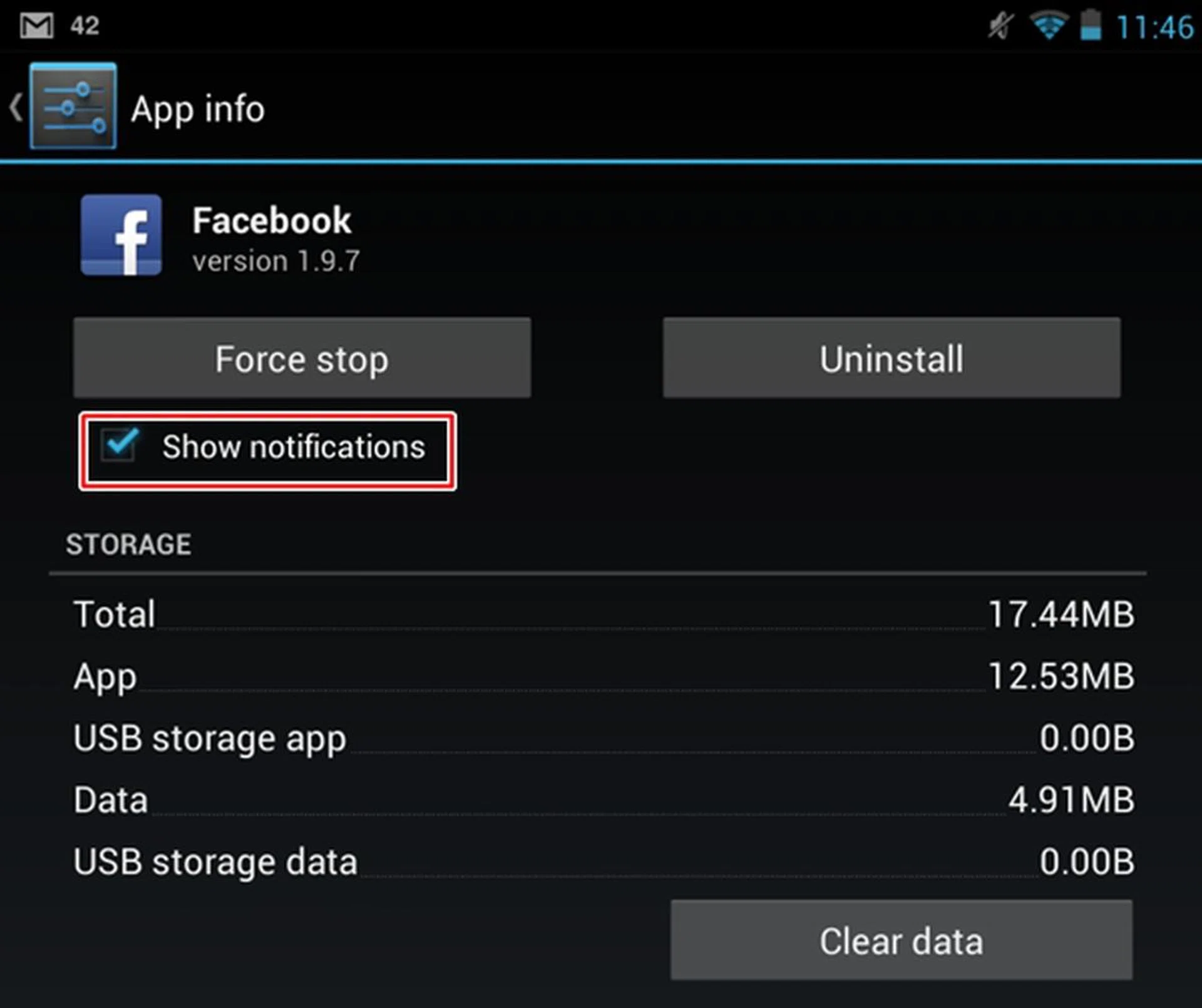
A new option to turn off notifications for specific apps.
Viewing Photos in Gallery
While Android 4.0 Ice Cream Sandwich enables you to take pictures faster, Android 4.1 Jelly Bean brings that speed to viewing photos in the Gallery. You can switch from camera mode to gallery mode by simply swiping to the left. Pinch with two fingers to switch to filmstrip view. The fun doesn't stop that; in filmstrip view, you can remove photos by swiping up or down. If you accidentally delete a photo, you can retrieve it via the "undo" button.
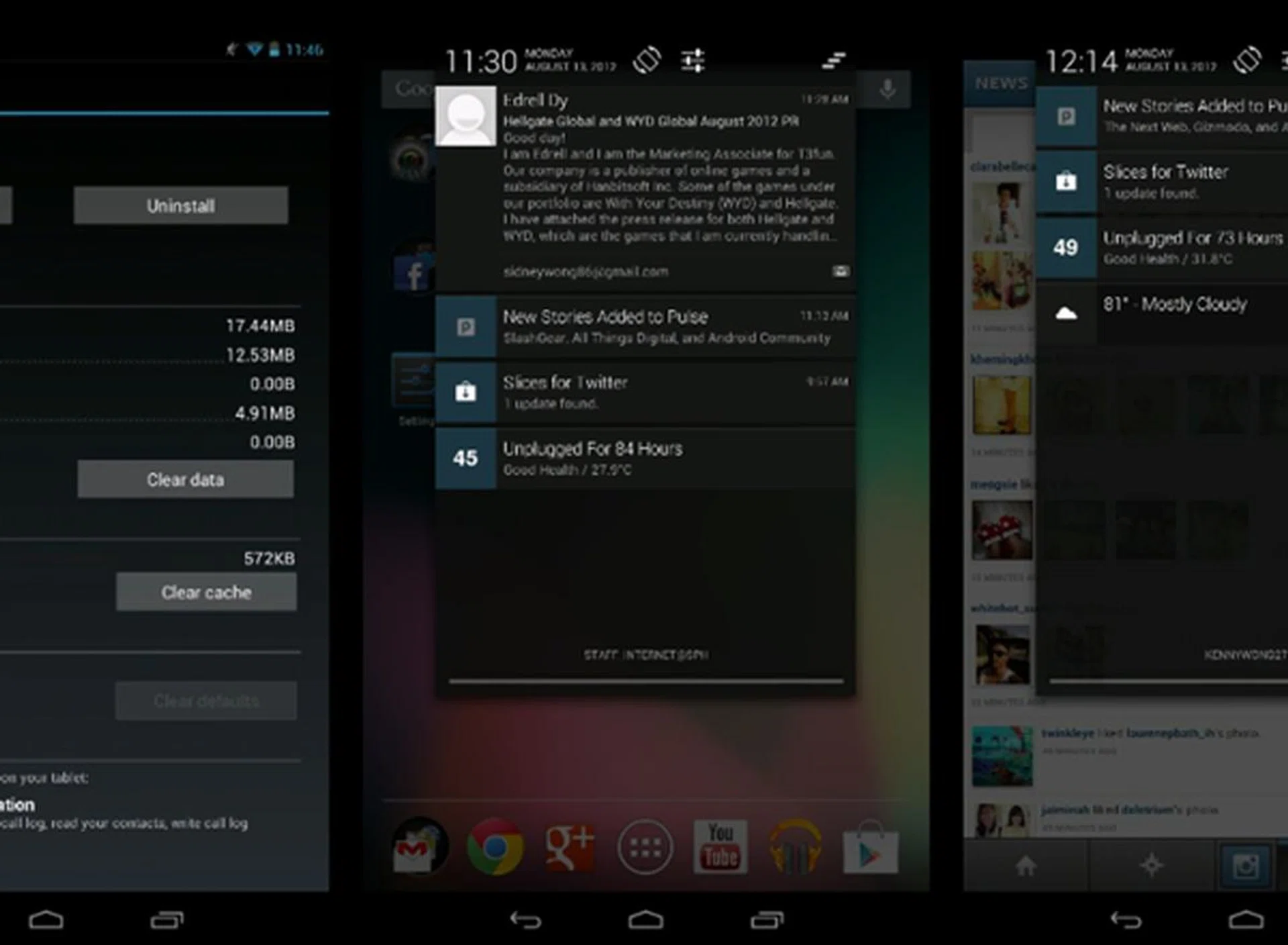
You can view your photos in a film strip manner. Swipe up or down to remove those photos you don't want to keep.
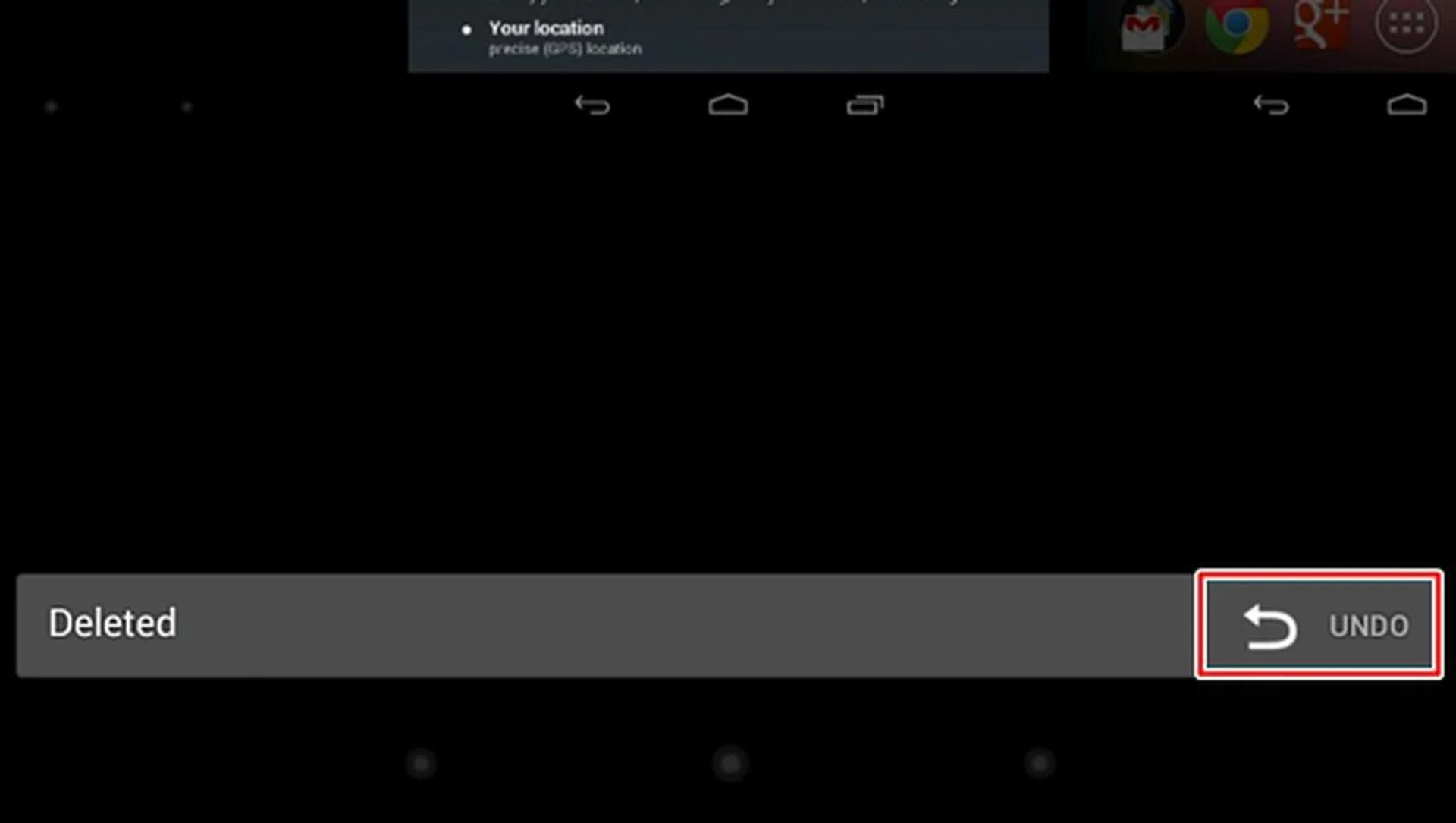
Deleted a photo by accident? No worries as you can undo the action.
Improved Keyboard
While the keyboard looks no different from that in Android 4.0, much of the changes and new features are found under the hood. Billed as "a smarter keyboard", it will throw up word suggestions and guesses for your next input after you hit the spacebar. According to Google, the Android keyboard has a language model that adapts overtime. This is quite similar to what we've seen from Research in Motion's new BlackBerry 10 keyboard. During our time with the Nexus 7, we found the typing experience to be faster and more accurate.
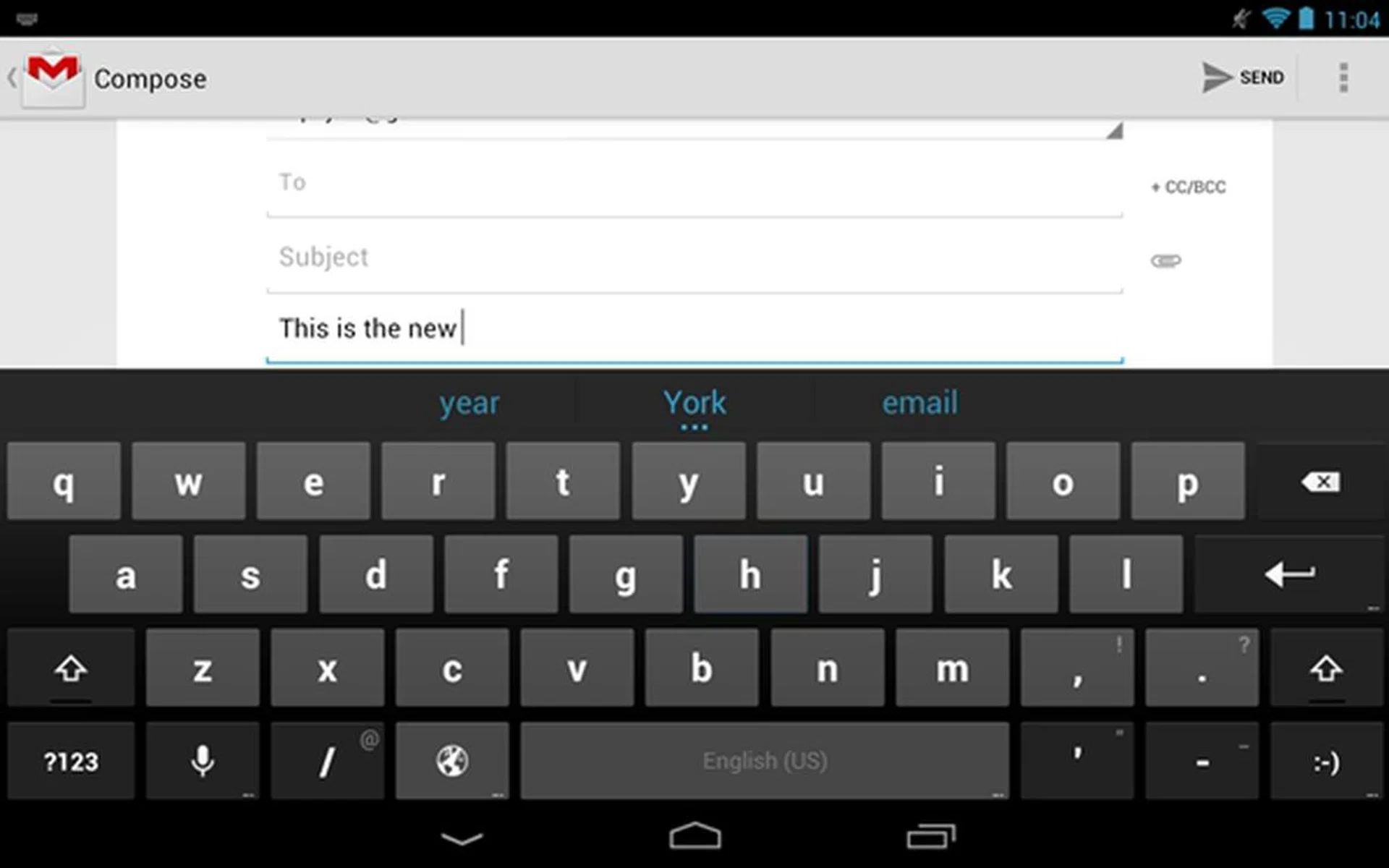
The virtual keyboard in Android 4.1 has a language model that adapts overtime, and goes the extra step in guessing the next word after you hit spacebar.
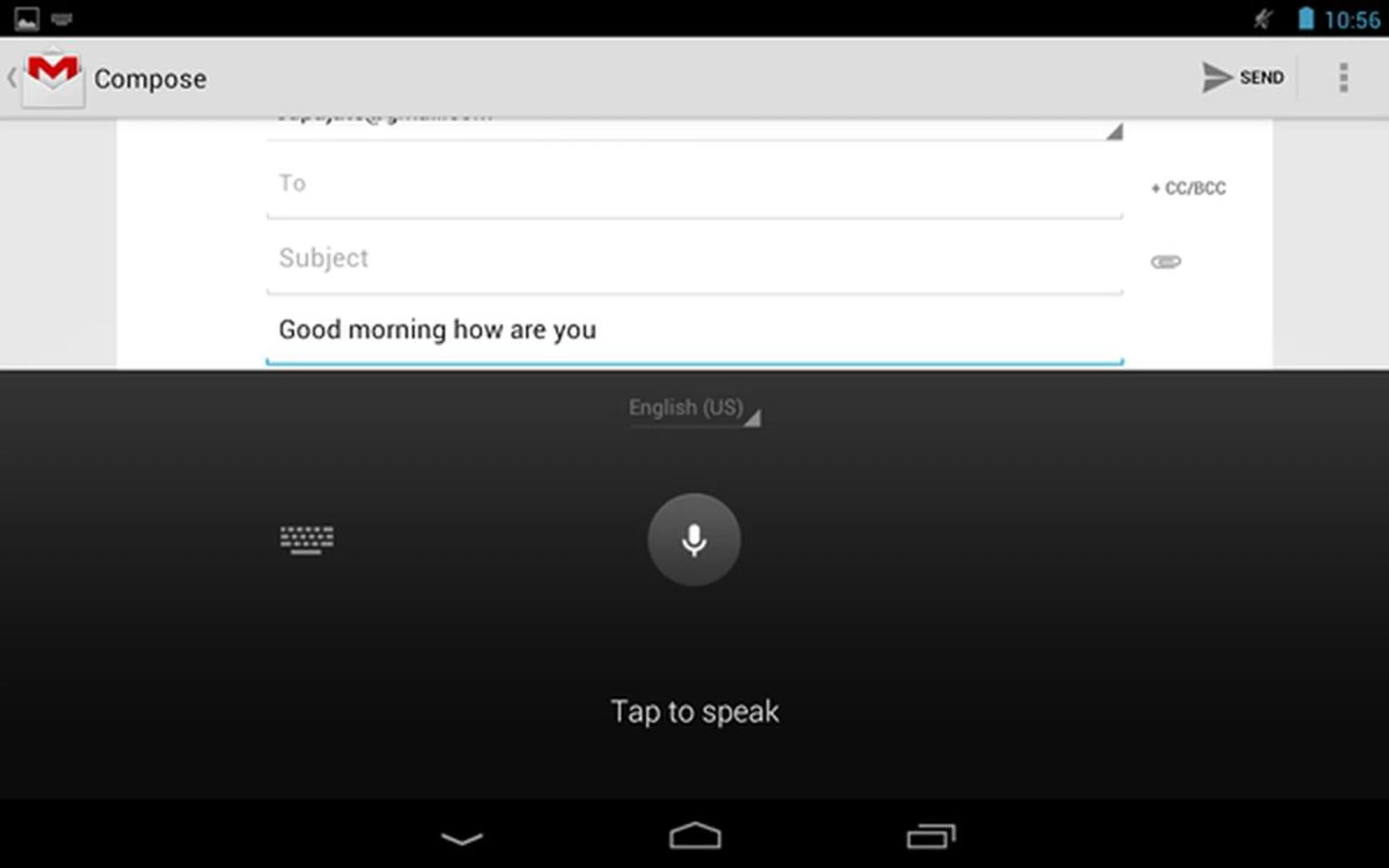
Another highly touted feature of the keyboard is its offline dictation. This is especially useful for the Nexus 7 since it does not come in 3G variant, and you can still compose messages outside Wi-Fi zones. Using the embedded speech recognizer to type was a hit-and-miss experience as it was not able to translate our voice into proper text at times.
Beefing Up Security on Face Unlock
When Face Unlock was first introduced in Android 4.0, it caused a controversy about its face recognition technology. The security feature was apparently fooled by a photo on two occasions (1) (2). Google addresses this problem with Liveness Check, an option whereby a user is required to blink his eyes in order to unlock the device. We tested out the Liveness Check and found it to be working as stated.
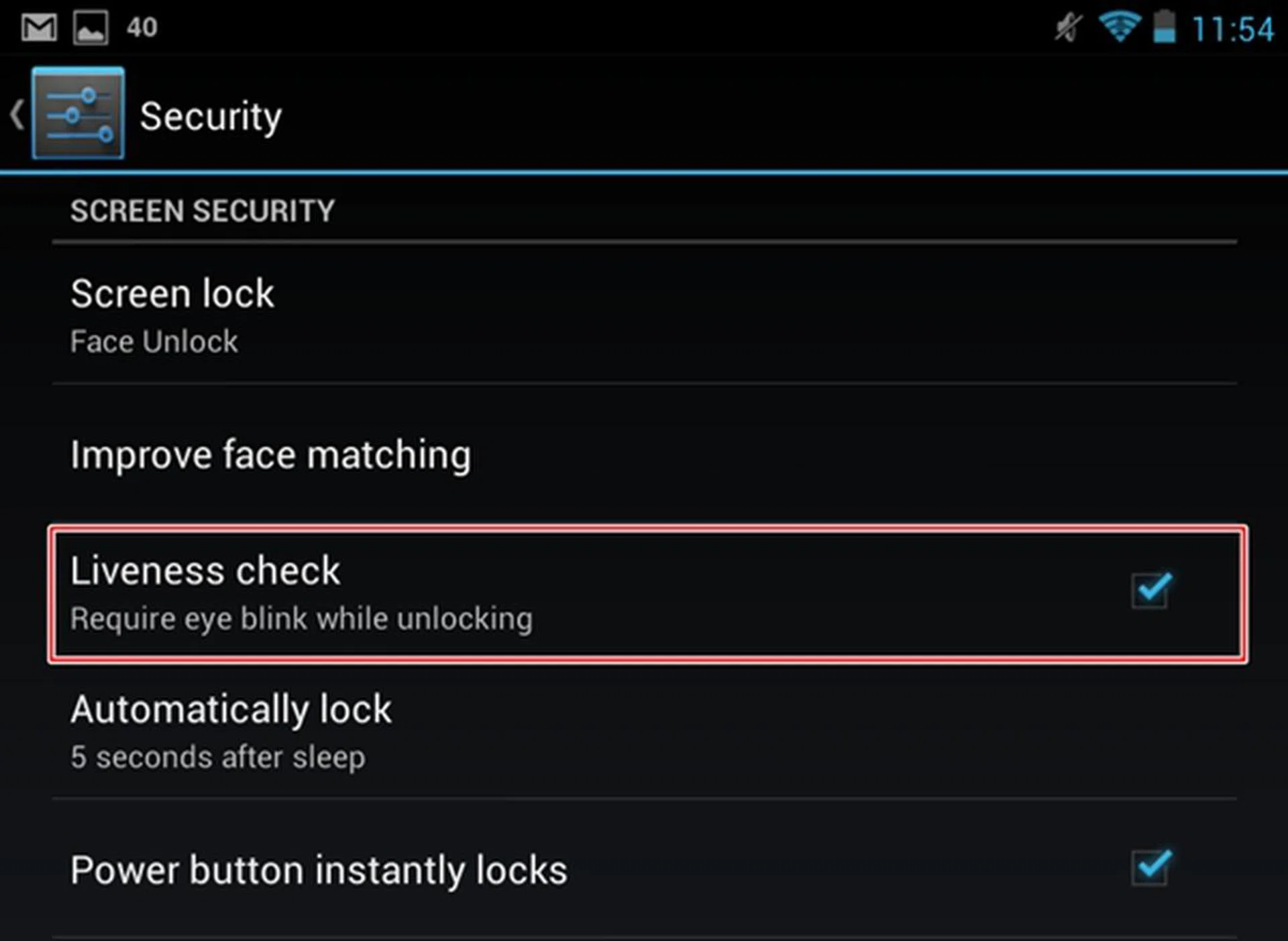
A "Liveness check" option requires you to blink when unlocking the Nexus 7.
Google Now
If you think Google Now is the Android's solution to Apple's Siri, then you are partially right (or wrong). Google Now is a more powerful, contextually aware system that will provide information such as weather, traffic and public transport throughout the day as and when you need them. The information is presented in cards, where you swipe to remove them or tap on them for more details. To activate Google Now, simply swipe up from the bottom of the screen, or swipe up on the lock screen.
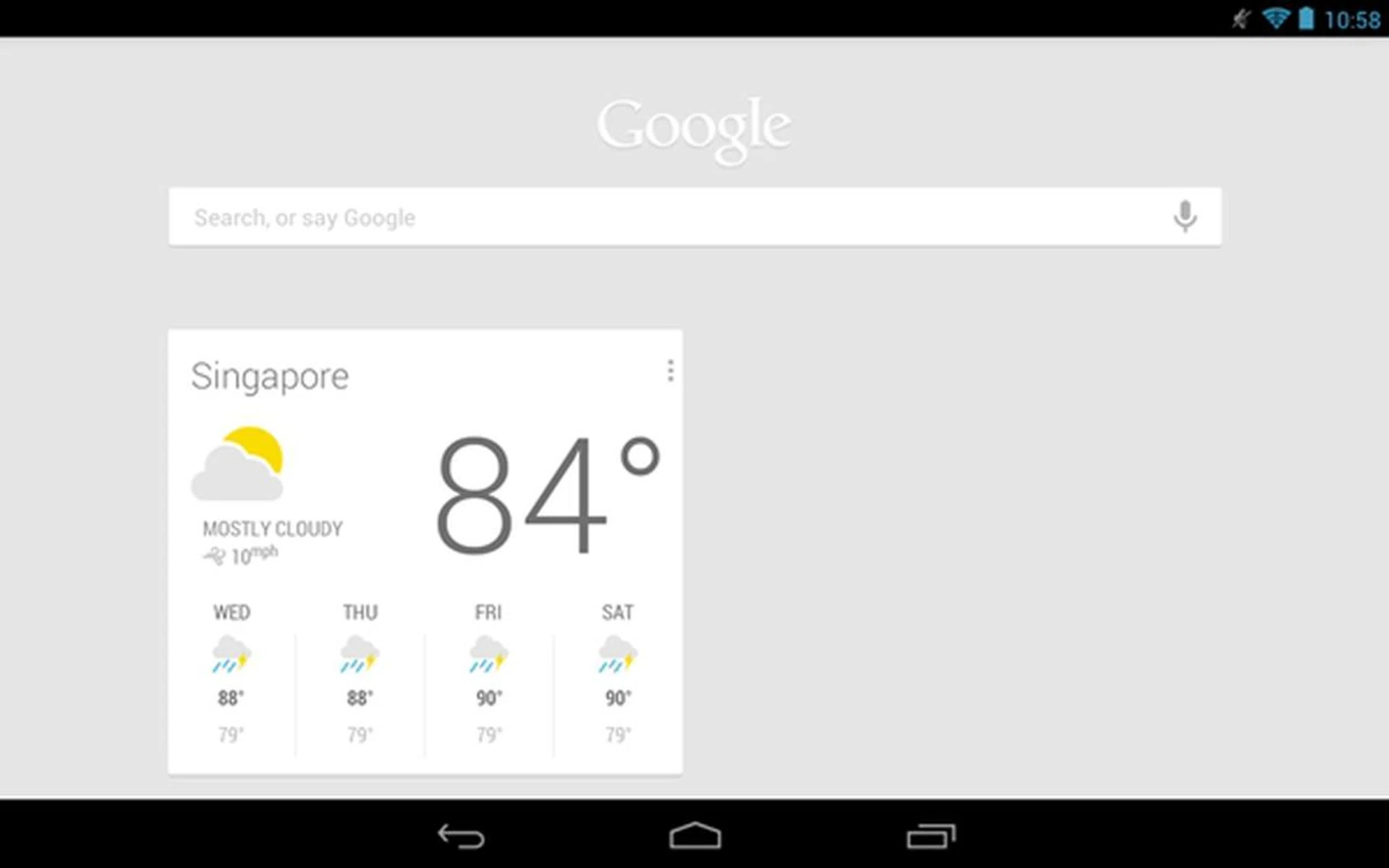
Location services need to be enabled in order for the cards to show you the relevant information. For example, the card will show you the weather forecast for today and the rest of the week in Singapore.

Google Now automatically populates the cards based on your searches. Each card has its own settings such as determining when it will appear. For example, the public transit card will appear around train stations, bus stops and when you are travelling.
Depending on how you see it, Google Now can be a double-edged sword. If you like to be presented with information on-the-go without having to do a manual search, then Google Now is probably going to be a blessing for you. However, if you are concerned about privacy issues over the using of a system that keeps track of your searches, Google Now is likely to end up as one of the last things you will want to enable on the device.

</iframe</p>
Performance
Running the show is the NVIDIA Tegra 3 quad-core 1.2GHz processor and 1GB RAM, which puts it in the same league as the quad-core ASUS Transformer Pad Prime and the more affordable Transformer Pad TF300. Would this mean that the Nexus 7 will blow the competition out of the water?
To get a gauge of the Nexus 7's standing among the other 7-inch tablets, we compared it against the duo of Samsung tablets, the Galaxy Tab 2 (7.0) and Galaxy Tab 7.0 Plus, and the Huawei MediaPad. Of course not to forget is the customary comparison with the Apple iPad (2012). The following benchmarks are used for raw performance evaluation: -
- Quadrant evaluates the CPU, memory, I/O and 3D graphics performance. This is an Android OS based test.
- Smartbench 2011 is a multi-core friendly benchmark application that includes both the Productivity and Games indices for a more complete gauge of the overall performance of Android tablets.
- SunSpider Javascript benchmark measures the browsing performance of the tablet.
Device | Google Nexus 7 | Samsung Galaxy Tab 2 (7.0) | Samsung Galaxy Tab 7.0 Plus | Huawei MediaPad | Apple iPad (2012) |
CPU | NVIDIA Tegra 3 quad-core 1.2GHz | TI OMAP 4430 dual-core 1GHz | Exynos dual-core 1.2GHz | Qualcomm Snapdragon MSM8260 dual-core 1.2GHz | Apple A5X dual-core 1GHz |
GPU | 12-core GeForce | PowerVR SGX540 | Mali-400MP | Adreno 220 | PowerVR SGX543MP4+ |
RAM | 1GB | 1GB | 1GB | 1GB | 1GB |
OS | Android 4.1.1 | Google Android 4.0.4 | Google Android 3.2 | Google Android 3.2 | Apple iOS 5.1 |
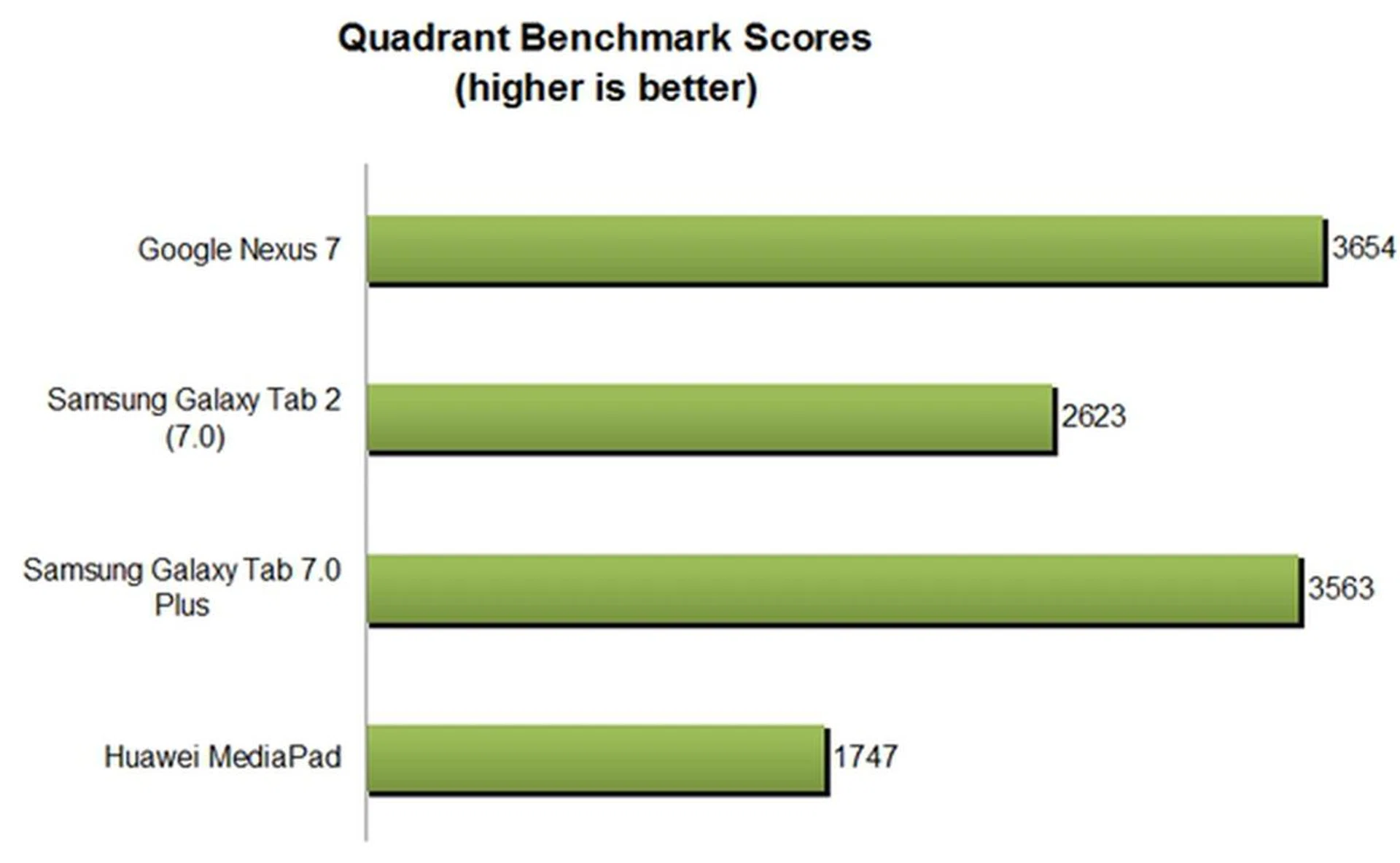
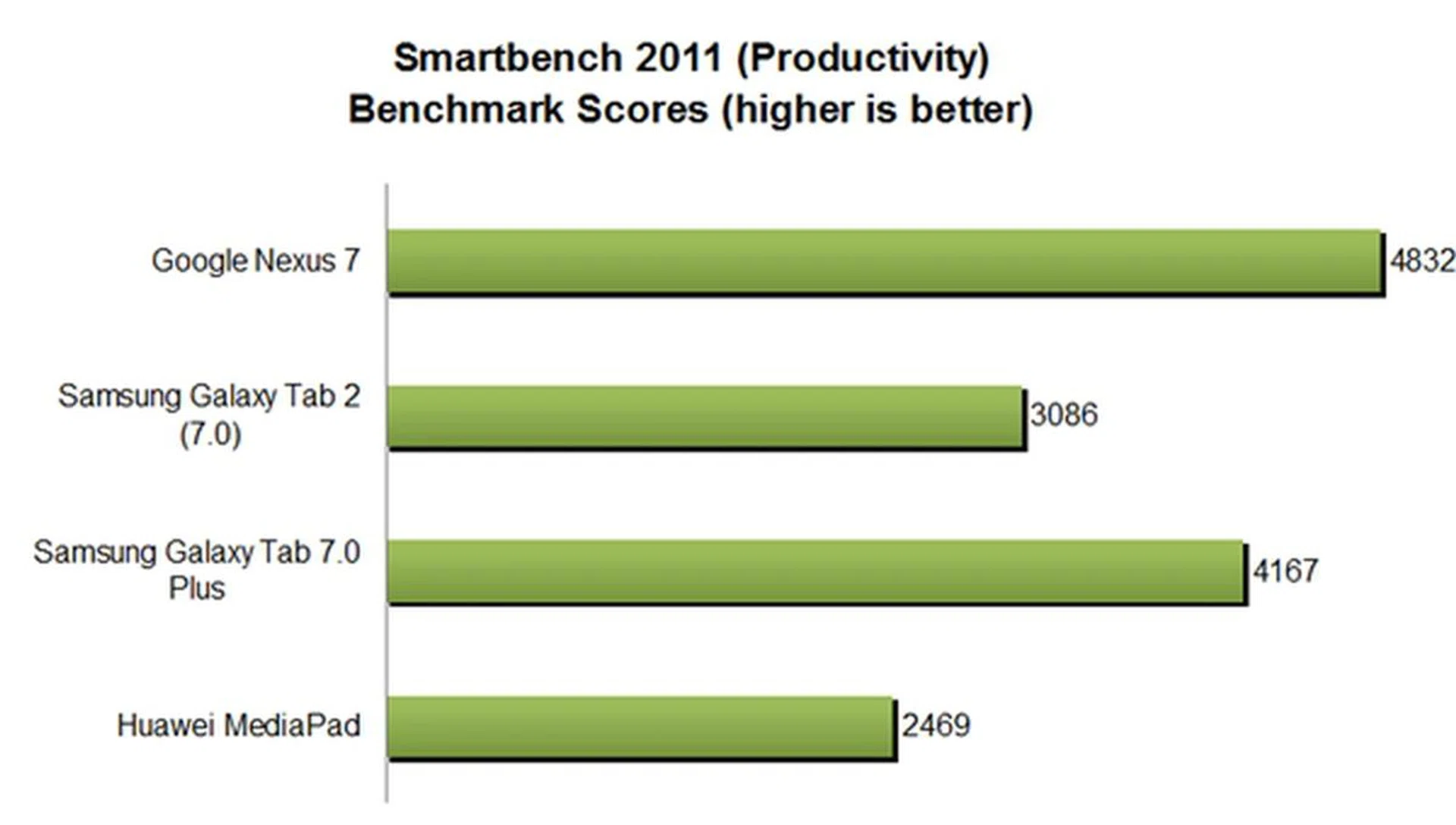

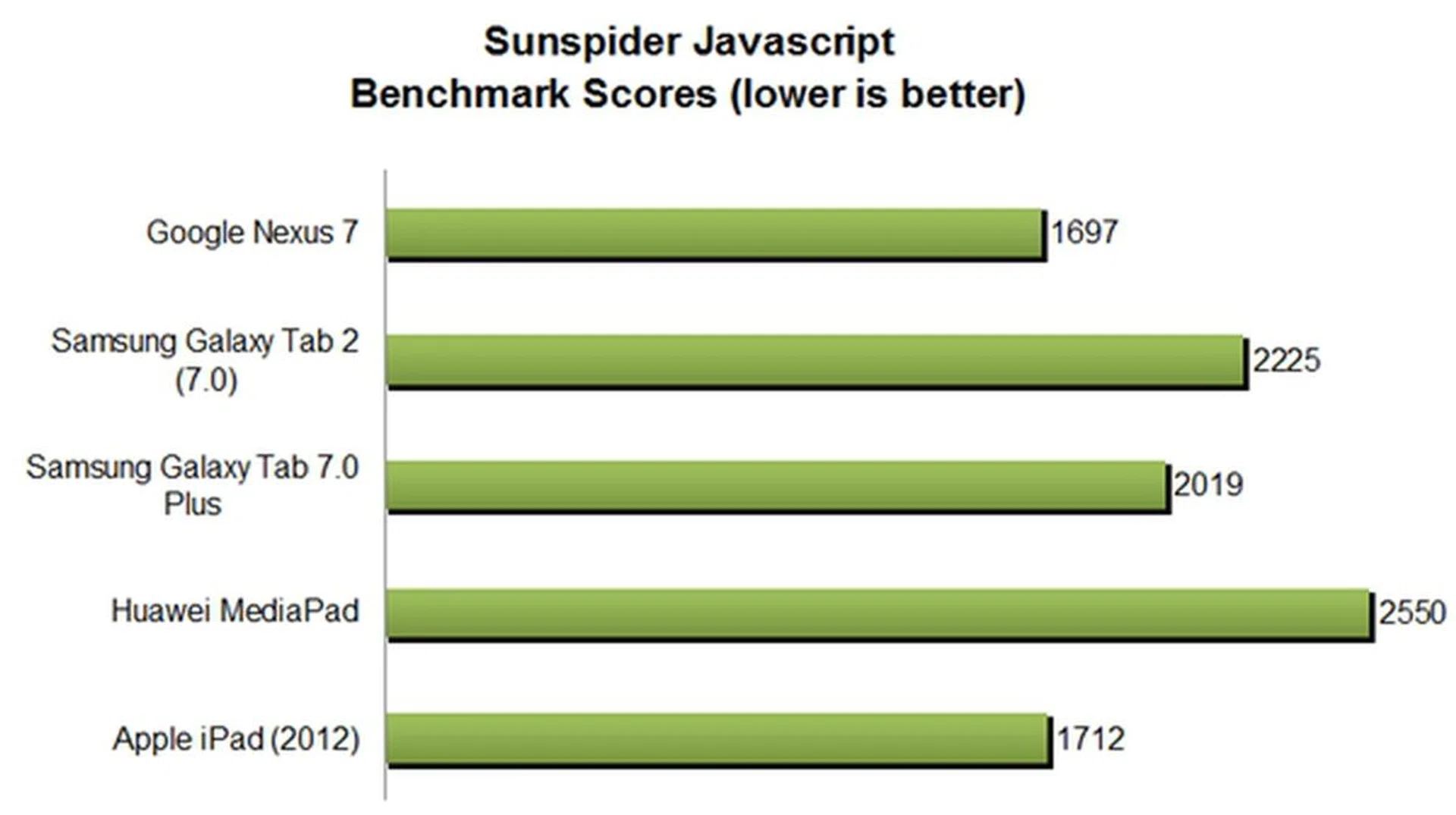
It would have been an obvious lie if we said that the results were unexpected. The Nexus 7 topped the benchmarks except losing its lead in the Smartbench 2011 (Games) where the Mali-400MP GPU in the Samsung Galaxy Tab 7.0 Plus managed to inch a step or two ahead. However, that minor setback did not stop the Nexus 7 in its tracks to supremacy, as it edged out the champ, the Apple iPad (2012) in the SunSpider JavaScript benchmark. A combination of Jelly Bean optimization and quad-core prowess gave the Nexus 7 an overwhelming lead over most of its competitors, including the Samsung Galaxy Tab 7.7.
Synthetic benchmarks aside, the Nexus 7 showed no sign of slowdown or any hint of processing lag in our daily usage thanks to "Project Butter", a processing framework that Google embarked on to address the perceived lag in previous Android devices. Compared to the other Android tablets we've tested this year, the Nexus 7 was evidently snappier in all aspects, from sideway navigation to web browsing. It is not exaggerating to claim that Android has finally cracked it; the user interface navigation is as fluid as the Apple iPads.
Multimedia Performance
The Nexus 7's base price of US$199 means that certain multimedia features have to be sacrificed in order to keep costs low. One of the more significant sacrifices is the lack of memory card support. The choice of 8GB and 16GB storage capacity may be a deal breaker for power users who plan to load their huge libraries of music and video content onto the Nexus 7. If you need more memory space, you may want to consider using Google's cloud service, Drive as it provides 5GB free online storage capacity.
Another sacrifice is the absence of 3G SIM card support. The Nexus 7 comes only in Wi-Fi versions, and this restricts its usage to Wi-Fi zones and homes if you have a wireless network set up. However, this limitation can be easily be resolved using Wi-Fi tethering from your smartphone.
While most tablets these days come with rear-facing cameras, the Nexus 7 is equipped with only a front camera to facilitate video chats/conferencing needs. Although taking photos with tablets that sport a rear camera is not ideal, some consumers may lament the option to capture a candid shot on the Nexus 7. If you want to know the rationale behind it, here's the full statement from ASUS:
“Why is there no rear camera?
To make this device accessible to the widest possible market, price is very important. ASUS believes that for this device a good rear camera is important. Adding a high quality rear facing camera will increase the price point and many users would not have a use for it. Adding a lower quality rear facing camera would compromise on the overall user experience so the decision was made not to include a rear facing camera therefore keeping the price down and user experience extremely high.” – ASUS
To put it simply, ASUS has to keep the costs of building the tablet as minimal as possible, while at the same time giving consumers a optimal user experience on the Nexus 7. In fact, it is pretty amazing to know that it costs Google and ASUS US$151.75 to build the 8GB Nexus 7 and US$159.25 for the 16GB Nexus 7. To be honest, the lack of a rear camera is an aspect we are willing to overlook for now.
On the positive side, the 7-inch display makes up for all the camera drawbacks with its resolution of 1280 x 800 pixels which translates to a pixel density of 216ppi. In comparison, the Samsung Galaxy Tab 2 (7.0) and Galaxy Tab 7.0 Plus have a pixel density of 170ppi. The only 7-inch tablet that is on-par with the Nexus 7 is Huawei MediaPad, although you have to go through a couple of extra steps to ramp up the screen resolution as it is by default, 1024 x 600 pixels.
The display outputs sharp text and good colors, although it is not as bright as the Super AMOLED Plus display of the Galaxy Tab 7.7. Even though it is a far cry from the eye-popping retina display of the Apple iPad (2012), it is in a different league altogether. Moreover, the display is reinforced with Corning Fit Glass that is scratch-resistant. For its price and screen size, the Nexus 7 certainly ranks among the top.
Battery Performance
Next, we ran the Nexus 7 on an intensive battery test, which involves a video with a resolution of 1280 x 720 pixels being looped on the unit. The test is performed under specific parameters, such as:
- Screen brightness and volume at 100%
- Wi-Fi and Bluetooth connectivity turned on
- Constant data streaming through email and Twitter
Specifications/Device | Google Nexus 7 | Samsung Galaxy Tab 2 (7.0) | Samsung Galaxy Tab 7.0 Plus | Huawei MediaPad |
Processor |
|
|
|
|
Display Size |
|
|
|
|
Display Type |
|
|
|
|
Display Resolution |
|
|
|
|
Dimensions |
|
|
|
|
Weight |
|
|
|
|
Battery Capacity |
|
|
|
|
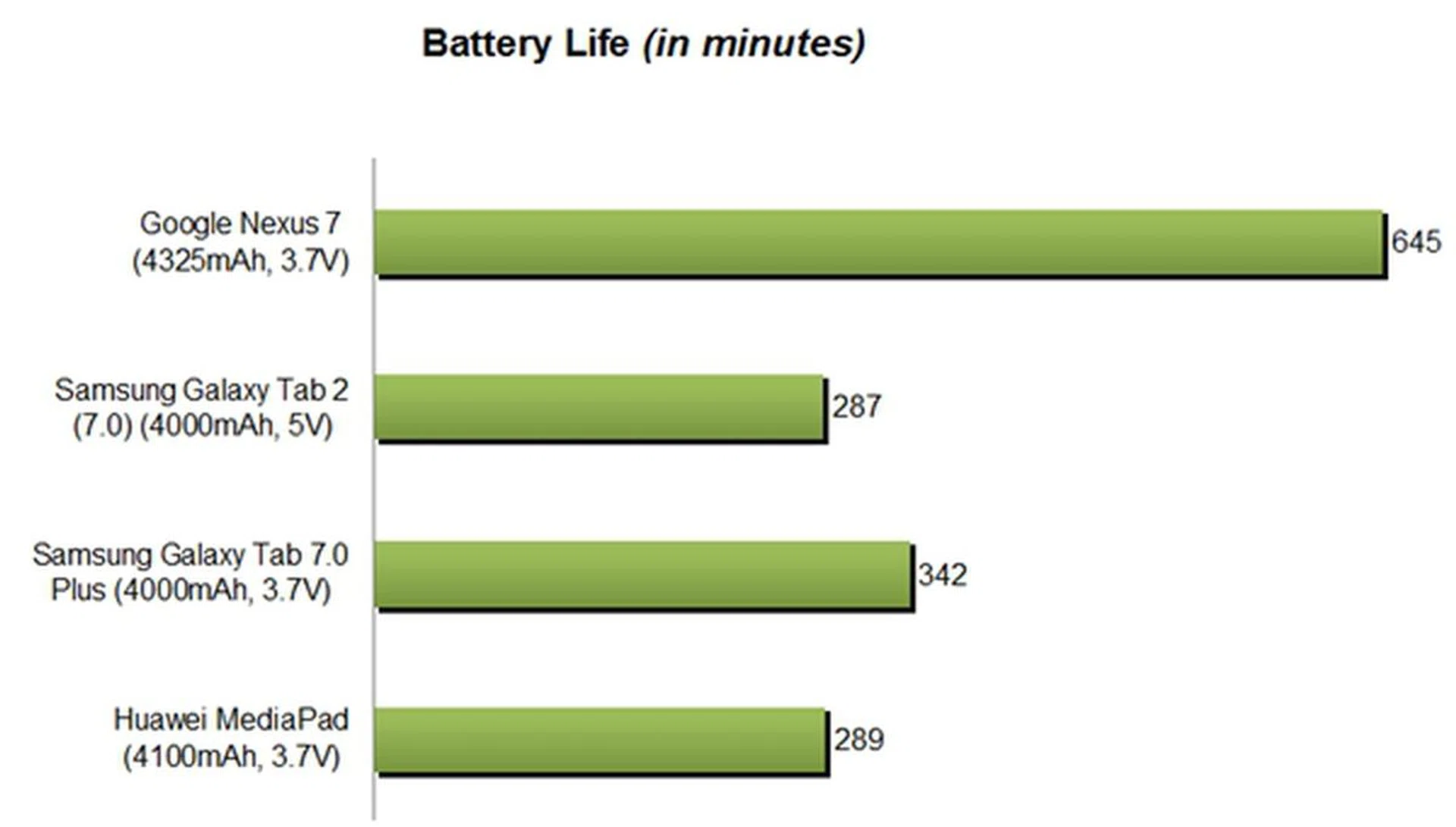
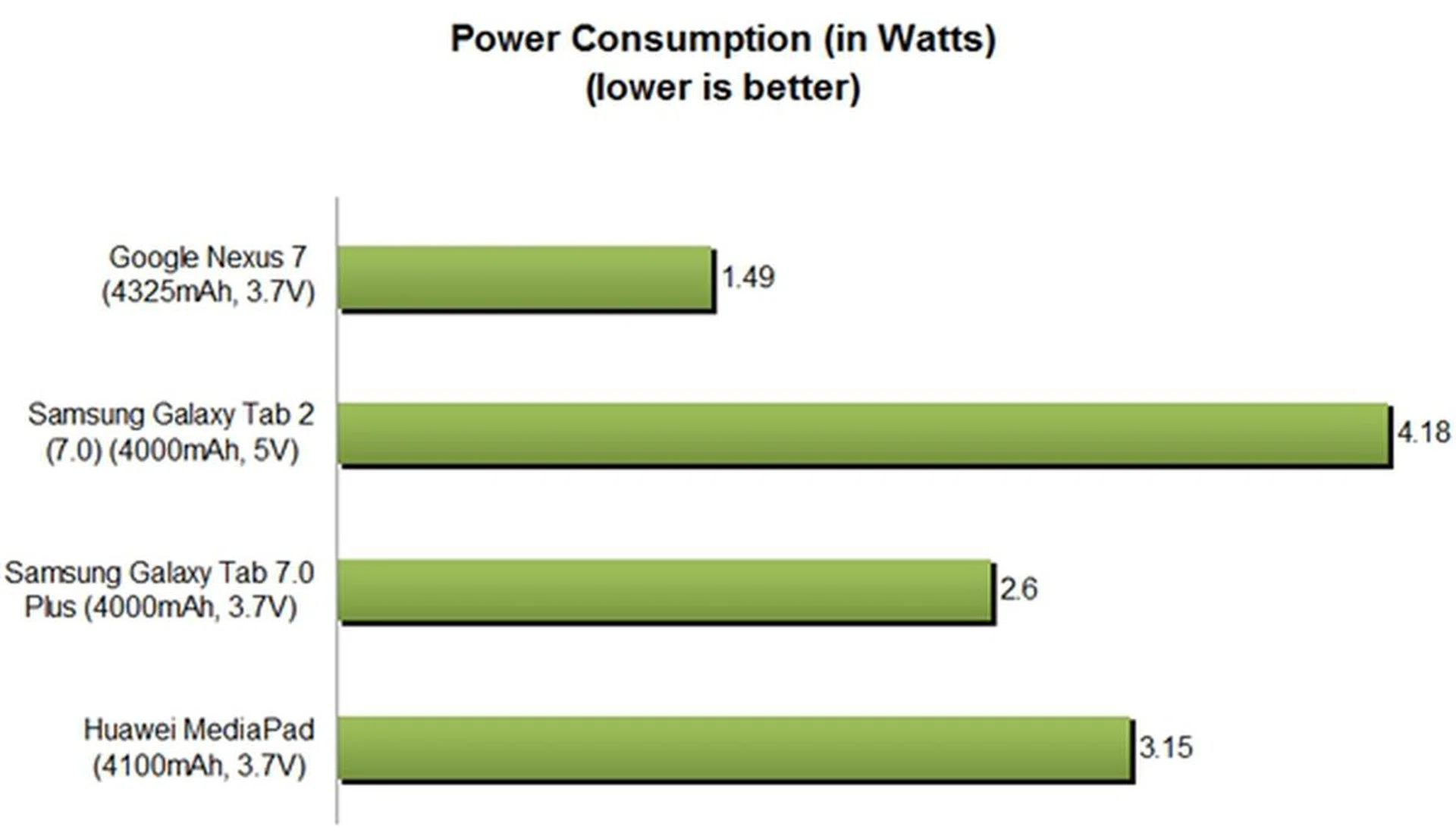
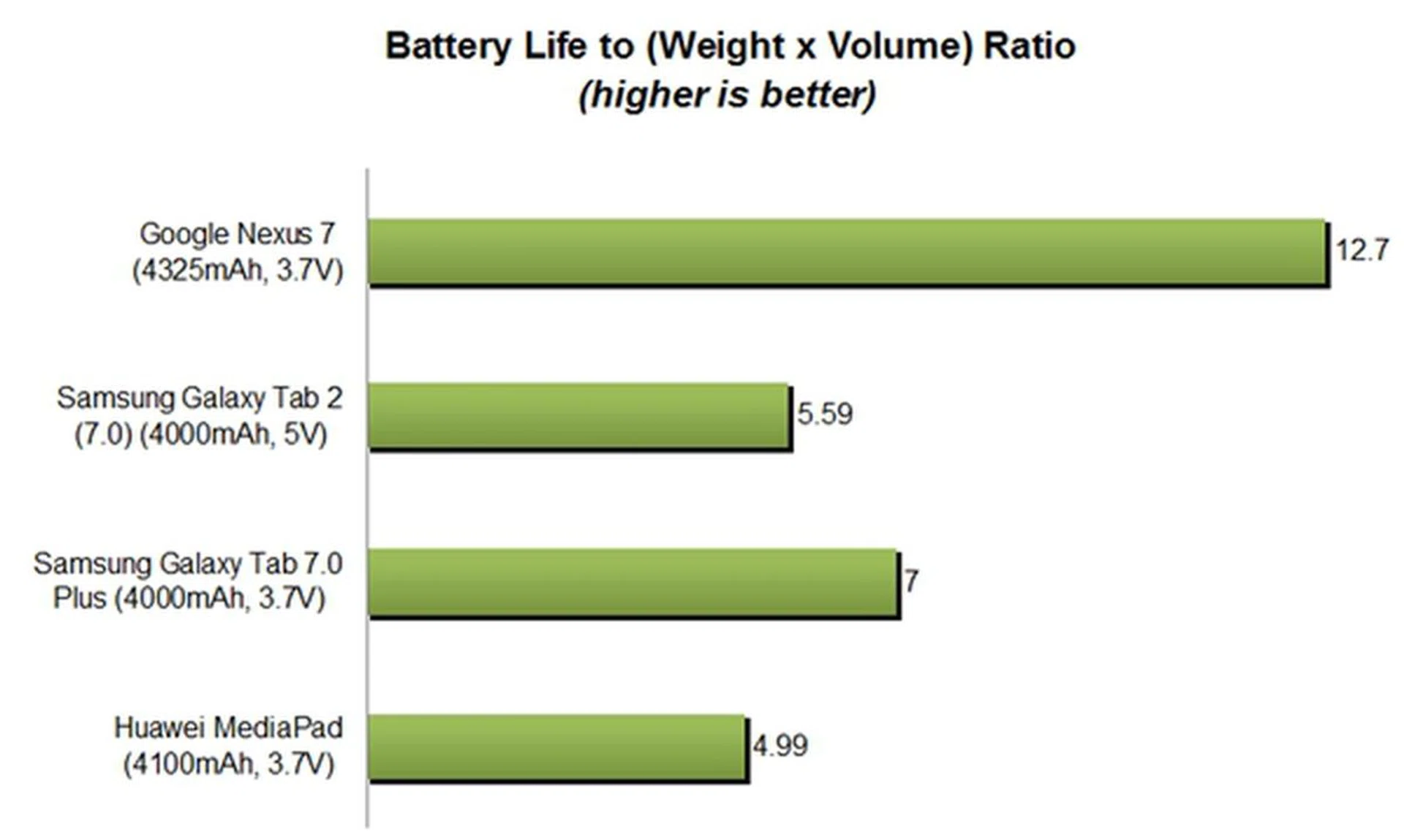
If there is one area which caught us by surprise, it would be its battery mileage. The Nexus 7 lasted a whopping 10 hours and 45 minutes, which is more than twice that of any 7-inch tablet, and in fact has the longest battery life among all the tablets today. We attributed its performance to its slightly larger battery capacity and better power management of Android 4.1. This is evident in the Power Consumption chart where the Nexus 7 registered the lowest among the four tablets. As a result, the Nexus 7 also topped the Portability Index where each device is assessed on how well it balances battery life with their physical attributes (weight and volume).
If you're wondering how the Apple iPad (2012) fares in comparison, it only managed 325 minutes in the same test whereas the iPad 2 clocked 545 minutes. The next best is Samsung's Galaxy Tab 7.7 which managed a pretty commendable 582 minutes. The Google Nexus 7 pulls ahead of all these major contenders convincingly.
Conclusion
There is little cause to doubt that we are looking at the best Android tablet in the market at the moment. The Google Nexus 7 receives nearly full marks in almost every aspect that makes up a top-performing device.
In terms of appearances and aesthetics, the Nexus 7 is well-designed, has solid build quality and offers great handling. Its lightweight form factor certainly makes it easier for consuming multimedia content on-the-go, and the rubberized back gives a comfortable and assuring grip of the Nexus 7.
Software-wise, the Android tablet platform has finally found its speed and agility, enabling it to be as smooth as Apple iOS. "Project Butter" is largely credited for the much-needed improvements in user experience on Jelly Bean, with its software optimizations that ensure the user interface animations run consistently at 60fps.
With the Tegra 3 quad-core processor and Jelly Bean working their magic inside, the overall performance of the Nexus 7 is unrivaled. It trashes most of the competition in all of our tests and provides a flawless user experience in reality.
The Nexus 7 is of course not without its shortfalls. The lack of a memory card slot, a rear facing camera and 3G connectivity are minor niggles considering its price point. Moreover, Google still needs to address the last but most crucial hurdle for Android, which is the number of tablet-optimized apps. It is common knowledge that the ecosystem of apps and services can make or break a mobile platform, and if Google plans to take on Apple in the tablet market, it needs to have more tablet-optimized apps. The smaller 7-inch screen could be more forgiving in this aspect, but the user experience can only get better with true tablet-optimized apps.
At US$199 (8GB) and US$249 (16GB), the Nexus 7 basically undercuts the competition and throws the entire tablet space into a cut-throat price war. None of its immediate competitors, the S$598 Samsung Galaxy Tab 2 (7.0), the S$768 Galaxy Tab 7.0 Plus and the S$498 Huawei MediaPad, come close to matching the Nexus 7's perfect combination of performance, design, features and value. For now, Google and ASUS definitely have a winner on their hands unless Apple enters the scene with its alleged iPad Mini and spoils the party. Well, we'll find out in a month's time.
*Update on 28/9: The Google Nexus 7 (16GB) Wi-Fi version will be available at S$399. At point of publication, ASUS Singapore has no plans to bring in the 8GB(Wi-Fi) variant.
Our articles may contain affiliate links. If you buy through these links, we may earn a small commission.