
Turn your screenshots into actual locations in Google Maps
With this new screenshot-reading update, iOS users can easily navigate to anywhere they want.
#googlemaps #ios

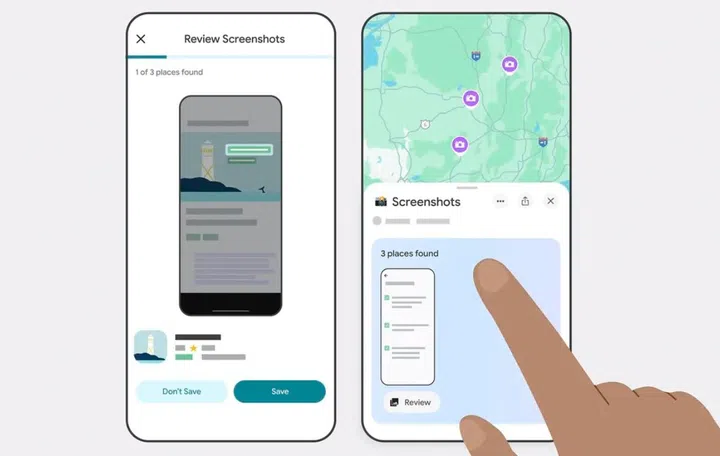
Easily add locations to Google Maps. Photo: Google.
Google Maps now lets you review your screenshots, extract locations, and add them to your Maps.
Say you often share screenshots of places you want to visit to eat with your partner, Google will make a list of these in the Maps app for you to review when you use the app.
You need to:
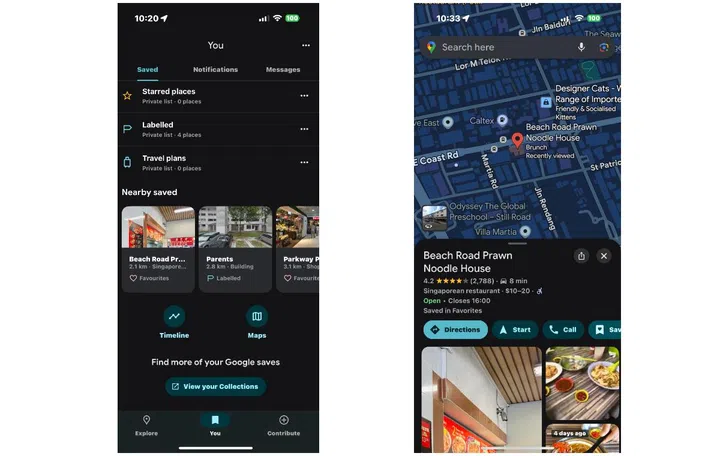
Go to the You tab at the bottom of the Maps app. Photo: HWZ.
- Open the Maps app and go to the You tab at the bottom. If Maps recognises a place in a screenshot, a message will pop up telling you it has places ready for you to review.
- Tap “review,” and decide if you want to save the image to your screenshots list or not. (You can still add these images to other lists later).
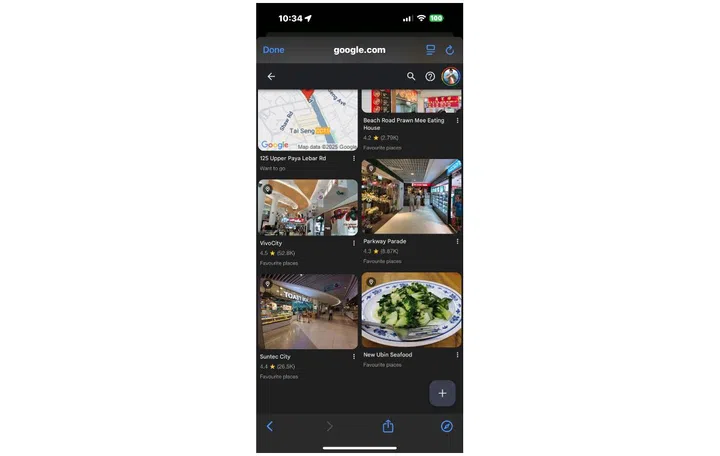
You can also add your own screenshots. Photo: HWZ.
- You also have the option to upload screenshots manually. To do this, select the one you want from a list of Screenshots under the You tab. From there, you can upload screenshots manually. The rest of the process is the same.
- You’ll see the saved places appear directly on your map. You can also get to the list through the You tab if you’re on the go.
As you can see from the screenshots taken from my iPhone, its iOS rollout has already started and can be expected to appear on Android devices soon.
Our articles may contain affiliate links. If you buy through these links, we may earn a small commission.