
Master your productivity: Getting started with OmniFocus 2 for iPhone
Ever wished you could be more productive, stop forgetting important tasks, and just get things done? Then you need to check out our guide to OmniFocus 2 for the iPhone.
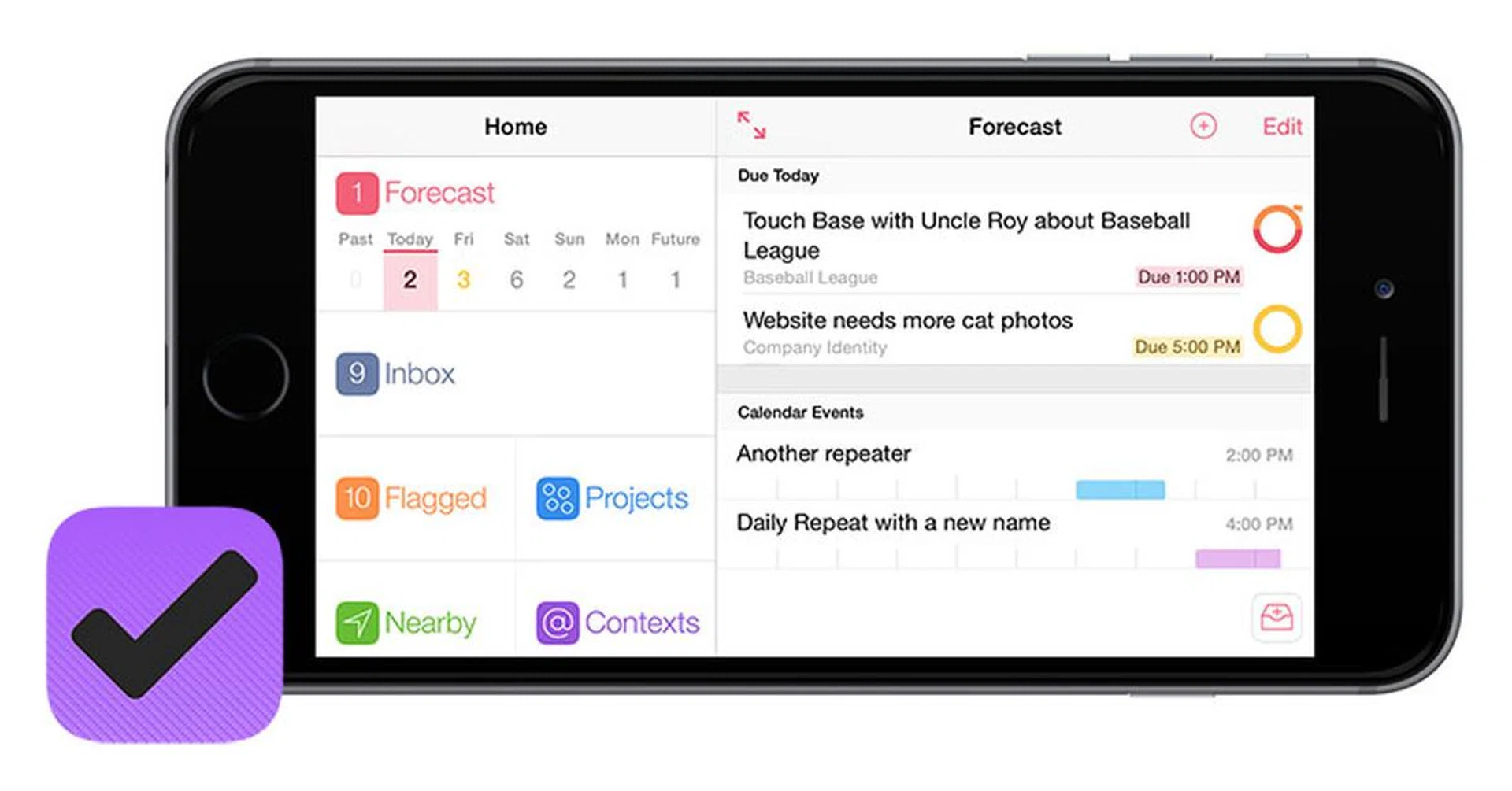
What is OmniFocus 2 for the iPhone good for?
Ever wished you could be more productive, stop forgetting important tasks, and just get things done?
That’s the promise behind apps like OmniFocus 2 for the iPhone, made by The Omni Group. While an app won’t magically turn you into a productivity ninja, using it consistently can actually help you become more productive.
I’ve been an OmniFocus user for the past four years, and it is my secret superpower. I use it not because I’m a super productive guy, but because I’m not. I tend to forget stuff quite easily, so I need a trusted place to capture and organize the important tasks in my life.
If that sounds good to you, then this guide is for you.
Note: The latest version of OmniFocus is OmniFocus 2, but I’ll make it simple and just call it “OmniFocus” from here on.
What is Getting Things Done?
Before you get started on OmniFocus, you should know that OmniFocus is built right on top of Getting Things Done (GTD), the productivity system created by David Allen.
Other to-do apps can work as simple to-do lists, but to get the full benefits from OmniFocus, you really have to go all in with the GTD method.
Let’s get these two caveats out of the way first:
- OmniFocus makes it easier to learn GTD, but there’s still a bit of a learning curve.
- Plus, OmniFocus for iPhone is not cheap, compared to some of the other to-do apps on the market.
How do you know if you want to make the time and money investment into OmniFocus?
- If all you need is a simple to-do list to keep track of the miscellaneous tasks in your life, then you’re probably fine using something other than OmniFocus, like Clear, or the built-in iOS Reminders app.
- If you just want to dip your toes into the GTD world, Things is a more affordable entry, and a wonderfully designed one at that. While OmniFocus provides incredible control for the power user, Things is a simpler and more intuitive app, which makes it easier to get into.
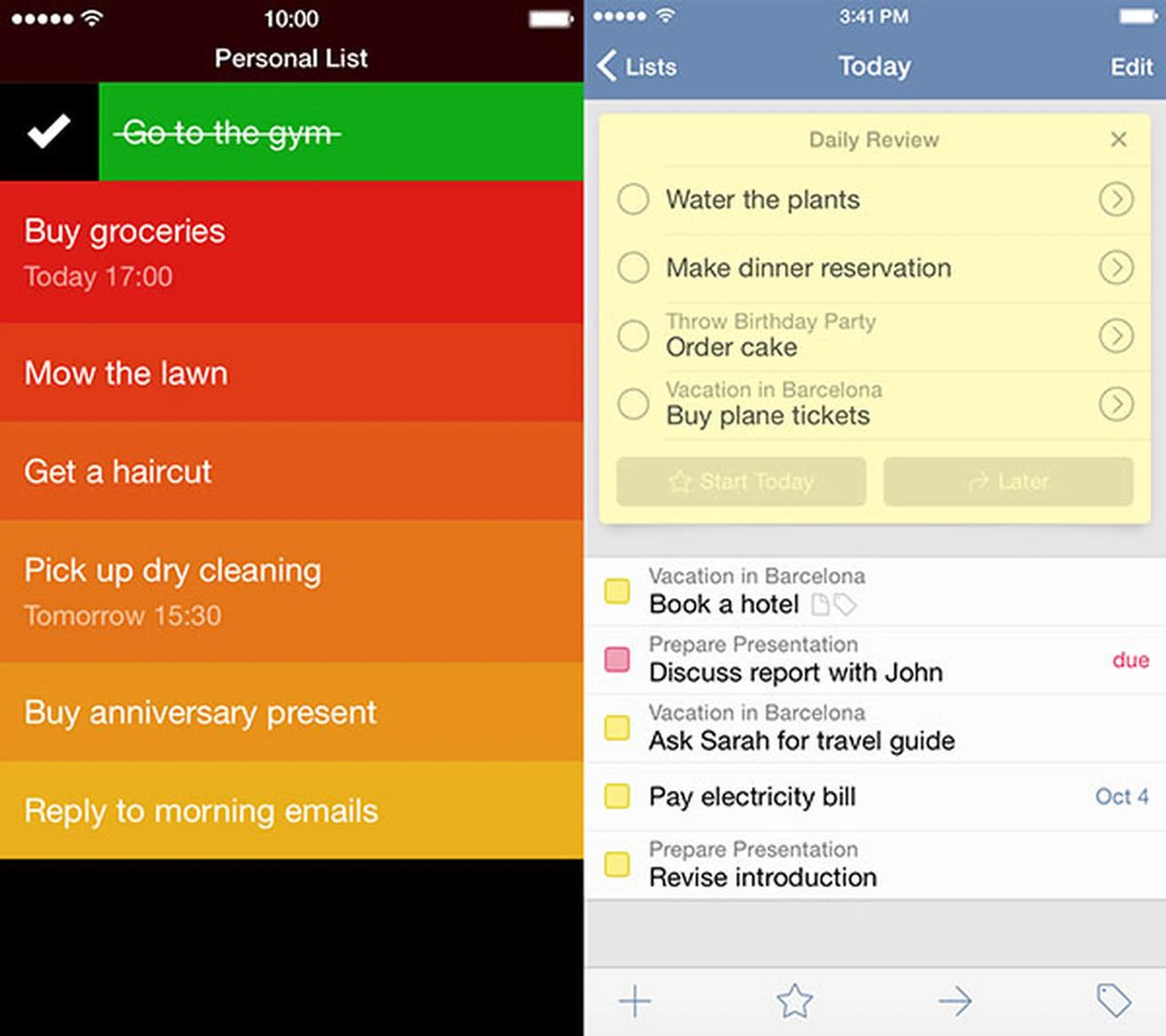
Clear (left) and Things (right).
However, if you need to juggle multiple responsibilities and projects in both your personal and professional life, then you might find that the time and financial investments you make into OmniFocus and GTD will pay off for themselves in the long run.
You can learn more about GTD on David Allen’s site, or by reading the Getting Things Done book. The ‘Five Steps that Apply Order to Chaos’ page on the official GTD site is a great summary of the GTD process. You can also sign up for a free trial on Lynda.com, and take David Allen’s GTD video course.
It’s possible to dive right into OmniFocus without learning GTD, but to really get OmniFocus, you’ll need to learn the basics of GTD eventually.
Starting with Omni Sync Server
When you first launch OmniFocus for the iPhone, the app will ask you if you want to set up sync, which is free with the OmniGroup’s Omni Sync Server service.
Sync becomes essential when you run OmniFocus across multiple devices, like across an iPhone, iPad and Mac (OmniFocus for Mac is sold separately, but the current OmniFocus 2 for iPhone is a universal app, which means that you get a version which you can install on both iPhone and iPad, with a single purchase).
Even if you only run OmniFocus on one device, it’s still a good idea to set up syncing, so it backs your data up to the cloud.
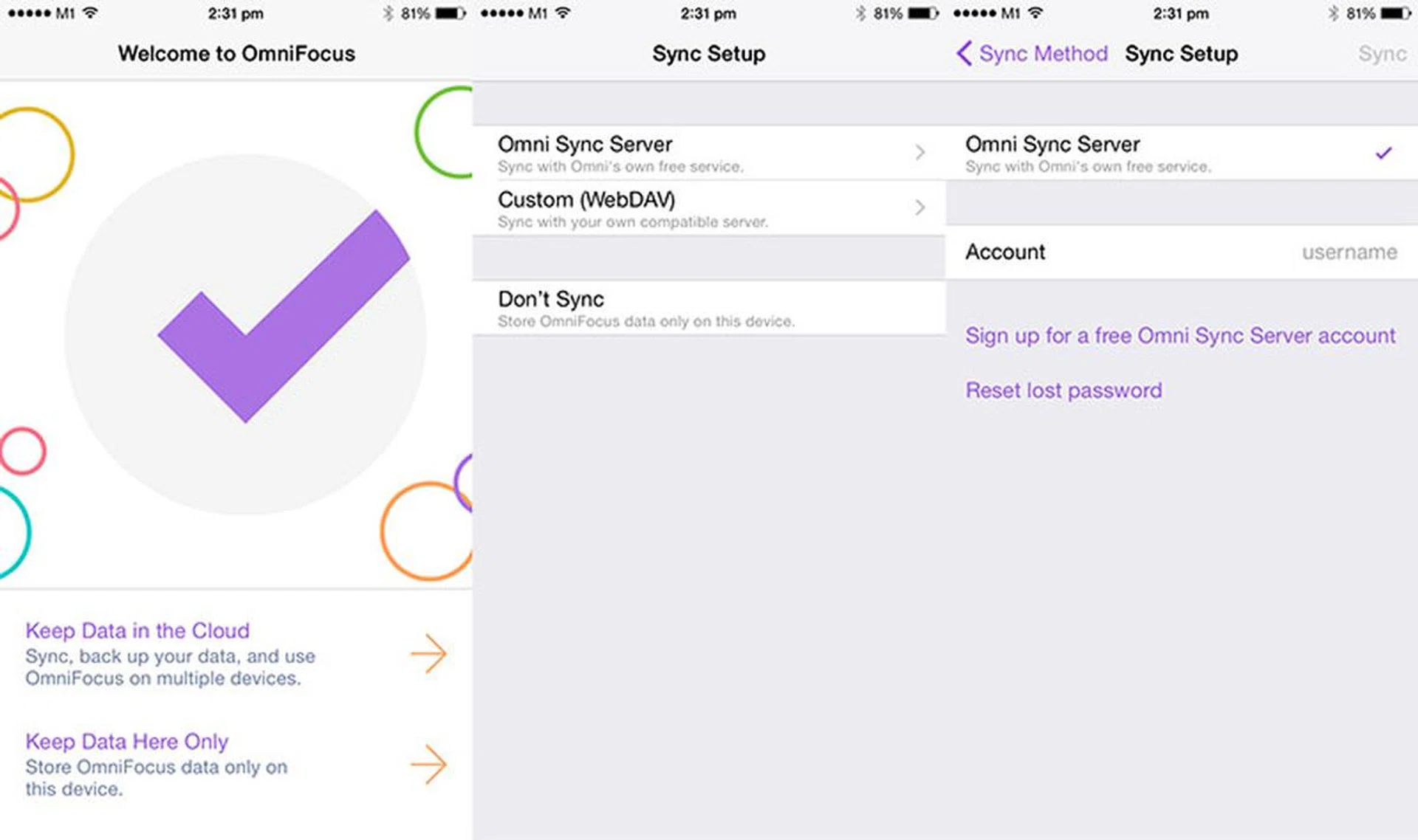
Syncing with Omni Sync Server is free, and it helps to back up your data.
Starting with the Inbox
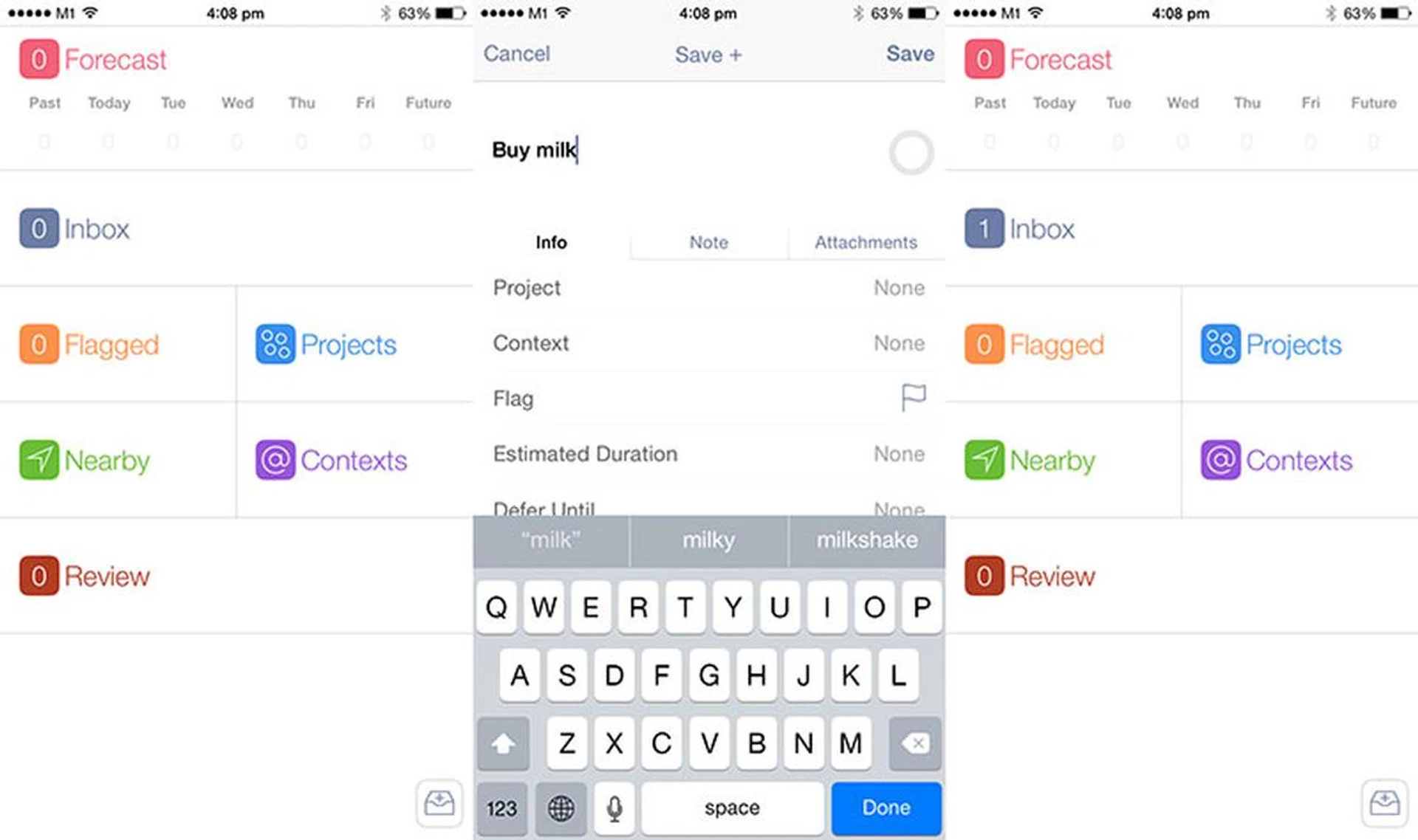
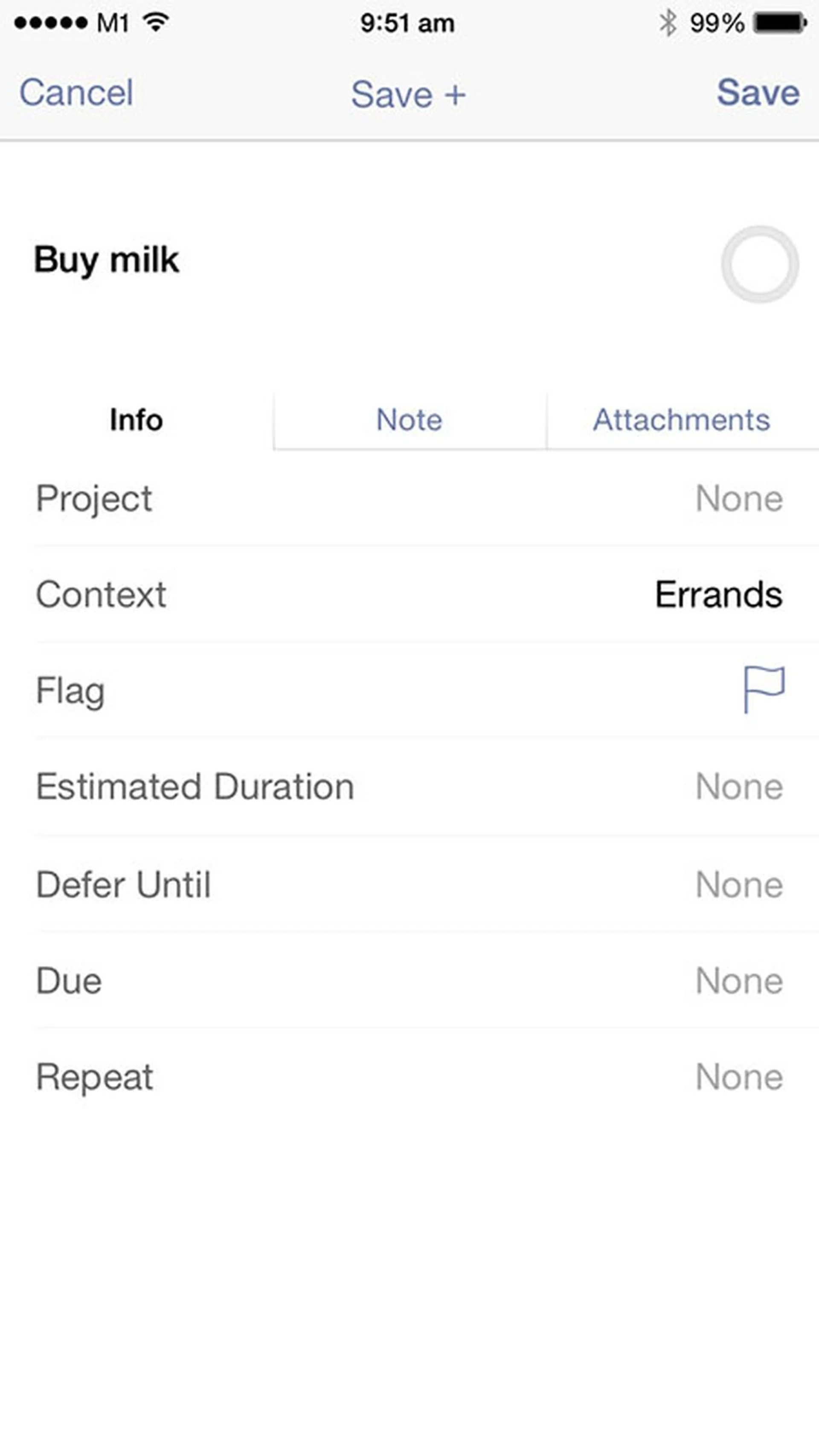
Everything in OmniFocus starts with a task, also known as a “next action.” When you first create an action like, “Buy milk,” it goes into the Inbox.
Think of the Inbox like your physical mailbox. The mailbox is a good place to collect various messages, but you don’t want to leave them there to pile up. Sooner or later, you have to process them; bills have to be paid, notices have to be filed, and spam has to be cleared.
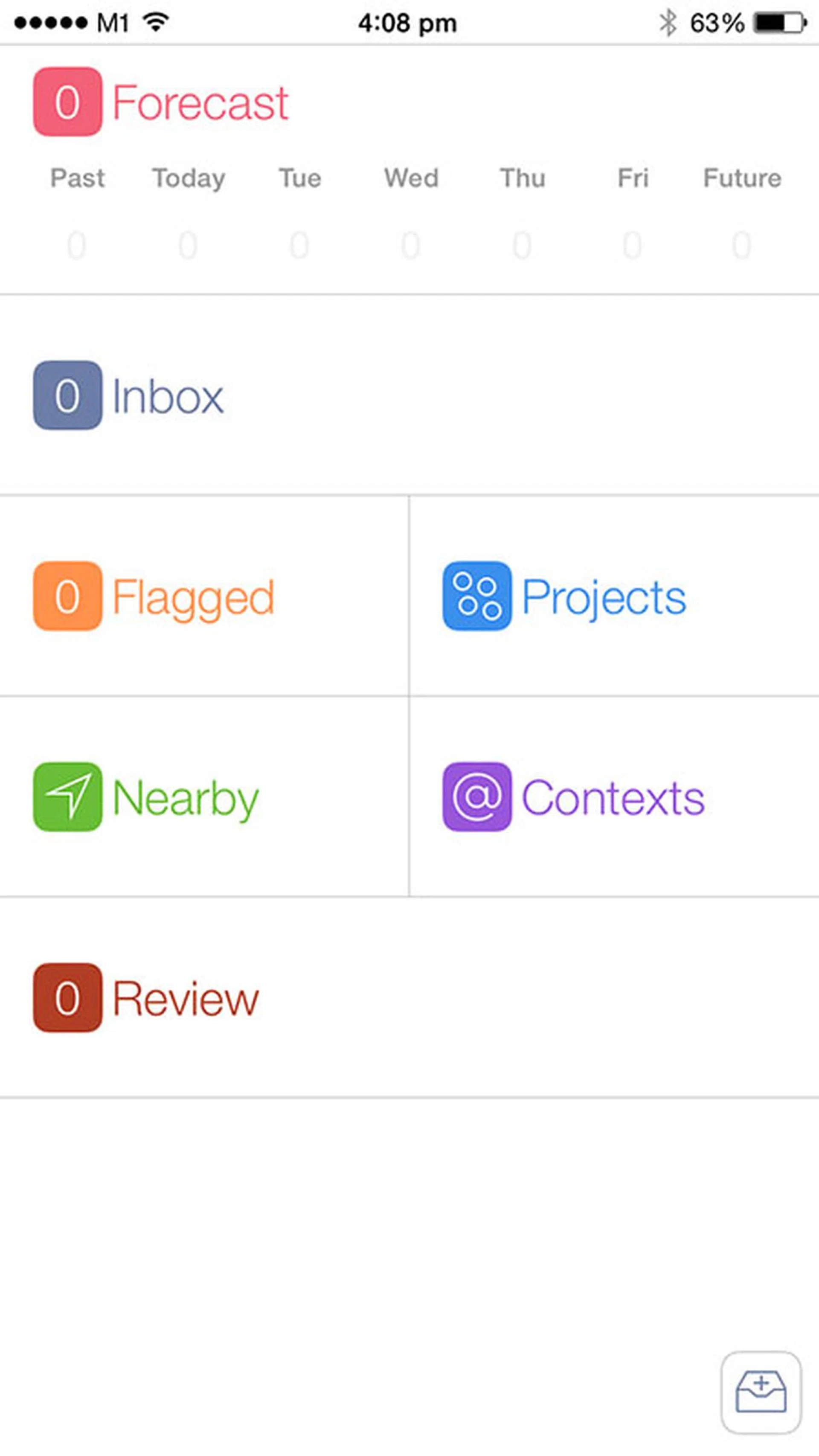
It’s the same with the Inbox. While it’s a handy place to capture your actions, you don’t want to leave them there. You’ll want to process them so they show up where and when you want them to, and that’s how Projects plus Contexts come into play. We’ll dive into them later, first, here’s how to create a new action.
Create a new action
- To create a new action that goes straight into the Inbox, tap the Inbox icon on the bottom right, the one with a ‘+’ sign in the middle.
- Type your action into the “Untitled Item” field.
- Tap ‘Save’ on the top right to save your action into the Inbox.
- Tap ‘Save +’ in the top middle to save your action, and continue adding another action.
Tip: Write your actions like you’re sending them to someone else
One of the best GTD tips I ever got was to “write your actions as if you are delegating them to someone you actually know.”
In the GTD system, actions have to be physically actionable, which is why they’re also known as “next actions.” Nebulous actions like “Hong Kong holiday” aren’t actionable. Actions like, “Search online for places to go in Hong Kong,” or, “Ask Brenda about her favorite places in Hong Kong,” are actionable. They can be physically accomplished.
The test is to read back the action you’ve just written and ask yourself: “If somebody else were to read this action, would they be able to do it?”
It sounds like we’re splitting hairs, but there’s a good reason you want to get as specific as possible when writing down your actions. It forces you to get clear on just how you’re going to achieve this action; “Hong Kong holiday” doesn’t tell you what you need to do next to get things done, but “Book a flight to Hong Kong” does.
Starting with Projects
In GTD, Projects are goals that require more than one action to complete.
For example, “Take a vacation in Hong Kong” requires several actions to complete, like, “Book a flight to Hong Kong,” “Book a hotel,” “Apply for leave,” and so on. So instead of storing these actions in OmniFocus among actions like “Buy milk,” they can be grouped together under a single project.
There are two ways to create Projects in OmniFocus.
Create a new project using the Projects page
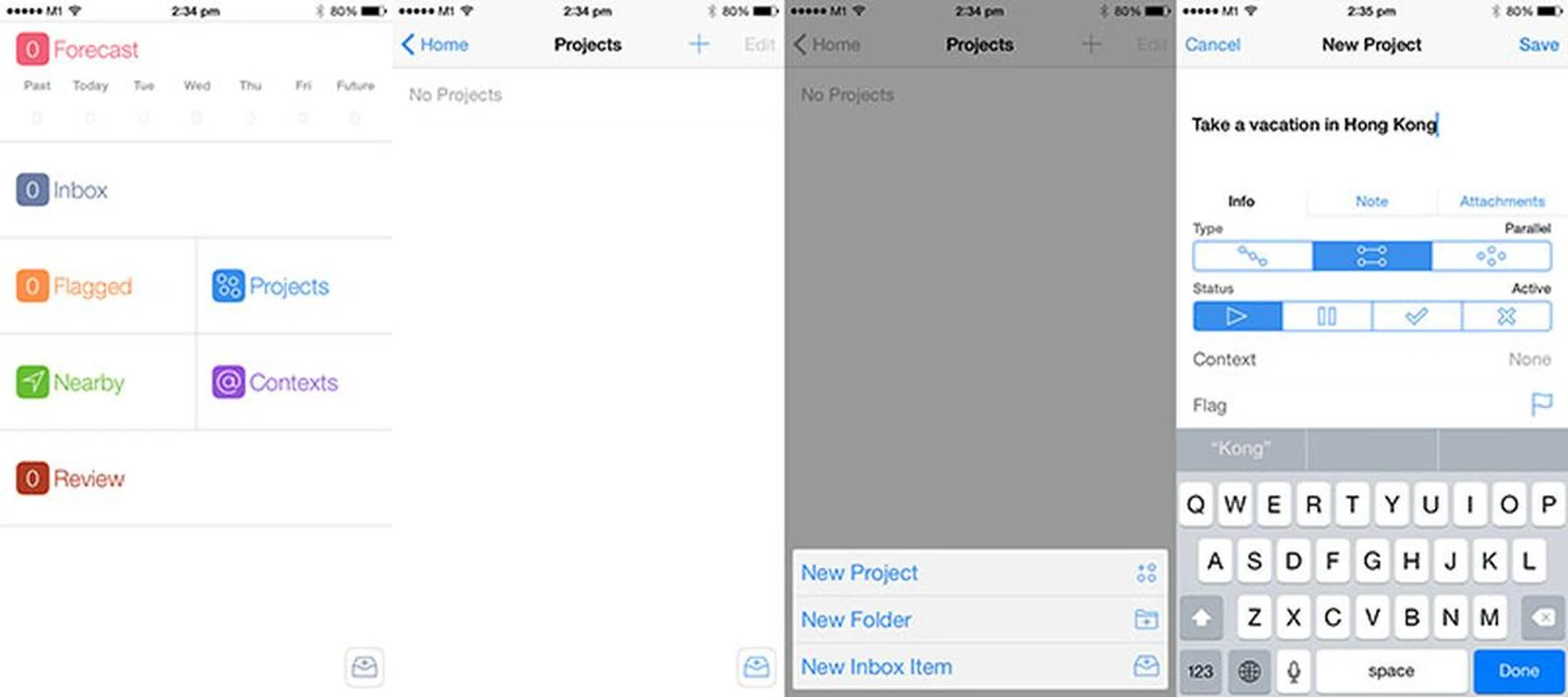
- From the Home screen, tap ‘Projects’.
- On the Projects page, tap the ‘+’ sign on the top right, and select ‘New Project.’
- Name your new Project.
- Tap ‘Save.’
Create a new action in Projects
Now that you have a new Project, you also get a new way to add actions:
- Tap ‘Projects’ on the Home screen, and go to your new Project.
- Tap the circular icon with a ‘+’ sign on the top right.
- A new action window will appear, with the Project field already filled in with the name of your new project.
- To save this new action, tap ‘Save’ on the top right.
- To save this new action and continue to add a new action, tap ‘Save +’ on the top center.
Create a new project when creating a new action
- When creating a new action, tap the Project tab.
- If your project already exists, you can tap the name of your project to select it.
- If not, in the ‘Search for Project’ pane, start typing the name of your new project.
- When OmniFocus can’t find the name of the new project, it’ll give you the option to create a new project with the text “Create (project name)” in the results field.
- Tap the “Create (project name)” text to create a new project.
OmniFocus’ three kinds of projects
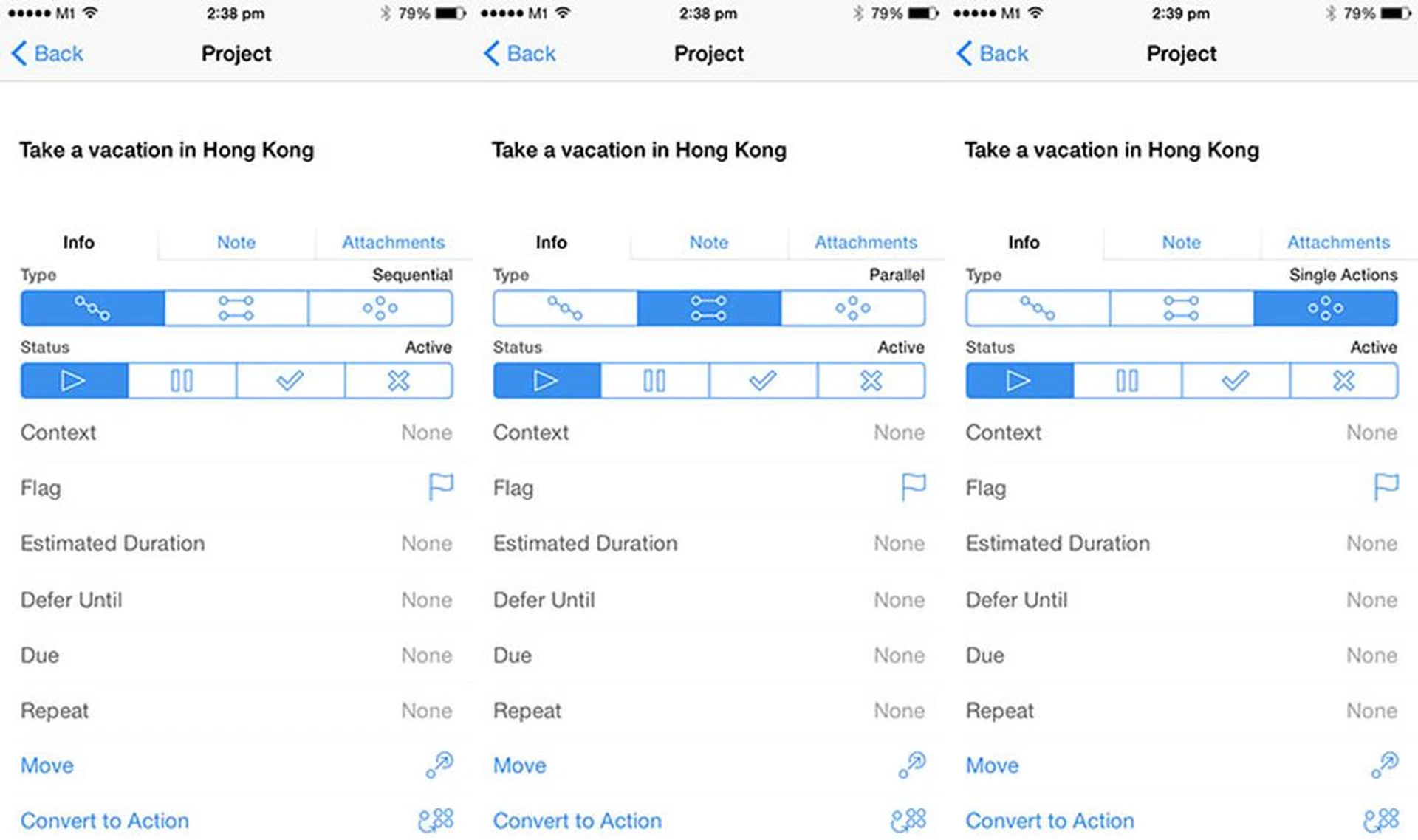
OmniFocus lets you create three kinds of projects:
- Sequential
- Parallel (default)
- Single Actions
Sequential projects are for actions that need to be accomplished in order. For example, you need to “Boil water,” before you can “Make coffee.” So, when you create a sequential project, OmniFocus will only show the first action in a list of actions. Only when that action is completed will the following action then appear.
Parallel projects are for actions that run in tandem; they don’t have to be performed in any particular order. For example, you can “Wash the dishes,” or you can “Wash dirty clothes,” it doesn’t matter which order you do them in. As a result, all actions in a parallel project will appear at the same time.
Single action projects are usually used to group loose actions together which don’t have to be completed in any order. For example, you can have a “Movies to watch at home” project, which really isn’t a goal with step-by-step actions. In this case, “Watch Toy Story 3” and “Watch Mission Impossible 4” are single actions that can be completed independently.
To change a project’s type:
- From the Home screen, tap ‘Projects’.
- Tap the name of your project.
- Tap the name of the project again.
- In the project’s Settings page, under ‘Type’, tap the project type you want
Finishing a project
When you’re done with an action, you simply tap on its circle to mark it complete. When you’ve completed a project, to mark it complete:
- From the Home screen, tap ‘Projects’.
- Tap the name of your finished project.
- Tap the name of the project again.
- In the project’s Settings page, under ‘Status’, tap ‘Completed’ (the check mark).
Tip: Make projects winnable
Just like getting specific with how you write your actions helps you to clarify what you need to get done, getting clear on your project’s name can also help you clarify what completing it looks like.
One of David Allen’s tips for naming projects is to make it a project you can win. For example, ‘Make client X sign on the dotted line’ is not something you have 100% control over. But ‘Submit a comprehensive sales proposal’ is.
It also helps to get clear on what the end goal looks like. “Write proposal” is subtly different from “Submit proposal”. Getting clear on the end goal helps you plan towards it more effectively.
Getting started with Contexts
Projects are one way to organize actions in OmniFocus, and Contexts are another. Simply put, a Context is whatever that is needed to order to complete an action. That can mean a place, a thing or a person.
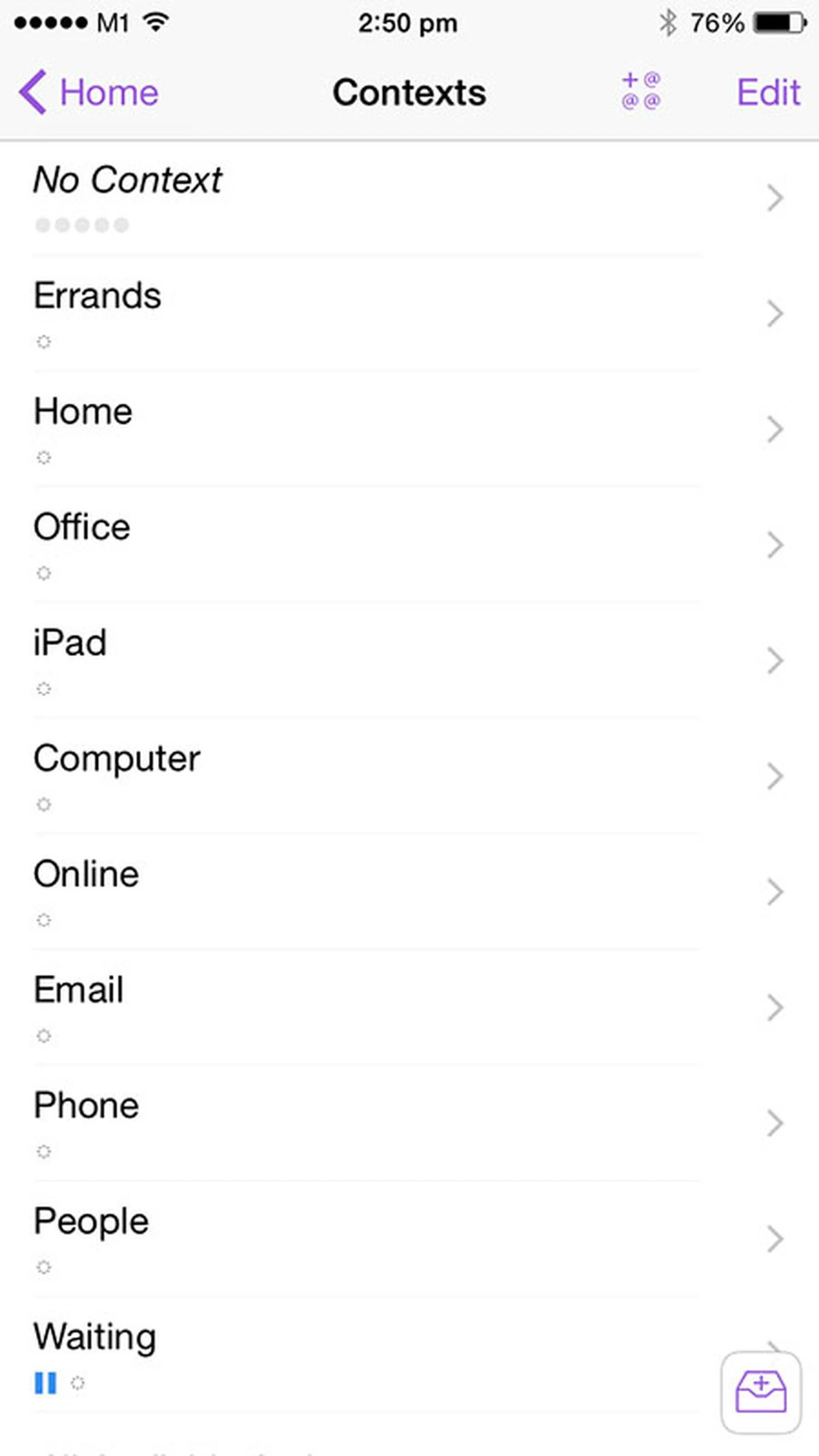
Where projects let you see all the steps you need to take to accomplish a goal, contexts let you see what you need to see, when you need to state it. Projects and Contexts aren’t exclusive. An action can have both a Project and a Context (but only one of each, an action cannot have multiple projects or contexts).
So, for example, you can give the actions that you can only complete at home a ‘Home’ context, and the actions that you can only complete in the office an ‘Office’ context. Maybe you have calls to make, in which case you give them an ‘iPhone’ context, or there are actions which require a computer, in which case you can give them a ‘PC’ context.
You can begin to see why Contexts are so powerful. When you’re in the office, you don’t need to see actions that are meant for home. When you view by Context, you’ll only see what actions you have remaining for where you are in the moment.
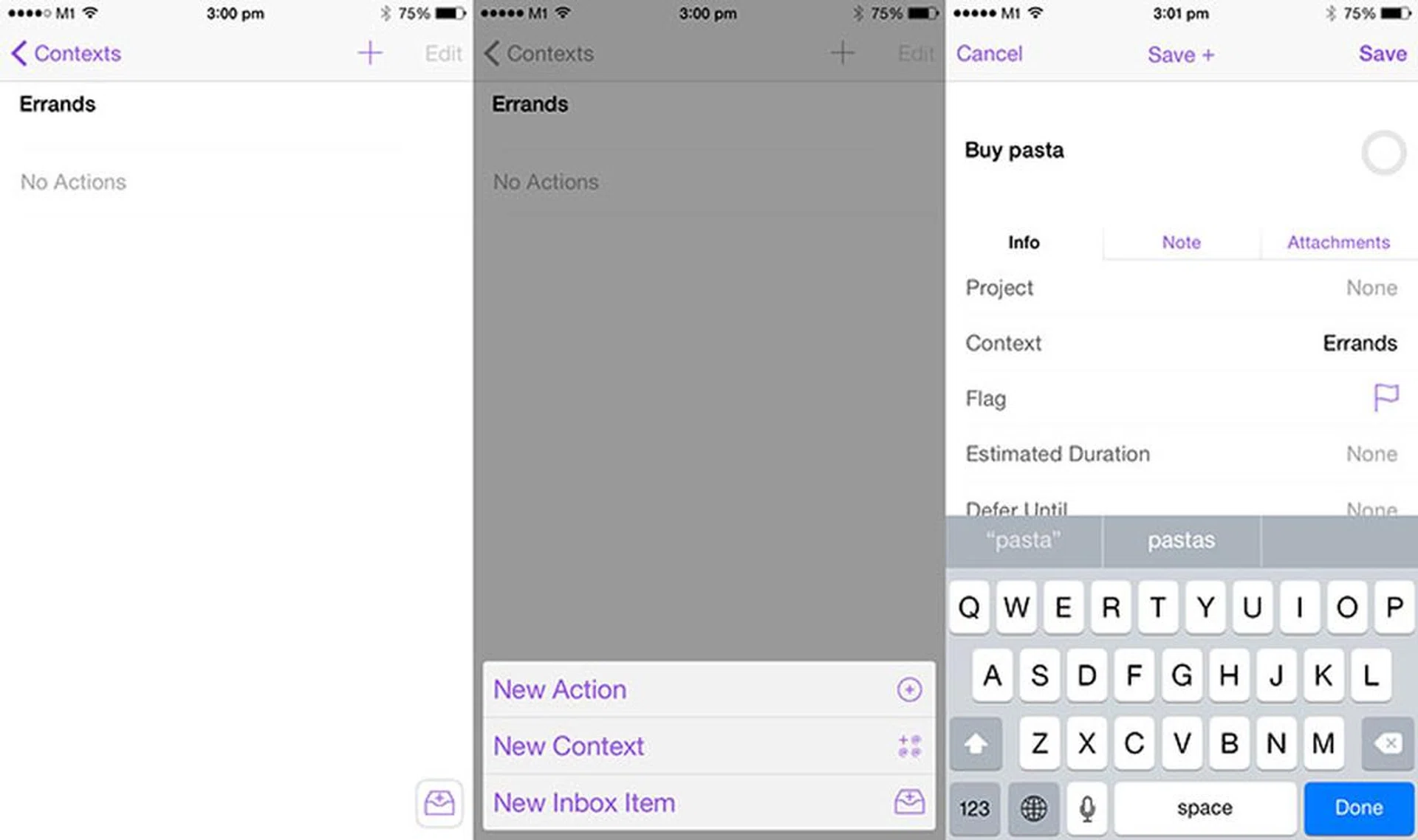
Another example, when I’m outside, I don’t want to look through all my actions to see if there’s anything I need to get. I tap on ‘Contexts’ on OmniFocus’ Home screen, choose my ‘Errands’ context, and only see the actions in that context, like “Buy Milk.”

To start using Contexts, you can start with OmniFocus’ default contexts. When you make a new action, choose which Context you want to add, below the Projects field.
Editing OmniFocus’ default contexts
There are a few ways to edit OmniFocus’ default contexts. To add a new Context of your own:
- On the Home screen, tap ‘Contexts.’
- Tap the ‘+@@@’ symbol on the top right.
- Type in the name of your new Context.
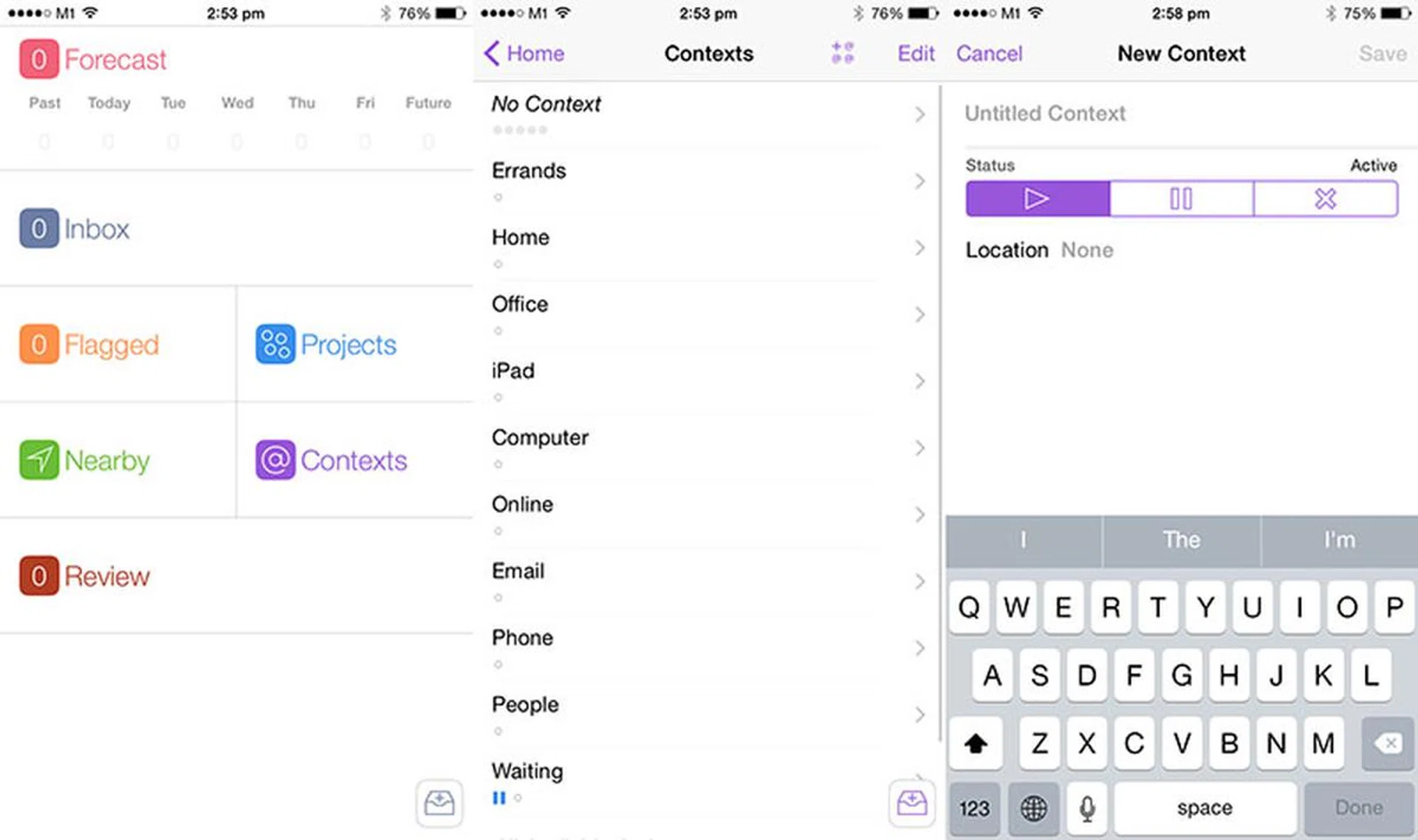
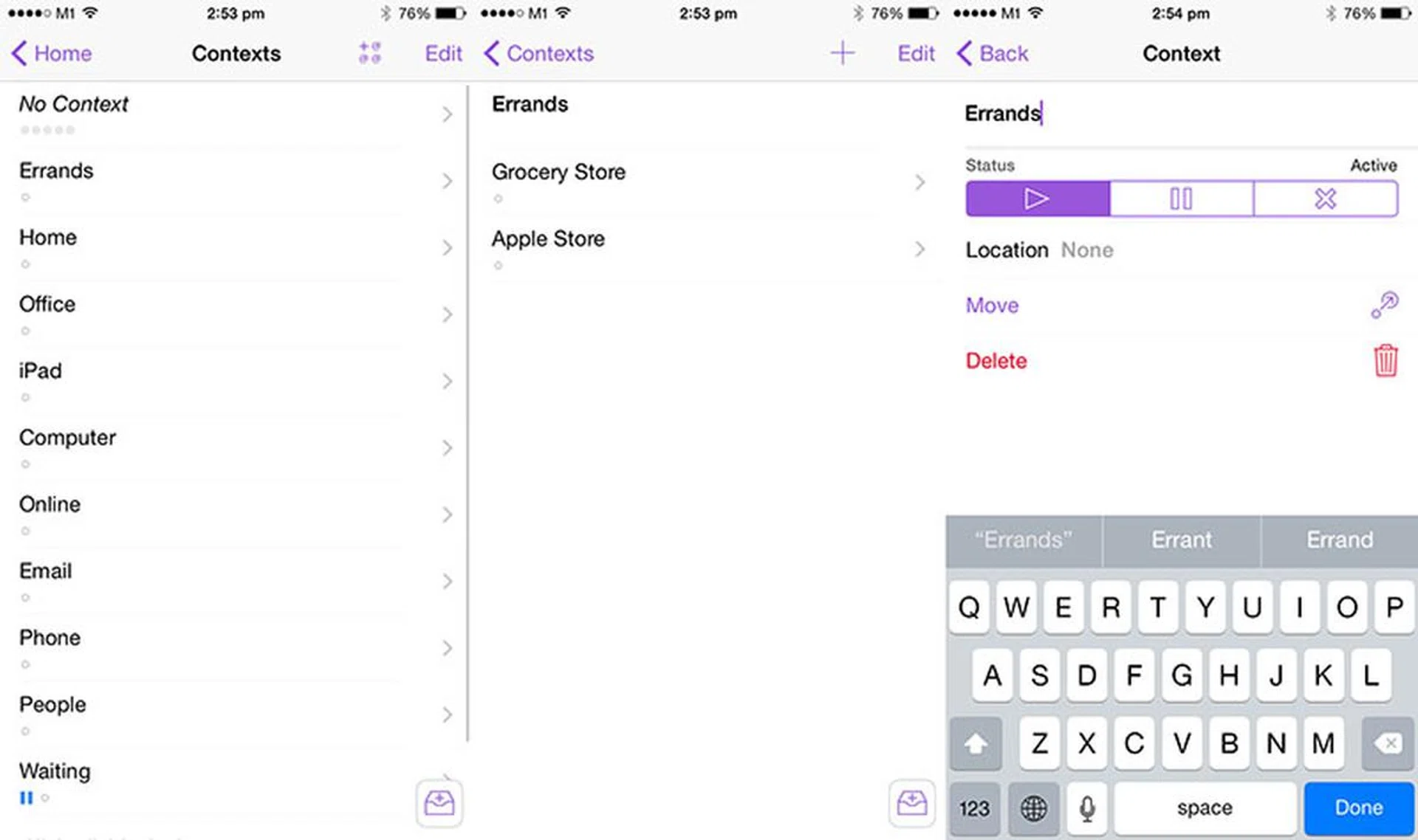
To edit the name of an existing context:
- On the Home screen, tap ‘Contexts.’
- Tap the name of the Context you want to change.
- Tap the name again.
- In the context’s Settings page, tap its name again to bring up the keyboard, and edit its name.
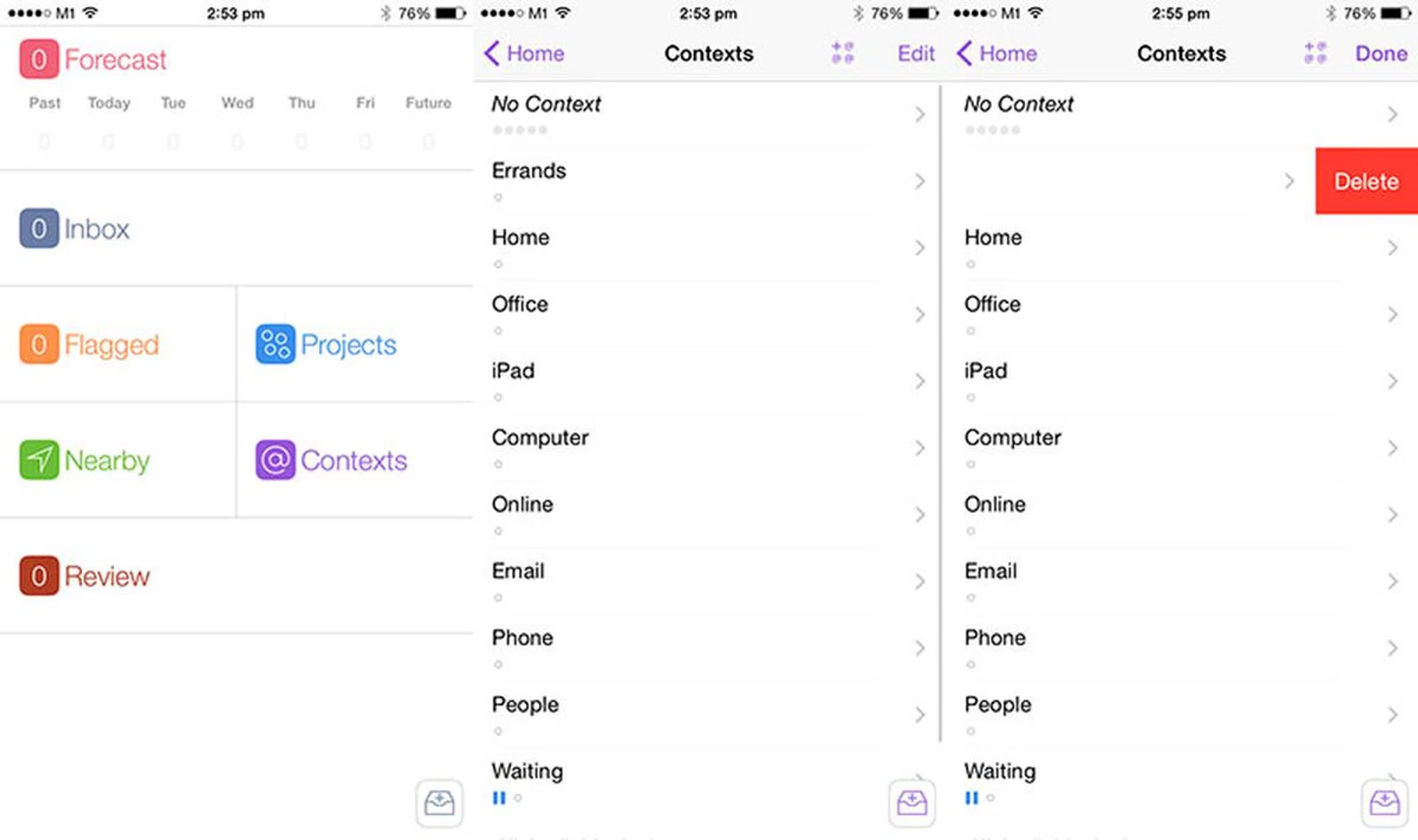
You can also delete existing Contexts, and sub-contexts, using either one of these two methods:
- On the Home screen, tap ‘Contexts.’
- Swipe left on the Context you want to delete.
- Tap on the ‘Delete’ command that appears.
You can also delete Contexts, or rearrange them, using the ‘Edit’ command
- On the Home screen, tap ‘Contexts.’
- Tap ‘Edit’ on the top right.
- Tap on the red circles with a ‘-’ sign next to the Context you want to delete.
- Drag the ‘hamburger’ symbol (the three horizontal lines) to rearrange the Contexts’ order.
Adding actions in Contexts
You can also add new actions in Contexts. Here’s how:
- On the Home screen, tap ‘Contexts.’
- Tap the Context you want to add a new action in.
- Tap the ‘+’ sign on the top right.
- Select ‘New Action.’
- Type in your new action.
Getting started with Due Dates
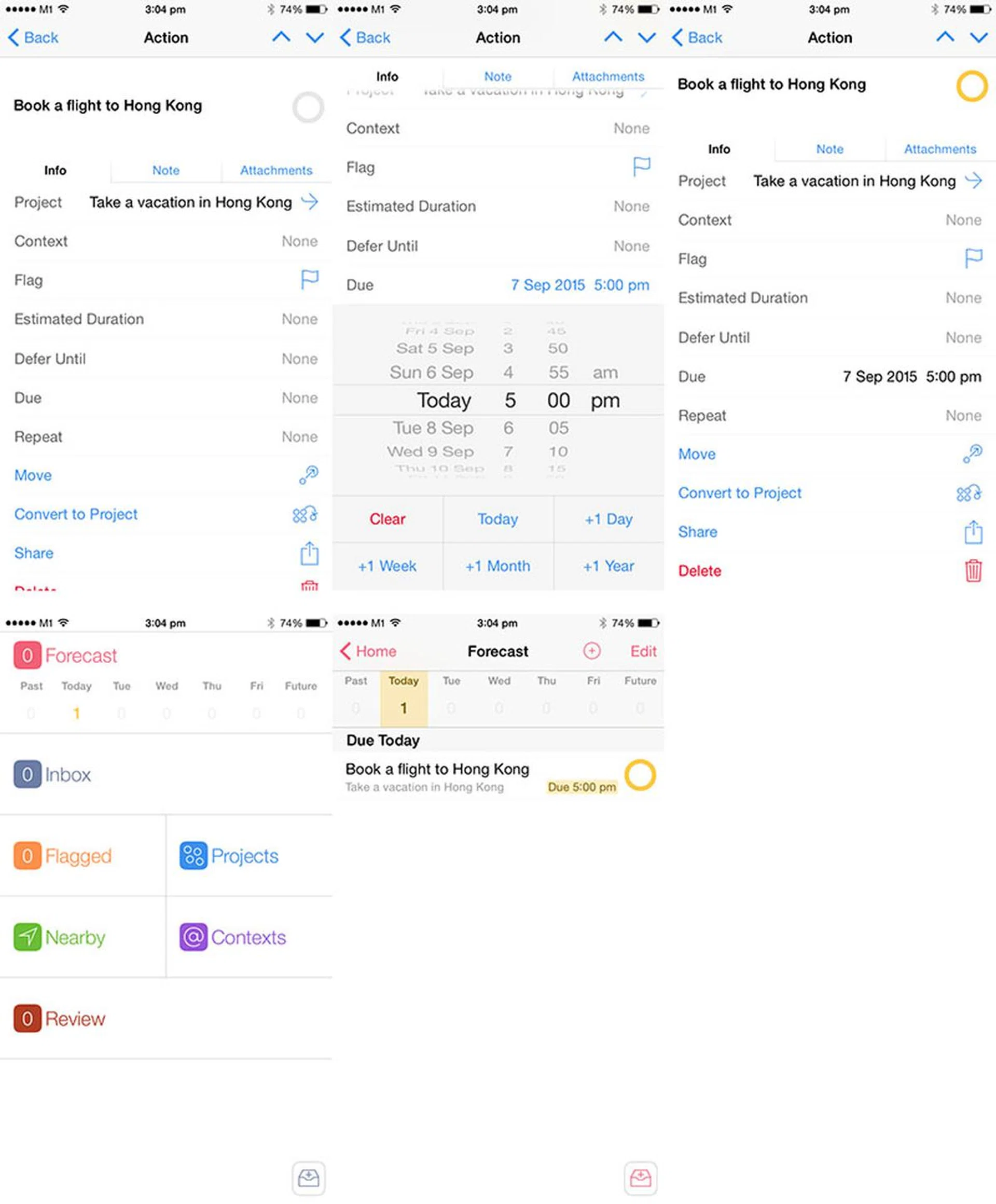
Dates are another way you can manage your day-to-day actions. There are two kinds of dates you can set, Due Dates and Deferred Dates. We’ll start with Due Dates; which are simply times when the actions are due.
When you set a due date for an action; say, the 1st of October 5pm, that action will show up in the Forecast view as due, on the 1st of October. To set a Due Date:
- Tap on the action on which you want to set a Due Date.
- In the action’s Settings page, tap ‘Due’.
- Choose the action’s due date and time.
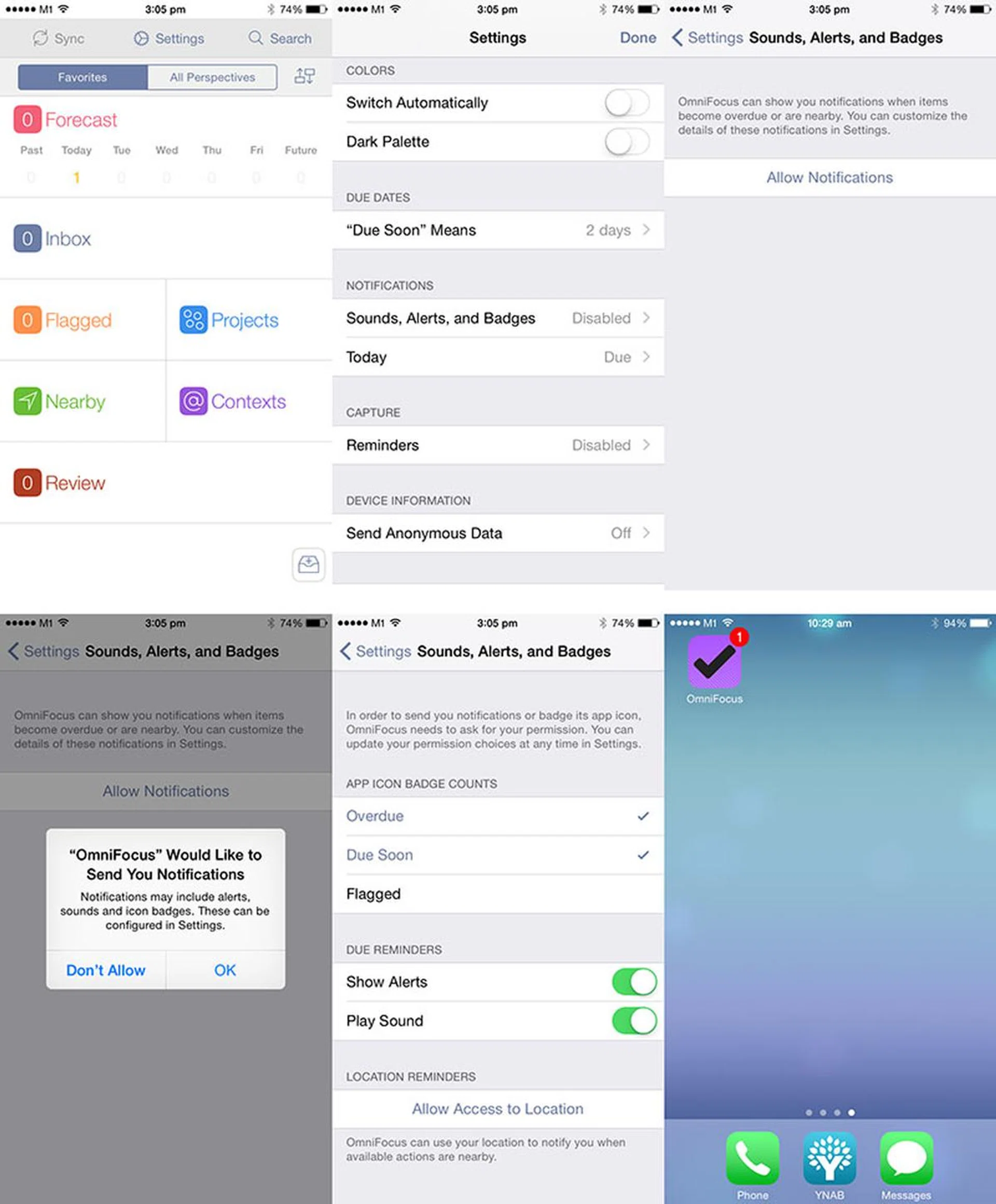
You can also set up OmniFocus notifications, so you get a number badge on the OmniFocus icon with the number of actions due that day, as well as reminders when actions have reached their due time and not been completed. If, during setup, you chose not to get notifications, here’s how you can get them.
- Pull down on the Home screen to access the Menu.
- Tap on ‘Settings.’
- Scroll down to find, and tap on ‘Sounds, Alerts, and Badges.’
- Tap ‘Allow Notifications.’
- When iOS asks if you want OmniFocus to send you notifications, tap ‘OK.’
- OmniFocus will now show badge counts for actions which are due soon and overdue.
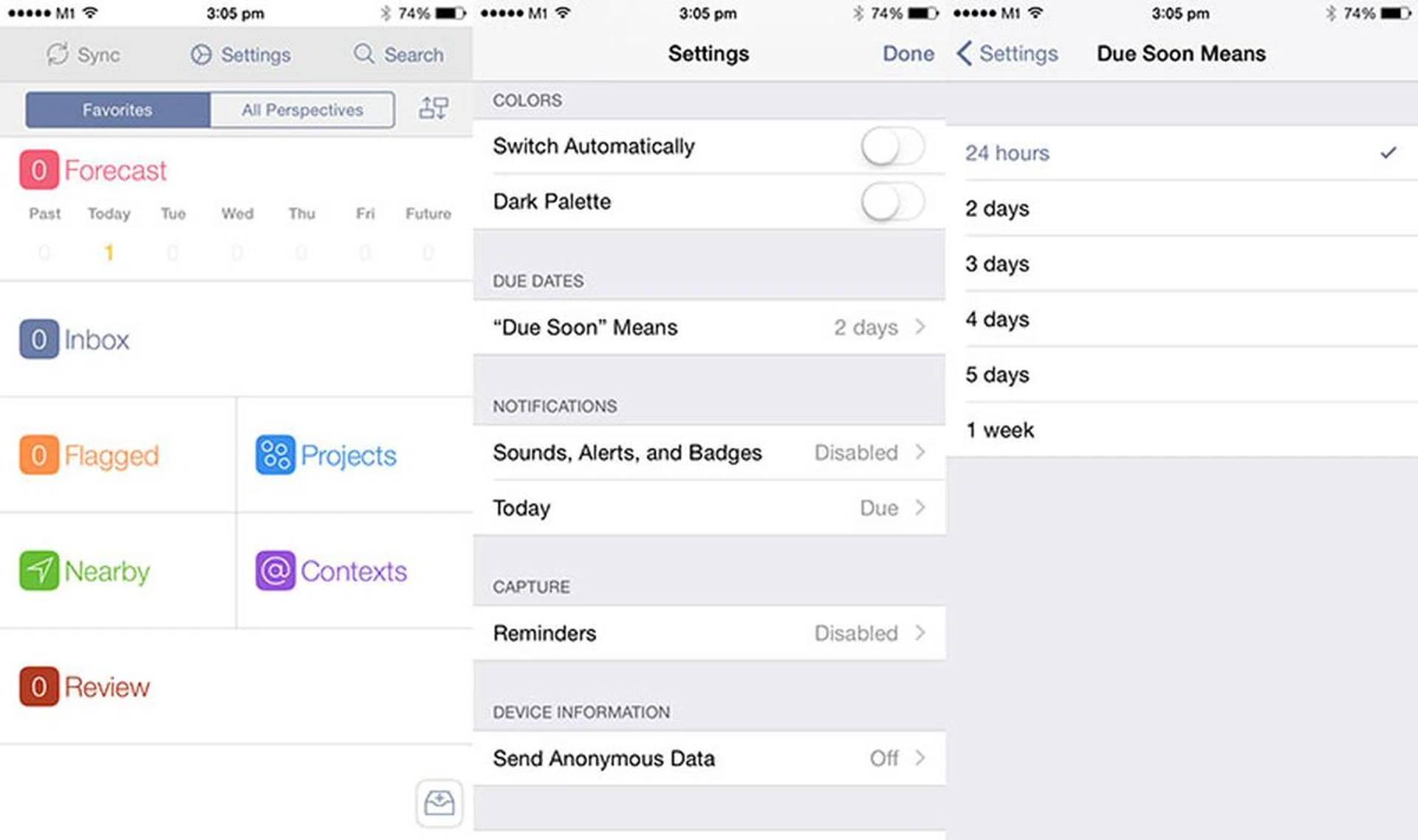
I find OmniFocus’ default setting of 2 days for actions that are ‘Due Soon’ to be too far in advance; I only want to see what’s really due soon in the immediate future. To change this:
- Pull down on the Home screen to access the Menu.
- Tap on ‘Settings.’
- Scroll down to find, and tap on ‘“Due Soon” Means.’
- Change how far in advance you’d like ‘due soon’ to mean (mine is set to ‘24 hours’).
Due Dates are a good way to handle time-sensitive actions, which must be completed on a given date. They can also be a way to help you move projects forward; for example, I can set a Due Date for today to book a flight to Hong Kong, and a Due Date for tomorrow to book a hotel. Setting Due Dates this way helps me to make sure I act on my actions as the week goes on.
Getting started with Deferred Dates
Deferred Dates are the other way to handle time-sensitive dates in OmniFocus. Whereas Due Dates let you set a time when an action has to be completed, Deferred Dates let you put off actions until when they can be acted on.
For example, I can set an action now to “Buy a Christmas present for Tom,” and defer the action until the 1st of December. When I do that, the action disappears from my default view, and only reappears until on the 1st of December.
Why is this useful? In the GTD system, it’s only useful to see your available actions when you can actually act on them. To see actions for buying Christmas presents in September, when I don’t want to act on them now, is a waste of time and attention. So Deferred Dates are a way for you to put presently irrelevant actions out of sight and out of mind, until when you can do them.
To set a Deferred Date:
- Tap on the action on which you want to set a Deferred Date.
- In the action’s Settings page, tap ‘Defer Until’.
- Choose the action’s deferred date and time.
Using both Deferred and Due Dates
You can use both Deferred and Due Dates for a single action. Let’s say I want to ask Brenda about where to visit in Hong Kong, but I’ll only be meeting her next Monday for lunch. So I’ll defer the action to next Monday at 12pm, and set its Due Date for Monday at 1pm.
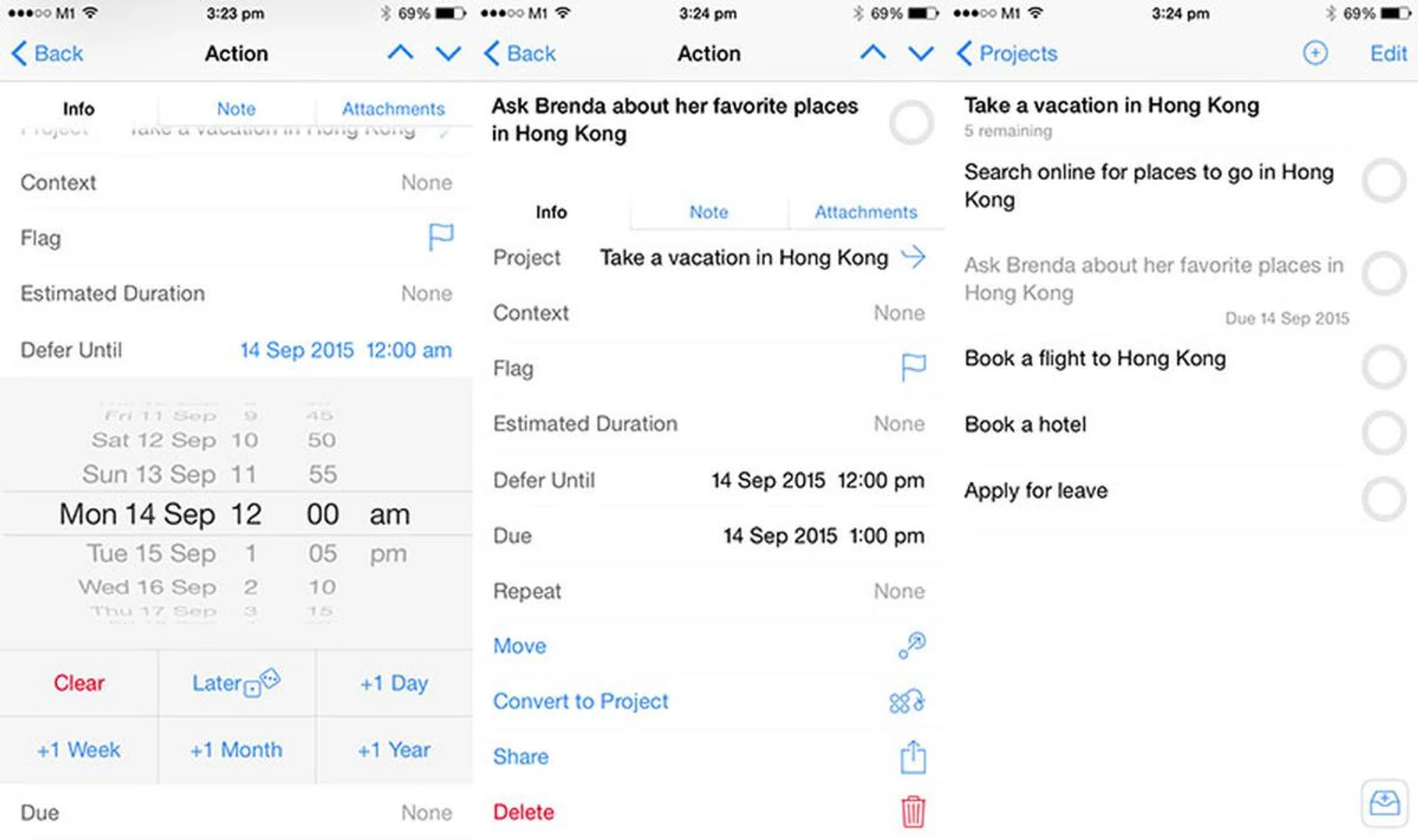
Tip: How to see deferred actions
By default, deferred actions are shown as grayed-out items. To hide them:
- Pull down on the screen in any page other than the Home page (for example, on the Projects screen).
- Tap on ‘View’
- By default, OmniFocus shows all ‘Remaining’ items, which includes actions and projects that are blocked, in the future (deferred) and which have been put on hold.
- Tap on ‘Available’ to only show items which are available to act on now.
- Actions and projects which have been deferred should now be hidden from view.
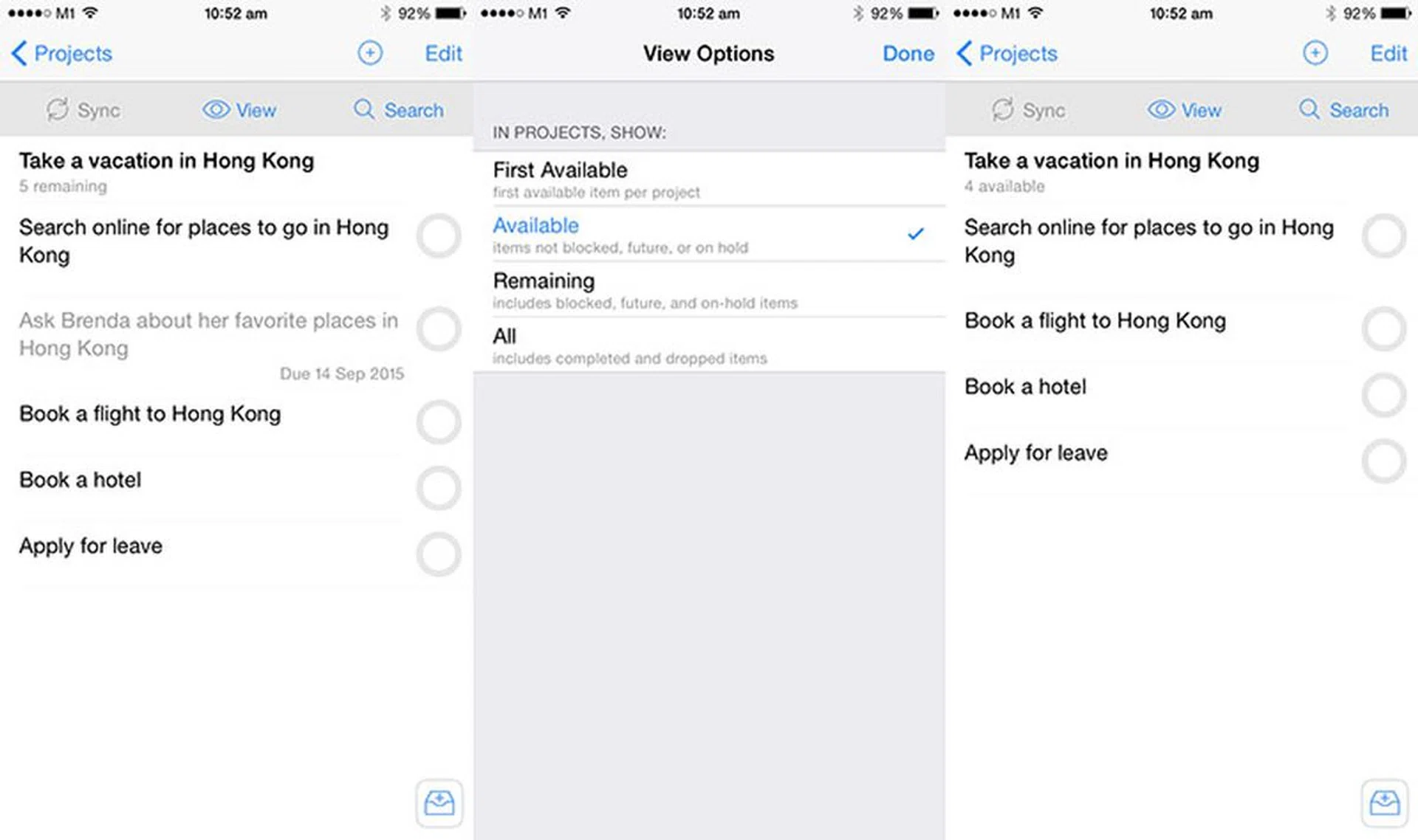
To see a list of all your actions again, including your deferred actions:
- Pull down on the screen in any page other than the Home page (for example, on the Projects screen).
- Tap on ‘View’
- Select ‘Remaining,’ which will show you both active and deferred actions
- Tap ‘Done.’
Getting started with repeating actions
What about actions that you do regularly? It would be a hassle to check them off, and then type them in again. Luckily, OmniFocus lets you set actions to repeat after they’ve been finished.
To repeat an action:
- Go to the action’s window.
- Tap ‘Repeat.’
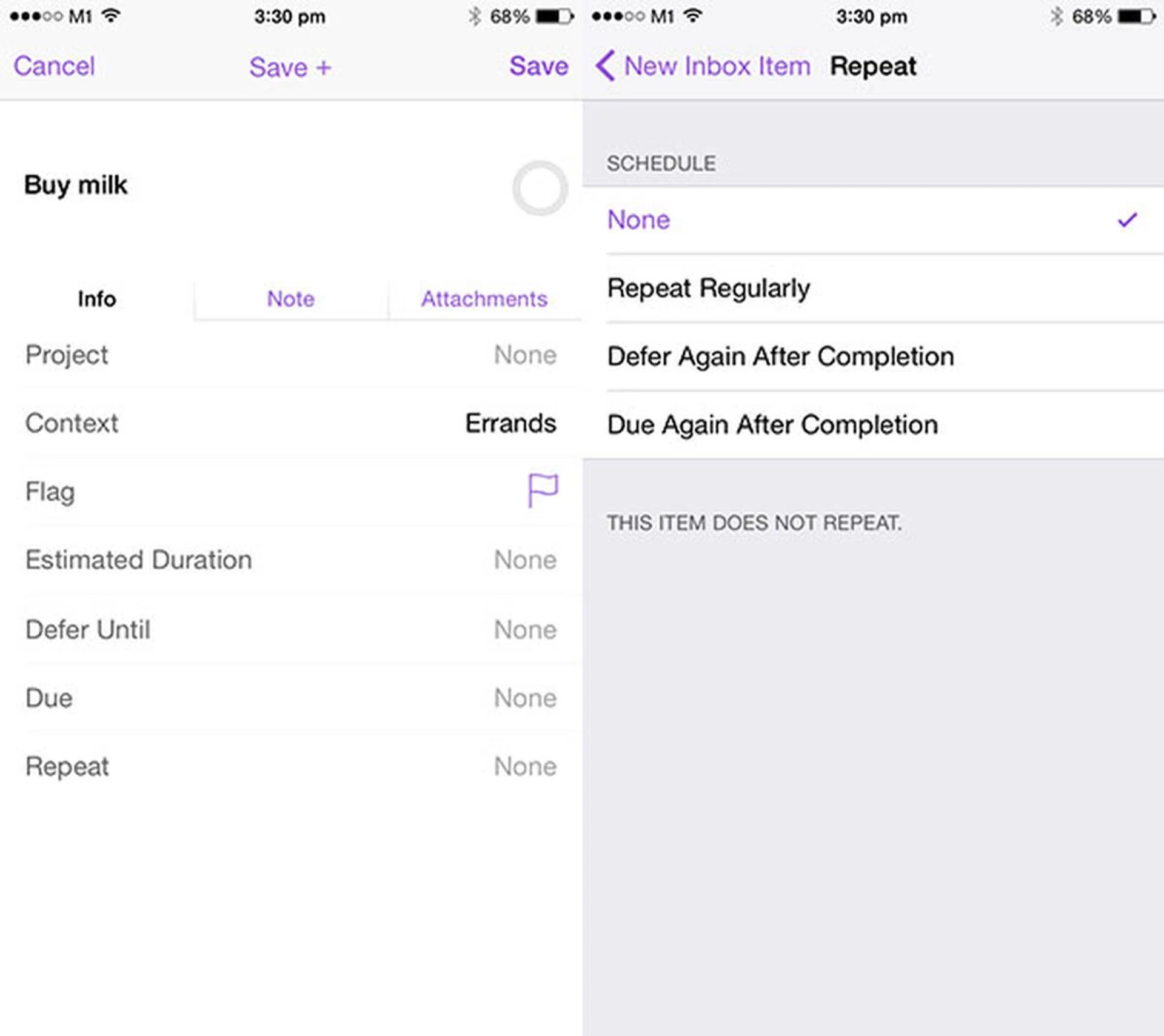
There are three ways to repeat an action. One is to ‘Repeat Regularly,’ the second is to ‘Defer Again After Completion,’ and the last is to ‘Due Again After Completion.’ The three options can get a little confusing, so here’s the difference.
Repeat an action regularly
Choose ‘Repeat Regularly’ when you need to do something at a regular interval of time. For example, you might want to check your mailbox every three days; so you can set this action to ‘Repeat every 1 day.’
To repeat the action on specific days of the week, choose ‘Repeat every 1 week.’ You’ll then be able to pick which days of the week you want the action to repeat. If I only want to check my mailbox every Monday, Wednesday and Friday, I’ll then pick ‘M,’ ‘W,’ and ‘F.’
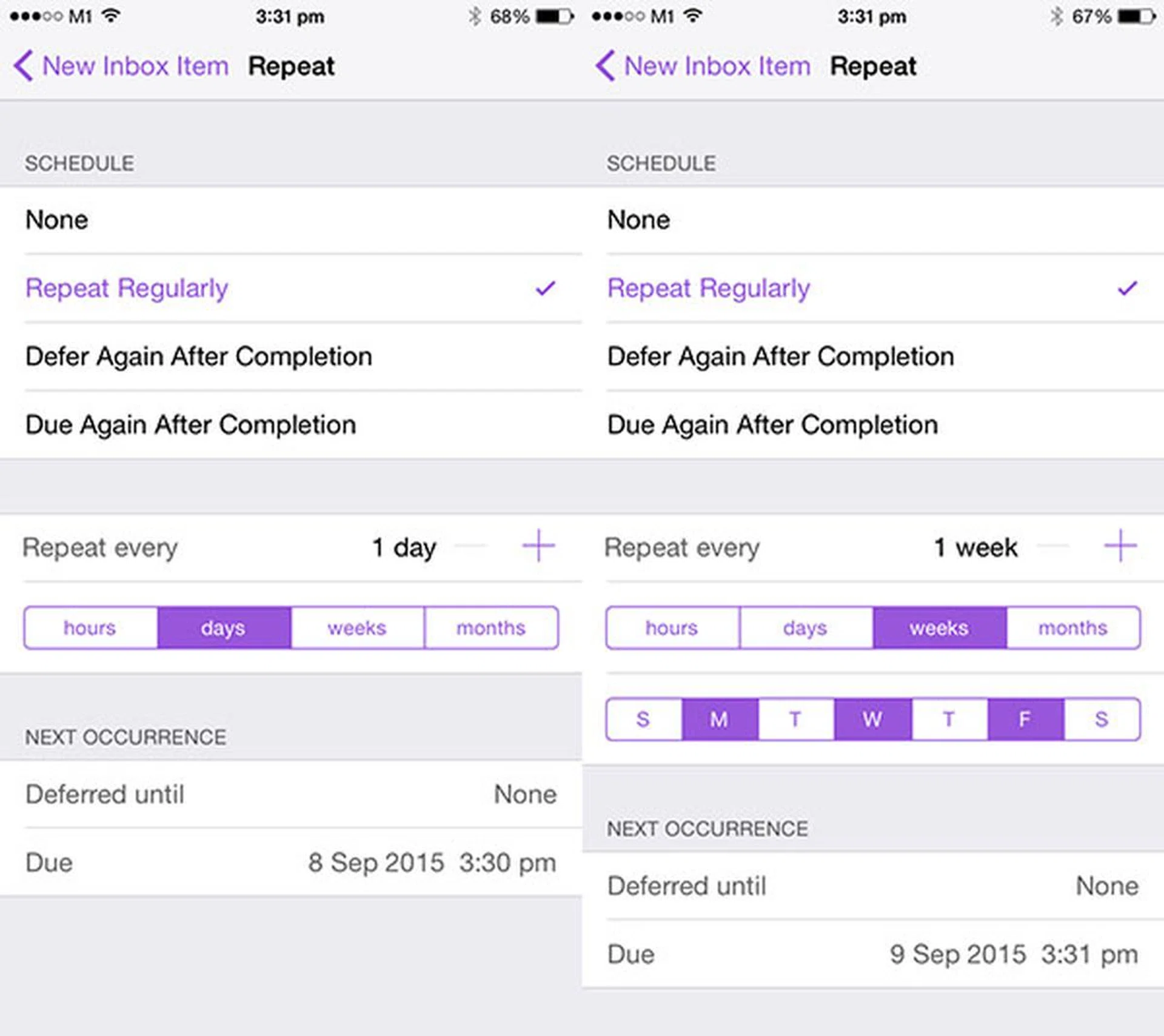
Defer Again After Completion
The option ‘Defer Again After Completion’ is ideal for actions that have to be repeated at a certain interval after being completed.
For example, you might want to clean your desk roughly every 4 weeks. The action isn’t time-sensitive, so you can do it every 4 or 5 weeks, no problem. If you set the action ‘Clean my desk’ to defer again 4 weeks after completion, after you check this action off — regardless of when you completed it — the action will be deferred until 4 weeks later, when it’ll appear in OmniFocus again.
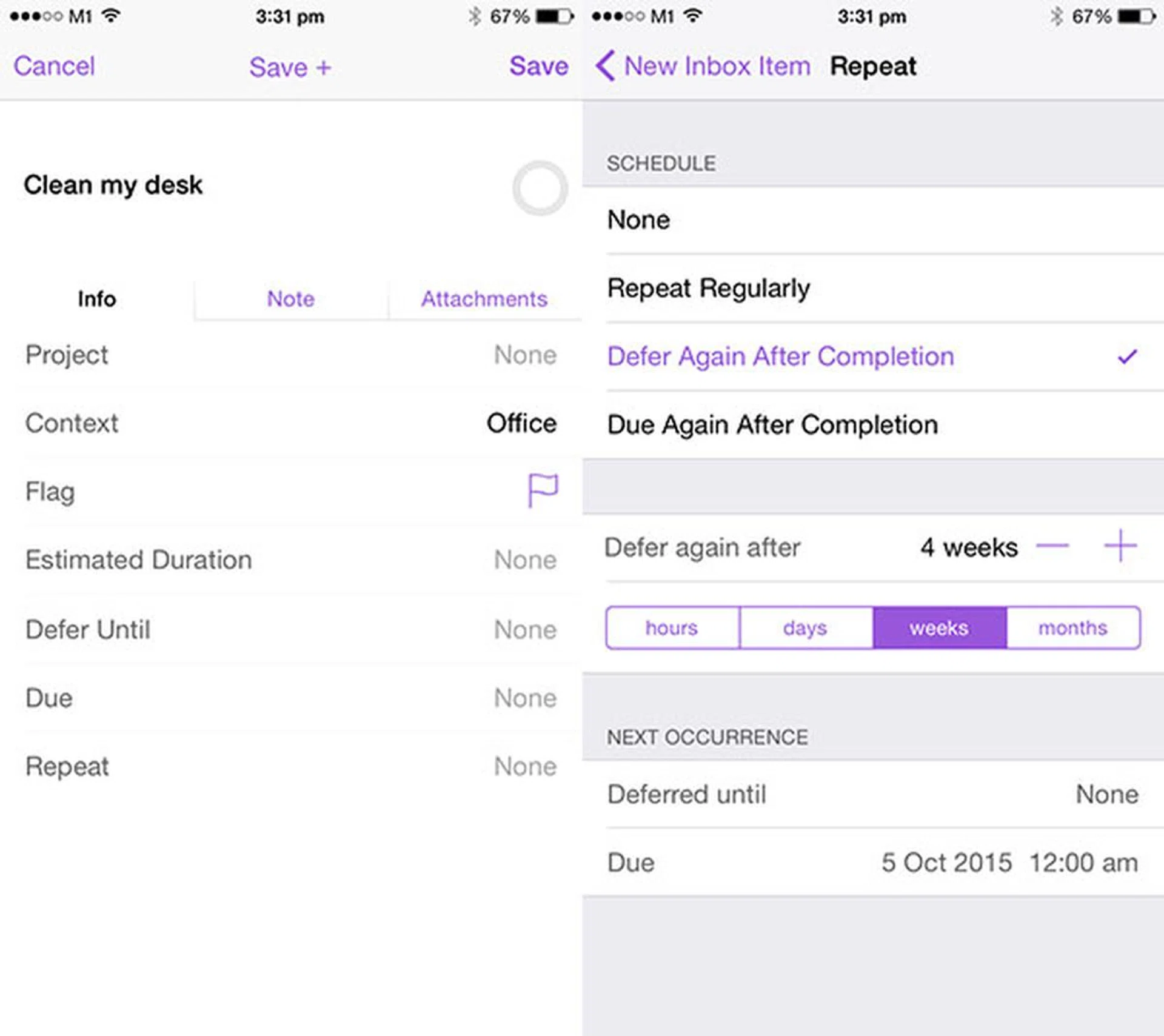
The repeating task won’t have a Due Date, so it’ll just hang there until you complete it again.
Due Again After Completion
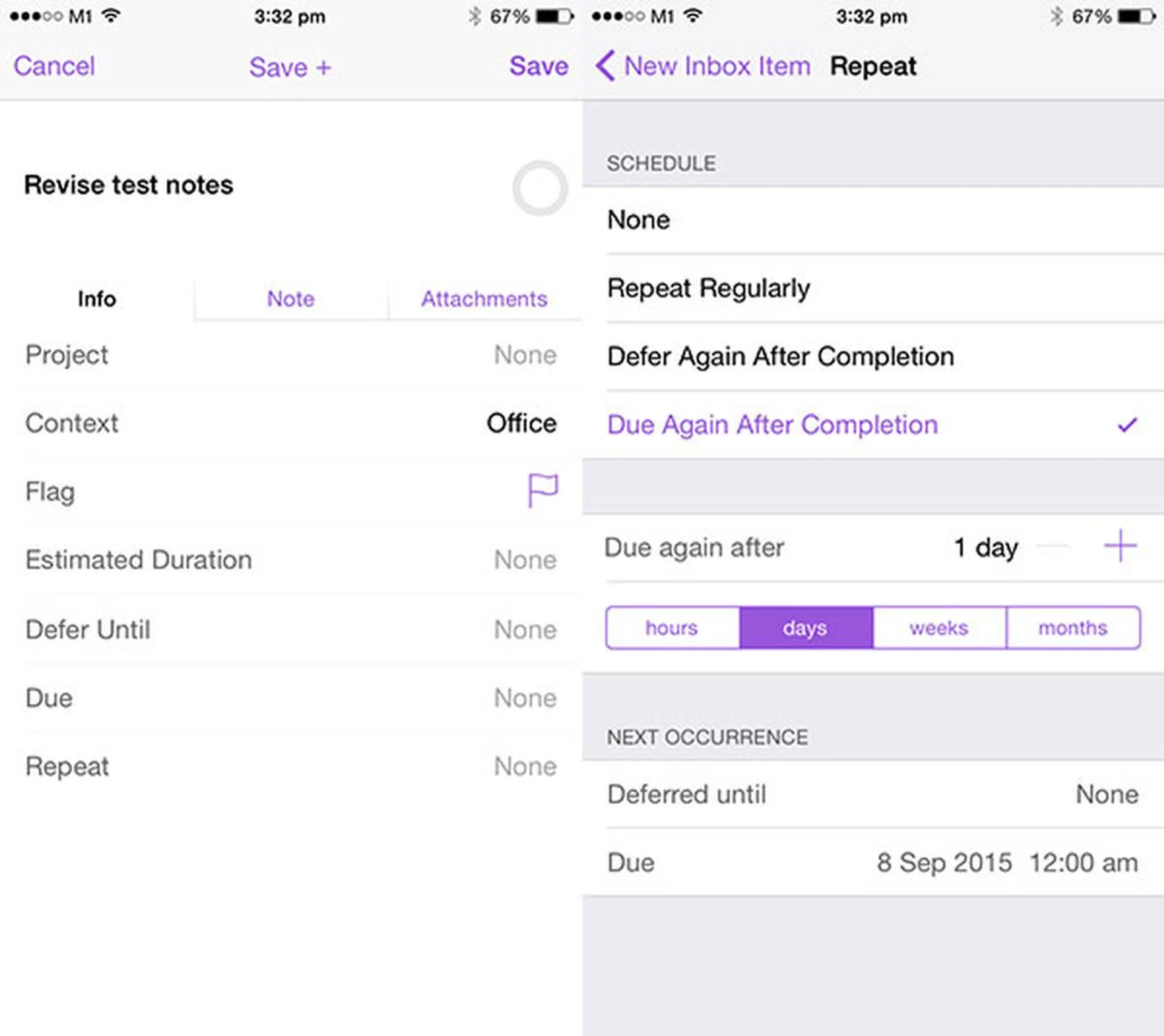
‘Due Again After Completion’ is good for repeating actions that have to be completed at a certain interval after the last one.
For example, you might have an important test coming up, in which case you want to make sure you revise your notes regularly until the test is over. You can create an action to ‘Revise test notes,’ and set it to be due again every 1 day after completion, to make sure you do it daily.
Getting started with Review
The Weekly Review is what keeps your list of actions real and relevant.
Reviewing your projects and actions weekly helps you to clear out anything that’s no longer relevant, and update actions that are still current. It is at the heart of what makes GTD work; trust me when I say that it pays off immensely to make the weekly review a habit.
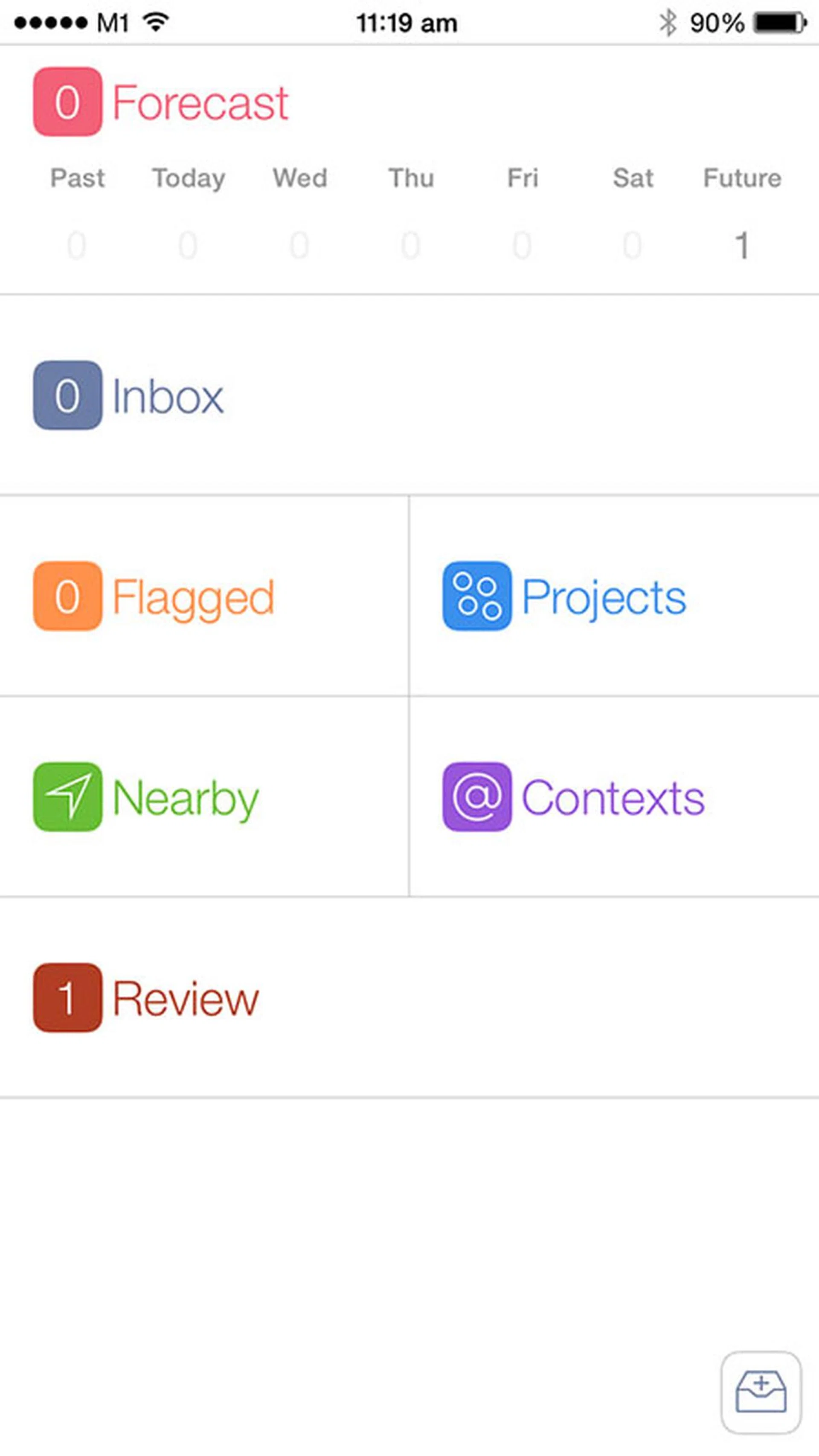
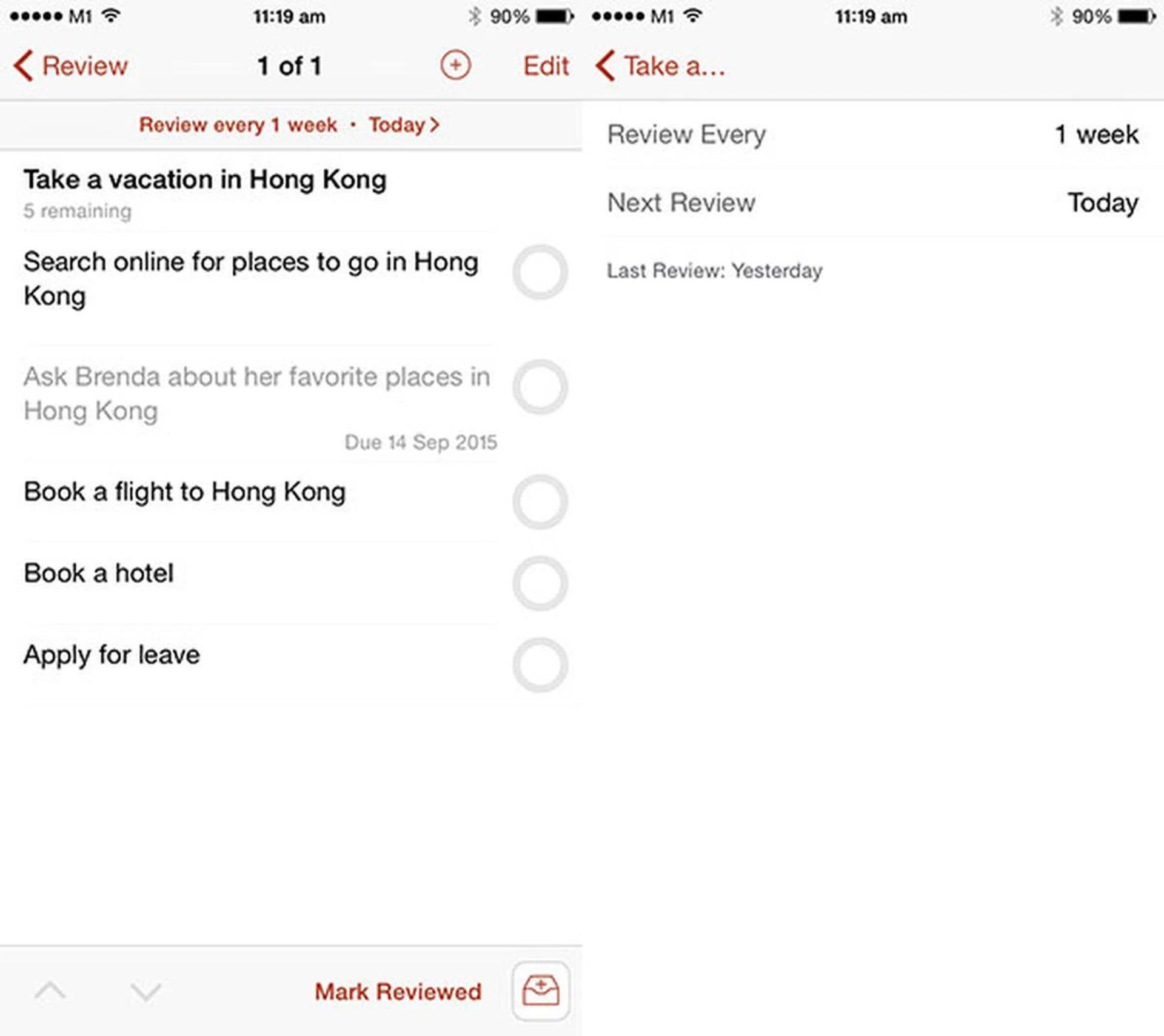
By default, projects and actions are set to be reviewed every one week from the day they’re created, until they’ve been completed or dropped. Remaining items, including deferred items, will also ask to be reviewed. The ‘Review’ tab on OmniFocus’ Home screen will highlight the number of items which need to be reviewed.
On the Review page, projects and actions will appear just like they look on any other task screen. The job is to go through each project and item on your plate, and think through them. Are the projects and actions still up-to-date? Are they still goals you want to accomplish, as well as actions you want to commit to for the week ahead? Are there projects and actions you can cross off your plate, or are there additional projects and actions you want to add?
For example, I may look through my “Take a vacation in Hong Kong” project and realize that I really need to start searching for places to go, so I set a due date for that task. I may then go on to other projects and do similar housekeeping; I may put a project to “Clean the storeroom” on hold because I don’t have time this week, or check off tasks I’ve already completed but forgotten to check off.
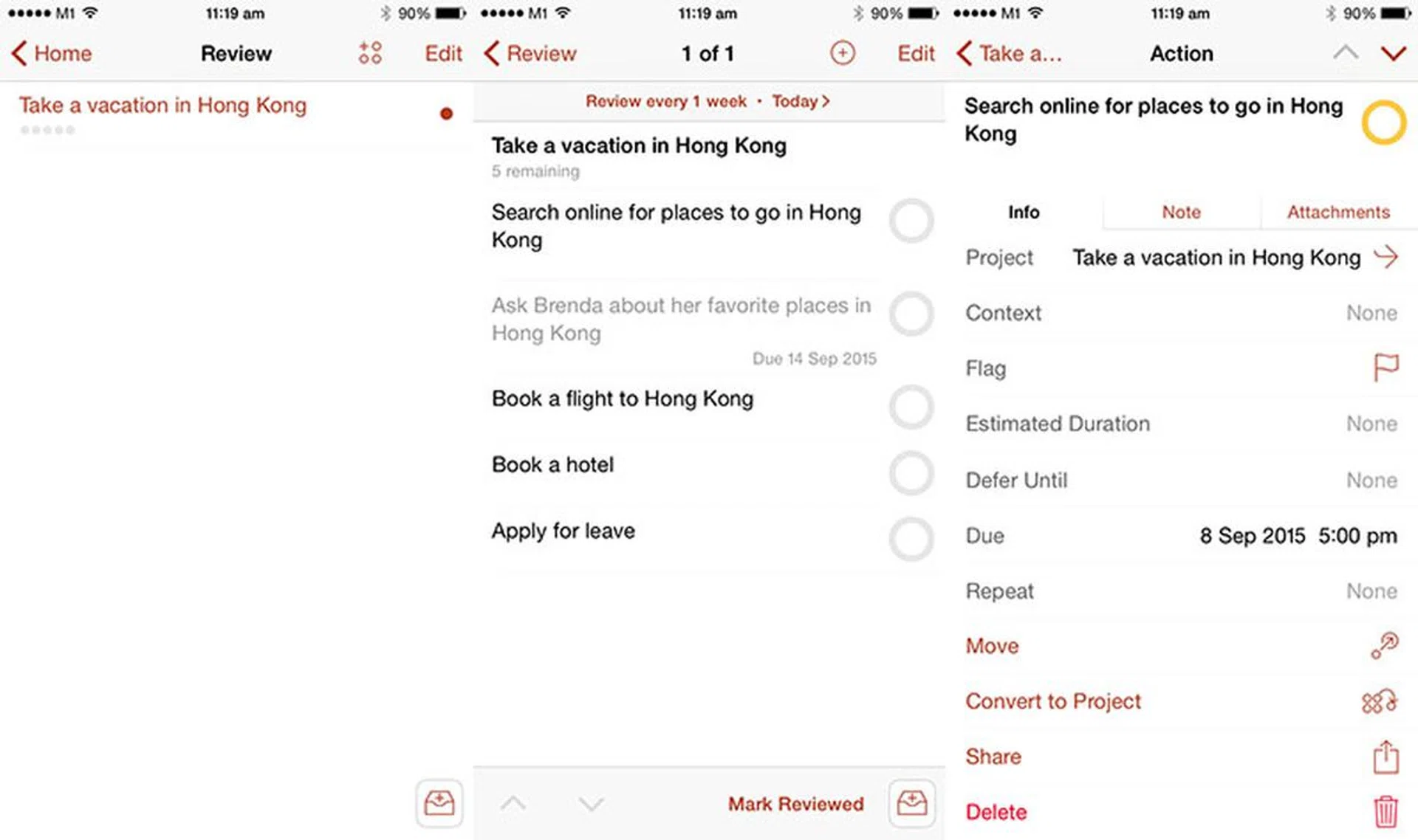
Once you’re done reviewing a particular project or list, tap ‘Mark Reviewed’ on the bottom of the Review page.
You can force a project to be reviewed immediately:
- Tap ‘Projects’ on the Home screen.
- Press and hold on the project’s name.
- Tap ‘Review.’
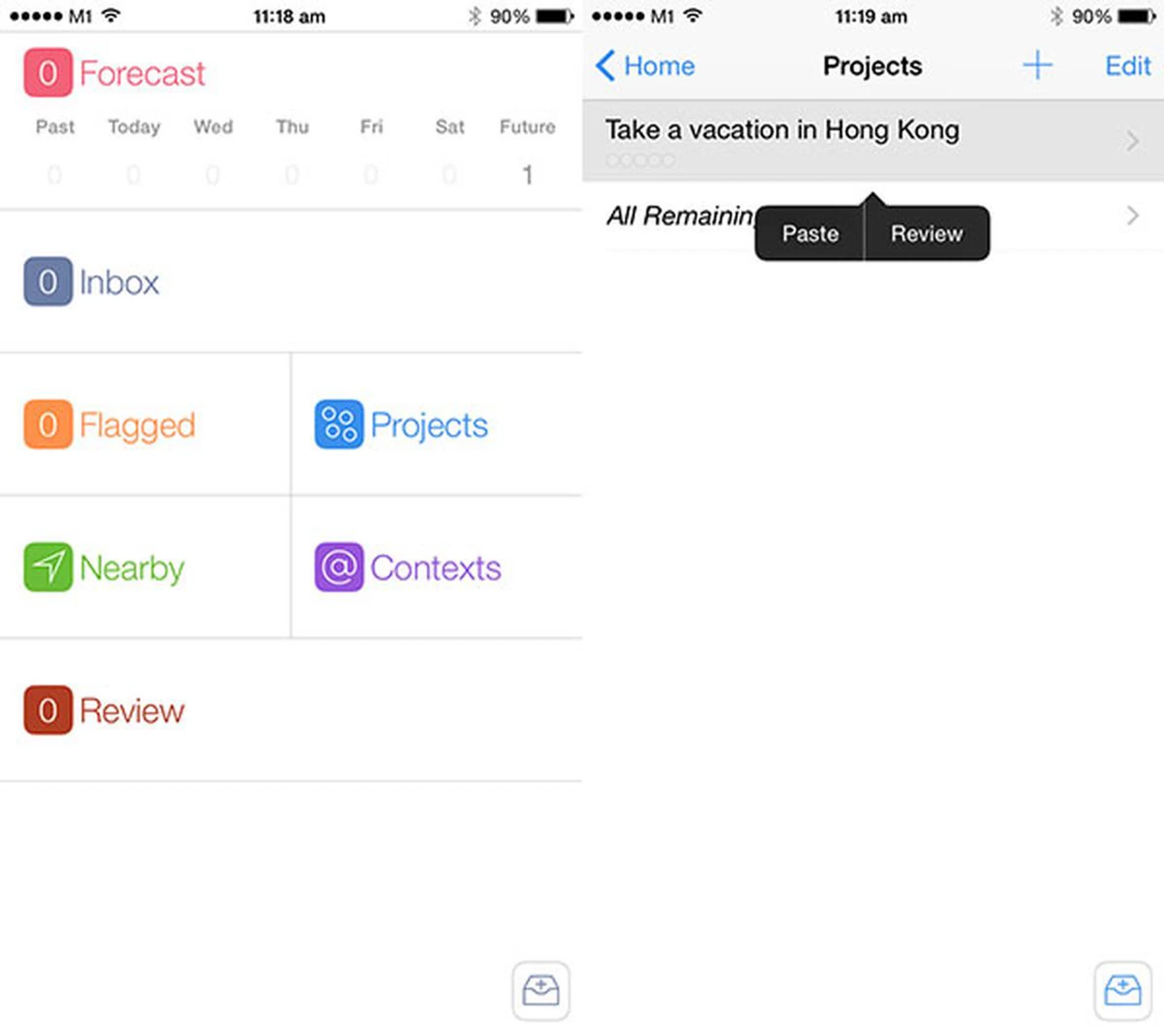
You can also change a project’s review schedule:
- In the Review page, tap ‘Review every 1 week’ on the top bar.
- Pick the review schedule, you can choose to review this project by weeks, months or years.
Getting started with Location Reminders
With Location Reminders, you can set OmniFocus to notify you when you reach an area with actions that are pegged to it.
For example, if you always go to the same supermarket, you can assign that as a location to a Context, say, a ‘Supermarket’ context. When you’re in the office, you might create a new action, ‘Buy milk,’ then set it the ‘Supermarket’ context. The next time you’re in the supermarket, OmniFocus will ping you with a notification to ‘Buy milk.’
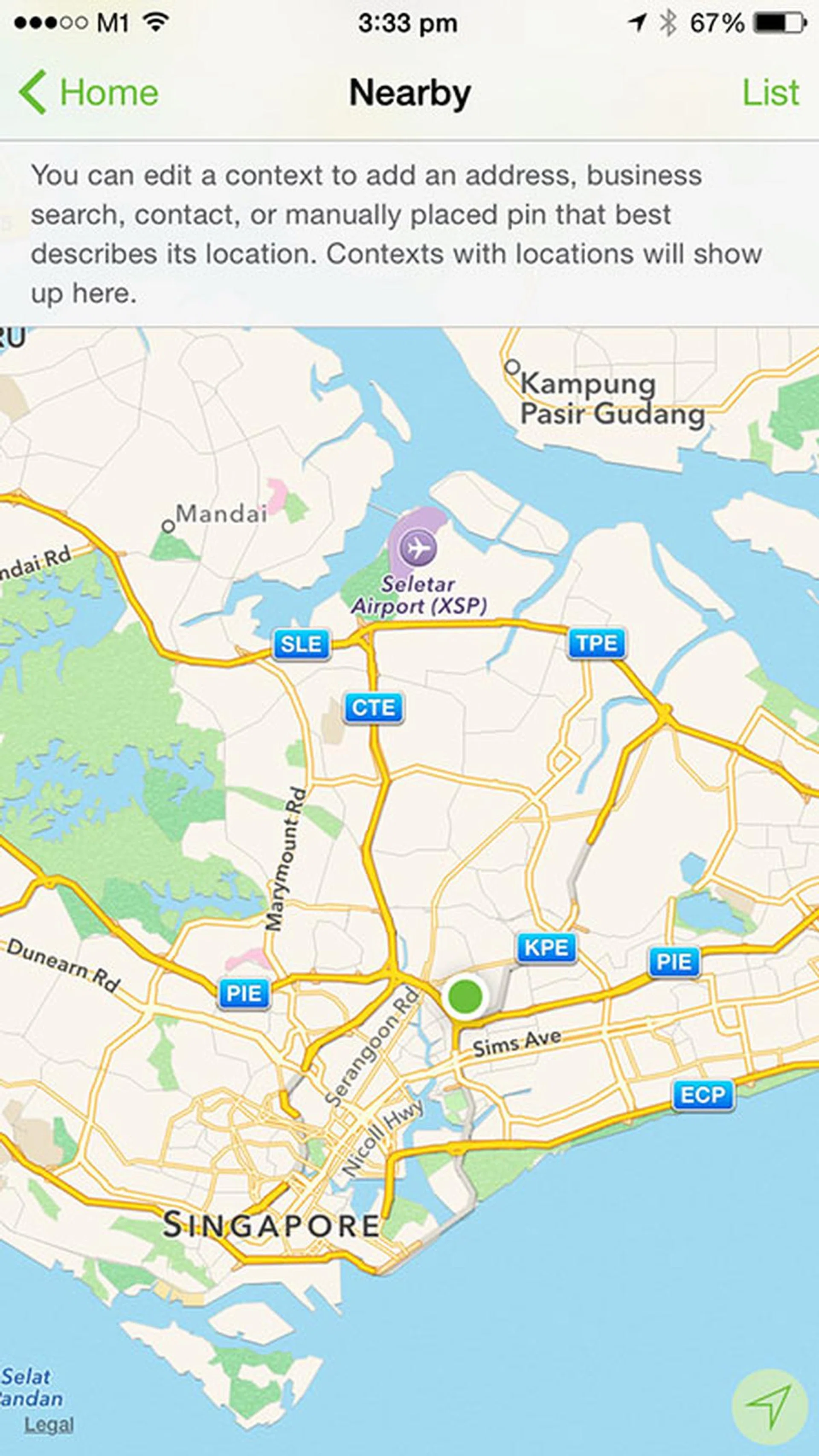
In The Omni Group’s manual for OmniFocus, they warn that the “underlying technology for location reminders on iOS is quirky; you can’t quite count on them to occur perfectly every time you enter the specified area.”
Having location services turned on all the time may also impact your battery life. I don’t use Location Reminders myself, but it’s an extra option to have. Setting up Location Reminders can get a little complicated and is beyond the scope of this beginners’ guide, if it pips your interest, check out the OmniFocus 2 for iPhone manual (PDF link).
Getting started with Siri and OmniFocus
Siri, your iPhone’s virtual assistant, doesn’t work directly with OmniFocus, but she (it?) does work with Apple’s Reminders app, which OmniFocus can pull actions from. I hardly use this feature, as Siri still has problems making sense of my Singaporean accent, but it can be handy from time to time. To make this work:
- Pull down on the Home screen.
- Tap ‘Settings.’
- Under ‘Capture’, tap ‘Reminders.’
- Tap on ‘Allow Access to Reminders.’
- When iOS asks if you want to let OmniFocus access your reminders, tap ‘OK.’
- Turn on ‘Reminders Capture.’
- Choose which Reminders list you want OmniFocus to pull from.
- OmniFocus will save actions from the Reminders list into the Inbox.
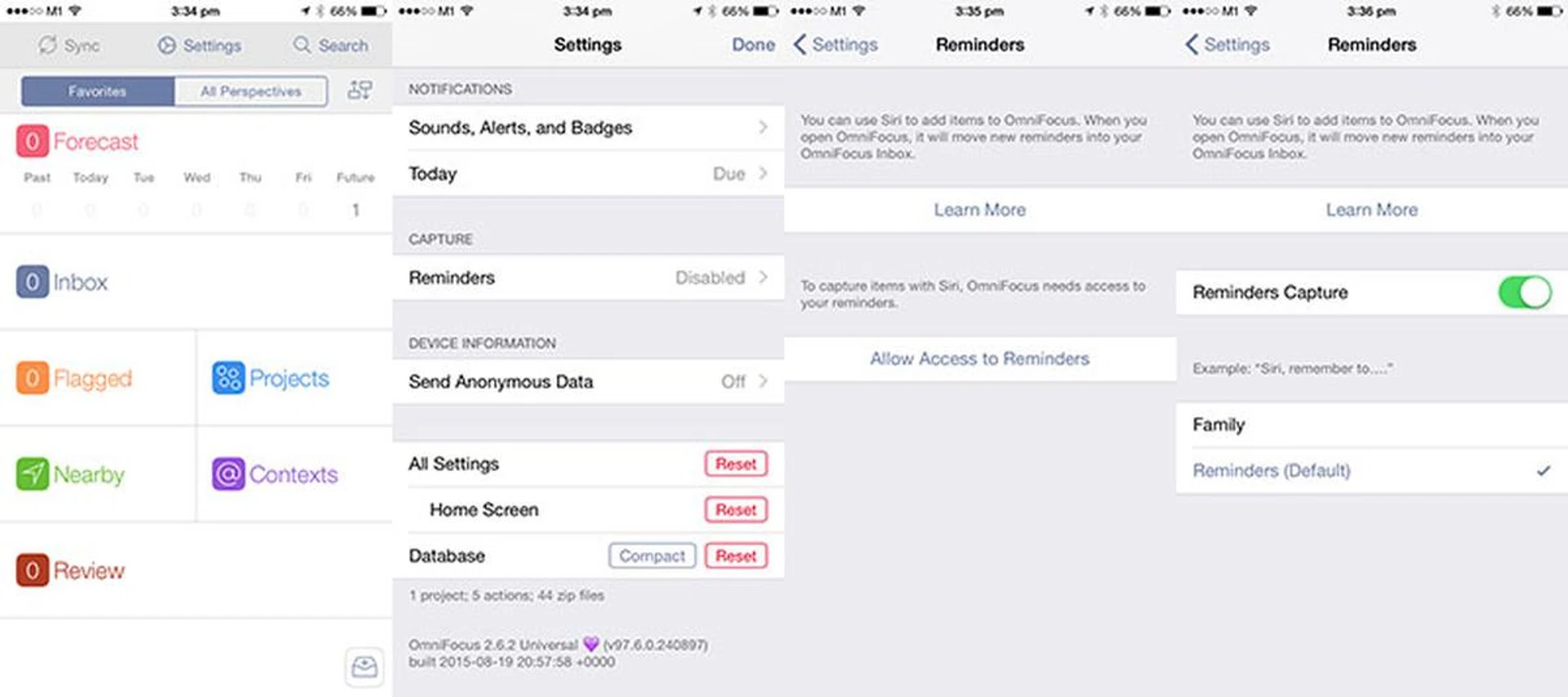
If your Reminders list is the default list; then all you need to tell Siri is: “Siri, remind me to … “
If your Reminders list is not the default list; for example if your default list is the ‘Family’ list; then you’ll need to tell Siri: “Siri, add (action) to my Family list.”
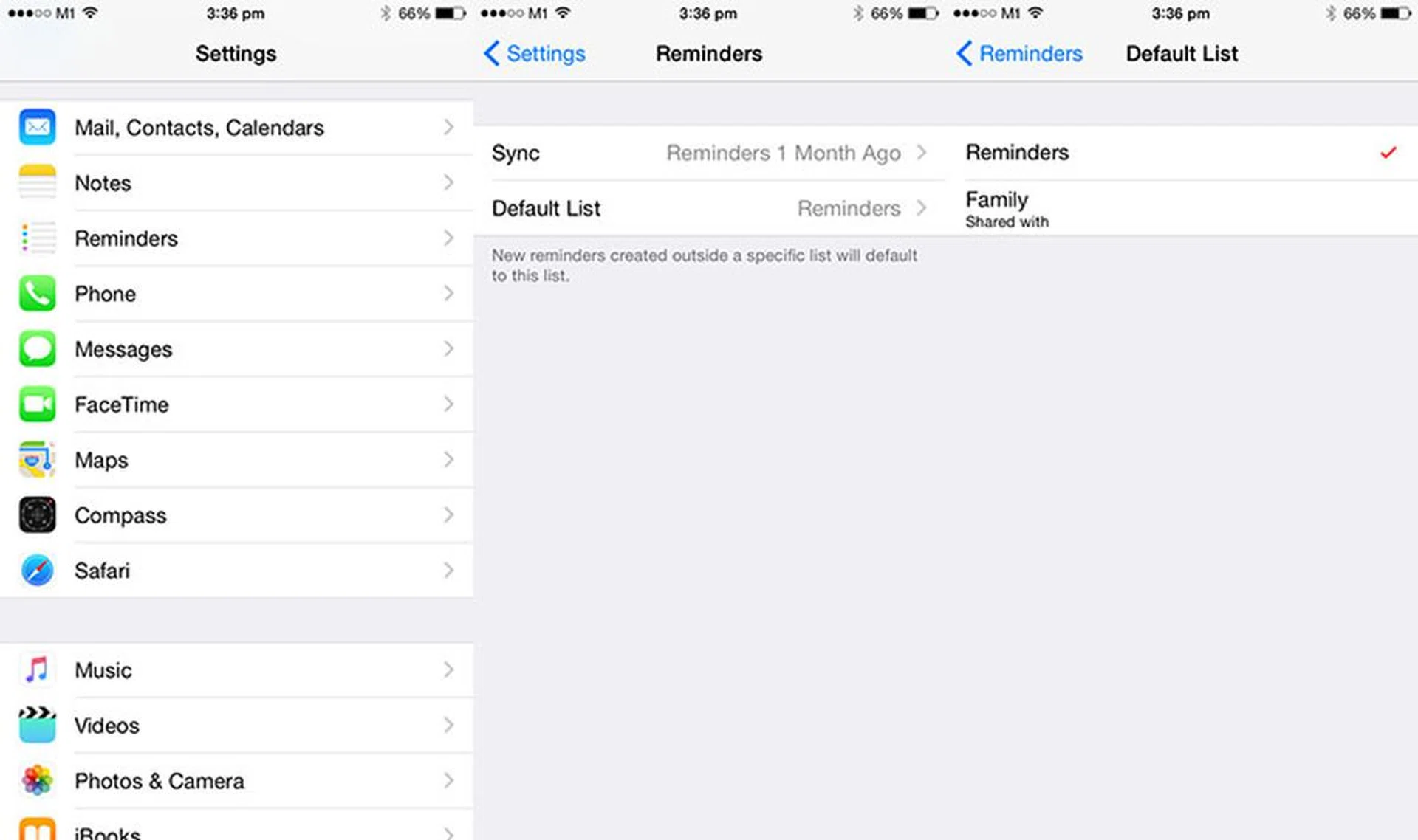
If you want to change your default Reminders list:
- Launch the iOS Settings app
- Tap ‘Reminders’
- Tap ‘Default List’
- Choose your default list
Pro preview: The power of Custom Perspectives
OmniFocus 2 for iPhone comes in two flavors; the Standard version and the Pro version. It’s likely that you’ll start off with the Standard version, but I wanted to give you a preview of one of the Pro features: Custom Perspectives.
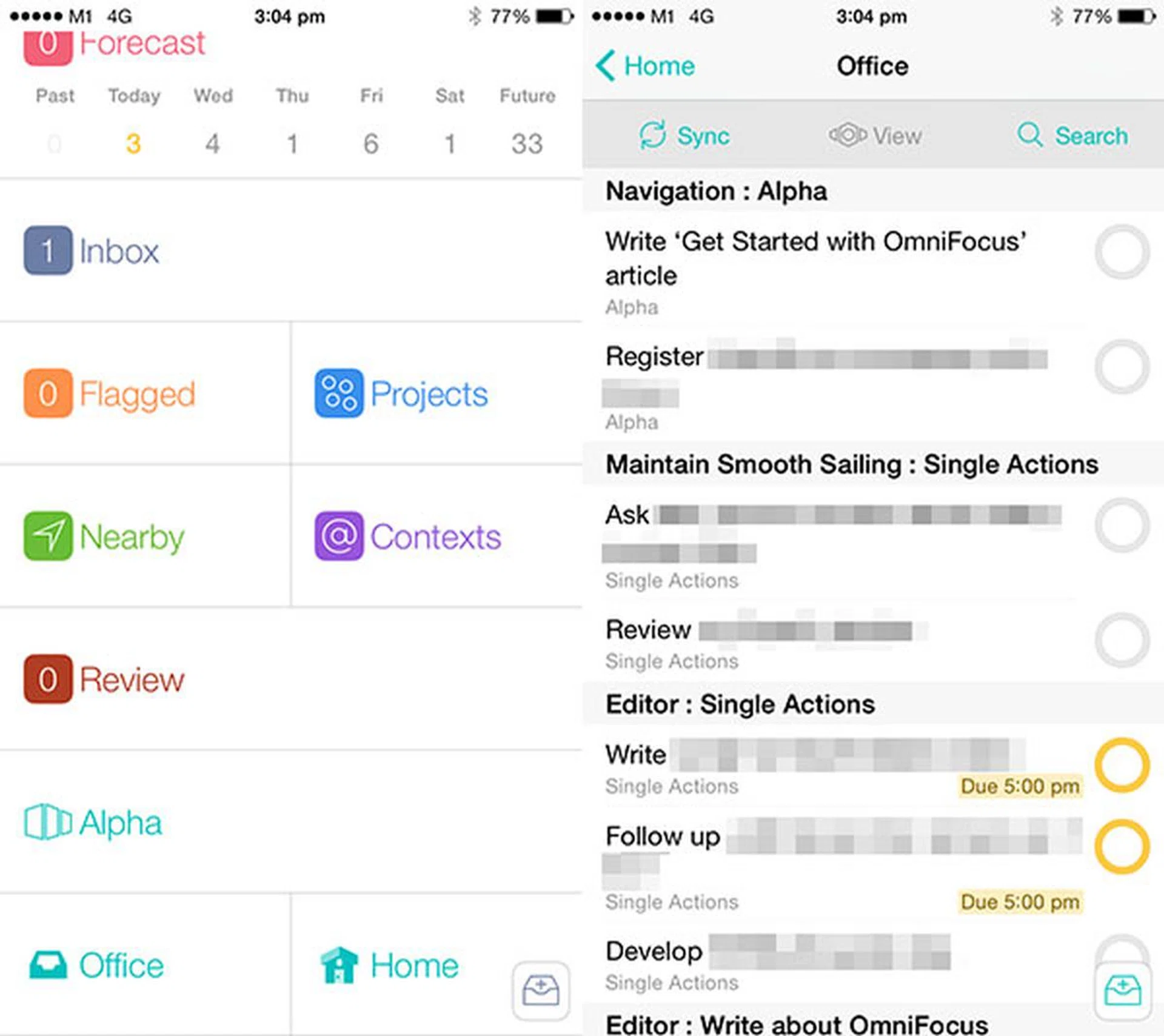
Custom Perspectives lets you create smart lists from your existing projects and tasks. For example, I have an ‘Office’ custom perspective that shows me all the things I can do in the office. The custom perspective differs from the ‘Office’ context, because it can show me tasks from multiple contexts and projects, not just one.
So while my ‘Office’ custom perspective shows me actions tagged with the ‘Office’ context, it also shows me other things I can do at the office; like actions in the ‘iPhone’ context (since I can make calls), and the ‘PC’ context (since I’m at my PC 90% of the time).
You can switch between Contexts like this easily, but Custom Perspectives makes it easy for you to see everything you want to see in one quick tap.
Welcome to the GTD matrix
GTD and OmniFocus is a rabbit hole that can get deep. Arming yourself with the basics can take you far, but digging deeper into GTD’s best practices and OmniFocus’ advanced settings can take you much further. I’ve been GTD-ing for the past eight years, started off with Things when it first launched, then switched to using OmniFocus for the past four years, and I’m still learning something new from time to time.
I hope you’ve found this guide useful, and if you want to go even deeper, I suggest you check out David Allen’s Getting Things Done book, and read the OmniFocus 2 for iPhone manual (PDF). Have fun!
Our articles may contain affiliate links. If you buy through these links, we may earn a small commission.