
Are you Ready for Windows 7?
Sporting fewer stream processors and lower clock speeds than the Radeon HD 5870, the Radeon HD 5850 has thus far been largely overlooked. Today, we are checking out the little brother of the Cypress range to see what kind of performance it brings to the table.
Seven Things
With plenty of positive reviews around for the beta and release candidate versions of the OS, Windows 7 looks set to change things around for the better. Sure, who can forget the disastrous launch on Windows Vista, but that's all behind us now. Based on the same platform, Microsoft seems to have learnt plenty from the lessons of the past and have made sure that there's plenty of driver support for the new OS. And thanks to the same driver model base as Windows Vista, it should be plenty much easier and faster to get new updates or support for your hardware in Windows 7.
Things seem to be definitely looking up. So now that the official launch date is here, it's time to do an upgrade. Here at HardwareZone, we've gotten ready a guide and introduction to all things Seven, from what's new and awesome, to the tweaks you can use that come all ready to go in the new OS. We've even tossed in some performance guides and results from our testing of the OS, so what are you waiting for? Click away!
- 1. One for the Road - What's New?
- 2. Two Be Ready - Homegroups
- 3. Three's the Charm - Power Tips
- 4. Four the Win - Performance Testing Set Up
- 5. Five For Fighting - Benchmarking Continued
- 6. Six-y Performance - Real World
- 7. Seven For Seven - Conclusion
One for the Road - What's New?
With all things new, there's plenty to look forward to. After all, it's not that easy to churn out a new Operating System (OS) and when it does come about, it better have good reasons to encourage folks to make the switch, such as the enhancements to the User Interface (UI) for example. So let's take a quick look to see what Windows 7 has up its sleeve for the users.
Easy Sharing with HomeGroup
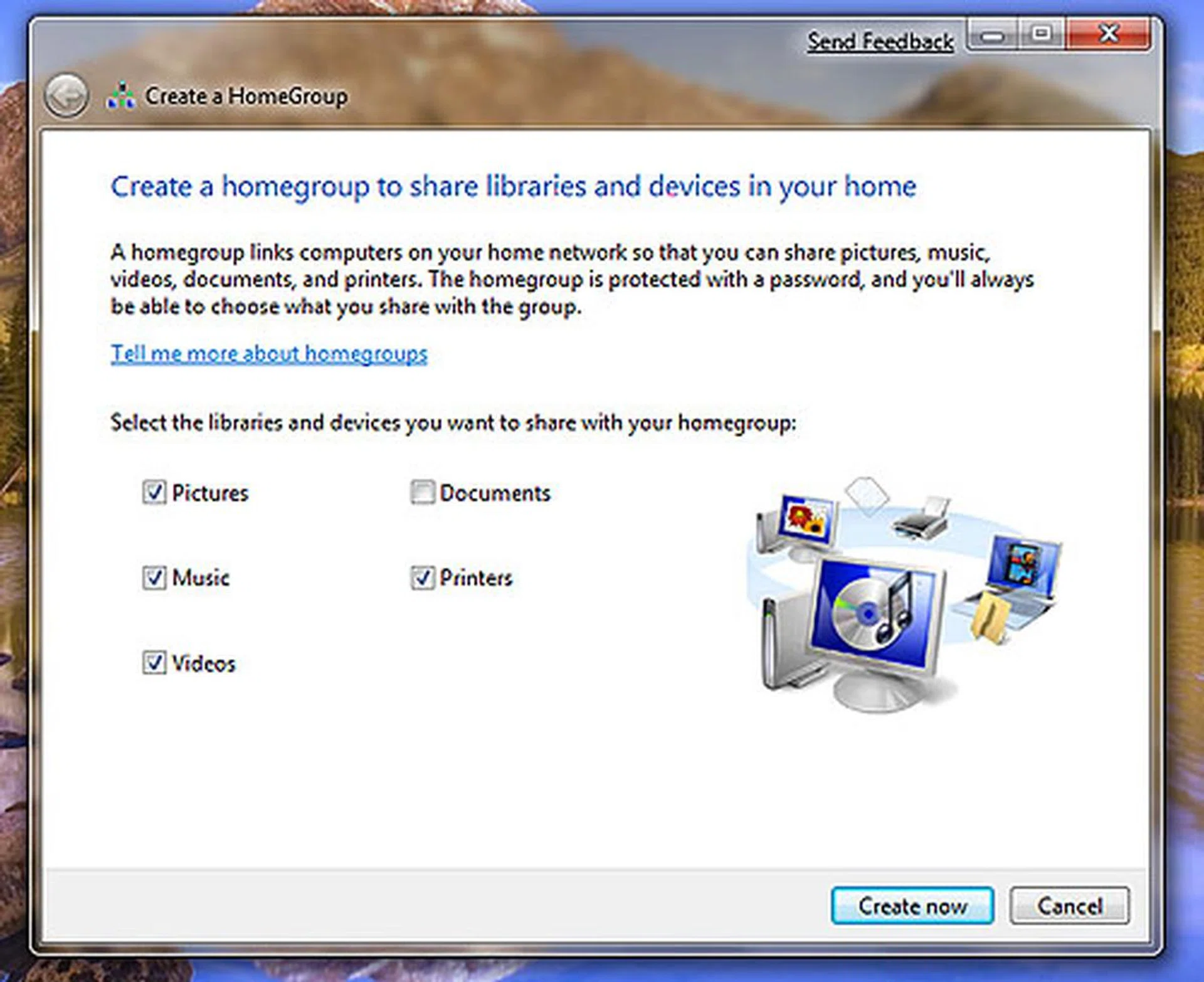
Windows 7 makes sharing files easy - just create a HomeGroup on your home network, select which libraries (another new Windows 7 feature which consolidates your media across different folders) and devices to share with, get a password and you're done. No more fussing about with confusing network settings and network drives (an issue which plagues most of us, all of the time, especially in a large office environment like our own). More details on setup and usage on the following page.
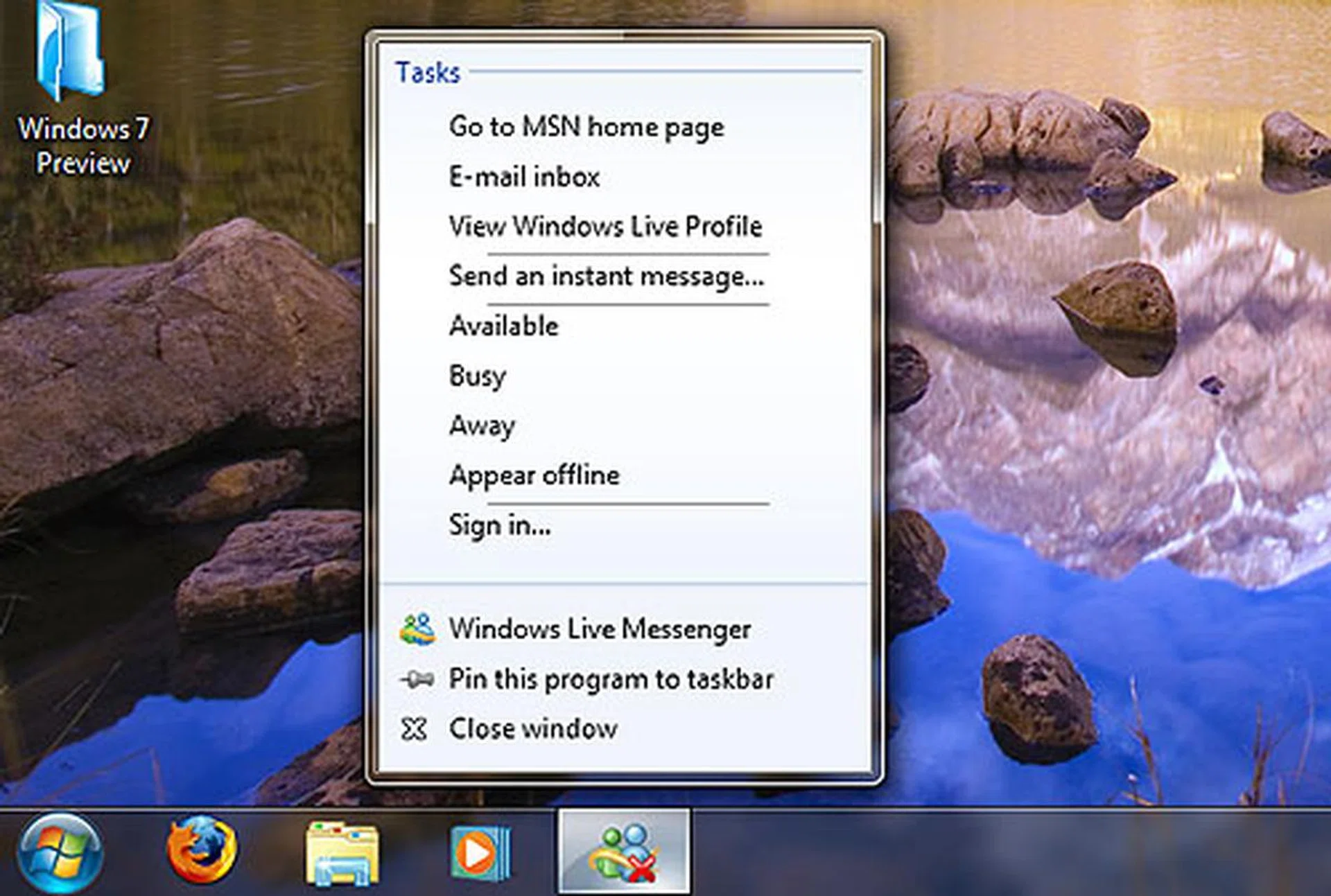
A New Taskbar
The most noticeable change in Windows 7 is the thicker taskbar. The first major overhaul since Windows 95, the taskbar is now both an icon-driven application launcher, and an applications manager with Aero Peek and Jump Lists (more on these later). Action Centre consolidates notifications, giving you action steps and reduces distracting notifications. This new taskbar user interface makes getting things done easier, and is one we give two enthusiastic thumbs up for (or three, if we happened to have another arm).
Windows Gestures
Windows 7 marks a leap towards a more intuitive user interface with gestural shortcuts. Dragging a window to the top edge maximizes it, dragging it off restores it. Drag a window to the left or right edge and it takes up half of the screen; making it really easy to put two windows side by side. Coolest of all is Aero Shake; grab a window's title bar and shake it to minimize every other window to reduce visual clutter, and shake it again to restore them back.
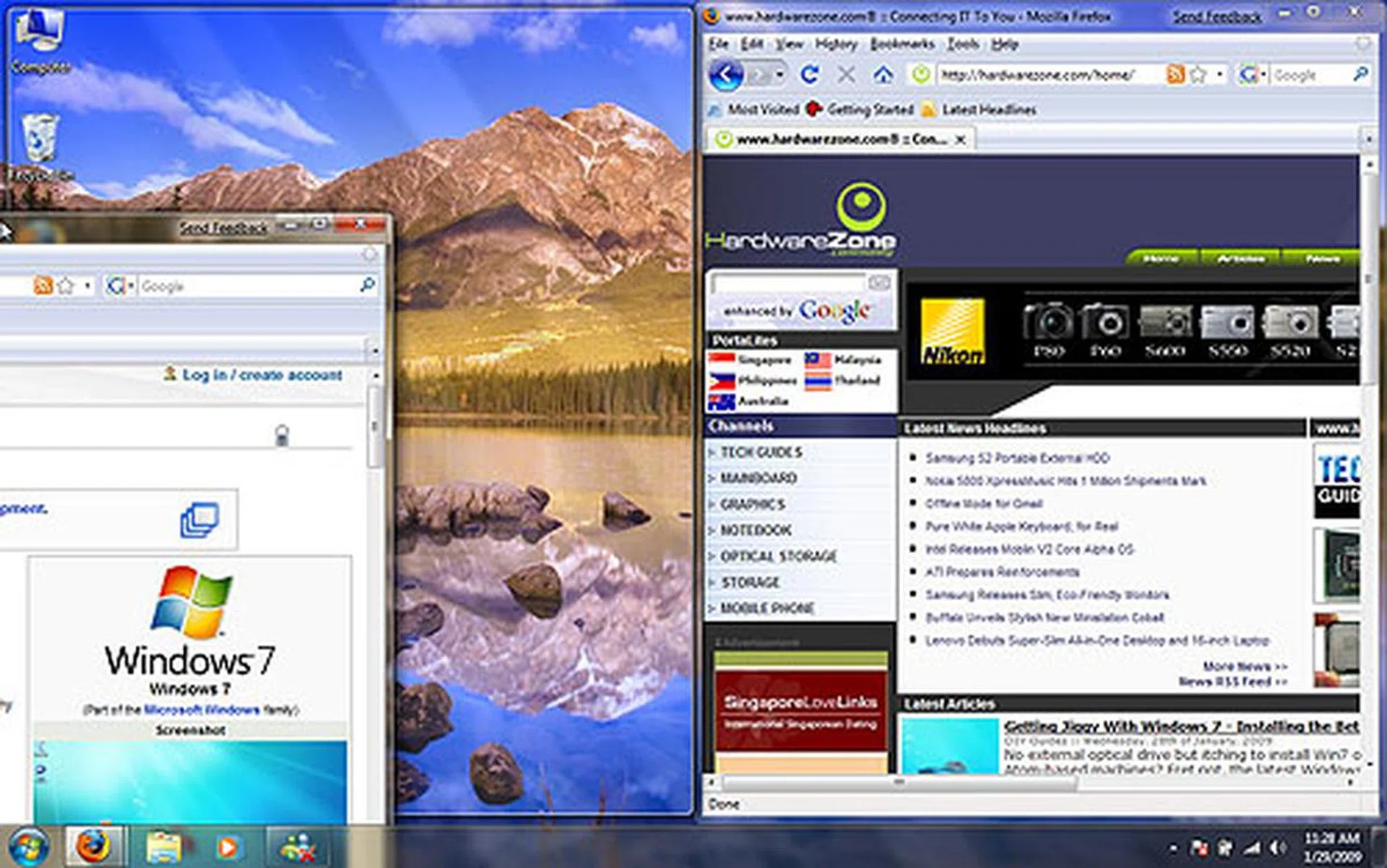
New Shortcuts
Windows 7 adds a batch of new shortcut keys that make use of the Windows button to control... Windows! Pressing Win+Up on your keyboard maximizes the current window, Win+Down minimizes or restores, Win+Left/Right docks the window to either side, Win+Home will clear all windows besides the current one and Win+Space will make all windows transparent. You can see this in action in our screenshot - and yes, that's Aero Peek at work.

Two Be Ready - Homegroups
One of the niftier features of Windows 7 is the ease of file sharing between a home network, thanks to the Homegroups feature of the OS. Once set up, a Homegroup easily allows PCs to share files between PCs without going through the hassles of messing around with the file sharing permissions. It's mostly an automated process, with Windows easily detecting if there's an existing Homegroup in place and prompting you to join one, or if there's none and asking if you would like to set one up.
So there's really no need to mess around with file sharing permissions, workgroup settings or mapping drives just so you can share your files on your home network. And the best part? Homegroup is as mentioned, really simple to set up. Here's a quick pictorial guide below on getting started.
Note that if there's already a Homegroup set up on the network you won't be able create one. Instead, you can only share the group. So yes, you can have only one Homegroup - reason being Microsoft wants to simplify sharing for home users. Another caveat for Homegroup to function is that all other systems should be using Windows 7 as well. So it's probably not something you can use immediately until you've upgraded your other systems.
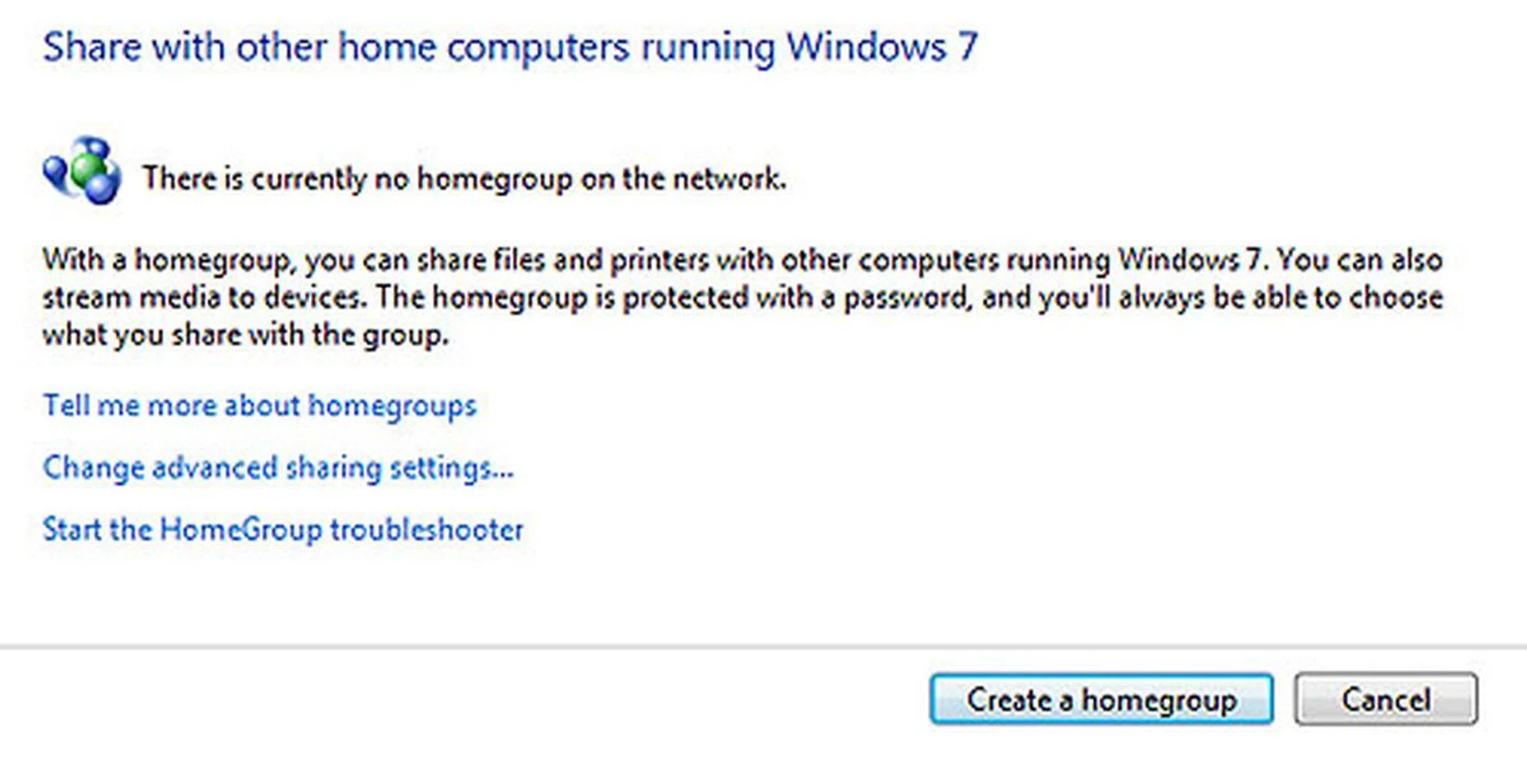
To set up a Homegroup, just hop on over to your Control Panel. Then click on the Homegroup icon and "Create A Homegroup".
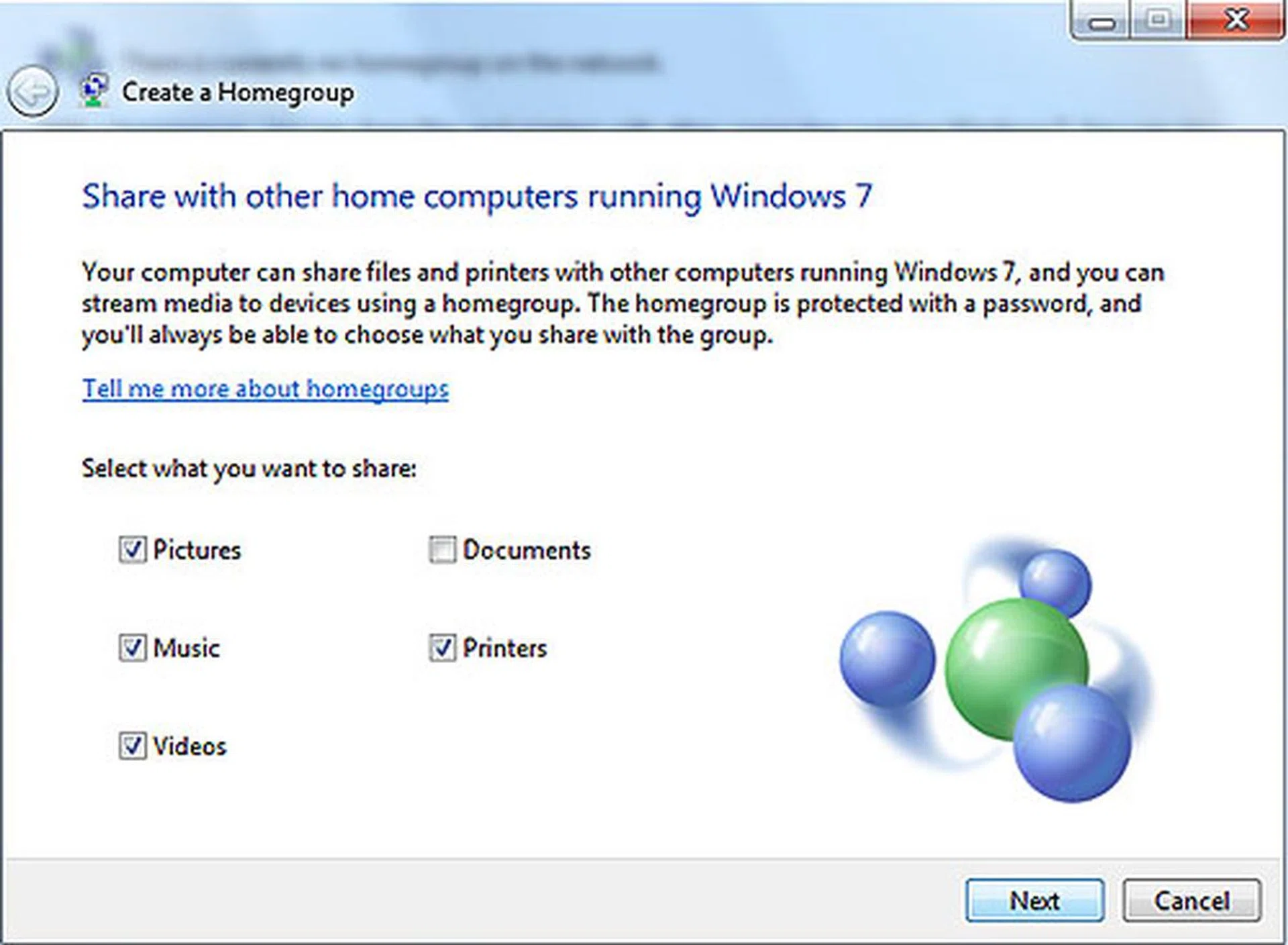
Click next where it will auto-generate a password for others to connect to your computer.
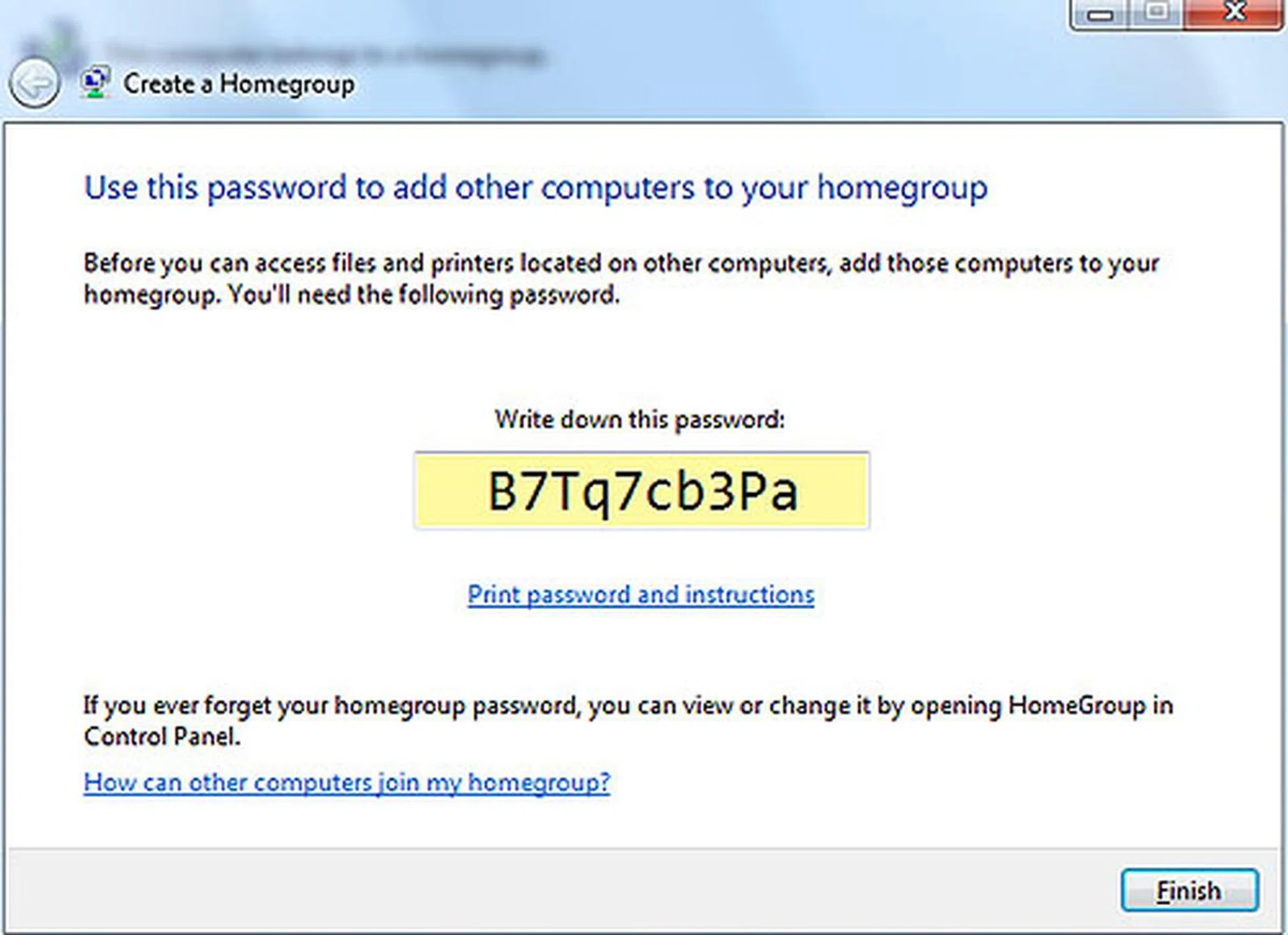
The generated password can be a pain in the butt for others to log into your Homegroup, so let's change it.
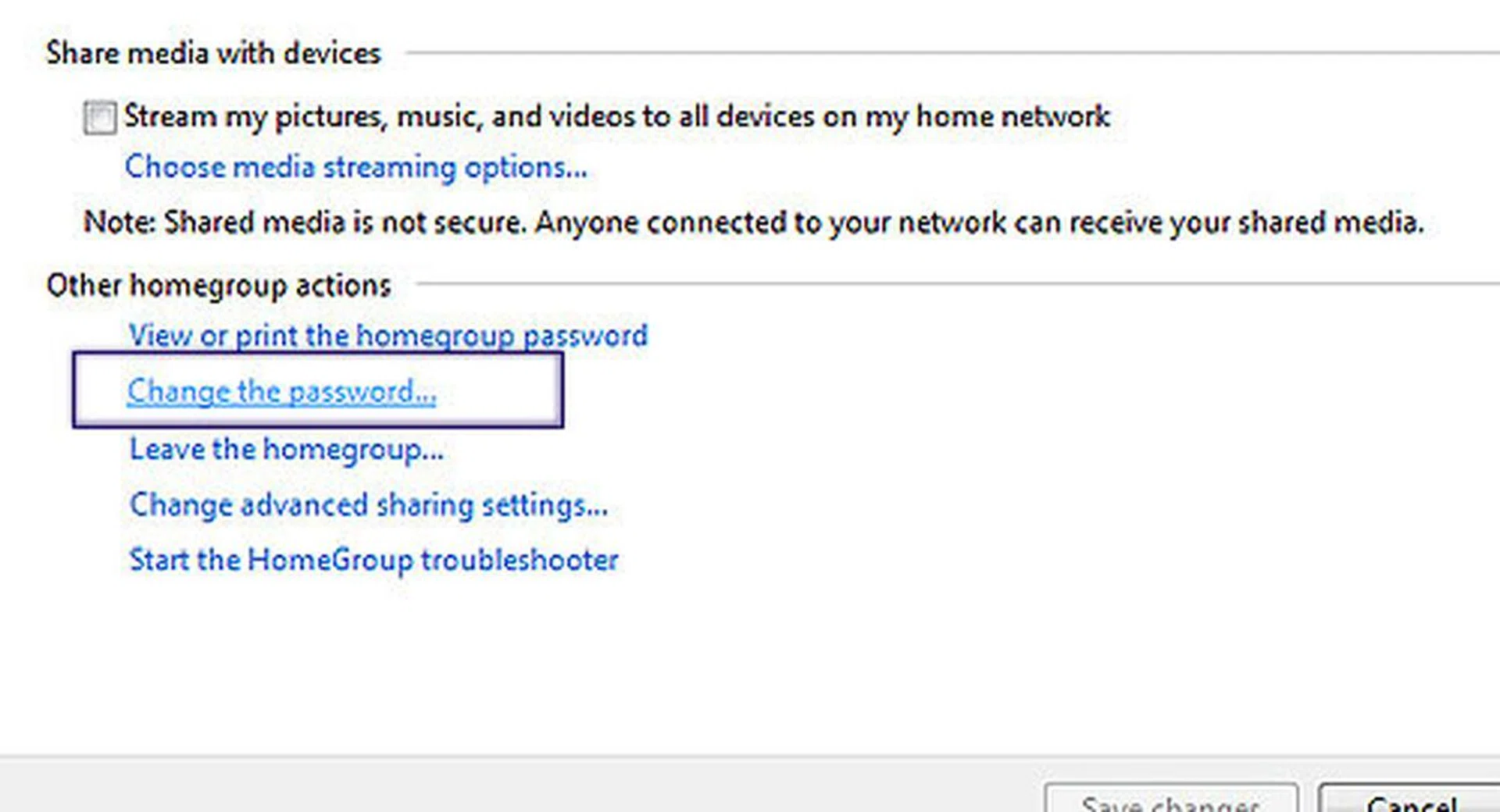
Click on the Homegroup icon at the Control Panel again. Then select "Change the password".
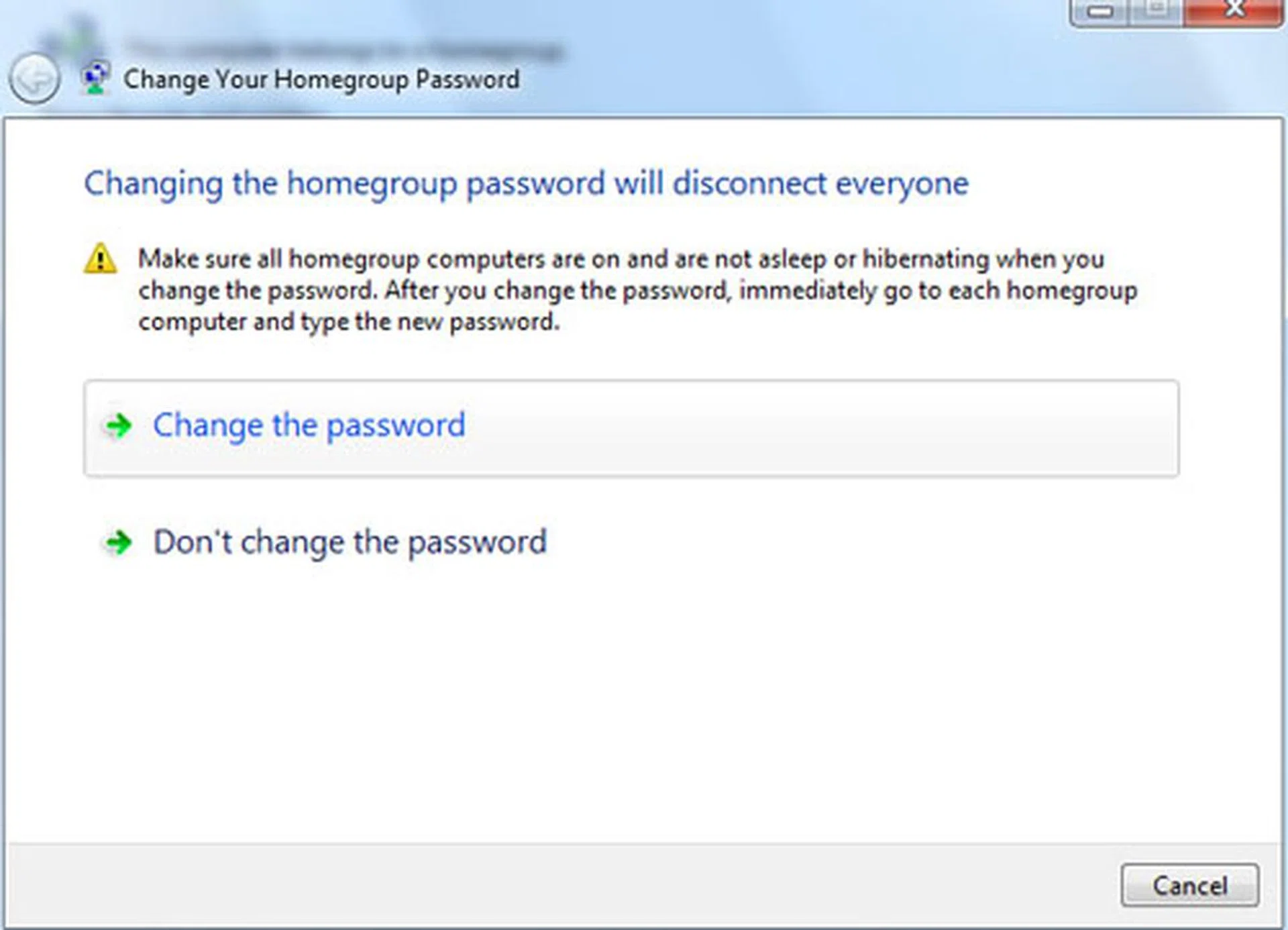
Finally, follow through and change the password to something much easier for others to log onto your Homegroup.
Three's the Charm - Power Tips
There's plenty more in Windows 7 that will rock your socks - so here are seven power tips that you should know for a better experience with the OS. Of course, the usual caveats apply, so if you're not comfortable with changing some settings, it's best that you don't. However, the items listed here are simple enough that should be easily doable for almost everyone.
1. Calibrate Windows 7
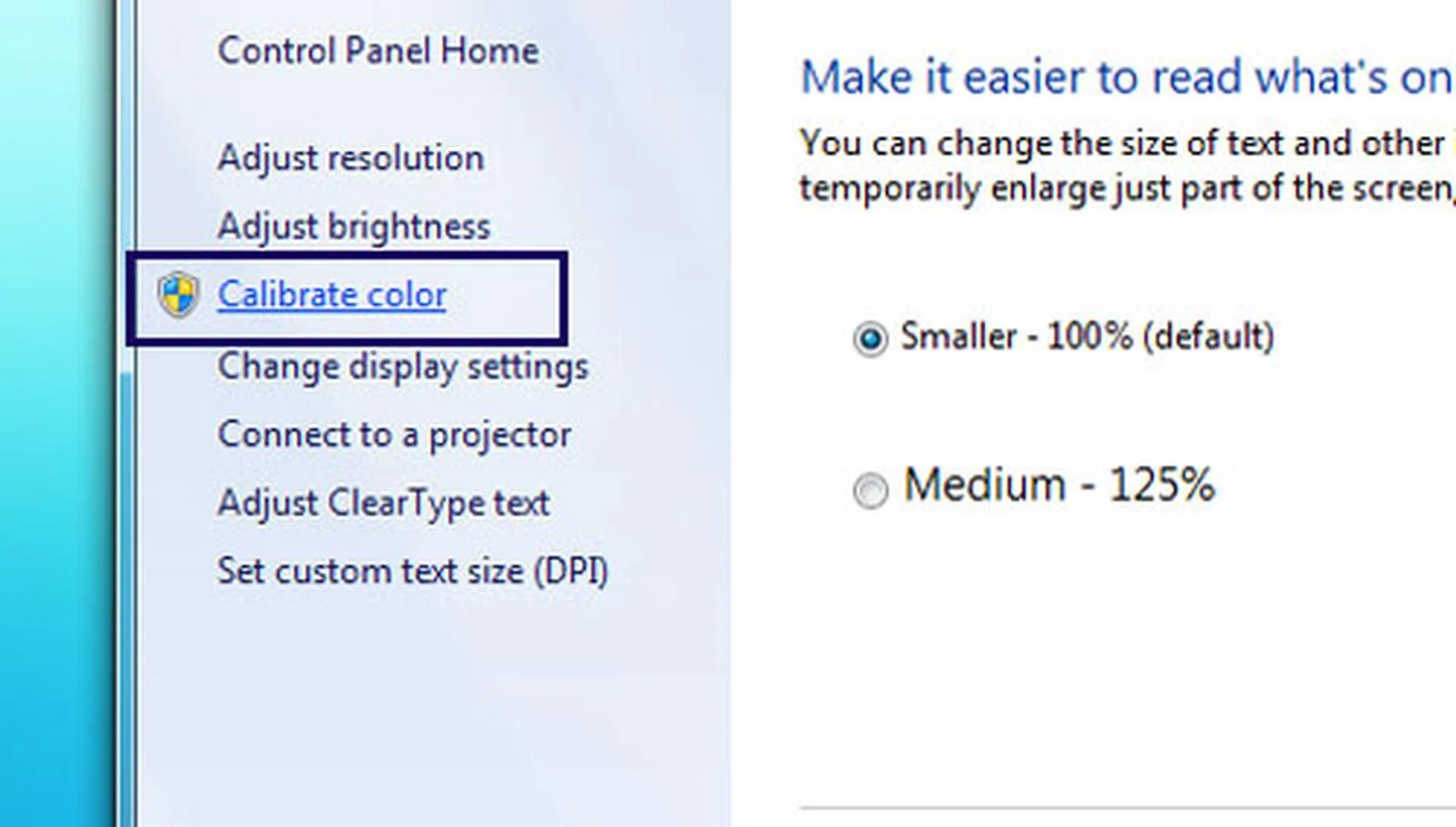
Windows 7 helps you calibrate your monitor to get your colors looking right. Go to the Control Panel > Appearance and Personalization > Display, click Calibrate color and follow the easy instructions. Instead of messing with the wrong color settings, it's now a much easier process with minimal fuss.
2. Open Folder in New Processes
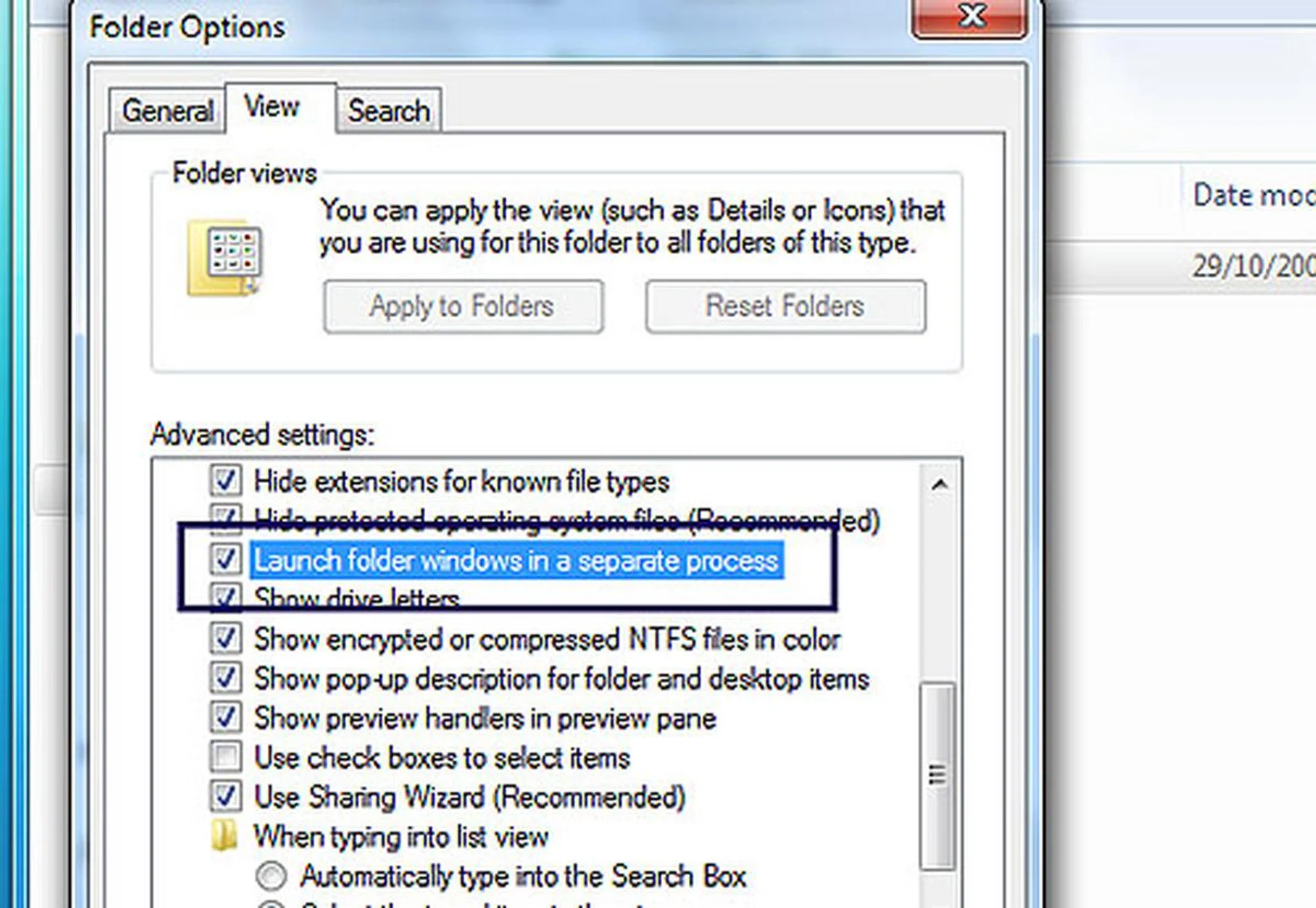
Windows Explorer opens new folders in the same process, this saves resources but if one folder crashes so does Explorer. Open Explorer, click Organize > Folder and search options, go to View and check 'Launch folder windows in a separate process.' This time, if one should fail, the other folders won't - similar to how some browser windows work. Note that this will take up more resources, so don't use this if you have a low-end computer.
3. Encrypt your Files
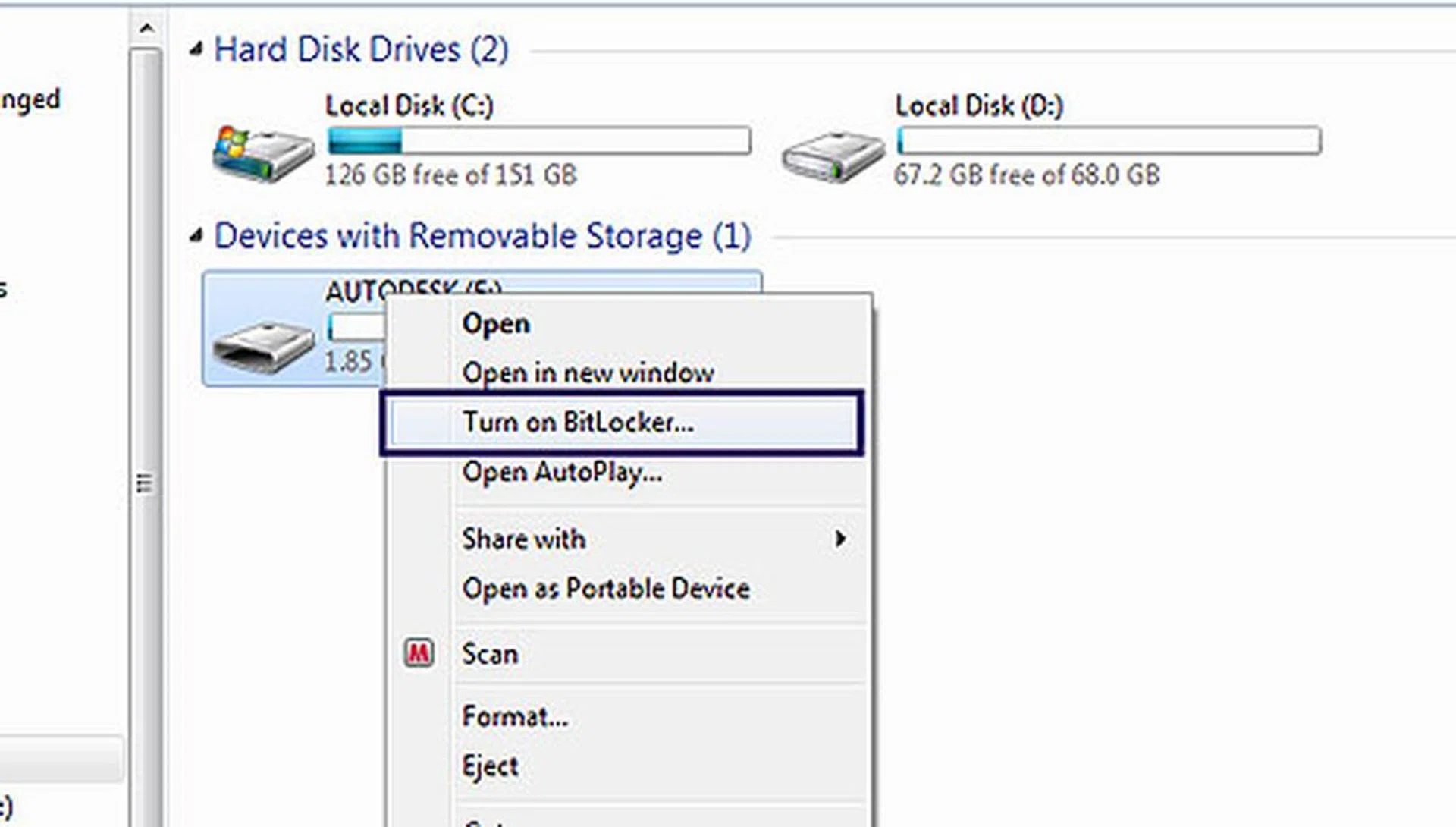
Not many folks know about this, but if you want to keep the info on your thumb-drive for your eyes only, you can do so with the built-in BitLocker application. Right-click your thumb-drive, click 'Turn on BitLocker' and it will now be encrypted. It can now be read on Windows PCs only with the right password (even on PCs without BitLocker installed). The only problem though, is that the BitLocker option is only available on Ultimate and Enterprise editions of Windows 7. But if you're a security freak, then do give the Ultimate edition a shot.
4. No Annoying UAC
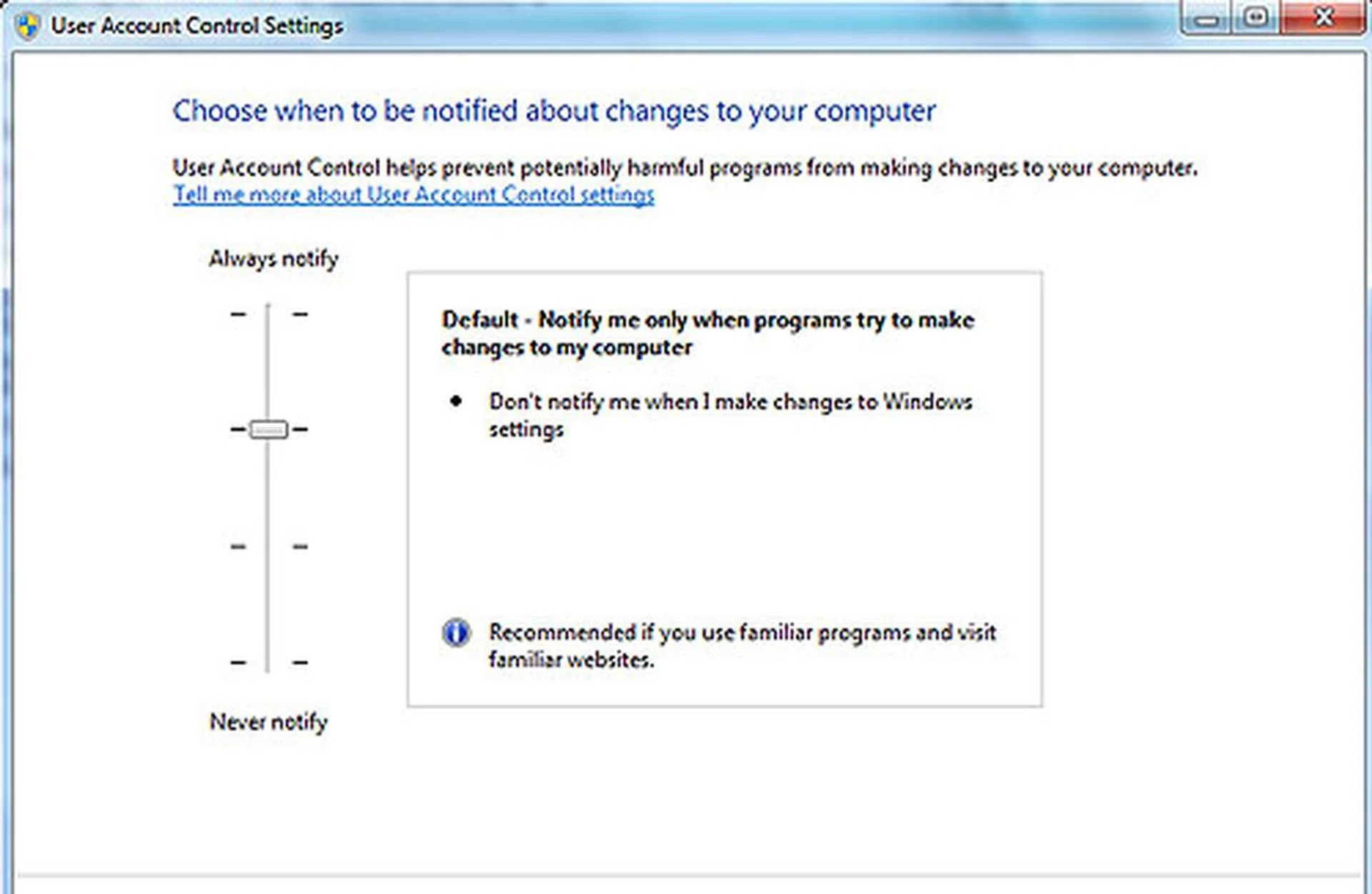
Windows 7 comes with User Access Controls which you can set it to distinguish between user-initiated and software-initiated actions. So now you can set Windows not to ask if you want to let yourself to do what you just did. That sounded weird, didn't it? But that's exactly the silly intervention Vista users had to deal with and instead resorted to completely disable this function that was meant to protect users. Finally, we have a change we can believe in, and it's something we actually like compared to what was available on stubborn Vista.
5. Built-in GPU Transcoding
Windows 7 supports hardware GPU transcoding - in English, this means that Windows 7 can take advantage of your graphics card (GeForce 8 series or ATI Radeon HD 2000 series and newer) to convert a video into another format that's suitable for playback on a compatible portable media player. There's no need for additional third party software as this works by a simple drag and drop. It's quite a limited (though useful) feature that sadly doesn't extend to converting video files without going through the portable media player device.
Still, it's a decent enough enhancement that makes better use of your computer's horsepower and is a simple enough procedure that works to understand the connected device's capabilities when connected and automatically does the required conversion. Power users would definitely want to have all the control they need, so Microsoft left the advanced options out and just kept it to the basics. Exactly when would a typical end-user require transcoding? Why, it's when you need your audio/video to be ported to your portable media devices. So that's exactly when this transcoding functionality kicks in!
If you don't have a compatible discrete graphics card for GPU enabled transcoding to take place, well fret not, the automatic transcoding would still work, but it will just take a longer time since it will then be taxing your system's CPU.
6.Jumping and Pinning from the List
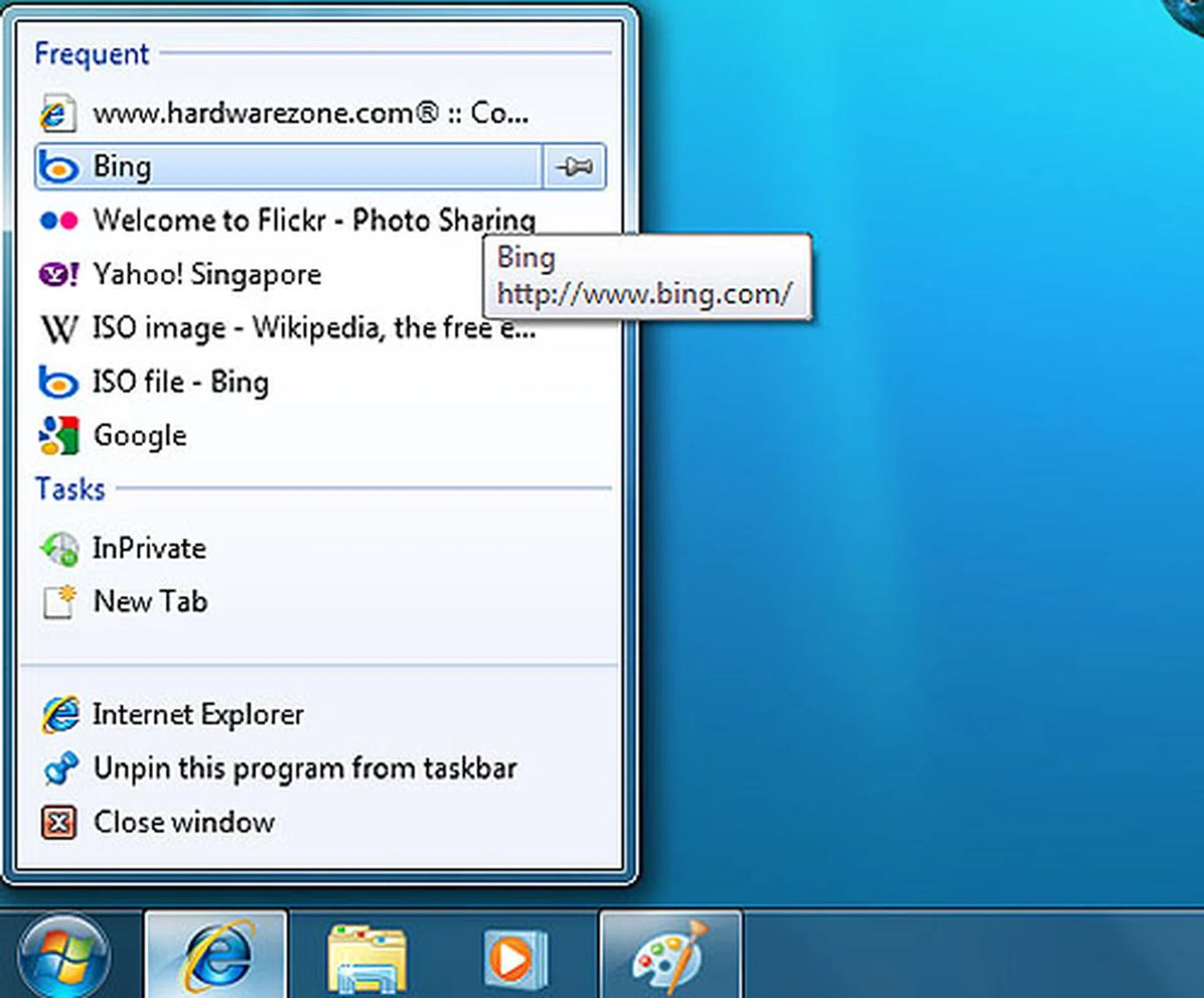
Jump Lists offer a ton of time-saving quick access options, just right-click on an application's taskbar icon and a list of options appear. Clicking on a recently opened document on the list for example, opens the exact document you want and launches the related application, all at the same time. You can also pin files, folders and URLs for quick access by right-clicking them and dragging them to the taskbar, doing this with a folder for example, will automatically pin it to the Windows Explorer icon. Yes, there's no more Quick Launch feature, but you can easily create your own Quick Launches.
7. Quick Access with Libraries
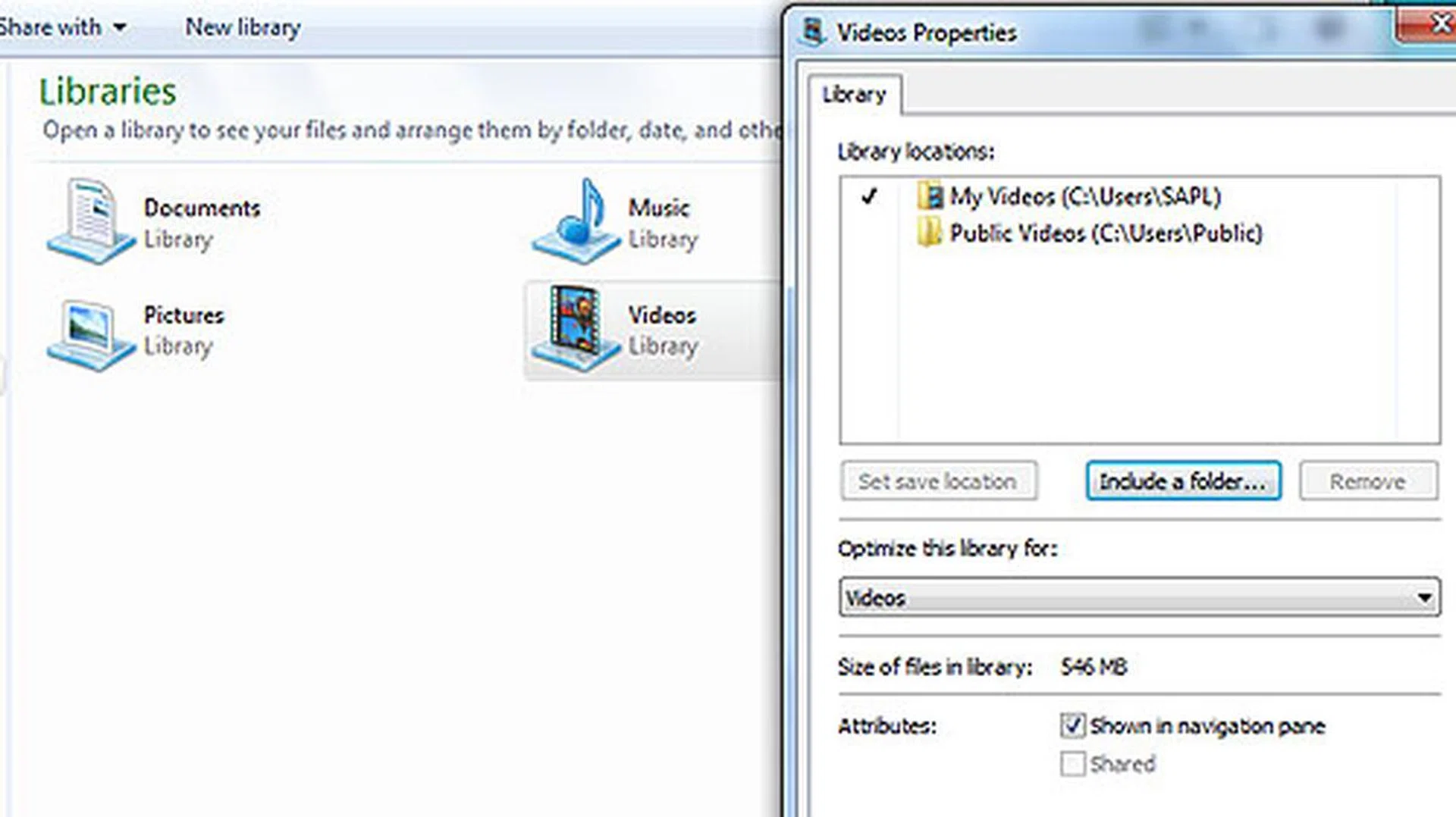
New to Windows 7, Libraries are a way for you to group similar types of files even if they reside in different folders. Add files and folders to your Libraries so you can reach and share them all from one easy location. Which means even if you're the messiest person on the planet, finding where all your music or videos are stored shouldn't be an issue anymore. Use this feature well, and you'll never be one to waste time trying to locate 'missing' files anymore.
Four the Win - Performance Testing Set Up
With Windows 7 running decidedly faster, smoother and efficient than Vista, perhaps there's some performance gain to be seen as well. After all, it's supposed to run much better on low end computers compared to Vista, so we've decided to put it to the test. If you've read our preview before (as linked at the bottom of the article), you'll note that we previously tested Windows 7 on really low-end, almost extinct Intel Pentium 4 systems, which actually ran Windows 7 just fine. These days however, the metric for low end systems aren't really the Pentium 4 systems of yore but more to do with Intel Atom based systems, which aren't really capable of running Windows Vista without some issues.
Also, we've heard plenty and seen plenty on how Windows 7 can handle on low-end systems, so an Intel Atom based notebook running Windows 7 should have no problems. Also, with the prevalence of devices based on the Atom platform available all over, it should be no surprise then, to find that Intel Atom based devices are now pretty much the lower end of the spectrum in computing devices. As such, our benchmarking process for Windows 7 will focus on an Intel Atom based desktop, and a regular mid-range system based on the AMD platform.
Regular Mid-ranged System | Low-end System | |
Processor | AMD Athlon 64 X2 5600+ (2.80GHz) with 2MB L2 cache | Intel Atom 330 (1.60GHz) with 512kb L2 cache |
Chipset | AMD 785G | Intel 82945G |
Memory | 1GB DDR2 800MHz | 1GB DDR2 533MHz |
Graphics | ATI Radeon 4650 HD | Intel GMA 950 |
HDD | Seagate 7200RPM 80GB (ST380013AS) | Seagate 7200RPM 80GB (ST380013AS) |
Operating System | Windows 7 Ultimate / Windows Vista Ultimate | Windows 7 Ultimate / Windows Vista Ultimate |
Five For Fighting - Benchmarking Continued
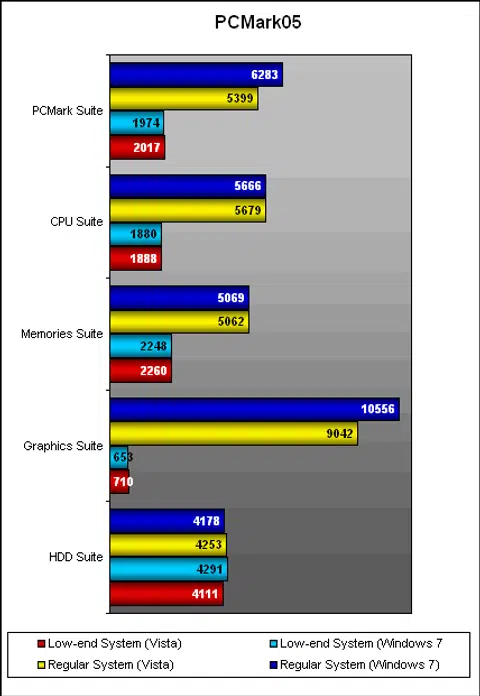
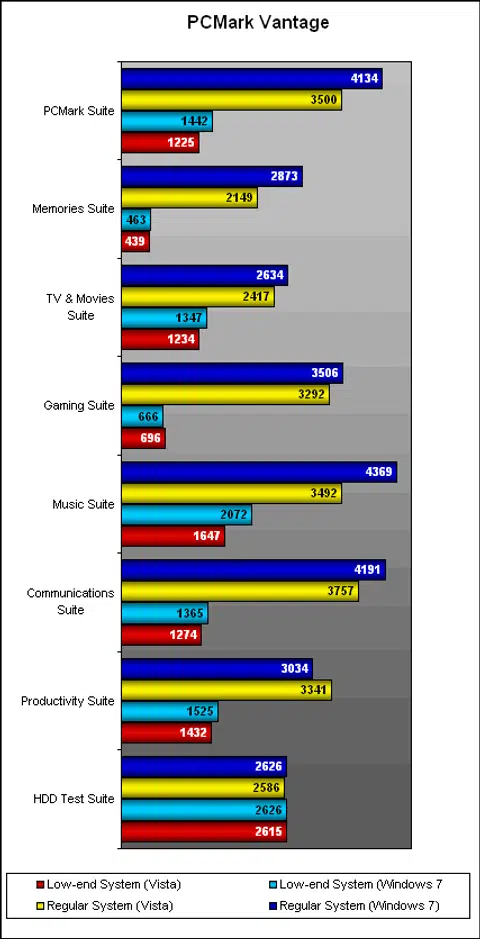
Let's start with the basic benchmarking programs - PCMark05, 3DMark06 and PCMark Vantage. To obtain our results, we'll be running the tests on the system loaded first with Vista, before finally using a RTM copy of Windows 7. This should give us a basic idea on where things stand roughly. To finish that off though, we'll be loading up Sysmark 2007 Preview for a more in-depth test of the OS capabilities.
For PCMark05 and PCMark Vantage, the scores show a marked improvement when Windows 7 comes into play for both systems, though there does not seem to be too big of a score difference for the Intel Atom machine on PCMark05. Vantage however, shows a much bigger gap and this is quite impressive given how taxing the benchmark usually is on lower-end systems. Lastly, only the HDD scores remained much of the same, though this was to be expected given the physical limitations of the hardware. Still, it's nice to see the figures actually improving on the whole for Windows 7, and it bodes well for actual real world usage, which we'll find out on the next page.
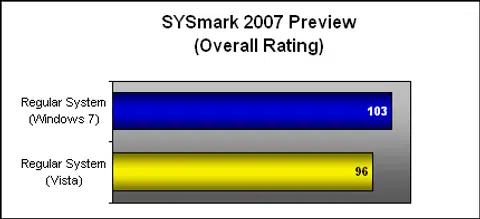
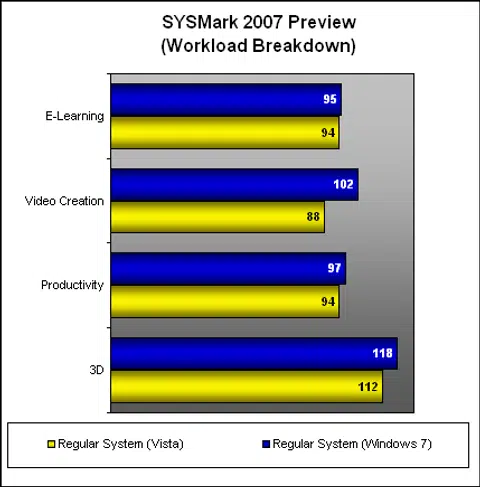
On our regular system testbed, Windows 7 generally showed a better performance all around, with scores running much higher than the Vista SP2 equivalent. SYSmark 2007 Preview also showed an improvement with the switch to Windows 7, so it's probably safe to say that most systems will probably enjoy the better scores on making the jump up to Microsoft's new OS.
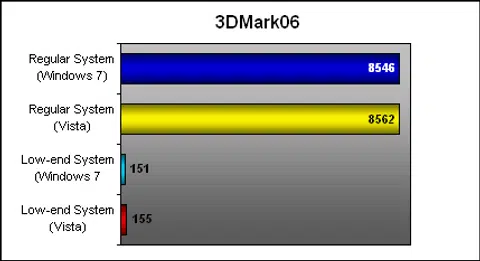
As for 3D performance, we note that there's not much of an increase either way, so your performance in this department will be due to what graphics card you are using and the state if its drivers. On that note, we would like to point out that a better graphics card will also help to improve your gaming experience for either OS, and that if you have a compatible portable media playback device, there's always the built-in GPU enabled transcoding feature that will utilize the performance of your graphics card.
Six-y Performance - Real World
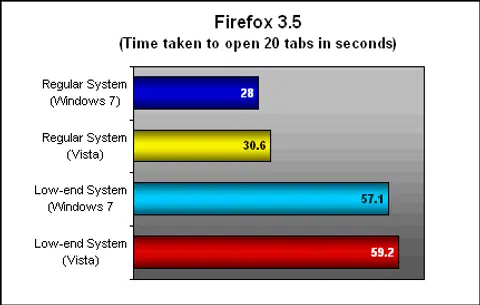
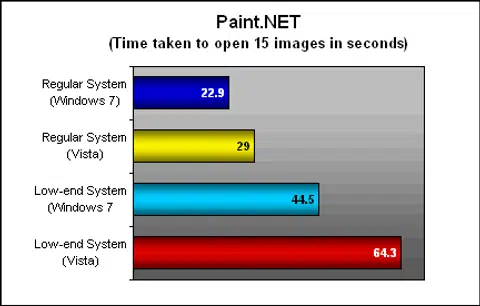
So in terms of real world performance, how does Windows 7 hold up? We loaded up a range of real life usage scenarios to test the OS against its older incarnation to see if there were any improvements. As expected, the tweaks to Windows 7 have left the system blazing ahead on some tests, though others remain quite the same.
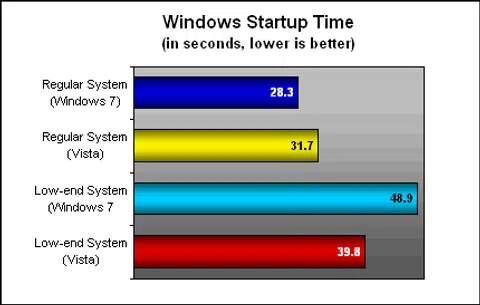
For example, start-up boot time was definitely improved for the AMD system, though the difference was not really that much. Then again, the Service Pack 2 of Vista has made significant improvements in this department, so that explains the marginal difference. On the Intel Atom system though, Vista actually loaded faster compared to Windows 7, strangely enough, though it does perform better on the other tests as you can see down below.
For the loading of twenty tabs of websites in Firefox, neither OS offered a better result on both systems. However in Paint.net, the differences in speed are pretty much obvious. On our regular AMD based system, image loading was a faster process with 15 of our high resolution test images. On the Intel Atom system, the differences are that much more obvious with a larger margin of comparison, and shows just how much more optimized Windows 7 is compared to Vista.
Seven For Seven - Conclusion
Given that Windows XP has reached its end of support life-cycle, and that Windows 7 doesn't seem to have any of the handicaps associated with Vista (despite being on the same code base), it's likely that we'll see plenty of users finally taking the plunge for the long awaited upgrade to a worthy new operating system. Microsoft has done plenty to make sure that the mistakes of the past (Vista) are avoided for 7 and so far, it looks to be working.
Since the release of the beta and release candidate of Windows 7, Microsoft has garnered plenty of kudos for the OS, and if the trend continues, we may finally see a situation where XP goes the way of the Dodo together with Vista. Of course, there's always the price component that some may take issue with, especially since it can be quite expensive to upgrade. We've laid out the prices below for the various editions for comparison.
Windows 7 Home Premium | Windows 7 Professional | Windows 7 Ultimate | |
Normal Retail Price | S$359 | S$529 | S$549 |
Upgrade Price | S$219 | S$359 | S$379 |
Lastly, if you're upgrading, we're guessing you won't have to worry too much about your system not working from the get go with buggy drivers or other issues that plagued the Vista release. So if it sounds like if we're thinking Microsoft has done a good job this time, you're pretty much right on the money. We have no complains with the OS given our time and testing with it from beta stage to its current final release build stage. It's likely that we'll be seeing one of the smoothest launches for an OS roll out so far from Microsoft. So our question is, will you be joining the bandwagon or will you be waiting in the wings again for the fabled Windows 8 instead? Do leave your comments or thoughts in the forum.
Our articles may contain affiliate links. If you buy through these links, we may earn a small commission.