

How to declutter your iPhone to make it more organised, run faster and make it feel new
Aside from our physical spaces, it’s important to keep our digital spaces organised as well
Note: This feature was first published on 24 February 2026.
Can’t find the application or file you’re looking for? Or has your Home Screen become too cluttered and messy to read? Either way, it sounds like it might be time to give your iPhone a proper spring-cleaning. Here are some simple and practical tips you can follow to make your phone more organized, run smoother, and feel like a new phone.
1. Delete duplicate and unnecessary photos to free up iPhone storage
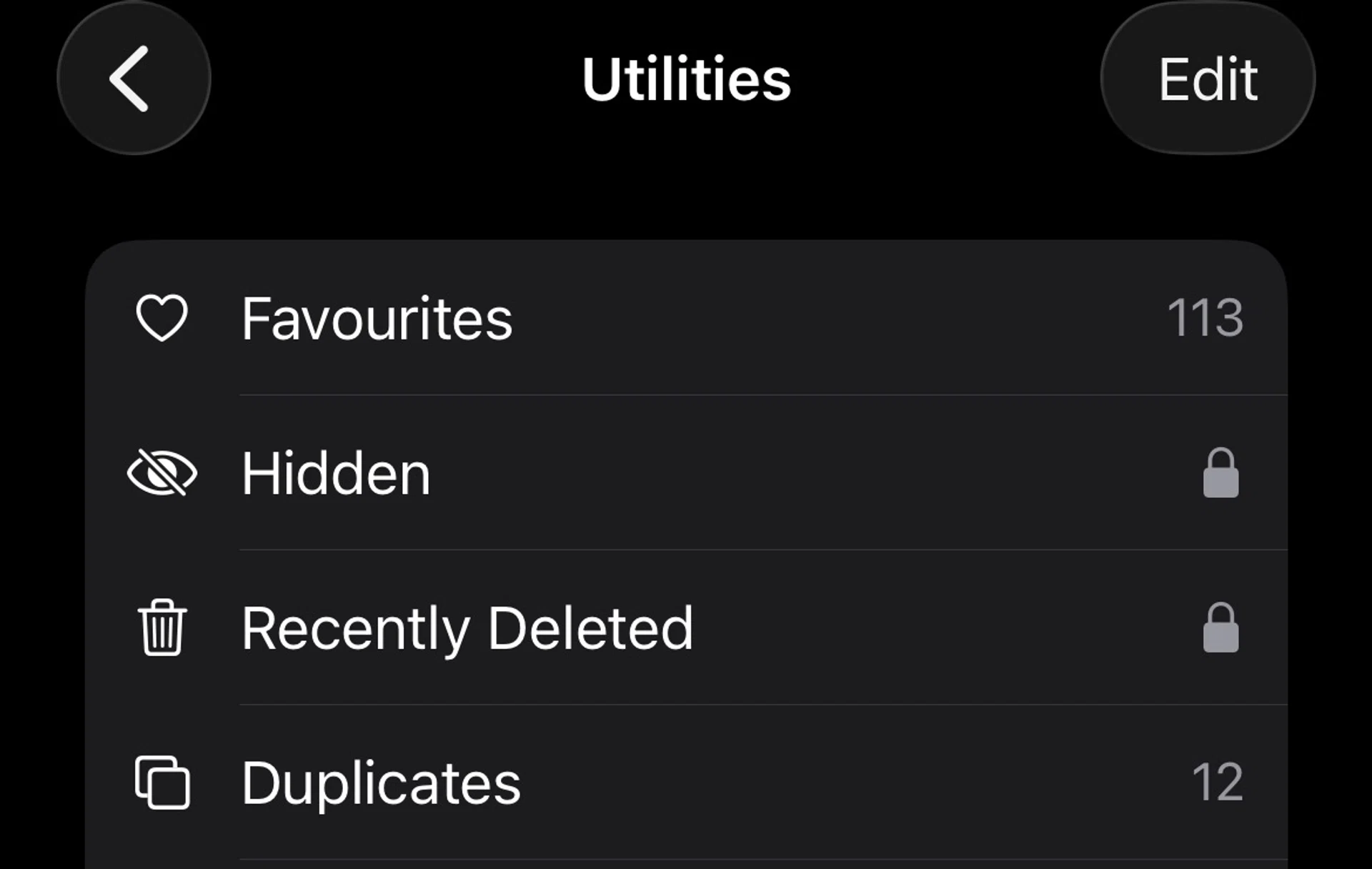
Don’t forget to clear your hidden folder as well.
Photos and videos are often the biggest contributors to storage bloat on an iPhone. Over time, it is easy to accumulate duplicate images, burst shots, screenshots, and forwarded WhatsApp photos that you no longer need.
If you are on iOS 16 or newer, head to the Photos app, then Albums, and look for Duplicates. Here, iOS automatically detects duplicate photos and videos. It is also worth checking albums such as Screenshots, Screen Recordings, and Videos, where large and forgotten files tend to pile up.
2. Clear out large videos and media files
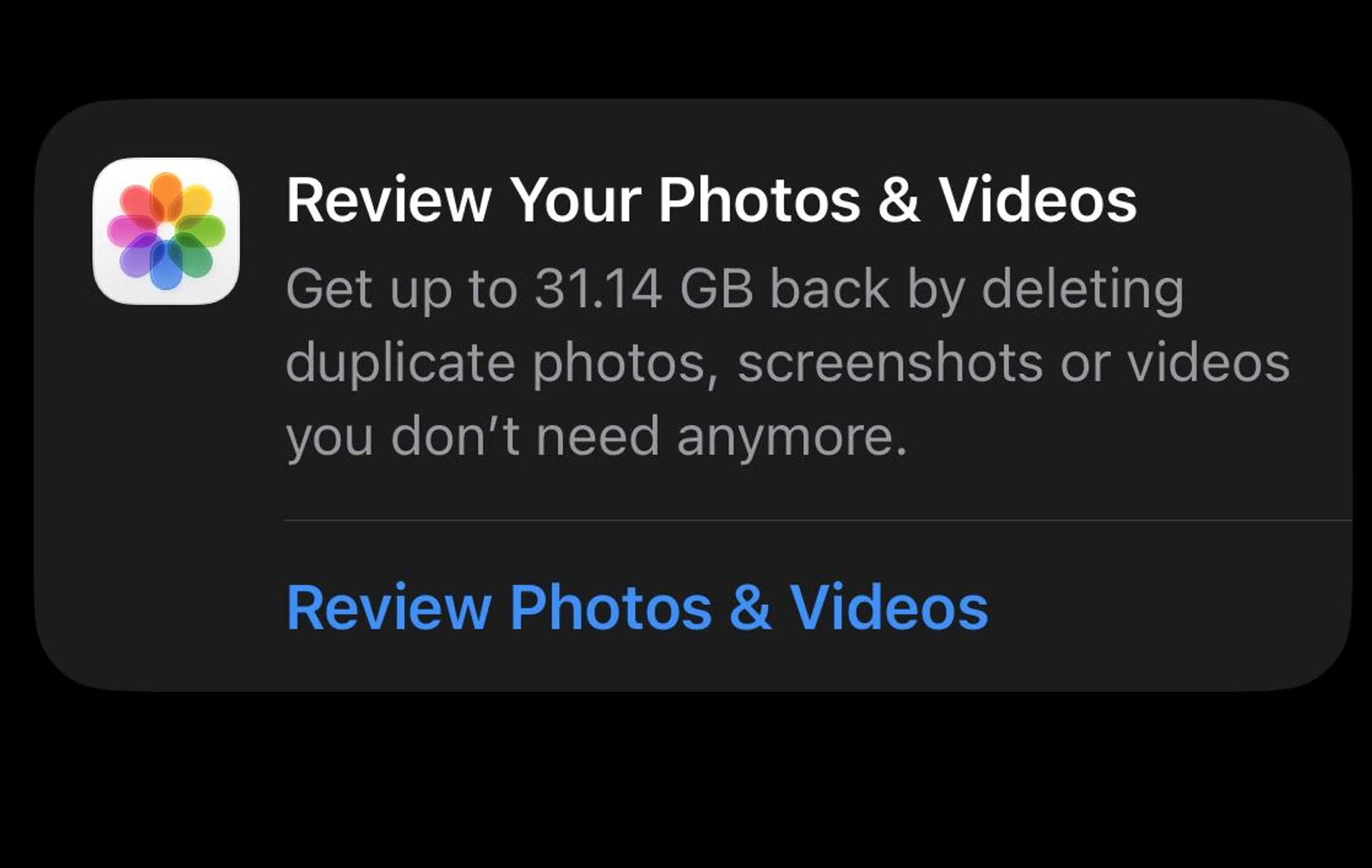
Head over to your iCloud to see the photos and videos that take up the most space.
Duplicates aside, videos can take up a surprising amount of space, especially if they were recorded in 4K. For example, a minute of video recorded in 4K at 60 fps will consume approximately 400MB of storage. This explains why a couple of 4K videos (even short ones) can easily consume gigabytes of storage.
To identify storage-hungry files, go to Settings, General, iPhone Storage, where apps and media are sorted by size. From there, you can review large videos, delete ones you no longer need, or back them up to cloud storage before removing them from your device.
If you still find yourself troubled by storage issues, you can also clear media from messaging services like WhatsApp and Telegram. Both apps have options to manage and delete files within their Settings menus.
3. Clean up your contact list
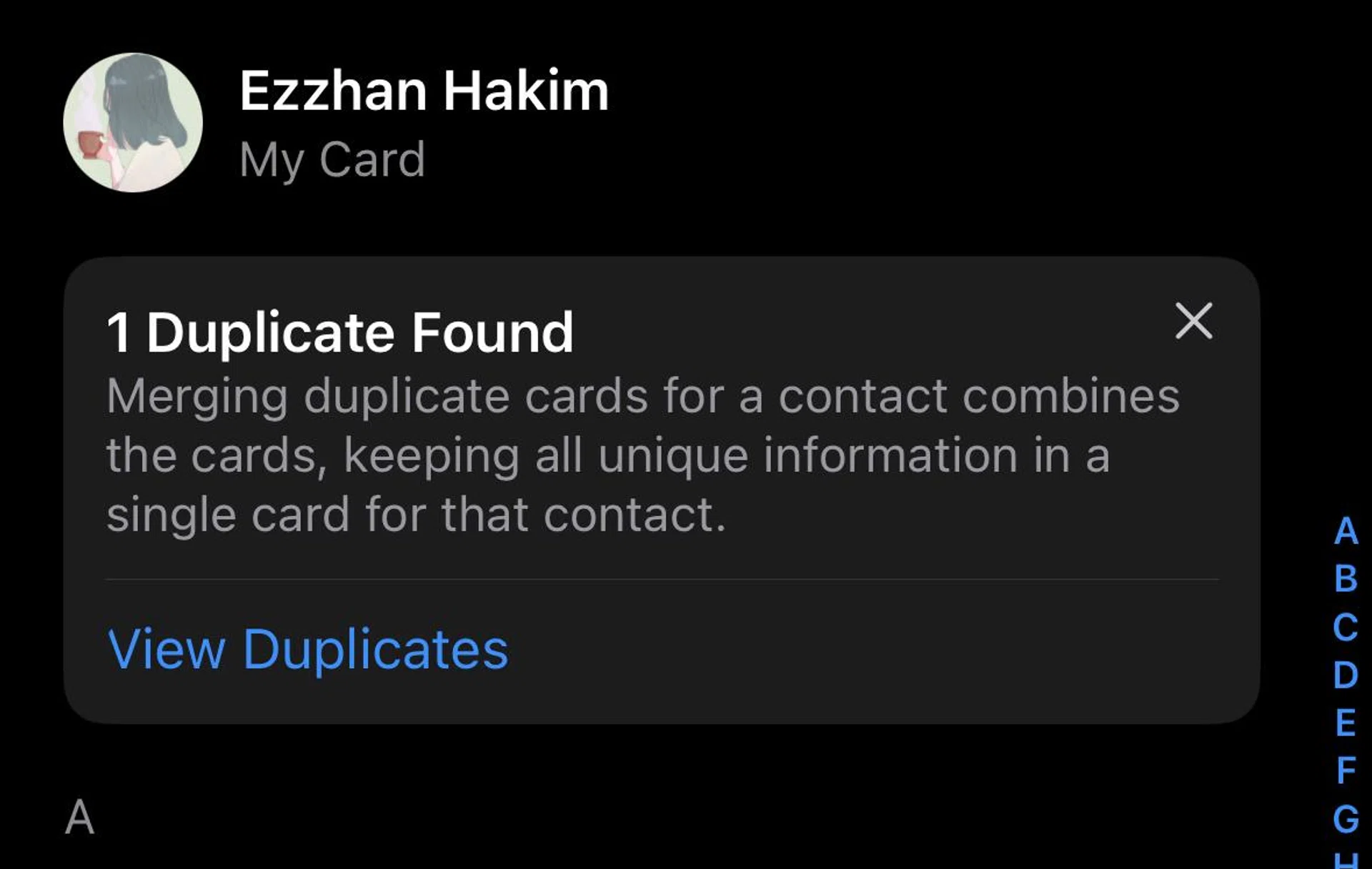
If you have the time, I recommend going through your contacts to update and delete unwanted ones individually.
One often overlooked section of your phone tends to be the contact list. Since it’s so easy to add contacts these days, you’ll often end up with duplicates.
To get rid of duplicate entries, open the Contacts app and use the Fix Duplicates feature to automatically merge repeated entries. While this feature is mostly effective, there are times it misses out on certain contacts. So if you can spare the time, I recommend you go through your contacts individually to update them and delete the unwanted ones. Once you’ve done so, it will make searching for contacts quicker and less confusing.
4. Remove unused apps or enable app offloading
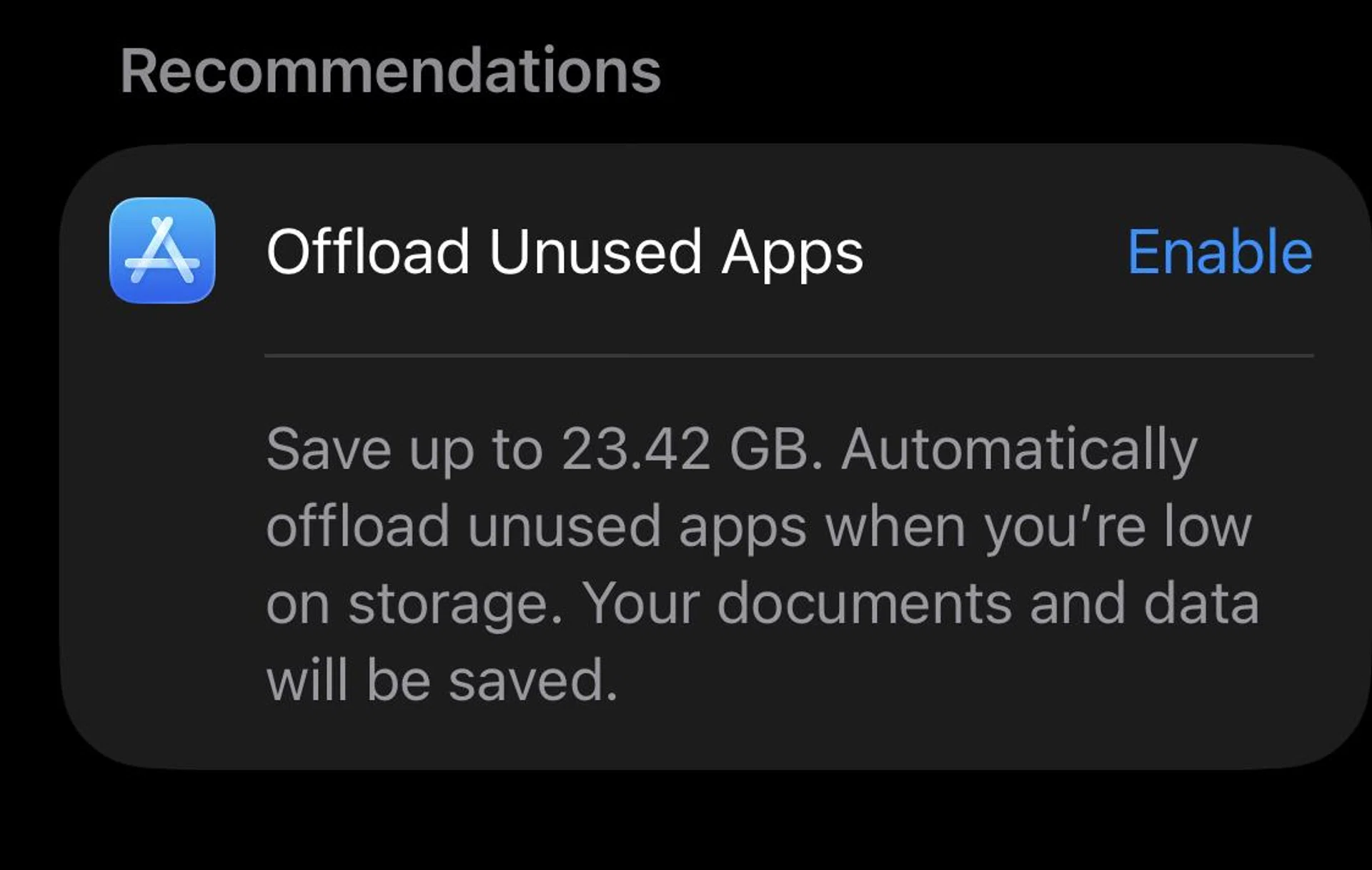
You can also manually offload which apps you personally find less useful.
Most iPhones end up with apps that were downloaded for a specific purpose and then quietly forgotten. Think about that membership app you installed just to get an extra $5 off your bill, or that one app you needed briefly for a work or school assignment and never used again. Even if they are rarely used, these apps still take up storage space and can add to the visual clutter on your Home Screen, making your phone feel more crowded than it actually needs to be.
You can review app usage under Settings, General, iPhone Storage, which shows when each app was last opened. Apps you no longer need can be deleted, while rarely used ones can be offloaded by enabling Offload Unused Apps, which deletes the app’s core functionality while keeping its data, like login details, intact.
If you ever find the need to use the app again, offloaded apps will display a cloud icon and will reinstall and open automatically once you tap on it.
5. Optimize your Home Screen for everyday use
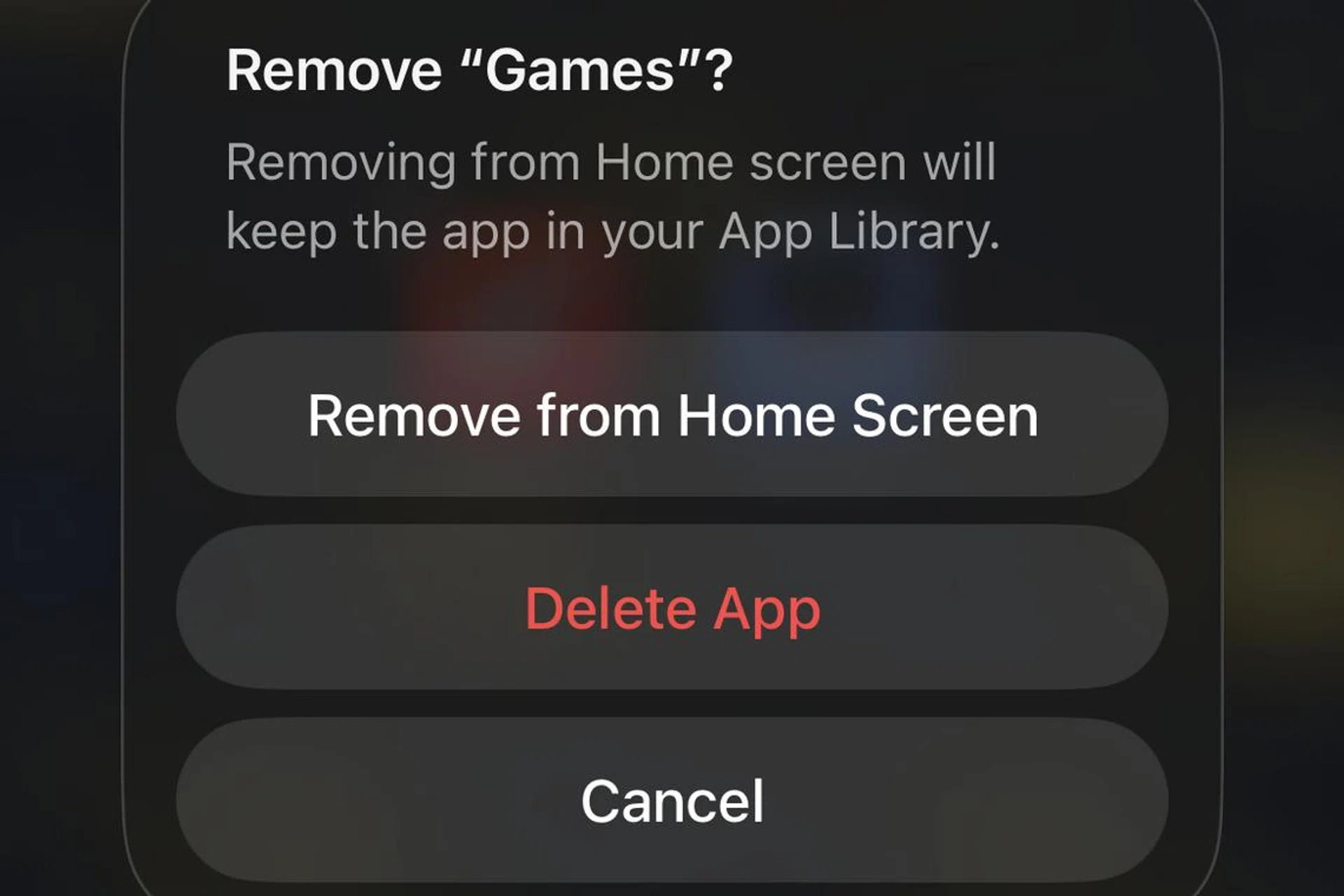
You can find apps you’ve removed from your Home Screen in the App Library.
A cluttered Home Screen makes it harder to find the apps you actually use daily. Over time, many users end up with multiple pages of apps that are rarely touched. Instead of deleting the apps outright, you can long-press an app and select Remove from Home Screen, which moves it to the App Library. The App Library is where all your apps reside, and you can reach it by swiping right on your Home Screen until the end. At any rate, keeping only essential apps on your main Home Screen and grouping the rest into folders or the App Library to create a cleaner and more efficient layout.
But if you have accumulated a large number of unused apps over the years, removing them one by one directly on your iPhone can be tedious. A faster way is to use a Mac. Apple offers a free macOS app called Apple Configurator, which is typically used by IT administrators and organisations to manage multiple Apple devices. And one useful thing it can do is delete apps in bulk from your iPhone or iPad.
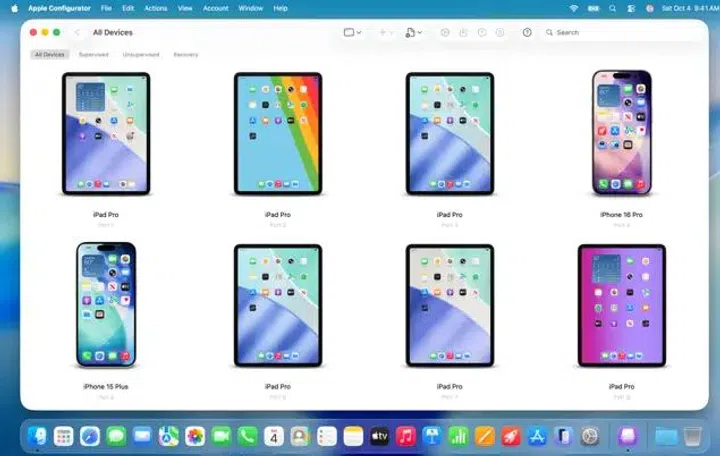
Apple Configurator on Mac is great app for quickly deleting unwanted apps.
To use it, simply connect your iPhone or iPad to your Mac using a USB-C or Lightning cable. Once your device appears in the Apple Configurator app, double-click it to access the management interface and navigate to the Apps section. From there, hold down the Command key to select multiple apps and then hit the delete key to get rid of them. This should make deleting unwanted apps a smoother process.
6. Use widgets to reduce app clutter
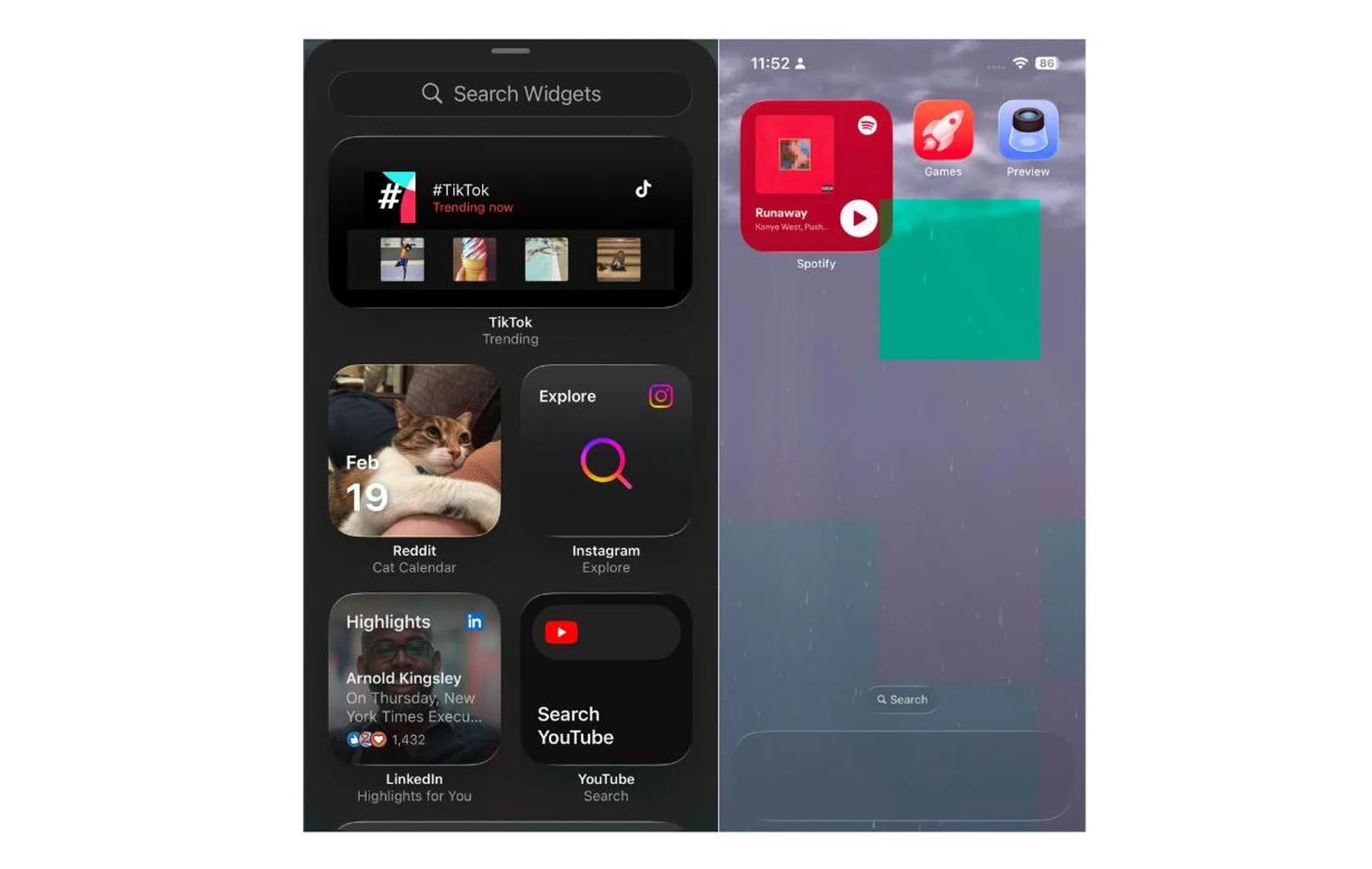
Widgets can be a neat addition to make information more visible at a glance.
Widgets are a useful way to get information at a glance without opening multiple apps. When used properly, it can save you time and optimise your Home Screen. By adding widgets such as Weather, Calendar, Reminders, or Battery, you can reduce the number of apps you need to keep front and centre. This declutters your Home Screen and makes everyday information easier to access. To take it a step further, you can also add widgets from your installed apps, like ChatGPT or X, to quickly access their services from the Home Screen.
7. Optimise and simplify your Lock Screen
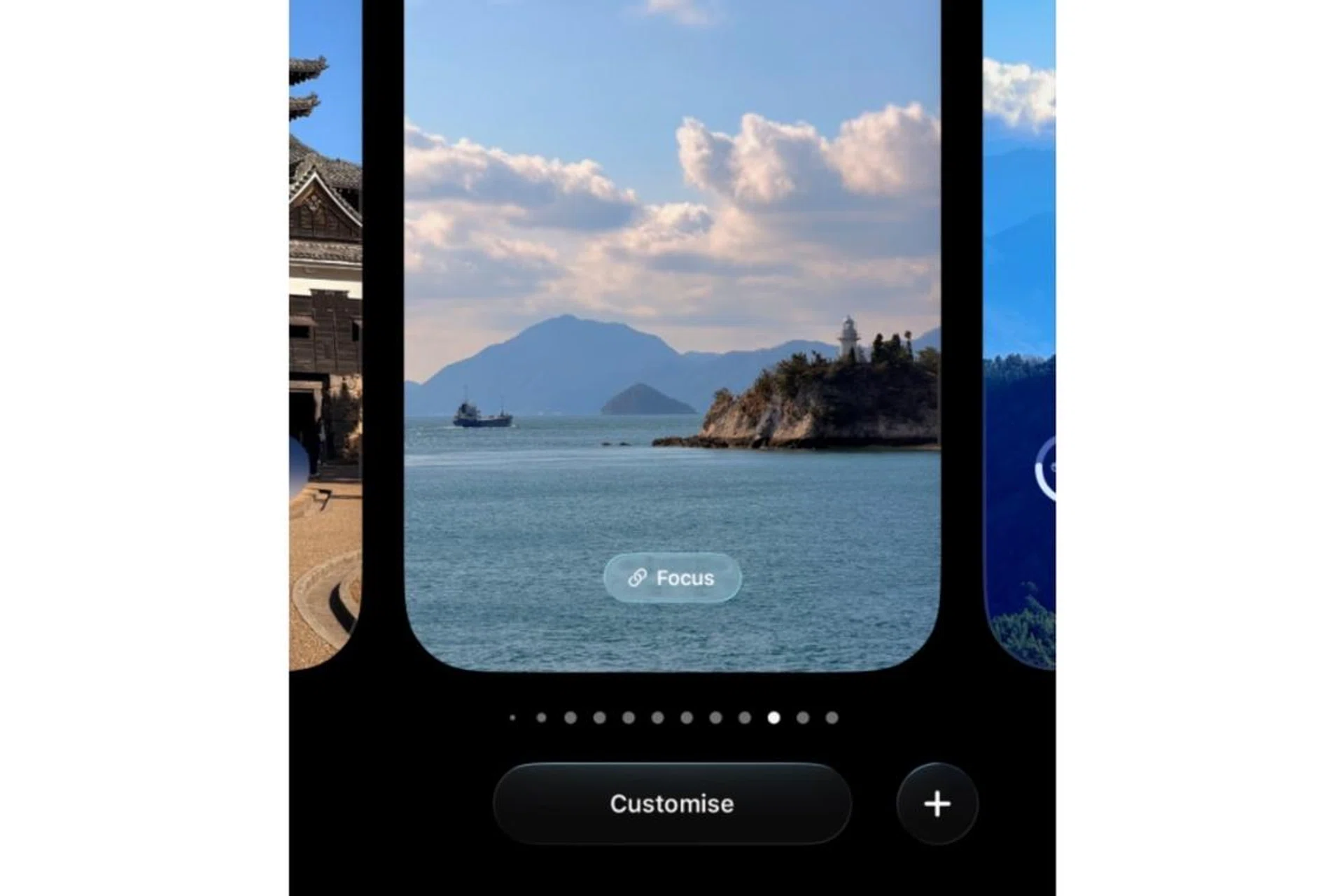
Tap and hold on your lock screen and you’ll see the “Customise” button at the bottom.
With recent versions of iOS, the Lock Screen is highly customisable, but it can also become visually overwhelming if overloaded with widgets and busy wallpapers.
To tidy things up, long-press the Lock Screen and tap Customise. Choose a clean wallpaper that does not interfere with notifications, and limit widgets to essential information only. A simpler Lock Screen makes notifications easier to read and improves overall usability. Additionally, you can refer to our accessibility guide, which might just make your usability experience a bit better.
8. Reduce notification clutter
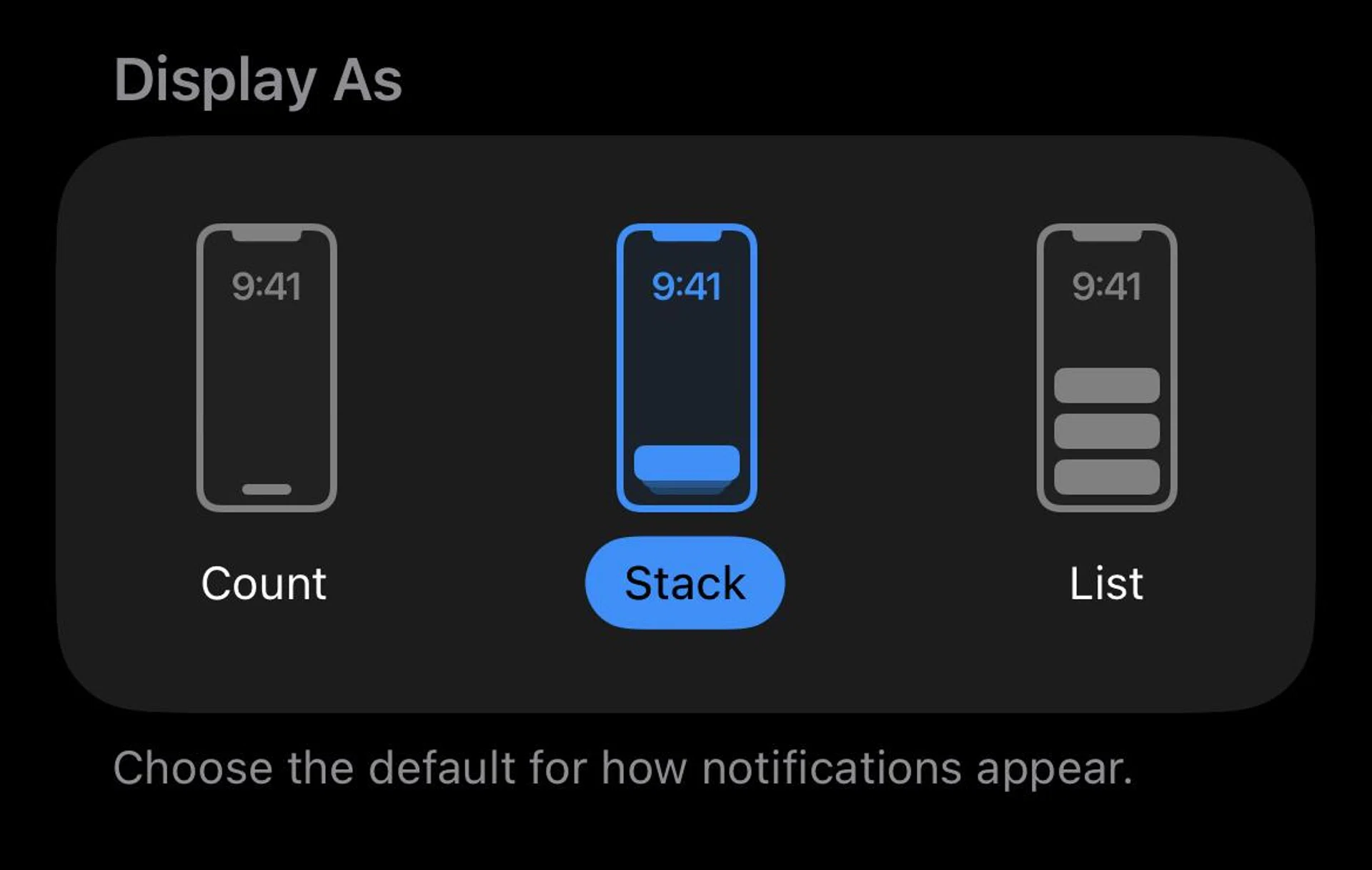
Setting it as “Count” keeps the notification bar as minimalist as possible.
Even a well-organised iPhone can feel chaotic if it is constantly buzzing with notifications. Many apps enable notifications by default, even when they are not particularly important.
Go to Settings, and then Notifications to review which apps truly need your attention. Turning off non-essential alerts and using Stack or Count notification views can significantly reduce Lock Screen clutter and help you stay focused throughout the day.
If you’d like to take it a step further, Apple’s Priority Notifications and Reduce Interruptions Focus can help you to manage alerts more effectively by showing important notifications while reducing distractions.
Thanks to Apple Intelligence, when Intelligent Breakthrough and Silencing are enabled for a Focus mode, any notifications you allow or silence will always follow those settings, even when Priority Notifications are active.