

Here’s how you can clean up your Android phone to make it feel and run like new
Even if your Android phone is a couple of years old, here are a few things you can do to make it feel fresh and run faster.
Note: This feature was first published on 19 March 2026.
Fellow Android users, we’ve all been there. After a few years of trusty companionship, your phone starts to get slower. Menus start to stutter just a bit, and the number of apps and files on your phone feel like they’re physically weighing it down. While Android phones have made significant strides in reliability, issues with longevity still remain – particularly for those in the entry and mid-range segments. If you’re trying to ward off the temptation of getting a new device by sprucing up your current one, we’ve come up with a list of ways to help you out. While some steps are simple and don’t take much effort — some you can even do them right now — others will require a bit of time and money invested. Without further ado, here are some ways you can breathe new life into your phone.
1. Delete unused or unwanted apps
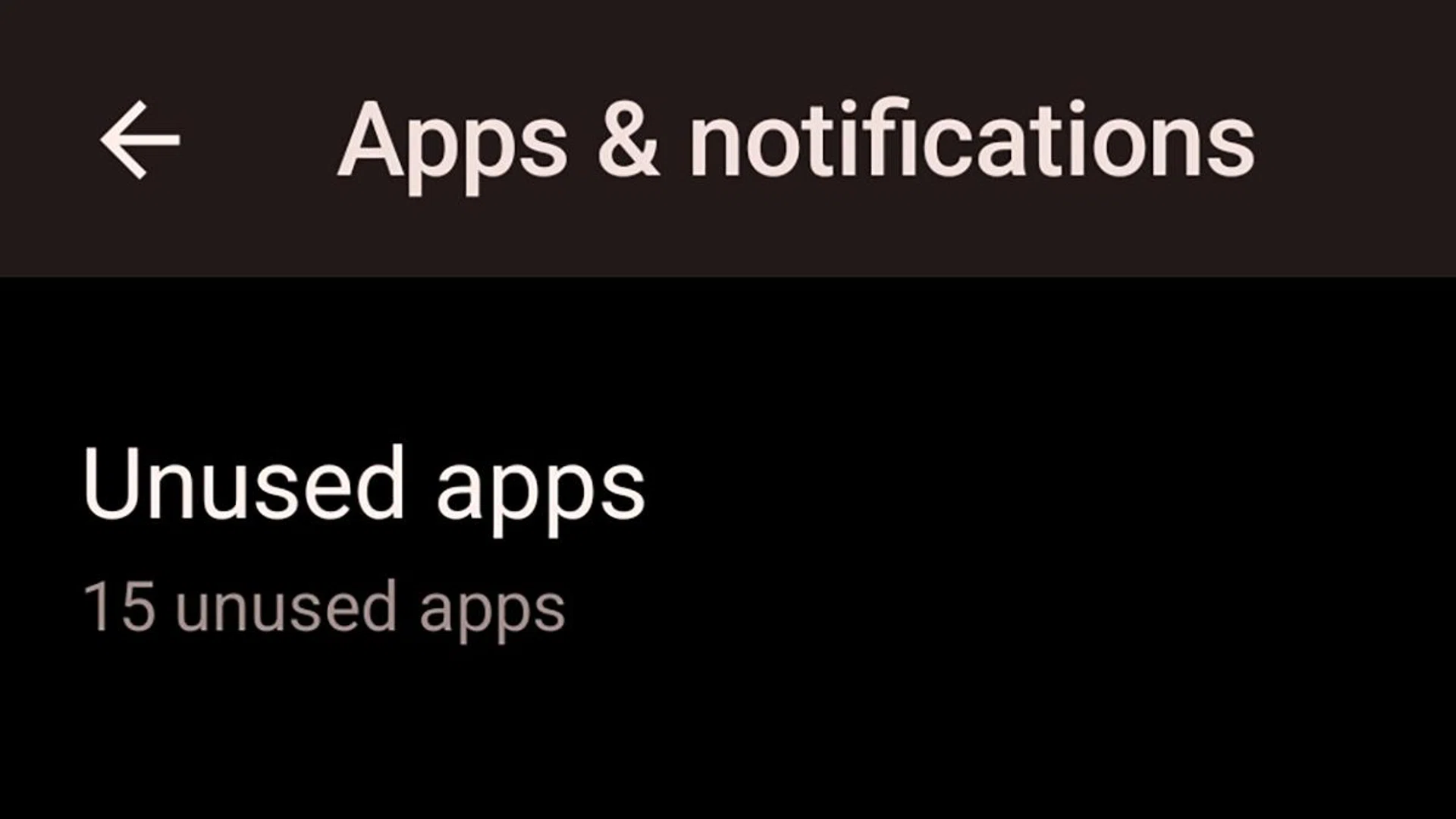
If you have a phone with Android 13 or later, you can usually find a list of unused and rarely used apps in your Settings’ App menu.
Getting rid of apps that you don’t use is one of the easiest ways to make your phone perform better. It reduces indexing load and also frees up space for apps that you actually do use.
Luckily, Android 13 and newer keeps track of which apps are unused or rarely used. If you have a Pixel phone, you can head to Settings, and go to Apps > Unused Apps. It’ll show you apps that you haven’t used in the past 30 days or longer, and you can choose which to keep and which to toss.
Just a note: being Android, the specific location for the Unused Apps menu may differ based on your phone’s manufacturer and Android skin. For instance, on Samsung phones, you can find it via Device Care > Storage > Unused apps. Generally speaking, go to Settings and look for the storage sub-menu.
Furthermore, you can also take this opportunity to delete apps that you might be better off without. TikTok, I’m looking at you.
2. Delete duplicate or unused files
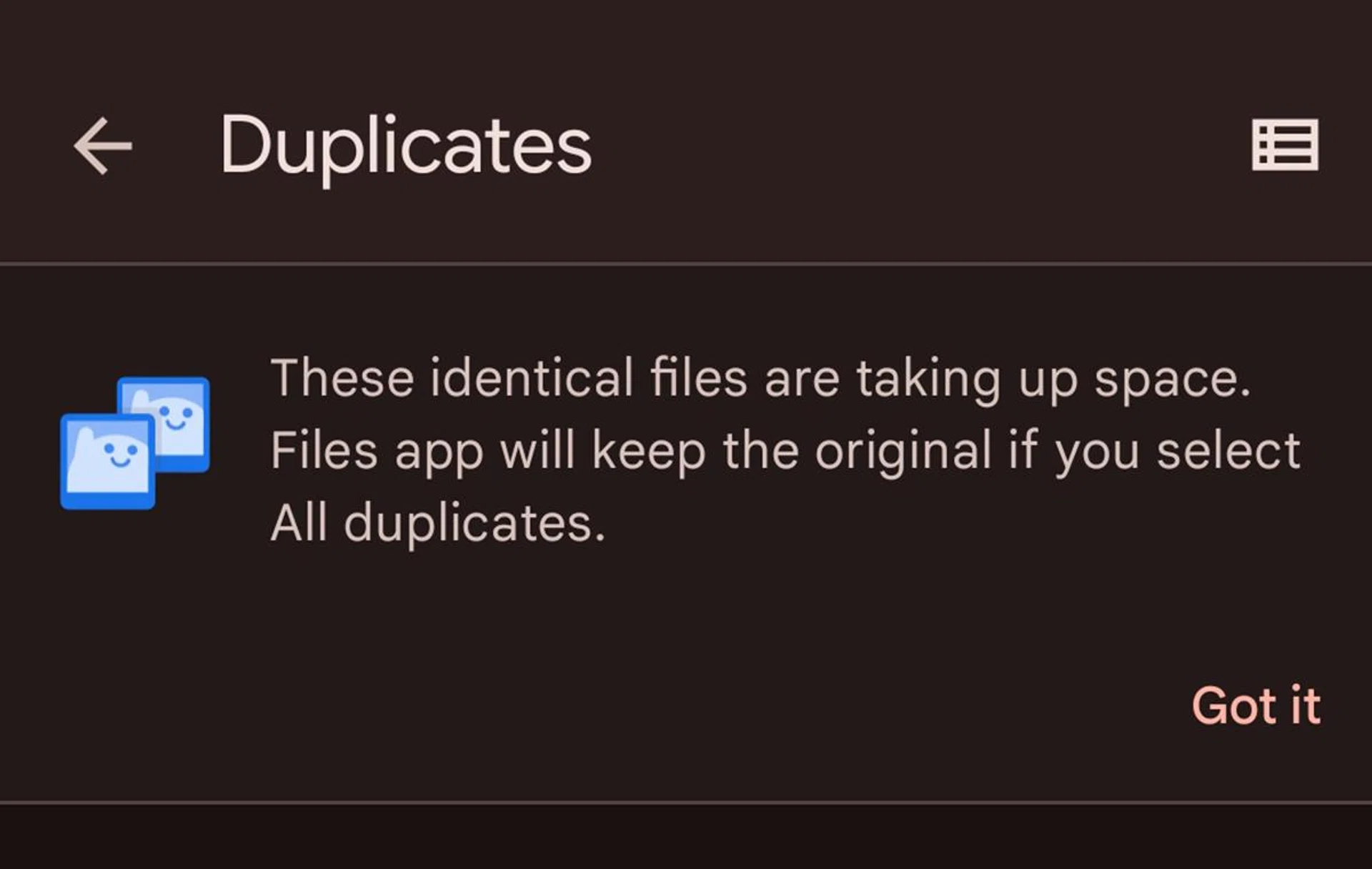
Files by Google keeps tracking of duplicate files, and can help delete them in bulk.
Like unwanted apps, you should also get rid of unwanted files. These can come in the form of duplicate files and photos, or even that email attachment that you accidentally downloaded multiple times. Understandably, poring over your entire storage will take forever, but there are tools which can help you out.
Default file managers like Files by Google or Samsung’s My Files app have built-in tools that highlight duplicate files for easy deletion. If it’s specifically photos and videos you want to clear, check if the photo gallery app you’re using has a similar tool, too. Speaking of photo gallery apps, Google Photos can delete photos that are already backed up to the cloud. In Google Photos, tap on your Google account icon on the top right, and you’ll see a button called “Free up space on this device”. This will delete photos on your phone that have already been backed up.
3. Cleaning up your home screen
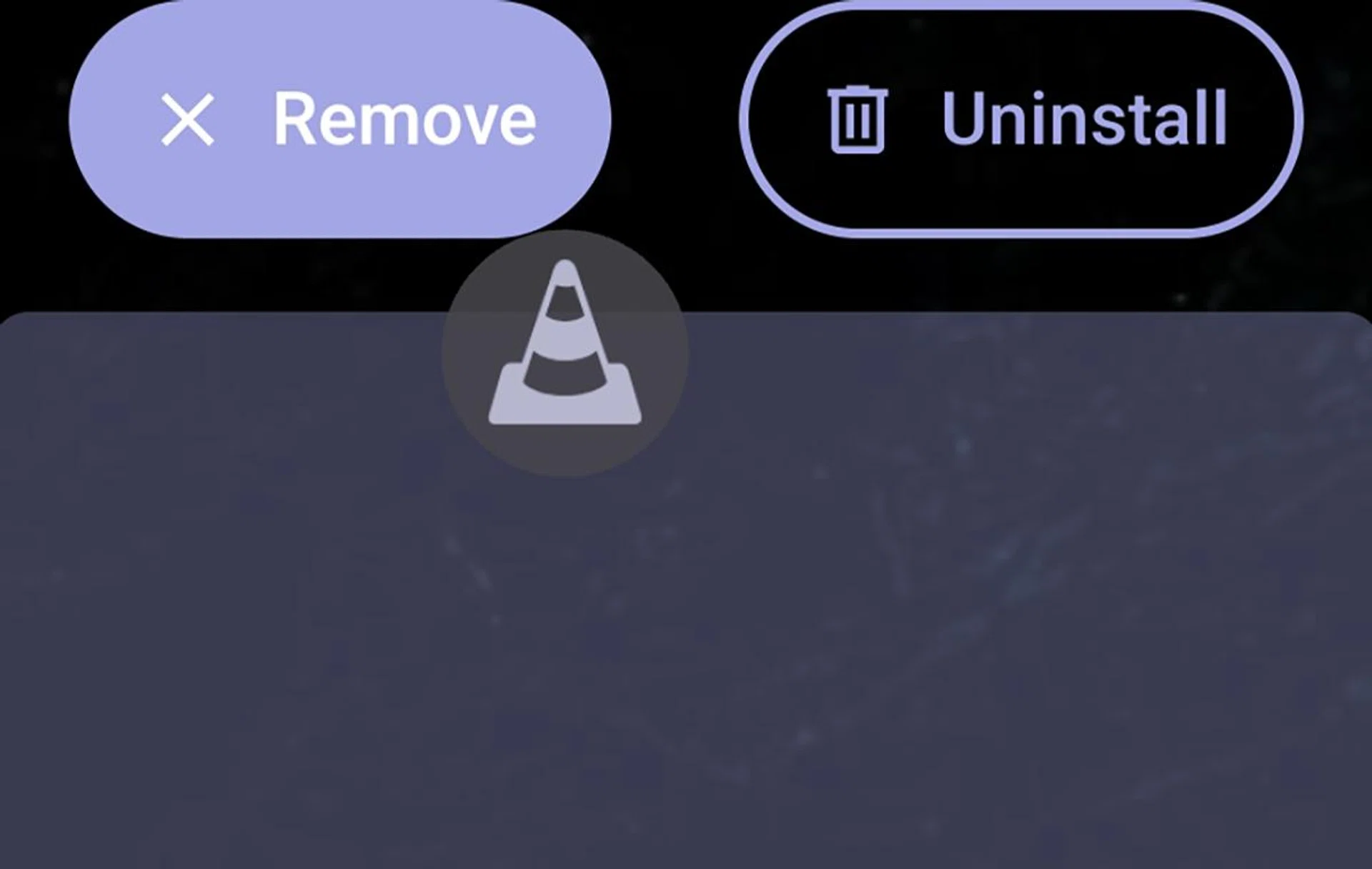
A quick way to make your phone feel like new is to customise your Home screen.
This won’t make your phone measurably perform better, but a fresh look always helps by making your phone feel new. It is quite literally decluttering your phone, and it’s the most visual way to do it. Once you’ve figured out your most essential apps and/or widgets that you’d like to have on hand, you can leave the rest in the app drawer. Or drop them into folders. You can clear apps from your home screen by doing a long press on an app and dragging it to the ‘Remove’ tab.
4. Changing your wallpapers and colour theming
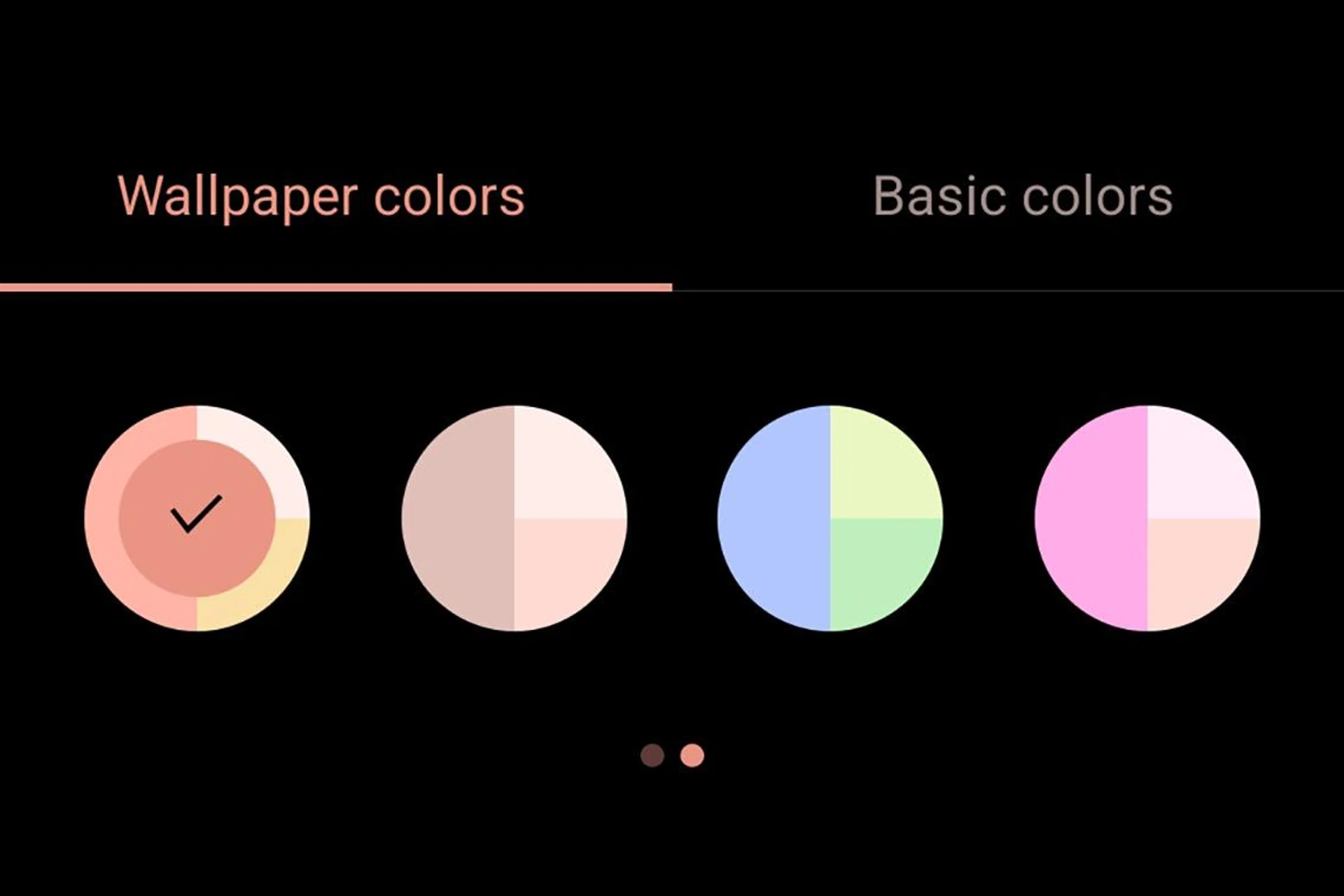
Changing wallpapers is another way to make your phone look and feel new.
Another way to spruce up your Home screen is to change the wallpaper. For most phones, there are two ways to do it. You can either long-press the Home screen to see Wallpaper and style, or you can do it via the Settings app. Certain Android launchers will also have theming options, which is another way to change up your usual Home screen setup. Of course, Pixel has adjustable app icon colours since Material You was implemented a few years ago, but again, customisability will depend on your launcher. Skins from manufacturers, like Samsung and OPPO, allow you to get custom icon packs, too.
5. Using widgets
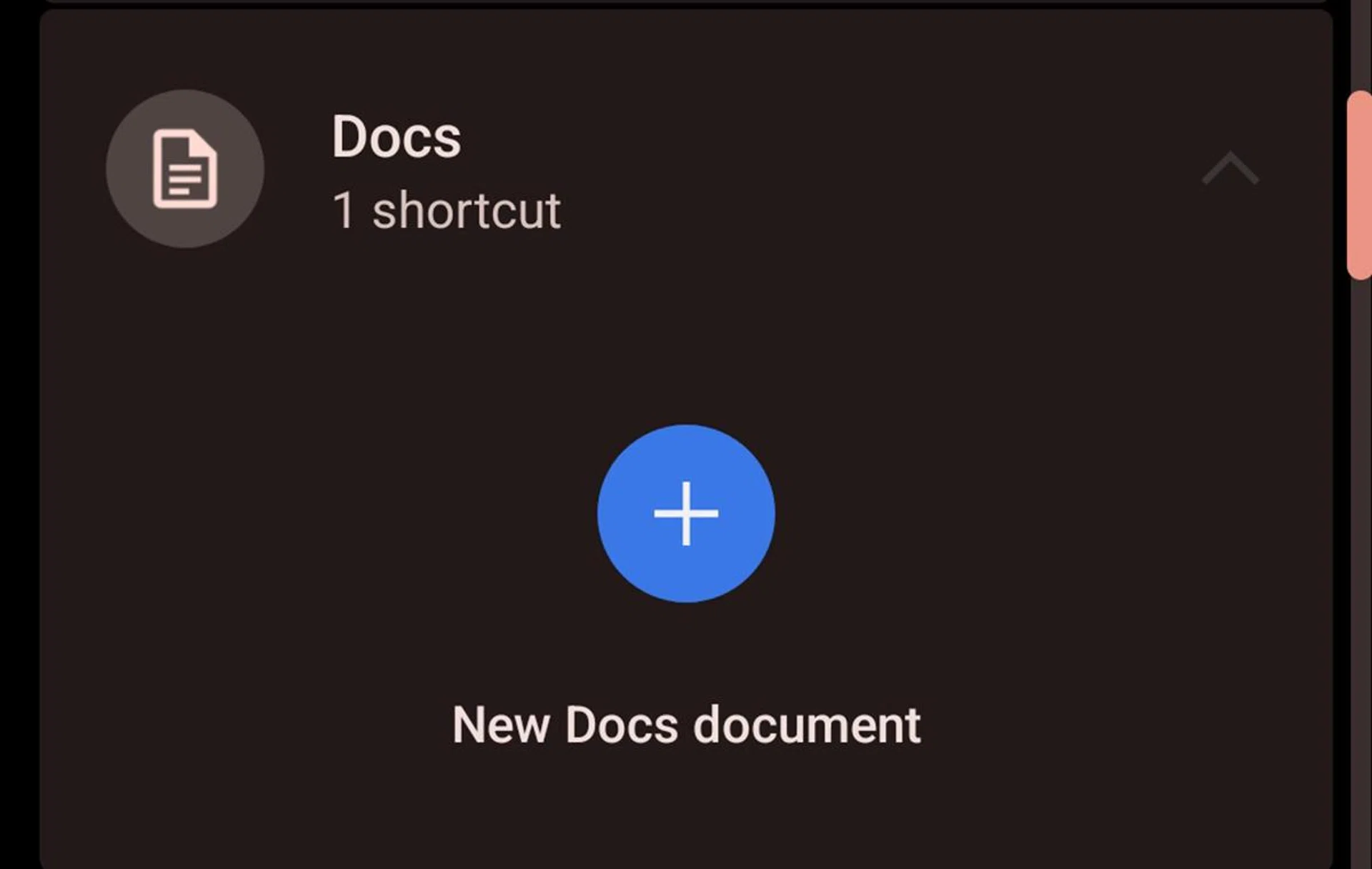
Some widgets also act as shortcuts. For instance, Google Docs allows you create a new document straight from a single button on your home screen.
One way you can optimise your phone is by using widgets on your Home screen. The idea is simple: rather than opening individuals apps, you can shave off a few seconds by placing a widget on your Home screen to see information at a quick glance. Some widgets will even allow you to access certain in-app functions directly. An example is Google Doc, which lets you create a new document quickly within the widget (as seen above).
Like changing your wallpaper, you can long press the Home screen and tap “widgets” to see a list of widgets from all apps on your phone. If you know what apps you want to turn into widgets on your Home screen, you can long press the app icon itself and tap “widgets” too.
6. Backing up to a cloud or external drive
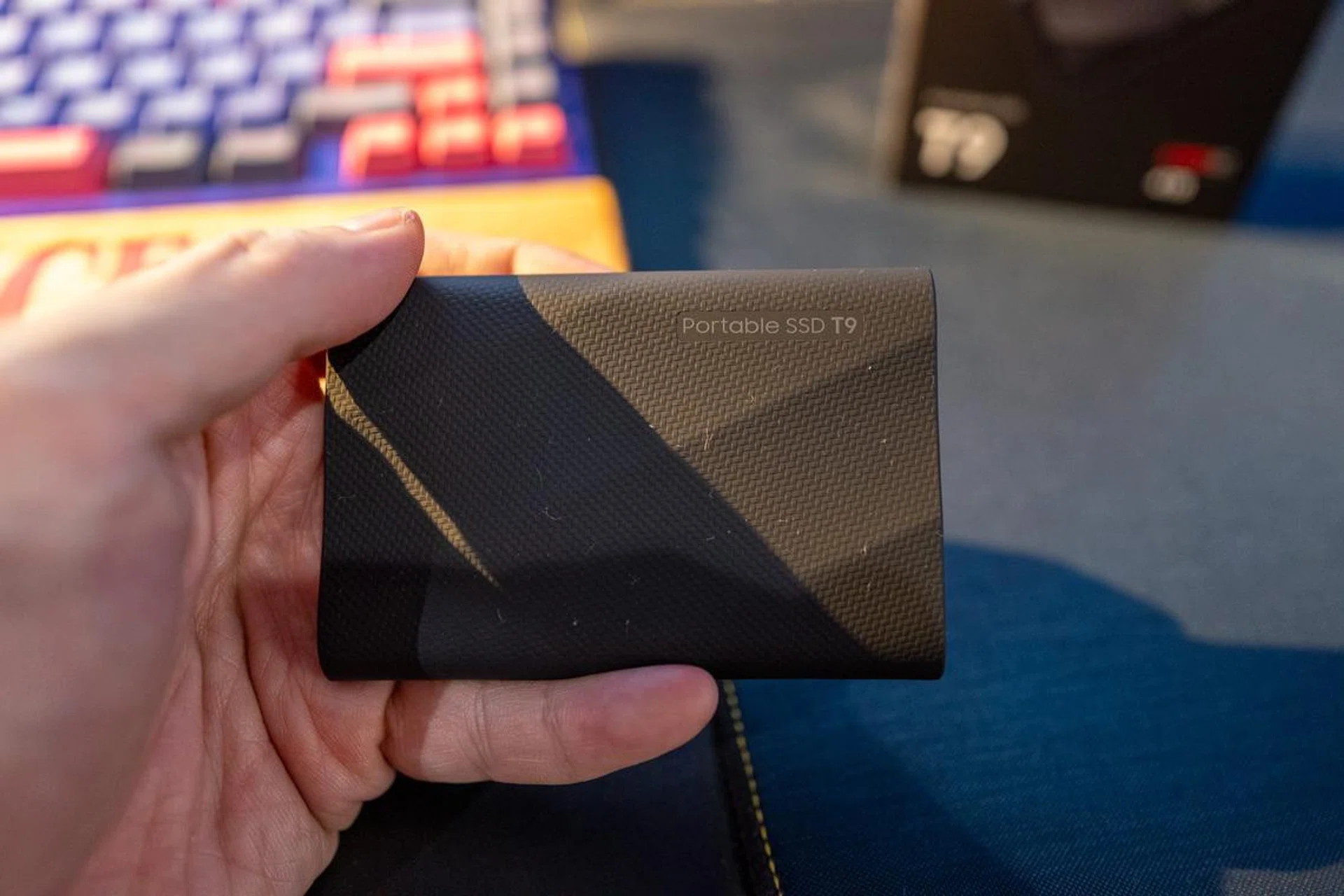
Google Drive already backs up important data like photos, but if you have a lot of them, you might want to invest in an external drive like the Samsung Portable SSD T9 pictured here.
This is where the steps start to get a little more intensive. If you have a massive number of files – photos and videos, especially – and you simply can’t keep it all on your phone, it may be best to offload them all to an external storage solution, be it the cloud or a physical drive.
As mentioned, Google Photos backs up your photos and videos regularly, though it should be noted that it only offers 15GB of free storage. For most people, 15GB is unlikely to be enough. It means you’ll need to pay for more storage. If you intend to use Google to back up your device, Google offers a maximum of 2TB of cloud storage and you can find the prices for the various storage tiers here.
If you’re not inclined to leave your photographed memories up on the cloud for privacy reasons, you could also consider backing them up to a physical drive. Brands like SanDisk, WD, Samsung, and Seagate offer portable hard drives of varying sizes that you can use to back up your phone.
7. Battery replacement
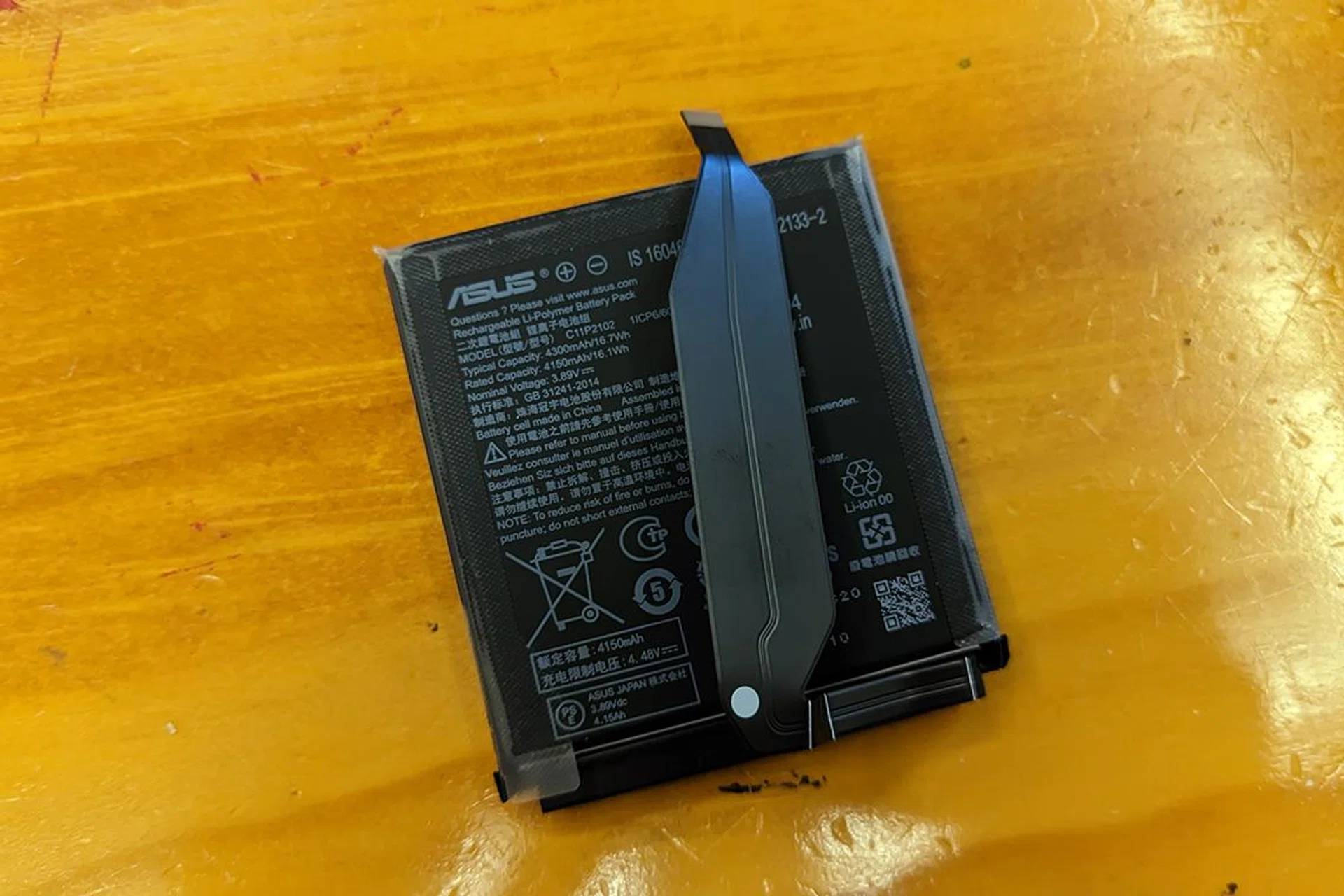
A battery replacement can double the lifespan of your phone. Just be sure to get your battery from a trusted source.
Most of the steps above are pretty simple to do, but the last two steps are for those whose devices need a little more help. The first step we want to highlight is replacing the battery. Though phone manufacturers will often deny throttling performance for ageing batteries (which hasn’t stopped accusations from popping up every so often), replacing your phone’s battery certainly will improve its longevity.
However, there are certain things you’ll need to keep in mind. Always get it done professionally from reputable shops and use batteries from trustworthy sources. It’s also worth taking note that water resistance may be affected by having your phone disassembled.
8. Factory reset
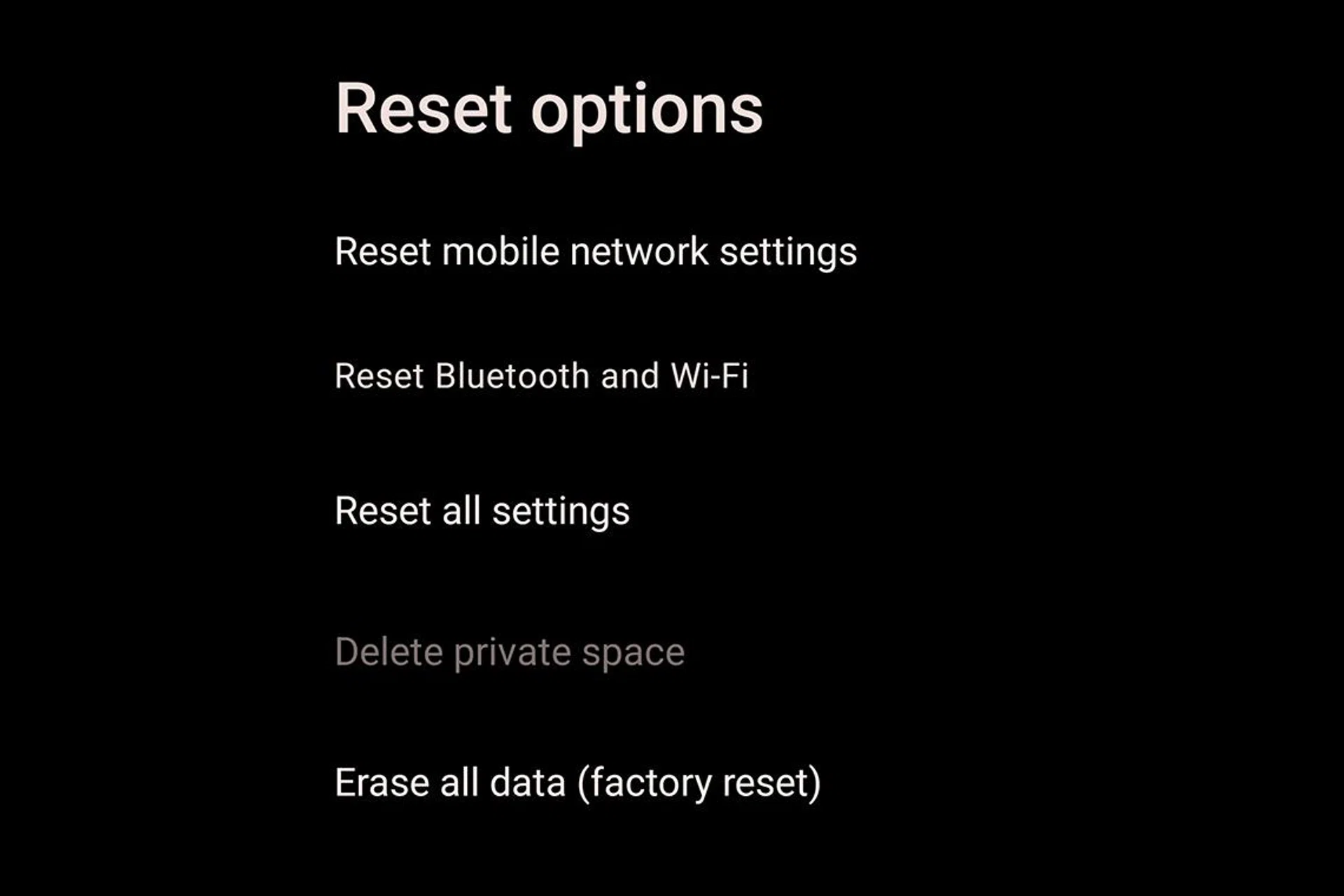
We don’t recommend doing this unless you have everything backed up. It’s more of a last resort option if your phone is plagued by malware or if an OS update went wrong.
This is perhaps the nuclear option. Factory resetting sets your phone back to what it was out of the box, including wiping all the data on it. It’s extreme, but sometimes it’s best to start with a clean slate. There have also been accounts by users over the years of factory resets helping to sort out bad Android OS updates or clearing out long-standing bugs, though your mileage may vary on that.
Regardless, we only recommend this step if you are alright with re-installing apps, re-downloading important files and logging back in to all your services. If you’re set on it, make sure your files are backed up and that you know your Google account login details. After that, you can usually find the factory reset options under the System > Reset options tab in Settings.