
Windows Home Server - Sysadmin Made Easy!
Aimed at a niche audience with multiple computers at home, Microsoft's new Windows Home Server hopes to automate the mundane tasks involved in home networks, from file sharing to system backups. If you're the unofficial IT troubleshooter at home, this is a must read for it may just save you a lot of hassle.
Sharing Starts at Home
In the developed world at least, computers are a fixture in homes and increasingly as ubiquitous as the television. Singapore Infocomm Development Authority's annual survey of infocomm usage of approximately 2500 households found that in 2006, at least 78% of these households had at least one computer at home, while those with two or more computers grew dramatically from the previous year by 10% to reach an impressive 38%. These machines are also mostly connected to the Internet, with 71% of these households wired for access. Overall, these statistics seem to suggest a tech savvy and connected population that's probably looking to get more out of their computers for entertainment and work.
And the wired homes in Singapore merely reflect the larger trend throughout the developed world, which suits Microsoft just fine, since the software giant's latest product, Microsoft Windows Home Server has such a target audience in sight. As Todd Headrick, Product Planner behind this new product elaborates:
The target market for a home server solution is households with a broadband connection and more than 1 personal computer. Broadband penetration is growing worldwide with over 220 million households with a broadband connection, and over 60 million households with 2 or more PCs and a broadband connection. The top 3 countries are USA, Japan and Germany, but other countries are not far behind, including Korea, China, United Kingdom, France, Netherlands, Italy, Australia, Brazil, etc.
So what's Windows Home Server all about, such that it apparently requires the prerequisite of having multiple computers at home with broadband access? Based on Microsoft's enterprise level Windows Server 2003 but adapted to fit its niche market, Windows Home Server has a few key objectives in mind, mainly to be the storage hub of the family and allowing the sharing of files between computers. It will also automatically backup each computer on the network while ensuring that they are all healthy through Microsoft's PC health monitoring feature for machines installed with Windows Vista.
In most cases, you should be accessing your Home Server machine via this console. There is really no need to physically access the Home Server and retail units offered by vendors are likely to be sold without a display and peripherals.
As you can see, it does not have the most ambitious nor comprehensive list of features. Some enthusiasts are probably capable of utilizing a variety of software tools and scripts to achieve the same purposes. After all, most of the underlying technologies in Windows Home Server are all present already in some form in the enterprise version. System administrators do these tasks trivially everyday in their jobs but how would the typical user handle them? This is where Microsoft comes in by making such maintenance processes simple and automated, where users are left to make straightforward and goal oriented decisions instead of trying to understand the technical details. In short, it is supposed to be user friendly and idiot proof enough for the average family. Read on for our trial usage of this new home administration appliance/environment and what we thought about it.
Minimum Requirements
Microsoft Windows Home Server will be available as pre-assembled systems offered by vendors or you can buy the OEM version. Online retailers like Amazon and Newegg already have this product listed, with Newegg pricing it at US$189.99. If you intend to build your own home server, the following are the minimum requirements from Microsoft:
- 1 GHz Pentium 3 (or equivalent)
- 512 MB RAM
- 80 GB internal hard drive as primary drive
- Bootable DVD drive
- Display (only for software installation)
- 100 Mbps wired Ethernet
- Keyboard and mouse (only for software installation)
Looking at this list, it's obvious that unlike Microsoft's other new operating systems like Windows Vista , the Windows Home Server is not as picky about its hardware and older machines can easily fulfill its requirements. This effectively also opens Home Server to a larger audience, since we bet that there are many underutilized PCs in every family that has become too sluggish for the newer games and applications but still a decent machine given the right programs. Currently, Windows Home Server only supports client machines using 32-bit Windows OS though Mac users can still access the Home Server on their network as a storage for their files. The remote access feature which we'll get to later, will also work for any operating system since that uses the web browser.
What's really essential for Home Server is that you'll need an Ethernet connection, linked to the router at home and secondly, lots of drive space. Since storage and backup is one of its primary purposes, one would be well advised to load it with multiple hard drives of respectable capacities, adjusting of course for the needs of each home.
Client Installation
Our test Home Server machine from Microsoft came preloaded with the software so we could skip the server installation. That meant we didn't even need to connect our keyboard/monitor to it and could have just left it as a featureless black box connected solely via Ethernet. Therefore, we proceeded to install the client software, the Windows Home Server Connector on our computers. Installation was relatively simple and it automatically created a shortcut to the shared folders on the server.
It also created an icon in our taskbar, known as the Windows Home Server console. Users are meant to access the Home Server mostly through this console and it is this simplified tabbed interface that will be the 'face' of Windows Home Server. The icon changes color according to the network 'health', which basically means that Home Server will check if the PCs on the network are updated to the latest version of the client or have had their data backed up. If you're running Windows Vista on the client machines, it will also collate the security center information from these PCs and report them. In our opinion, the color codes are about as useful as the terrorism threat color codes used in the US. The 'threats' are vague at times and you'll have to connect to the console to get more information about these threats. In some cases, it could be trivial or intentional on the part of the users so we feel that some users will probably start tuning it out as time goes by. The good thing is that you can turn off the notification easily by un-checking an option.
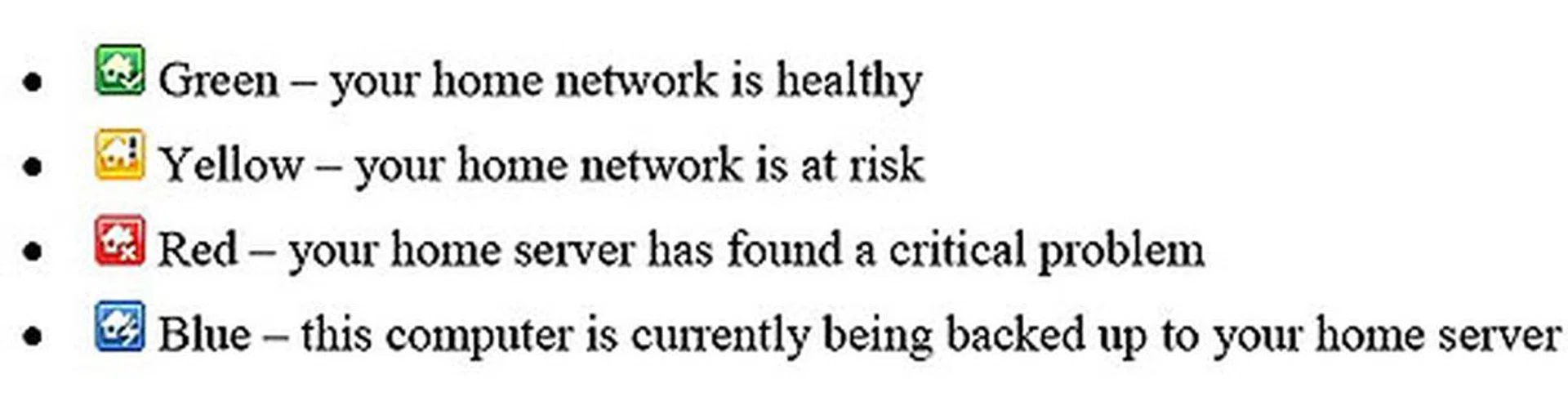
Home Server also reports back on the security status of the network. This is reflected using four different colored icons, where red is naturally a critical problem and green is the all-clear. All machines on the network which has the client connector software installed will have the above icons in its Taskbar by default, so one glance is enough to tell if there is any situation that requires intervention. Messages will also occasionally pop up, to inform about updates for instance.
Backup and Restore
At a glance, the Computers & Backup tab shows the various client computers on the home network and the status of their backups. Users can specify a general set of rules for managing their backups and allow the automatic backup management tool in Home Server to execute them. This includes setting a schedule for regular backups and also the cleaning and deletion of older backups that are no longer relevant or useful (time frame determined by user). Users can choose to backup entire hard drives or even specify which folders to include. You can also do a manual backup before hand if you're intending to do some major changes to your PC.
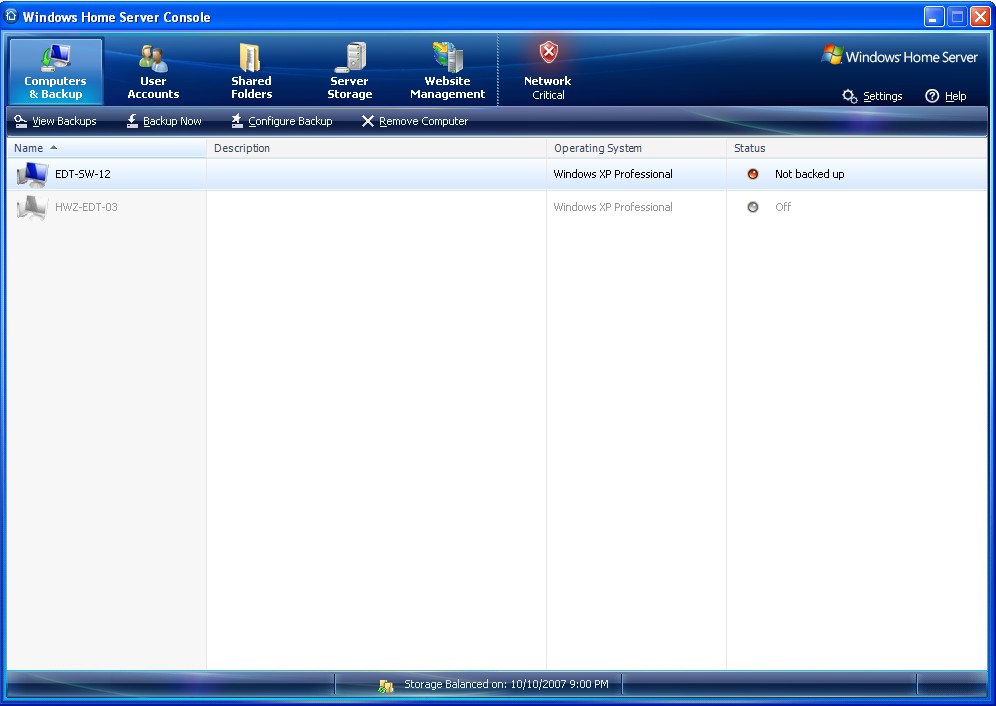
(Click to enlarge.) The Computers & Backup tab shows all the computers on the network connected to the Home Server. Here is also where you can see the status of the various backups and configure/schedule backups.
Restoring the client PC to a previous backup can also be done by choosing the backup and then browsing it via an Explorer interface and copying the desired file manually to the client PC via drag and drop. If the client PC has crashed and requires a complete restore, one can also restore the client by booting it up using the Home Computer Restore CD provided before loading the appropriate image file from the Home Server.
What's interesting here is how Home Server does the backup, as it involves a number of new, innovative tricks together with existing MS technologies. The hard drive is typically divided into clusters of 4096-byte size blocks (as it uses the NTFS file system), and then Home Server uses Volume Snapshot Services to track the hash values for each cluster. Any subsequent changes to the clusters are saved as the difference in hash values and this information is recorded by the Home Server. Hence, it's like a massive change-log tracking effort and it allows Home Server to achieve great savings in drive space for backup purposes.
And it actually goes a step further. In many cases, there are many similar software and applications on each client PC. Instead of backing up all the identical copies of the Internet Explorer on each PC for example, Home Server will backup only one copy and save that single copy, only duplicating it for each relevant client PC in the event of a restore. Again, it uses hash value differences to store any differential of the software versions. This brings additional massive savings in drive space.
User Accounts
This tab is where user accounts are created and managed (up to a maximum of 10), along with the user permissions for access to shared folders. Each user will get their own private folder on Home Server to store their personal files. To simplify matters, in Home Server, folder permissions are either read only, none or full, as these options would cover most scenarios. Here is also where users can modify their passwords, disable accounts and enable remote access. Remote access means that these users are able to access the home network from outside the network via the Internet using a web browser. By default, users are not given remote access and those who wish to have remote access are required to have a strong password. Home Server will check to ensure that the password for the user is appropriate before allowing remote access.

(Click to enlarge.) Adding new users and giving them access to the systems on the home network is done from this tab. Changing passwords, degree of user account access and enabling remote access can all be done.
Shared Folders
This is where all the shared folders on the Home Server are displayed and one can easily see the amount of space taken by each folder. Each user account will have its own private folder while there are a few general public folders predefined by Home Server and named after typical categories of files, like Software, Video and Music. User access permissions for these folders can be configured here. Then there is the duplication feature, which requires that the Home Server has at least two hard drives, in which case, on enabling duplication, the contents of the folder are mirrored on two different physical drives.
There is also a rather useful View History feature which shows the capacity of the folder over a time span and probably helps users plan their future hard drive upgrades in advance. From the general settings, one can also enable Media Library Sharing for these shared folders, such that any device or computer with Windows Media Connect (integrated into Windows Media Player 11) will be able to stream media from these folders. An example cited by Microsoft is using an Xbox 360 to play these shared files.

(Click to enlarge.) Here is where users can share their files, with certain existing folders created by default, like Pictures, Videos and Music. Generally, all users have at least read access to these folders but changing this is easily done from this page. Each individual user also has his or her own folder, which is set by default to be private. If the home server machine has more than one hard drive, folder duplication can be enabled, as an additional form of failsafe, in case one of the drives go wonky.
Server Storage
As its name imply, here is where all the hard drives available on the Home Server are shown. Important information like remaining disk space and the health of the drive are displayed but one sees a pool of hard drives and there is no drive letters involved, which is something that Home Server has tried to change when it comes to disk management. Users do not need to know exactly where their files are stored; shared folders are sufficient to provide the illusion that all the files are placed into their various categories (if the users themselves are judicious enough not to place the wrong types of files into the folders) and as long as users can access them, the typical directory structure and drive letters will only complicate things.
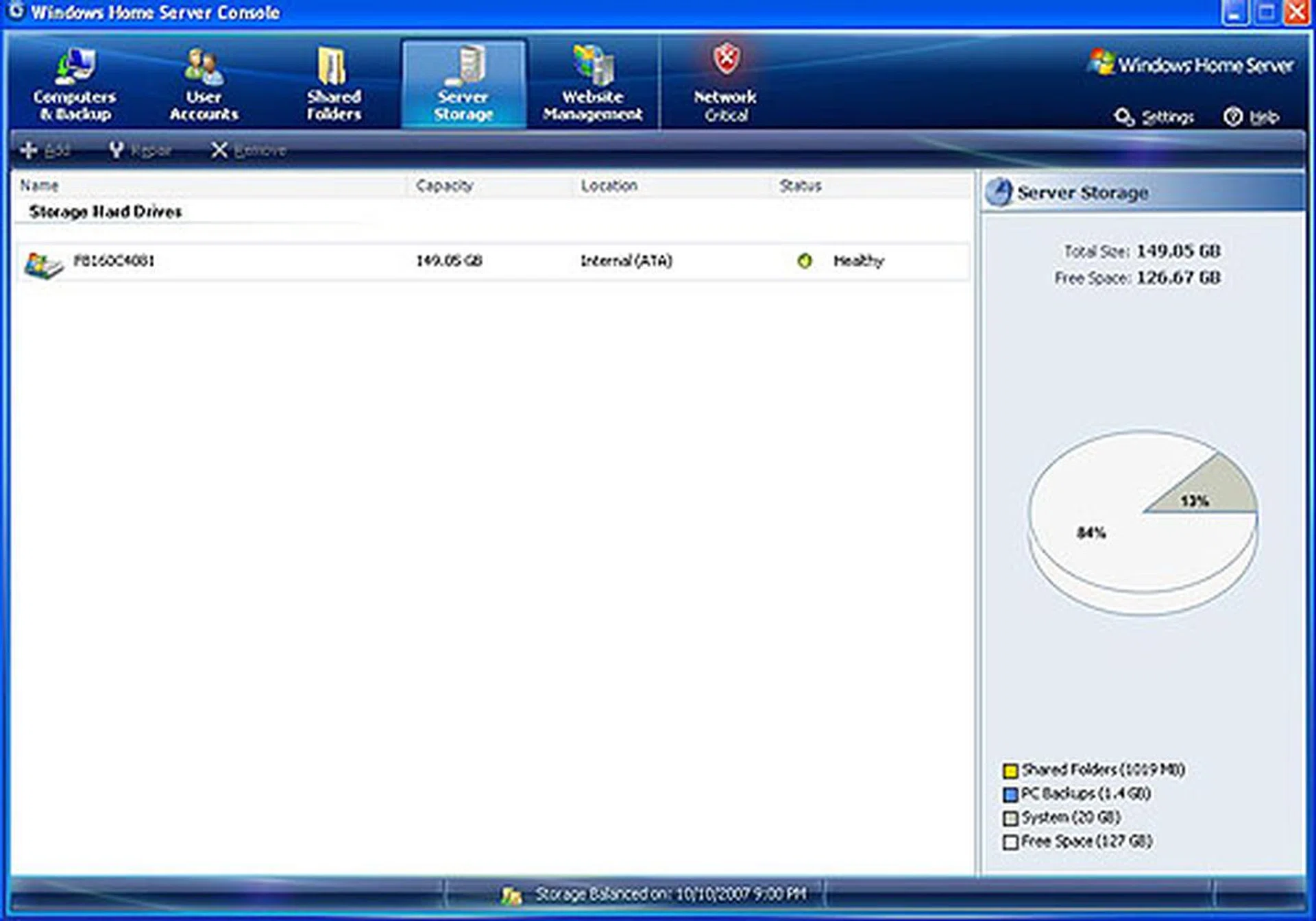
(Click to enlarge.) As you can see, our test machine had only one physical hard drive but expect to find multiple hard drives for most Home Server systems sold in retail. With a quick glance, one would have an idea of the total drive space available and the proportion of its usage. Adding a new hard drive (internal or external works, USB or FireWire too) is simple enough - plugging in the hardware and then adding the device via this interface. You will of course lose all data on that drive as Home Server will format it. Similarly so for removing a hard drive, though there has to be sufficient disk space on the other drives to take up the slack before you're allowed to remove a drive from the pool. Users do not need and cannot see the underlying directory and file structure of the hard drives, i.e. no drive letters. Everything is juggled automatically by the OS.
Almost any kind of drives are suitable for storage, using any form of interface (IDE, SATA, USB, FireWire or others) internal or external drives can be accepted and added to the storage pool. Of course, new drives will be formatted when they are added using the convenient wizard tool. The same happens when drives are removed, with Home Server juggling the data such that the remaining drives will take up the slack.
As mentioned in this Home Server blog article, the advantage of this approach (Windows Home Server Drive Extender) over the usual RAID configuration is that users do not require the identical drives that RAID usually demands. This will lead to greater versatility in terms of what's compatible and users can easily treat the Home Server as a dumping ground for mixing and matching any class of drives (even older, slower hard drives too). There is however a minimum requirement of 80GB for the primary hard drive on the Home Server, necessary because this primary hard drive is where the initial files are copied to from client PCs, before the Drive Extender 'rearranges' the data to other drives.
Remote Access
Besides all the inherent advantages of creating a home network anchored by the Home Server, there is another feature that should appeal to the enthusiasts. That is none other than Remote Access, which allows any computer outside the home network to access the network using a web browser. Not only are the shared folders available to you from your office for example, but you can actually remotely control the client computers and launch applications.
Prerequisites for this include having a UPnP supported router and remote access must be enabled for each user (again, strong passwords are needed and highly recommended since you'll be exposing your home network to the world). Home Server will automatically configure the router for remote access. Non-UPnP routers can work also, though users must then manually forward certain TCP ports (80, 443 and 4125). Finally, Microsoft will give all Home Server users their own personalized web address. All you need to do is to register for one and an address of the format "http://yourname.homeserver.com" will be reserved for each user. Users then login onto this web address in order to access their home network.

(Click to enlarge.) From outside the network or even via the Internet, you can remotely access another client computer thru the web interface offered by Windows Home Server. This is done by tapping into Window's Remote Desktop Protocol and requires Internet Explorer as the browser (due to ActiveX) to function properly. If configured correctly, you can remote desktop to any client computer from anywhere in the wired world.
When we tried this ourselves, we initially did not get the Computers tab shown here because we were not using Internet Explorer. (For that, we have to knock our heads for not reading the documentation in depth.) As it uses an ActiveX plugin for the underlying Remote Desktop Protocol, one can only use Internet Explorer to remotely access their computers at home. Other non-IE browsers will only show the Shared Folders tab, which was the case with our Firefox. This allows users to download and upload files to their home computers, but do note that there is a 2GB file size limit for each upload and there's always the chance that large files will fail to be uploaded properly if bandwidth is limited.
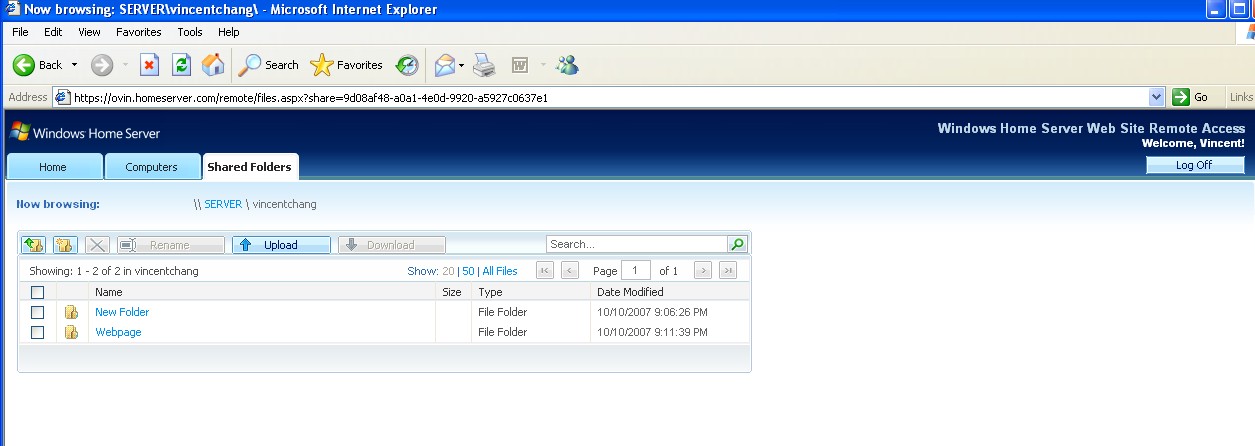
(Click to enlarge.) Accessing your shared files on your home network from outside the home via the Internet is one of the more attractive features offered by Home Server.
So what are the benefits of having remote access? Well, there are many uses that we can think of, including trivial tasks like running a software update on your system while you're at work, to downloading/uploading work related documents. You could even get your media center PC to record a show that you forgot about and conceivably, in a highly connected tech home, order your computer to turn on the air conditioning before you get home. (But of course, the practical task will probably be remote administration of your home network, giving you the godlike high that all sysadmins get.)
Roping in the Community
By now, you should have gotten a feel of the capabilities and potential of Windows Home Server. Its feature list may not be impressively long but it is after all quite narrowly targeted at certain users. What Microsoft hopes to do with Home Server is to engage the community of enthusiasts which has eagerly helped to beta test this software and enlist the developers in them to create useful third party plugins or add-ins as Microsoft calls them, and extend the functionalities of the Home Server. Already, there are some websites that host the works of these developers and there could be many useful ones that could add some features that Microsoft did not see fit to include. Such community efforts seem to be the trend nowadays, particularly for open source programs and it's not surprising that Microsoft too is embracing this.
With this in mind, we decided to try one of these add-ins and see first hand how easy or difficult it would be. Our choice was Whiist, which recently won its author, Microsoft's Code2Fame Challenge competition, a contest for third party add-ins. This was an add-in that utilized the given homeserver web domain from Microsoft and helped users quickly set up their own home pages on it.
So we downloaded the small .msi file from the Whiist site and copied it over to our Home Server, placing it in the shared folder for Software. We opened up the Home Server console and went to Settings, choosing the Add-ins tab, where we found the Whiist plugin under Available. We clicked on install and it was done. Uninstalling was the same process but in reverse. Whiist added an extra tab to our console, Website Management. Adding a website is done through a wizard, where users can name their page and the shared folder location where the actual HTML page is stored on the server. In a matter of minutes, we got the placeholder web page up and viewable over the Internet. The only thing left was to edit the contents of the page but that is not something Whiist can help you with. Here's a website that we found that had quite a few add-ins to try.
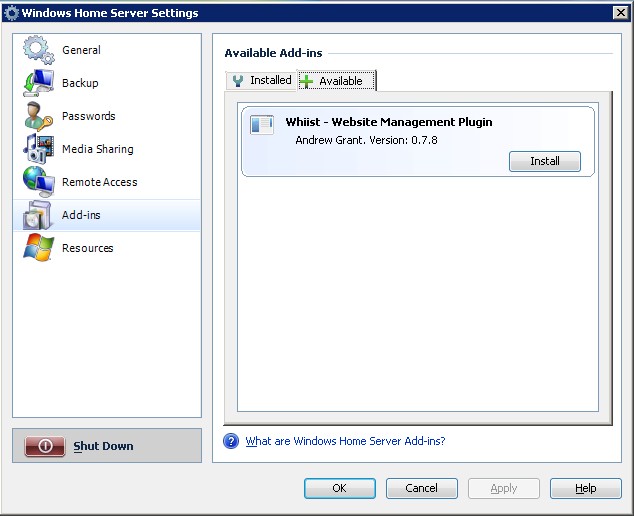
(Click to enlarge.) Microsoft is relying on third party plugin development, known as Add-ins to add further functionality to the basic Home Server features. One of the more prominent ones include Whiist, which allows users to easily host web pages and photo albums via Home Server. With Microsoft already providing a homeserver.com site to every registered user, this is a natural and very useful extension of this.
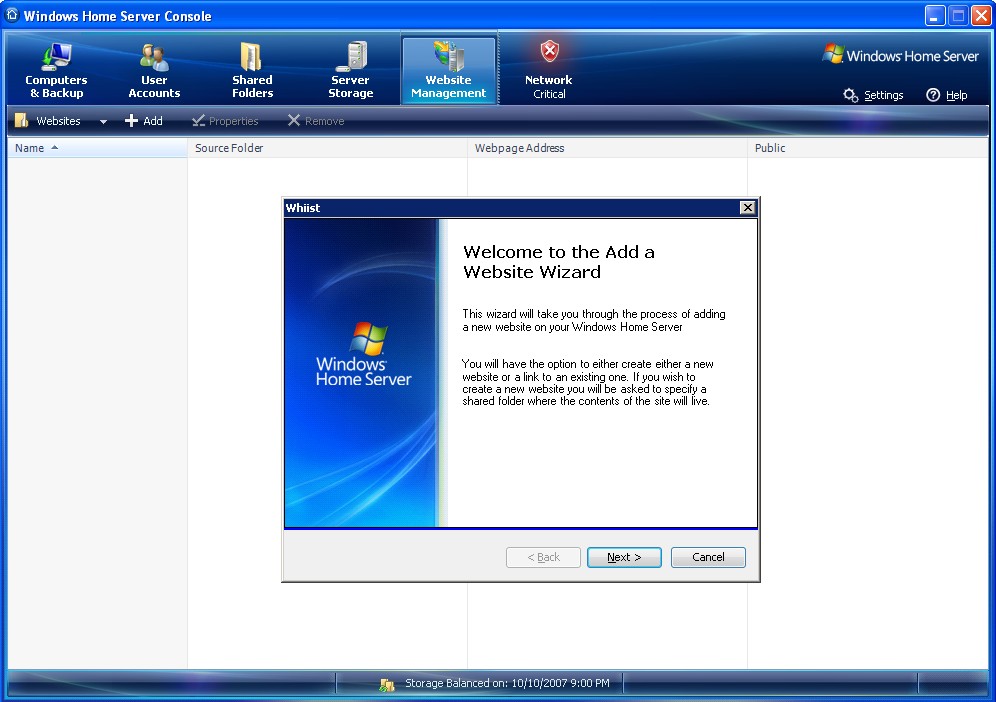
(Click to enlarge.) Whiist can be quickly configured using the wizard in a matter of steps.
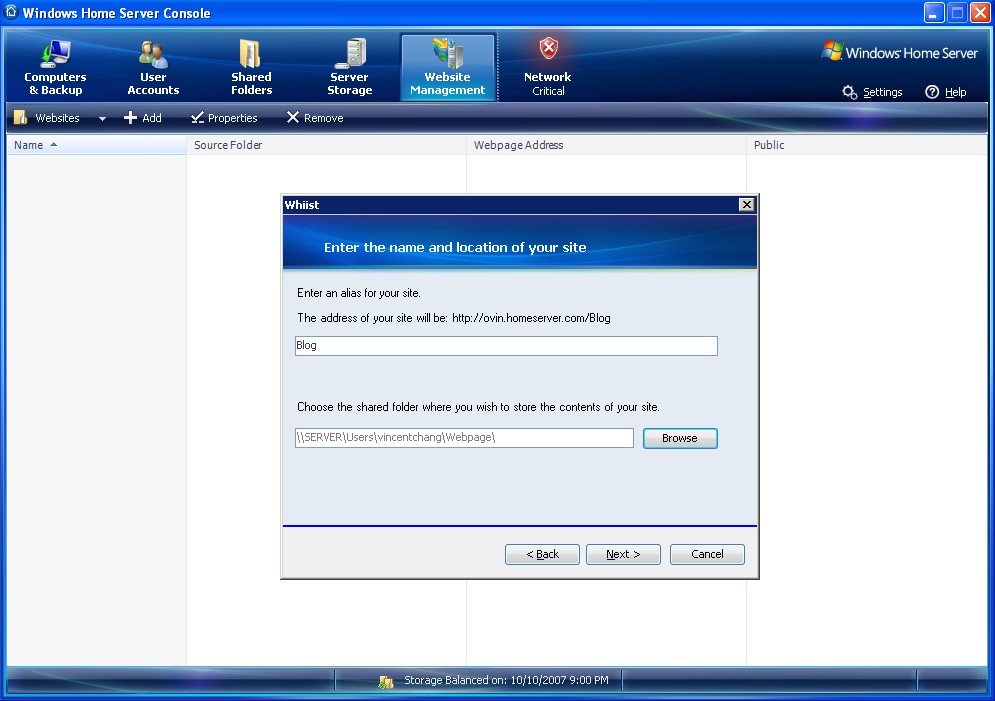
(Click to enlarge.) Creating the web page is the easy part using Whiist. Adding the content and layout for a proper, decent website is another story. Users however can just dump their HTML files and images into the folder specified in the wizard and they will be used.
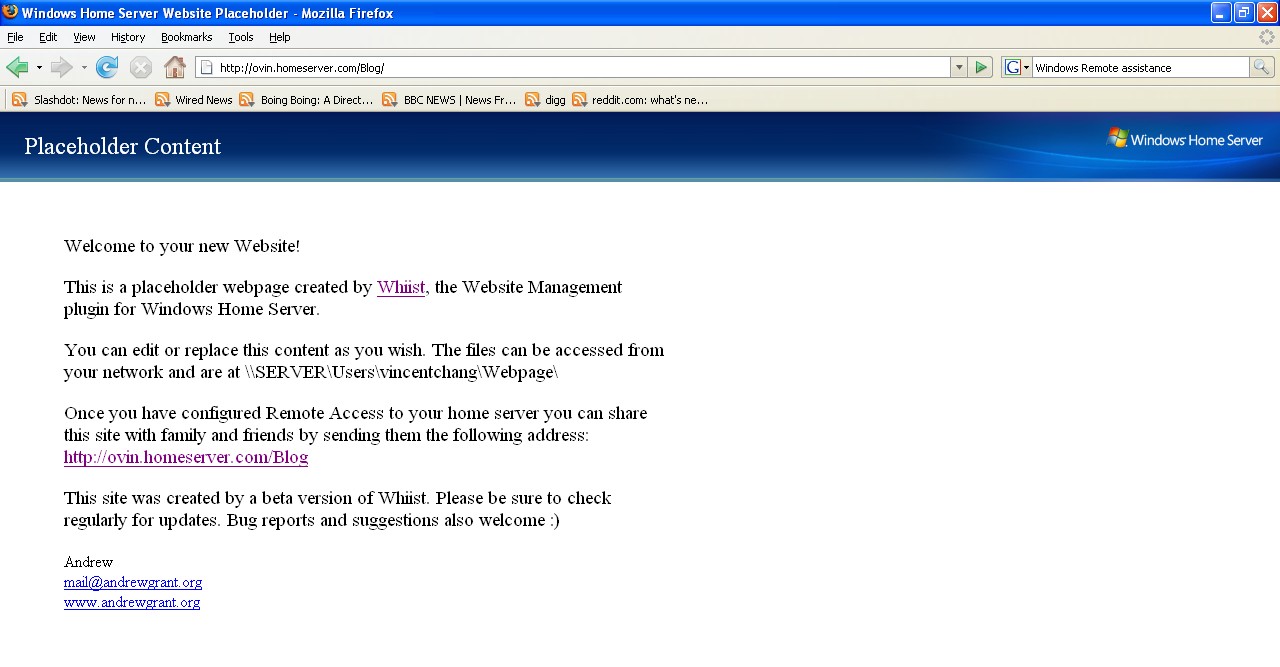
(Click to enlarge.) The default page created by Whiist if you had gone thru the wizard successfully. Now it's up to you to fill in the content.
Final Thoughts
The best compliment for Windows Home Server is how it gradually becomes invisible. After we got the network up and working, there was hardly any need to access the console to do any administration. The user accounts have been created, folder permissions defined and backups scheduled. It was then all a matter of using the Home Server, in particular its storage capabilities while remote access was also very useful for office drones finishing work at home. Everything was going smoothly and best of all, the user can forget all about the Home Server (once we turned off the network health notification that is), which is probably the whole point of such software.
Despite the presence of some innovative new technologies, the backbone of Windows Home Server is built on existing technologies like Volume Snapshot Services. This means that on some level, third party applications and scripts in the hands of enthusiasts can probably do pretty much what Home Server does, except that even sysadmins would like to take a break from these repetitive tasks, especially backups.
Knowing that your hard drives are running out of space and planning the next upgrade can all be easily viewed through the Home Server console. The physical addition of hard drives is also very well done by Home Server, with its less strict requirements compared to RAID systems/volumes while still maintaining integrity and duplication. In short, it helps to reduce the amount of mundane tasks that users need to do. This shines when there are less experienced users on the network and when the ability to restore a PC to its last backup state effortlessly using the Home Server becomes invaluable. One issue that we never did find out though was what happens if the Home Server crashed? Who backs up the backup server? There didn't appear to be any options to handle such a scenario.
There is no doubt that there is a market, niche though it may still be, for software to automate and maintain home networks. How does it perform from the user point of view then? For one, Microsoft has largely succeeded in reducing the technical jargon and knowledge needed in setting up your home network. We had some problems getting remote access to work properly but it was simply a case of reading the help text. And there were quite a lot of help balloons to guide and explain to users what each setting did. One could practically use the wizards to do everything in Home Server, from adding a user to adding a hard drive. The use of the tabbed interface kept the features separate and each feature had similar functions like Add, Remove that spanned across most of the tabs and made it easy for users to get used to. Even the settings were relatively simple, resembling the Options of a browser rather than a powerful application.
As it is now, Windows Home Server is a polished piece of software that just works. Its main strength is that it focuses only on certain tasks and accomplishes them without overly complicating things for users. Some may feel that its features are not sufficient to justify its price while the more sophisticated users will lament the loss of control. But we feel that what's important here is bringing it down to the technical level of the masses, for the masses.
The enthusiast in us would appreciate not having to spend time on backups and restoring systems, even if the options in Home Server are not as transparent or available to power users. The presence of a growing community of add-in users and developers will only extend the features and capabilities of this software. However, if you already have some form of NAS at home, it will probably not displace your fixed investment, unless Remote Access is important to you. Windows Home Server won't be as popular as other Microsoft products but it will certainly find its place in the homes of discerning users.
Our articles may contain affiliate links. If you buy through these links, we may earn a small commission.