
Revisiting Virtualization on the Mac - Fusion vs. Parallels
Since our last look at the virtualization scene on the Mac in 2007, both VMware Fusion and Parallels Desktop have released newer versions. Armed with the new 17-inch MacBook Pro, we revisited both virtualiztion software to find out who's ahead this round.
Revisiting Virtualization on the Mac
As debuts go, there was hardly a misstep from VMware Fusion, the company's first entry into virtualization on the Mac platform. VMware capitalized then on the trend of consumers shifting from Windows PC to the Mac platform, aided by Apple's switch to Intel processors. The only other comparable alternative then was Parallels Desktop for Mac, which found itself having a serious competitor for the first time.
Our own short in 2007 found that both products had some neat touches when it came to the integration between guest and host operating systems (OS), with Fusion the more eye-catching of the two thanks to its Spotlight and Expose integration. We couldn't quite say the same for the sluupgrade ggish performance of both software, no doubt a result of our less than optimal hardware, a 2.0GHz MacBook with only 1GB of RAM. (For readers who aren't well versed with these virtualization software and their basic features, we recommend building up the basics with our previous article as linked above and in our Related Links section below).
Flash forward to 2009 and both companies have newer versions of their virtualization software available. Despite starting from scratch, VMware has swiftly managed to capture a significant portion of the market for Mac virtualization products since its debut and all eyes are now on the company's latest version of Fusion, which has gone from version 1.0 to 2.0.2.
What's more, this latest version is available as a free for existing Fusion 1.x users. (Now if only Microsoft will follow suit for Windows Vista users upgrading to Windows 7 in the future). Parallels Desktop meanwhile has progressed to version 4.0 and while it's not free like Fusion for upgraders, existing users of Parallels do get a discount of US$30 off the retail price of US$79.99.
Hence, we'll be revisiting both these software in this article to find out what's changed and what's new. For our part, we too have a more capable MacBook Pro, the same luxurious 17-inch model that was . This MacBook Pro uses the new NVIDIA GeForce 9400M chipset, which means there's a GeForce 9400M integrated graphics processor in addition to the GeForce 9600M GT discrete graphics on the unit. Our review model also came with an Intel Core 2 Duo processor at 2.66GHz, 4GB of DDR3 memory and was installed with Mac OS X 10.5.6. When it comes to MacBooks, there is hardly a more powerful machine than the 17-inch Macbook Pro, so we're expecting a greatly improved experience from the two virtualization software this time round.
But before we go into the individual software and how they have changed, one thing that struck us during our testing was how both software appeared to be converging into polished Mac clones of each other, in terms of their features and their integration with the Mac OS. Perhaps in their quests to blend into Mac OS X, they have both arrived at a similar point despite starting differently. For example, below is the virtual machine library for both products, where it can be hard to distinguish between the two:-

There are similarities too in both the idea and execution behind the virtual machine library between the two products. Fusion's larger screen space allows it to present more details, especially the last suspended states of the virtual machines. Click to enlarge.
Requirement/Product | VMware Fusion 2.0 | Parallels Desktop 4.0 |
Host Operating System | Mac OS X 10.4.11 or later on an Intel Mac | Mac OS X 10.4.11 or later on an Intel Mac |
Memory | 1GB RAM (2GB recommended) | 1GB RAM (2GB for Windows Vista) |
Hard Disk Space | 400MB free disk space for VMware Fusion, and at least 5GB for each virtual machine. | 400MB free disk space for Parallels and 15GB recommended for each virtual machine. |
What's New in Fusion?
Most users would first notice the improvements made to Fusion's Unity, the integration mode between the guest operating system (OS) and the host Mac OS X. While the guest OS usually means Windows, with Fusion 2.0.2, VMware has added Linux Unity support (works best with Ubuntu apparently), though from what we have read, it is still rather incomplete and buggy at the moment.
Hence, let's see what's new in version 2.0 of Unity. Fusion has quite obviously aimed to further the integration and added more convenient ways of sharing files and information between the guest and host operating systems. To users of Parallels, these new features may seem rather familiar. For instance, now Fusion allows for the sharing of files through its mirrored folders feature, which basically means you can mirror the contents of your desktop, documents, music and picture folders and sync them.
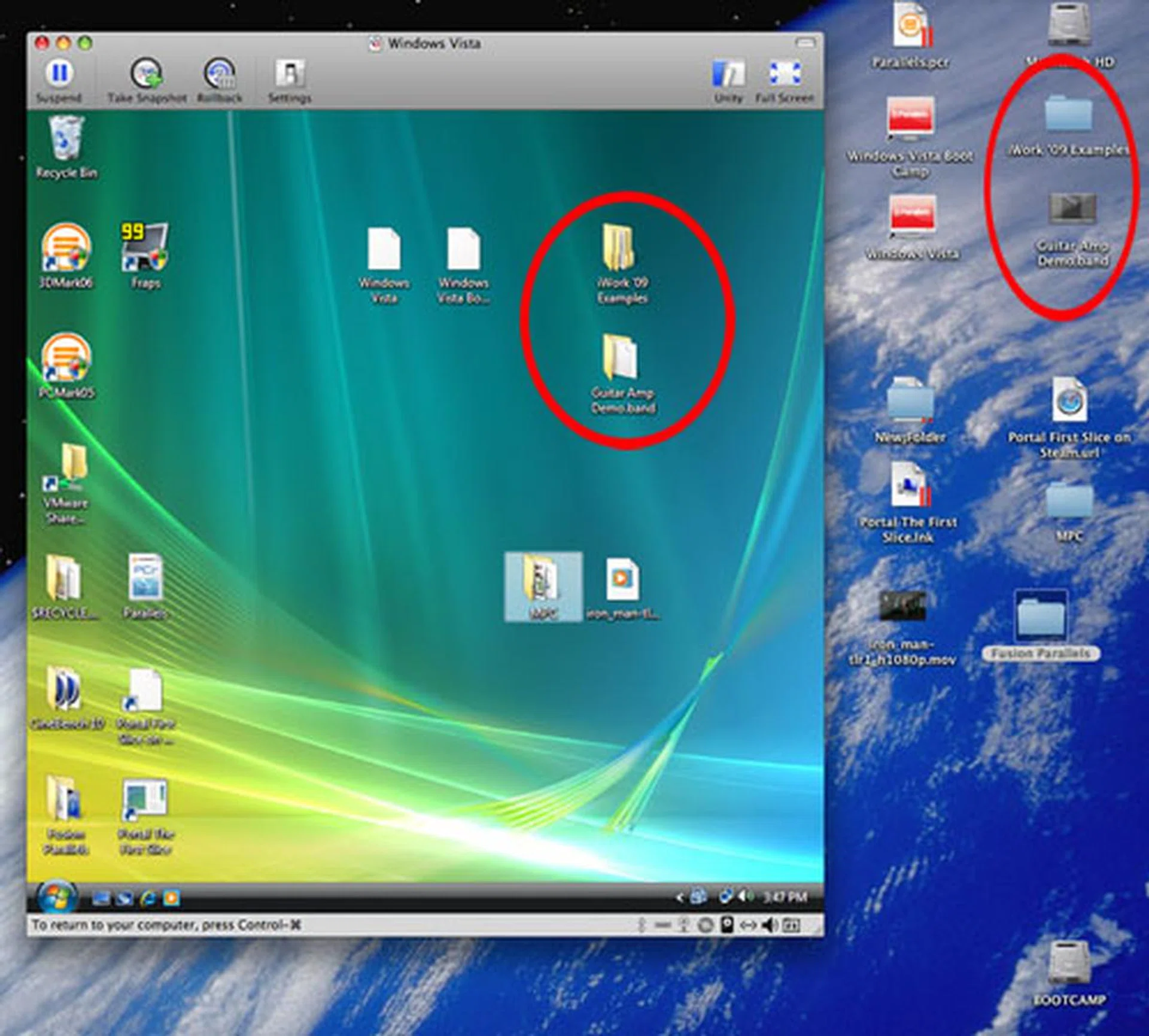
VMware Fusion 2.0 introduces greater sharing of folders between the guest and host OS. It allows the mirroring of important folders like Desktop and Documents hence the duplicates you find here.
Additionally, you can open these shared files in either Mac OS or the guest Windows OS and you can set what are the default applications to open them, choosing from Windows or Mac applications, something that Parallels has had since version 3. The contextual menu in Finder also has the "Open With" choice of your guest OS applications in Unity mode while internet links can be defined to be opened using your choice of Windows or Mac OS browser/email.
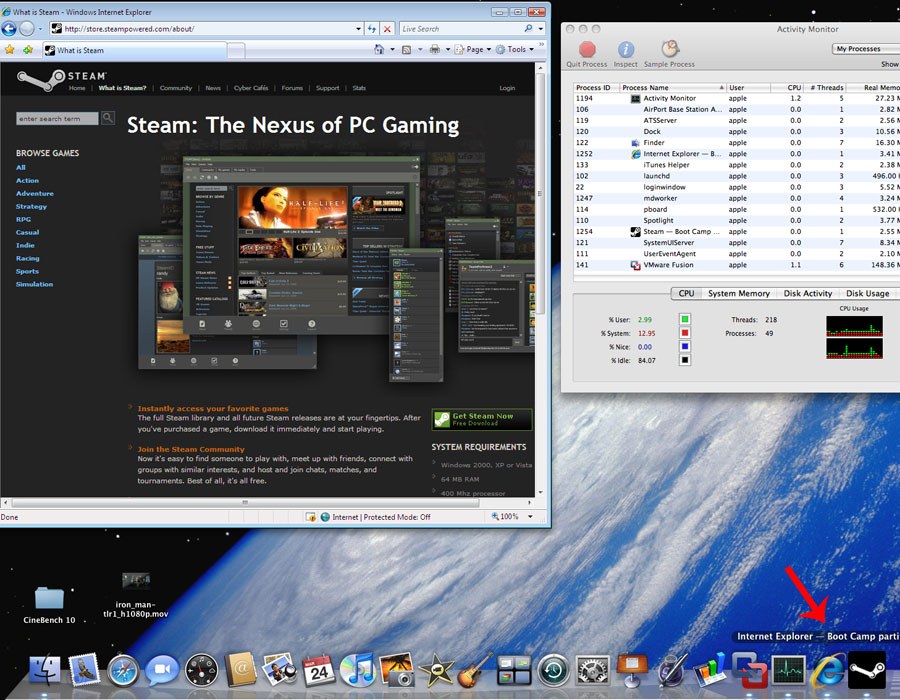
In Unity mode, the IE icon on the lower right is integrated with the Dock. Not all icons fare well in this transition. The Windows Explorer looks low-res and blurred compared to the other Mac icons. Other thing to note is that Mac OS X's Activity Monitor showed the relatively low CPU utilization with Fusion running. Only around 15% CPU utilization for the entire system, Fusion and other Mac OS X background services in total. Click to enlarge.
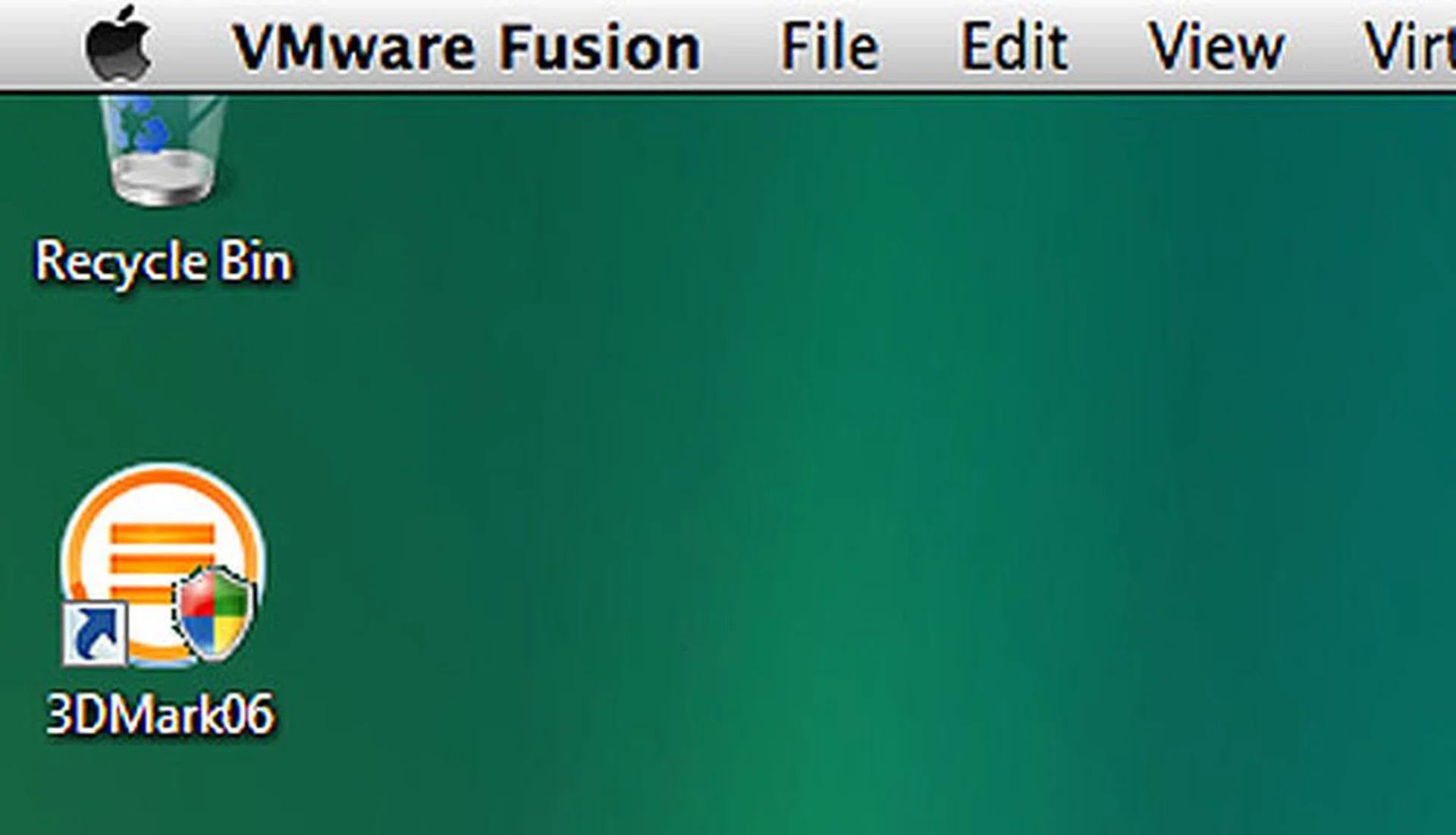
Another nice touch that VMware Fusion has is the behavior of its application toolbar. Even in full screen mode, one can access the Fusion toolbar just by moving the mouse cursor to the top of the screen. Of course, power users will likely know the proper shortcuts by heart in a snap, but it has its uses.
These important additions come on top of the improvements in eye candy, like Windows application icons in the Dock having the same shadows and other Mac OS effects as their Mac counterparts. They may not be as significant as the application handling or file sharing functions, but these are the little details that matter to users for overall user experience.
Another new feature that adds to the integration is what Fusion does with key mappings between Windows and Mac OS. The standard Windows shortcuts are by default mapped to their equivalents on the Mac keyboard so you can continue to use them straightaway. Users can even custom their own key mappings for less common shortcuts found in specific applications.
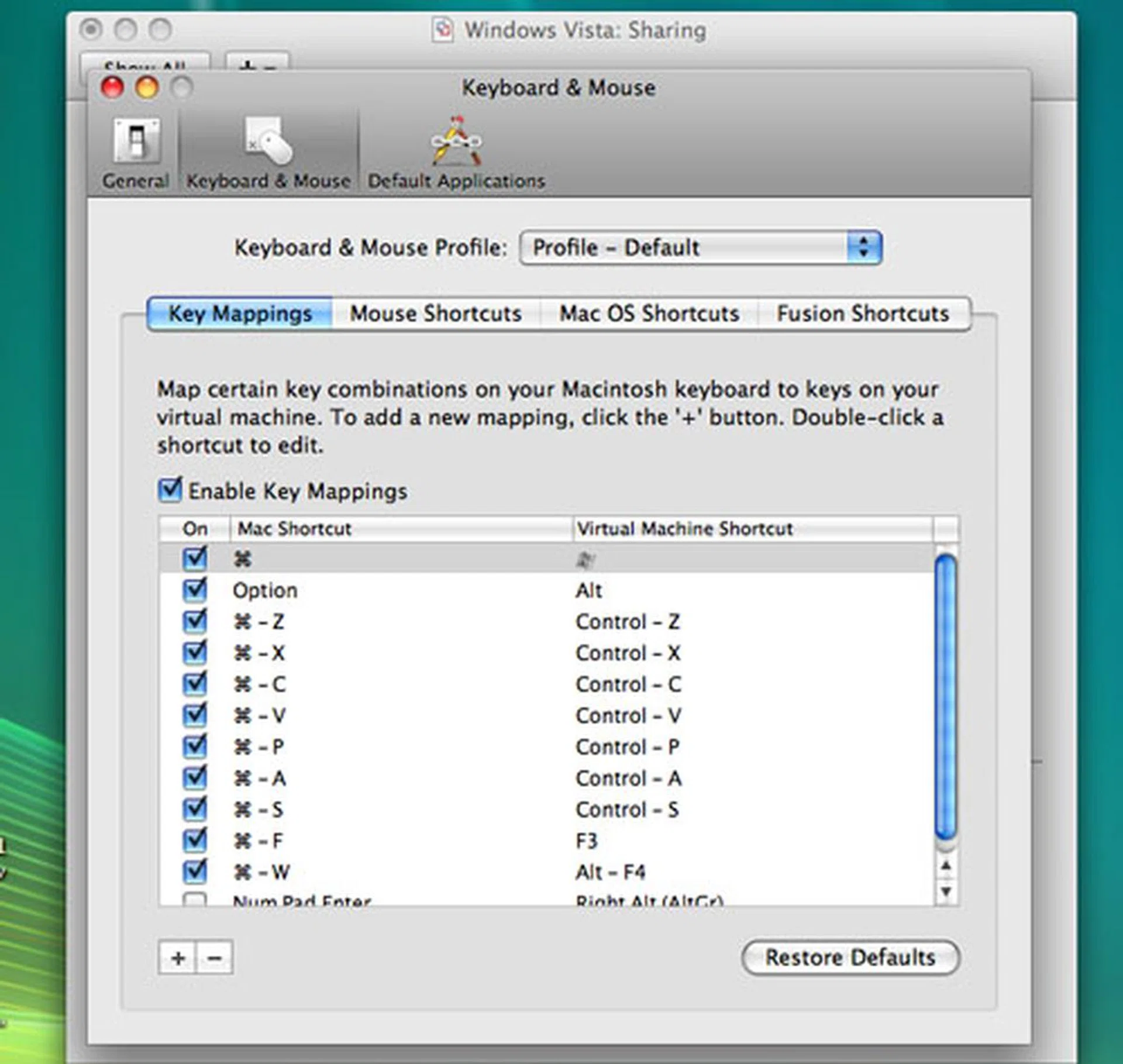
A new and much needed feature in Fusion 2.0 is how the software deals with key mappings. Besides the common keyboard shortcuts like cut, copy and paste that have been automatically mapped, users can define their own key mappings, useful for those applications that use Window-centric shortcuts with keys that aren't found on a Mac keyboard.
Some of the limitations of Fusion 1.0 have been addressed. Users of multiple monitors would also be pleased to know that up to 10 displays are now supported for virtual machines on Fusion 2.0. VMware calls that 'true' multi-monitor support and Fusion features like Unity and Full Screen mode also work over multiple monitors.
Fusion's Snapshot feature, which helps to backup the virtual machine gets a major upgrade. From the previous version's admittedly limited support for a single snapshot of the virtual machine, you can now do multiple snapshots, so there are more save points should you mess up your VM. And what's a VM if not a big sandbox for users to dabble and experiment with beta software in relative safety?
Again it's something Parallels has had for a while and we expect it to be well received by users. Fusion adds an AutoProtect feature, which is basically a scheduler that takes snapshots of the VM according to a frequency set by the user. Of course one has to manage the snapshots properly since they could end up using lots of drive space if not monitored.
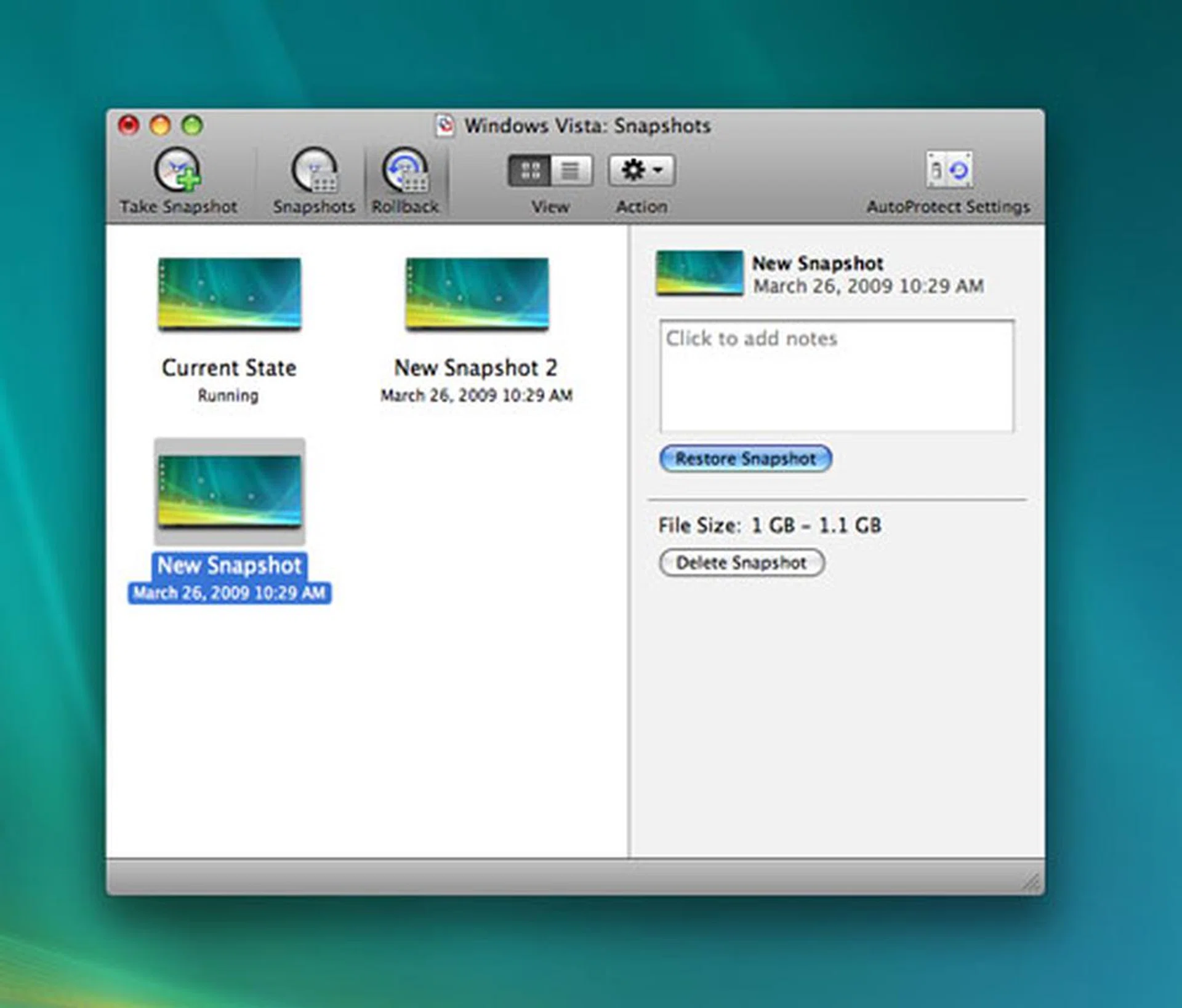
Snapshot has been upgraded on Fusion 2 to allow for multiple copies unlike the single snapshot limitation on version 1. Additionally, you can even set it to automatically grab snapshots on a schedule through the AutoProtect feature.
Fusion has rapidly seized a sizable chunk of the virtualization market for the Mac and no doubt, a significant portion of that has come from former Parallels users. To ensure that there will be more of such switchers, Fusion 2.0 comes with a new import feature that can convert your Parallels VM to Fusion. It's a simple process that requires little input from the user and took around 30 minutes to complete.
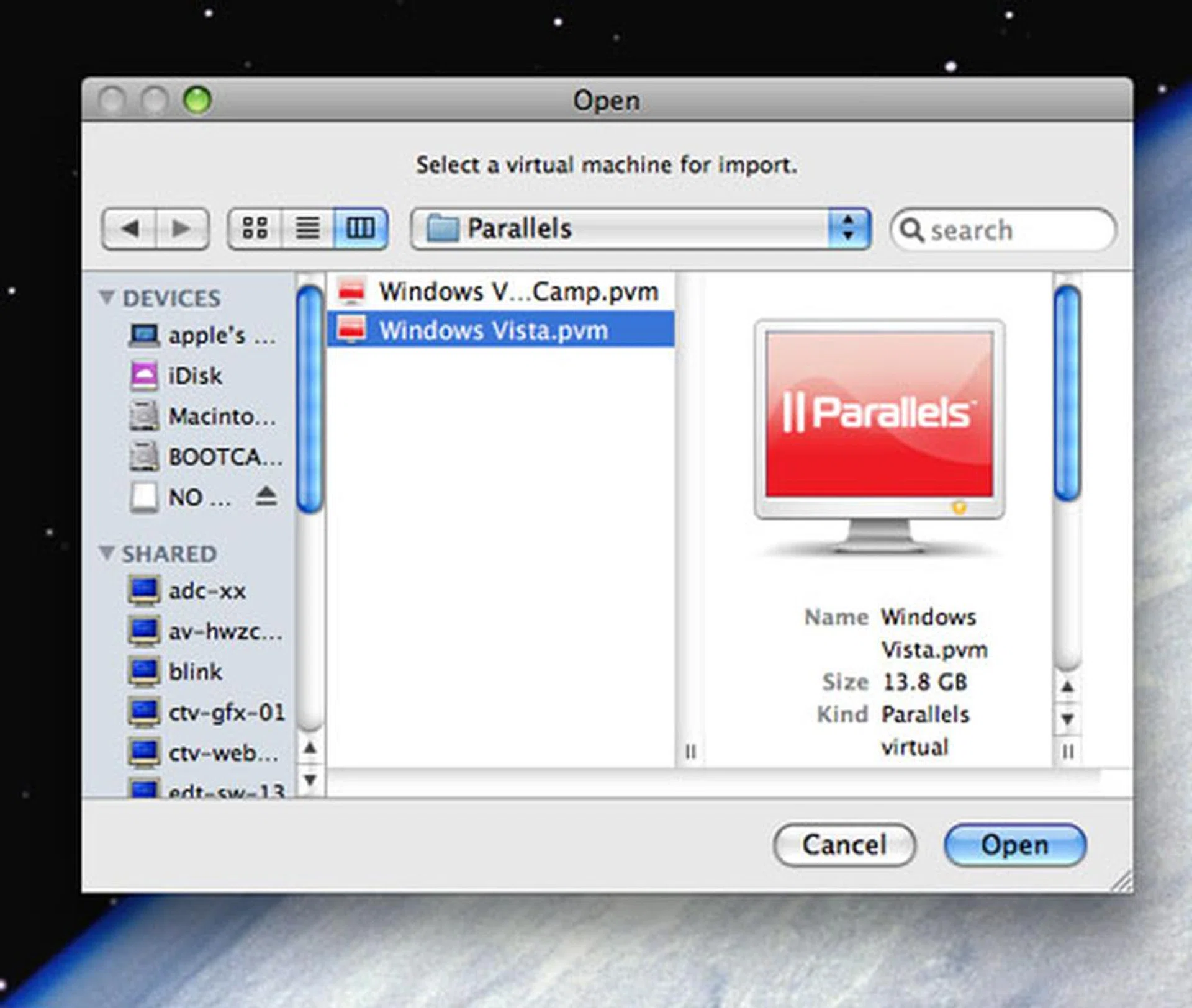
Along with the latest version, you can now import existing Parallels VM files over to Fusion. The process is relatively simple and took slightly more than half an hour to complete.
Other technical improvements include support for up to 4 virtual processors and DirectX 9.0 (Shader Model 2) and Fusion is able to address up to 8GB of virtual memory while using up to 16GB memory on the Mac. These would be useful for those thinking of using their new 'Nehalem' Xeon Macs. Mac OS X Leopard server is also supported experimentally as a guest OS, making it more feasible to fully utilize that computing power.
There's also the addition of driveless printing, where one would not need to install the guest OS drivers when simply printing black and white. Fusion 2.0 will handle it automatically as long as the printer is installed in the Mac OS. A recent Apple update however appears to have broken this feature so users may want to check out the temporary workaround listed here.
With such an extensive list of improvements and new features, Fusion 2.0 looks to have narrowed the gap between it and the competition in terms of OS X integration. Throw in the free upgrade for existing users and it looks like a sure winner for VMware. But how about the new Parallels 4.0? Find out on the next page.
What's New in Parallels?
Parallels Desktop for Mac may have come under stiff competition from VMware but in a few areas, particularly its integration between OS X and Windows, it is still ahead of Fusion. Personal preferences come into play here when we talk about these features and effects but there's no doubt that Fusion has taken quite a few of these features right out of Parallels' book.
Compared to the major changes in Fusion, Parallels' list may seem embarrassingly short (relatively speaking). But that's probably since Parallels does not require as many improvements since it's already into version 4.0. So, we see some rather minor integration features like having Windows notifications appearing in the Apple menu bar and also being able to access the Start Menu in the Dock.
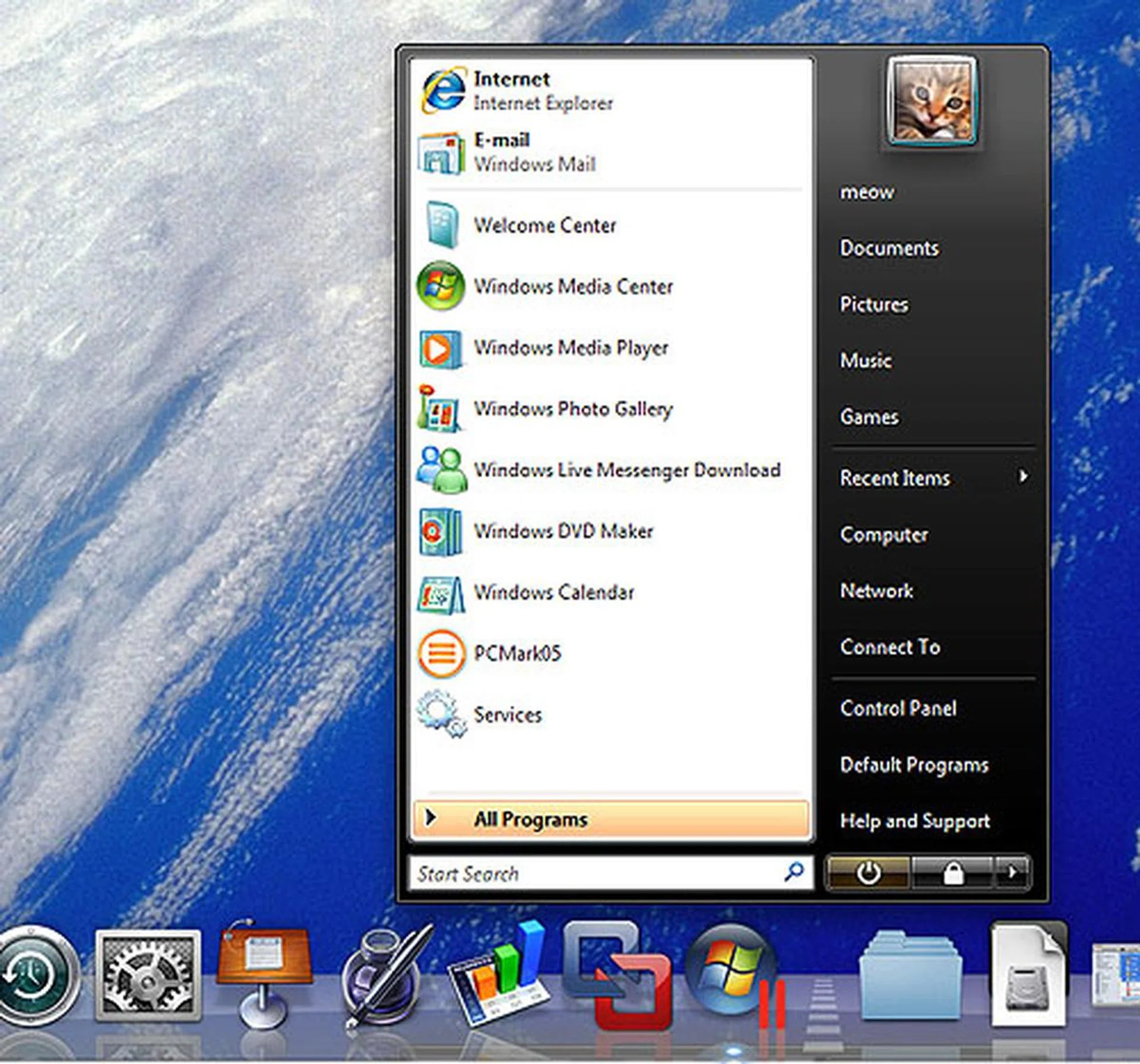
Adding the Windows Start Menu to the Dock is one of the new integration features that's now found in Coherence in Parallels 4.
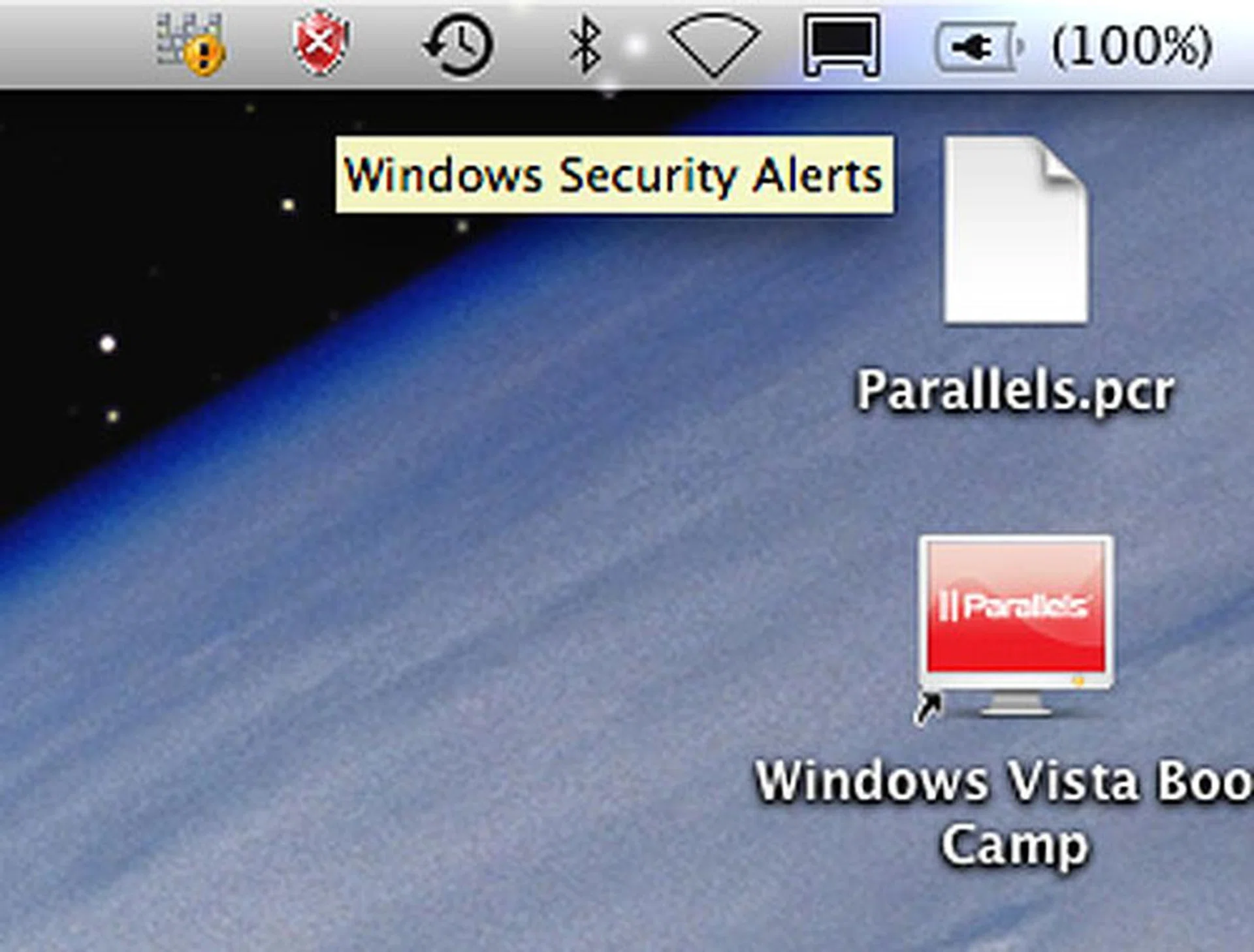
Another feature that may or may not be welcomed is the addition of Windows notification on the Mac's Menu bar. Personally, we won't mind not seeing any more Windows Alerts popping up.
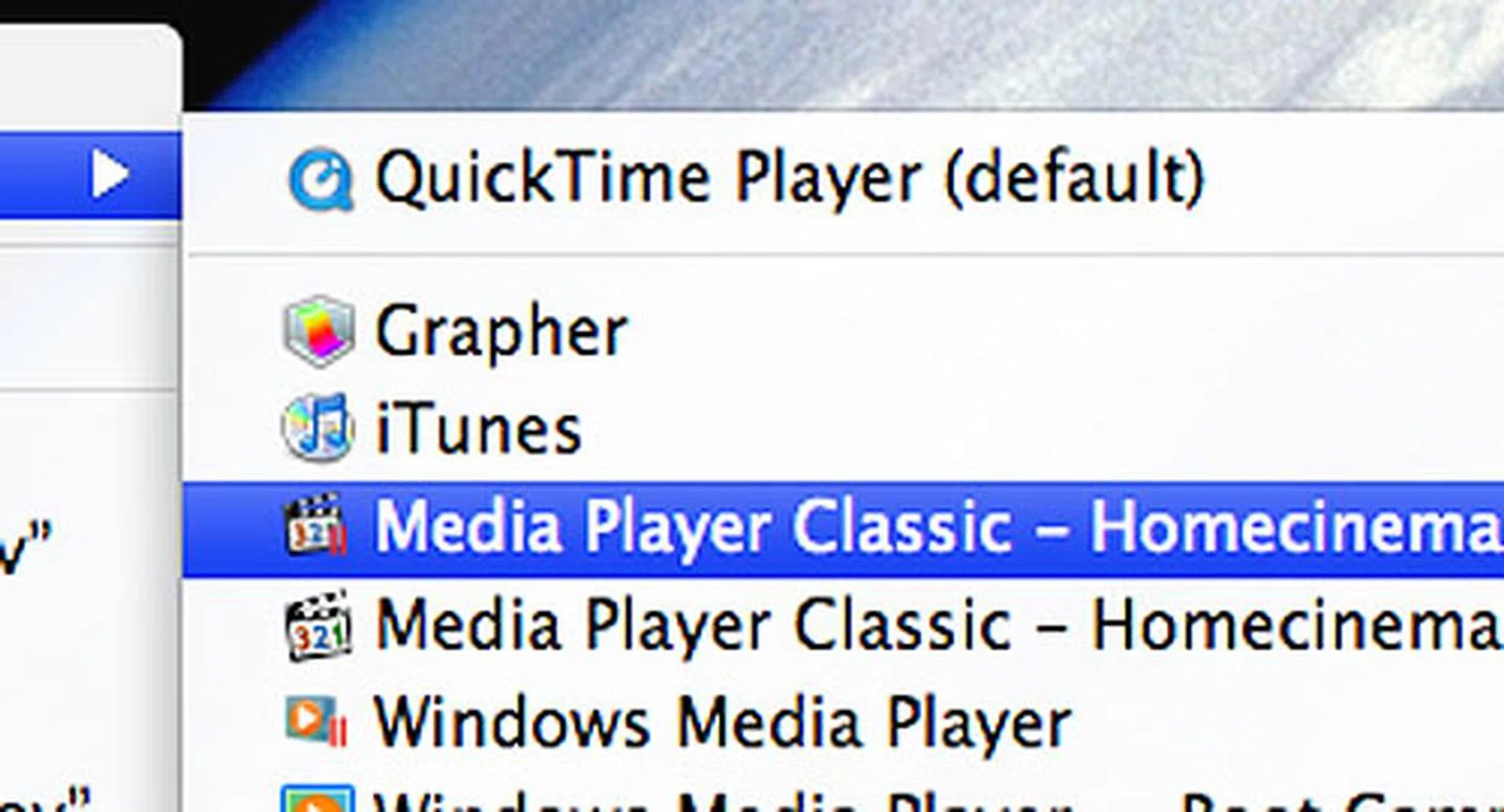
Even though we had both Fusion and Parallels installed, it was easy to tell it was Parallels due to the two red 'parallel' bars on the application icons.
Coherence continues to be a strength for Parallels as its integration is well thought out and nicely implemented, not to mention some cool transition effects between modes. However, Parallels 4.0 adds some interesting tidbits that are hit and miss in our opinion. First, there's another new mode besides Full Screen and Coherence - Modality. This mode reduces the size and translucency of the guest OS window into a small, almost thumbnail-like window that's at the same time showing a live view of what's happening in the guest OS.
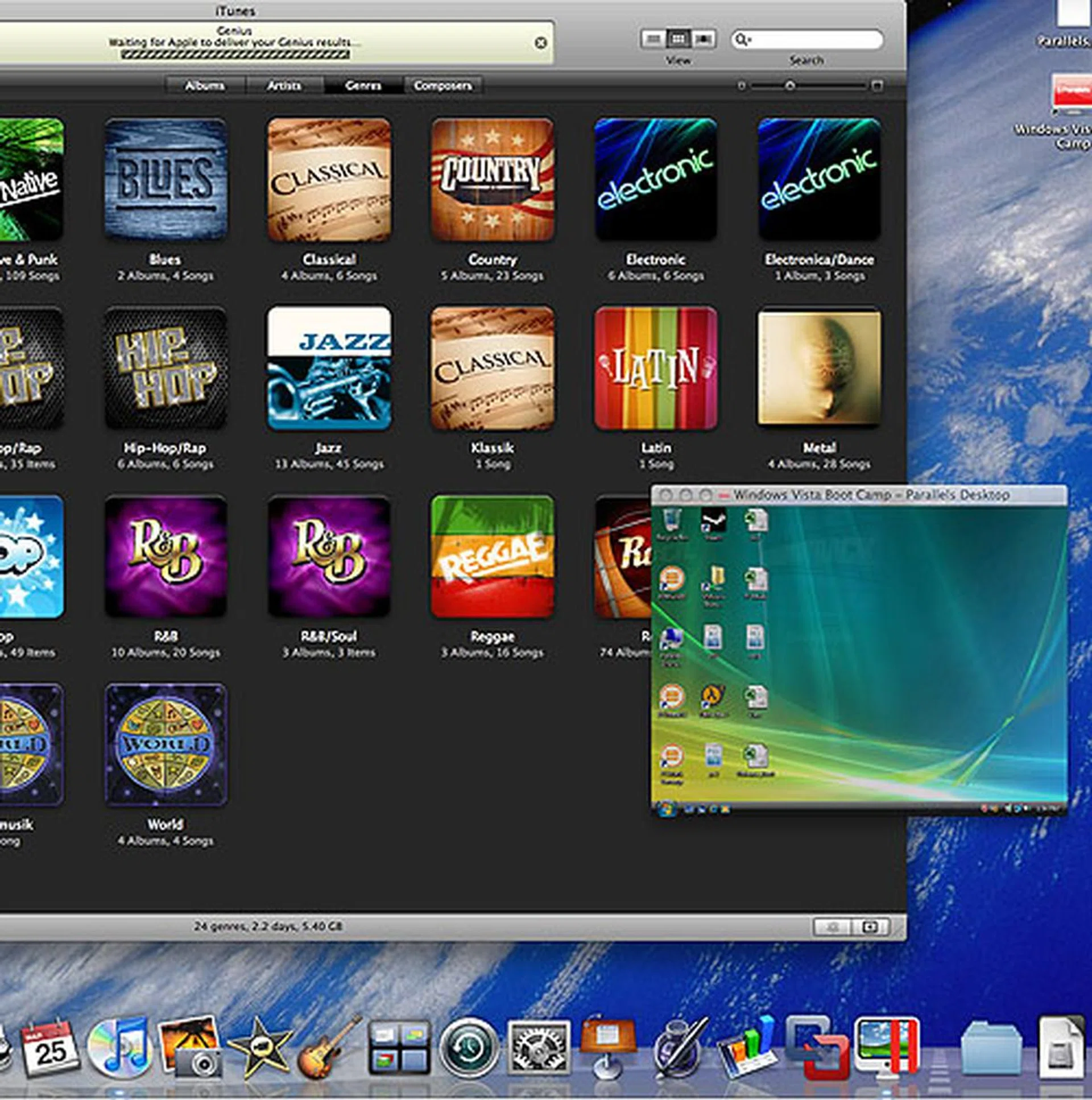
One new feature is Modality mode, which shrinks the guest OS while keeping it to scale. Think of it as the thumbnail view that you get on Windows Vista. Users can get a glimpse of the activity in the guest OS while remaining in the Mac desktop.
To us, it's of limited use since we'll be either in full screen or Coherence mostly. Perhaps a long software installation that requires the user to keep watch over it will find some benefit from having Modality. Another feature that fails to convince is its supporting application for the iPhone (free download from the App Store), where users can resume and suspend their virtual machines through the iPhone. And nothing else.
That's about the scope of the UI and integration upgrades that Parallels 4.0 has over the previous version. Instead of pretty interface tweaks, Parallels has a more important task of fixing its hypervisor, especially after the buggy debut of Parallels 3.0, which by all accounts, was a big step backwards. Therefore, Parallels 4.0 has gone about optimizing its performance and all-round stability.
First up, the technical bar has been raised - and by quite a huge margin. Parallels 4.0 supports up to eight virtual processors, four more than Fusion 2.0 and a huge leap over the single core support on version 3.0. Though this is not an issue for most Mac users yet, those buying the latest Mac Pros will find that very convenient. Like Fusion, there's also experimental support for Mac OS X Leopard Server. In fact, this new Parallels is the first version to offer 64-bit guest OS support, which brings it level with Fusion.
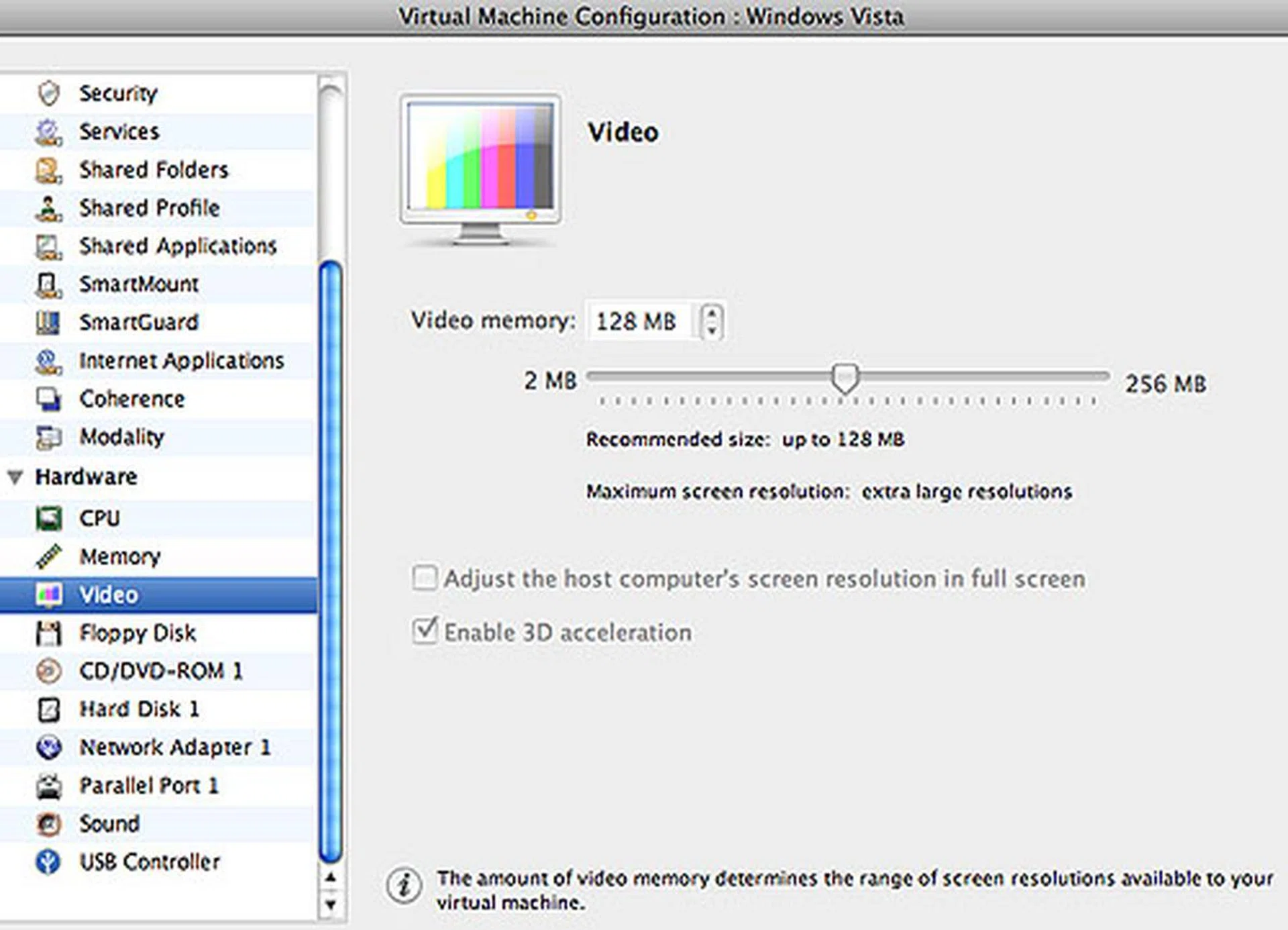
Parallels has leapfrogged Fusion in its graphics support, with up to 256MB of video memory (128MB for Fusion) and besides similarly having DirectX 9 support, Parallels has maintained its OpenGL advantage over its competitor.
3D graphics is another area where the stakes have been increased. Parallels 4.0, besides its DirectX 9.0 and OpenGL 2.0 support, allows for up to 256MB of graphics memory to be used by the virtual machine. That's twice the amount that Fusion is capable of addressing and four times of version 3.0. Parallels 4.0 also supports Intel SSE4, which may improve its multimedia performance in applications built to take advantage of it.
All these technical specs will be supporting a new adaptive hypervisor that Parallels claims is able to optimize performance based on currently open applications. Performance is expected to be significantly better than the previous version and Parallels also throws in longer battery life of between 15 - 30% as an improvement over Parallels 3.0.
While we couldn't really tell in our testing whether Parallels 4.0 performance has improved over the older versions, it was about as smooth and usable on our MacBook Pro as Fusion 2.0. The only bump that we had was Parallels hanging on us on one occasion (and that was before we updated from build 3540 to the latest 3810), when resuming our Windows Vista VM took so long that we killed the process. Effectively, we didn't manage to resume it back then.
Performance
There are various ways of gauging the performance of the two virtualization products, from its memory/CPU footprint, the responsiveness of the interface to abstract benchmarks numbers. In our case, we have gone with a mix of the two, with accounts of our user experiences spliced with benchmark numbers. To get the more bland part of this section over with first, let's see how the two software fared in 3DMark06 and PCMark05.
To briefly reiterate our test system, it was the latest 17-inch MacBook Pro (2.66GHz Core 2 Duo, 4GB memory, GeForce 9600M GT) with Fusion 2.0.2 and Parallels 4.0 Build 3810 installed. Windows Vista with Service Pack 1 was used as the virtual machine (VM) for the testing and each virtualization software had a copy of this operating system (OS) as a VM. For the virtual machine settings, we set both software to use two virtual processors with 1GB of memory. 3D was enabled along with support for drivers and USB. A hard drive partition of 40GB was set aside for each VM.
Nothing but the Numbers
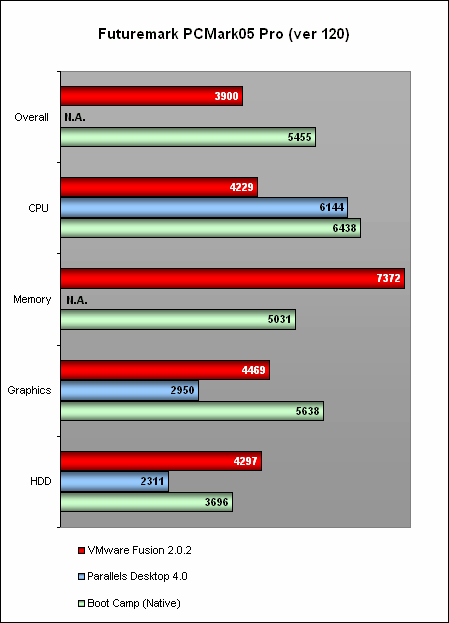
Despite repeated trials, we couldn't get an overall PCMark05 score for Parallels since it failed to complete the memory section. We did manage to get the other subsystem breakdown and here, Parallels scored higher than Fusion for the CPU. However, Fusion did better in graphics and in the hard disk section too. Both software generally performed significantly worse than the Boot Camp partition running Windows natively.
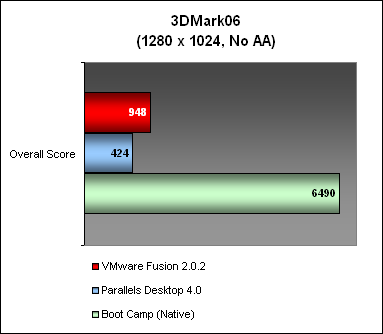
Moving onto 3DMark06, just from looking at the scores, one would think that Fusion was the clear winner. Yes, the numbers favored Fusion heavily but while these were accurate, they did not tell the full story which was that in Fusion, several artifacts were noted during the benchmarking. They were not serious enough to derail its performance but visually, they were ugly and obvious. Also, there remained a huge discrepancy between the VM's performance and Boot Camp that pointed to more work needed for both companies when it comes to their graphics support/drivers. Both VM software still support only up to DirectX 9.0 standard and not the DirectX 9.0c that supports the modern gaming requirements with Shader Model 3.0 support.
Subjective Experience
For this section, we decided to run some applications while in full screen mode (Windows Vista). But before that, we tested the time taken for both virtualization software to suspend and resume the virtual machine, since we felt that users would likely be doing this quite often when using VMs. The following results were timed using a stopwatch.
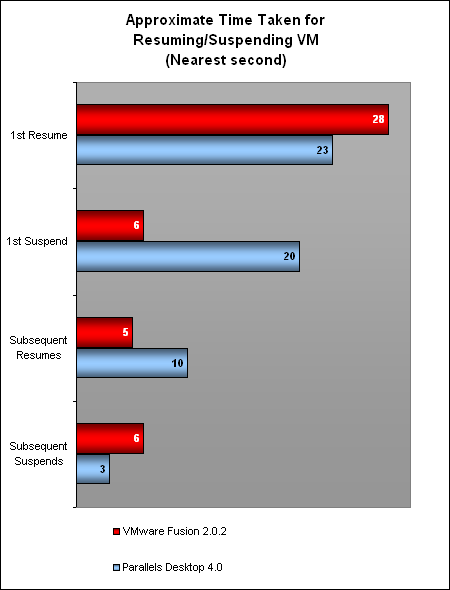
Parallels had a slight edge when resuming a VM from its last saved state for the first time i.e. after a cold boot. However, Fusion took less time to suspend the VM and subsequent resumes too were also faster with Fusion. Overall, both software were snappy enough that we had no complaints about the time taken to resume or suspend a VM.
As for normal usage like running office applications, both software responded promptly enough that it may even fool users into thinking that they were running Vista natively. CPU utilization was low for both, though the memory footprint could obviously be quite large, given that we had allocated 1GB of memory for the guest OS.
Next, we moved onto trying high definition videos while in the guest OS. The media player chosen was Windows Media Classic Home Cinema while we used a 1080p movie trailer as the test subject. Both Fusion and Parallels were able to play the video at an acceptable level, though there were occasions when both software had laggy moments. Fusion in particular recorded high CPU utilization of up to 100% at certain parts of the video and we encountered occasions where the audio lagged behind the video. Parallels meanwhile only showed up to 60% CPU utilization and generally had fewer issues with audio sync.
For this section, we'll have to give it to Parallels for its lower CPU utilization. Given that Parallels 4 claims to have implemented support for Intel SSE4, that could have helped for the media playback, or it could be that the graphics drivers on Parallels fared better.
Gaming Experience
Finally, we took the plunge into gaming proper, since both virtualization products were advertising their DirectX 9.0 support, with Parallels going a step further by having OpenGL 2.0 compatibility. We however weren't too optimistic after the 3DMark06 performance. Hence, we have chosen a less demanding DirectX 9 title, Sins of the Solar Empire, a real time strategy game that should not be too stressful for both software.
Installation went by flawlessly for both and we tried the game at 1024 x 768 with no anti-aliasing (there was no choice to select that anyway). There was however lag felt when we started the game, especially when panning across large expanses of the game; it's a real time strategy game after all. Using Fraps, we noted that the frame rates were very playable for both Fusion and Parallels, with at least 30 frames per second (FPS). Generally, Fusion gave higher peak FPS figures, which can go as high as 70 while Parallels peaked at the 50 FPS range. We didn't notice any artifacts, which is good news.
We did encounter some slight issues when changing the game resolution though. Fusion may occasionally get into an endless loop of flickering when we tried to change the in-game resolution. It does allow the game to stretch and fill the screen, even at 1024 x 768, which meant the icons and textures ended up looking blurry if you do so. Parallels however would not do this and will run the game exactly at 1024 x 768 resolution, with the rest of the unused space as a black border. Both virtualization products allowed the game to run at the MacBook's native resolution of 1920 x 1200 and surprisingly, it was quite smooth and playable.
While there's still no substitute to Boot Camp for real gaming needs at the moment or the rare Macintosh port, both software have certainly made significant strides in this area.
Concluding Thoughts
The last time we fiddled around with virtualization on the Mac, we came away with our hopes slightly dampened by the lackluster performance. Virtualization has a very compelling argument, with the way our hardware is utilized that is leaps and bounds more capable than the typical everyday application. It was slightly disappointing to realize that it just wasn't quite there yet with Fusion and Parallels then.
Partially, it was our fault for not using a more powerful system. But the virtualization software too had their own flaws, from the rough edges on Fusion's Unity mode to Parallels lack of support for multiple processors.
These flaws have been quite comprehensively addressed in the latest versions of these software. Parallels 4.0 especially has undergone some serious changes under the hood. Although the interface and usability of Parallels has not seen any significant improvements, the product has arguably a lead here that they can afford to overlook that aspect in favor of more urgent core hypervisor changes.
Fusion 2.0 meanwhile has gone the other way, catching up with its competitor's features by aping quite a few of them in the new Unity 2.0. Technical specifications and hardware support have been improved of course but not to the extent that we have seen on Parallels 4.0. One could see that Fusion has been surpassed here by Parallels just from looking at the specs sheet.
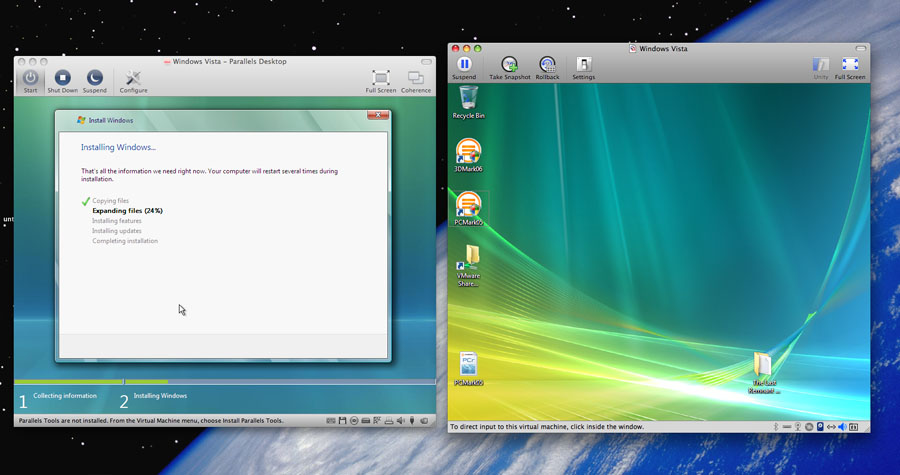
When placed besides each other, both virtualization software have almost identical user interfaces. From the Suspend and Shutdown controls to the Unity/Coherence and Full Screen modes, these two seem to be following the same script. Click to enlarge.
The results however are similar. Both software have reached a stage where the features, from their respective snapshot managers to the virtual machine libraries to the interface, and integration between the guest/host OS are almost identical. The major features are present on both products. Parallels has tossed in a few interesting twists like iPhone support and Modality in version 4.0 but we aren't too convinced of its usefulness.
From the perspective of an end-user, Fusion 2.0 has made great improvements, especially since these are changes that are easily noticed. Whereas Parallels' hardware support and better stability is not immediately obvious. And hence our feeling is that it's a virtual tie (pardon the pun).
Both products performed similarly when running everyday applications, HD video playback and even gaming. There are individual quirks and flaws to each. Hence the case could be made for either, depending on how you use your Mac but it will likely boil down to Unity versus Coherence from a user's point of view. Power users may be concerned with the hardware support but the basics have been covered more than adequately by both firms. Casual users would probably judge these two software on their OS X integration.
Personally, we felt that Parallels' integration remains a notch better though Fusion appeared to be rock stable in comparison during our testing, perhaps a result of its long standing experience in this field. VMware also has a very enticing offer for its existing users, with Fusion 2.0 a free upgrade for Fusion 1.x users. In line with its attempt to lure more switchers, the Import function on Fusion 2.0 is another right step.
In contrast, Parallels will charge an upgrade fee for current users and the full sticker price of US$80 for new users. Coming after the rather flaky Parallels 3.0, it will definitely strain the loyalty of its user base to pay to upgrade. There's no doubt which strategy will be more appealing to consumers but as with most software products, we highly recommend trying both out first as they are available for trial with full functionality. For non-gaming purposes or even light casual gaming, it would be fair to say that both virtualization software are good enough that you won't have to resort to running Boot Camp anymore.
Writer's Footnote:- For those who are interested in virtualization on the Mac but are reluctant to pony up the cash, there's the open source VirtualBox, a free alternative led by Sun Microsystems. At the time of writing this article, it's not quite as polished as Fusion or Parallels, but if it meets your needs, it's an alternative to consider. We'll be keeping a tab on its progress as well as other successful open source initiatives and perhaps rally up another comparison amongst them in future.
Our articles may contain affiliate links. If you buy through these links, we may earn a small commission.