
Note: This article was first published in February 2016 and is updated for relevancy.
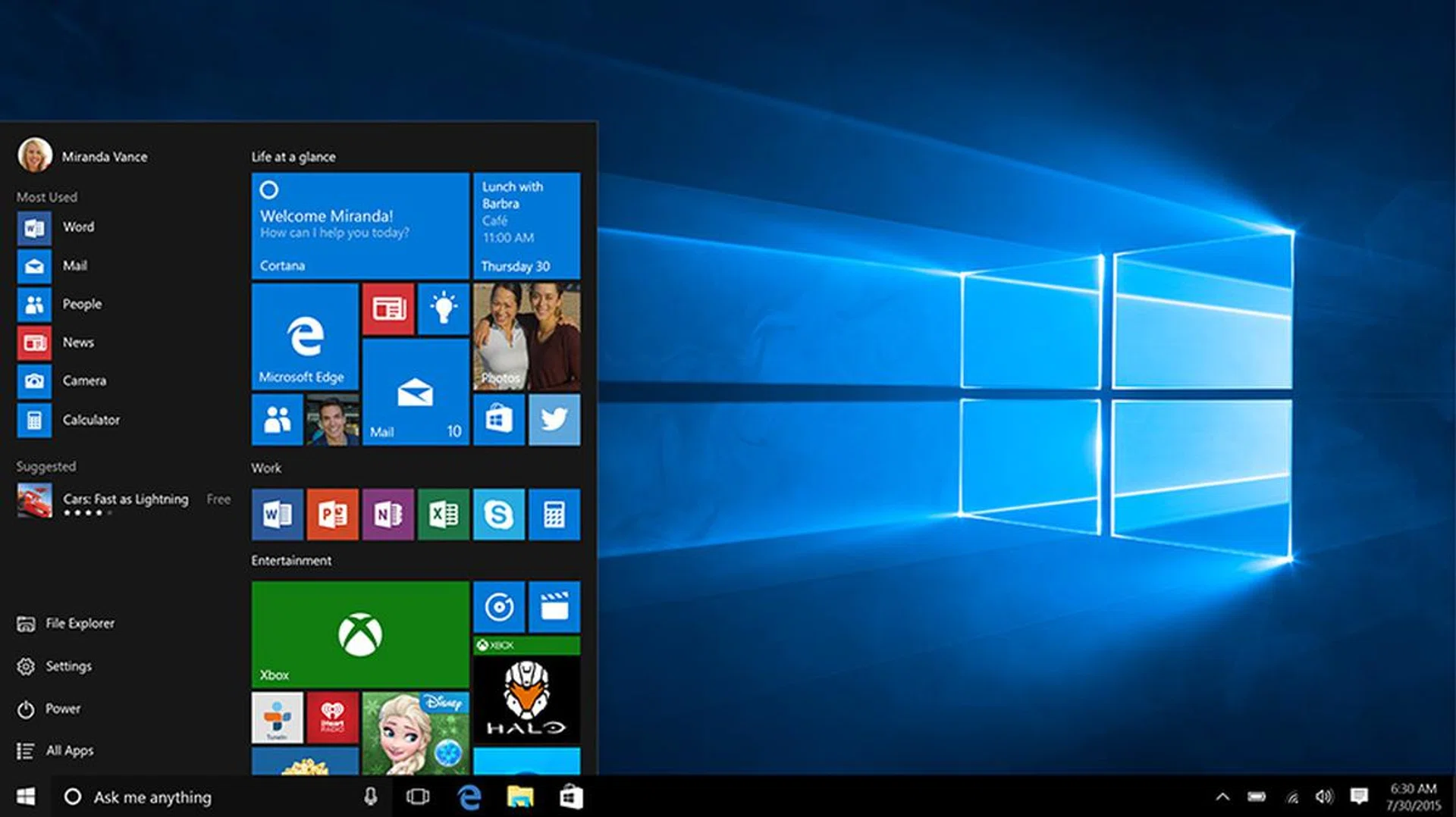
It’s time to spring clean for Chinese New Year, and your Windows PC should get some love too! Here’s how to clean up, declutter, and speed up your Windows PC for Chinese New Year, with a focus on Windows 10.
1. Run a virus and malware scan
Did you know Microsoft's Windows 10 has a perfectly reliable anti-virus, malware and spyware detection capability built-in? It's called Window Defender and it's free. Make sure to set it up for automatic updates and background monitoring so that you don't have to worry about the basic health of your Windows machine.
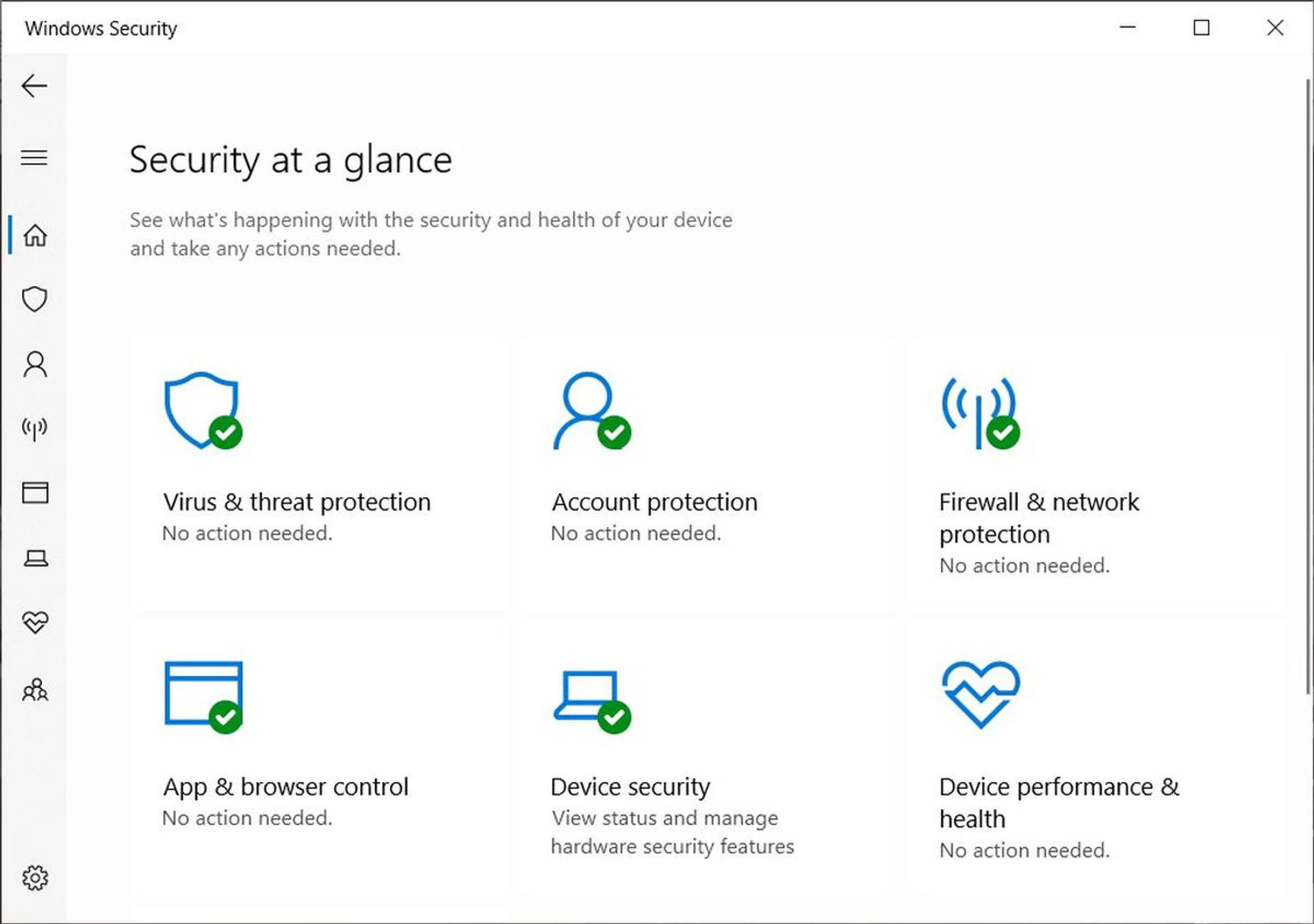
The Windows Defender dashboard on your Windows 10 OS.
Microsoft has several Cybersecurity Centers around the world, including one in Singapore, and they work in conjunction with Microsoft's Cybercrime Satellite Center Singapore (an extension of Microsoft's Cybercrime Center in Redmond). But if you still feel the need for third-party validation, we've a couple more options to make sure your Windows installation is free from nasty bugs.
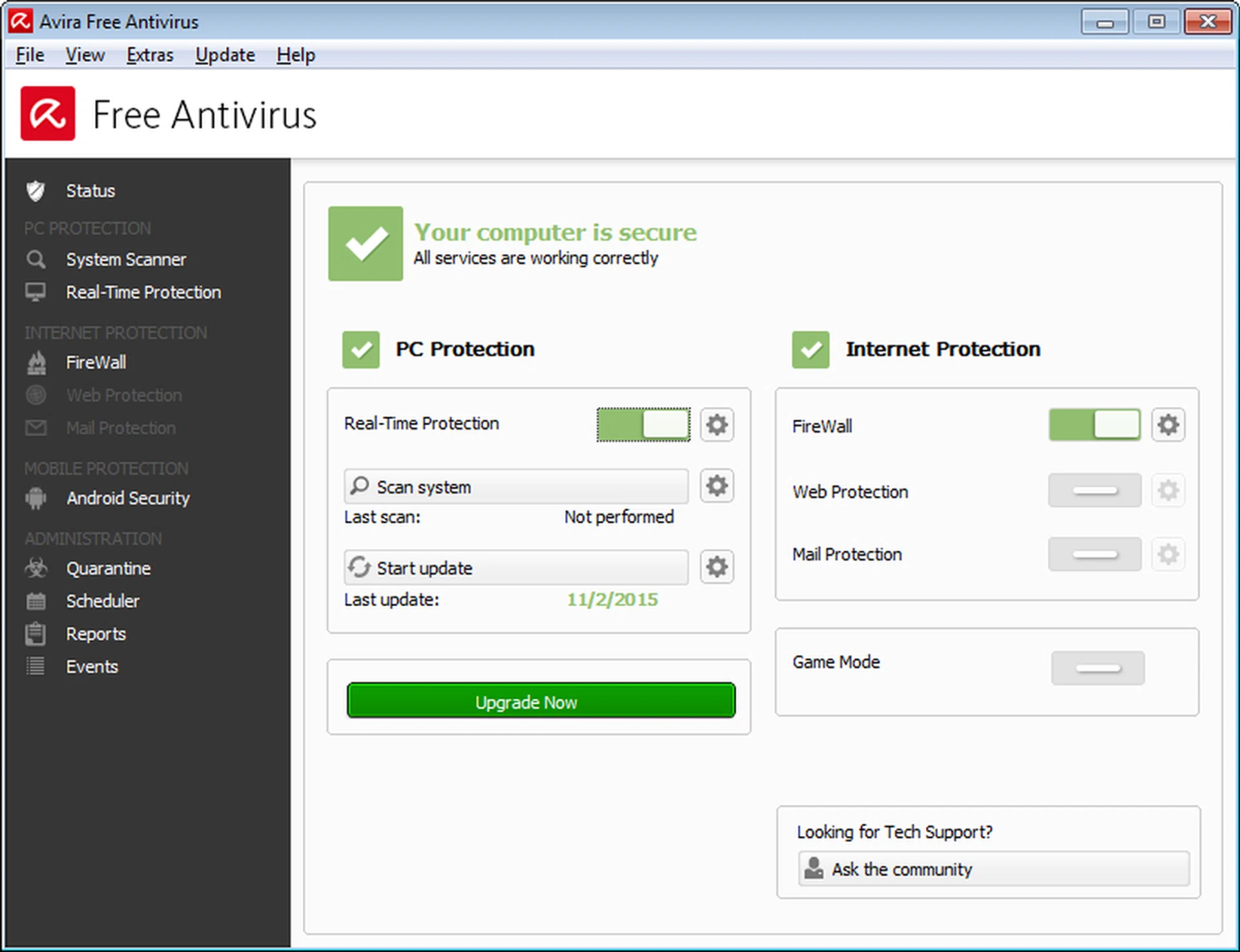
Avira Free Antivirus doesn't cost anything and scans for both viruses as well as malware. Malwarebytes Anti-Malware is another free app, but it focuses solely on removing malware, not viruses, from your PC.
2. Uninstall old programs
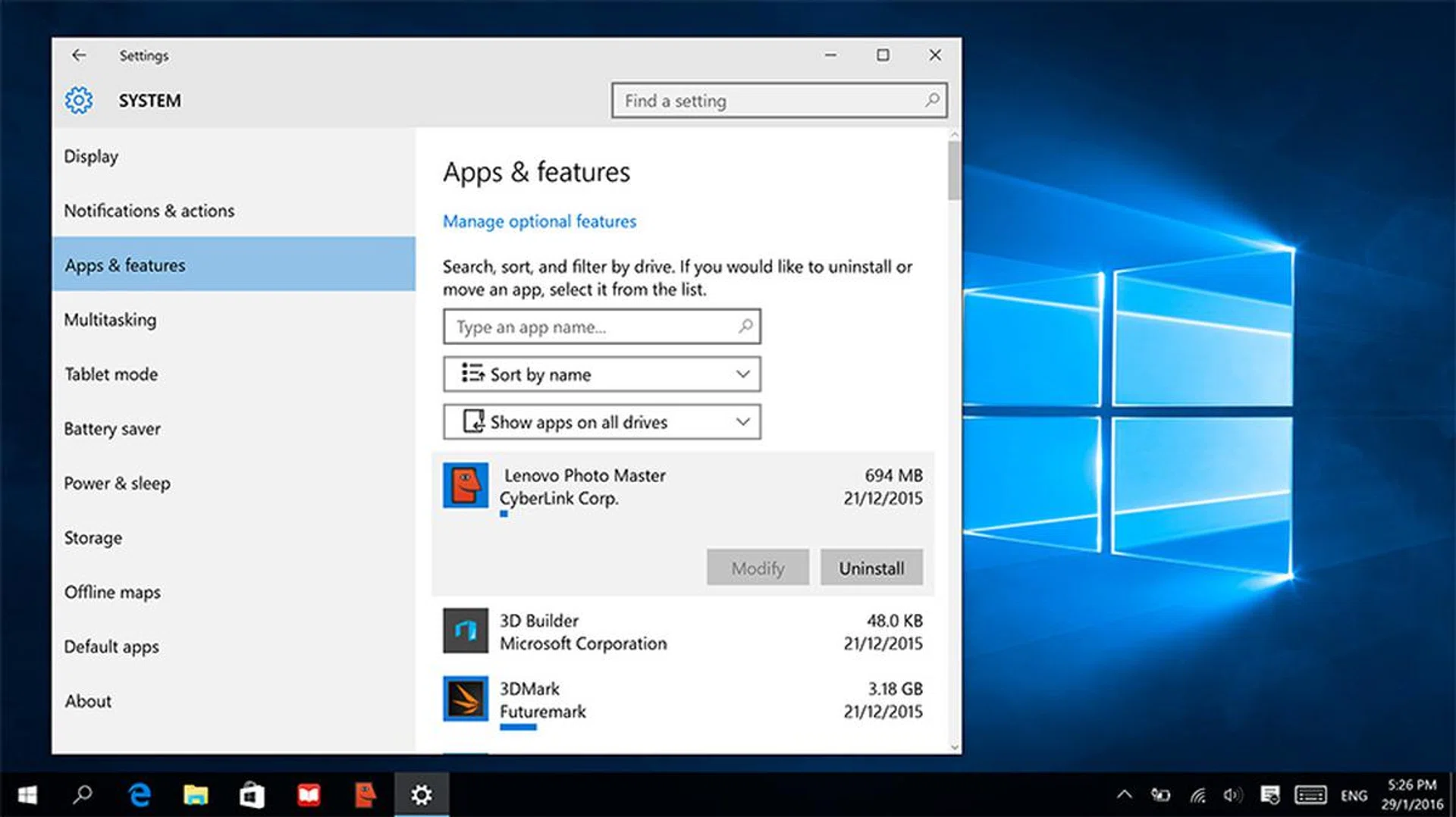
Uninstall old programs to clear out disk space. It’s easy on Windows 10, click on Start, then ‘All apps,’ right-click on any program you don’t want and choose ‘Uninstall.’
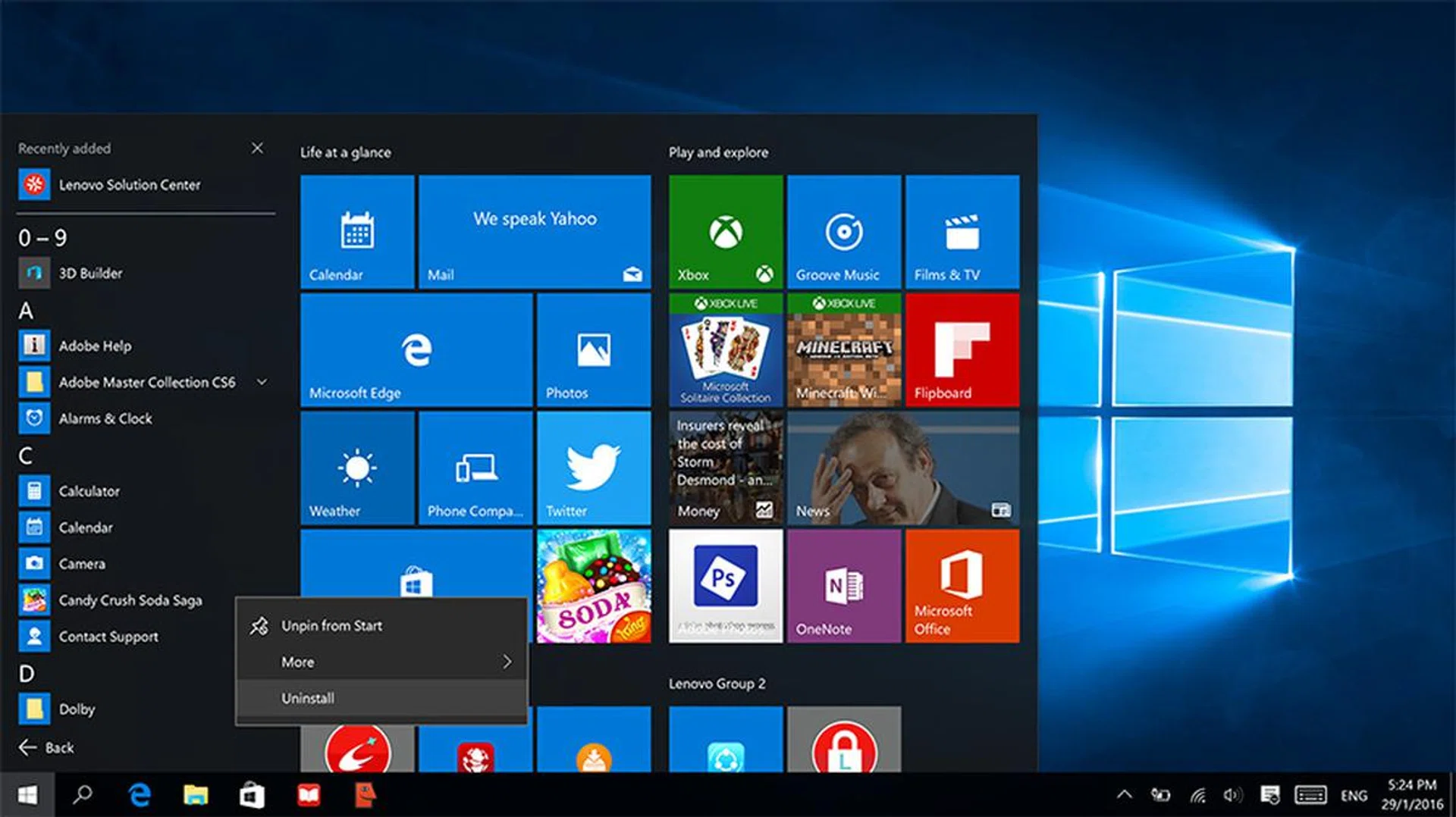
You can also right-click on the Start button, choose "Programs and Features". Select an app to uninstall it. To remove Windows Store apps as well as traditional desktop apps, go to Settings > System, then the "Apps & Features" page, which lists both kinds of apps.
3. Clear out old large files
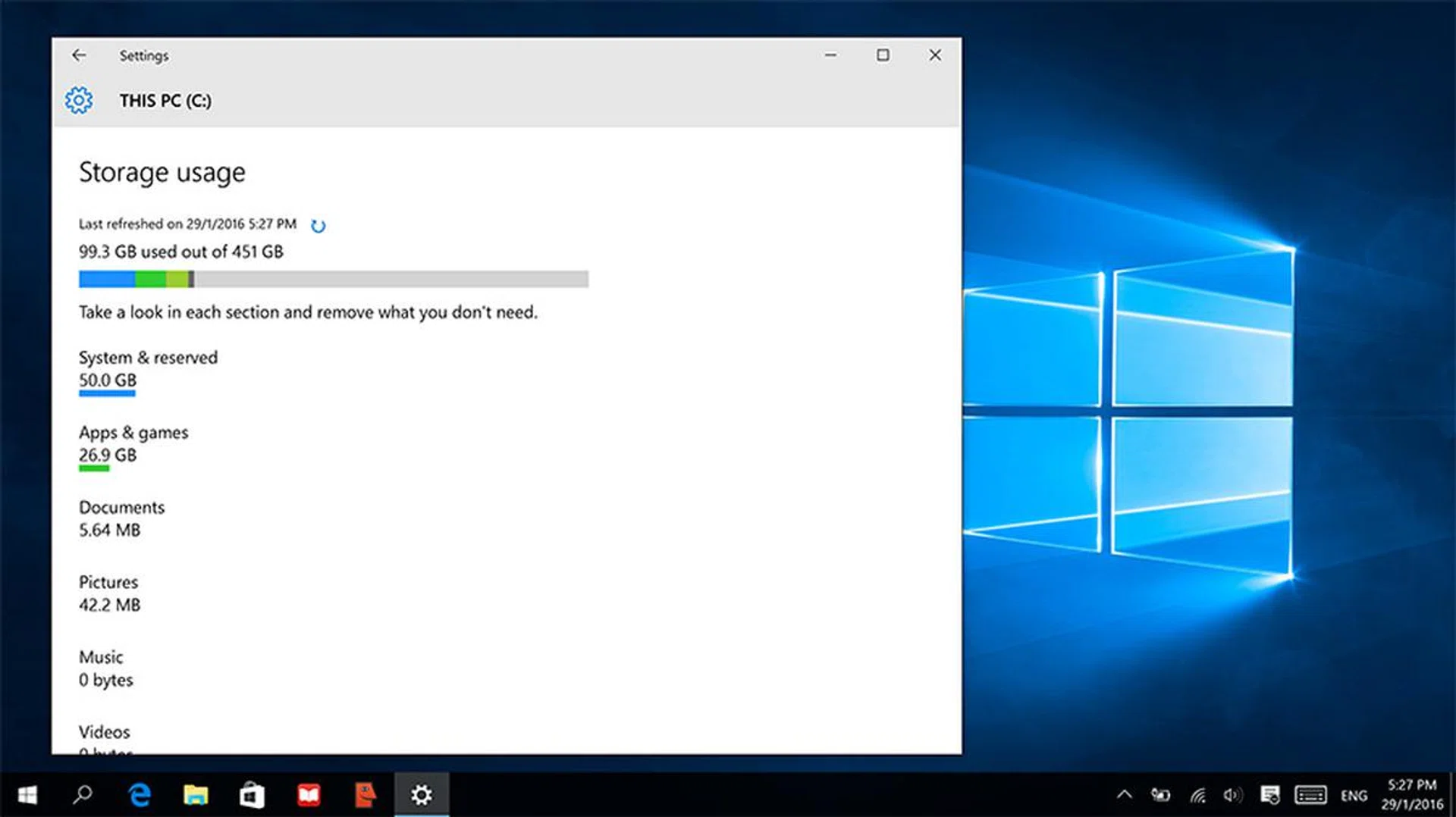
Find out which files are taking up the most space on your Windows PC with Windows 10’s built-in storage analyzer. Go to Settings > System > Storage, and choose a drive. Windows will then show you a list of categories and folders with how big they are. Take a look inside each section to see if there are any large, unused files you can delete.
If you want something a little more powerful, SpaceSniffer is a freeware alternative that does the same thing.
Another neat and very compact alternative is ShowMan, which works with any Windows-based system and can analyze your folder content graphically. Just copy the file into your preferred folder to analyze it and its sub-folder structure. Easy!
4. Clear junk using Disk Cleanup
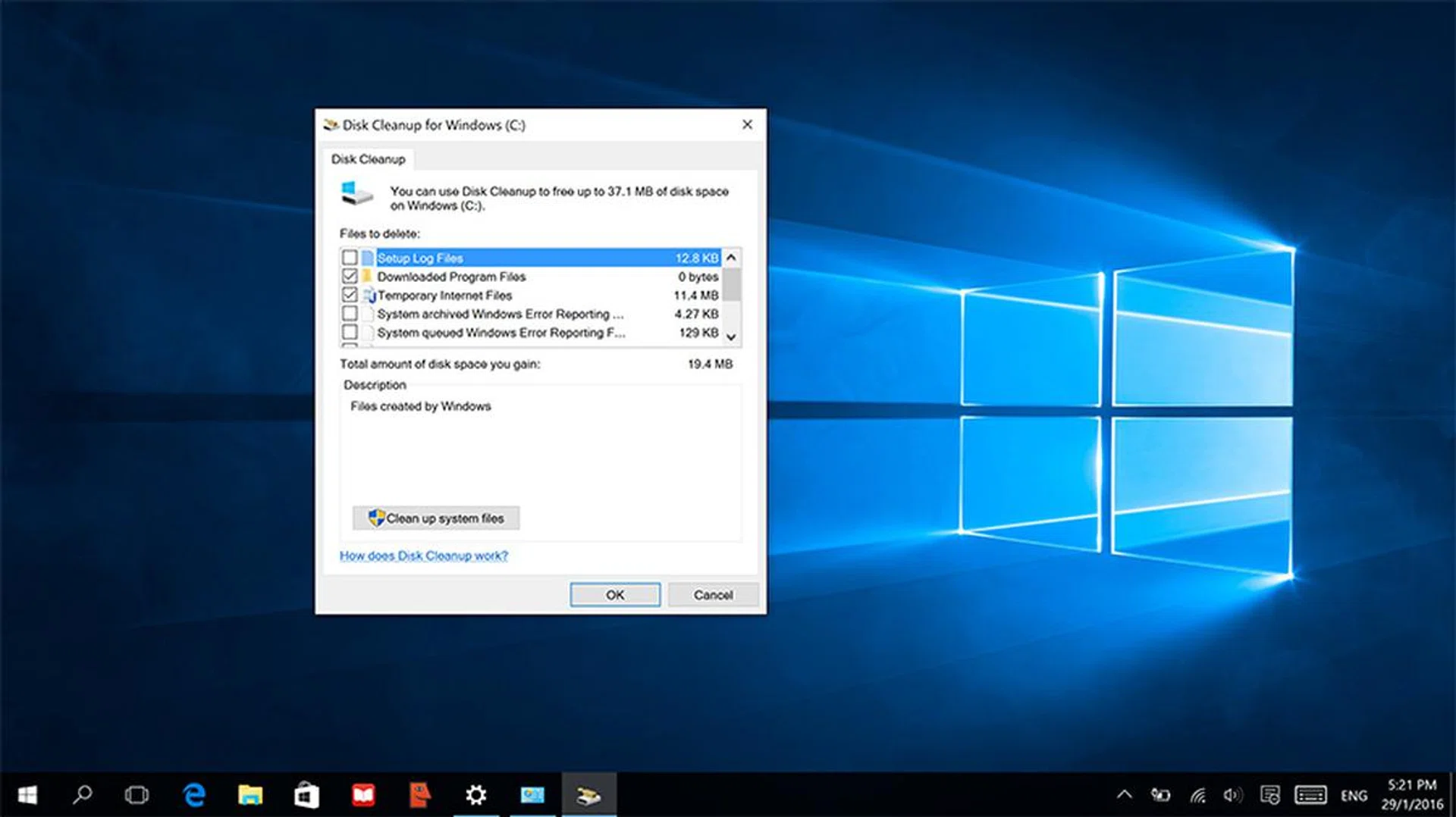
Use Windows’ Disk Cleanup utility to delete unnecessary Windows files on your hard drive. Go to Settings > Control Panel > Type ‘Admin’ in the Search box, choose Administrative Tools > Disk Cleanup. Choose the drive you want to clean, and then tap ‘OK.’ Select the files you want to delete, tap ‘OK,’ then tap ‘Delete files.’ To delete system files you may no longer need, click ‘Clean up system files.’
5. Stop apps from slowing down system startup
After installation, some apps will set themselves to launch at the same time you boot up your system. This can be convenient - it reduces load time for commonly used programs - but it can also slow down your startup process.
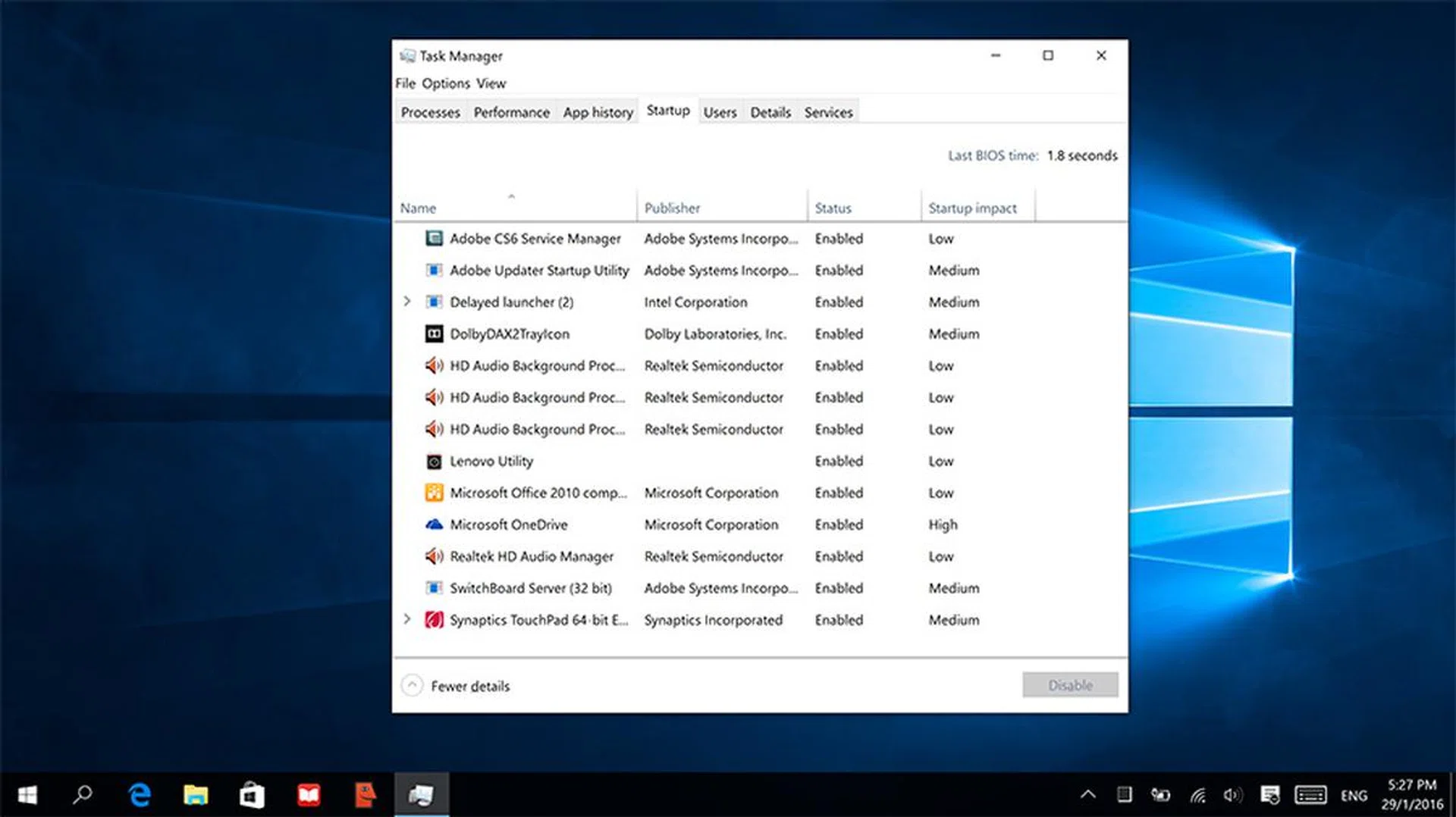
To see which programs load at startup, press CTRL+SHIFT+ESC on Windows 10 to bring up your Task Manager. Switch to the ‘Startup’ tab, and you can see which programs run on startup. Right-click to disable any that you don’t use. Windows 10 will even tell you which programs have the biggest impact on startup speed.
6. Clean up your Windows 10 taskbar
Windows 10’s taskbar comes with new icons, but if you prefer a cleaner look, you can turn them off.
If you don’t use virtual desktops (known as "Task View" on Windows 10), right-click the taskbar and uncheck "Show Task View button."
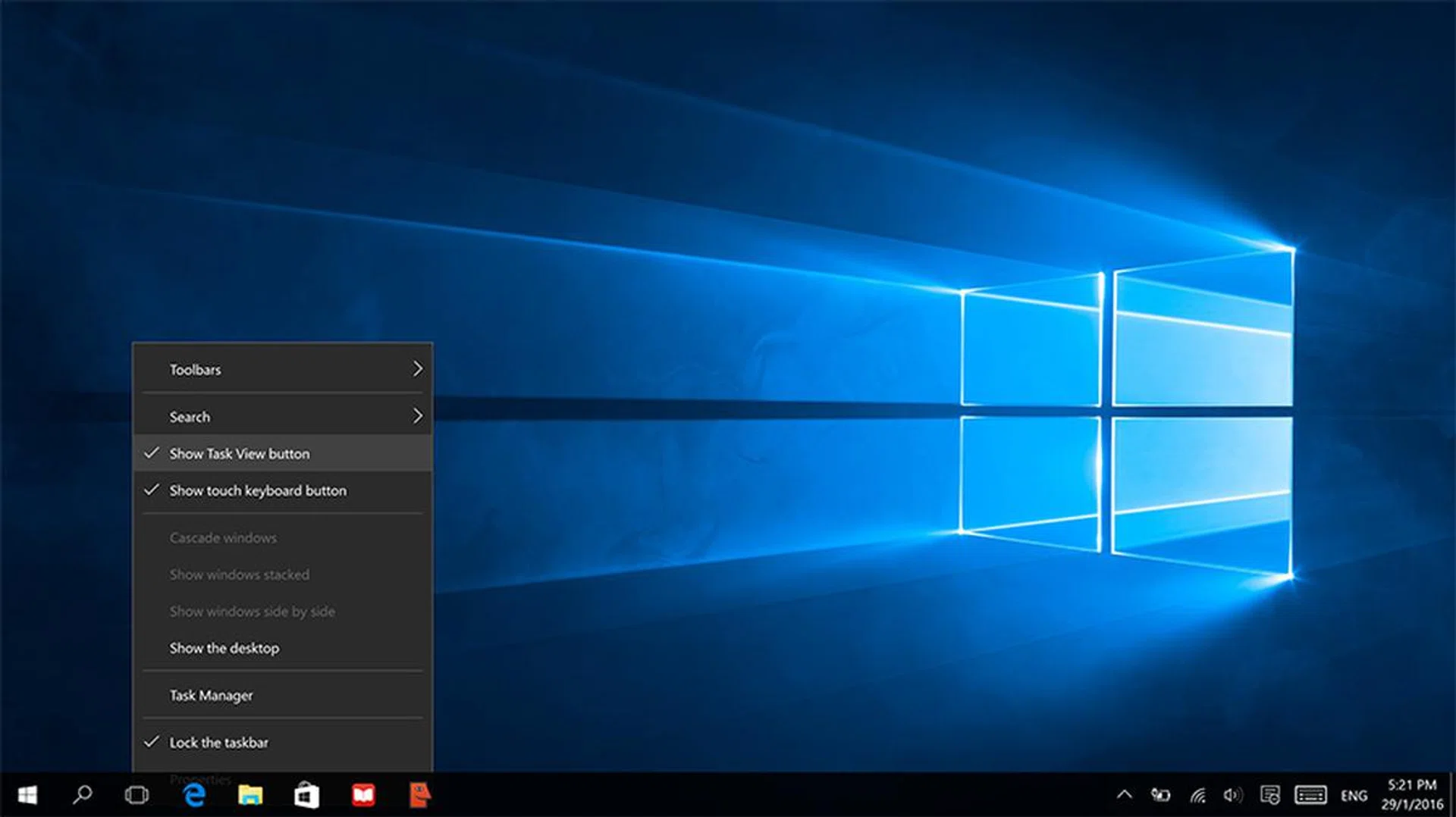
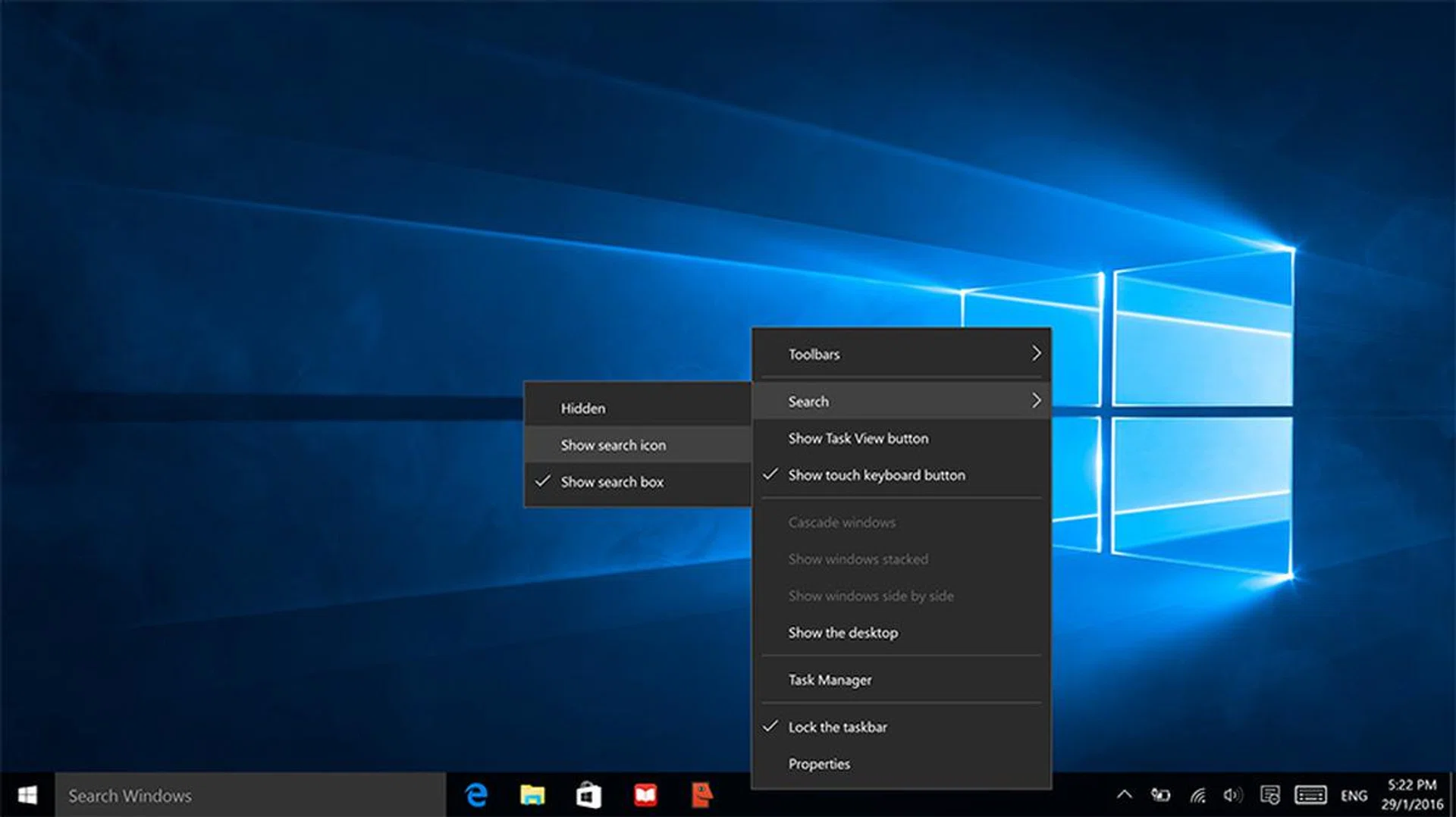
Selecting Search and checking “Show Cortana icon” reduces Cortana’s large search box into an icon. If you’re sure you don’t want to use Cortana, check "Hidden" instead to take her/it completely off the taskbar. To bring Task View or Cortana back, simply right-click on the taskbar and check the same options again.
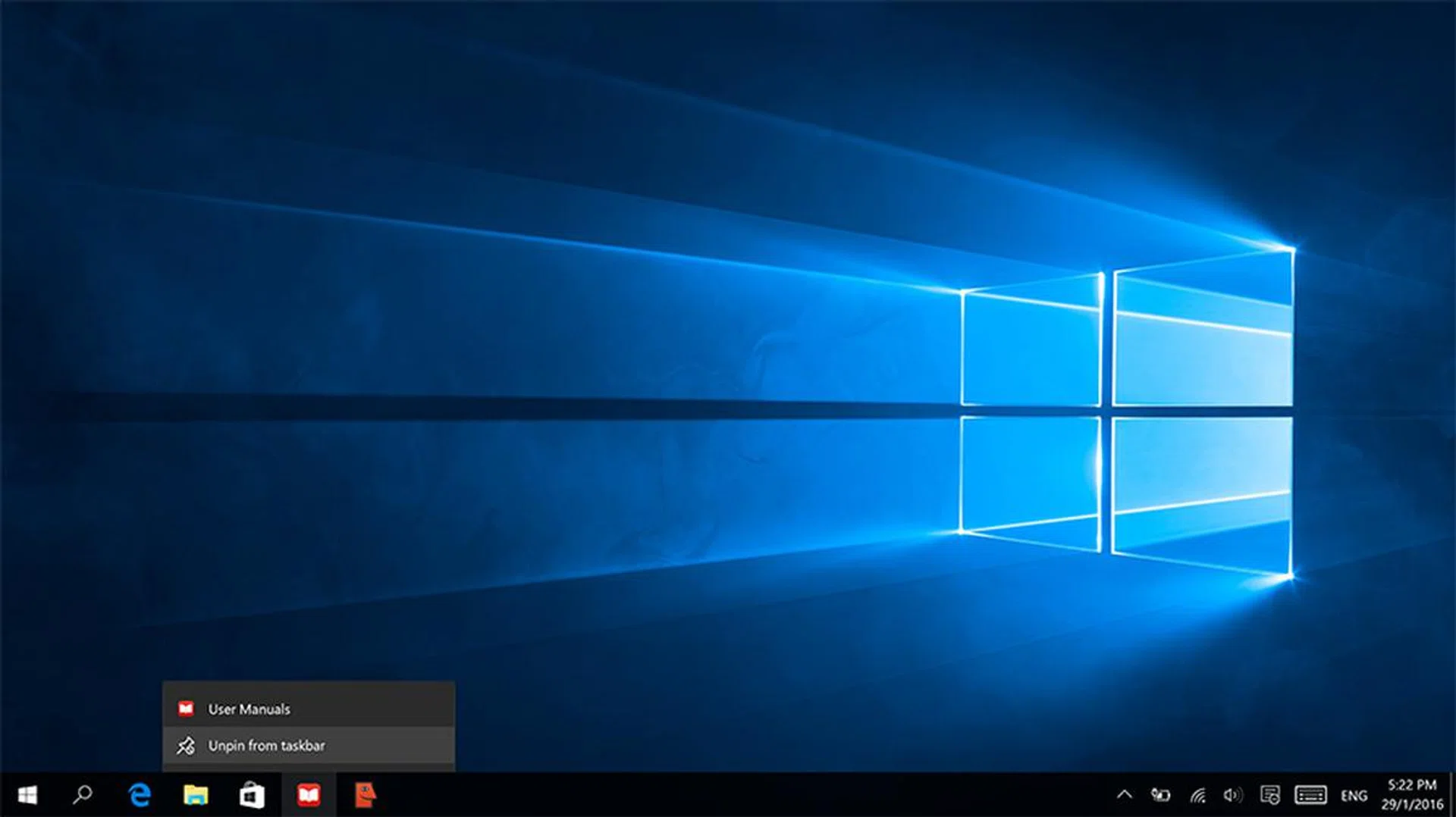
If you have pinned items on the taskbar which you don’t use anymore, right-click the item, and choose “Unpin from taskbar.”
7. Turn off all notifications
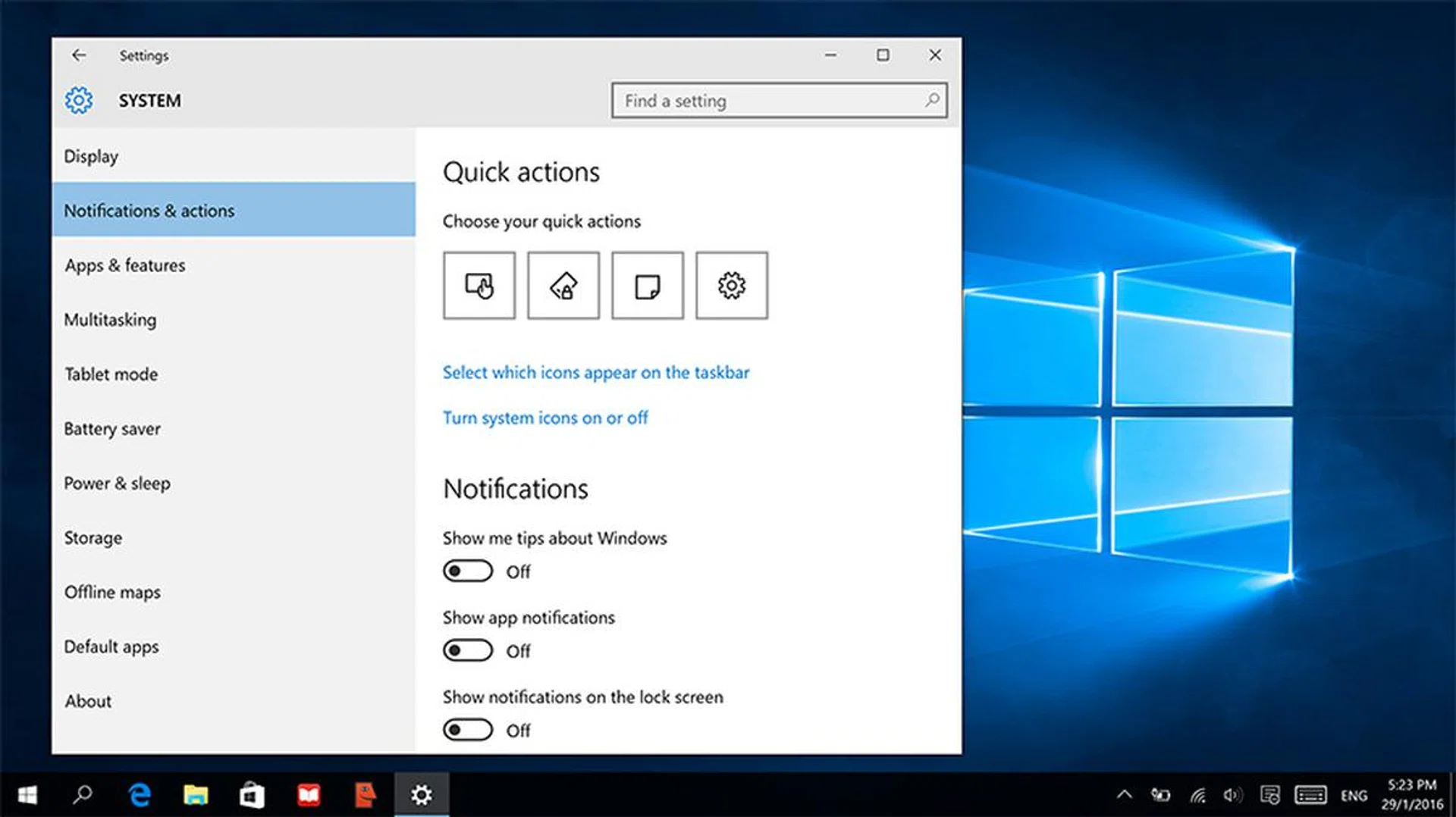
Finally, turn off annoying notifications so you can focus on your work. Go to Settings > System > Notifications & actions and turn off all the notifications there.
8. Defrag your PC
If for whatever reason you are still relying on a mechanical hard disk (you should really upgrade to an SSD), an old and good method of speeding up your Windows machine is to defrag the hard drive. You don't need to do this if you are using an SSD. Windows 7, 8 and 10 should automatically stop you from doing so if you are.
That said, if you’re running Windows 7 and above on a hard disk, your Windows is set to run defrag automatically on a regular basis, and you won’t need to defrag your PC. But if you’ve turned this feature off, or turn your PC off every time you finish using it, Windows might not have defragged your hard disk in a while, in which case you can do it manually.
Click on the Search button, or go to Settings, and search for ‘Disk Defragmenter.’ Select the disk you want to defrag.
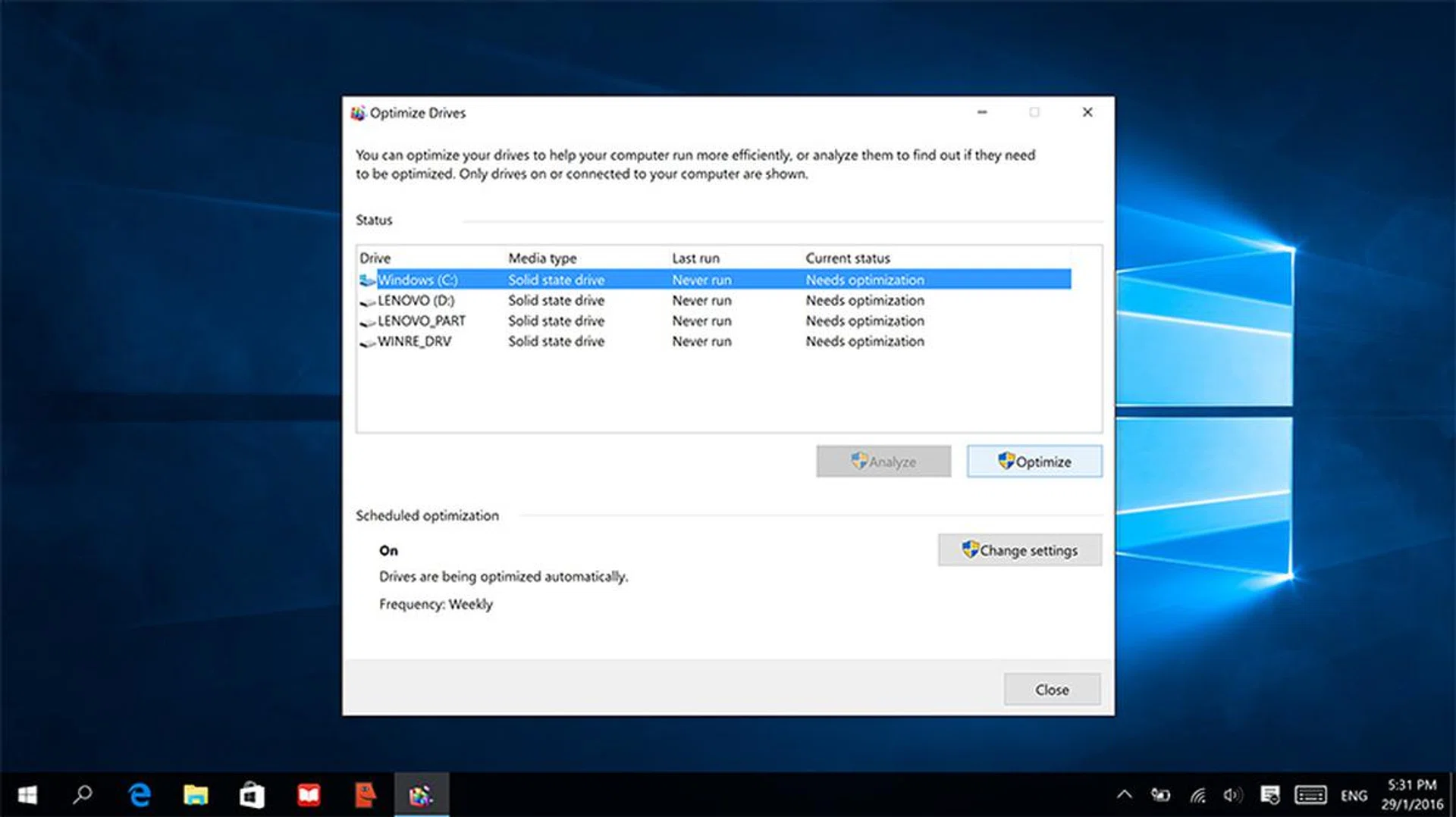
Disk Defragmenter will actually tell you when the disk was last defragged, and whether or not you should optimize it now. If you’re still not sure whether you should, click ‘Analyze disk’ first to check. If the percentage of fragmentation on the disk in the ‘Last Run’ column is above 10%, it’s recommended that you defrag the disk.
We hope these fast tips help you to spring clean your systems in a jiffy! Meanwhile, if you or your friend needs to know more intricate details of the Windows 10 operating system, we've got you covered in our Windows 10 Mega Guide and detailed Windows 10 FAQ.
Our articles may contain affiliate links. If you buy through these links, we may earn a small commission.