
Enhance your Netflix experience with these simple add-ons
These two little tweaks are going to make your Netflix-bingeing so much better, with detailed categorization and ratings from popular film sites all on the streaming service’s webpage.
Started using Netflix recently? Then this enhancement guide is for you!
There’s a fair bit of good stuff that Netflix has and doesn’t offer upfront, but that can be easily fixed when you have access to some add-ons. No, we aren’t bypassing any licensing laws to get you to a show you want. We’re showing you how to get access to hidden gems on your current catalog.
Some of these add-ons require slight tinkering on your end, so exercise discretion and healthy web-surfing habits if you want to get them to work smoothly. We are not endorsing any add-on; it’s just a recommendation of what we use for our Netflix subscriptions as well.
If you trust our taste in shows, you can check out the list of must-watch Netflix shows for Singaporean subscribers. If you're a Netflix beginner, head over here to get started instead.
Access hidden genres and categories
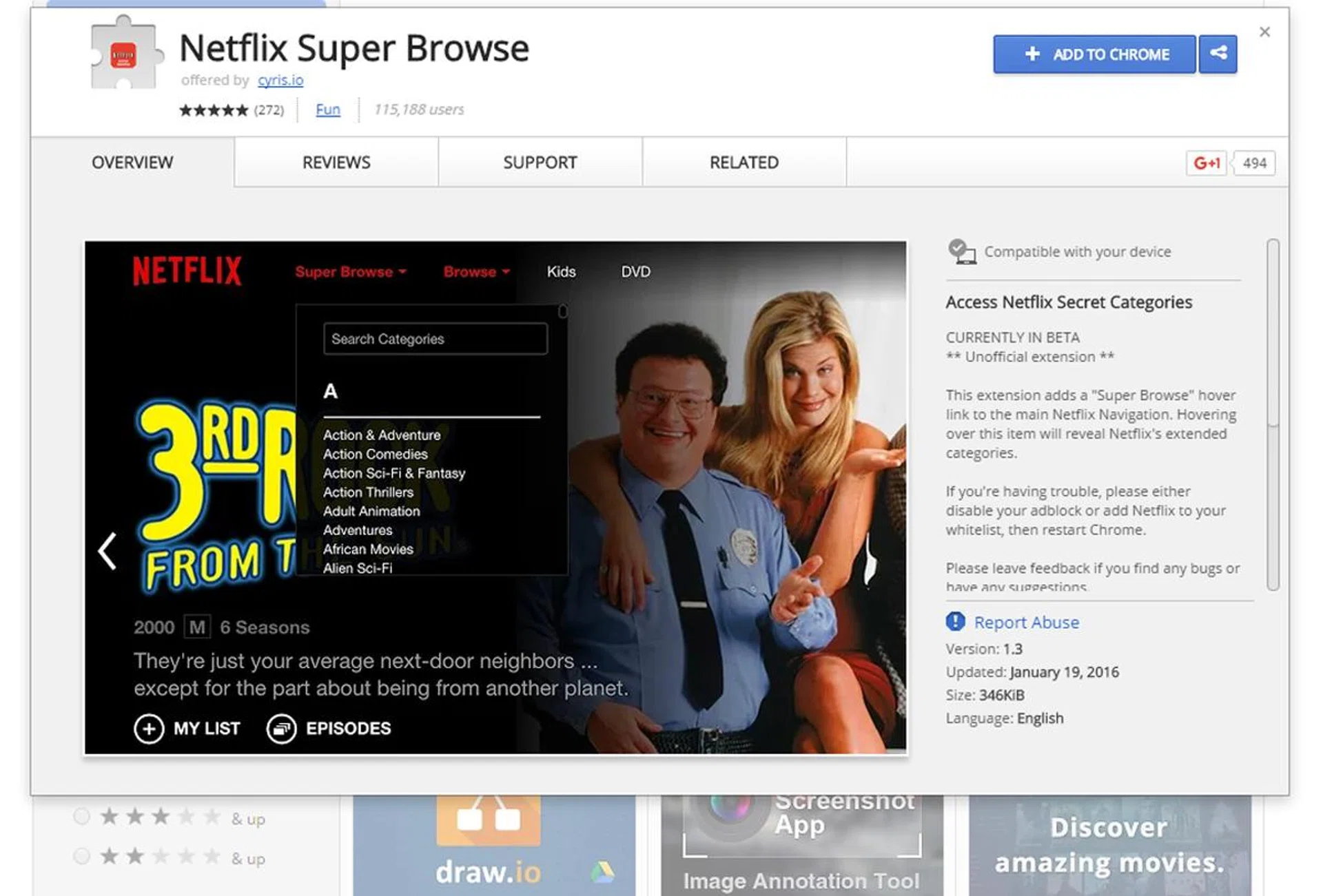
Interested in hidden categories? Well, we know a friend who knows a friend...
If you’re a seasoned Netflix user, you’ve most likely read or heard about how Netflix actually has secret genres or categories for their shows. As a viewer, we have our own tastes, so it’s natural for us to search for more content. Netflix Super Browse is an extension for Chrome and Firefox web browsers, and it ‘unlocks’ said hidden categories.
Installation is simple: if you’re on Chrome, simply go to the Chrome extension store and search for the add-on. Click on the “Add To Chrome” button when you find the extension. Restart your browser when done.
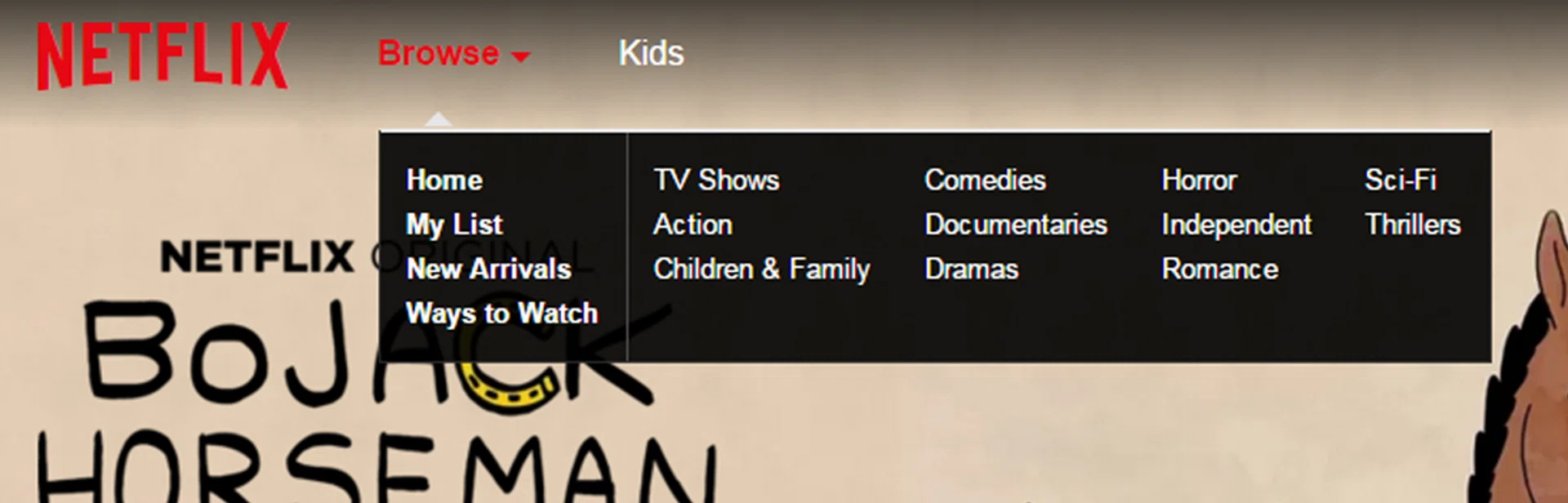
Before applying the extension, you have a standard Browse button.
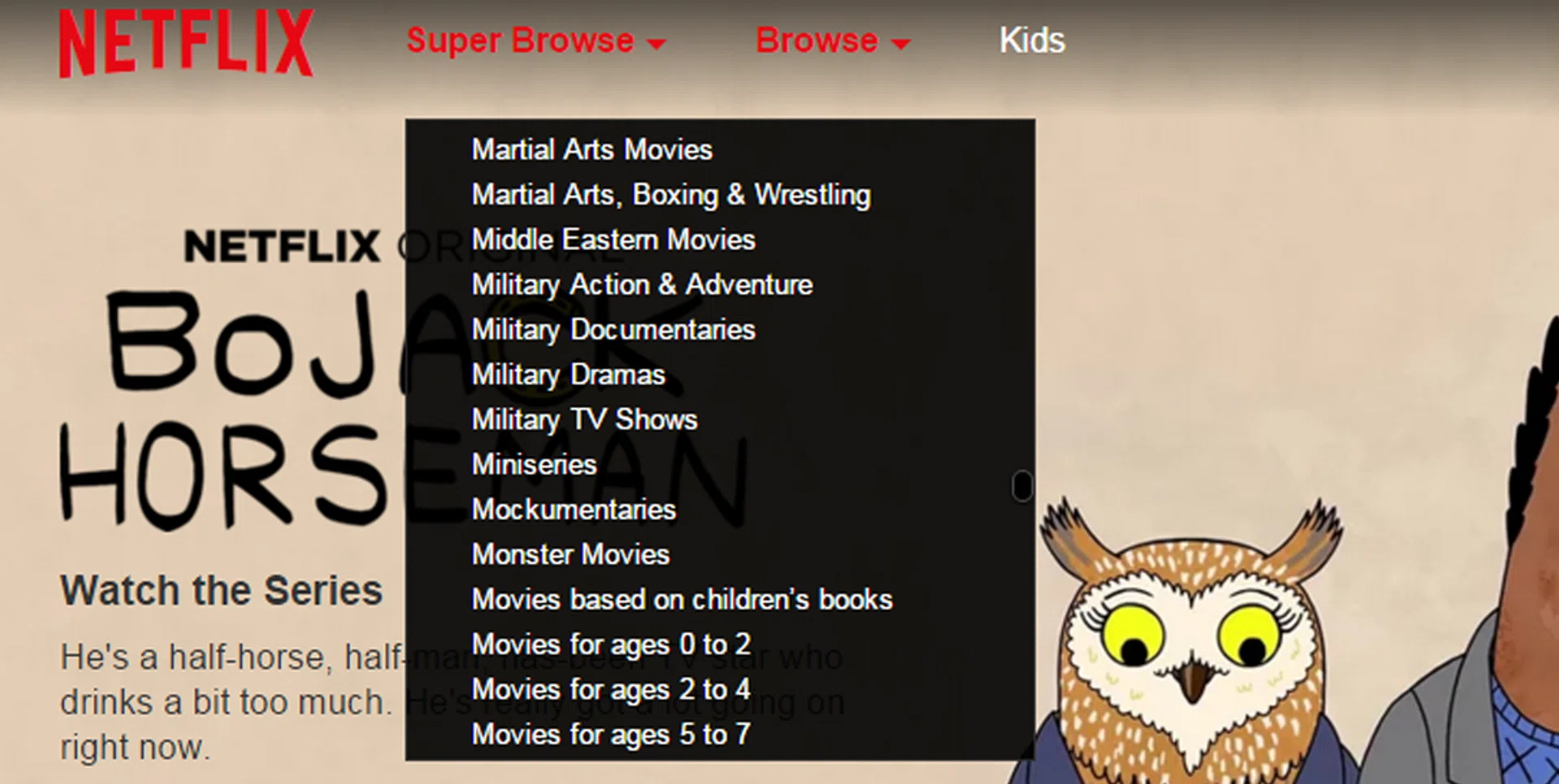
After using the extension, you'll get a new Super Browse option. The official Browse button is still available too.
Go back to your Netflix and you’ll notice that your original Browse button is now next to a brand new Super Browse option. Tucked within is a list of genres handpicked by the extension maker, covering important subsections without cluttering the option with the entire list of hidden categories.
If the extension isn’t working for you, try reinstalling it. Some ad-blockers are also not compatible with Netflix Super Browse, so switch ad-blocker extensions if you really want this add-on.
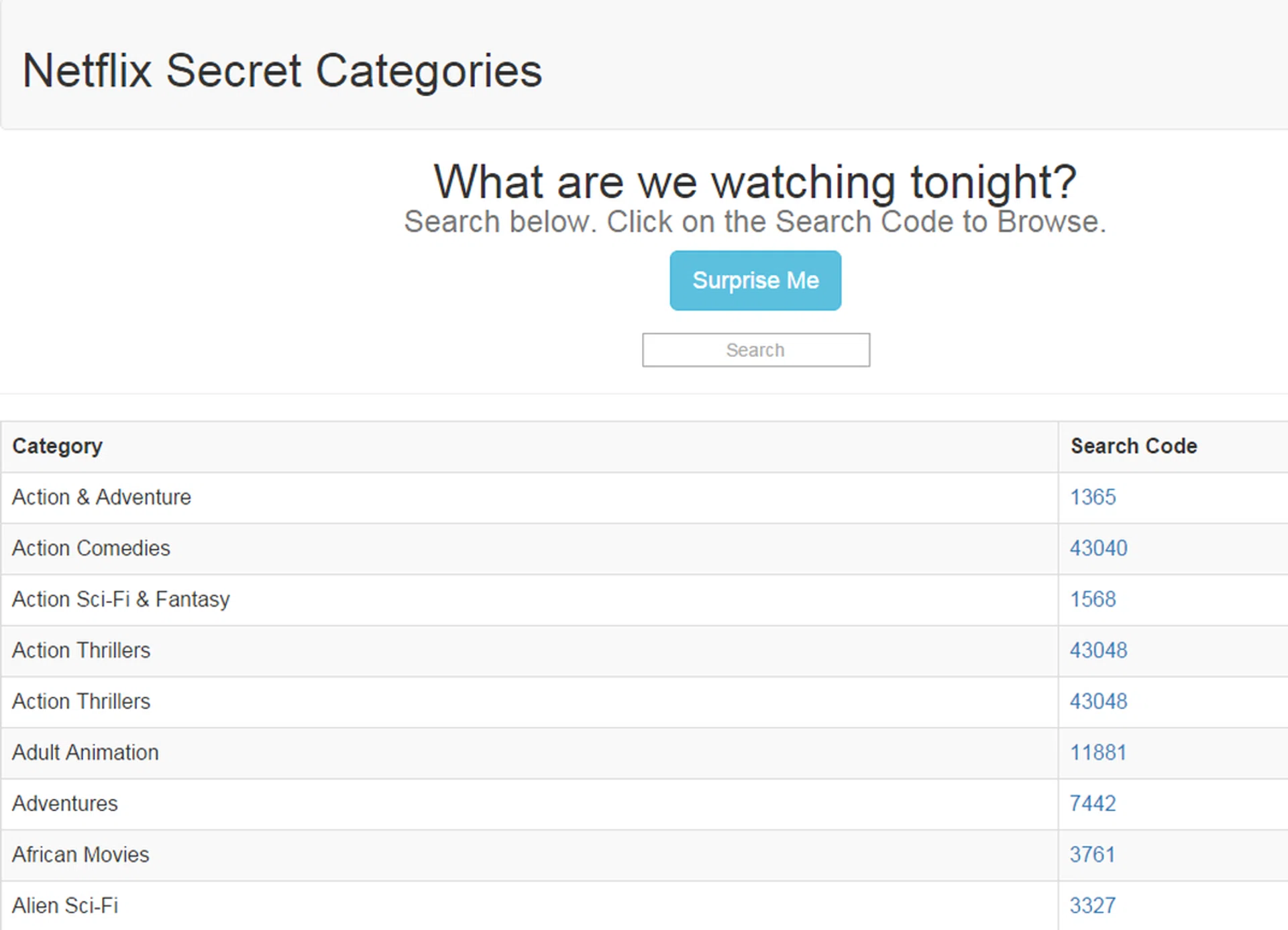
If you do not wish to clog your Chrome or Firefox web browser with extensions, try a web alternative like netflixcodes.me instead.
If you do not want to install any extensions, you can simply use a website equivalent to do the same search. One good example would be netflixcodes.me, where you can click on the genre code on the right-hand column, which will bring you to that Netflix genre on a new tab. The website lists all genres (with some repeats), providing the full list at a glance.
Next, we'll show you how to get ratings from film critic sites to pop-up on your Netflix main browsing page. It's super handy.
See multiple ratings from film sites within Netflix
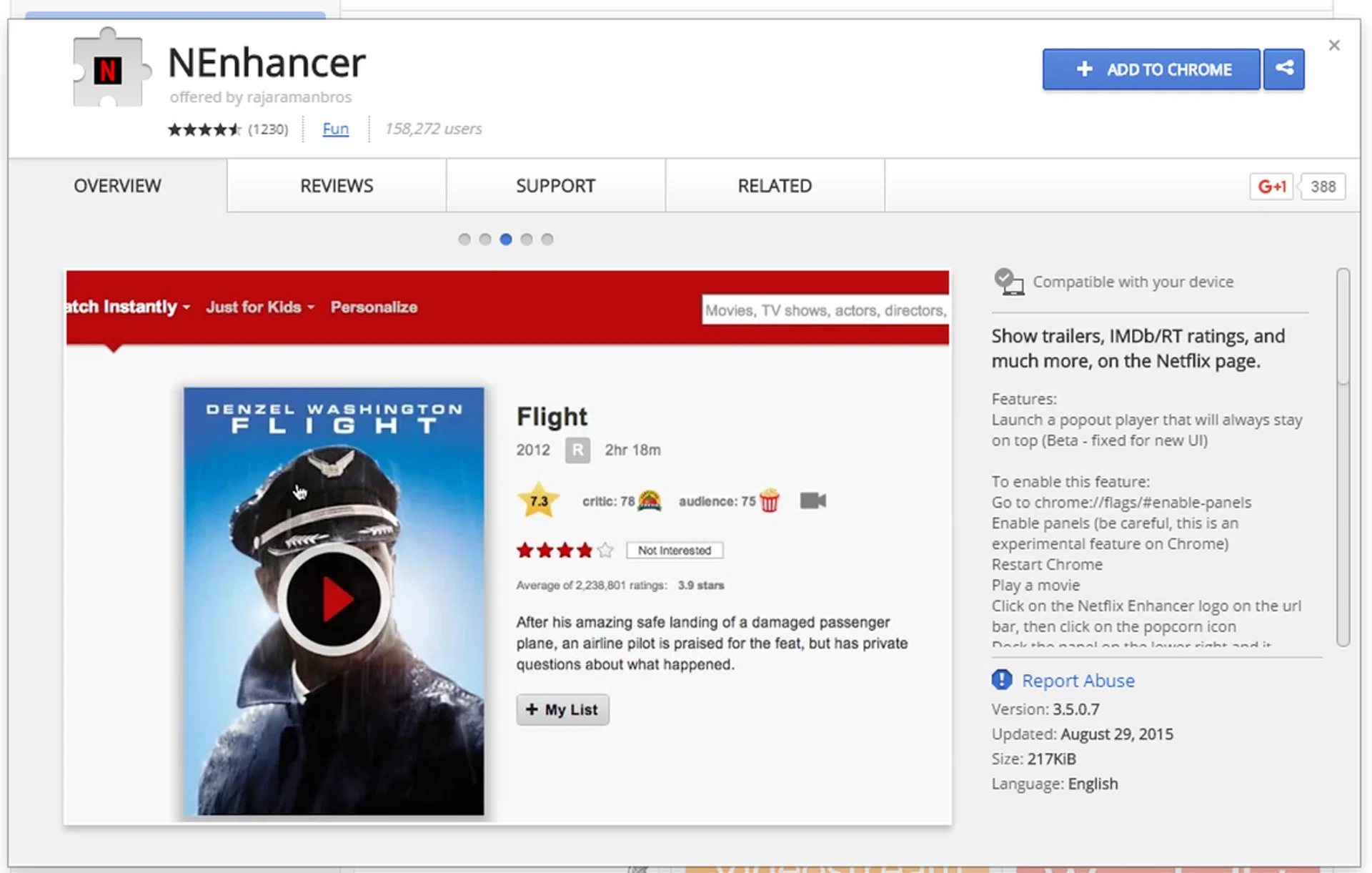
This other extension gives you a show's rating at a glance. The ratings are given by other viewers who critique the show on film review sites.
Now that your shows are properly categorized for easier exploration, you’ll probably want to know which ones are worth your time. Wouldn’t it be nice to have a little something within the Netflix page that can tell you how a particular show fared among other users?
NEnhancer is a Chrome extension that lets you tweak your Netflix page to include ratings from show review sites IMDB and Rotten Tomatoes. It takes a little more to get the whole deal running, but you’ll never have to cross-reference shows across various review sites once this is up.
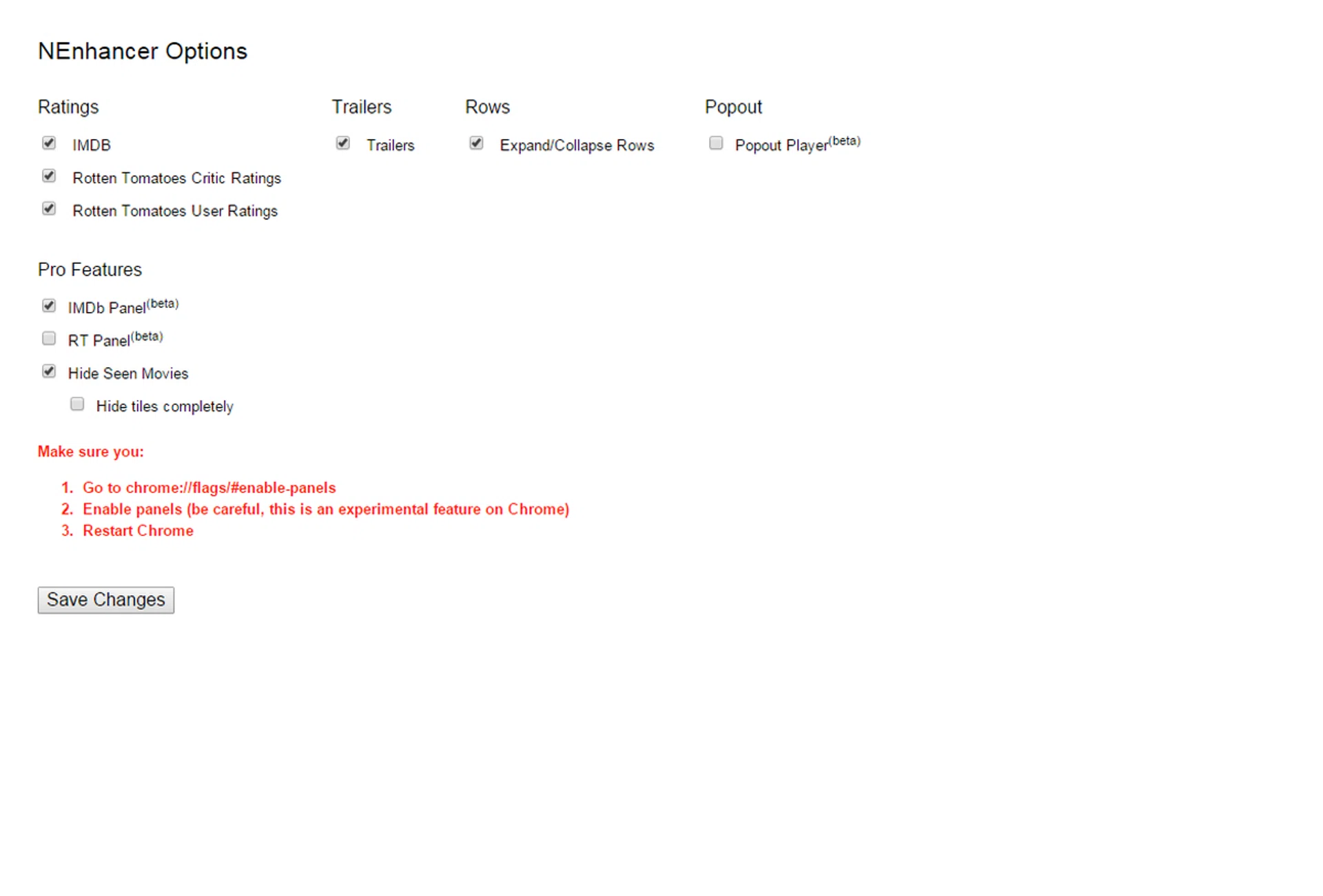
An overview of the settings you can toggle with, including an optional feature that brings up a window that displays extra information from IMDB or Rotten Tomatoes. Nifty!
Like all extensions, download and install on the Chrome extension page like before. Go to your Netflix main page, and you’ll see a NEnhancer logo inside your browser’s address bar. Click on it and click Options, and you’ll be shown the same list of settings as shown in the image above. By default, some features are already enabled, but we want the full package. So go ahead and check both "IMDB Panel" and "RT Panel". This will bring up a prompt in red, asking you to enable an experimental Chrome feature.
Follow those instructions to enable the experimental feature, and close/exit your entire browser. Now you can re-open your Chrome browser, go back to the Netflix site, and start hovering your mouse over some titles for the added insights.
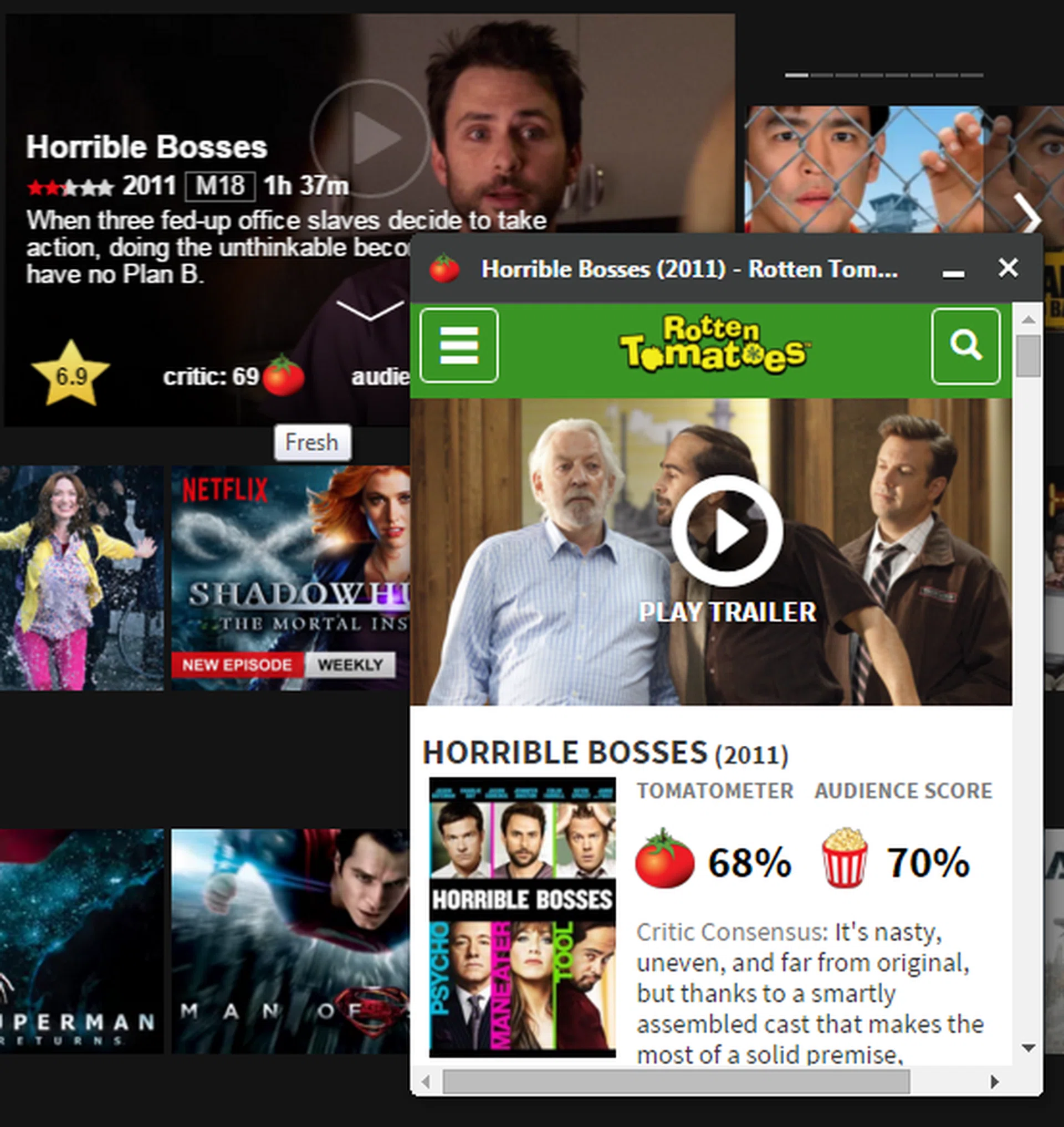
This is what the add-on looks like with everything fully enabled. Mouse-over the show in Netflix, and you'll get a IMDB star rating together with a Rotten Tomato Critic rating, and RT's popcorn (user) rating. If you enabled the optional panel function, you get the pop-up when you click on any of the ratings.
The star rating you now get is actually from film database site IMDB. The tomato and the popcorn icons are from Rotten Tomatoes. If you’ve configured your NEnhancer extension with the instructions above, you’d also have the ability to launch a tiny pop-up with (mostly scathing) user reviews about every show. This shows you more information from the respective ratings site and you can also access the trailer by clicking the trailer icon next to the ratings.
With both enhancements, you now have all the necessary tools for a better Netflix experience without leaving the Netflix site itself.
Oh and if you need more tips, tricks and hacks, we've 7 recommendations listed in this feature.
Knock yourselves out!
Our articles may contain affiliate links. If you buy through these links, we may earn a small commission.