
Google Chromecast - A Tiny, Affordable HDMI Media Streaming Dongle
Simply put, the Google Chromecast is a wireless media streaming device built into a compact HDMI dongle. Even those who aren't interested in Netflix and YouTube are excited about this US$35 device, because its other big feature is to mirror a Chrome browser tab onto the TV. Without further ado, here's our review.
Google Chromecast: Plug It In, Set It Up, Watch
Launched last month, Google’s positioning of the Chromecast is that it’s the easiest way to enjoy online video and music on your TV. It may sound simple, but when you think about it, that’s a pretty bold claim. Right now, there are two main ways to get online content onto the TV or sound system. One is to do it through a media player that offers support for online content services out of the box (some of them even run on Android, which effectively guarantees future service expandability). The other way is to ditch the external box solution altogether, and go straight to a Smart TV that has the required services built in. However, beyond the techies and those who bother to go the extra steps to learn how to use them, the vast majority still rely on their trusty PC with its familiar mouse/keyboard combo for their (insert name of online entertainment service here) fix.
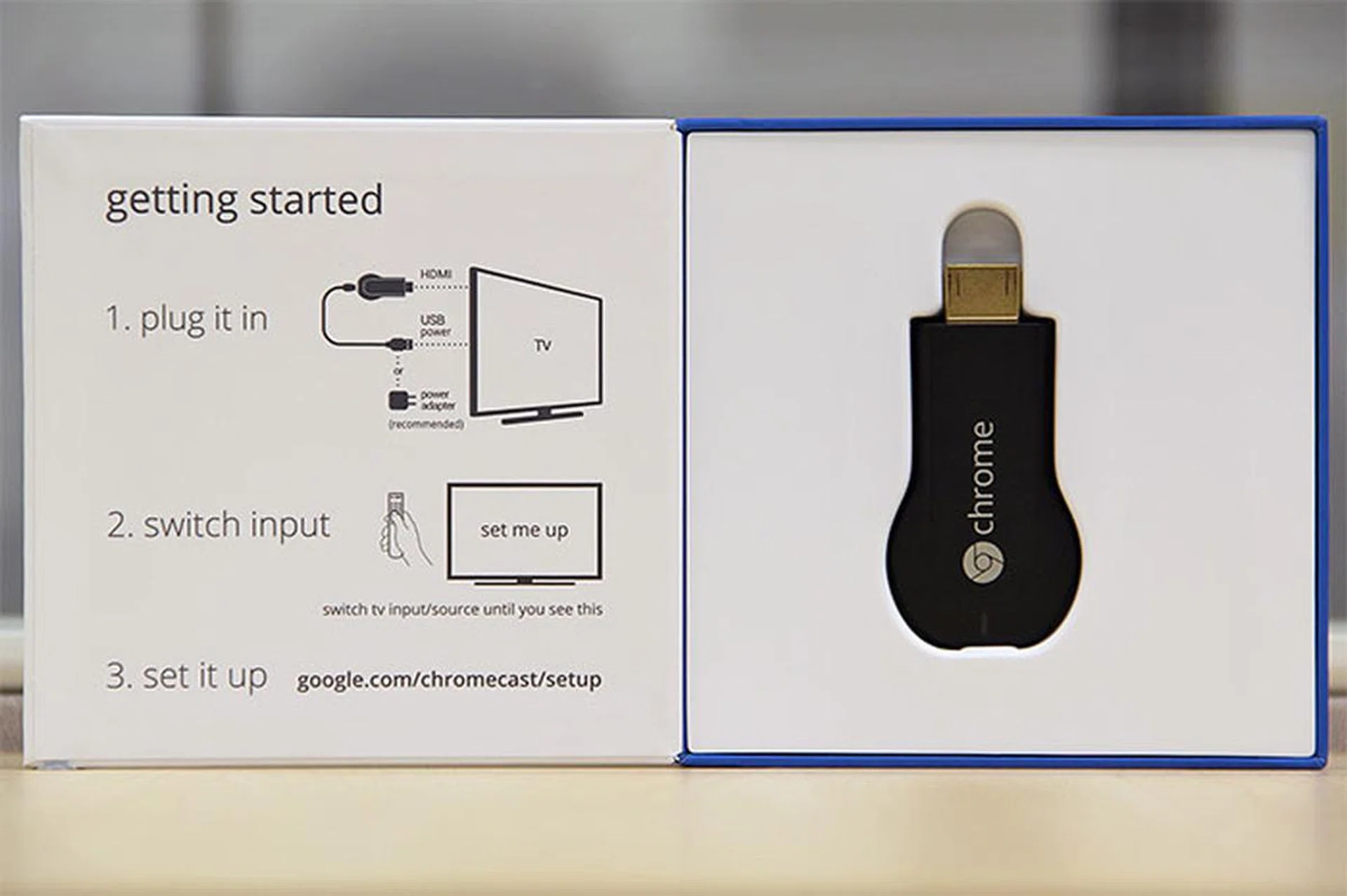
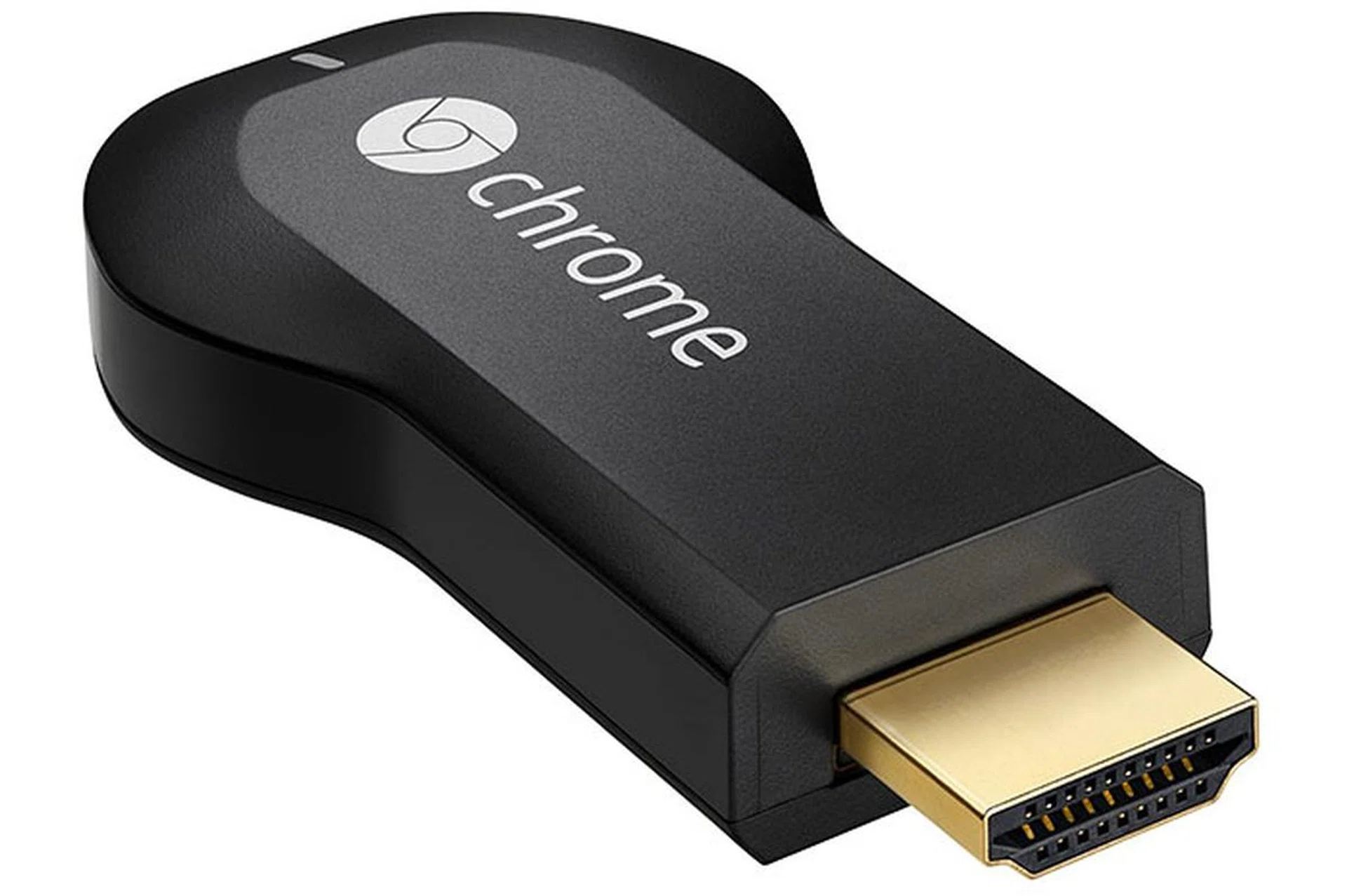
Simply put, the Google Chromecast is an HDMI streaming media dongle.
'Set Me Up'
In a nutshell, the Chromecast is something that you plug to your TV, which you then stream content to it by way of supported apps and services. But unlike the many media players out there, there’s neither a puck nor cable to deal with, since the Chromecast is a little stick that plugs directly into the TV’s HDMI port.
Towards the back of the Chromecast you’ll find an LED status indicator, a micro-USB port (a USB cable is bundled in the box), and a small little button for resetting for the device (you got to hold it down for at least 25 seconds). The USB cable isn’t for connecting the Chromecast to a laptop or smartphone; rather, it’s to connect the Chromecast to an available USB port on the TV to get power. While it’d be totally awesome if this power cable isn’t needed, the hard truth is that an HDMI port usually doesn’t provide enough juice to keep the Chromecast running. (The HDMI spec specifies at least 55mA on the 5V line, though some source devices’ ports may deliver more.) In fact, because power over the 5V line for a USB port also depends on the manufacturer’s implementation, Google’s recommendation is to connect the Chromecast’s USB cable to the supplied wall-wart-type USB power adapter (which outputs 850mA over 5.1V). And that was exactly what we did, since none of the USB ports on our 55-inch Samsung UA55F8000 LED TV played nice with the Chromecast; which is strange, since the TV has a USB port capable of 1A. Yes, the slight cable clutter now diminishes the appeal of the Chromecast a little bit, but hey, at least there's no extra box on the TV console.
(In case you’re wondering, would moving to the connector-agnostic MHL (Mobile High-definition Link) spec solve this power problem? In theory, yes, since the current MHL 2 spec can go all the way up to 900mA over the 5V line (and even more in the near future with MHL 3.0). But the Chromecast doesn’t support MHL. We can only guess that cost is one factor; another is the still-very-small number of TVs equipped with MHL-HDMI.)
In addition, the Chromecast supports HDMI-CEC. So if the dongle is powered, but the TV is turned off, casting a video will power on the TV, switch the input, and begin playback automatically. How cool is that?
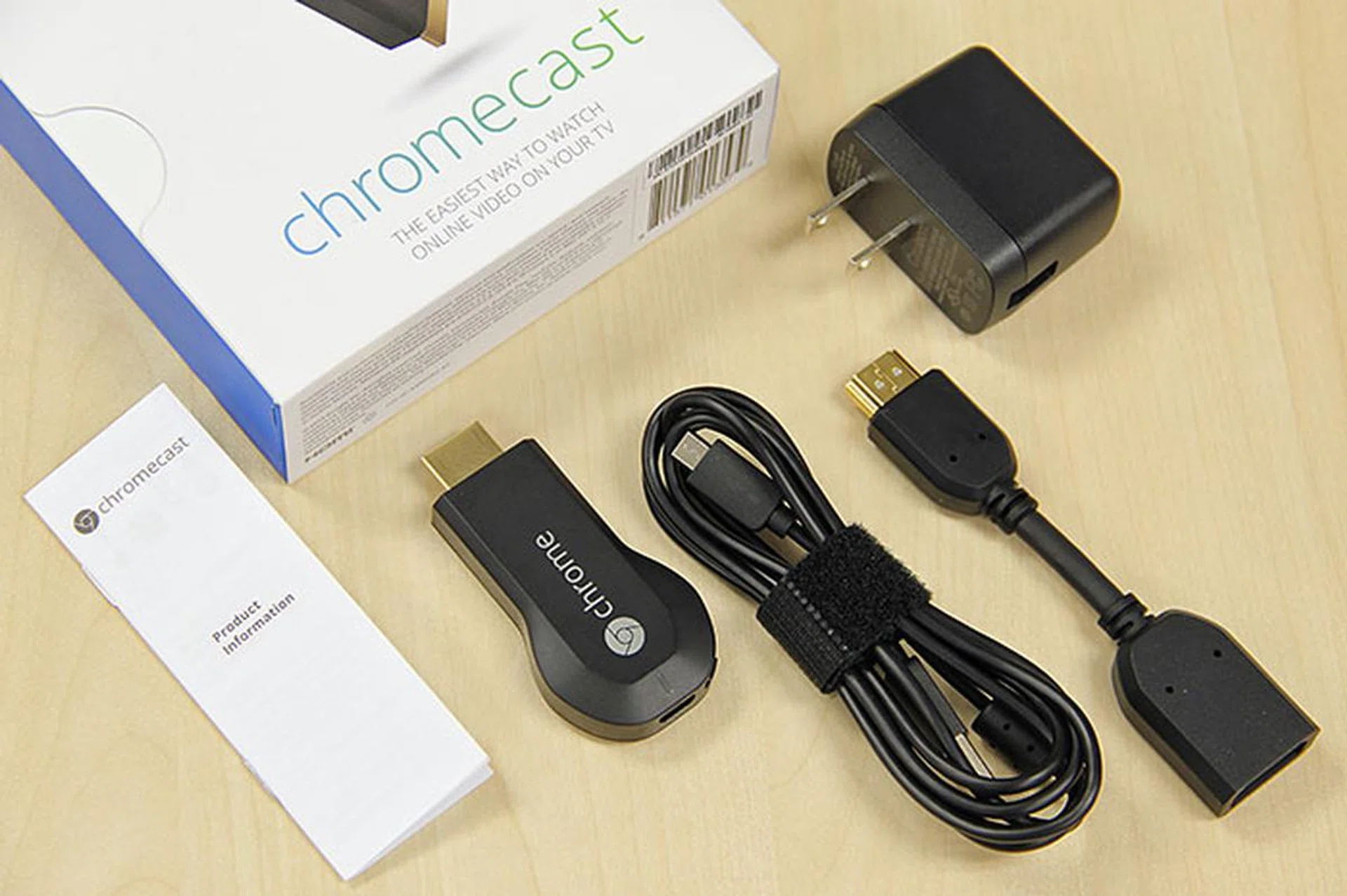
Most of the accessories that come with the Chromecast are longer than the stick itself. They include a fairly long micro-USB-to-USB cable, a short HDMI extension cable (just in case the area around your TV's HDMI port doesn't have enough clearance), and a USB power adapter.
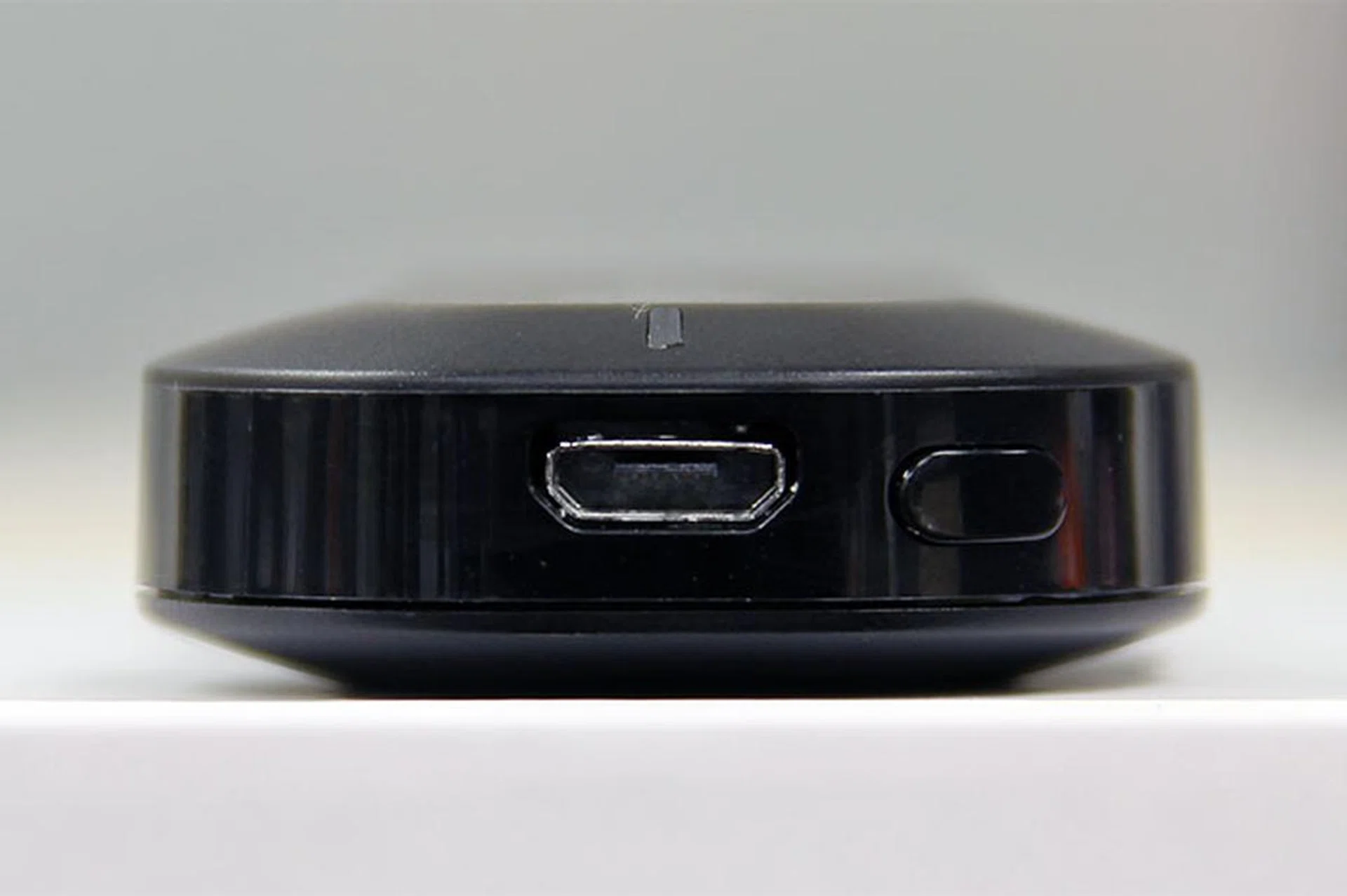
At one end of the Chromecast stick lie the micro-USB port and a physical button that can be used for resetting the device.
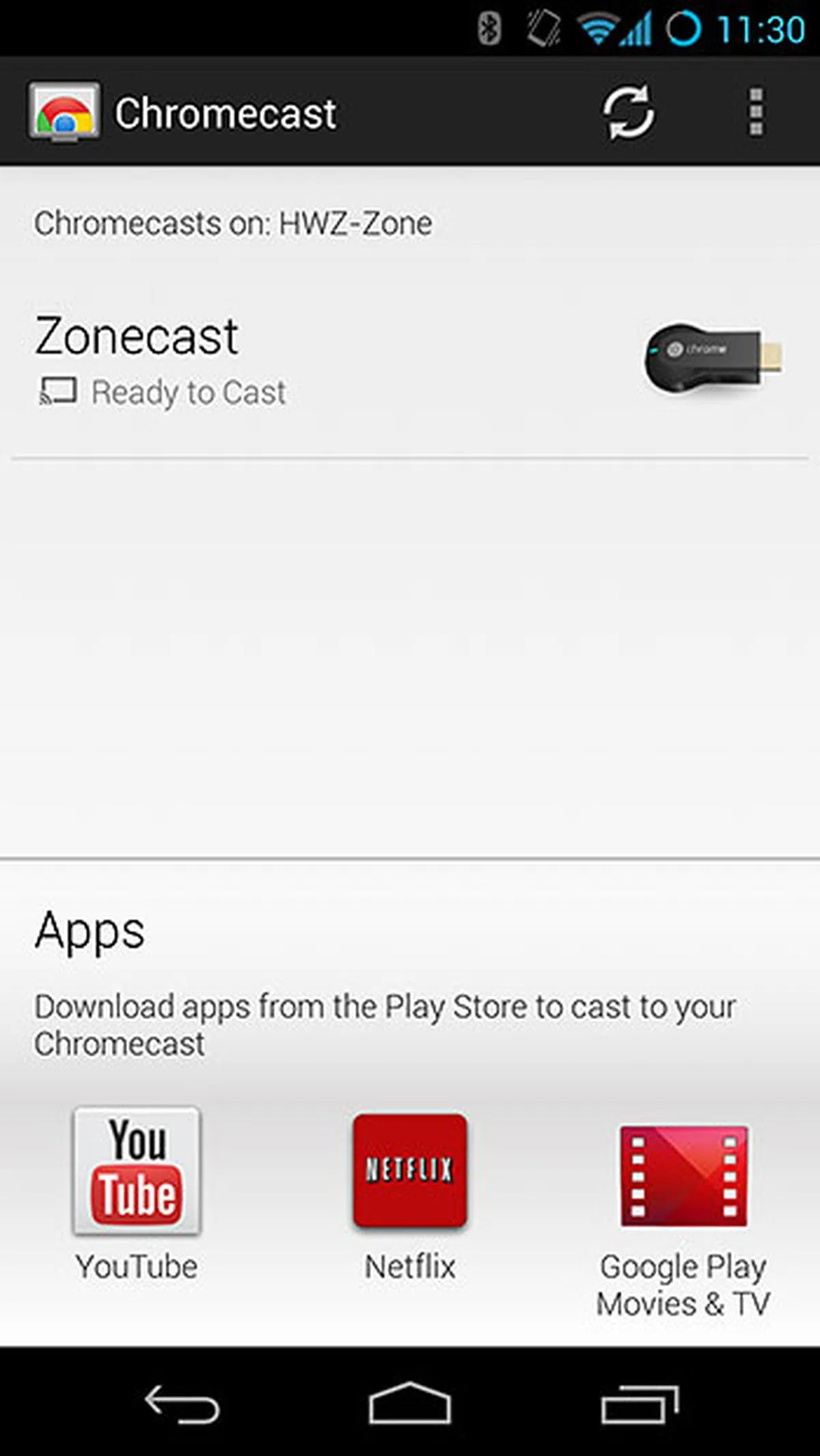
Once the Chromecast is plugged in, it’s time to get it onto your Wi-Fi network (oh, only 2.4GHz networks are supported). This is done via a setup app that’s available for Android, Windows, and Mac. You’ll know where to download this app, since the URL is plastered on the flap of the Chromecast’s packaging box, as well as on the TV screen after you plugged in the dongle.
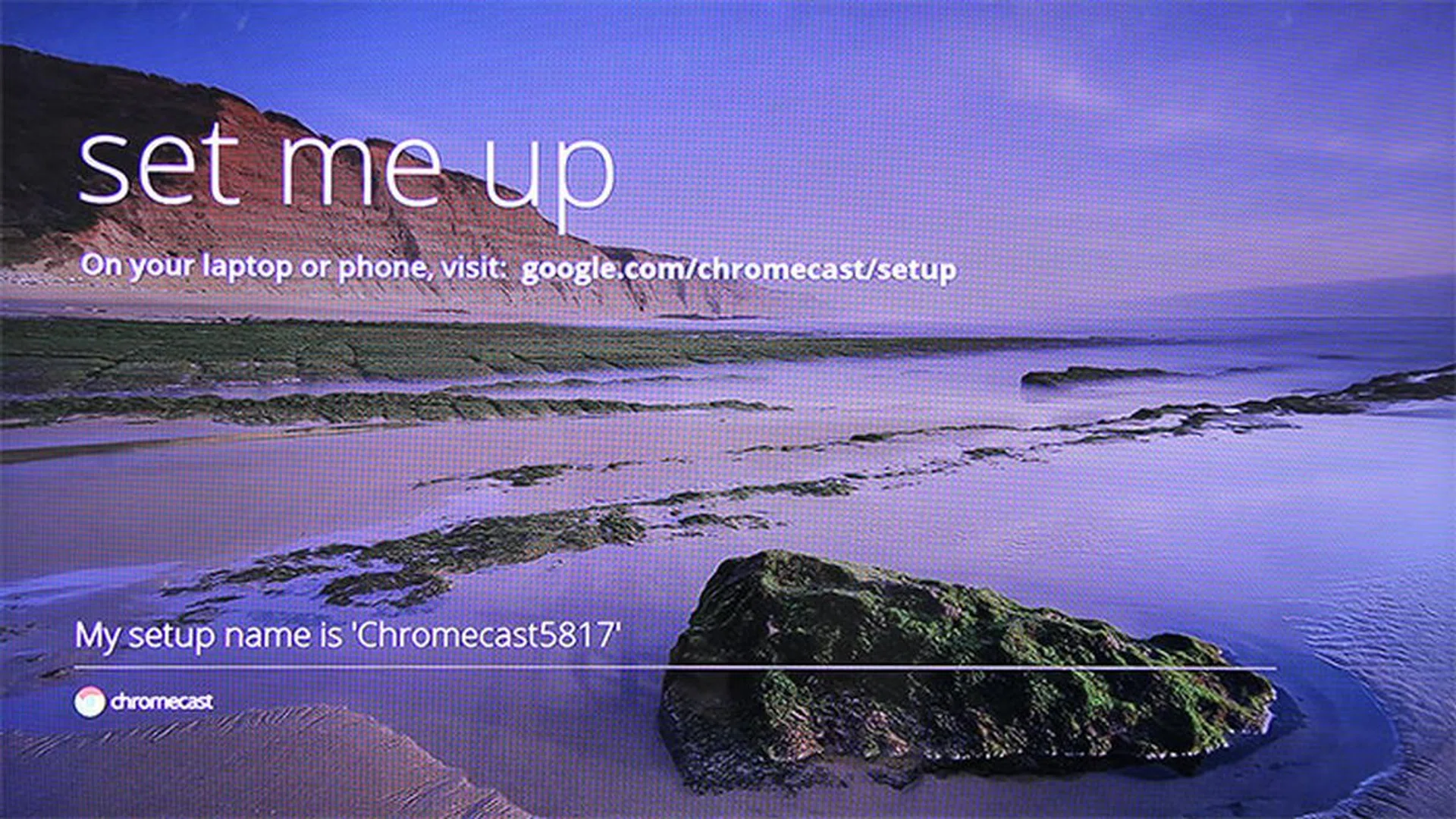
Don't know what to do after plugging in and powering up the Chromecast? Don't worry, it'll remind you.
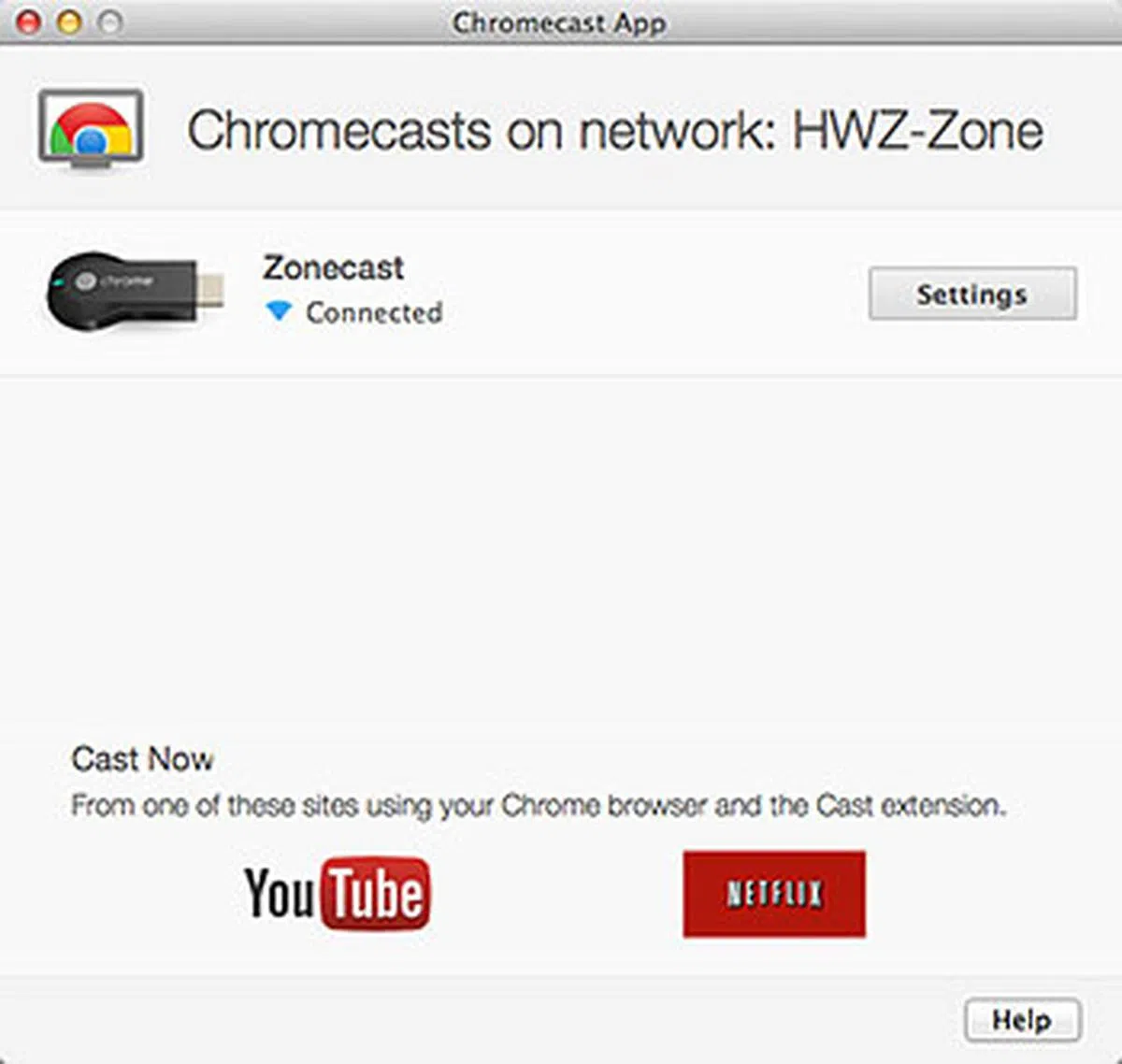
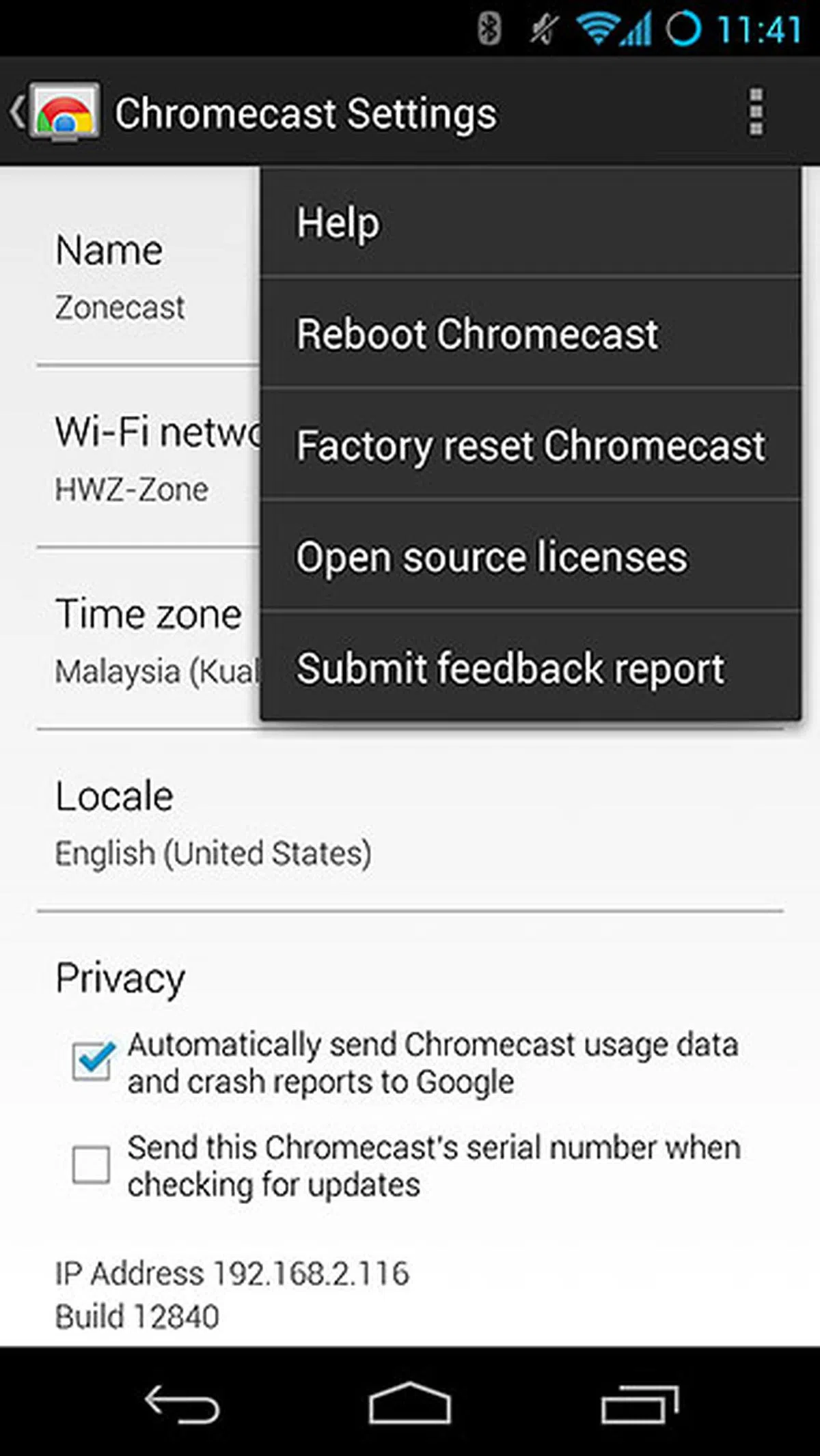
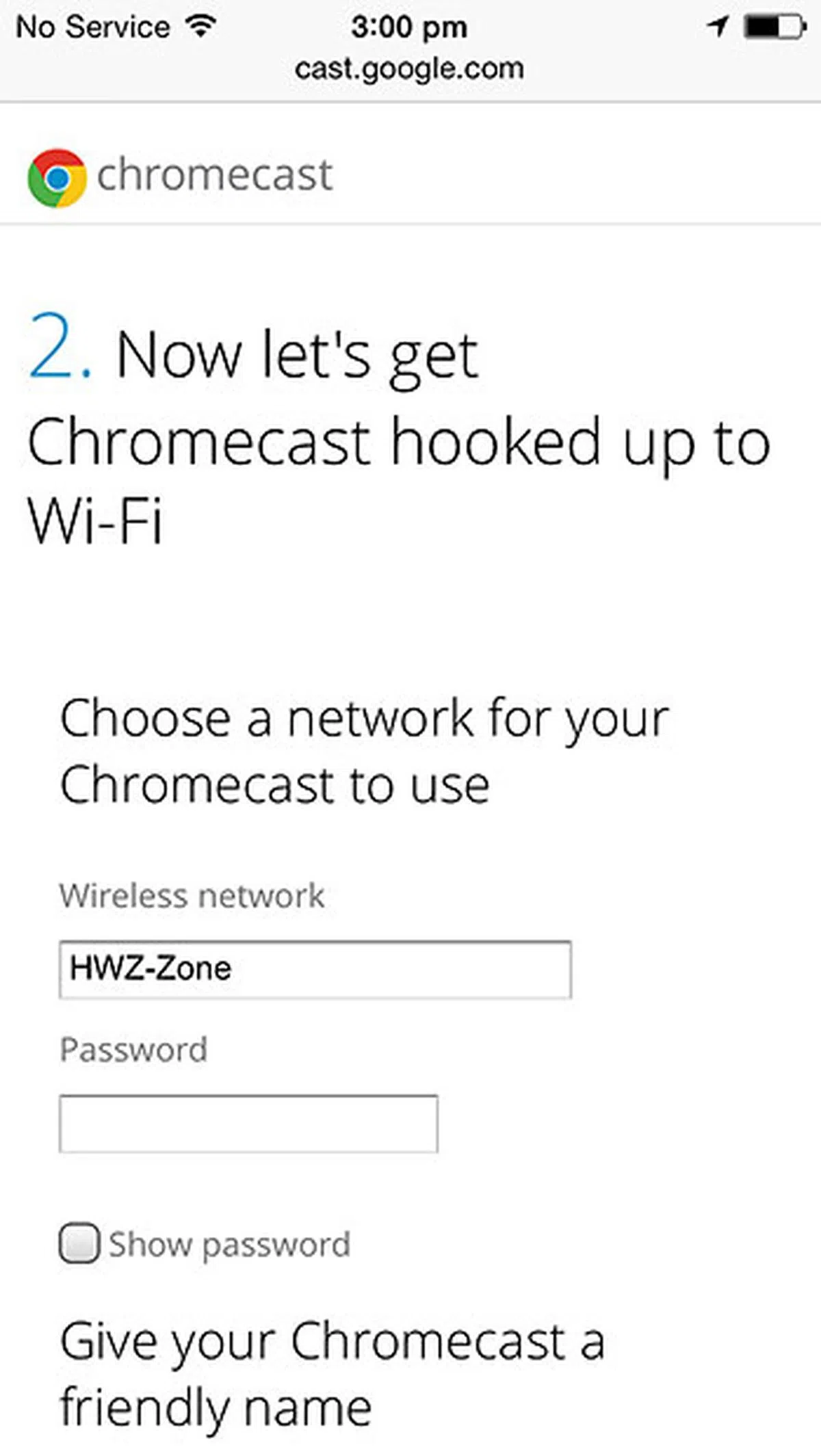
In essence, the Chromecast will initially create its own wireless network, and the app will find it and join it automatically. Through the app, you then select the wireless network Chromecast should join, and enter the credentials. You can also give a new name to Chromecast. Once everything is properly configured, your device will join back the network it was connected to previously, and the Chromecast will connect to the network you’ve selected.
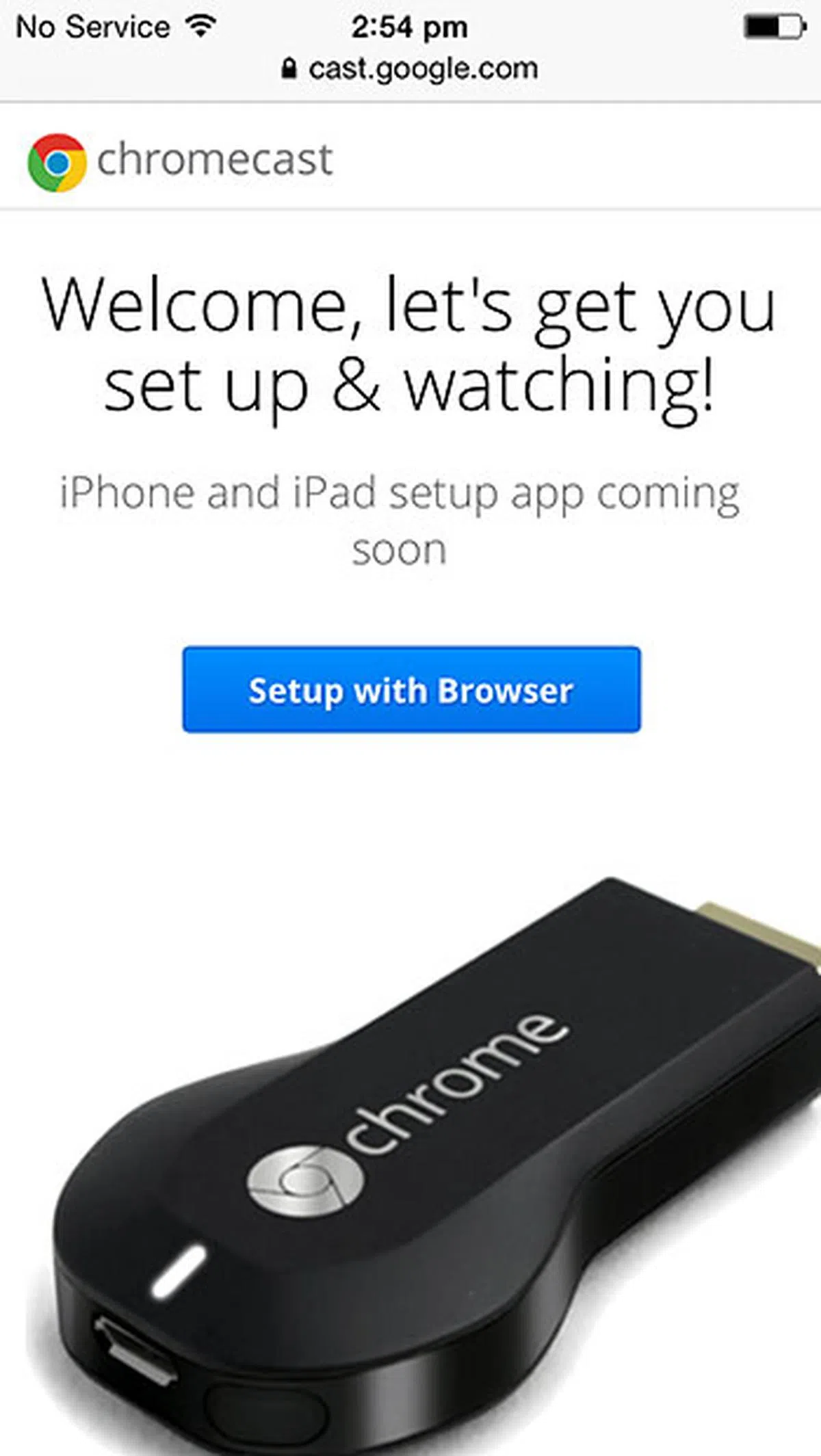
Those paying attention will realize that we didn’t mention iOS support above. To be clear, Chromecast supports iPhones, iPads, and iPods running at least iOS 6 - just that at the moment, there isn’t an iPhone or iPad setup app yet. So setup has to be done through mobile Safari. The steps are roughly the same, with the exception that you’ve to connect the iOS device to the Chromecast network at the beginning, and then change back towards the end manually. Also, without an app, it can be inconvenient should you wish to change the network, rename Chromecast, or remote reboot/reset it down the road. (Update (August 28, 2013): Google has released the iOS app on the App Store.)
There's also another problem for Android users - more specifically, Android users outside of the U.S. Because Chromecast isn't available in other regions, you won't be able to download the Chromecast app from your country's Google Play Store. The easiest workaround is to find the APK file and install it manually on your device; and we've found plenty of caring U.S. Android users who have shared that file online.
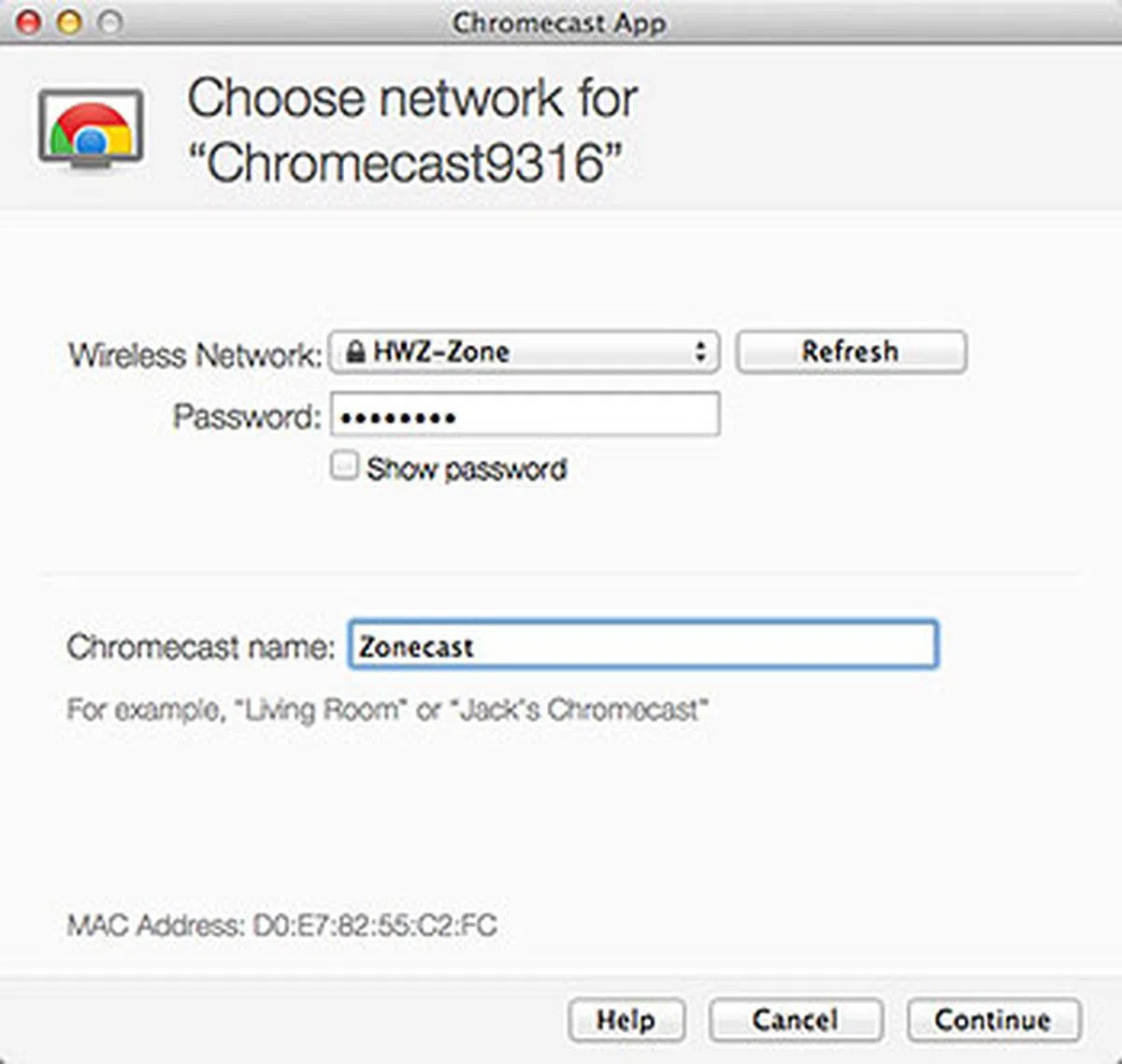 |  |
 |  |
 |  |
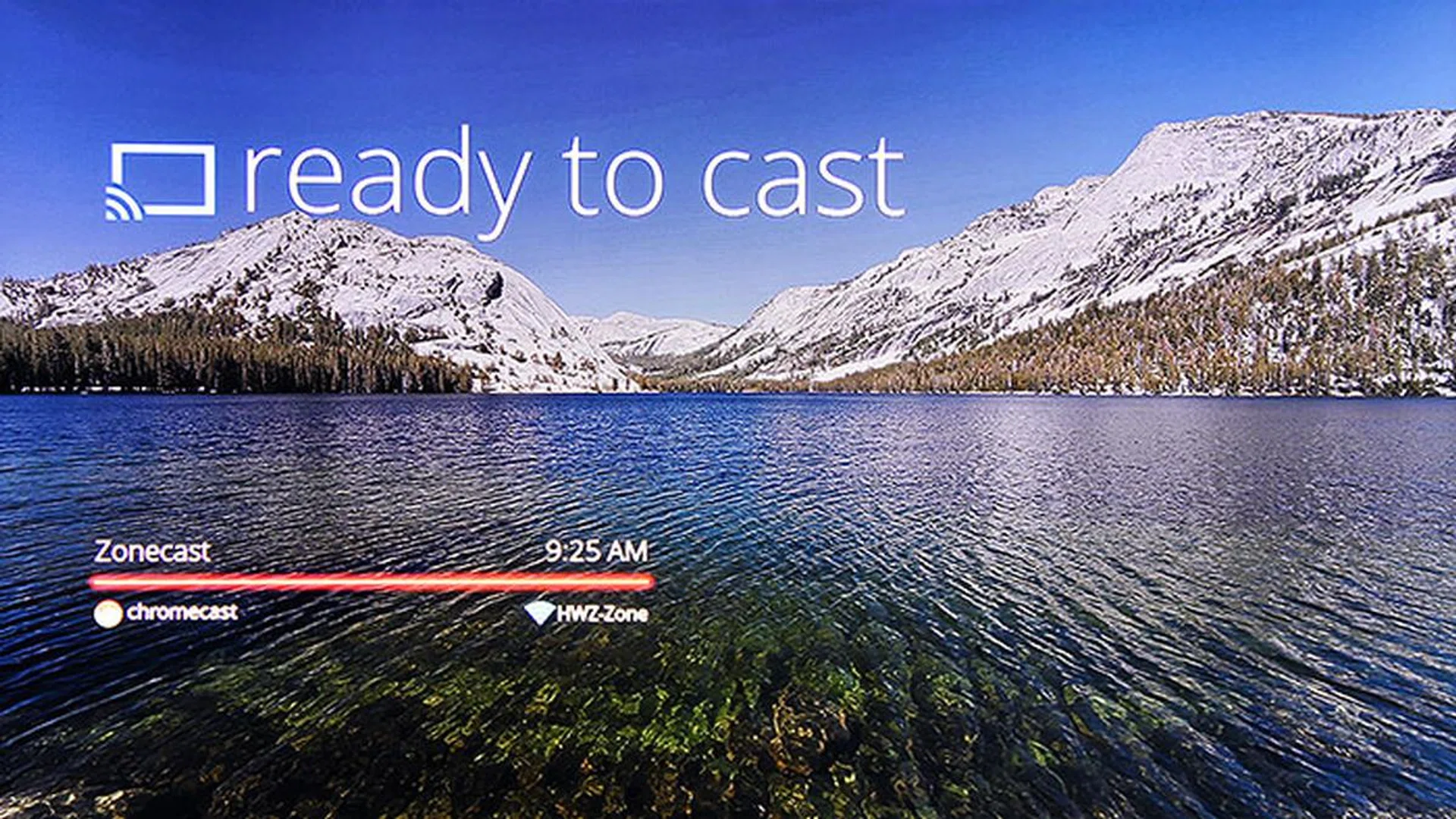
When you see this screen, you're ready to rock and roll. Just for your info, there are 11 beautiful wallpapers that the Chromecast will cycle through automatically.
Cast from Chrome
There are two ways Chromecast can ‘cast’ content to your TV. One is to cast from the desktop through the Chrome browser. If you set up Chromecast using the desktop setup app, you’ll be asked to download and install a Google Cast extension; else, you can install it manually from the Chrome Web Store. When this extension is installed, you will see a Cast icon in the Chrome toolbar (near the top right).
Casting a Chrome Browser Tab
Even in Chrome, there are a couple of ways to cast the content. First up, you can cast a tab. As the name implies, this lets you cast whatever that’s in a browser tab (less the toolbar), including audio, to your TV (think Micacast or AirPlay Mirroring, but for Chrome tabs). And it even attempts to follow the size of your browser window. Of course, you can only cast one tab at any one time; to cast another tab, just go to that tab, hit the Cast icon, and click ‘Cast this tab’. According to Google, most web content can be cast, with the exception of content that relies on plug-ins such as Silverlight or QuickTime. But surprisingly, Flash videos worked well during our tests, and we could even use their video player controls to blow them up full screen.
For the most part, tab casting worked really well, and that's despite it being a beta feature. There was usually a 2 to 3-second gap between us hitting the 'Cast this tab' button and the image appearing on the TV, but we already expected that. There was also the occasional artifacting, especially for moving images.
(To sidetrack a bit, Google has posted the minimum desktop system requirements, and it’s worth noting that casting a tab isn’t supported on Windows XP and Linux.)
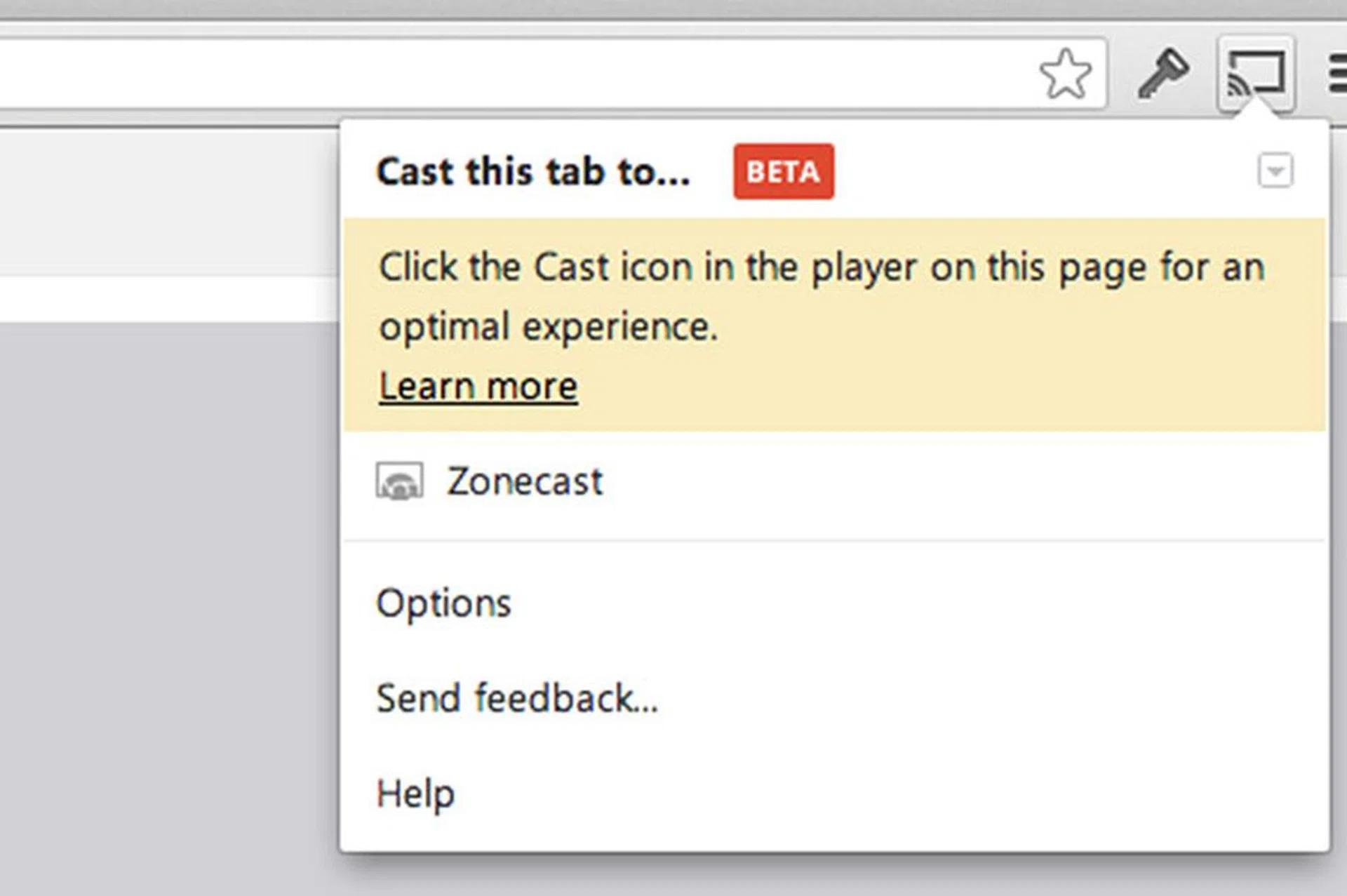
The ability to cast a Chrome tab opens up a wealth of content you can now stream to the TV. If you're on a Cast-optimized site, the extension will remind you to use the controls in the player instead.
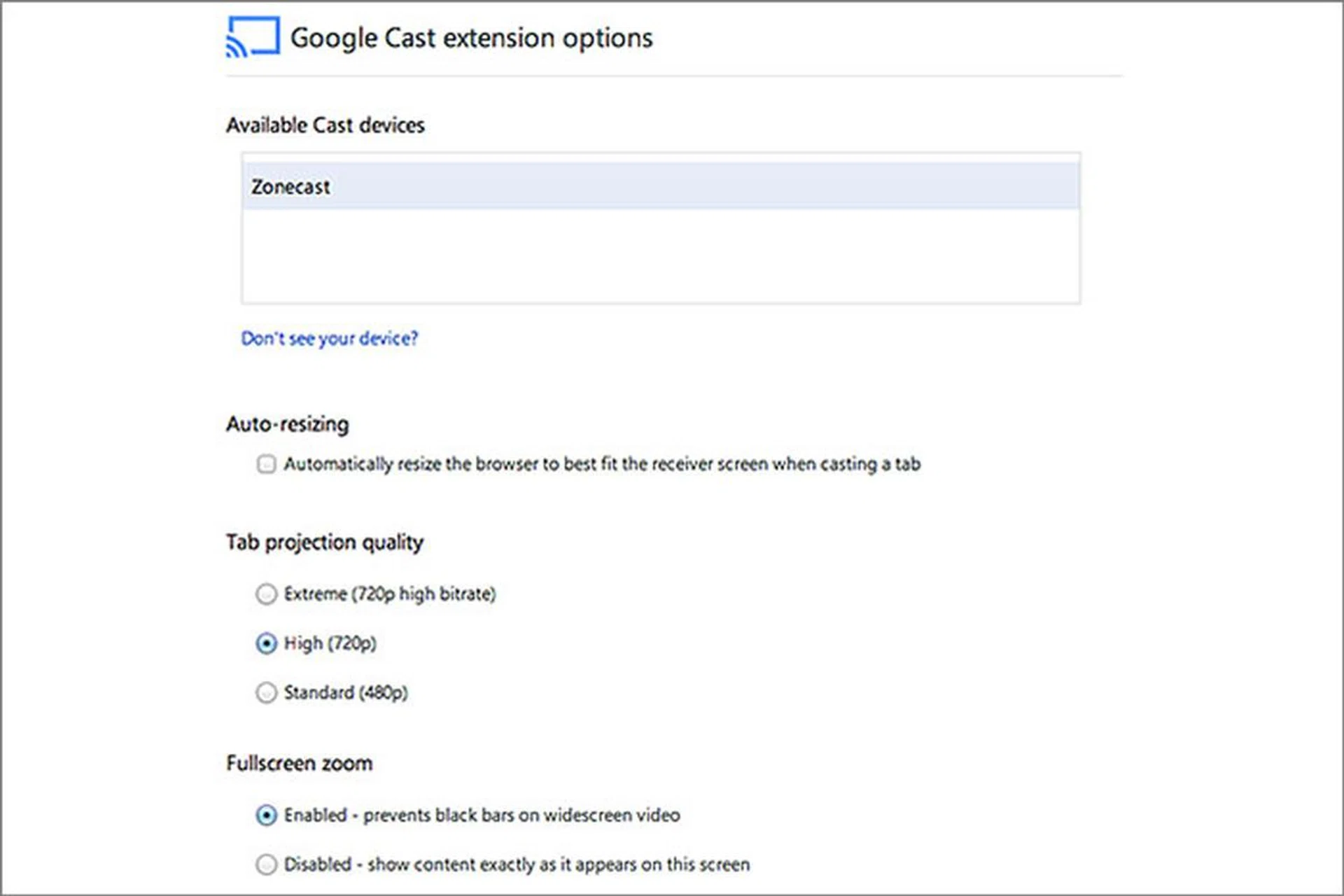
The Cast extension options allow you to adjust tab projection quality among other things. The highest quality is the 'Extreme' 720p high bitrate (about 5Mbps) mode. The Chromecast hardware is capable of VP8 and H.264 decoding.
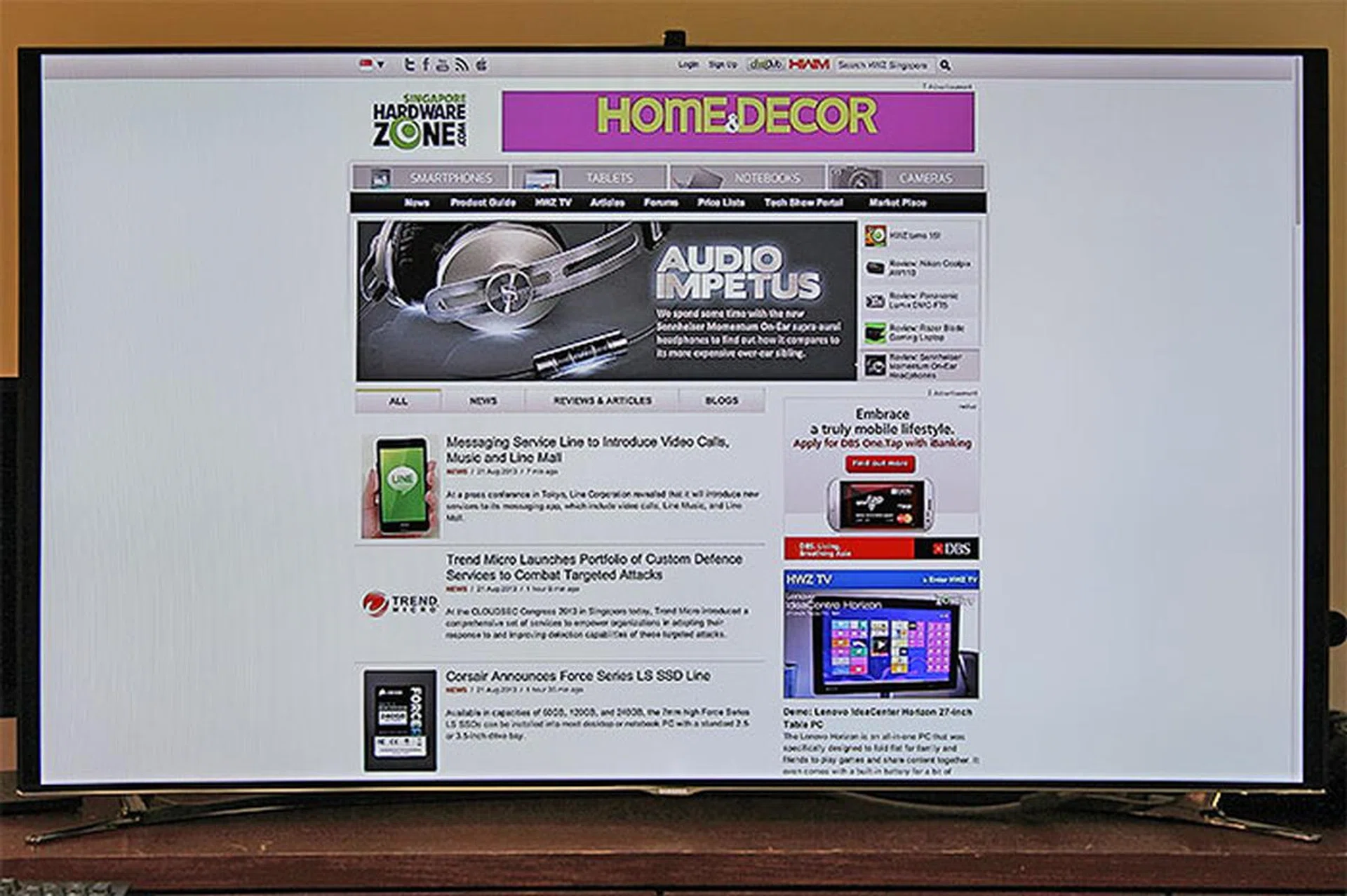
An obligatory picture of tab casting in action. Still images worked brilliantly most of the time; motion images sometimes displayed artifacts.
Using Cast-optimized Sites
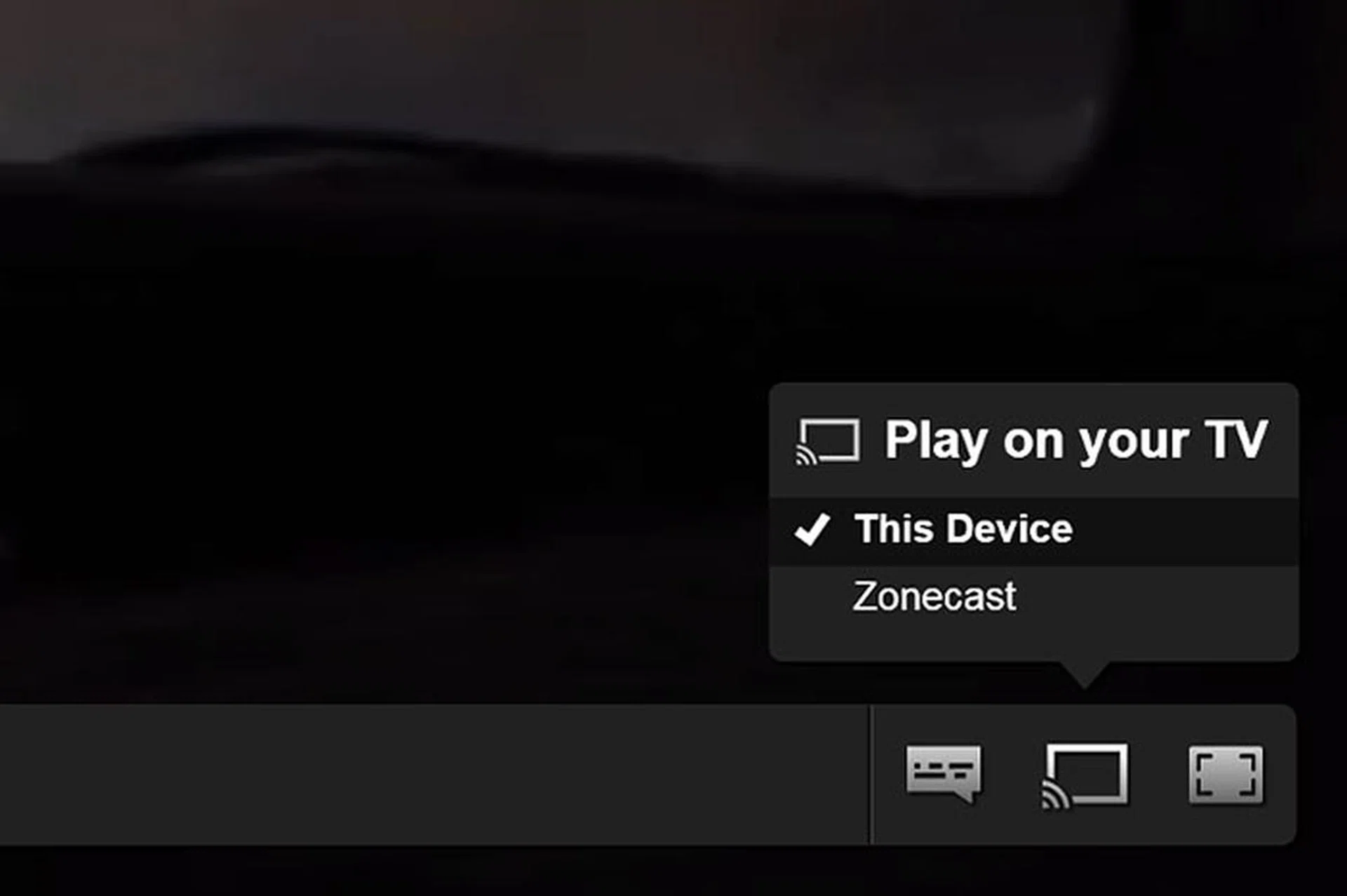
There’s in fact an even better way to cast from the desktop, and that’s to visit sites that are optimized for Chromecast, such as YouTube and Netflix. For example, on YouTube, the Cast extension will add a Cast button on the YouTube player. Hit it, and select the desired device (in this case, the Chromecast) to play the video on. Unlike casting a tab, this method shows only the video on the TV. The computer will now act as the remote control, and you can scrub through playback and adjust volume.
The same goes for Netflix on the desktop: you can use the Netflix video player controls for scrubbing and changing subtitles. But here’s a quick reminder: since Netflix isn’t available in Singapore, you’ll need a VPN service in addition to a Netflix account.

On Cast-optimized sites like YouTube, you will find a Cast button on the video player (bottom right hand corner).
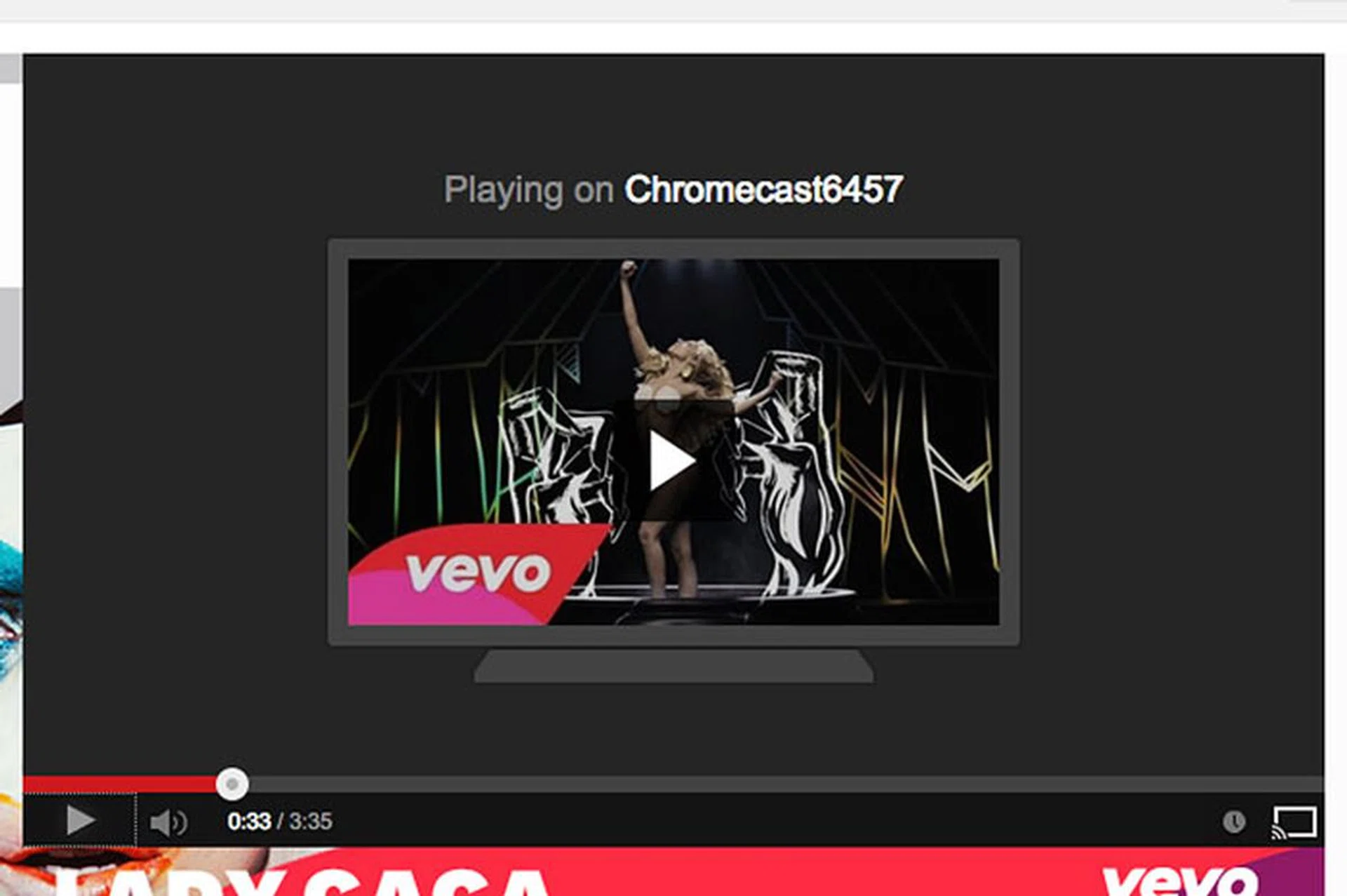
For Cast-optimized content, playback is done directly on the Chromecast.
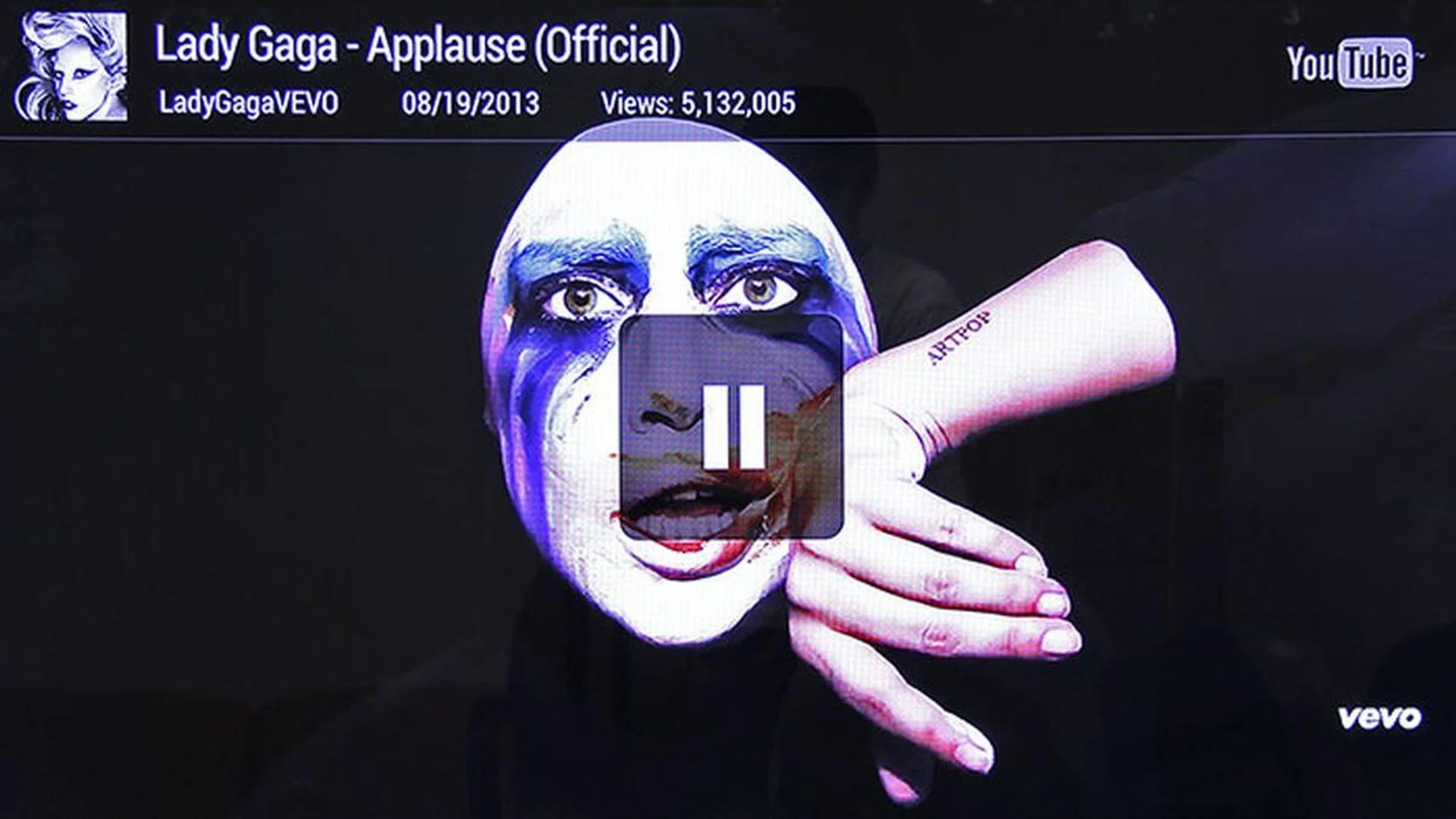
Video is played in full screen mode on the TV.
The same goes for Netflix. In short, when you see a Cast button on the video player's controls, use it.
Now, there are other advantages to using the controls on Cast-optimized sites. For one, they serve out up to a resolution of 1080p; and in some cases, 5.1-channel surround sound. When you cast a tab, you’re limited to 720p. Also, the content plays directly on Chromecast, as opposed to your computer doing all the hard work, which is the case when you’re casting a tab. In our experience, despite the higher resolution, Cast-optimized sites gave us less dropped frames than tab casting. The performance of the latter especially hinges on the raw power of your machine as well as network performance. For example, on our 2GHz Intel Core i7 (Ivy Bridge) MacBook Air hooked up to a wireless-N network, we still occasionally got performance warnings.
That said, while optimized playback from a Cast-supported site is the preferred mode, at this point in time, you only have YouTube and Netflix. (Strangely, desktop casting for Google Play Movies & TV and Google Play Music isn’t supported, but we think it’s only a matter of time.) So until Google convinces more services to be Cast-optimized, we reckon the majority of users would be casting tabs most of the time.
Cast from Apps
The other way (and it’s the simpler way too) to cast content is to do it through apps on your smartphones or tablets. Currently, Cast-supported mobile apps include YouTube, Netflix, Google Play Movies & TV, and Google Play Music, with Pandora coming soon. Using them is just like how you’d with Cast-optimized sites: find the content, and then hit the Cast button. Similarly, your mobile device now becomes the remote control, where you scrub the playback, adjust volume, and the like. In our experience, video playback wasn't instantaneous; we usually had to wait about 10 seconds (sometimes longer) after hitting the Cast button.
For YouTube (the latest update for Android and iOS is stupendous by the way, bringing a new UI and in-app multi-tasking), Netflix, and Google Play Movies & TV apps, we like that we could use our mobile device to do other things while the video was playing (multi-tasking for the win!). As these services use adaptive bitrate streaming, videos may appear low-res at the beginning, but will quickly switch to the highest possible quality after a short while. Google Play Music also worked as expected, letting us cast songs from the app to the TV. Adding new videos to a queue in YouTube is also possible.
A couple more things stood out for us: remote swapping and resume playback. For example, when we initiated a cast from our Android smartphone, we could pick up an iPhone and use it as the remote control. Also, we were able to bring the video playback from the TV back to the phone. (In other words, you can continue to watch a video when you move from the living room to the bathroom.) But more often than not, it was a hit-and-miss affair getting both features to work the way we intended. For remote swapping, we got a higher rate of success when we picked up the second device, opened the app, went to the same video, and then hit the Cast button. This allowed the current playback time to be synced between the devices. For resume playback, there were several occasions when we resumed playback on the phone, the playback on the TV stopped (even though the other phone was still casting it). And this happened more on the iOS YouTube app than the Android version. And as you may have guessed by now, as long as a device is on the same Wi-Fi network as the Chromecast, it can cast to it. This can be great fun if you're trying to troll your friends or family members, but not so much if it's your video that's being suddenly interrupted.
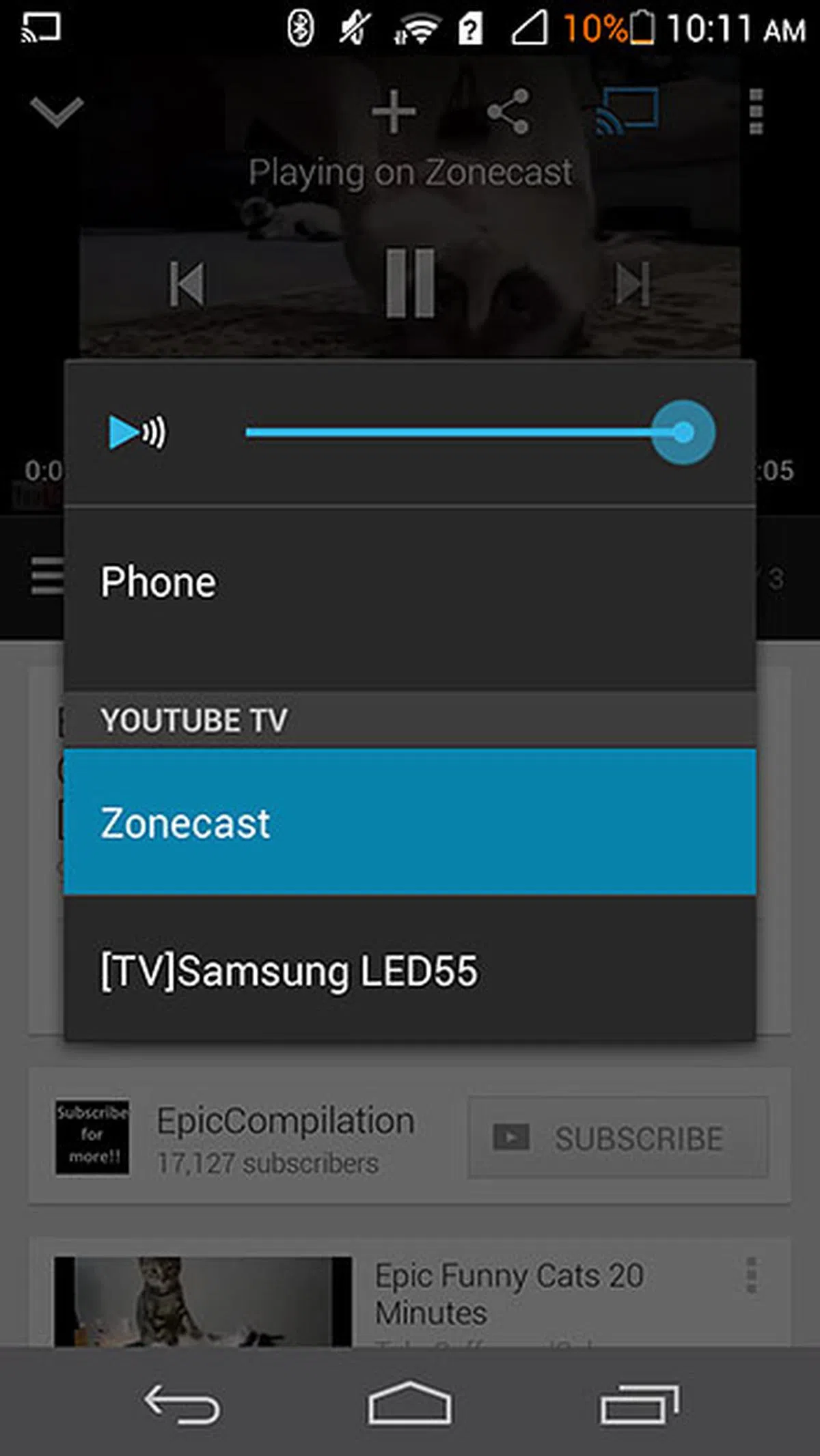 | 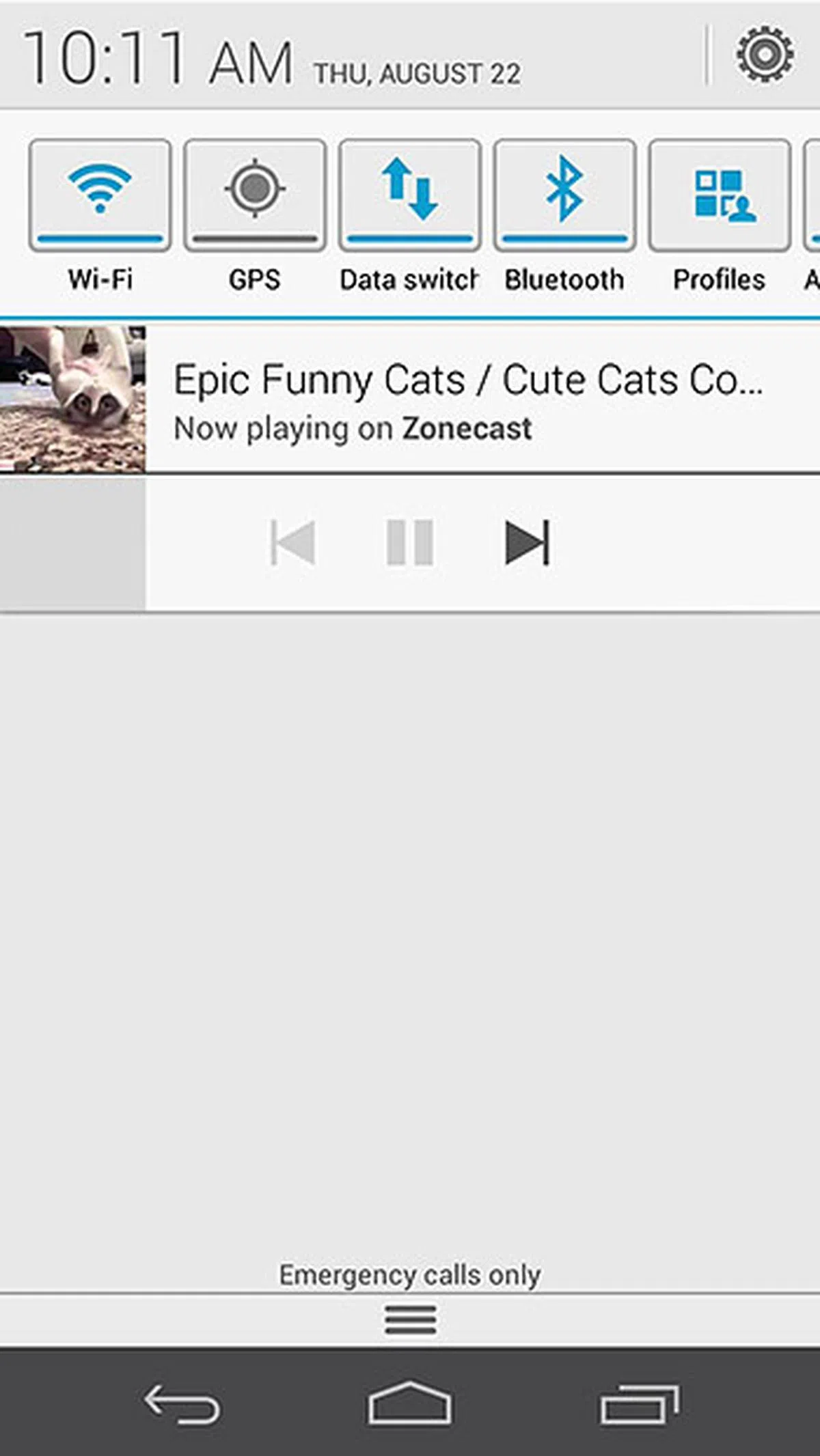 |
All in all, if you’re an Android user that uses Google’s Play services a lot, or one that spends a lot of time watching Netflix, the Chromecast is a god-send. For iOS users though, the Google Play Movies & TV and Google Play Music apps aren’t available on the iOS App Store. Yes, it’s a bummer, but let’s face it: if you’ve gotten your favorite movies and music from the iTunes Store, and are a subscriber of iTunes Match, you should probably be eyeing the Apple TV set-top box instead of the Chromecast.
And in case you’re wondering, no, you can’t cast a tab from Chrome on Android or iOS (yet).
Like web-based services, Google has to convince app developers to add Google Cast support to their apps. Pandora support is coming soon, but we might have to wait quite a while for Spotify, Hulu, and Vimeo to come onboard.
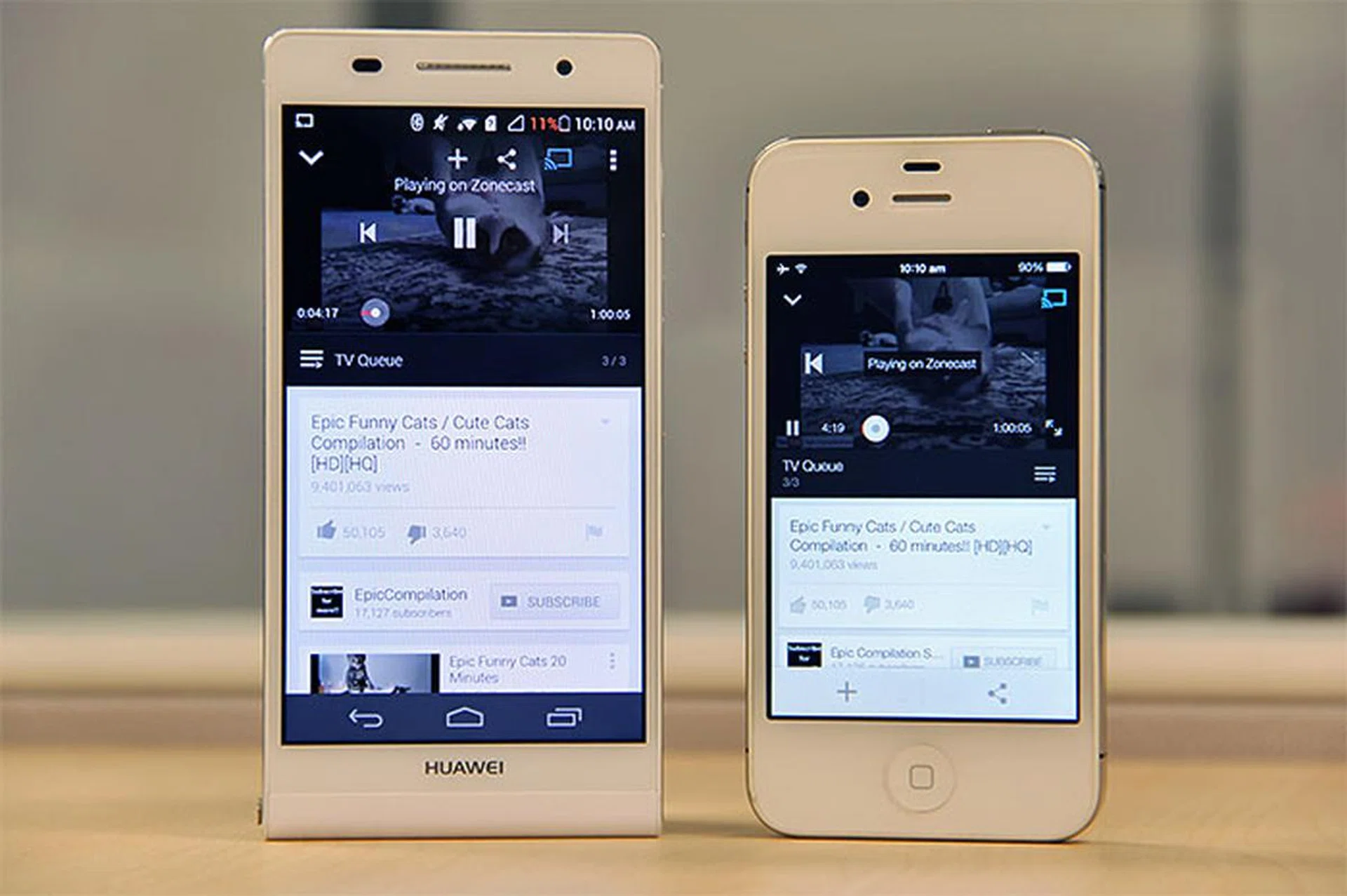
Remote control swapping is also possible. In other words, you can initiate a cast from one device, and then pick up another device to use it as the remote.
Chromecast: The Best US$35 an Android User Can Spend On
The Chromecast is the first receiver device that uses Google’s Cast screen-sharing technology, and frankly, it’s a winner. According to Google, it’s supposed to run a scaled-down version of Chrome OS, but a team of hackers discovered that at its core, the Chromecast actually runs Android. Regardless, the dongle is small and easy to use, and goes far in fulfilling Google’s claim that it’s the easiest way to get online content on your TV.
Image quality-wise, its best showing came when we were on Cast-optimized sites, or casting from mobile apps. 1080p videos from Netflix especially looked absolutely stunning. The idea of content moving from cloud to Chromecast directly (instead of the desktops and mobile devices doing the heavy lifting) is really clever; hopefully, this can be expanded to more non-Google-owned services. For all things outside of YouTube, Netflix, and Google Play, there’s always tab casting. In fact, as long as the Chrome browser can play it (even local files you drag into Chrome), you can cast it to the TV. Developers (and hackers) are hard at work too. Just the past weekend, Koushik Dutta, a ClockworkMod developer, released AirCast for Android, which lets Chromecast users stream any video from the Android device’s gallery, Dropbox, or Google Drive to the dongle.
Rough edges in the tab casting feature and finicky USB power requirement aside, at the end of the day, the Chromecast is an easy recommendation for what it’s capable of and its potential, and even more so considering its US$35 price tag (if you managed to snag one during the Netflix promotion, lucky you). Furthermore, we can imagine that for many people, the ability to send a browser tab to a TV or projector is worth the price already. Sure, the Chromecast isn’t for everybody. iOS users will feel the most hard done by, no thanks to the lack of app support on Apple’s mobile platform. But if more app developers come onboard, this frustration could be in the short term.
The Google Chromecast retails for US$35 and is available from the U.S. Google Play Store or online merchants like Amazon. It supports Android (2.3 and above), iOS (6 and above), Windows (7 and above), Mac OS (10.7 and above), and Chrome OS (devices like Chromebook Pixel and Samsung Chromebook).
Our articles may contain affiliate links. If you buy through these links, we may earn a small commission.